






Crash Utilities Full Tutorial for Finding & Fixing Server Lag
Crash Utilities Full Tutorial: Finding & Fixing Minecraft Server Lag
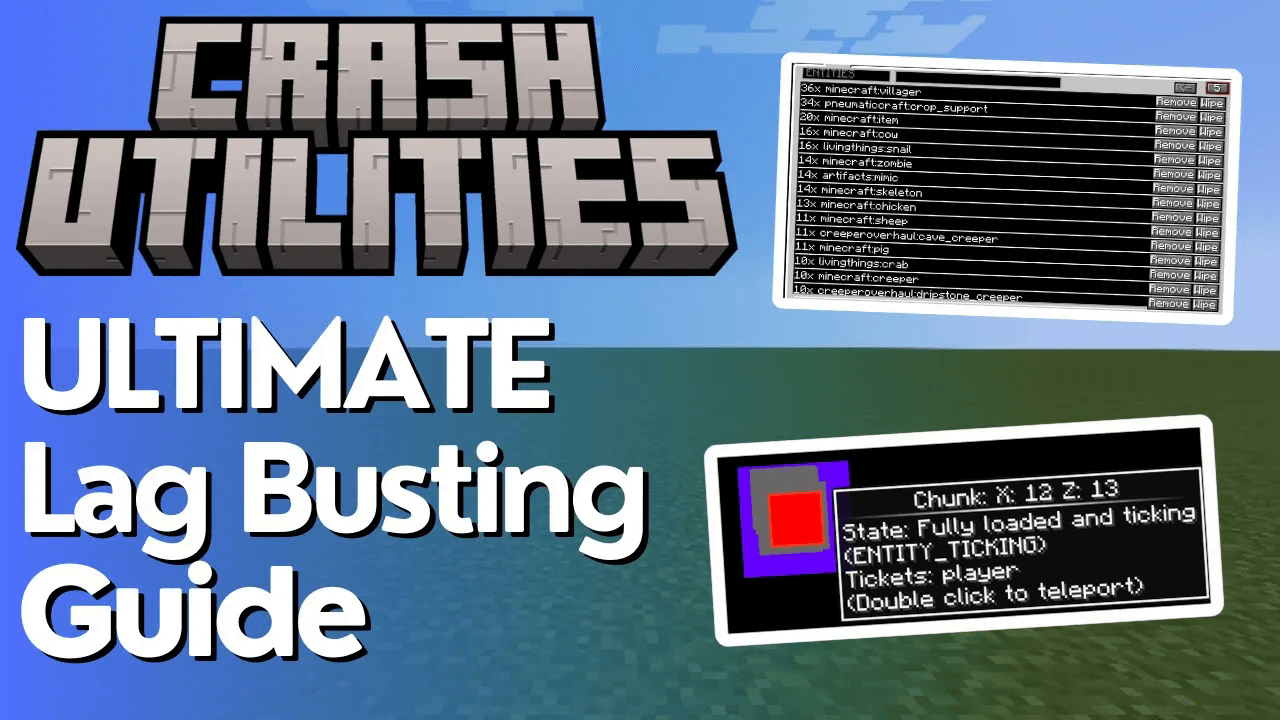
If your modded Minecraft server is crashing or running slowly, the Crash Utilities mod is one of the most powerful tools available to server admins. It gives you a real-time visual overview of loaded chunks, active entities, block entities, and player inventories — all without ever leaving the game. This tutorial walks you through every key feature so you can diagnose and eliminate server lag quickly and confidently.
Opening the Crash Utilities UI In-Game
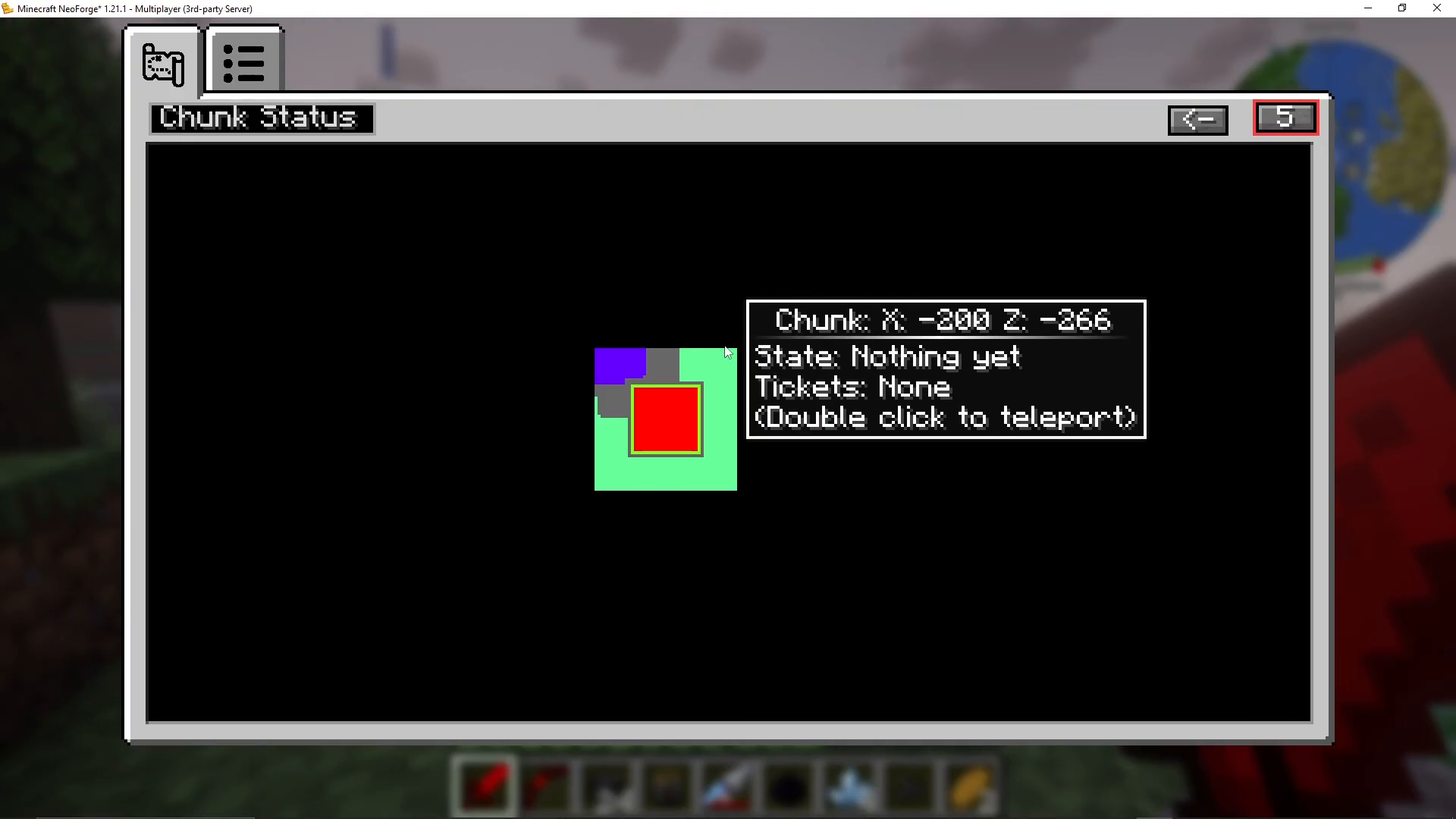
To open the Crash Utilities interface while in-game, press Ctrl + U (U for Umbrella). This brings up the mod’s main UI, which displays a map of all currently ticking chunks on your server.
Understanding Ticking vs. Loaded Chunks
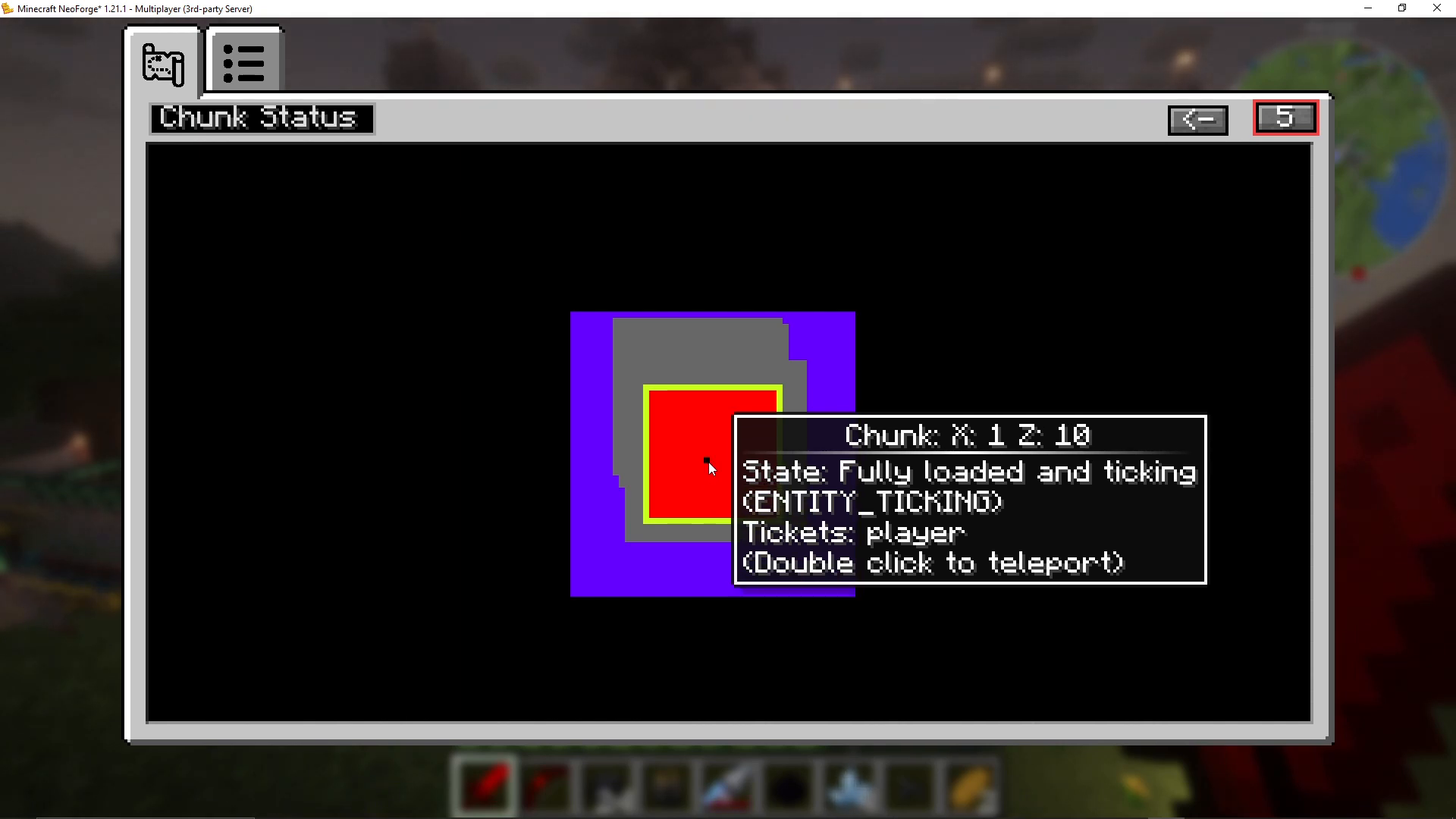
In Minecraft, a chunk being ticking means it is fully active — mobs move, crops grow, and machines run inside it. A chunk that is loaded but not ticking is held in memory but no game logic is being processed there. The Crash Utilities UI colour-codes chunks so you can tell the difference at a glance:
Blue: Prepared for loading (chunk primer stage — not yet fully generated).
Gray: Loaded but not ticking. No mobs, no crop growth, no entity activity.
Green outline: Marks the boundary of a loaded region.
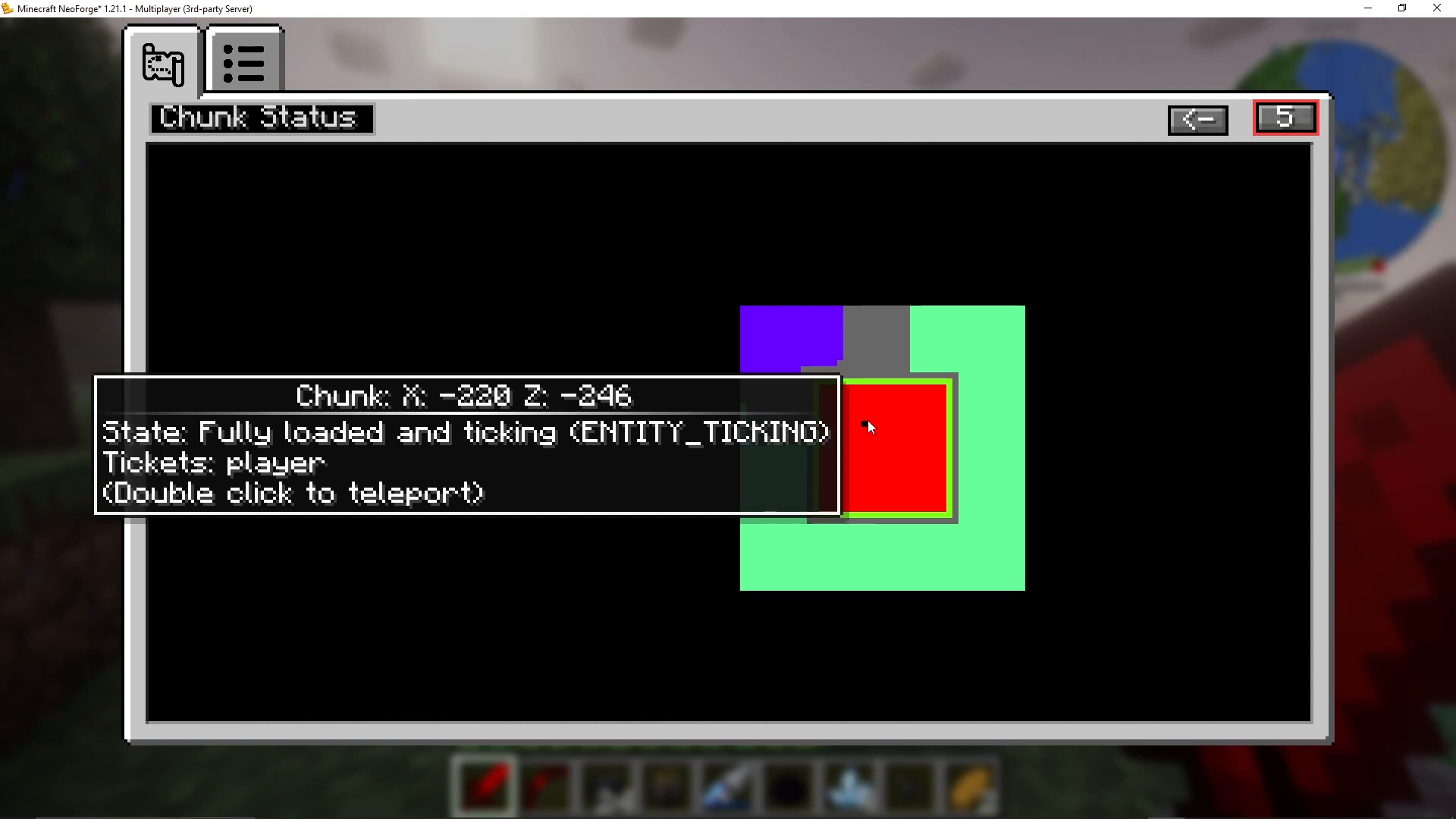
Red: Fully loaded and ticking. The ticket type will show as player.
What Are Tickets?
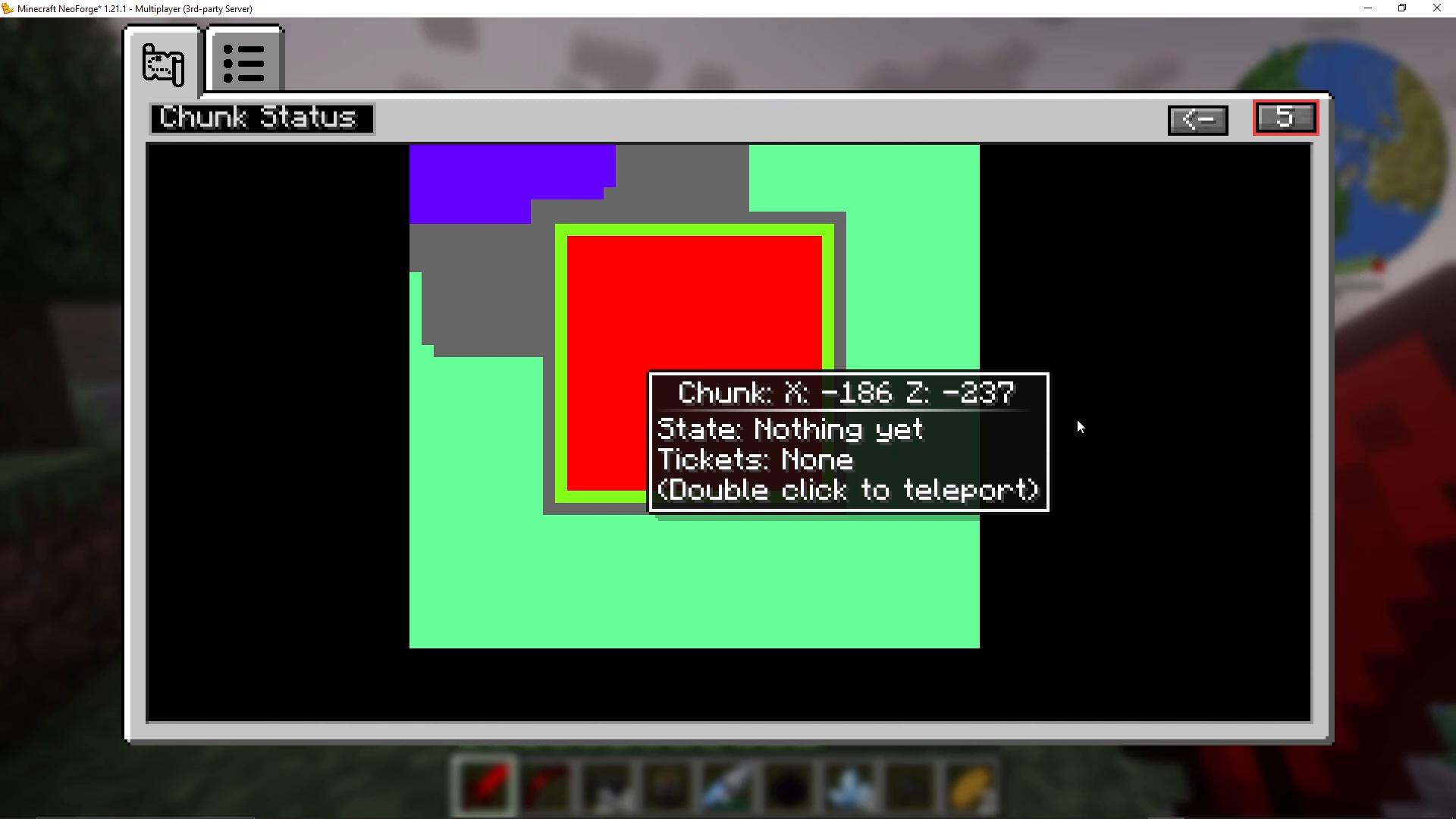
A ticket is a request made to the game engine to keep a chunk loaded. Think of it like opening a support ticket — NeoForge opens a ticket to say “keep this chunk loaded.” You will see ticket sources listed in the UI such as player, NeoForge entity ticking, or tickets originating from mods like Feed the Beast Chunks, which uses NeoForge’s chunk loading system under the hood.
Navigating the Chunk Map
Double-Clicking to Teleport
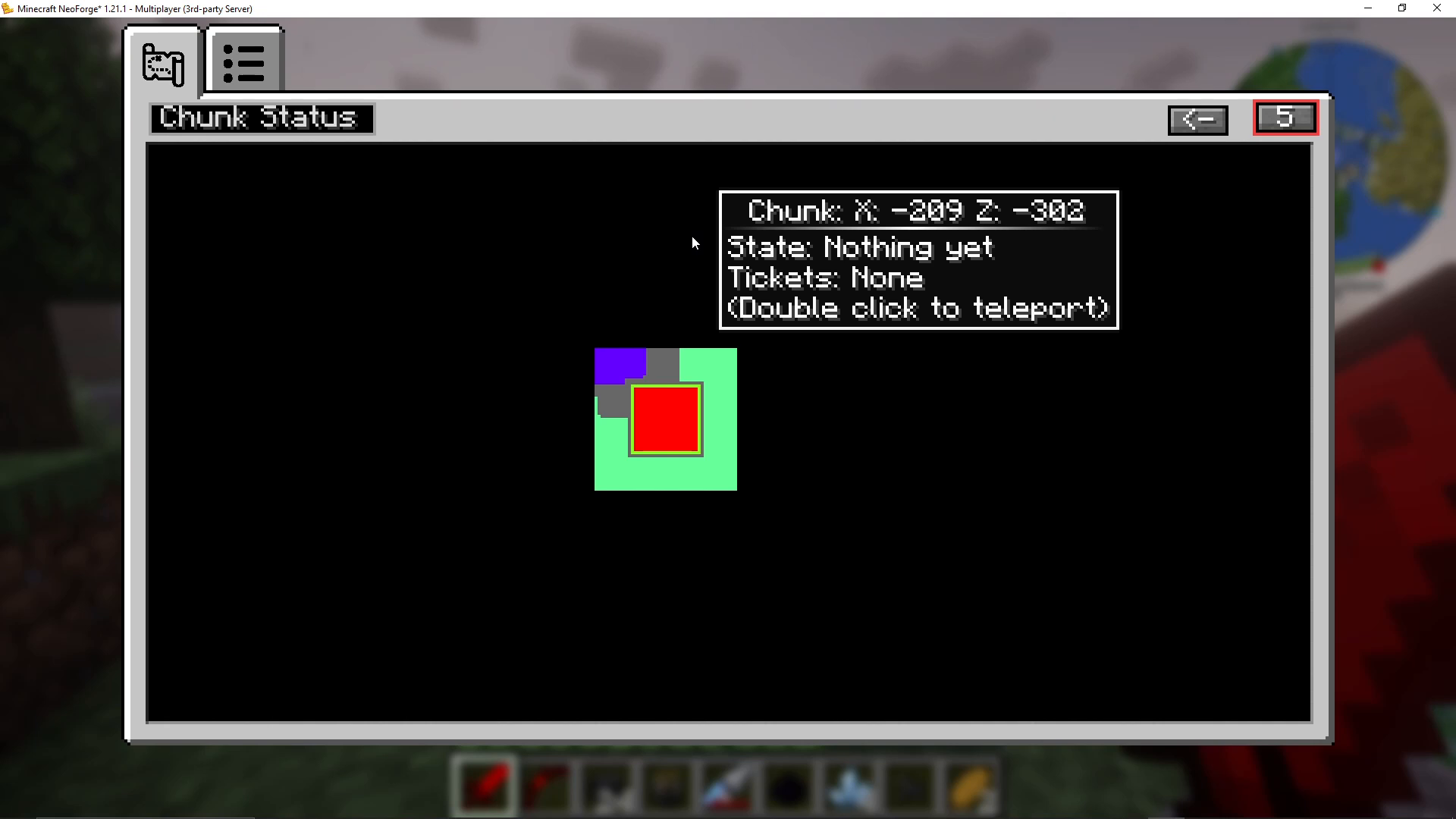
You can double-click any chunk on the map to teleport directly to it. Note that you will need to be in operator mode for this to work. This is extremely useful for investigating suspicious chunks without having to manually navigate thousands of blocks.
Zooming Out to See the Whole Server
The map can be zoomed out to show an enormous area — you can view chunks across roughly 15,000 blocks in a single glance. This lets you spot rogue chunk-loaded areas far from spawn that you may not have known about. Server spawn will always appear as a loaded chunk; this is expected behaviour and cannot be changed.
Identifying Chunk-Loaded Bases
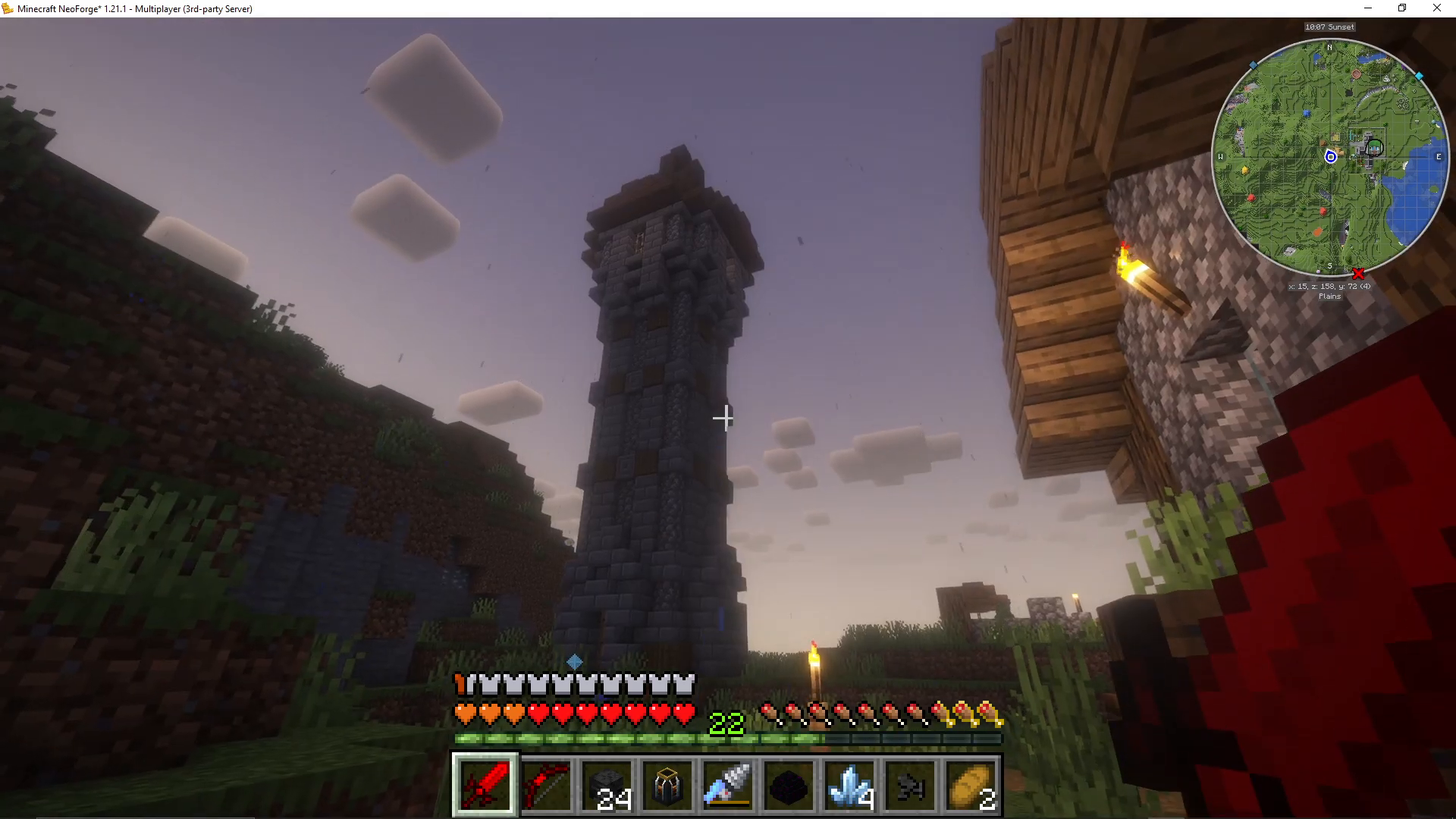
If you see chunks loading far from spawn with a ticket type of NeoForge entity ticking, it is likely that a player has used Feed the Beast Chunks to force-load that area. You can double-click to teleport there and investigate. Pressing Ctrl + U once you arrive will update the UI to reflect your current position and show the active ticket reason for those chunks.
Inspecting Entities, Block Entities, and Tickets
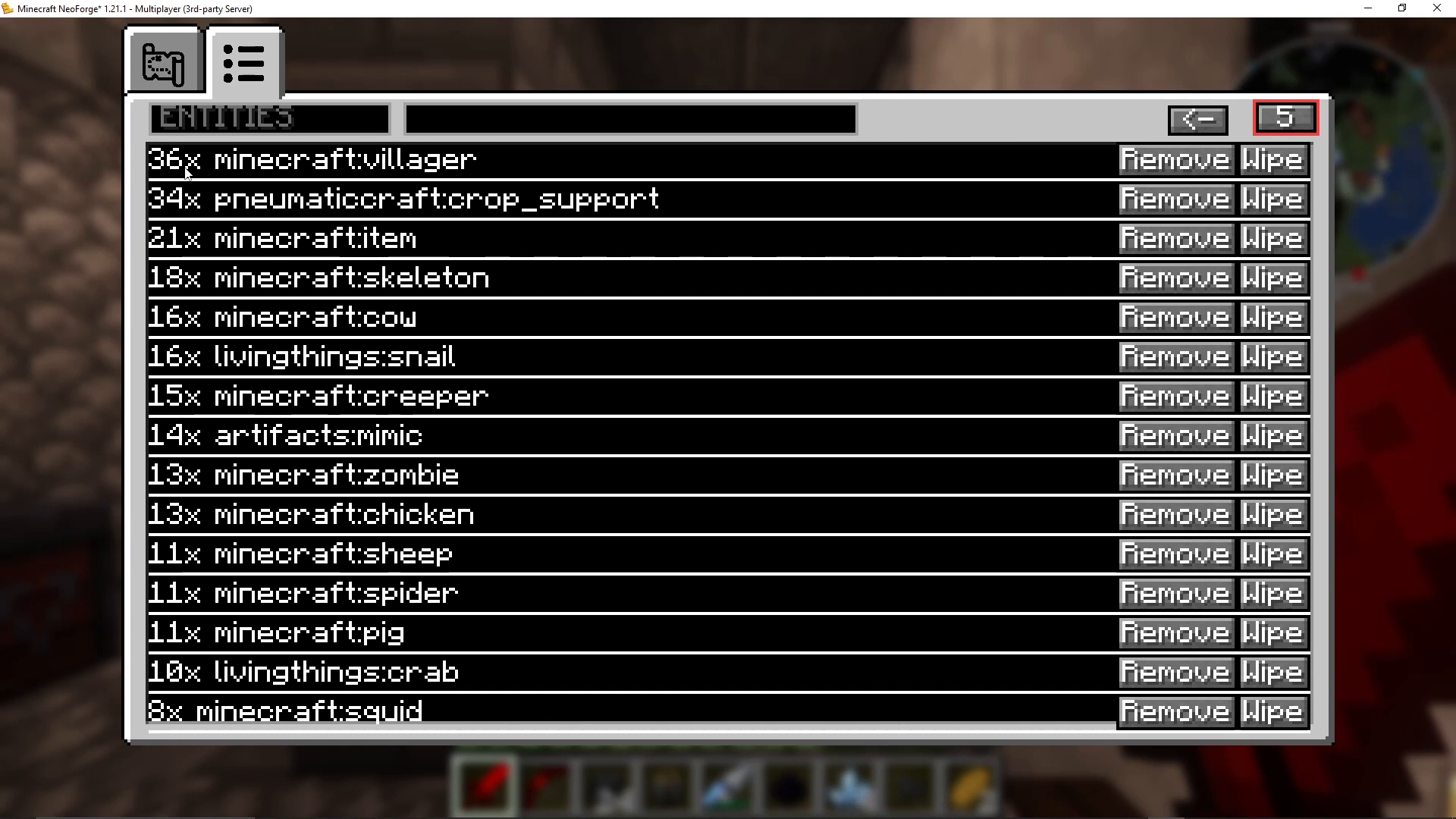
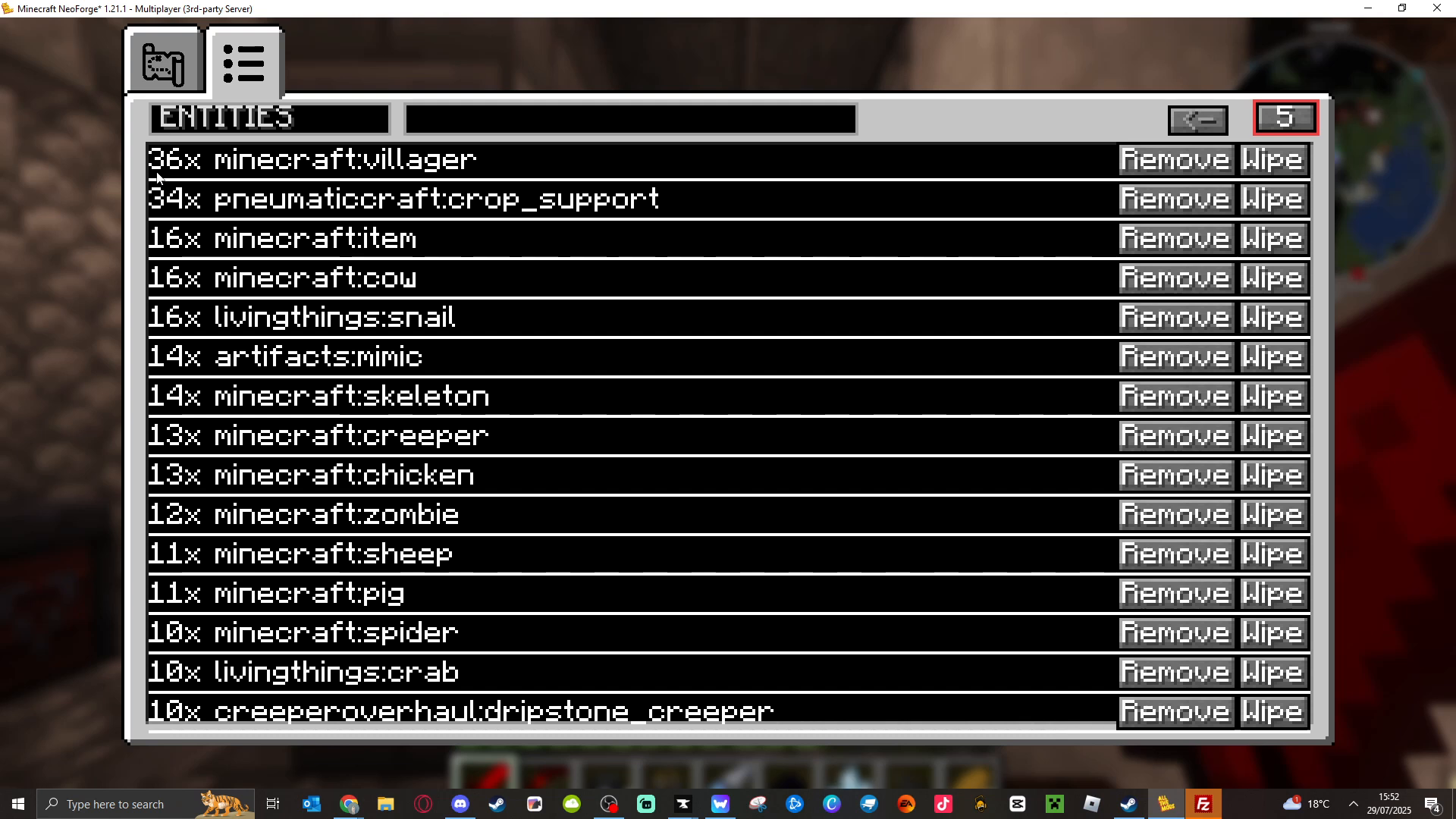
The Crash Utilities UI has dedicated tabs for deeper inspection. Navigate to the Entities tab to see every entity currently loaded on the server, sorted by quantity. A Block Entities tab shows all loaded block entities (machines, chests, etc.). The Tickets tab lists all active chunk-loading tickets, including the players or systems responsible for them.
Spotting Lag-Causing Entity Buildup
The Entities tab sorts results by quantity, making it immediately obvious if something has gone wrong. If a player’s chunk-loaded farm has been running for days and overflowed its storage, items will begin dropping on the floor. You might see tens of thousands — or even millions — of a single entity type listed. This volume of entities will cause severe lag and will eventually crash the server. Once identified, you can remove all instances of that entity with a single button click directly from the UI.
Viewing and Editing Offline Player Inventories
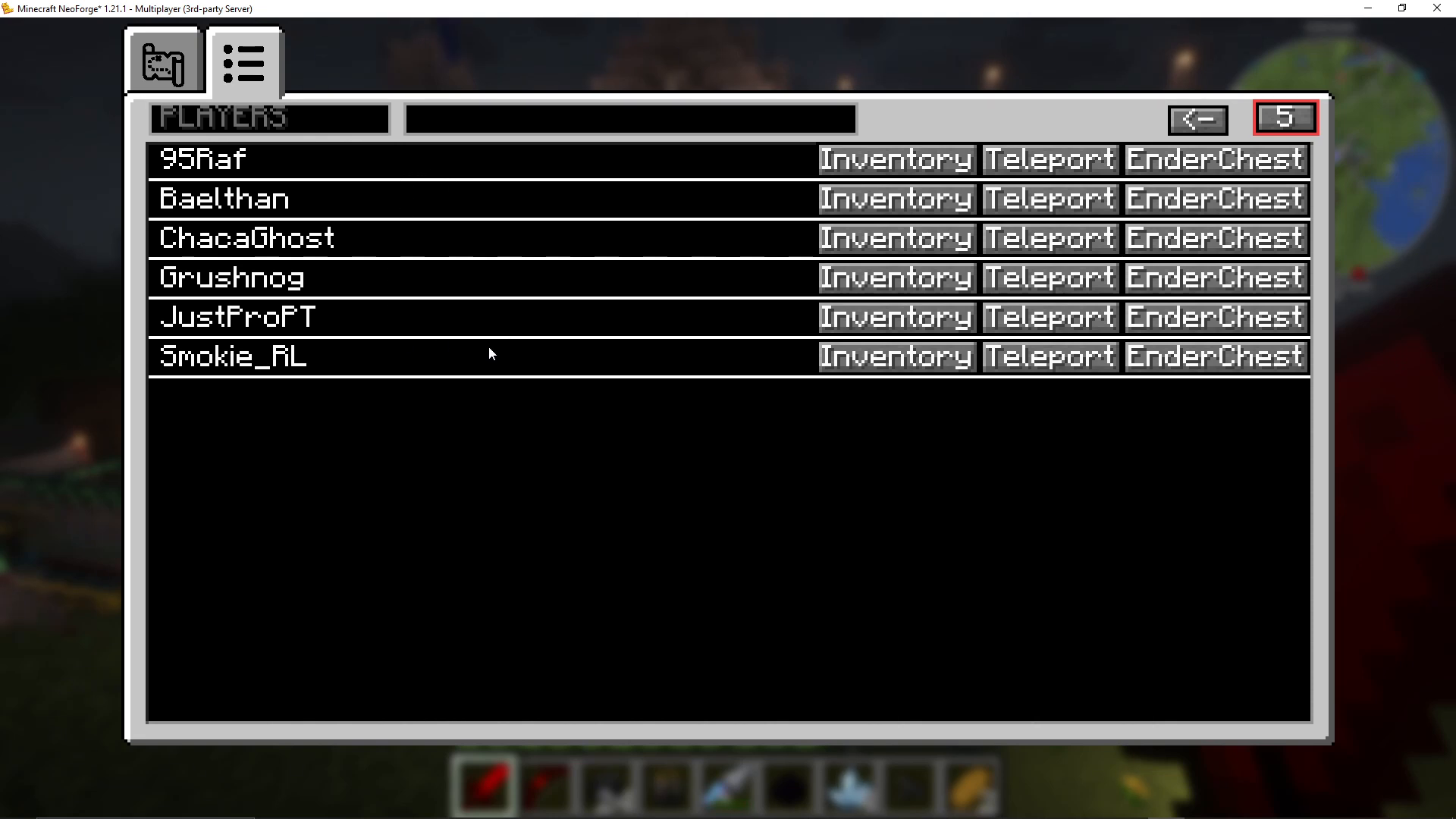
Under the Tickets tab, you can see all players — including those who are currently offline. Clicking on an offline player lets you inspect their inventory and their Ender Chest, or teleport to their location. This is a critical feature: if a player has a corrupted or problematic item in their inventory, the server may crash every time they log in. Using Crash Utilities, you can open that player’s offline inventory and delete the problematic item before they reconnect.
Crash Utilities Commands
Beyond the UI, Crash Utilities provides a set of powerful server commands to help admins manage crashes and lag from the console or in-game chat.
Viewing Crash Logs
Type /cu log to print out options to upload or copy your latest crash report or latest server logs. This is a quick way to pull diagnostic information without manually navigating your server’s file system.
Automatic Item Clearing
The command /cu all item clear runs an immediate check and clears excess items from the ground. You can also configure the mod to do this automatically on a schedule — more on that in the config section below.
Unsticking Players from Crashing Dimensions or Bases
If a specific player’s base or dimension is causing the server to crash every time they log in, use /cu unstuck to teleport that player to spawn. This breaks the crash loop so you can investigate the cause without the server going down repeatedly.
If a player is stuck in a crashing dimension such as the Nether, use /cu tp dimension to pull them out and place them in a safe location.
Managing Player Inventories via Command
In addition to the UI method, you can use /cu inventory remove to remove a specific inventory slot from a player’s inventory via command. This is useful when you know exactly which item slot is causing the issue and want to act quickly.
Checking Memory Usage
The mod includes a memory checker. Running the relevant command reads out the latest logged memory values, and the mod will automatically warn you in logs when a large amount of memory is consumed suddenly — a useful early warning sign before a crash occurs.
Configuring the Crash Utilities Server Config File
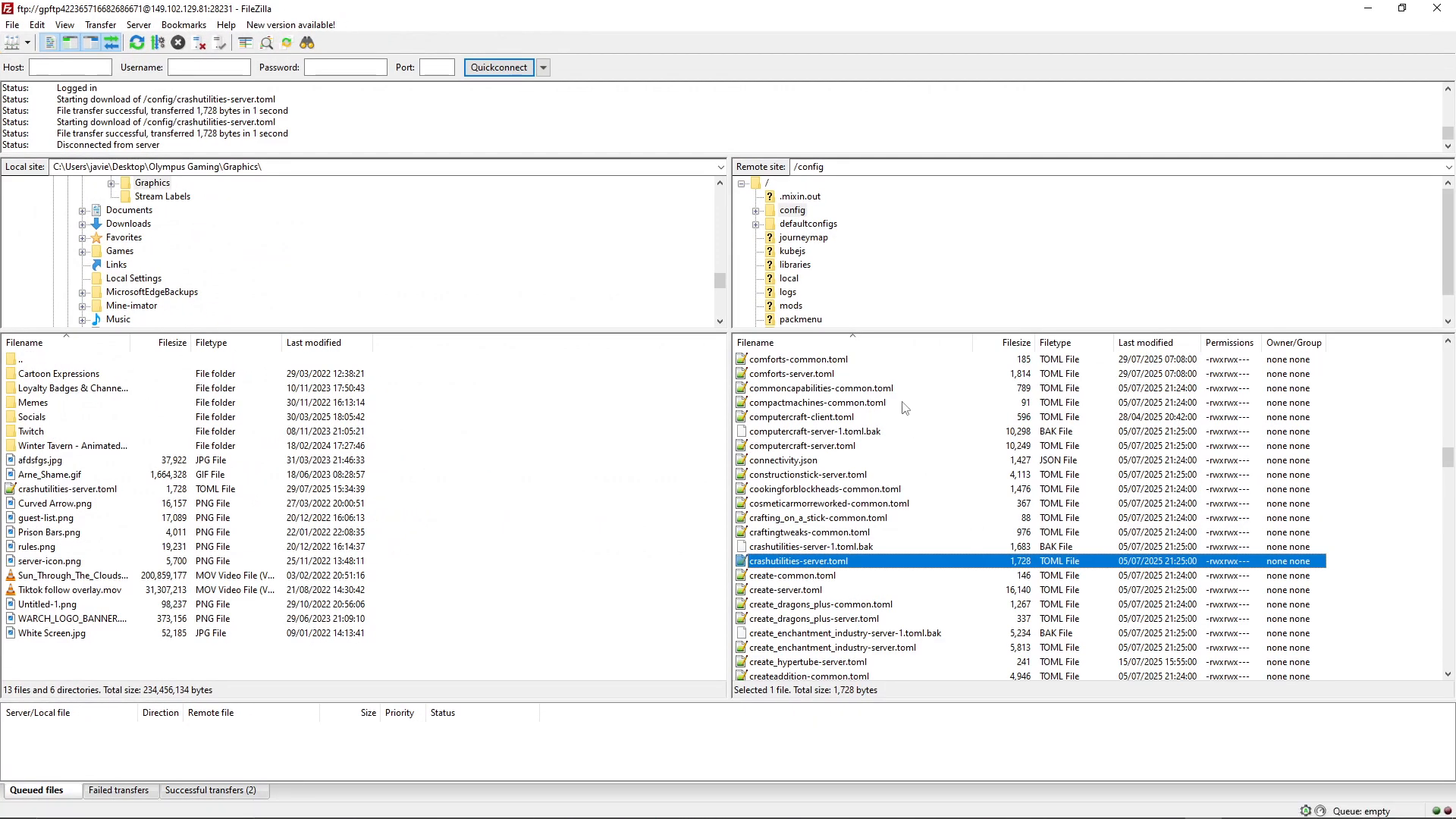
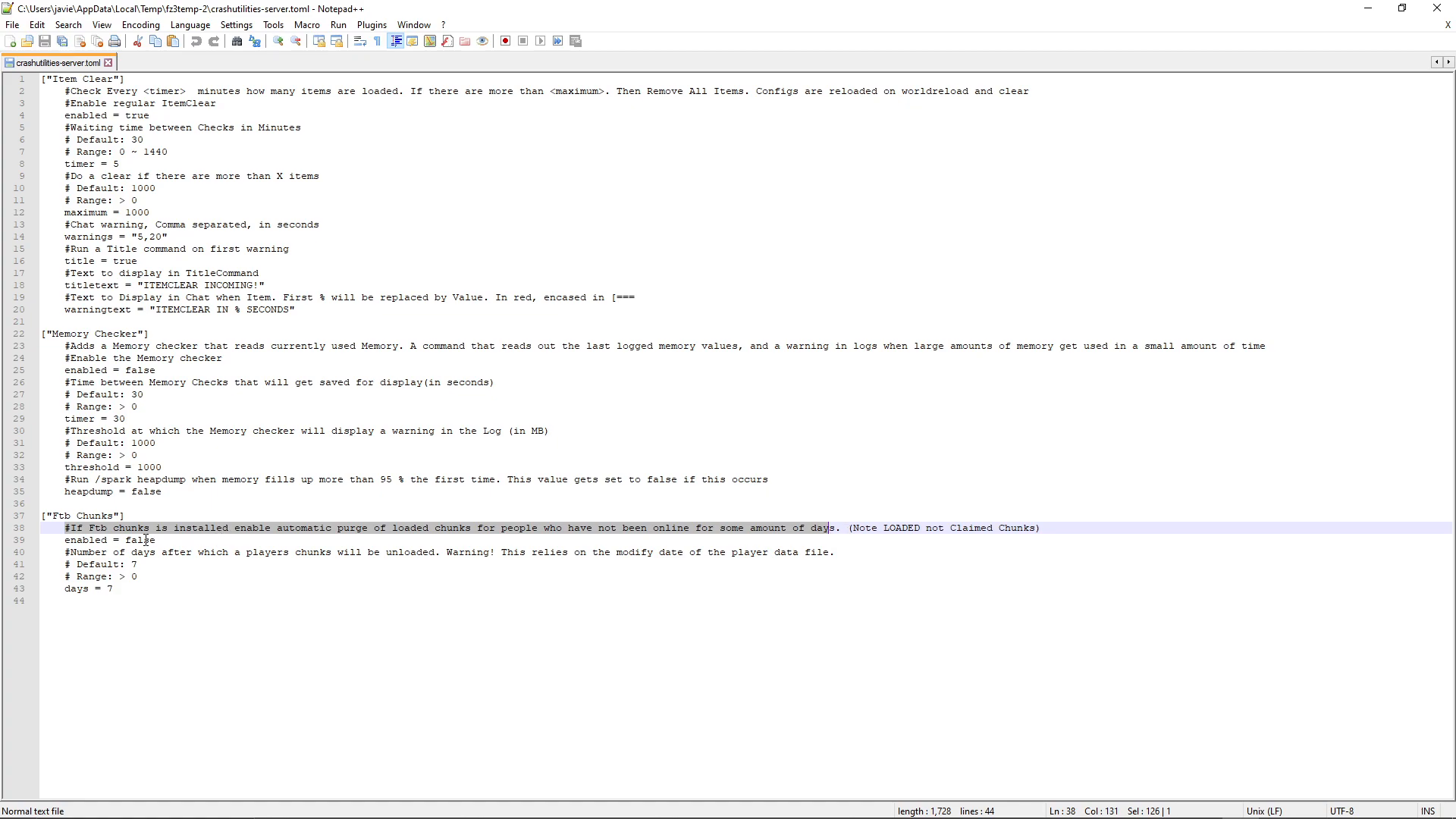
Several of Crash Utilities’ most powerful features must be enabled in the server configuration file. To access it, open your server files (using an FTP client such as FileZilla or your hosting panel’s file manager), navigate to the config folder, and open the file named crash_utilities-server.toml.
Automatic Item Clearing
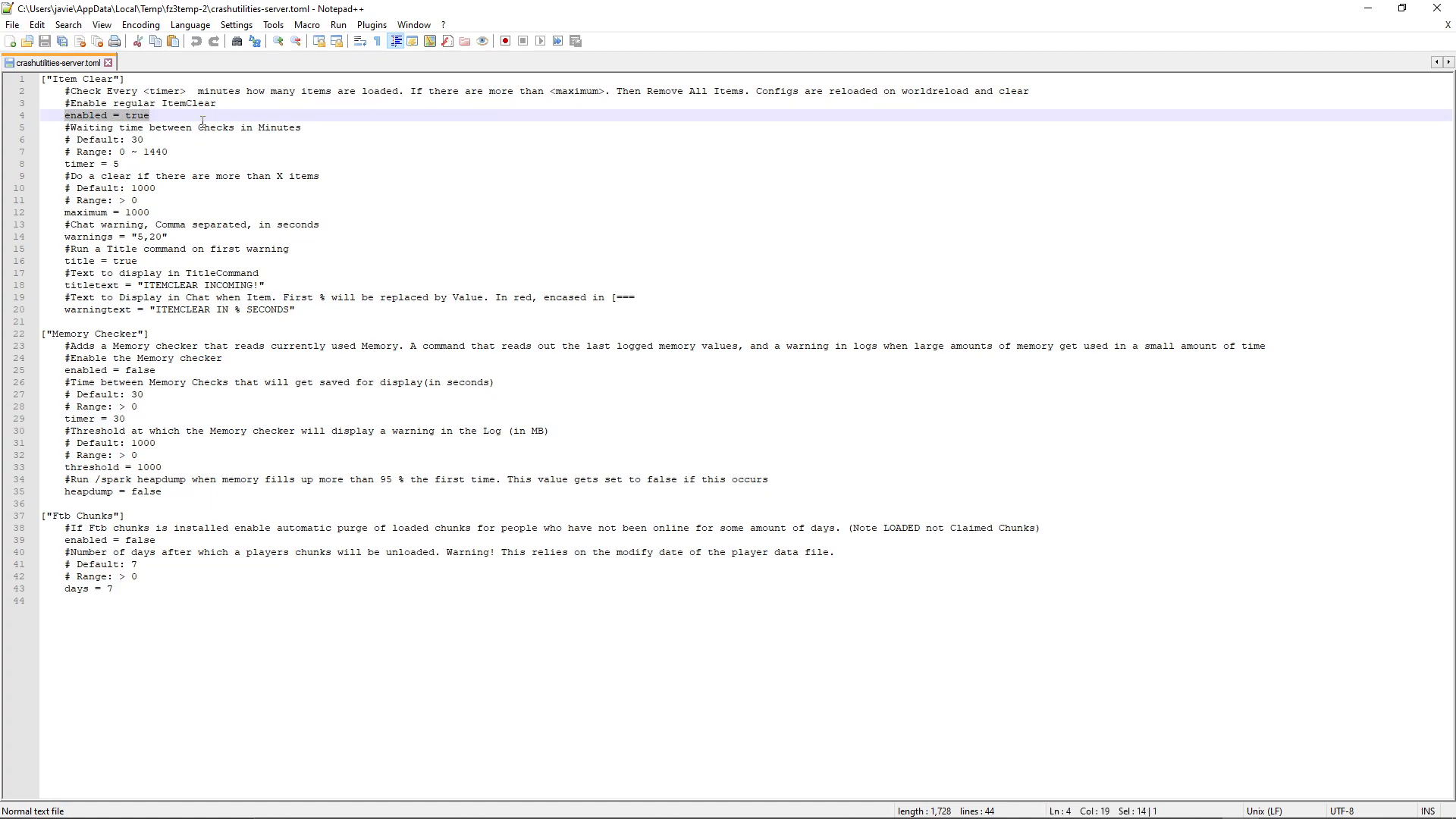
Inside the config file, you will find a section for automatic item clearing. Ensure enabled = true is set to activate it. Key settings to configure include:
Check interval: How often the mod scans for excess items on the ground, in minutes. The default is 30 minutes. You can reduce this — for example, setting it to 5 minutes for more frequent checks on busy servers.
Item threshold: The number of items of a single type on the ground that will trigger a clear. For example, setting this to 1000 means if more than 1,000 of any one item type are on the floor, they will be automatically removed.
Chat warnings: The config also controls warning messages sent to players before items are cleared.
Automatic Feed the Beast Chunks Purge
If Feed the Beast Chunks is installed on your server, Crash Utilities can automatically remove chunk-loading claims from players who have been offline for a set number of days. In the config file, find the relevant setting and set it to true. The default grace period is 7 days — meaning if a player has not logged in for 7 days, their force-loaded chunks will be automatically released. This is highly recommended for any server running FTB Chunks, as abandoned chunk loaders are a common source of long-term lag.
Step-by-Step: Diagnosing a Server Crash
If your server is crashing and you are not sure why, follow this process of elimination using Crash Utilities:
Check the Entities tab first. Open the UI with Ctrl + U and go to the Entities tab. If you see an absurdly high count of any single entity type — thousands or tens of thousands — that is almost certainly your culprit. Remove them immediately.
Check the crash log. Use /cu log to pull the latest crash report. The log will often name the specific entity or block entity responsible for the crash.
Identify the problem player. If the server only crashes when a specific player logs in, use /cu unstuck to teleport them to spawn. If the crashing stops, the issue is their base. If the crashing continues, the issue is likely something in their inventory.
Inspect the offline inventory. Use the Tickets tab in the UI to open that player’s offline inventory and remove the problematic item.
Restore from backup if needed. If a player’s base is the cause, consider reverting the affected chunks using your server’s backup files to restore the base to a state before the problem occurred.
Summary
The Crash Utilities mod is an essential tool for any modded Minecraft server admin. Between its in-game chunk map, entity inspector, offline inventory editor, automatic item clearing, and cross-dimension teleport commands, it covers almost every common cause of server lag and crashes. Enable the automatic item clearing and FTB Chunks purge features in the server config right away — they will save you from the most frequent headaches before they even start. When something does go wrong, open the UI with Ctrl + U, check the Entities tab, and follow the process of elimination outlined above. You will have your server stable again in minutes.
“`