





Dank Storage Mod Tutorial
Dank Storage Mod Guide: How to Use Danks in Minecraft
The Dank Storage mod — commonly referred to simply as “danks” — is one of the most powerful portable storage solutions available in Minecraft modpacks. Whether you’re hoarding cobblestone or managing a complex item pipeline, danks have you covered. This guide walks you through every tier, every setting, and every feature you need to know to get the most out of this mod.
What Are Danks?
Danks are portable storage items that come in seven tiers, each one crafted as an upgrade of the previous. The progression works as follows:
Dank 1: Crafted with a barrel and coal.
Dank 2: An upgrade of Dank 1, using redstone.
Dank 3: Upgraded with gold.
Dank 4: Upgraded with emerald.
Dank 5: Upgraded with diamond.
Dank 6: Upgraded with amethyst.
Dank 7: Upgraded with obsidian and nether stars.
Each tier increases both the number of inventory slots available and the maximum number of items each slot can hold.
Understanding Dank Storage Limits
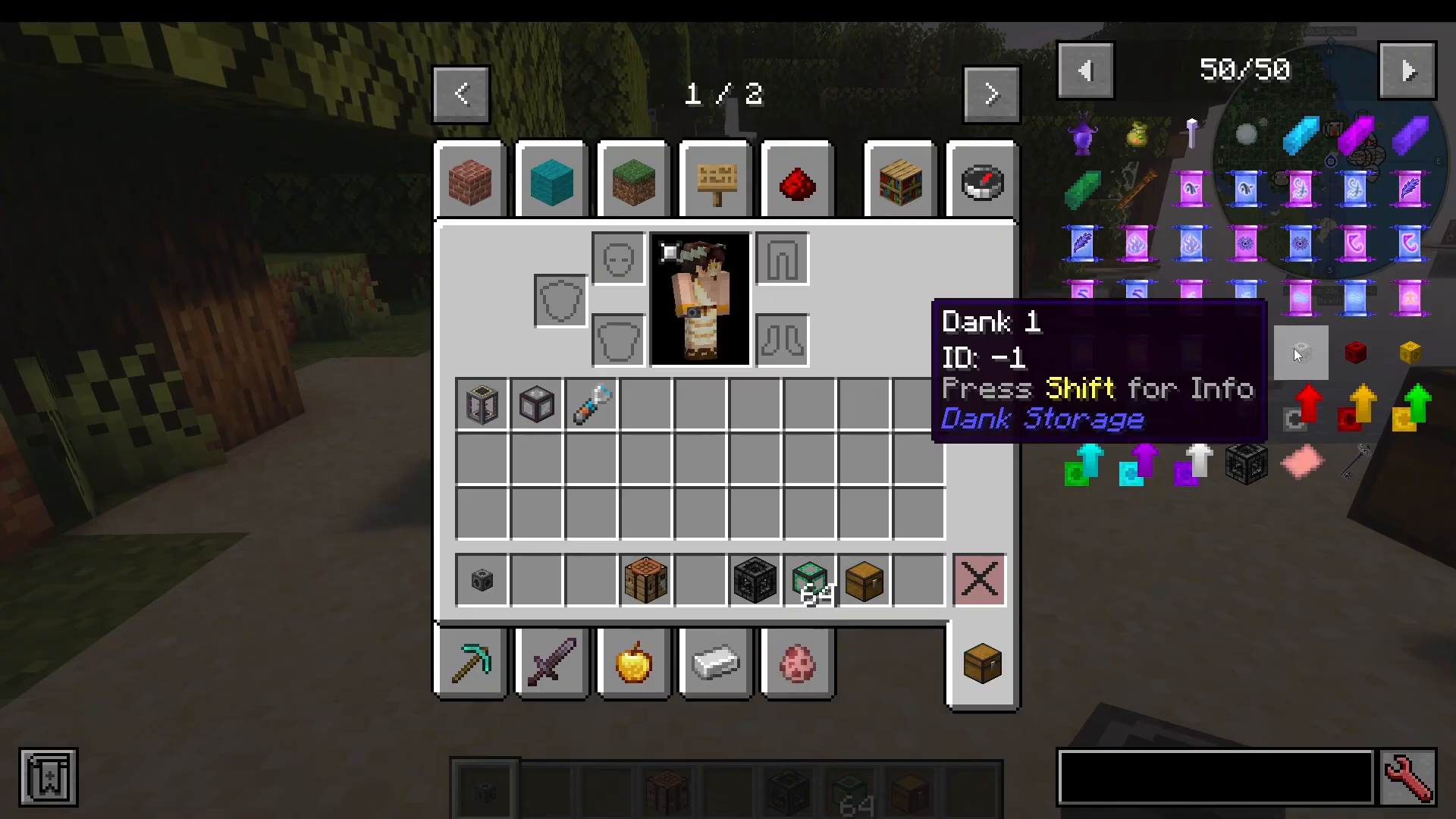
The key thing to understand about danks is the stack limit per slot. This is not the number of stacks a slot holds — it’s the total number of individual items a single slot can contain. Here are the stack limits for each tier:
Dank 1: 256 items per slot
Dank 2: 1,000 items per slot
Dank 3: 4,000 items per slot
Dank 4: 16,000 items per slot
Dank 5: 65,000 items per slot
Dank 6: 262,000 items per slot
Dank 7: 2,147,000,000 items per slot (the 32-bit integer limit)
To open a dank, simply right-click it in your hand. You’ll see the storage interface open up. Each higher tier also increases the total number of available slots, with the Dank 7 offering an enormous number of slots by comparison.
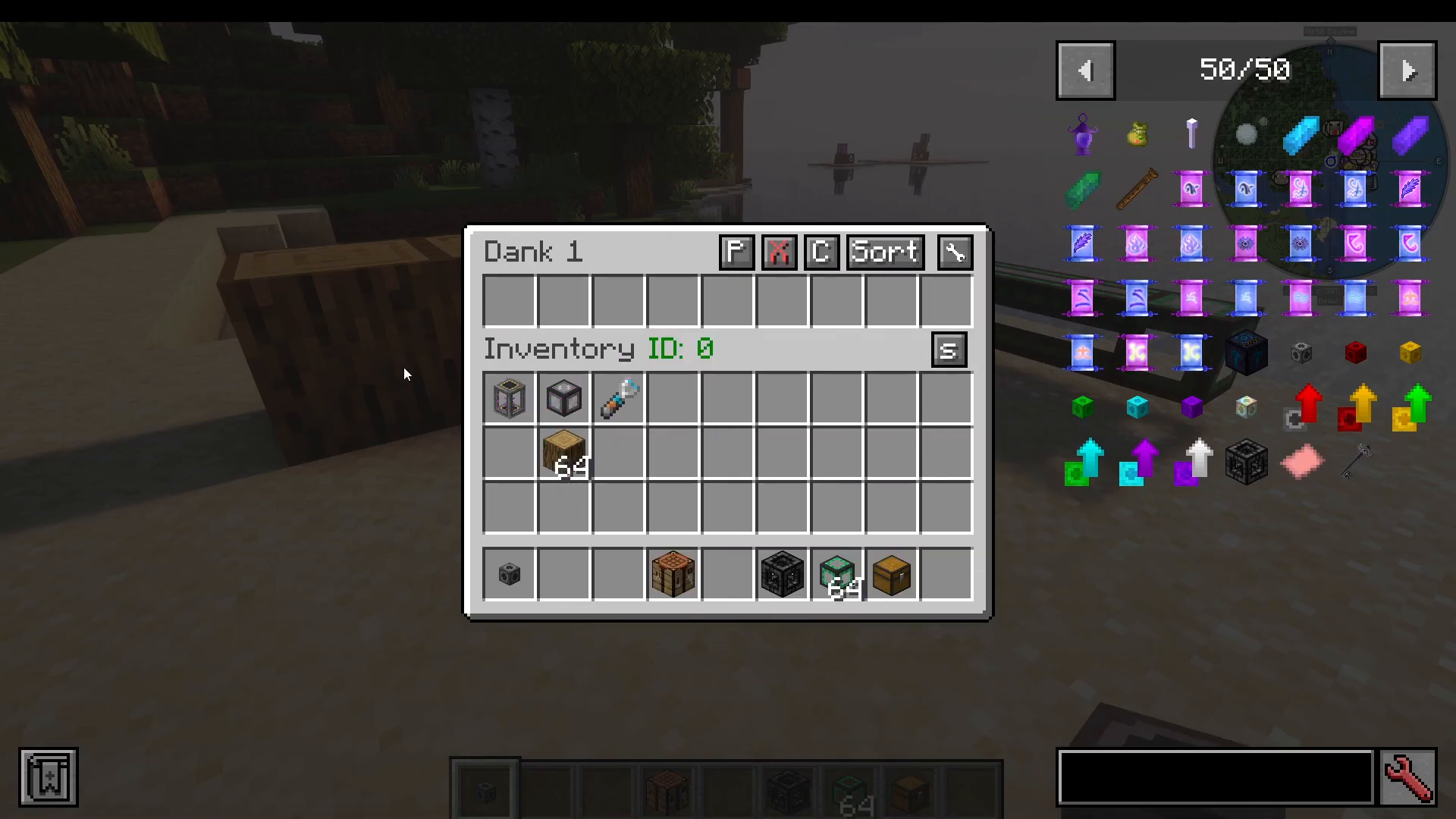
Configuring Your Dank
Locking Slots
You can lock individual slots inside a dank to a specific item type. To do this, hold Left Control and Left Click on the item in the slot. This prevents that slot from being used for any other item type, which is especially useful for keeping your storage organised.
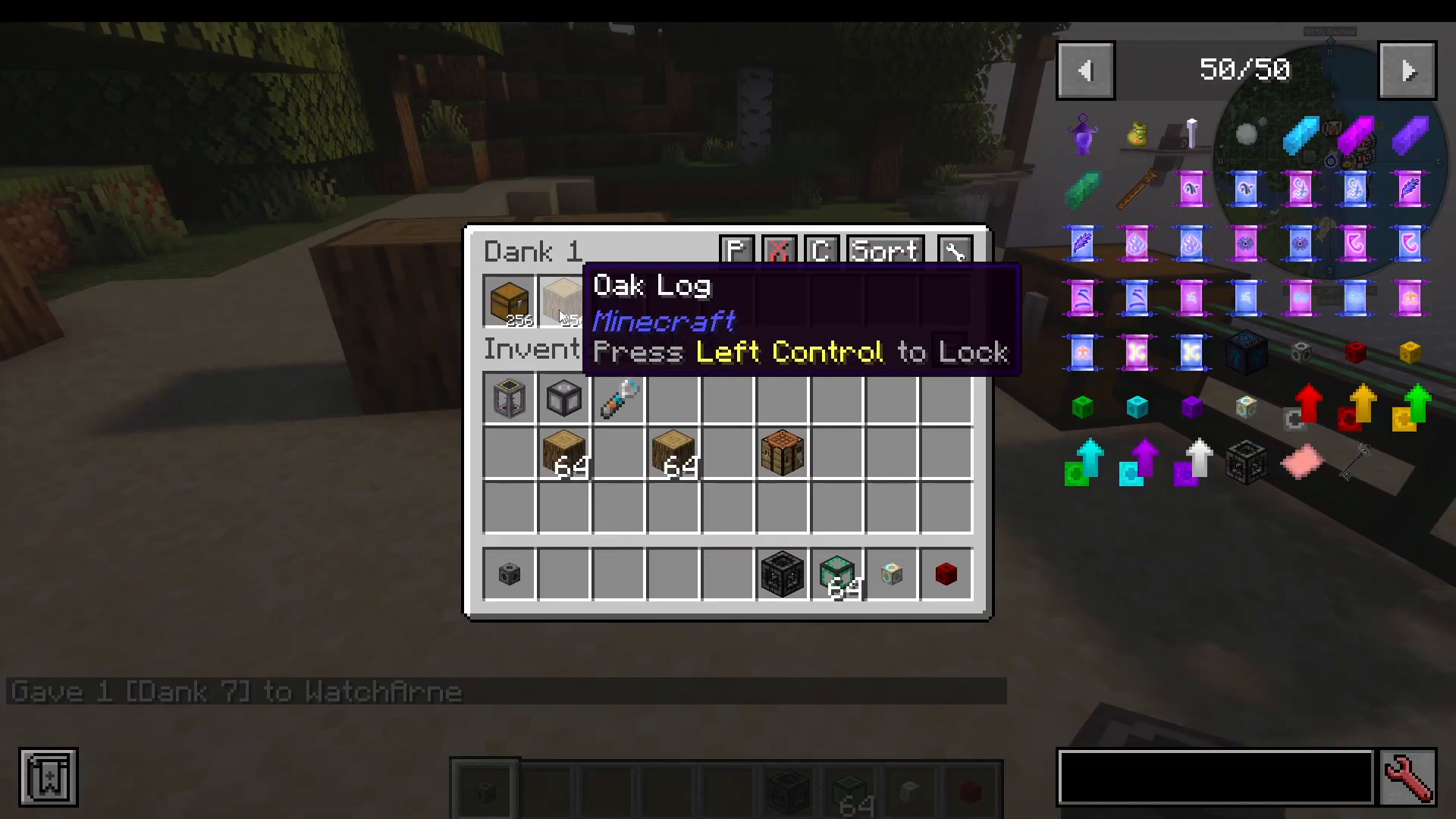
Auto-Sort Settings
Inside the dank’s interface, you’ll find an Open Config button. From here you can toggle Auto-Sort on or off. When auto-sort is enabled, the dank will automatically rearrange items. You can also choose the sort order from the following options:
Registry Name (Ascending / Descending)
Mod ID (Ascending / Descending)
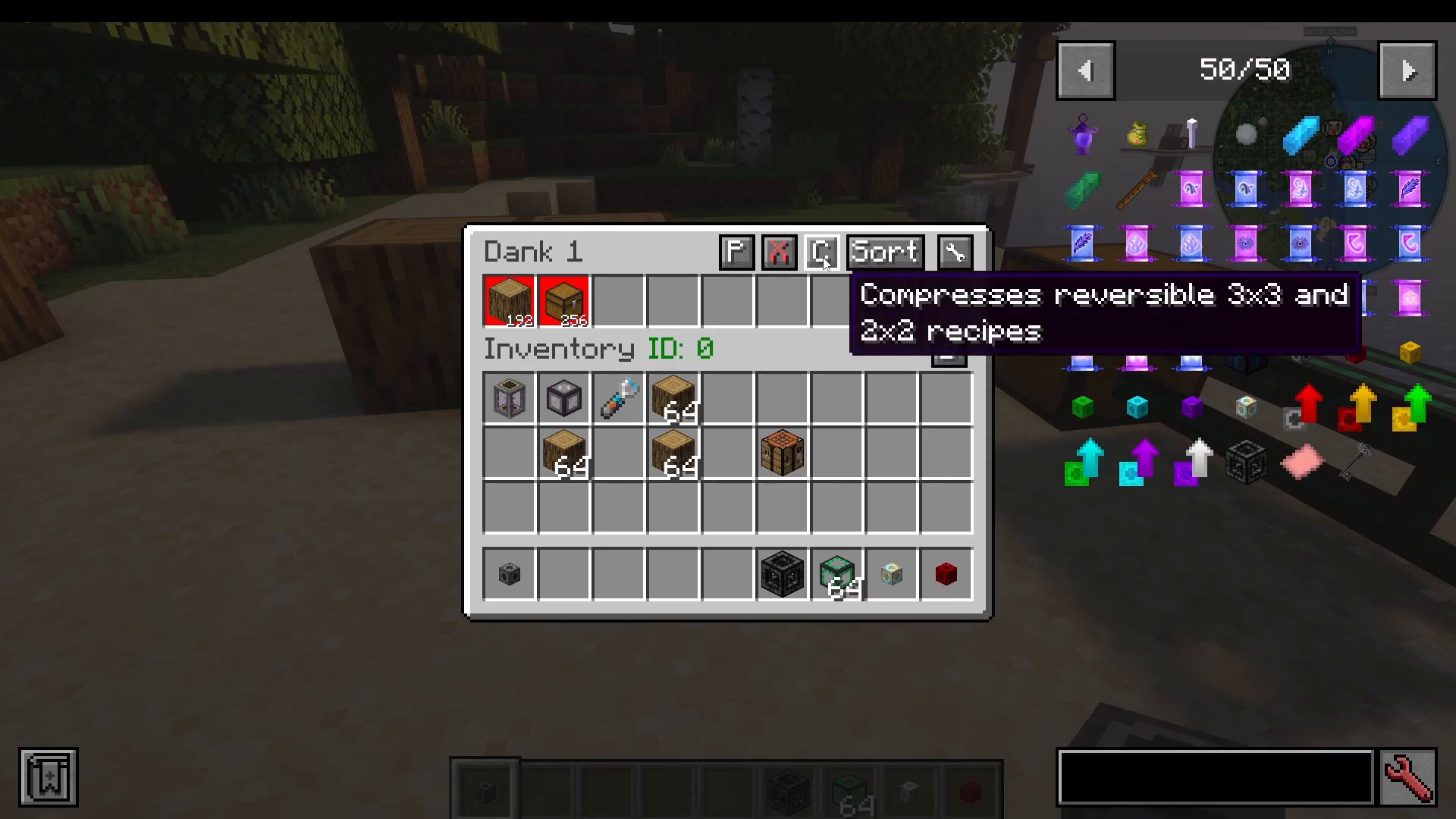
Auto-Compression
The config menu also lets you enable automatic compression of items using reversible 3×3 and 2×2 crafting recipes. For example, if your modpack includes compressed cobblestone, the dank can automatically compress loose cobblestone into compressed cobblestone — and compressed cobblestone into double-compressed cobblestone — giving you even more effective storage space. Crucially, this only applies to reversible recipes, so you can always get your original items back.
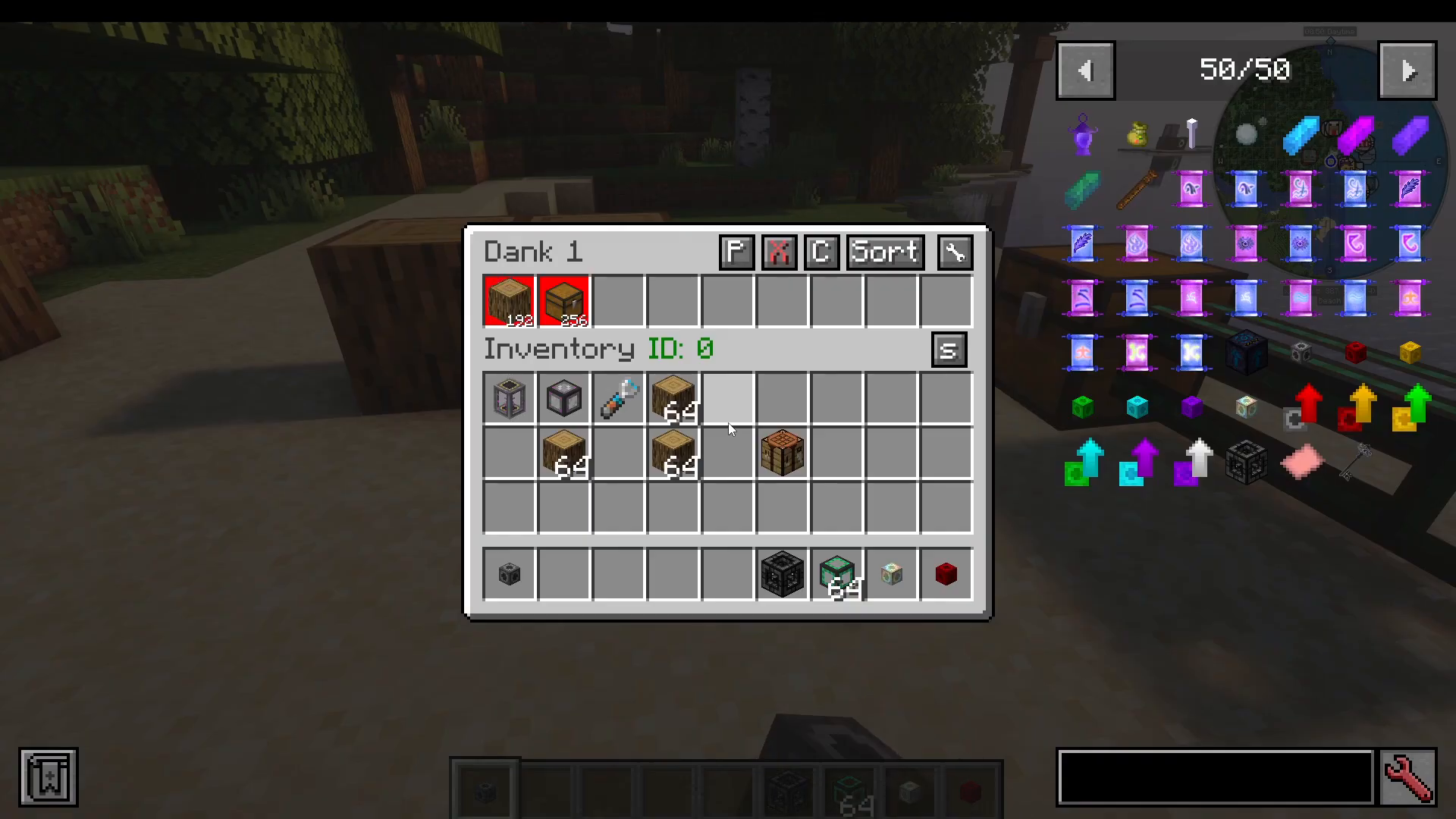
Item Pickup Modes
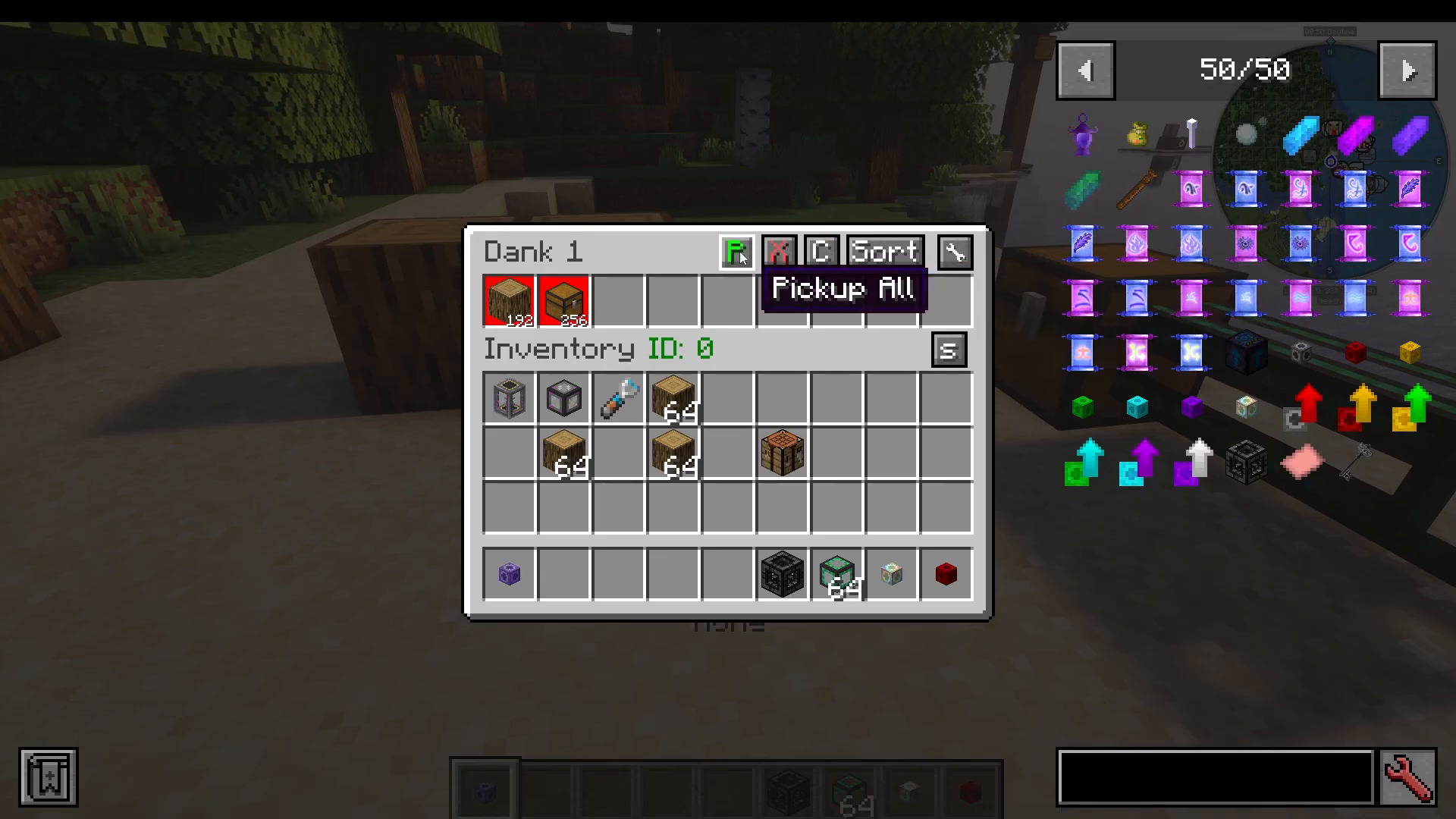
One of the most powerful features of danks is the ability to control how they interact with item pickup. There are three pickup modes available in the config:
None: The dank will not automatically pick up any items from the ground. Items you walk over will go into your regular inventory as normal.
Pick Up All: Any item you walk over will be pulled directly into the dank, bypassing your regular inventory entirely.
Filtered Pickup: Only items that are already present in the dank (whether locked in a slot or simply stored) will be automatically picked up into the dank. Everything else goes to your regular inventory as normal.
Construction Mode
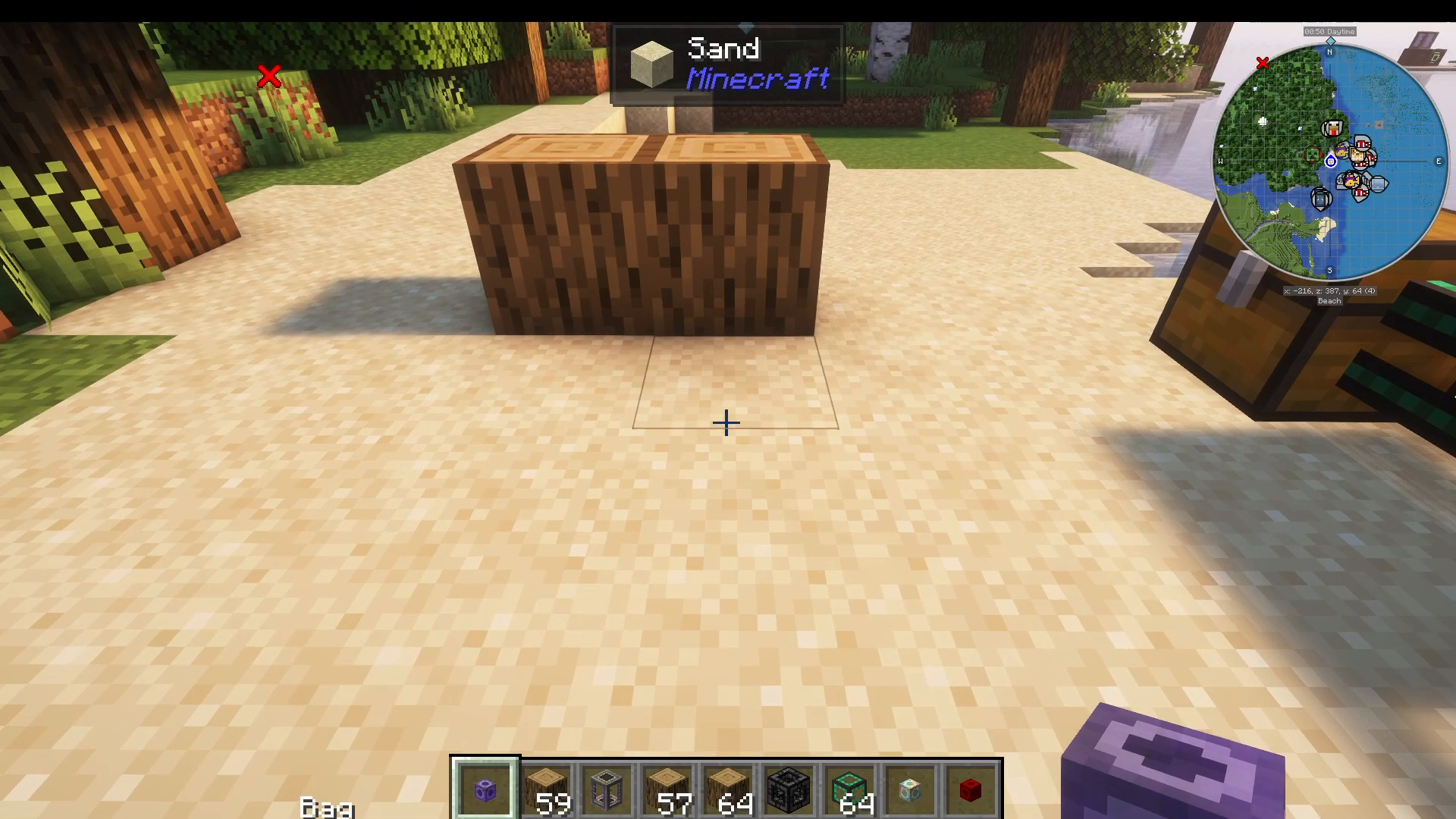
Danks have a built-in Construction Mode that turns your dank into a block-placing tool — perfect for builders. Here’s how to use it:
Press I on your keyboard while holding the dank to toggle Construction Mode on.
You’ll see a small indicator appear next to the hotbar showing the currently selected item.
Hold Shift and scroll your mouse wheel to cycle through the items stored in the dank.
Once you have the item you want selected, right-click to place blocks directly from the dank.
Press I again to return to normal (bag) mode.
This means you can carry thousands of building blocks in a single dank and place them without ever opening your inventory.
Using the Dock to Integrate with Storage Systems
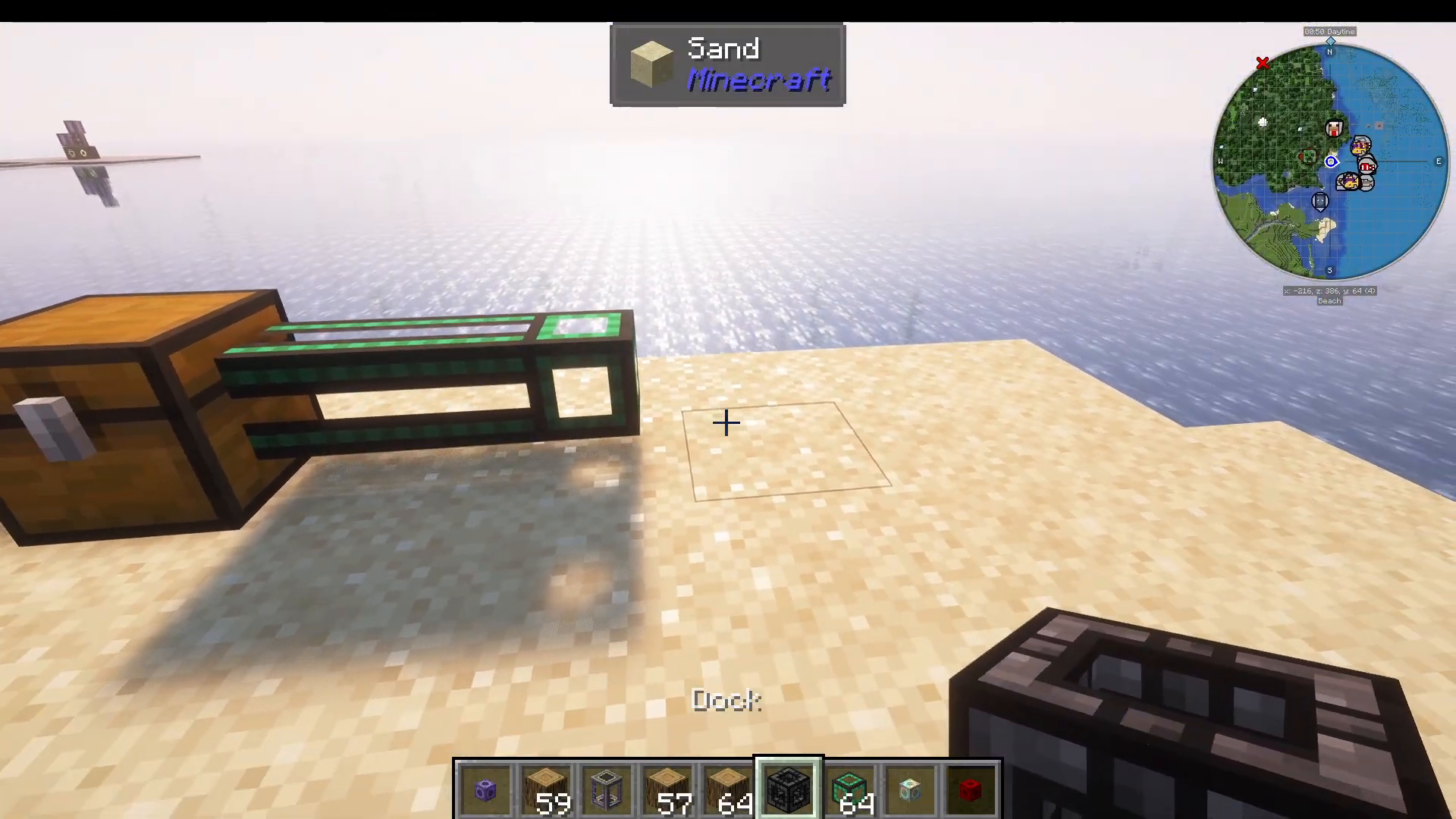
The Dock is a block included with the Dank Storage mod that lets you connect your dank to external storage systems and item networks. Here’s how to use it:
Place the Dock block in the world.
Right-click the dock to insert your dank into it.
Attach an item extraction module to the dock. The tutorial uses a Mekanism module as an example, but any compatible mod’s extraction mechanism will work.
Set the extraction module to Pull mode.
The module will then extract items directly out of the dank and feed them into your storage network or piping system.
To retrieve your dank from the dock, simply Shift + Right-click the dock. This makes the dock an excellent bridge between your portable dank storage and larger modded storage systems such as Applied Energistics, Refined Storage, or Functional Storage.
Summary
The Dank Storage mod is an incredibly versatile portable storage solution for Minecraft. With seven tiers scaling all the way up to over two billion items per slot, configurable auto-sort and auto-compression, flexible item pickup modes, a built-in construction mode for builders, and the dock for integration with larger storage networks, danks can genuinely replace or complement almost any other storage solution in your modpack. Start with a simple Dank 1 and work your way up — you’ll wonder how you ever played without them.
“`