








Classic Pipes Mod Tutorial
Classic Pipes Mod: Complete Guide to Network Pipes
Once you’ve got the basics of Classic Pipes down, it’s time to step things up with the mod’s powerful network pipe system. Network pipes allow you to build intelligent item-routing systems where pipes automatically know where items need to go — no manual junction decisions required. In this guide, we’ll walk through every network pipe type, how each one works, and how to combine them into a fully automated storage and crafting system.
Understanding the Network Routing Pipe
The foundation of any Classic Pipes network is the Network Routing Pipe. When you place one between two chests, it starts out red. Once it successfully connects the two points, it turns green in the middle — that’s your confirmation that the network is live.
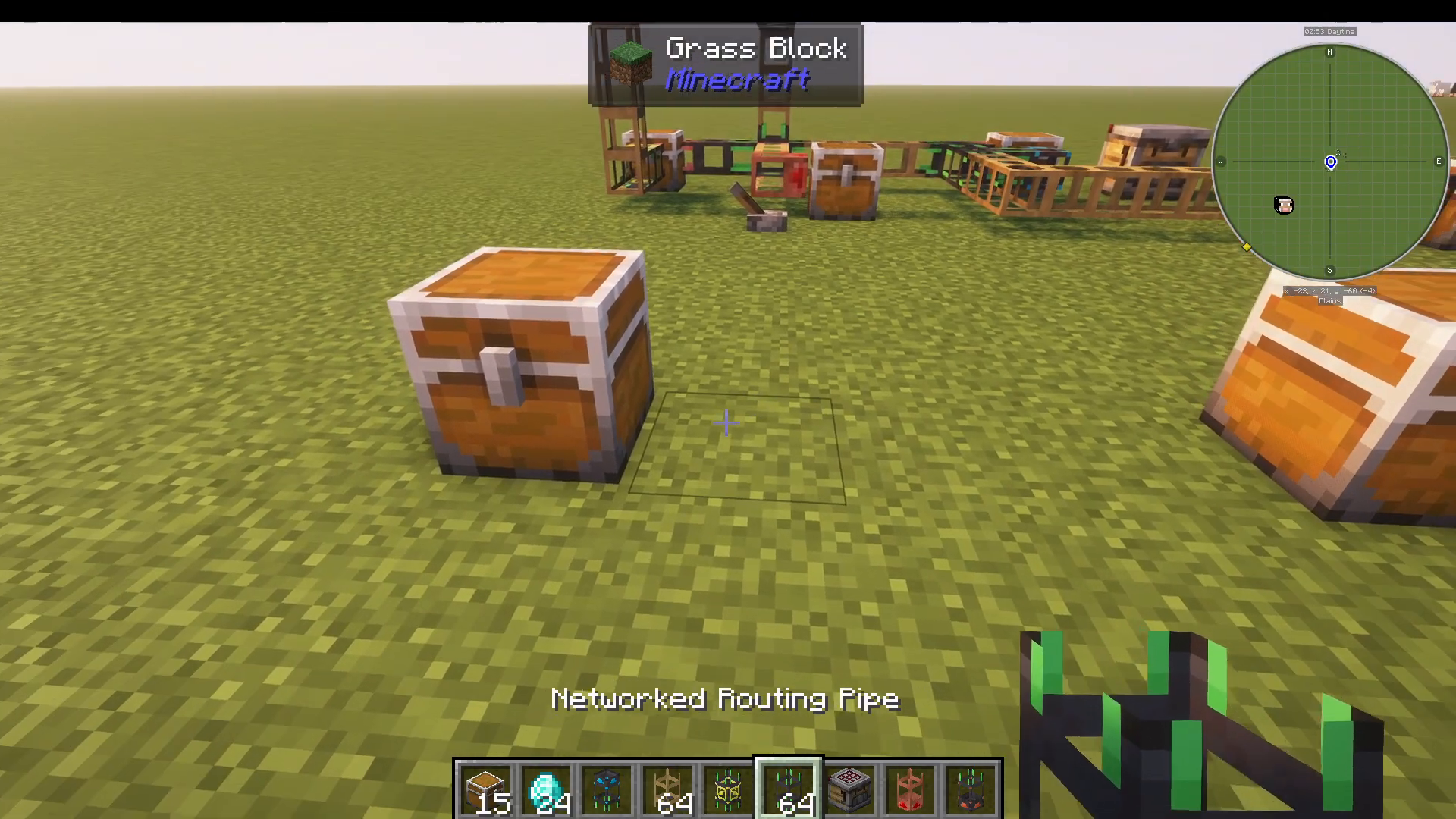
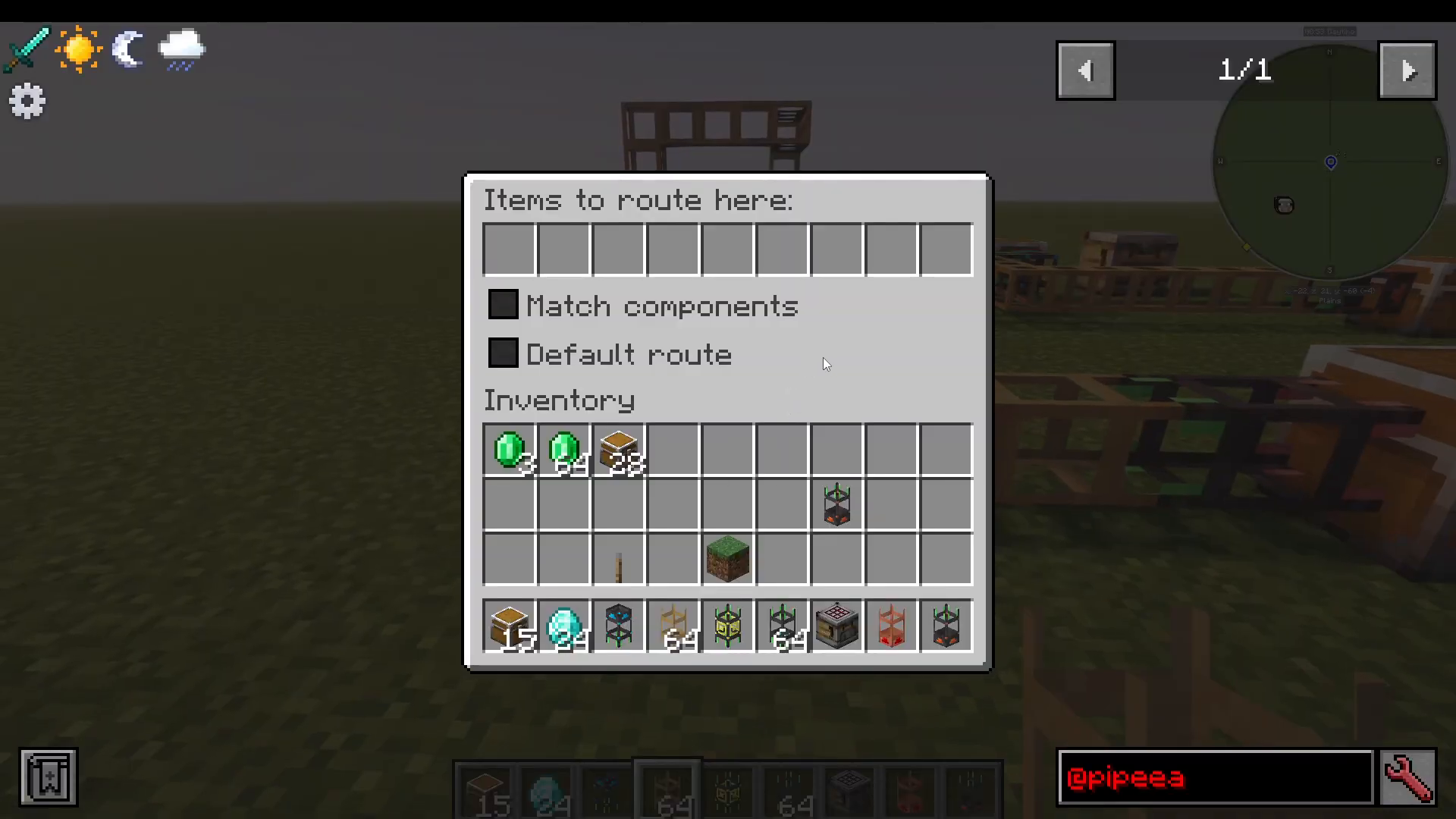
Right-clicking the Network Routing Pipe opens a menu where you can assign which items should be routed to that destination. For example, you can set it to route diamonds as the default destination. Any diamonds entering the network with nowhere else to go will automatically be sent there.
Handling Junctions in Your Network
One important rule: standard pipes like the Oak Wooden Pipe do not work at junctions in a network. When you place one at a junction point, the pipes will turn red, signalling a problem. At every junction in your network, you must place a Network Routing Pipe instead. This is a critical step — skip it and your network simply won’t function.
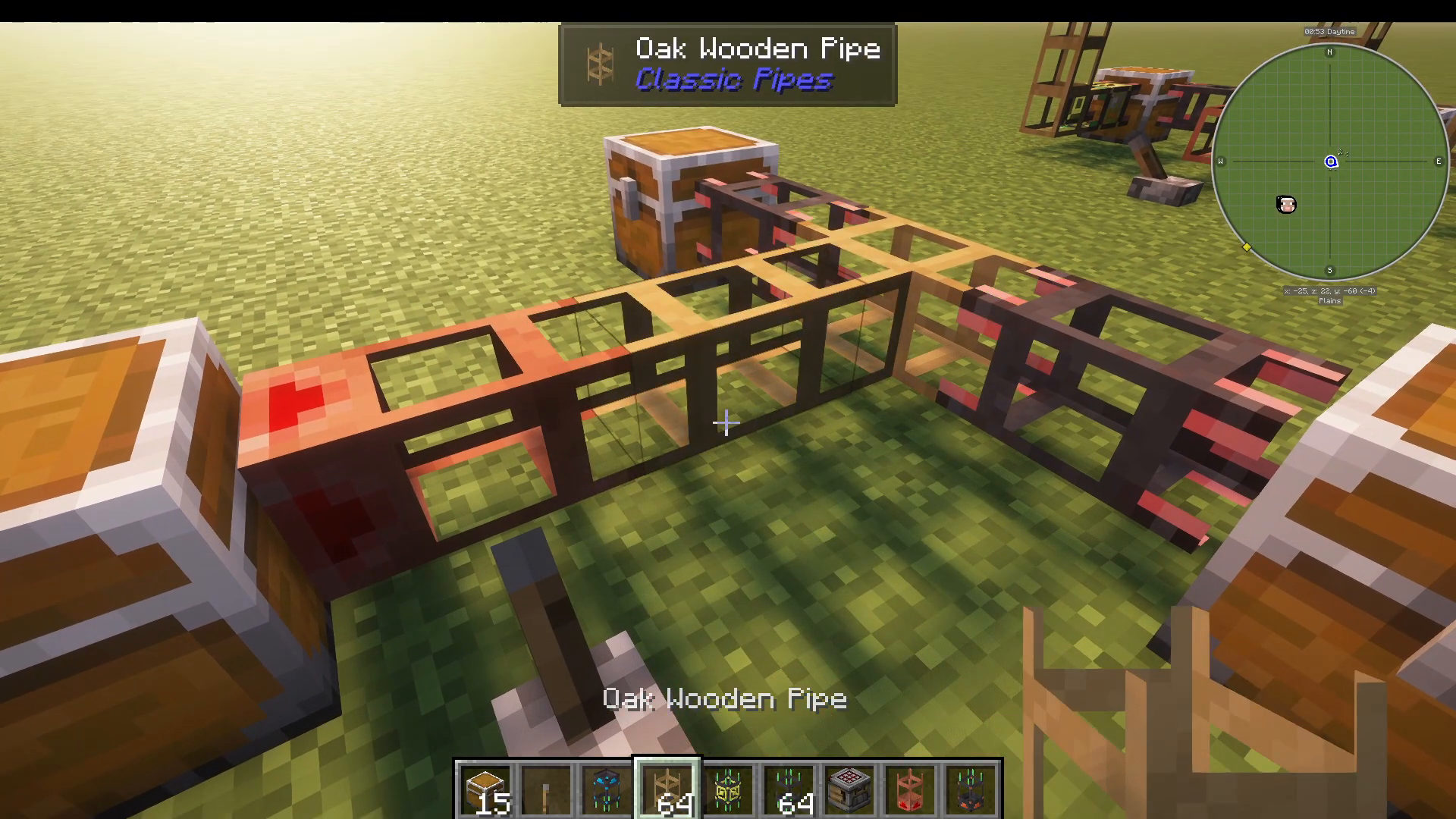
The key advantage over something like a Diamond Pipe is that you never need to manually tell items which direction to go at a junction. The network handles that automatically based on your routing rules. Even if a destination is far away through a complex pipe layout, the network will find it.
Network Provider Pipe
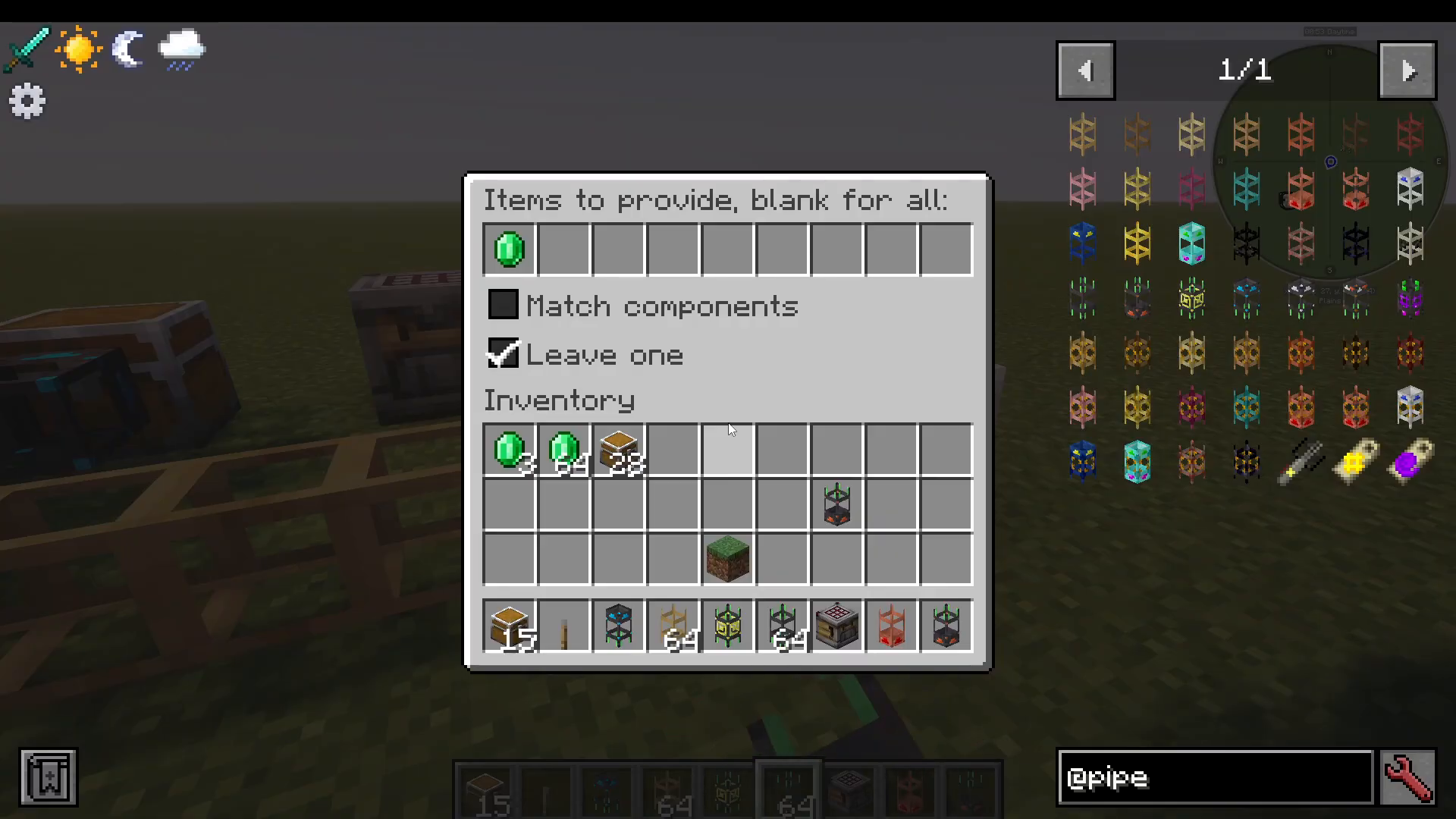
The Network Provider Pipe is used to make items inside a chest available to the entire network. Instead of using a Copper Pipe to actively pull items out, you attach a Network Provider Pipe to the chest. Right-clicking it reveals a setting called Items to Provide, which you can leave blank to provide all items, or specify particular items.
A useful option here is Leave One — enabling this ensures the pipe always leaves at least one of the specified item behind in the container, preventing you from accidentally emptying a chest entirely.
Network Stocking Pipe
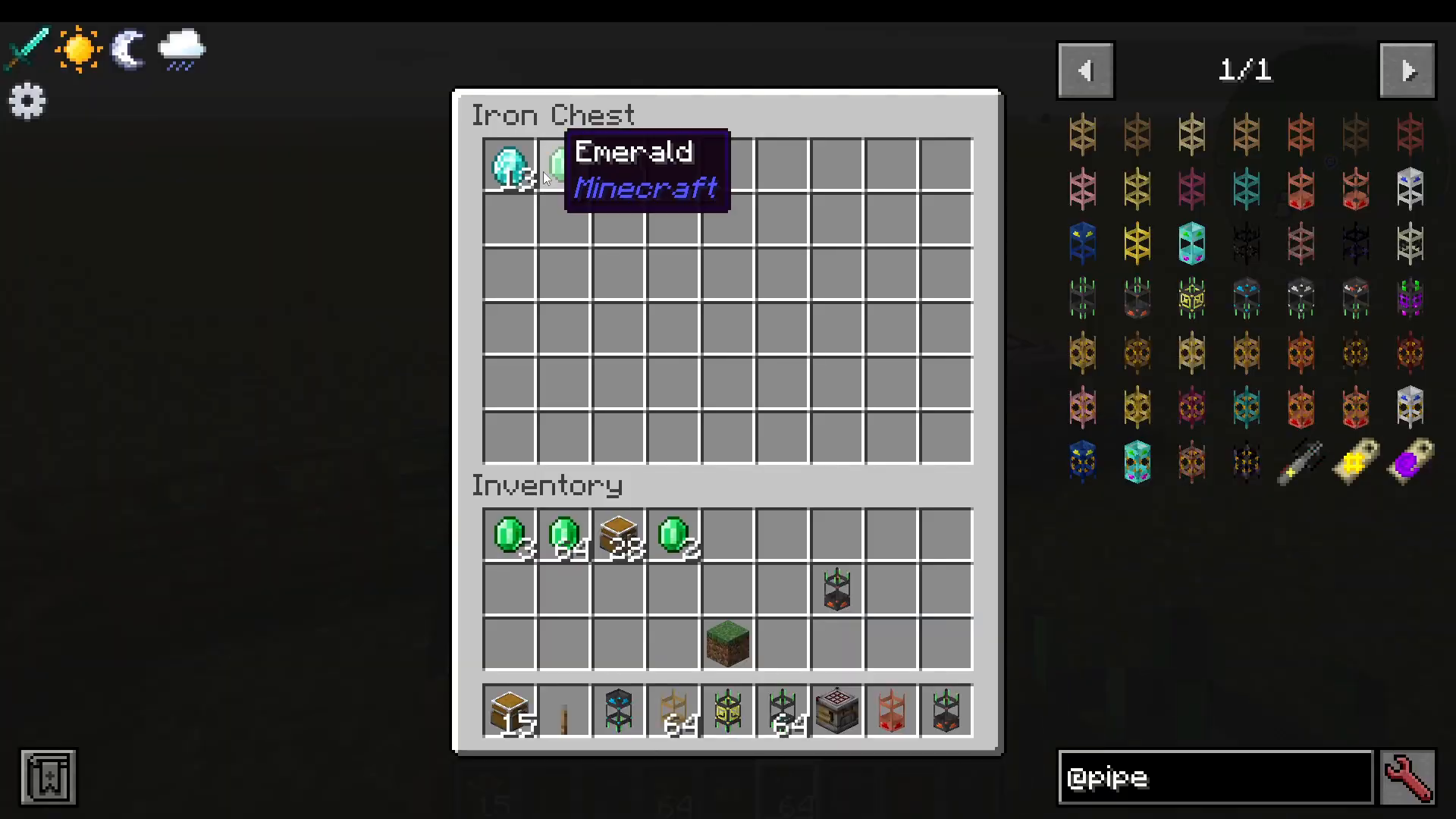
The Network Stocking Pipe keeps a set quantity of a specific item stocked in an adjacent inventory at all times. You configure it by specifying the item and the desired quantity — for example, keep two emeralds stocked in this chest.
There are two stocking modes to choose from:
Passive Stocking: The pipe will only grab items if they happen to already be travelling through your pipe network. It won’t actively seek them out.
Active Stocking: The pipe will actively pull items from inventories connected via a Network Provider Pipe, ensuring the target chest is always topped up.
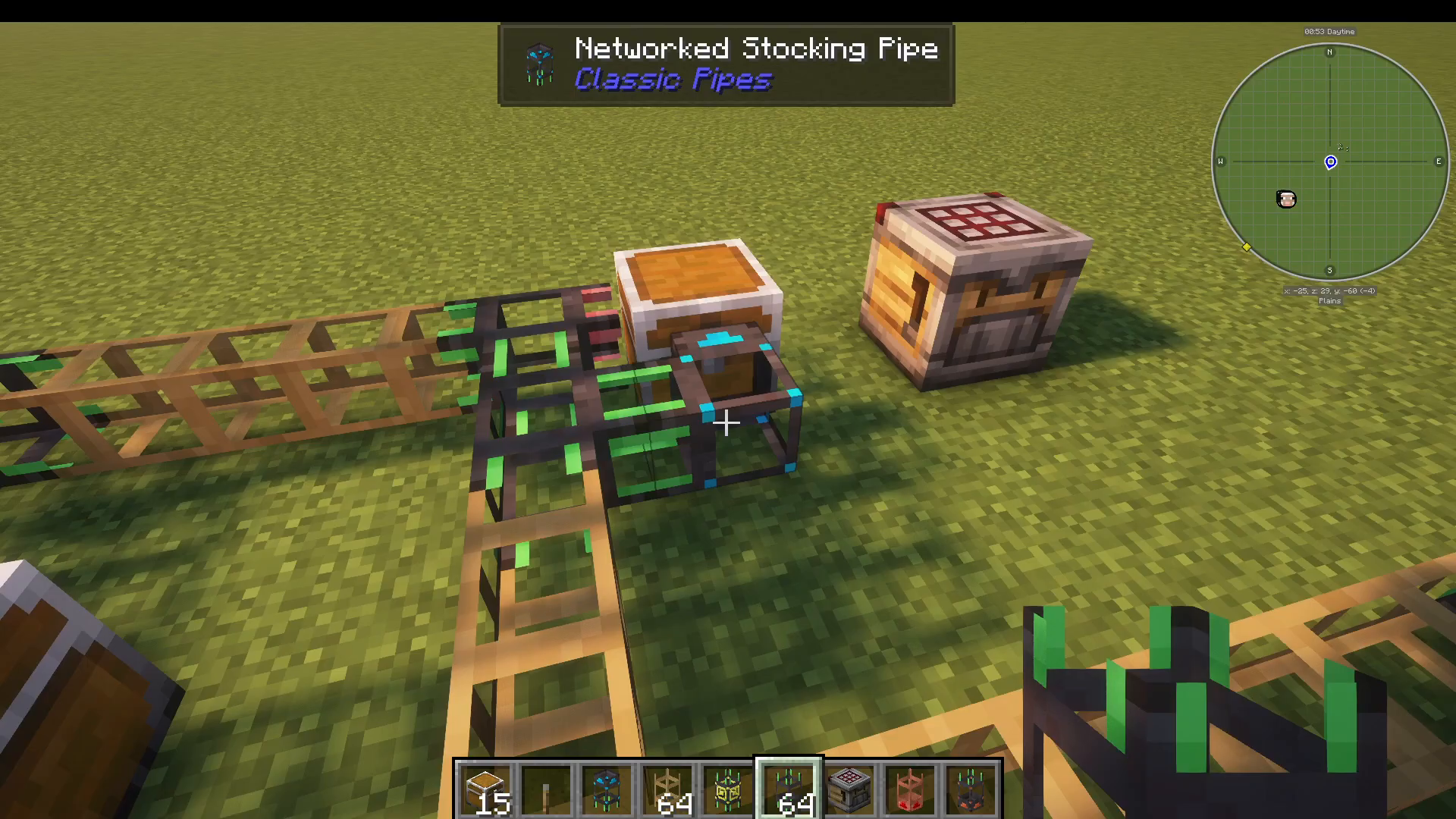
In practice, with Active Stocking enabled and a Network Provider Pipe feeding emeralds into the system, the moment you remove emeralds from the stocked chest, the pipe immediately pulls replacements from the provider source to restore the set quantity.
Network Request Pipe
The Network Request Pipe is one of the most useful pipes in the mod. It lets you manually request specific items from anywhere in your network and pull them directly into an adjacent chest.
Right-clicking the Network Request Pipe shows you a list of all items currently available to request. Crucially, only items connected to the network via a Network Provider Pipe will appear here. If a chest has no provider pipe attached, the request pipe cannot see or pull from it.
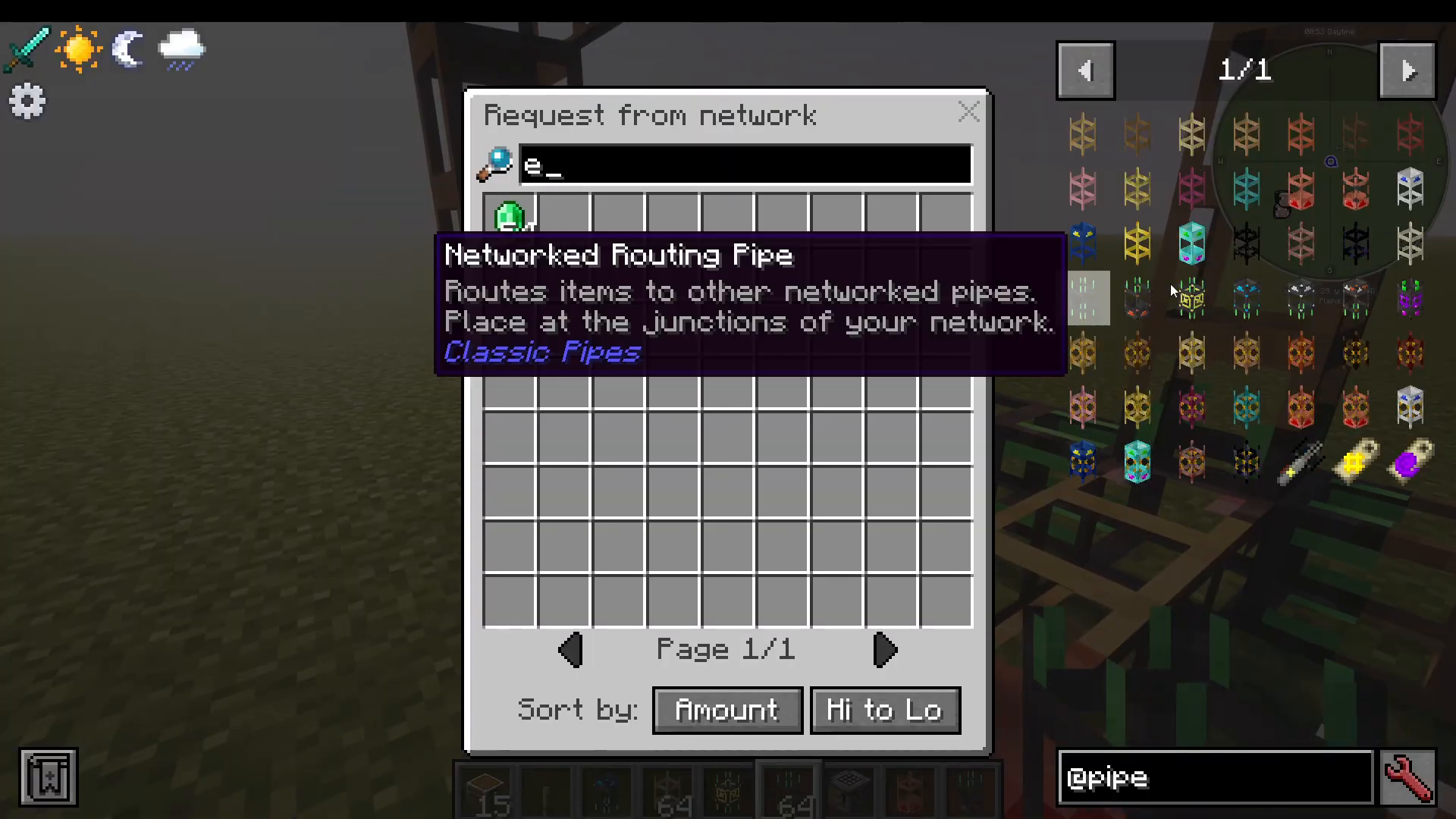
Once you add a Network Provider Pipe to a previously unconnected chest, those items immediately become visible and requestable inside the request pipe’s interface.
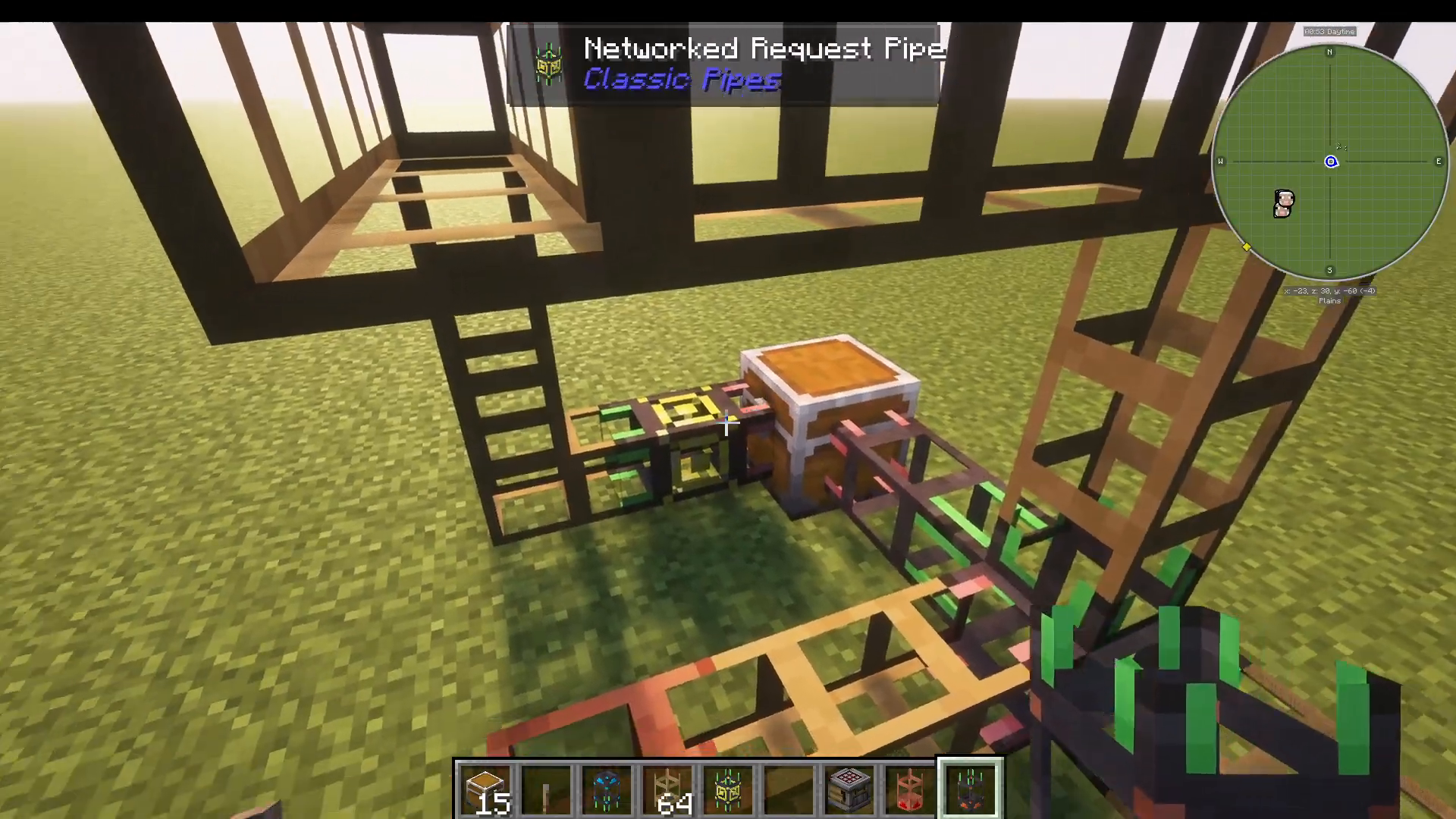
To request items, simply select the item and set the quantity. The network will immediately route those items to the chest attached to the request pipe. You can request multiple items in quick succession and the network will fulfil them rapidly.
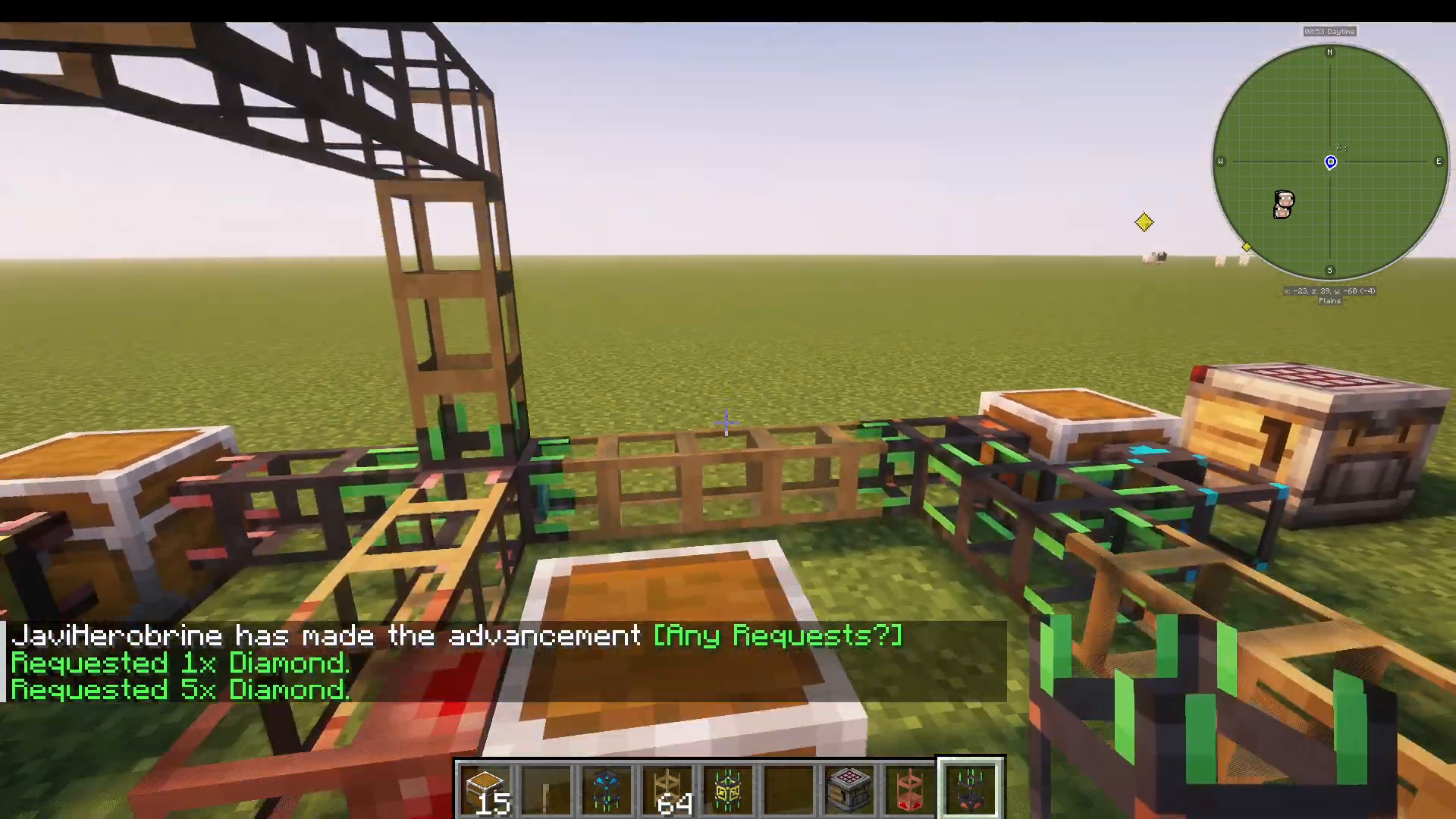
Network Matching Pipe
The Network Matching Pipe automatically routes items into a chest based on what is already inside it. Attach a Matching Pipe to a chest containing Iron Chests, for example, and it will automatically pull any Iron Chests moving through the network into that chest — no manual item configuration needed.
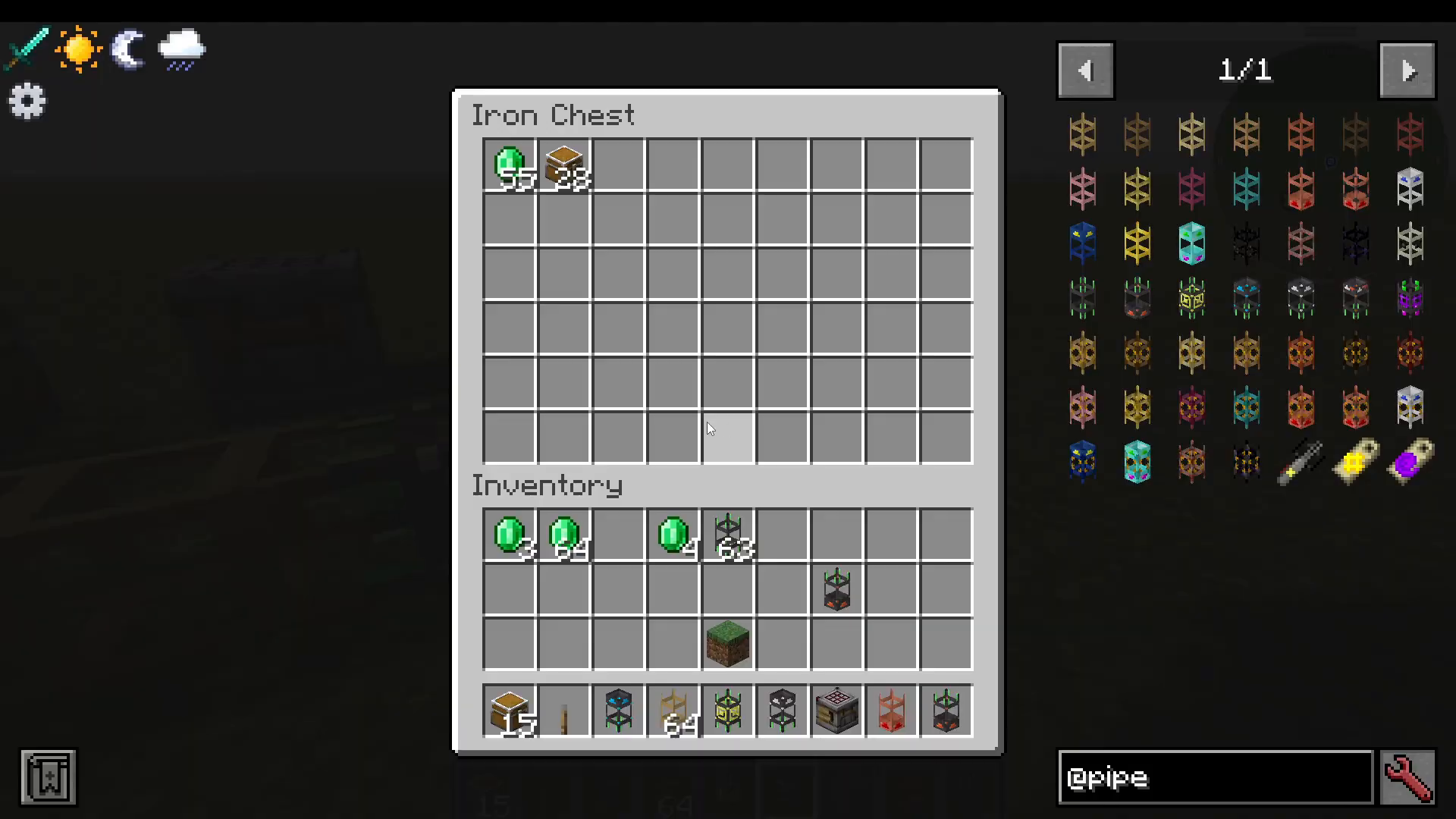
Network Storage Pipe
The Network Storage Pipe combines the functionality of both the Matching Pipe and the Provider Pipe into one. This makes it the ideal pipe for setting up a quick and simple storage system. It will:
Route items into the chest if they match its existing contents (Matching behaviour).
Make those items available to the rest of the network for requests or stocking (Provider behaviour).
If you want a clean, all-in-one storage solution without placing two separate pipes, the Storage Pipe is the way to go.
Network Recipe Pipe (Auto-Crafting)
The Network Recipe Pipe enables automated crafting within your Classic Pipes network. Place it and connect it to the network using a standard network pipe. Right-clicking opens a crafting grid where you can define a recipe — you can even drag items directly from Just Enough Items (JEI) without needing the ingredients in your inventory.
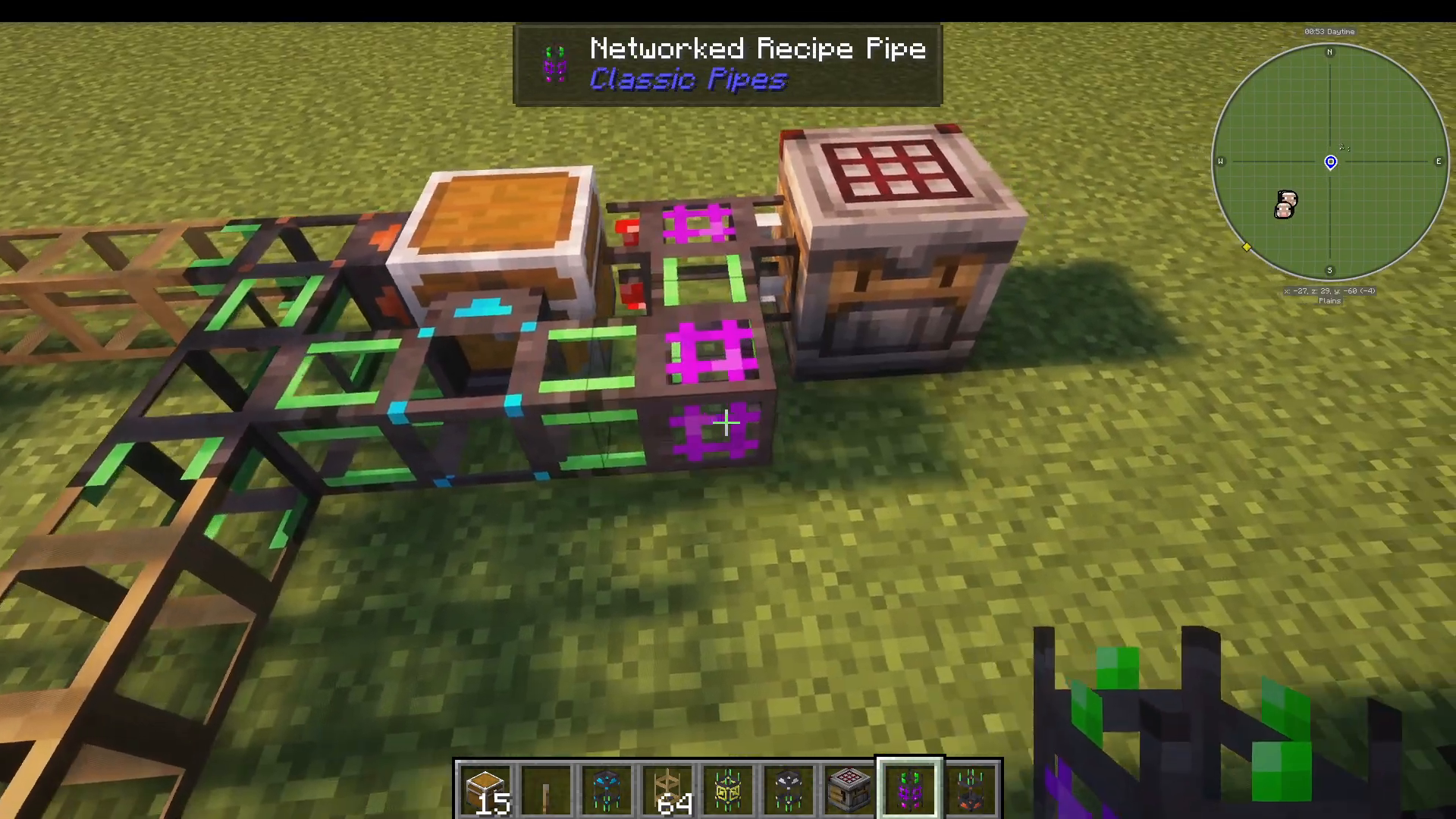
For example, set Oak Logs as the input and Oak Planks as the output. The Recipe Pipe automatically detects the direction of the connected crafter (using your in-game minimap for reference) and sends ingredients to it. There is also a checkbox option: when enabled, the pipe will hold ingredients until the previous crafting result has been returned, preventing ingredient pile-ups.
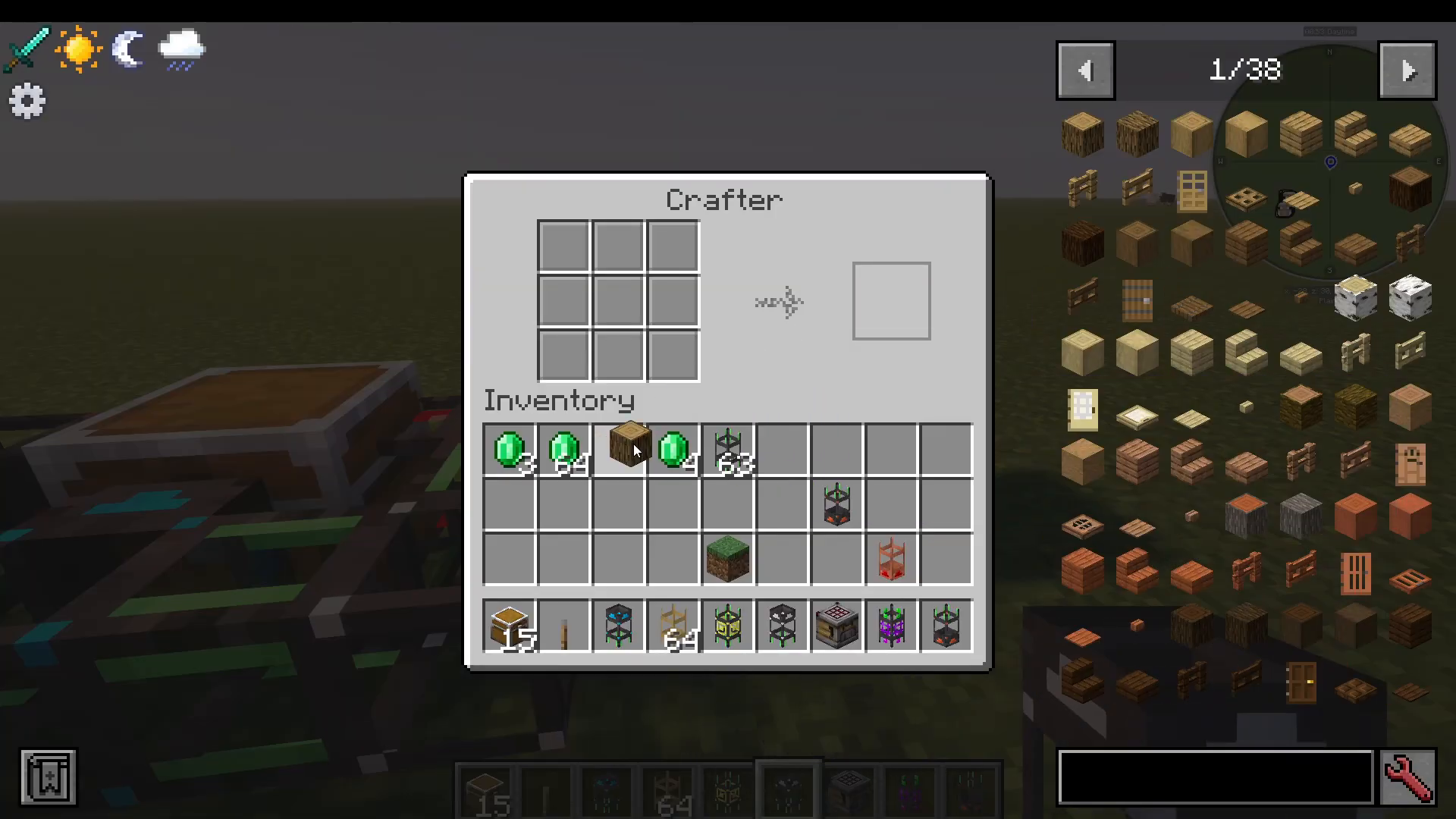
The Pipe Slicer Tool
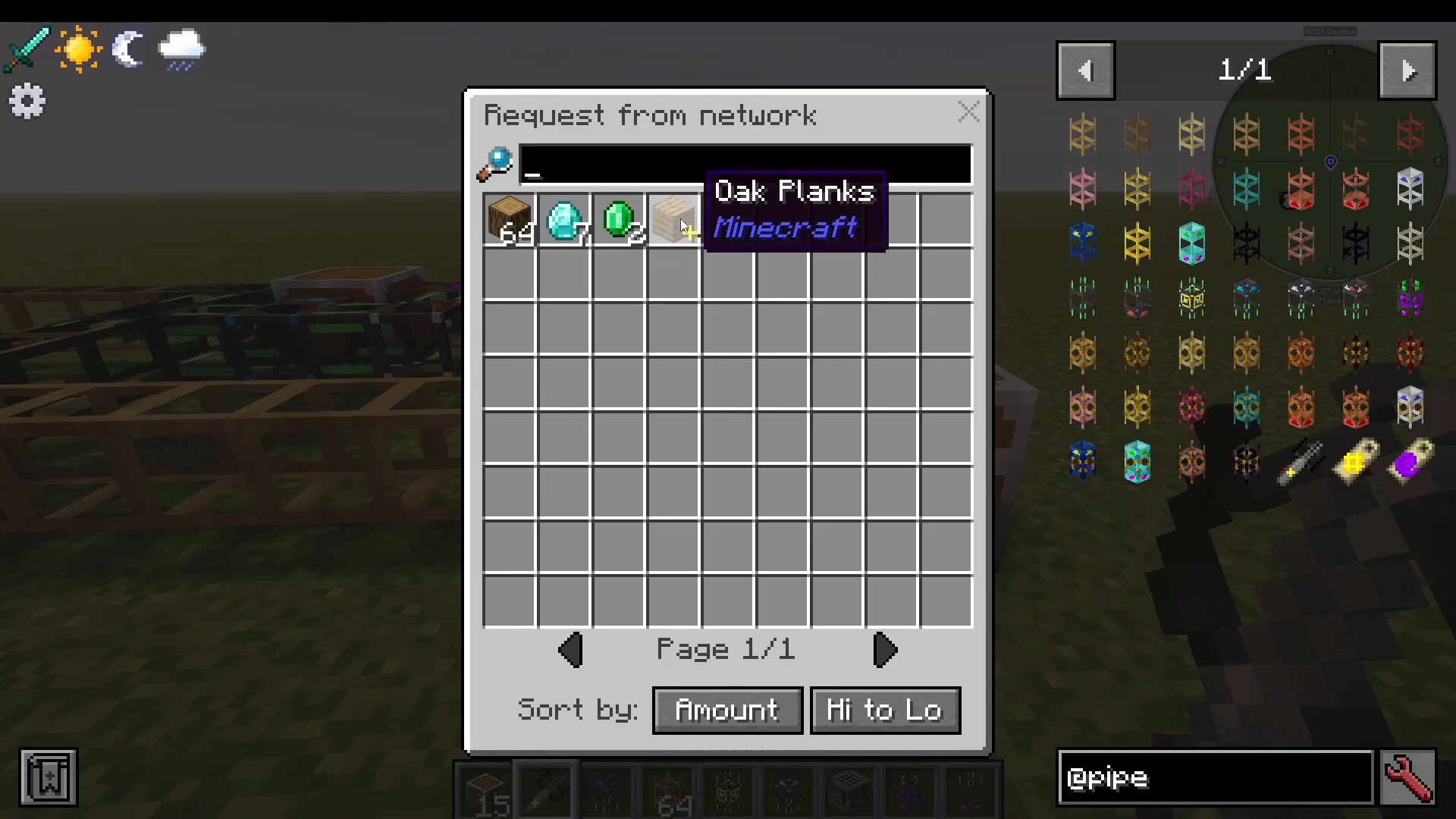
The Pipe Slicer is a handheld tool that lets you send item requests to any network pipe simply by right-clicking on it. You don’t need to navigate menus — just hold the Slicer, right-click a network pipe, specify the item and quantity you want, and the network will route it there immediately.
This is particularly handy for quickly requesting crafted items from a Recipe Pipe or grabbing items without opening a dedicated Request Pipe interface.
Tag Label and Mod Label Filters
Classic Pipes also includes two filter label tools for more advanced sorting:
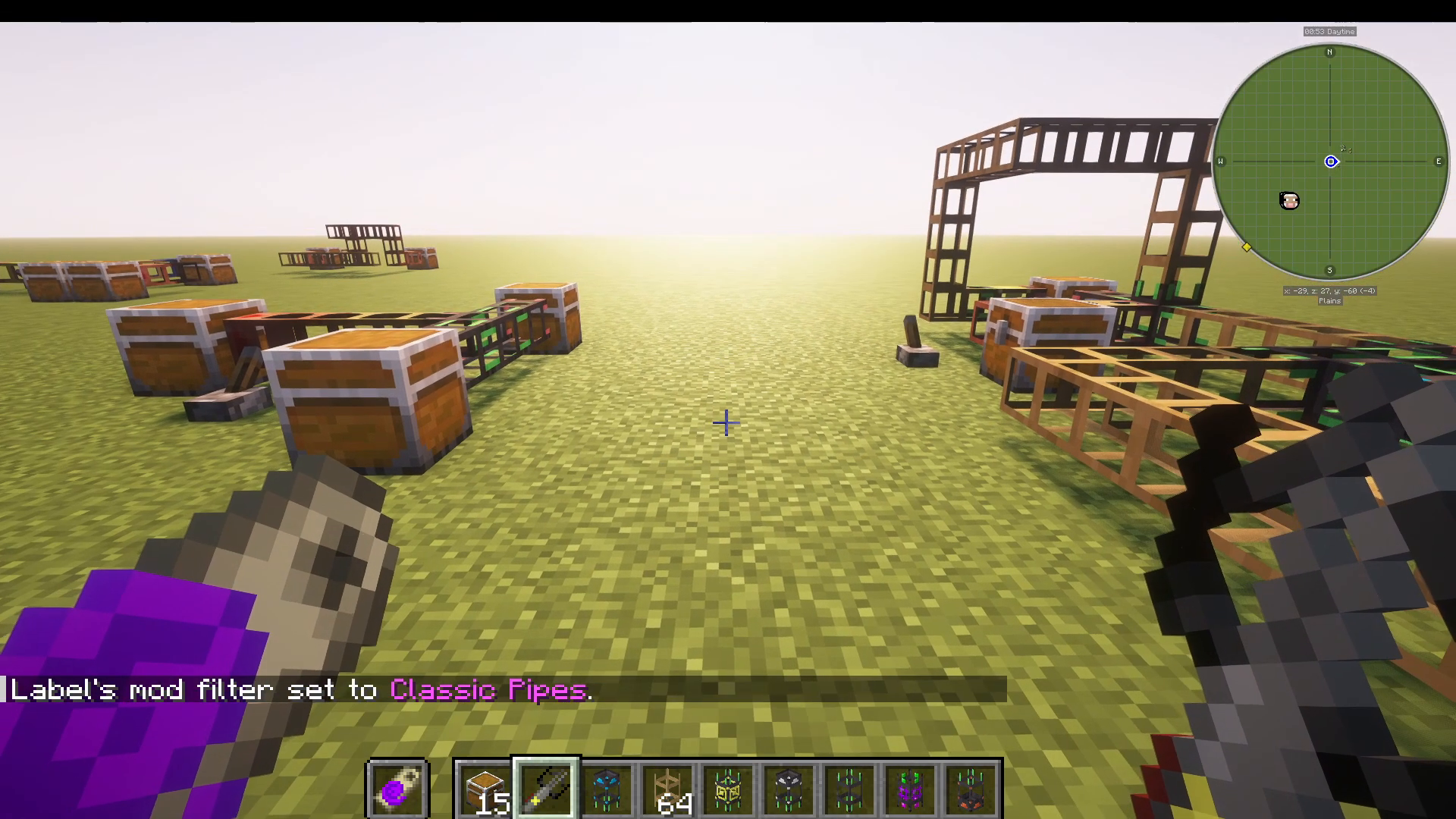
Tag Label: Hold this in your off-hand and right-click a pipe to filter it using Forge item tags, such as forge:ores or similar tag groups.
Mod Label: Hold this in your off-hand and right-click a pipe to restrict that pipe to only items from a specific mod. For example, setting the filter while holding a Classic Pipes item will limit that pipe to Classic Pipes mod items only.
Summary
The Classic Pipes mod’s network system is one of the most flexible item-management tools available in modded Minecraft. Here’s a quick recap of every network pipe type:
Network Routing Pipe — Core network connector; required at all junctions.
Network Provider Pipe — Exposes chest contents to the network.
Network Stocking Pipe — Keeps a set quantity of items topped up (passive or active).
Network Request Pipe — Manually pull specific items from the network on demand.
Network Matching Pipe — Routes items based on a chest’s existing contents.
Network Storage Pipe — Matching + Provider in one; ideal for simple storage setups.
Network Recipe Pipe — Enables automated crafting within the network.
Pipe Slicer — Tool for sending quick item requests to any network pipe.
Tag / Mod Labels — Filter pipes by item tag or mod origin.
With these pipes working together, you can build a fully automated storage, restocking, and crafting system with minimal effort. Start with a Network Routing Pipe at every junction, add Provider Pipes to your chests, and build out from there.
“`