


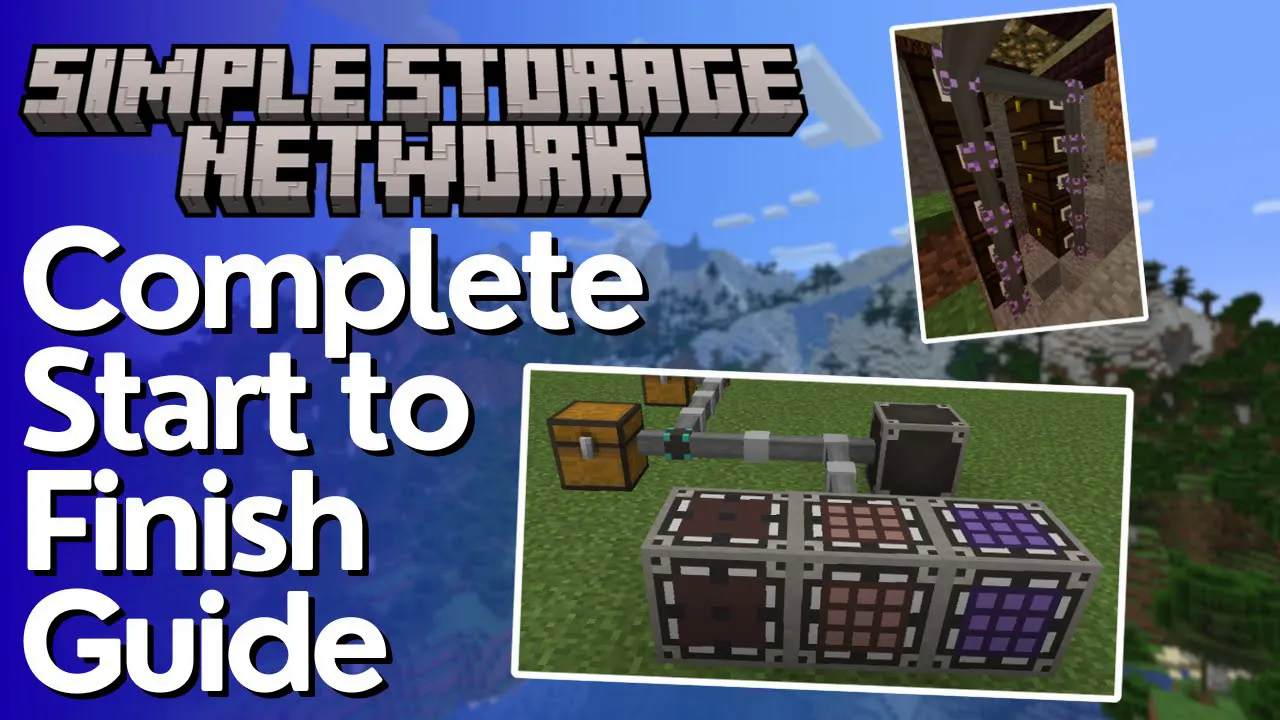
Simple Storage Network Complete Tutorial
Simple Storage Network: The Complete Beginner’s Tutorial
Simple Storage Network is one of the best storage mods available for Minecraft — and the key word is simple. If you’ve ever been overwhelmed by the complexity of mods like Refined Storage or Applied Energistics 2, this mod is the perfect alternative. In this complete guide, you’ll learn everything you need to know: how to build your first network, how every cable type works, how to use filters and upgrades, and how the remote tools function. This tutorial assumes you have Just Enough Items (JEI) installed to look up recipes.
Getting Started: The Core Components
To build your first Simple Storage Network, you need two essential items: a Storage Network Route and a Storage Inventory. The Storage Network Route acts as the CPU or brain of your entire network — every network must have one. Think of it as the central hub that all other components connect back to.
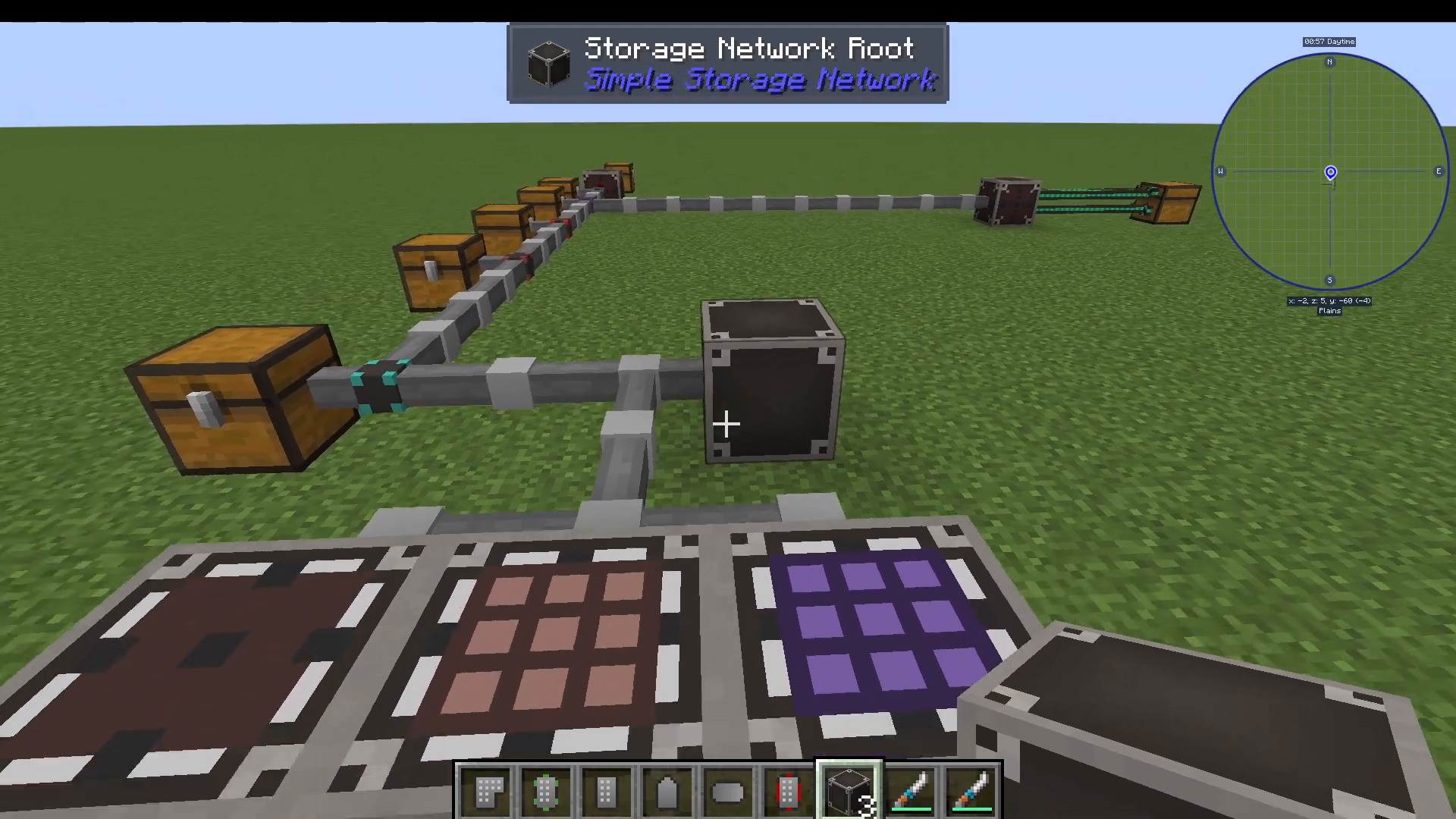
A basic network can be set up by simply placing down a Storage Network Route, a chest, and connecting them with network cables. However, you’ll quickly notice that basic cables alone don’t link your chest to the network — that requires a specific cable type covered below.
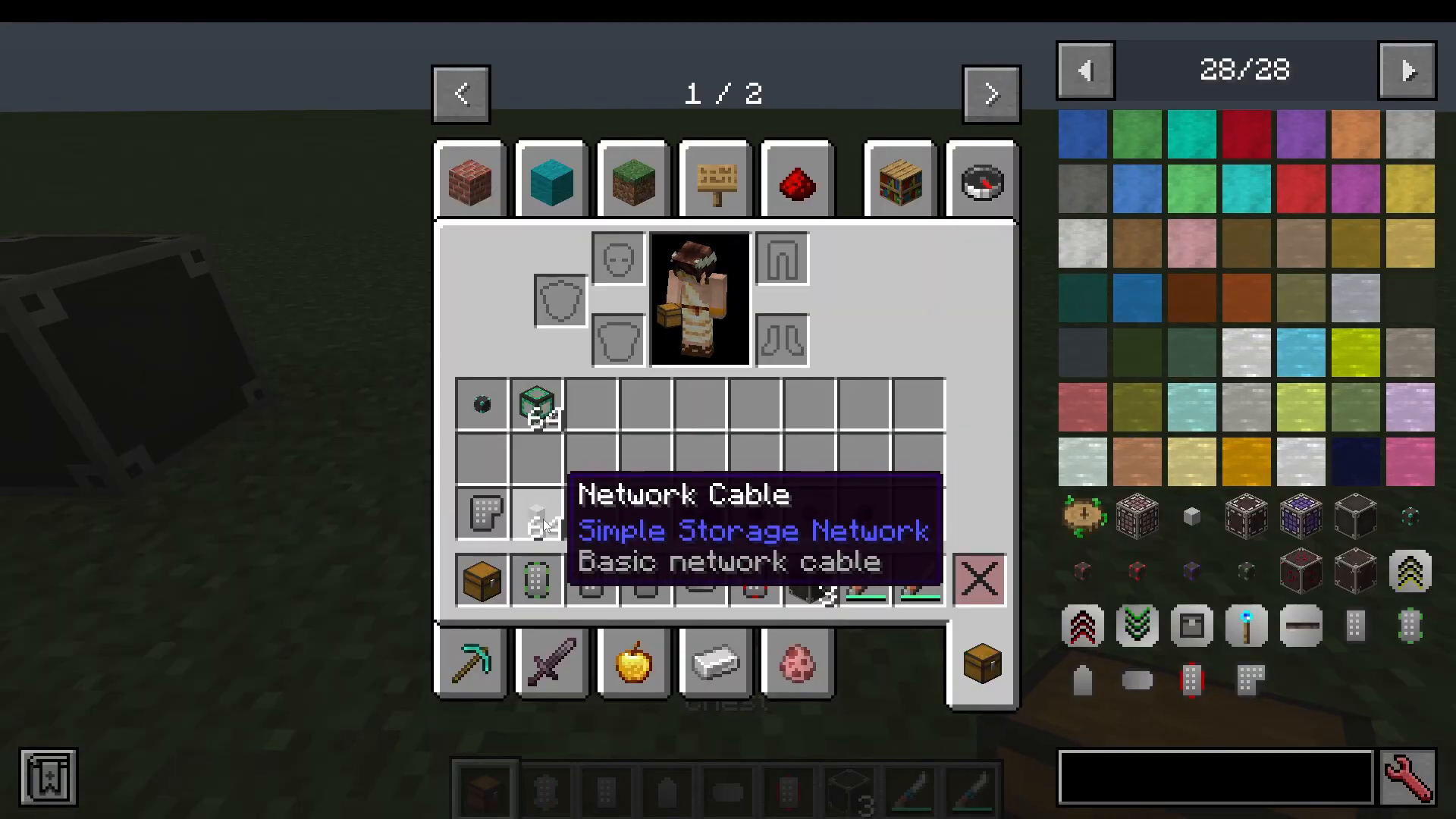
The Storage Inventory
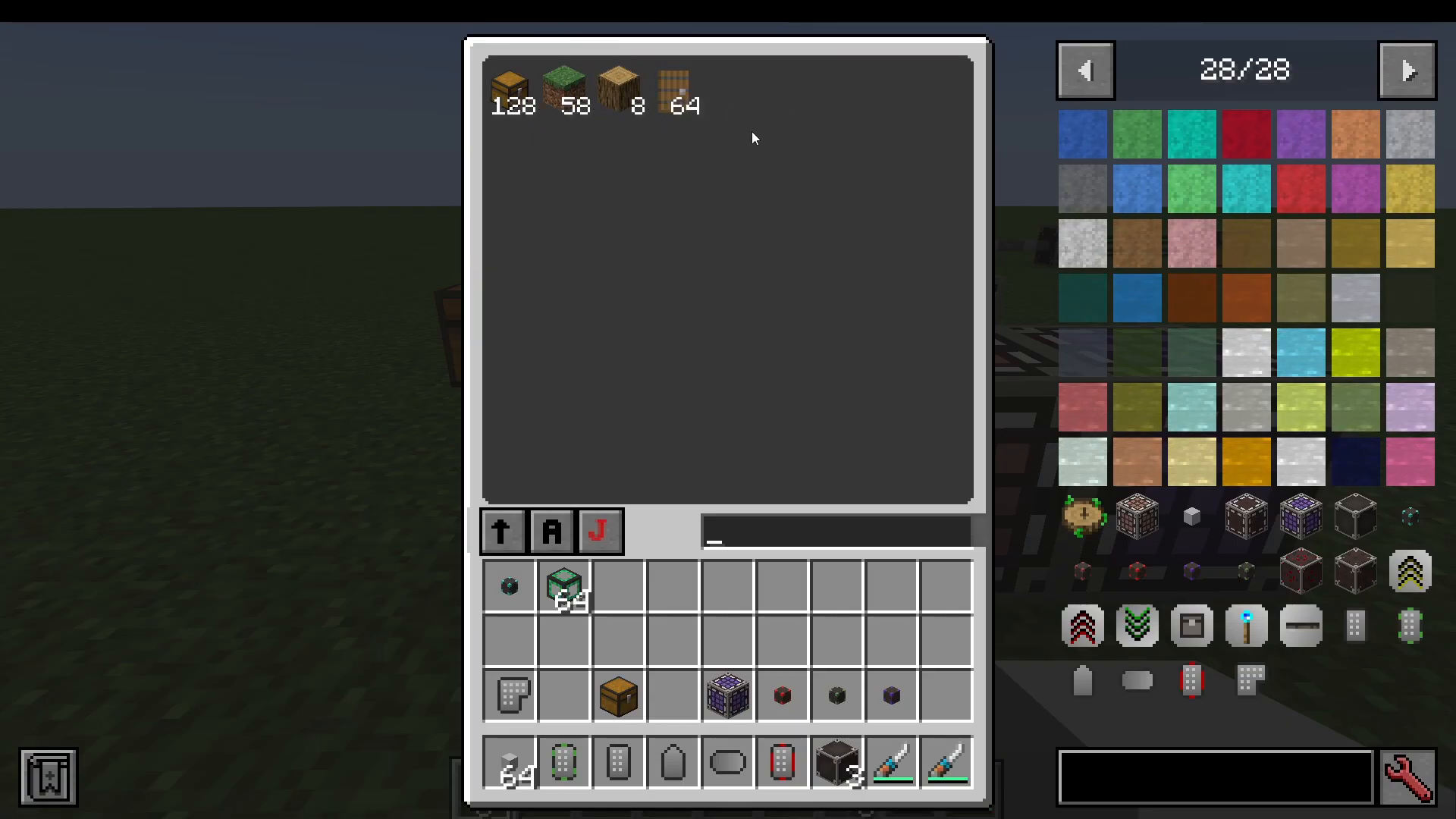
Right-clicking the Storage Inventory opens a unified view of every item stored across your entire network. From this interface you can:
Search for items by name (e.g., type “chest” to filter for chests only).
Pull items out of storage or click items back in to deposit them.
Enable JEI search integration — when you type in the search bar, it simultaneously searches your network storage and the JEI item list at the same time.
Sort items by mod, amount, or name, in either ascending or descending order.
The Storage Request Table
The Storage Request Table adds a built-in crafting table to your storage interface. This means you can place raw materials (like logs) directly into the crafting grid, craft items (like planks), and push the results straight into your network — all from one block.
The Expanded Request Table
The Expanded Request Table functions the same as the Storage Request Table but features a much larger GUI. This is only recommended if you are running a very large, complex setup and genuinely need the extra screen real estate.
Understanding Every Cable Type
Link Cable
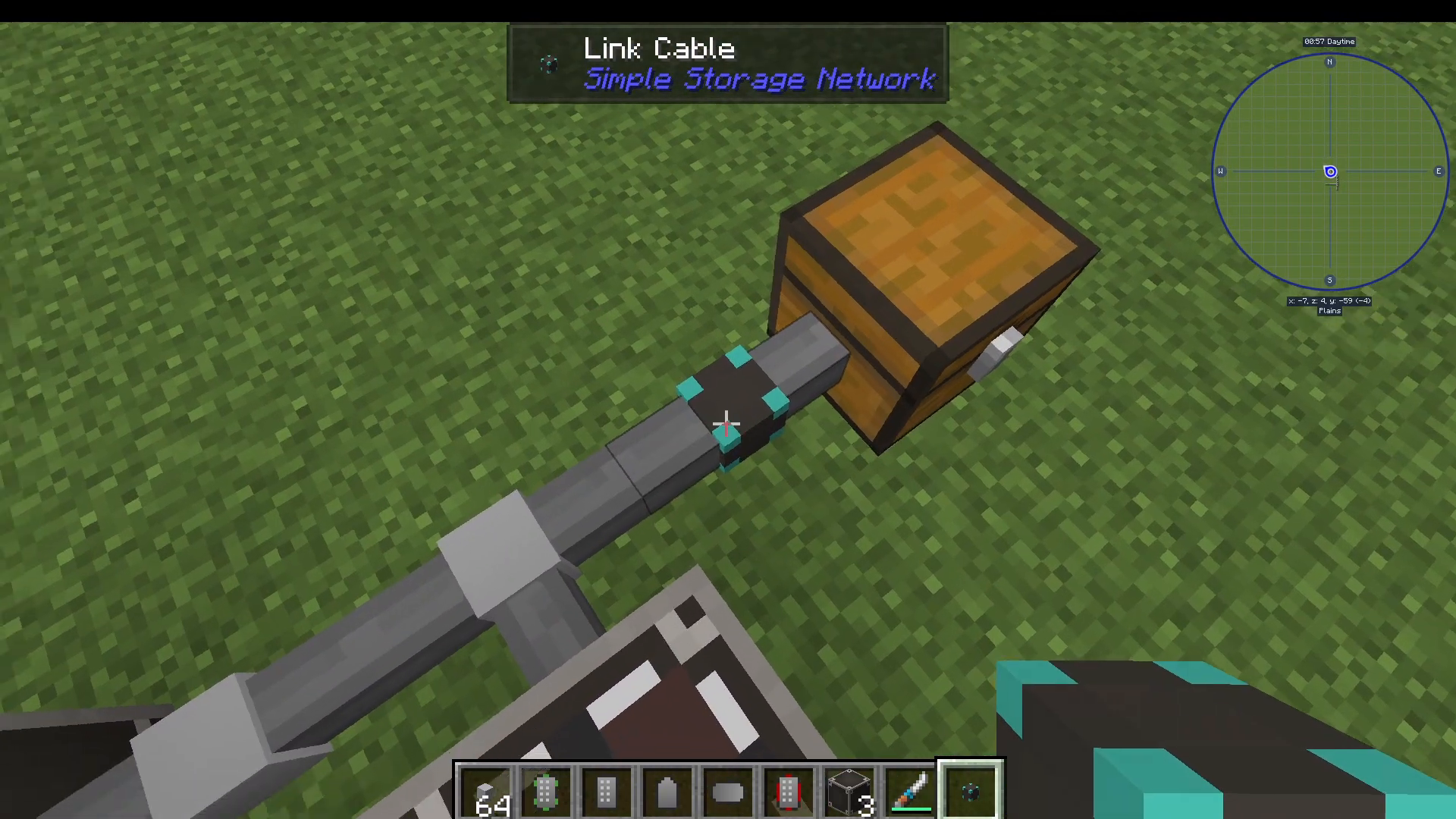
The Link Cable is how you connect an inventory (like a chest) to your network. Replace any basic cable connecting your chest with a Link Cable, and that chest’s entire contents become part of the network. You can then view, take, and return items through the Storage Inventory interface — items physically remain in the chest, but the network can see and access them.
Import Cable
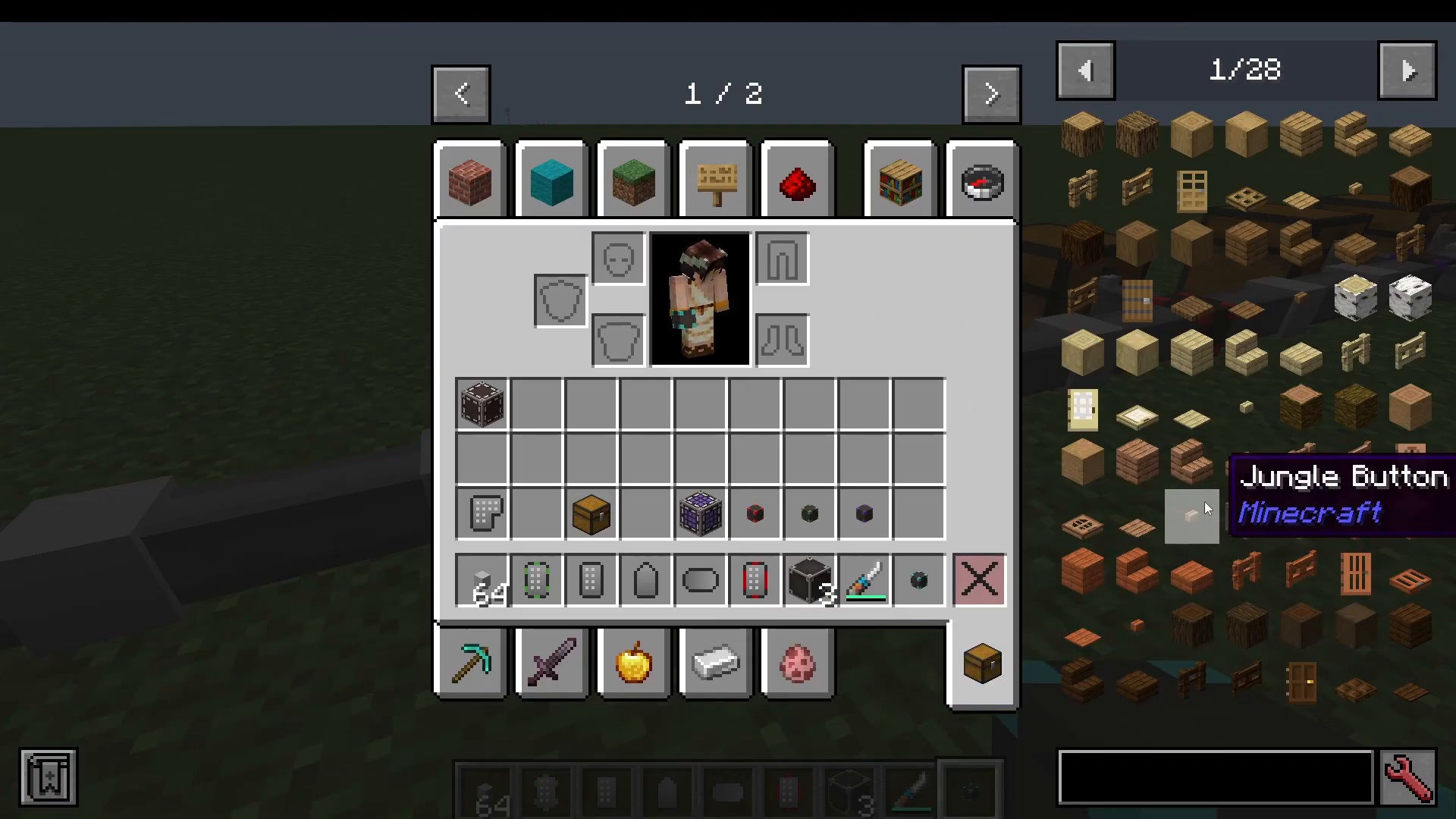
The Import Cable actively extracts all items from the attached inventory and pulls them into the network. Unlike the Link Cable (which simply bridges the chest), the Import Cable physically moves items out of the chest and distributes them across the network.
Filtered Import Cable
The Filtered Import Cable works like the Import Cable but gives you precise control over which items get imported. Right-clicking the cable opens its configuration interface, where you can:
Set it to Always On mode for continuous operation.
Assign a Priority value — a higher number means this cable operates before lower-priority cables on the same network. A negative priority means it runs last.
Use Import Contents as Filter — this automatically sets the filter to match whatever is currently inside the attached chest, saving you from manually specifying items.
Switch between Allow List (whitelist) and Ignore List (blacklist) modes. Allow List only imports the specified items; Ignore List imports everything except the specified items.
Filtered Link Cable
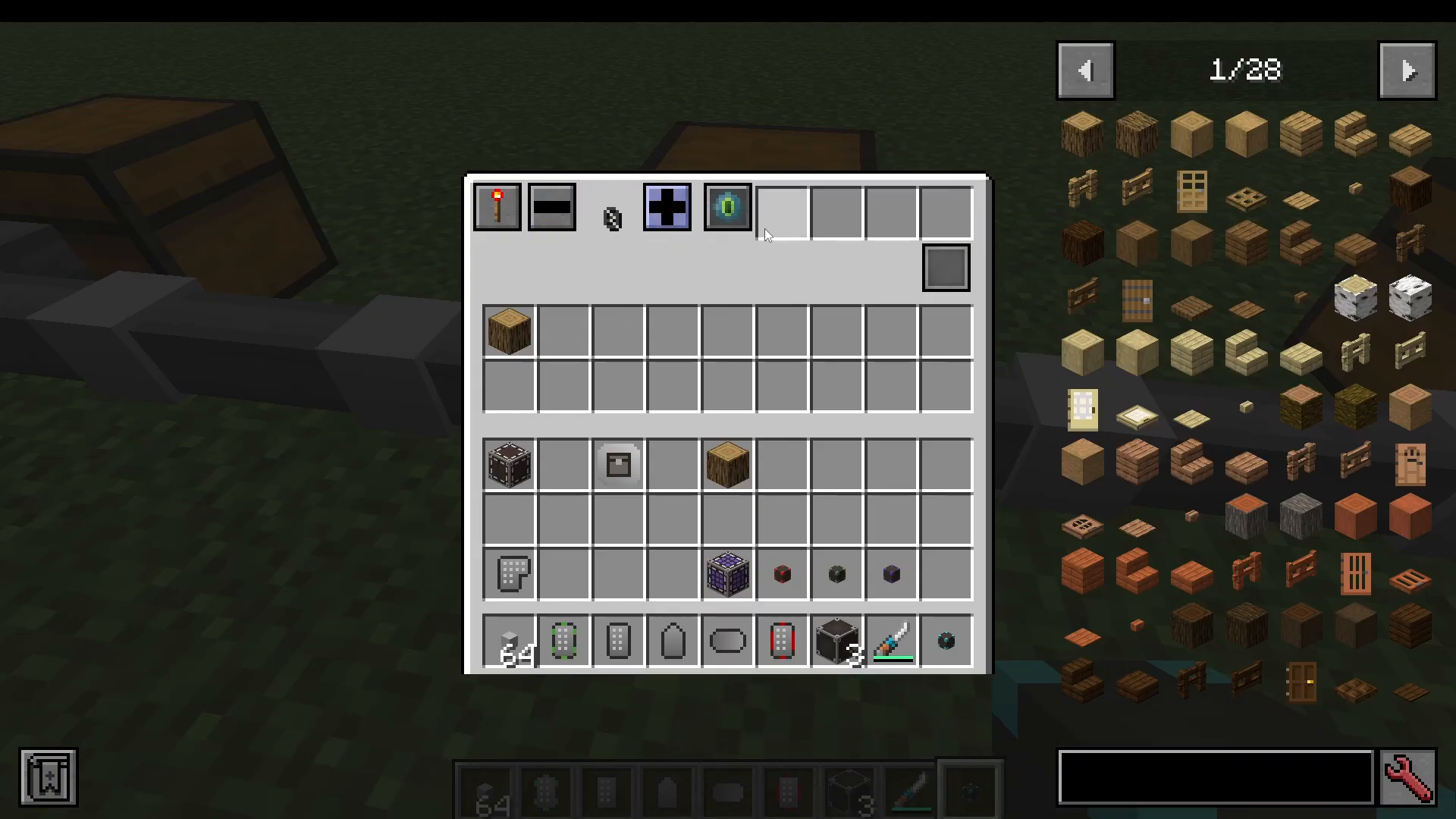
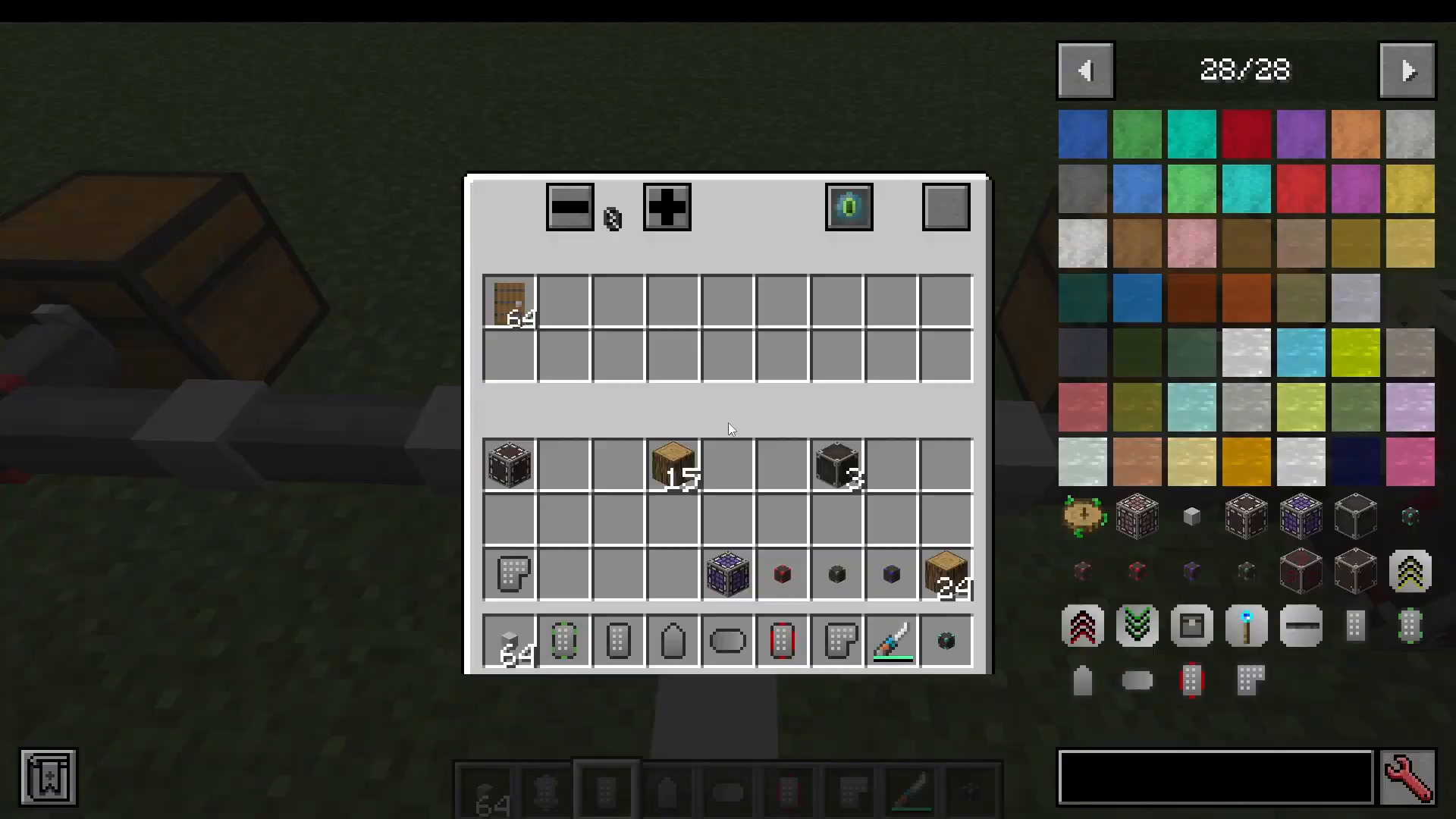
The Filtered Link Cable combines the chest-linking behaviour of the Link Cable with item filtering. It connects a chest to the network but only exposes the specific items you define in its filter slots. For example, if a chest contains both Spruce Doors and Stripped Jungle Wood but your filter only specifies Spruce Doors, the network will see only the Spruce Doors — the Stripped Jungle Wood remains invisible to the network.
Export Cable
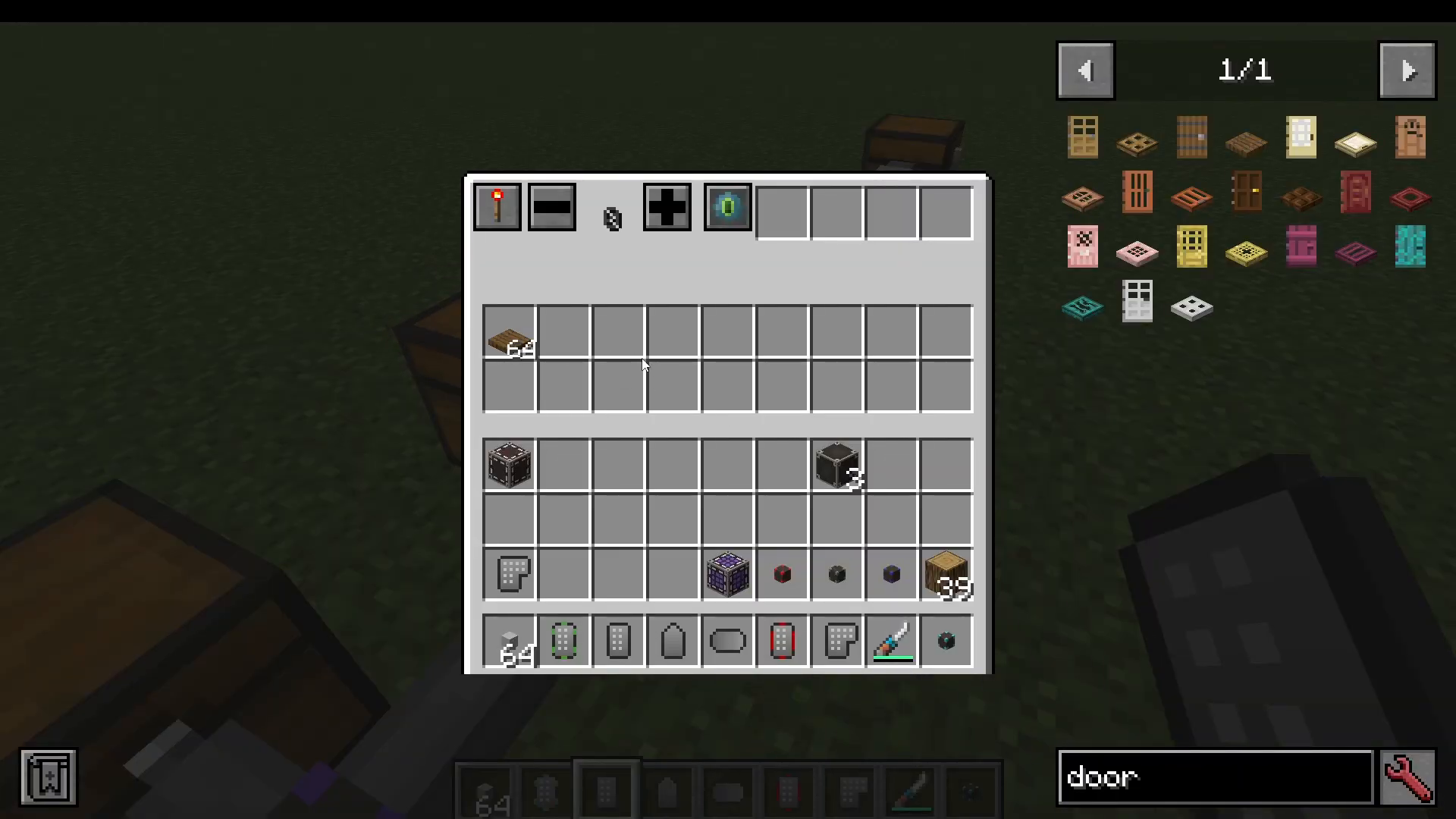
The Export Cable works in the opposite direction to the Import Cable. You specify items in its filter, and it will continuously pull those items out of the network and push them into the attached chest. This is useful for automatically stocking a specific chest with a specific resource.
Network Exchange Interface
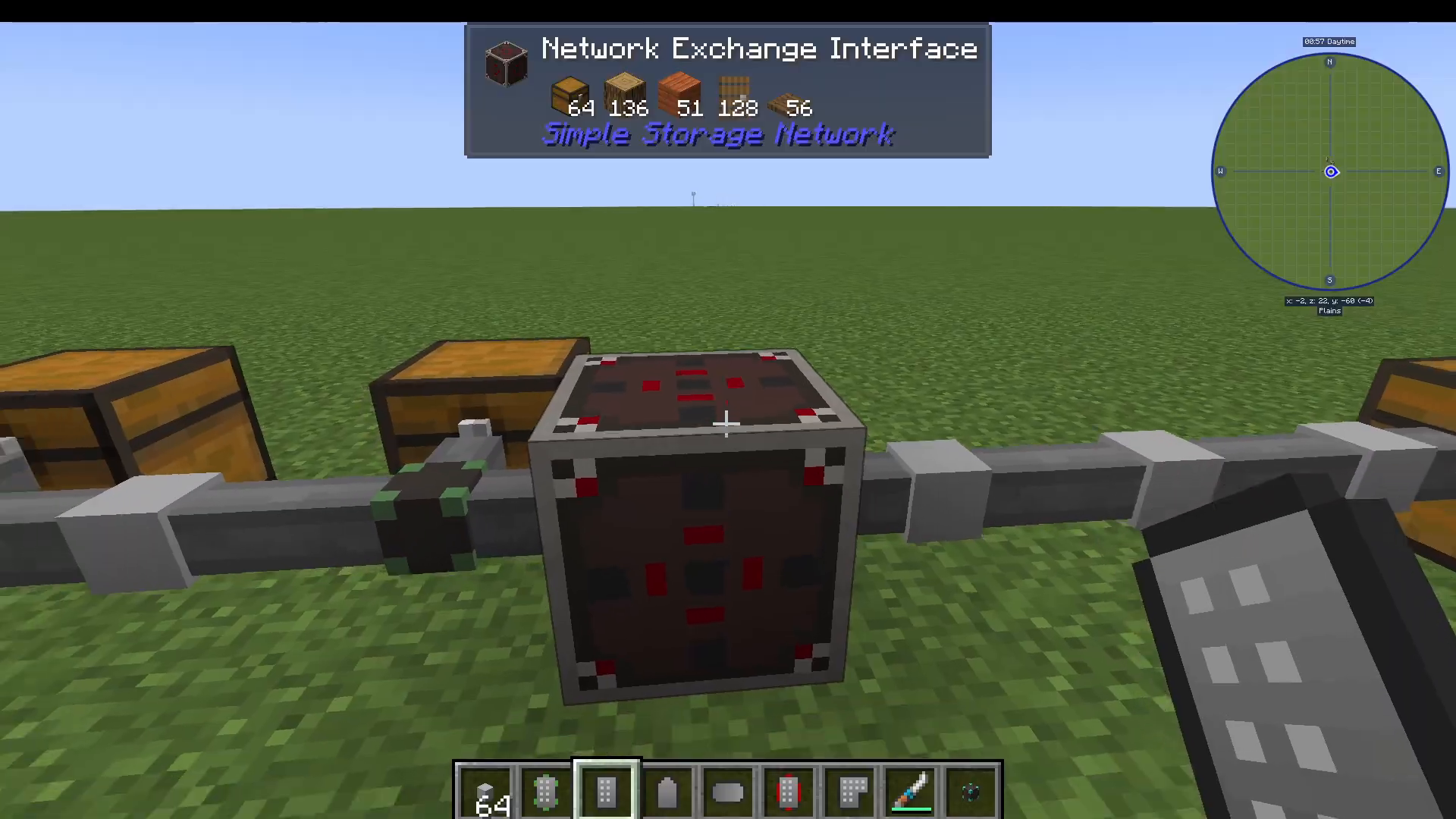
The Network Exchange Interface is an advanced block that allows other storage mods — such as Applied Energistics 2 — to interface with your Simple Storage Network. For example, you could attach an AE2 Storage Bus or Import Bus to this block to make two separate storage systems communicate. Be warned: using this on very large networks can cause significant lag, so use it with caution.
Cable Upgrades
Both the Filtered Import Cable and certain other cables support up to four upgrade slots. The available upgrades are:
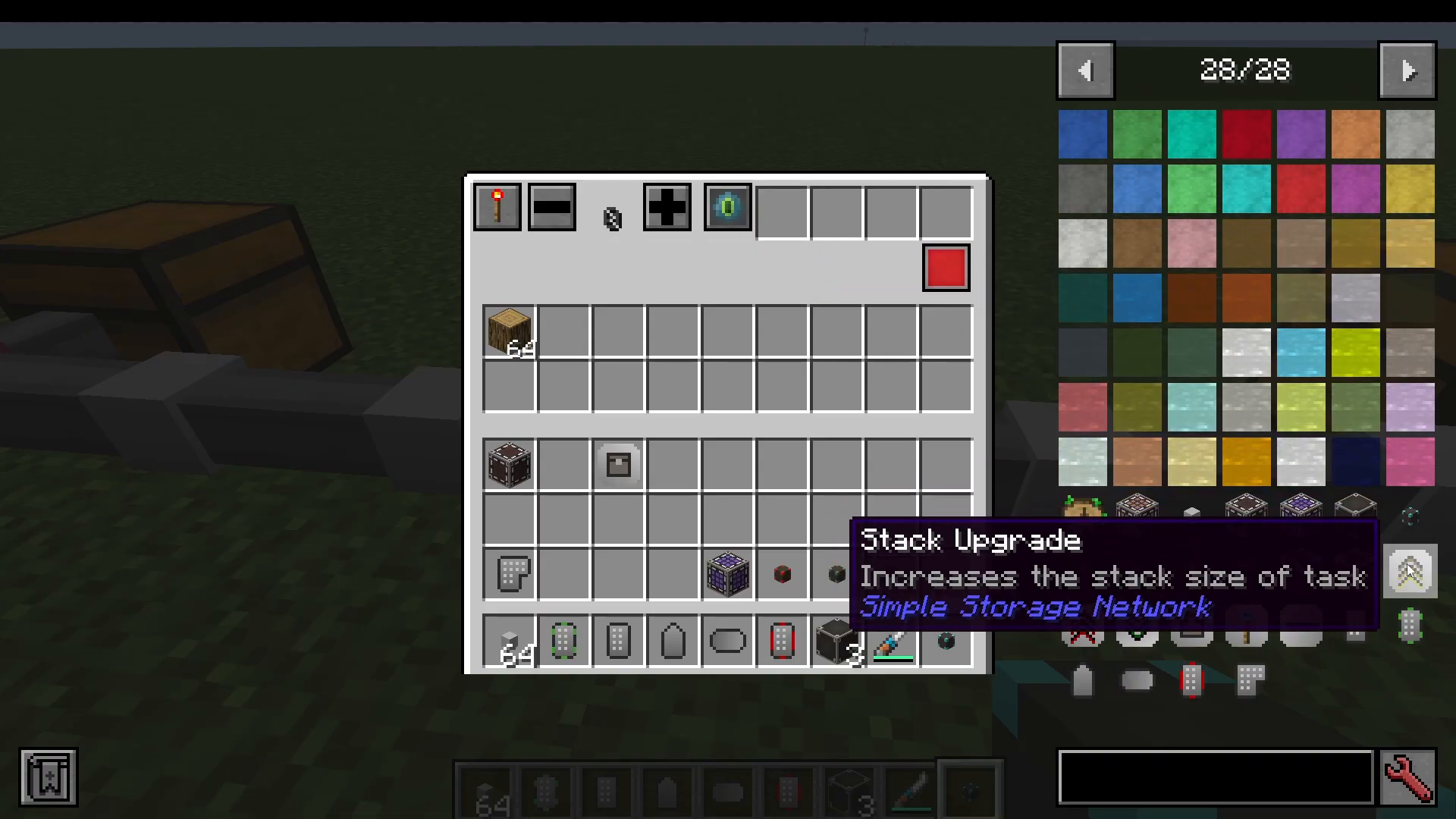
Stack Upgrade — The cable moves full stacks of items at a time instead of individual items, greatly increasing throughput.
Speed Upgrade — Increases how frequently the cable performs its operation, making everything faster.
Slowness Upgrade — Decreases the operation frequency. Useful if you want to throttle a cable to reduce server load.
Stock Upgrade — This is particularly powerful. When installed in a Filtered Import Cable set to an Allow List, you can specify a minimum quantity for your filtered item. The cable will import items from the chest into the network, but will always leave your specified stock quantity behind in the chest. For example, setting Oak Logs to a stock of 10 means the cable will never let the chest drop below 10 Oak Logs, but will import any surplus above that number.
Operation Upgrade — Controls exactly how many items are processed per operation cycle (e.g., 10 at a time, or just 1 at a time with the Single upgrade).
Remote Tools
Simple Storage Network includes four remote items that let you interact with your network from anywhere in the world. To bind any remote to your network, shift right-click it onto your Storage Network Route first.
Storage Remote
The Storage Remote opens your network’s storage interface from anywhere, just as if you were standing at your Storage Inventory block. You can browse, search, and retrieve items remotely.
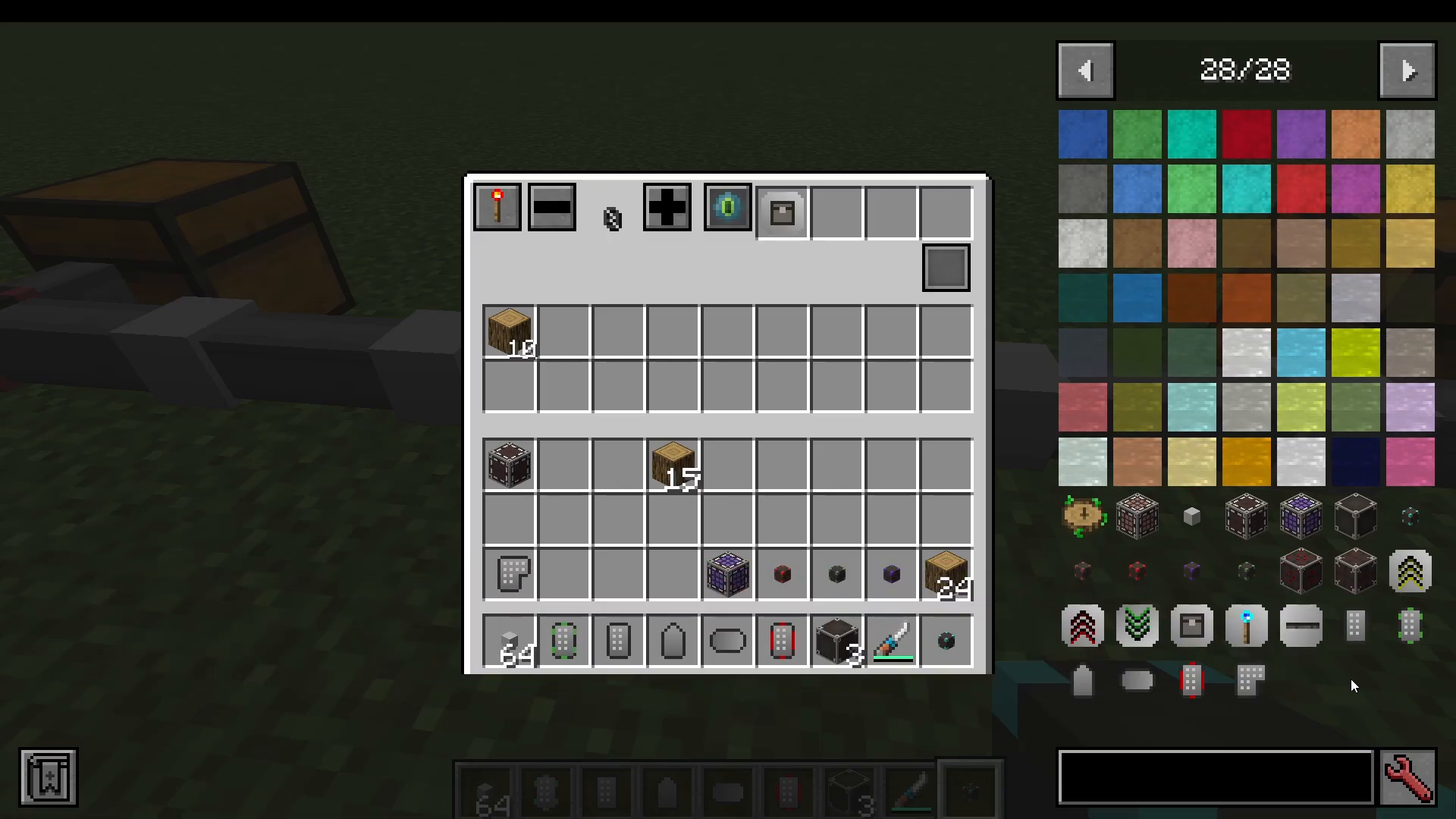
Network Pickup Remote
The Network Pickup Remote lets you right-click on any block in the world to remotely extract matching items from your network directly into your inventory. For example, if you right-click on a Chest of Planks lying in the world, the remote will pull Chests of Planks out of the network and deliver them to you — without you needing to visit your storage.
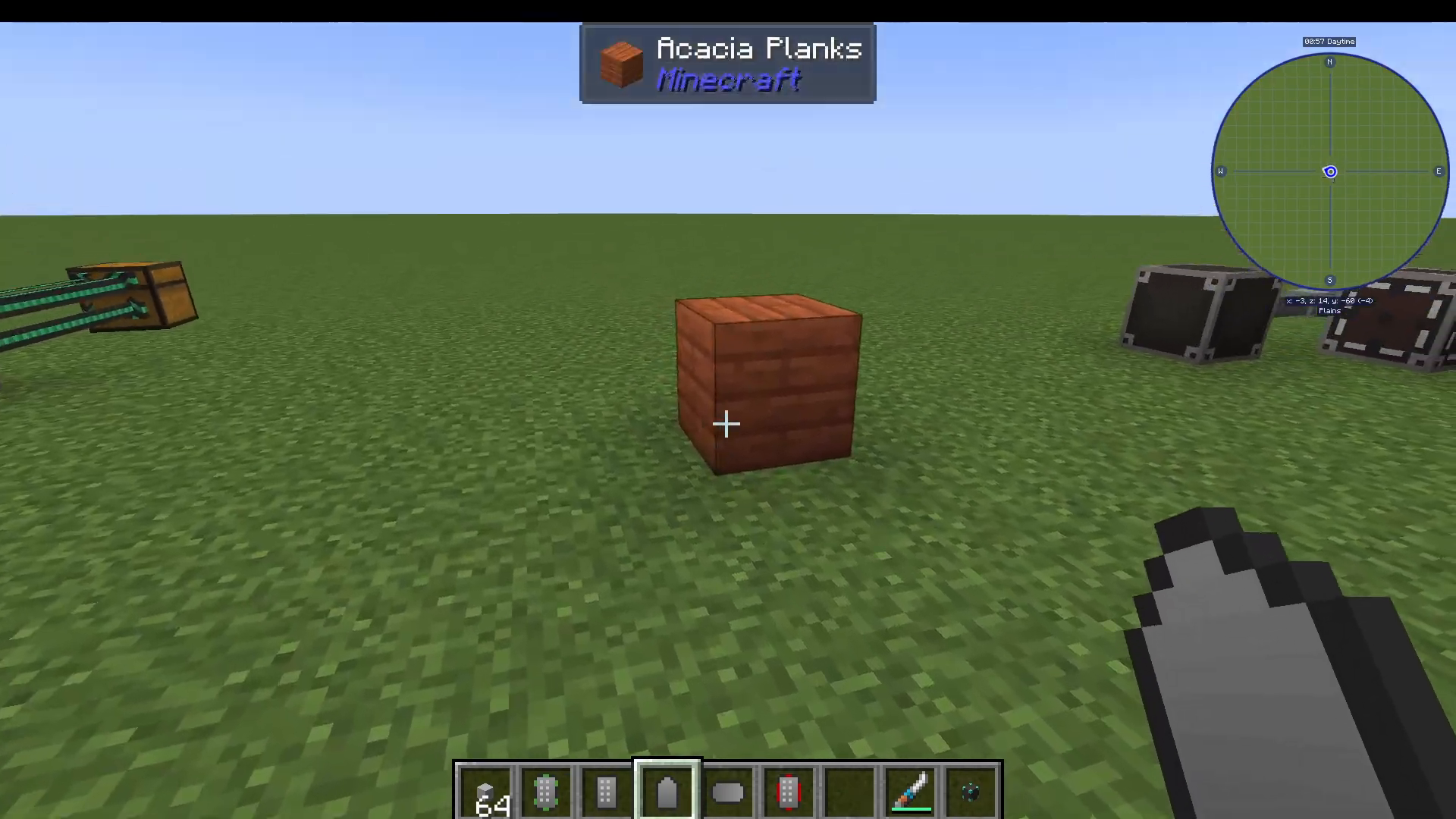
Network Collector Remote
The Network Collector Remote reverses the normal item pickup behaviour. When held, any items you pick up in the world are sent directly into your network instead of going into your personal inventory. This is incredibly useful while mining or farming — loot goes straight into storage automatically.
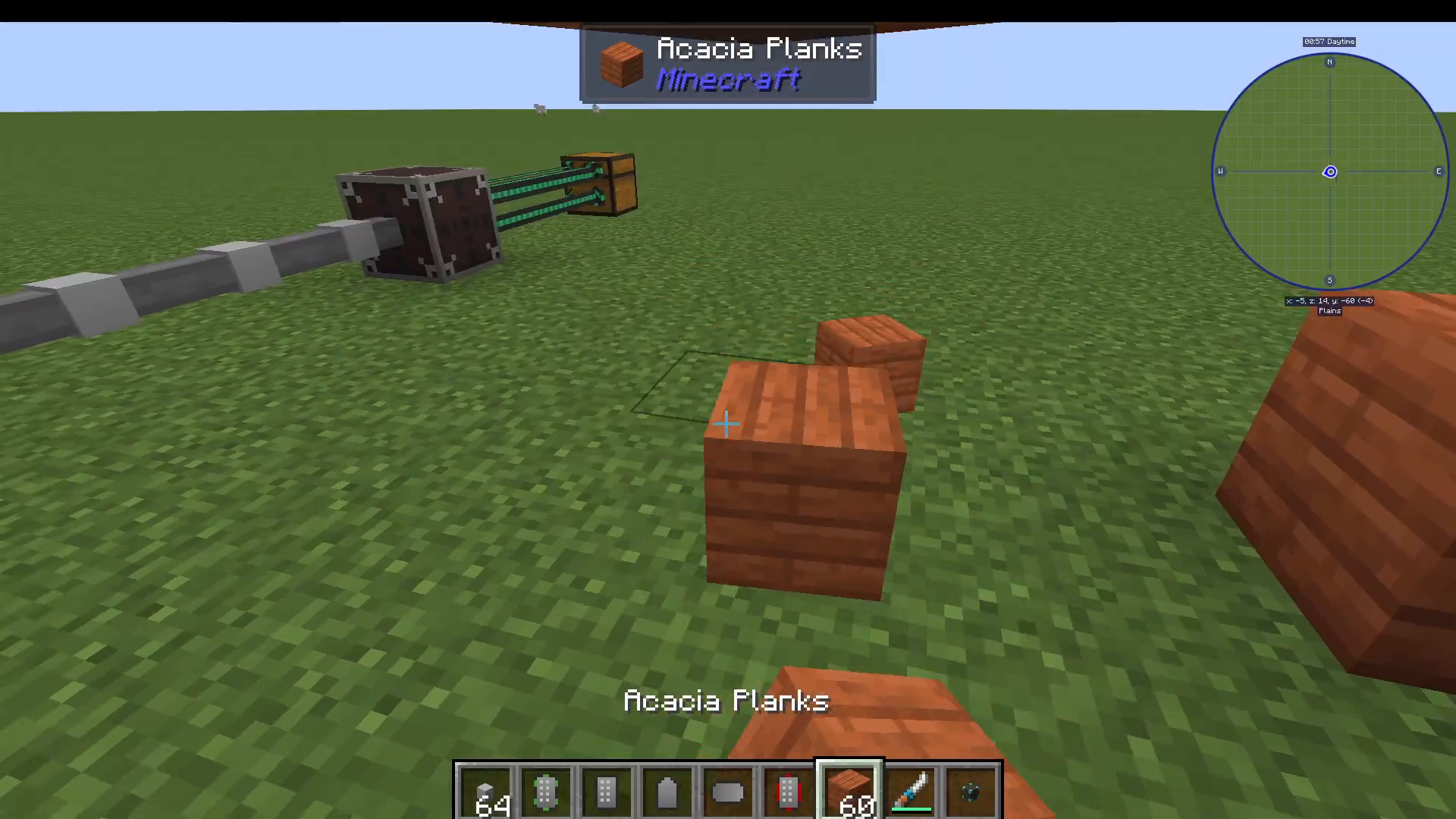
Network Build Remote
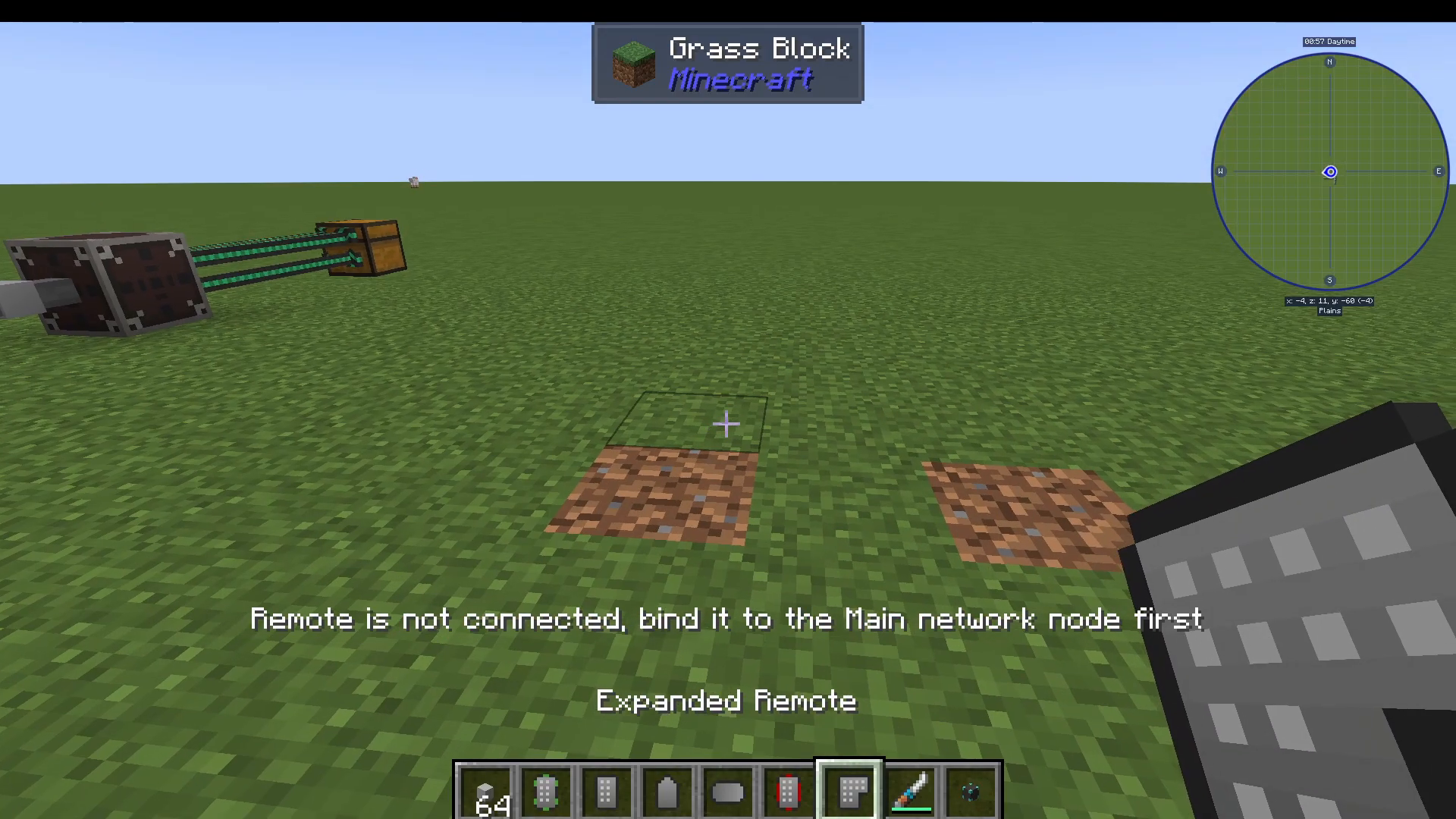
The Network Build Remote allows you to place blocks directly from your network without carrying them. Shift right-click the remote onto your Storage Network Route to bind it, then left-click a block in the world to select its type, and right-click to place that block — drawn directly from network storage. Note that you must left-click (not right-click) to target a block type first before placing will work.
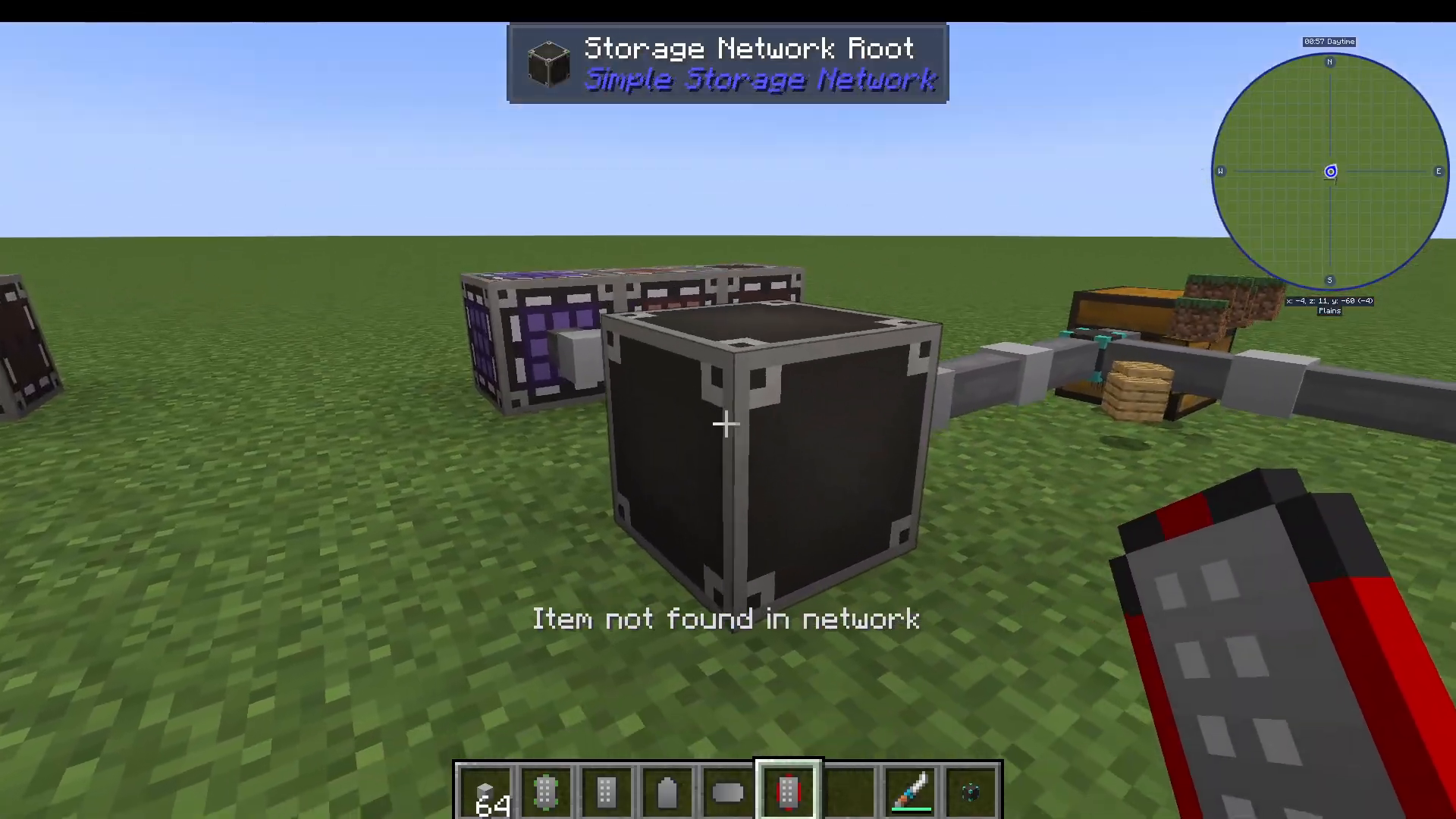
Expanded Remote
The Expanded Remote is simply a larger-GUI version of the standard Storage Remote, mirroring the relationship between the Storage Request Table and the Expanded Request Table. It offers the same remote storage access but with a bigger interface window.
Summary
Simple Storage Network lives up to its name — it’s a genuinely approachable storage solution that can scale from a small single-chest network all the way up to a complex, multi-chest, cross-mod storage system. Here’s a quick recap of everything covered:
Storage Network Route — The brain of every network. Required.
Storage Inventory / Request Table / Expanded Request Table — Your main interfaces for viewing and interacting with stored items.
Link Cable — Connects a chest to the network without moving items.
Import Cable — Pulls all items from an attached chest into the network.
Filtered Import Cable — Pulls only specified items, with allow/ignore list support and priority settings.
Filtered Link Cable — Links a chest but exposes only filtered items to the network.
Export Cable — Pushes specified items from the network into an attached chest.
Network Exchange Interface — Bridges Simple Storage Network with other storage mods.
Upgrades — Stack, Speed, Slowness, Stock, and Operation upgrades fine-tune cable behaviour.
Remotes — Storage, Pickup, Collector, Build, and Expanded remotes for interacting with the network on the go.
Whether you’re just starting out with Minecraft modded storage or looking for something less intimidating than Applied Energistics 2, Simple Storage Network is an excellent choice. Get your Route placed, link up your chests, and start automating!
“`