





Mekanism Logistical Sorter Full Tutorial
Mekanism Logistical Sorter Full Tutorial
The Logistical Sorter is one of the simplest yet most powerful items that Mekanism provides. While its GUI might seem overwhelming at first glance, this comprehensive guide will break down every feature and setting into easy-to-understand steps. By the end, you’ll be able to create complex item sorting networks with confidence.
Crafting the Logistical Sorter
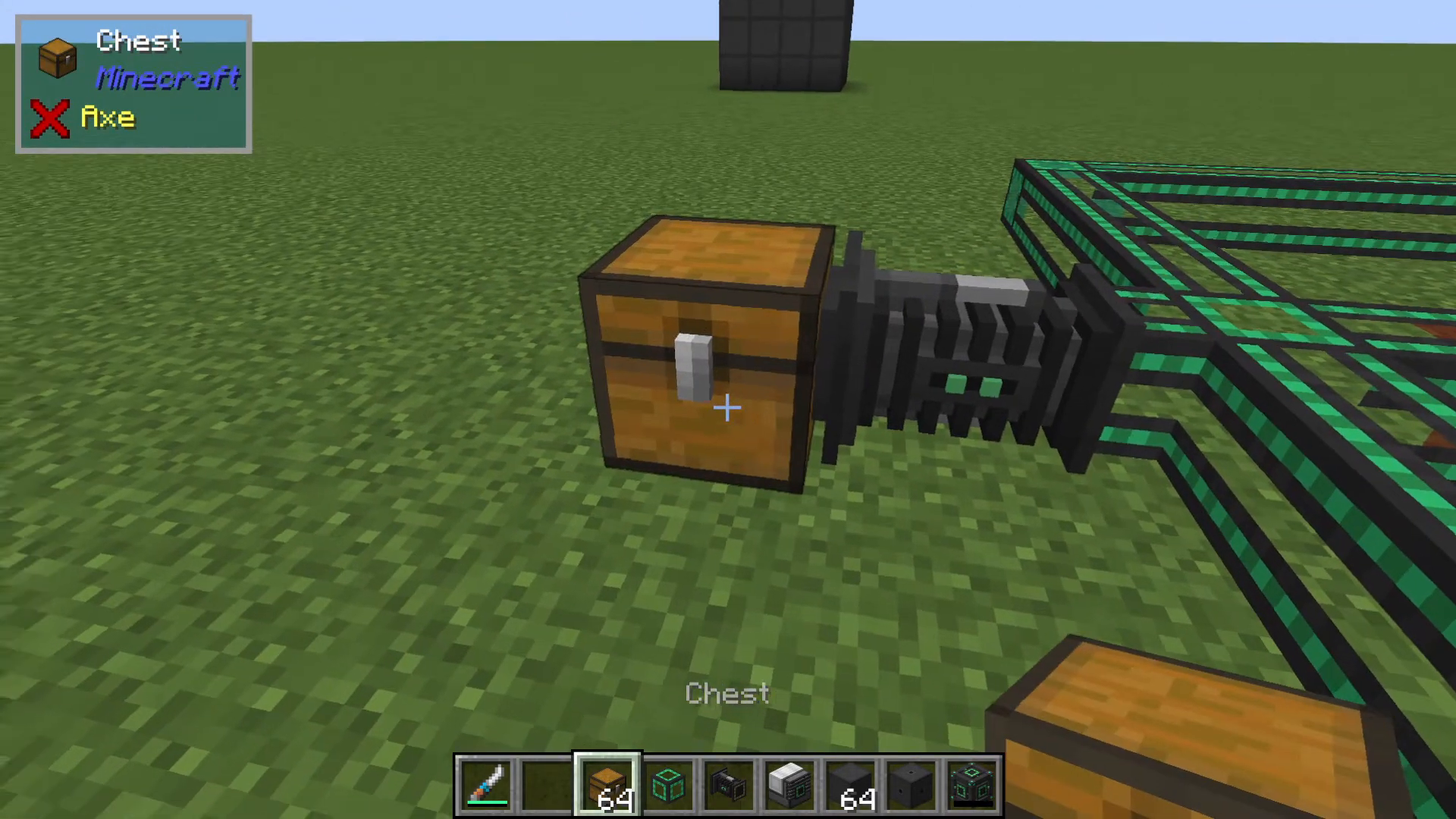
The Logistical Sorter is very straightforward to craft. You’ll need some iron ingots as the base material, basic components, a logic circuit, and a piston. Once crafted, place the sorter next to a chest or inventory.
The sorter has two key ports:
Black hole port: The intake side where items are pulled from the connected inventory
Yellow port: The exit point where items enter the Logistical Sorter network
To build a more complex or organized network, you’ll need to use Logistical Transporters from Mekanism to connect your sorters and inventories together.
Understanding the Main Filter Options
Filter Types
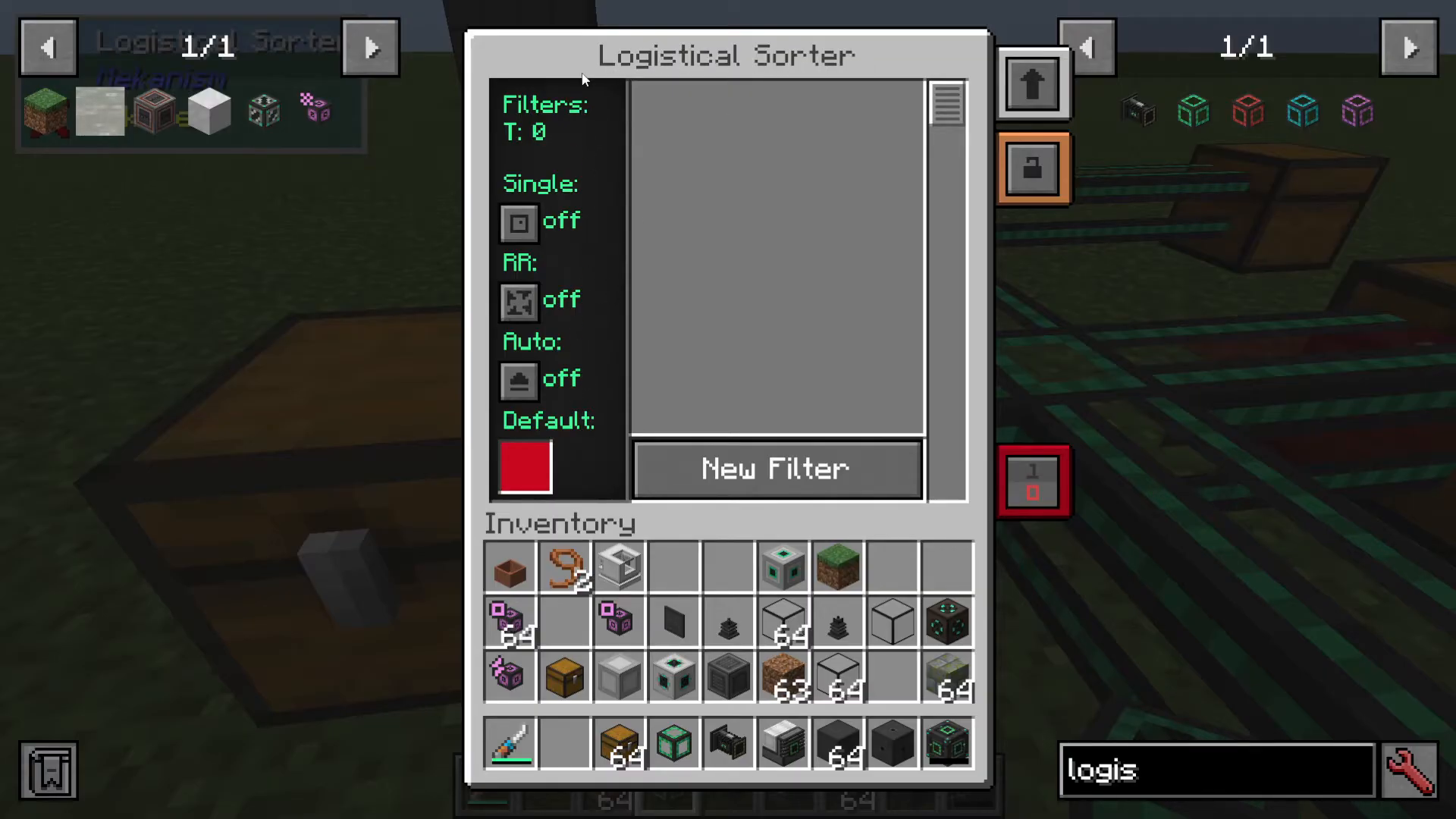
The Logistical Sorter offers several filter modes that control how items are distributed:
None: No filtering applied
Single: Sends a single item instead of a whole stack each time. This overrides any min and max settings in the item stack filters
On or Off: Toggles filtering behavior
Round Robin: Cycles between all connected inventories when sending items, distributing the load evenly
Auto-Eject: Automatically ejects any unfiltered items to connected inventories using the default configuration
Setting Up Routes and Colors
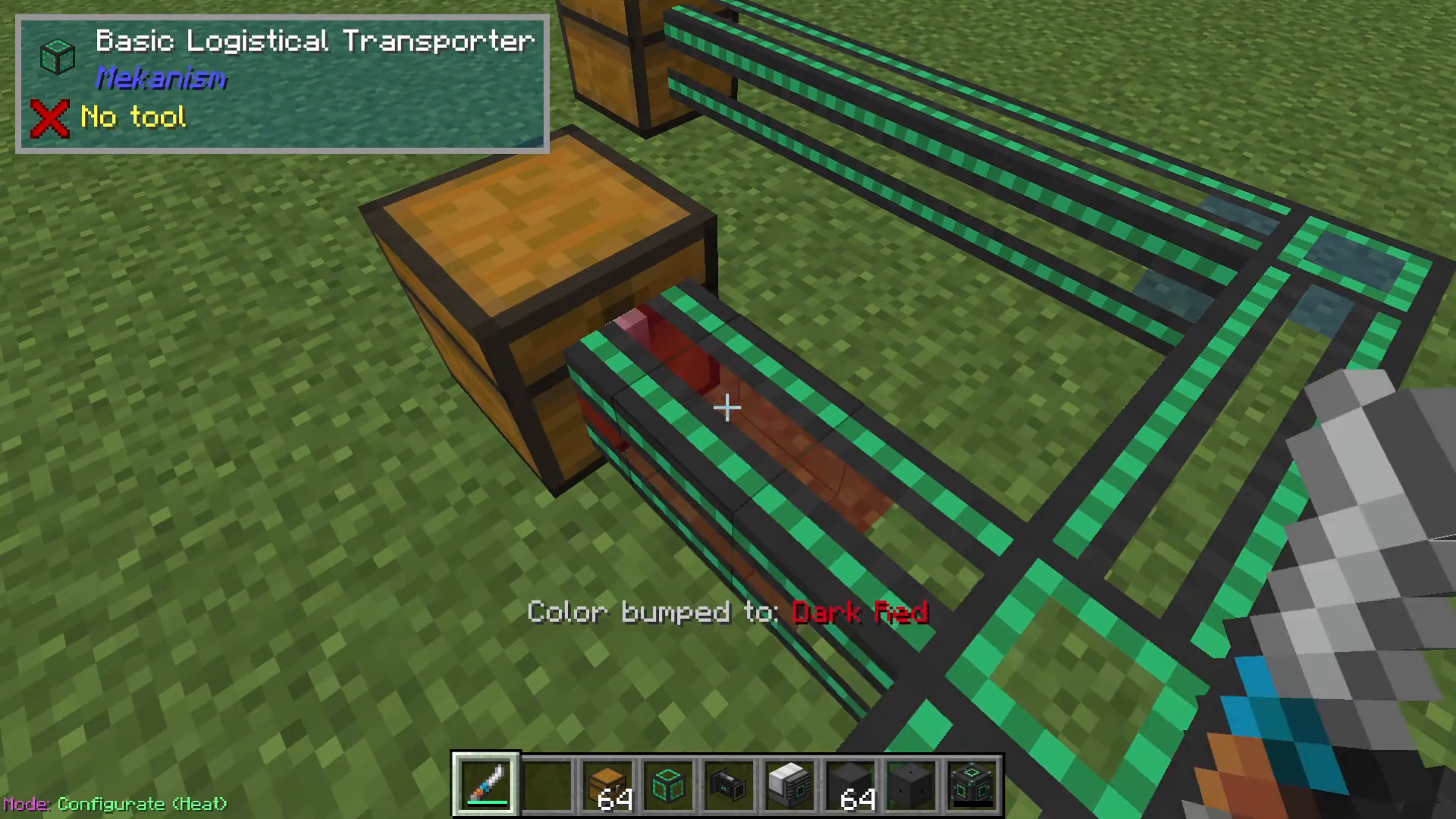
One of the most powerful features of the Logistical Sorter is the ability to create color-coded routes. You can have multiple different routes in your network, each assigned a different color.
To change route colors, use your Configurator and shift-click on the Logistical Transporters. For example, you might set up:
Dark red route for one destination chest
Blue route for another destination
Cyan route for a third destination
You can also set a default route color. Any items without a specific filter will be sent down the default route if the “Allow Default” option is enabled.
Creating Item Filters
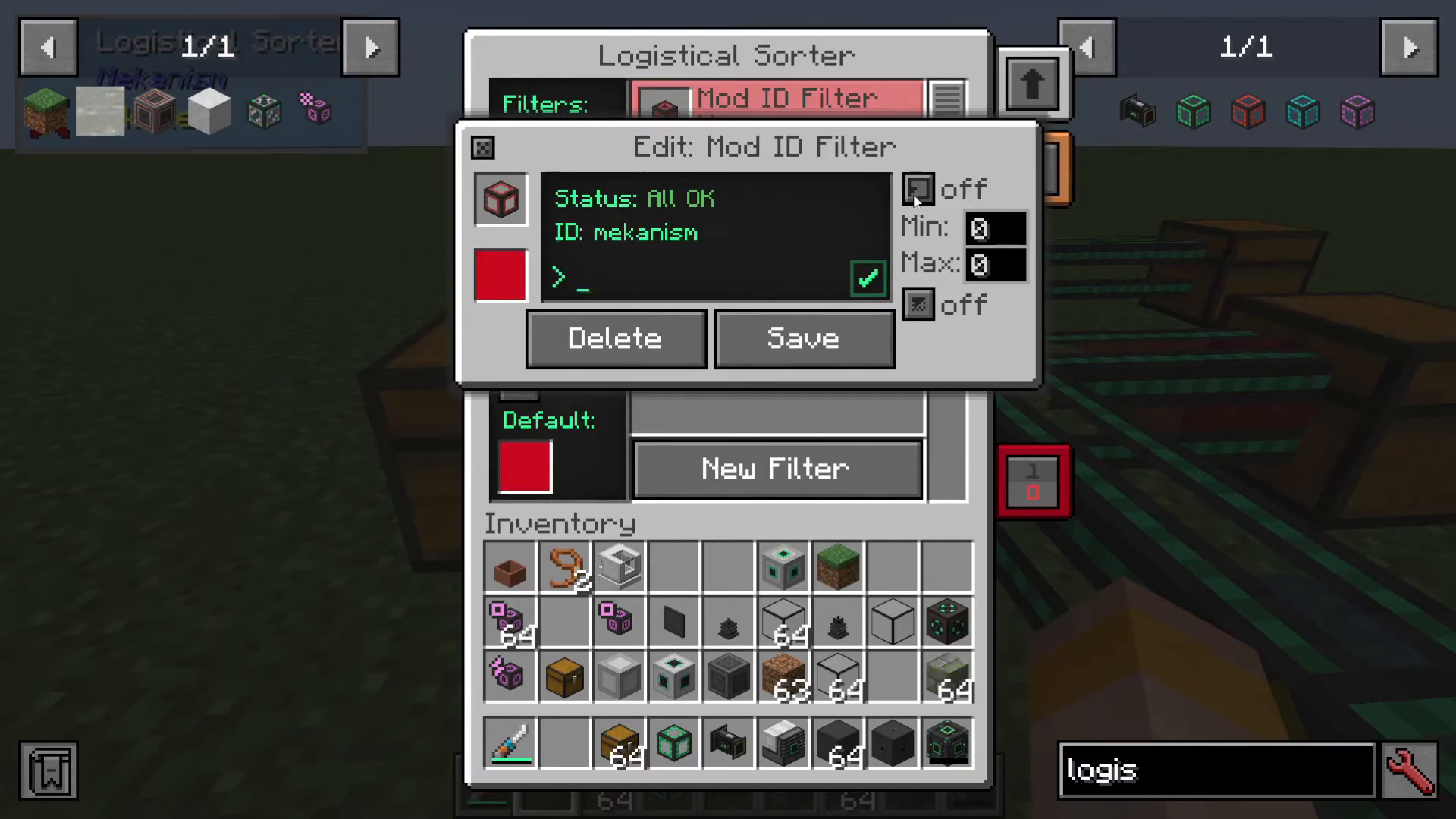
Mod ID Filters
One of the simplest filter types is the Mod ID filter. By specifying a mod ID (such as “mekanism”), all items from that mod will be routed according to your filter settings.
To create a mod ID filter:
Add a new filter and select “Item Stack”
Choose “Mod ID” as the filter type
Enter the mod name (for example: “mekanism”)
Select the desired route color
Configure additional options as needed
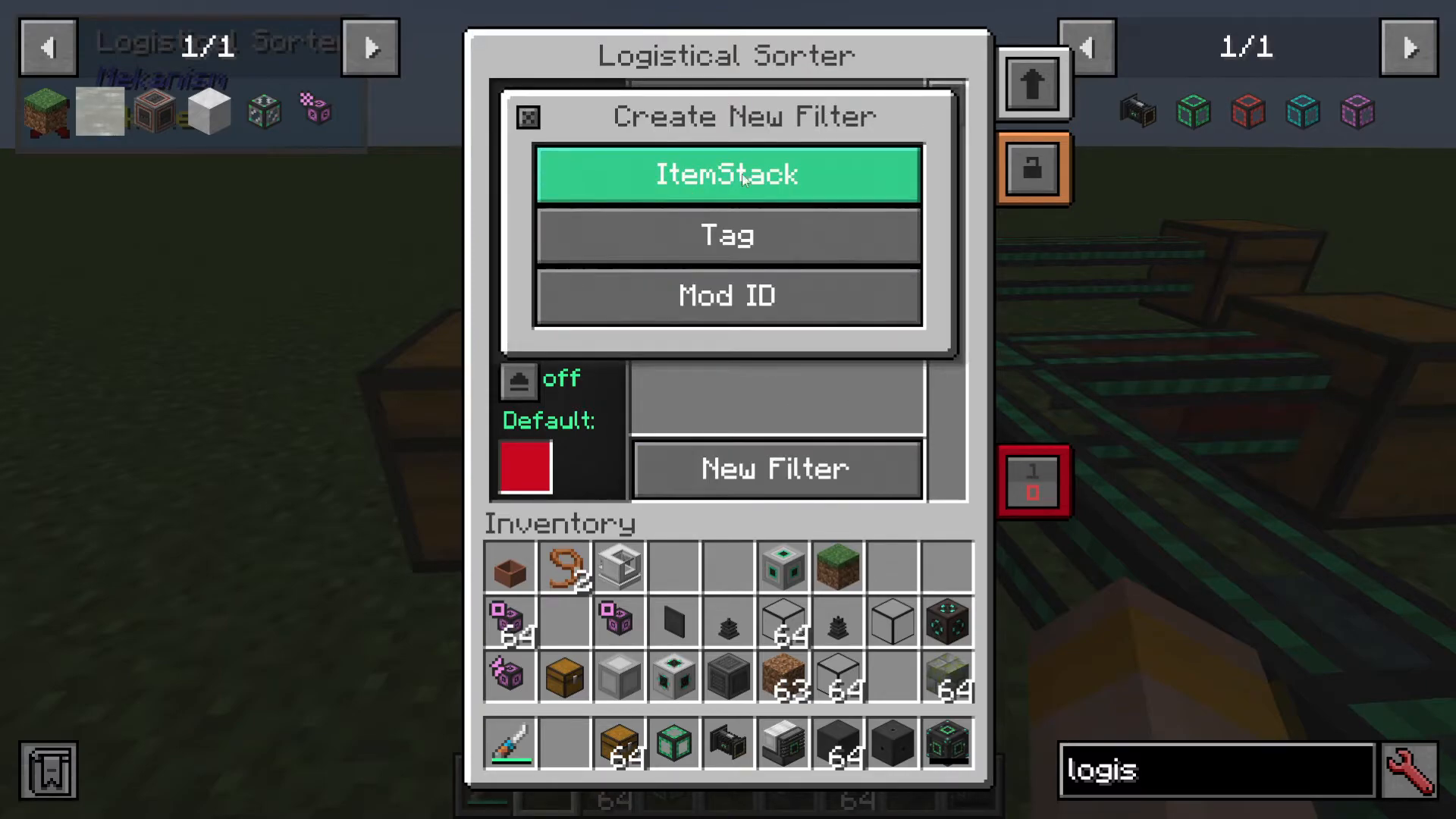
Tag-Based Filters
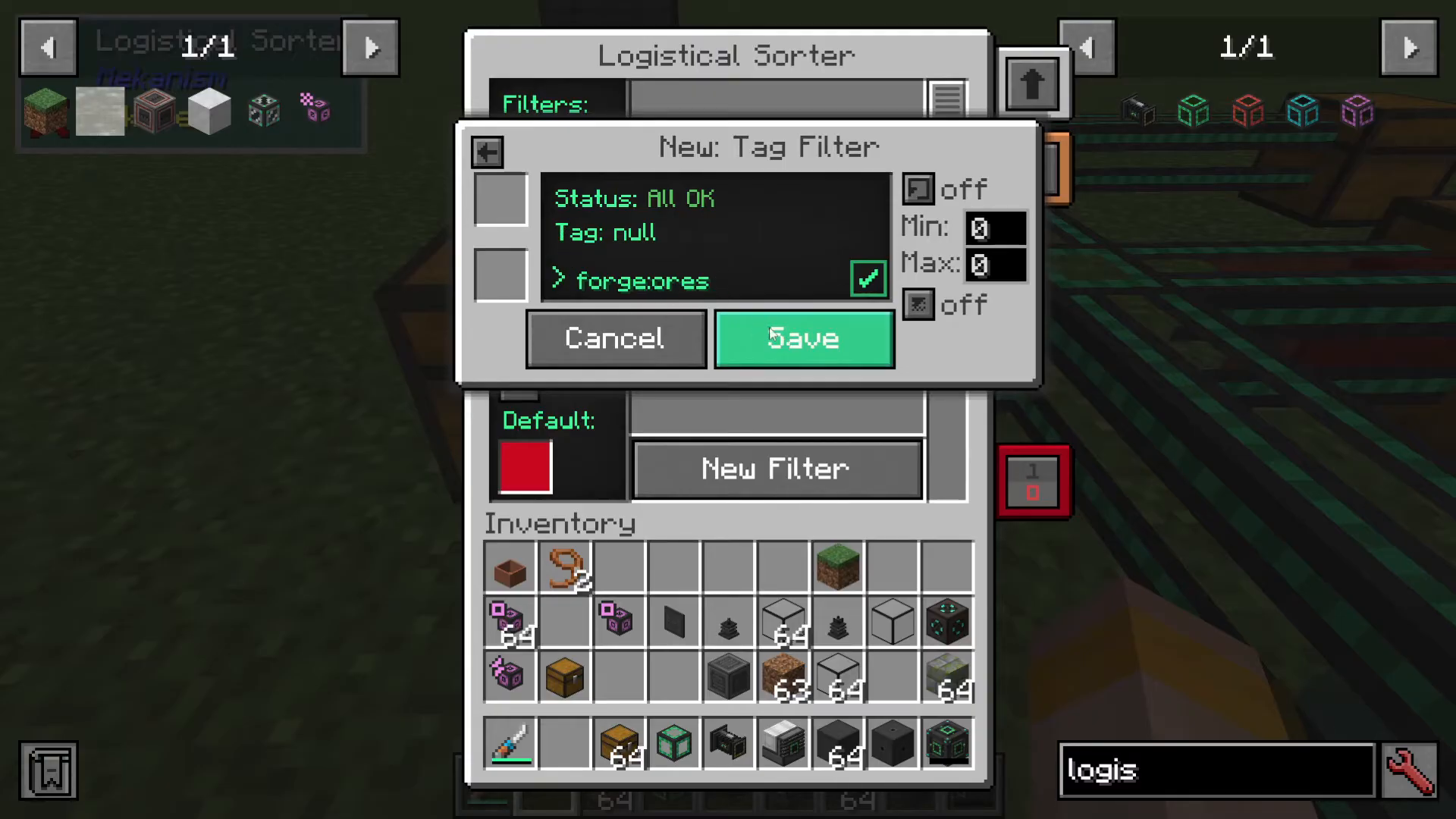
You can also use tags to create more specific filters. For example, you can use “forge:ores” to capture all ore variants in your modpack and route them to a specific location. Tags are useful when you want to filter multiple items with a common property without listing each one individually.
Size Mode and Min/Max Settings
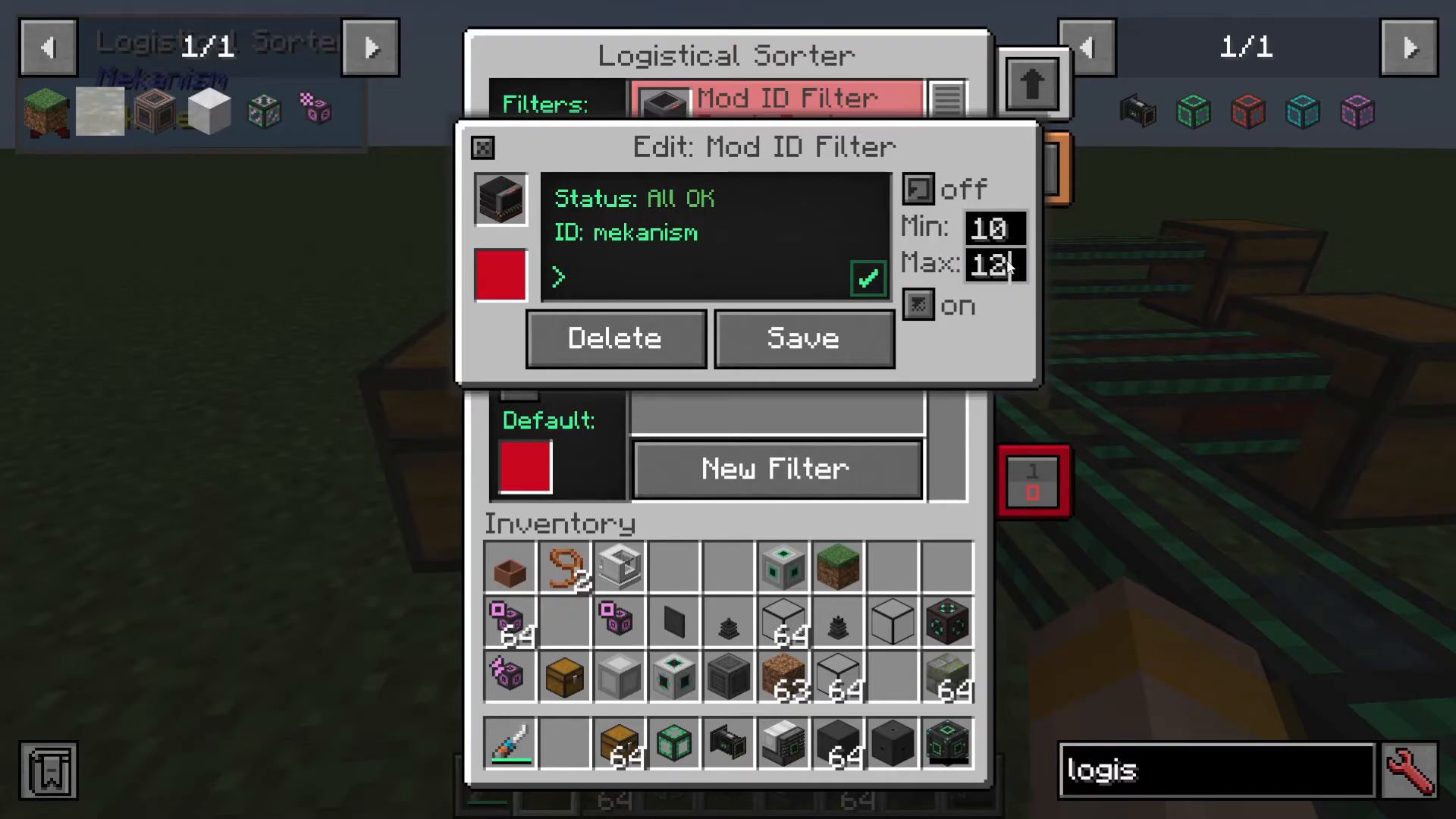
Size Mode allows you to control how many items are sent at once by setting minimum and maximum values.
For example, you can configure a filter to:
Send only between 10 and 12 items at a time
Or send exactly 10 items when Size Mode is locked to a specific value
Note: When “Single” mode is enabled on the main filter, it overrides all min/max settings in individual item stack filters.
Fuzzy Mode and Durability
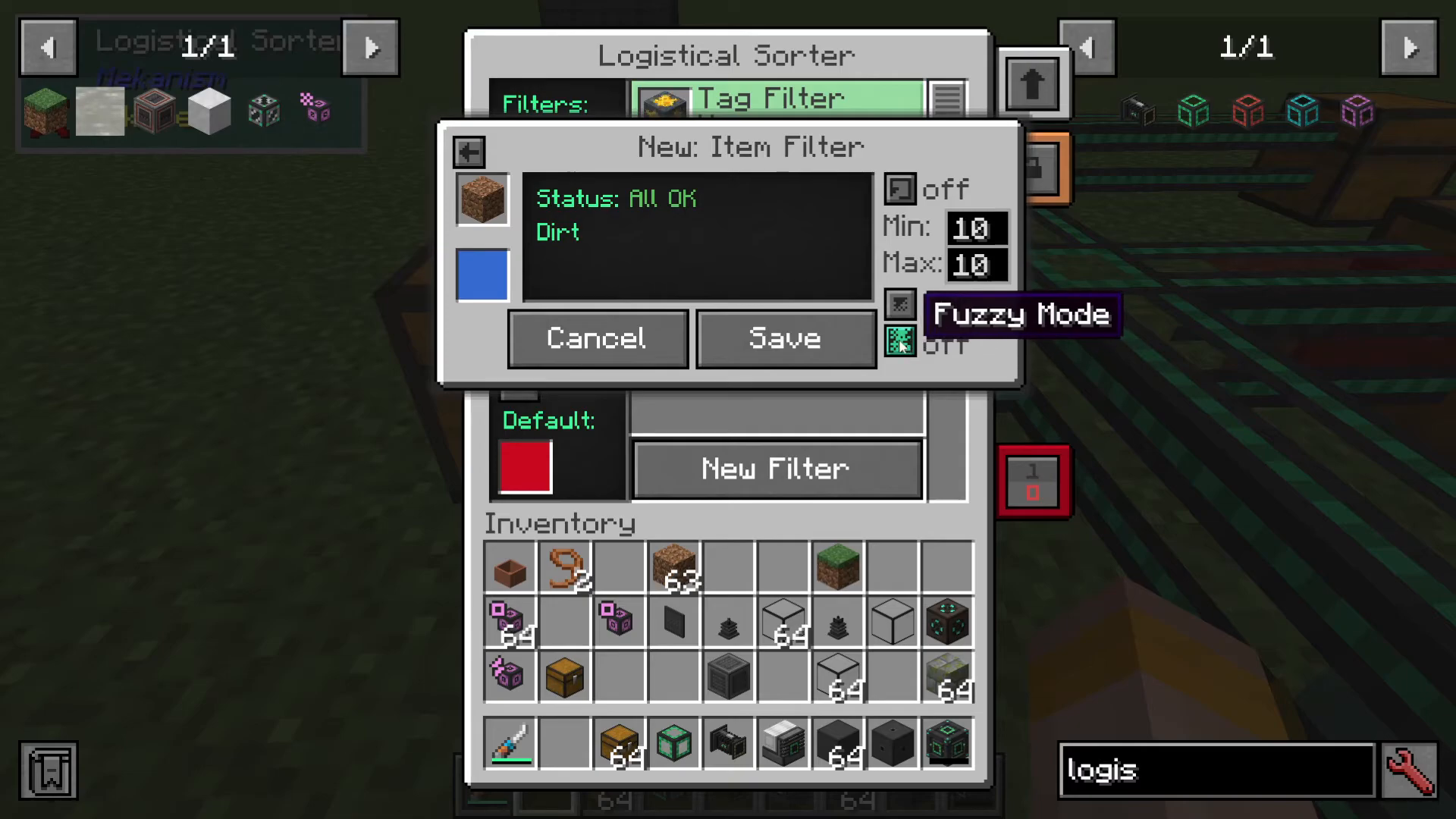
Fuzzy Mode is a checkbox option that tells the sorter to ignore durability when filtering tools, weapons, or armor. When enabled, any durability level of the same item will match the filter. This is particularly useful when sorting damaged tools or worn equipment.
Allow Default Option
The “Allow Default” setting controls whether items that don’t match any other filter route can fall back to the default route.
When Allow Default is:
Enabled: Items without a matching filter will go to the default route color
Disabled: Items without a matching filter will not be sent anywhere (they’ll stay in the source inventory)
Practical Example: Dirt Routing
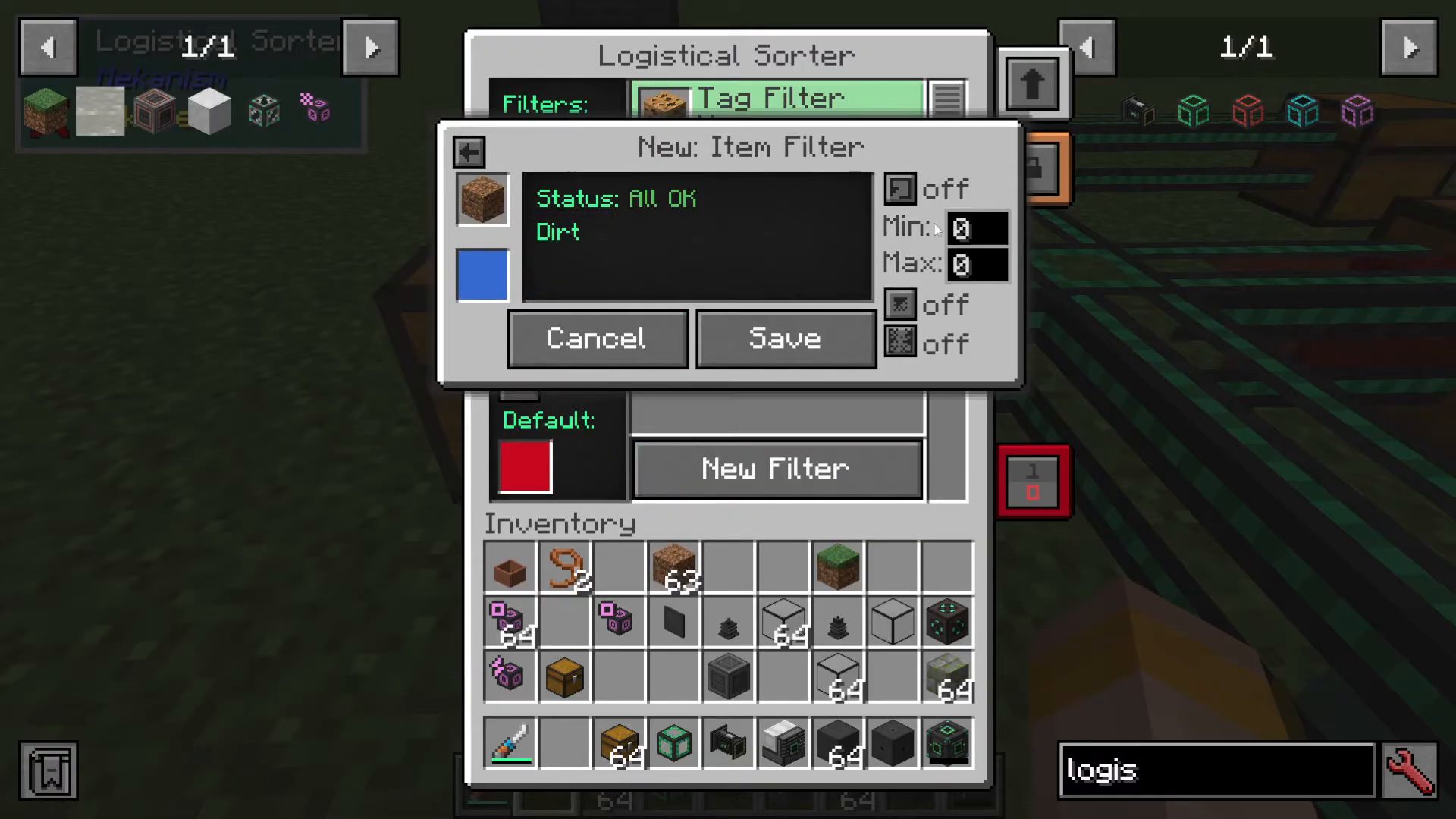
Here’s a practical example of setting up a filter:
Create a new Item Stack filter
Set the item to dirt
Assign it to the blue route
Enable Size Mode
Set minimum and maximum to 10
Save the filter
Now when you insert a stack of dirt, the sorter will automatically pull exactly 10 dirt at a time and send it down the blue route.
Disabling and Toggling Filters
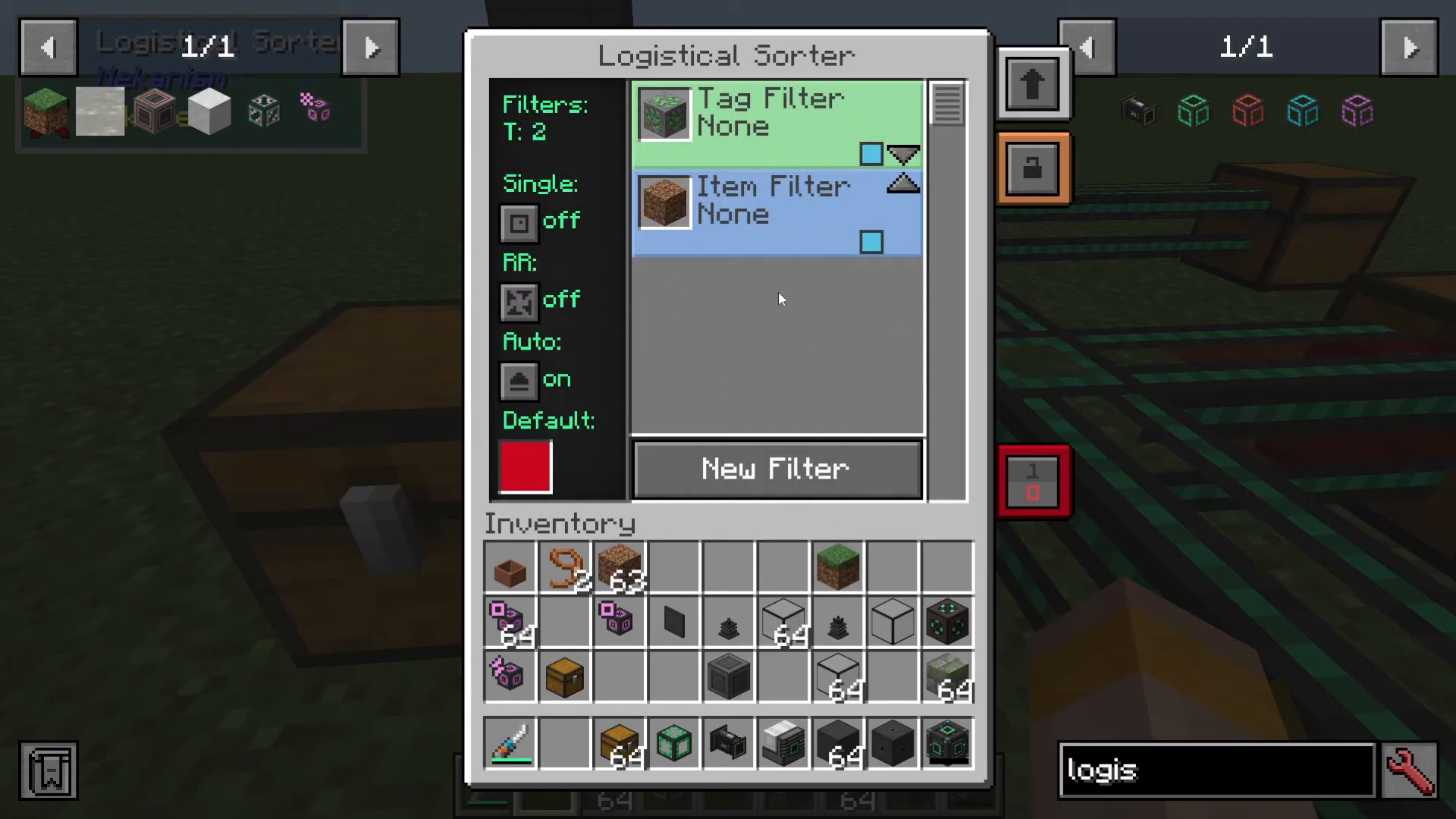
You don’t always need to delete filters you’ve set up. Instead, you can temporarily disable them with the toggle button. This is useful when you:
Want to stop using a filter without losing its configuration
Need to change your sorting strategy temporarily
Are troubleshooting your network
When a filter is disabled and “Allow Default” is enabled, items will still be sent to the default route. If both the filter is disabled AND Allow Default is disabled, items matching that filter type won’t be routed anywhere.
Summary
The Logistical Sorter is an incredibly flexible tool for automating item management in Mekanism. By mastering filters, routes, and size controls, you can build sophisticated sorting systems that handle your modpack’s inventory with ease. Start simple with mod ID filters, then expand to tag-based filters as you become more comfortable with the system. Remember that you can always disable filters temporarily instead of deleting them, giving you flexibility as your needs change.
— Want to Support? —
If you would like to help us continue making these guides – please consider joining our patreon here – https://www.patreon.com/c/JaviHeals
Alternatively – we host a group of MC Servers you can join here – https://discord.gg/zD7Gjt6MHF