

MineColonies Builders Hut Complete Tutorial
MineColonies Builders Hut Complete Tutorial
The Builders Hut is the first essential building you’ll create in MineColonies, as you cannot construct anything without a builder. This comprehensive guide walks you through everything you need to know about setting up, managing, and optimizing your builders and builders huts, from initial placement to advanced worker management and building upgrades.
Getting Started with Your First Builders Hut
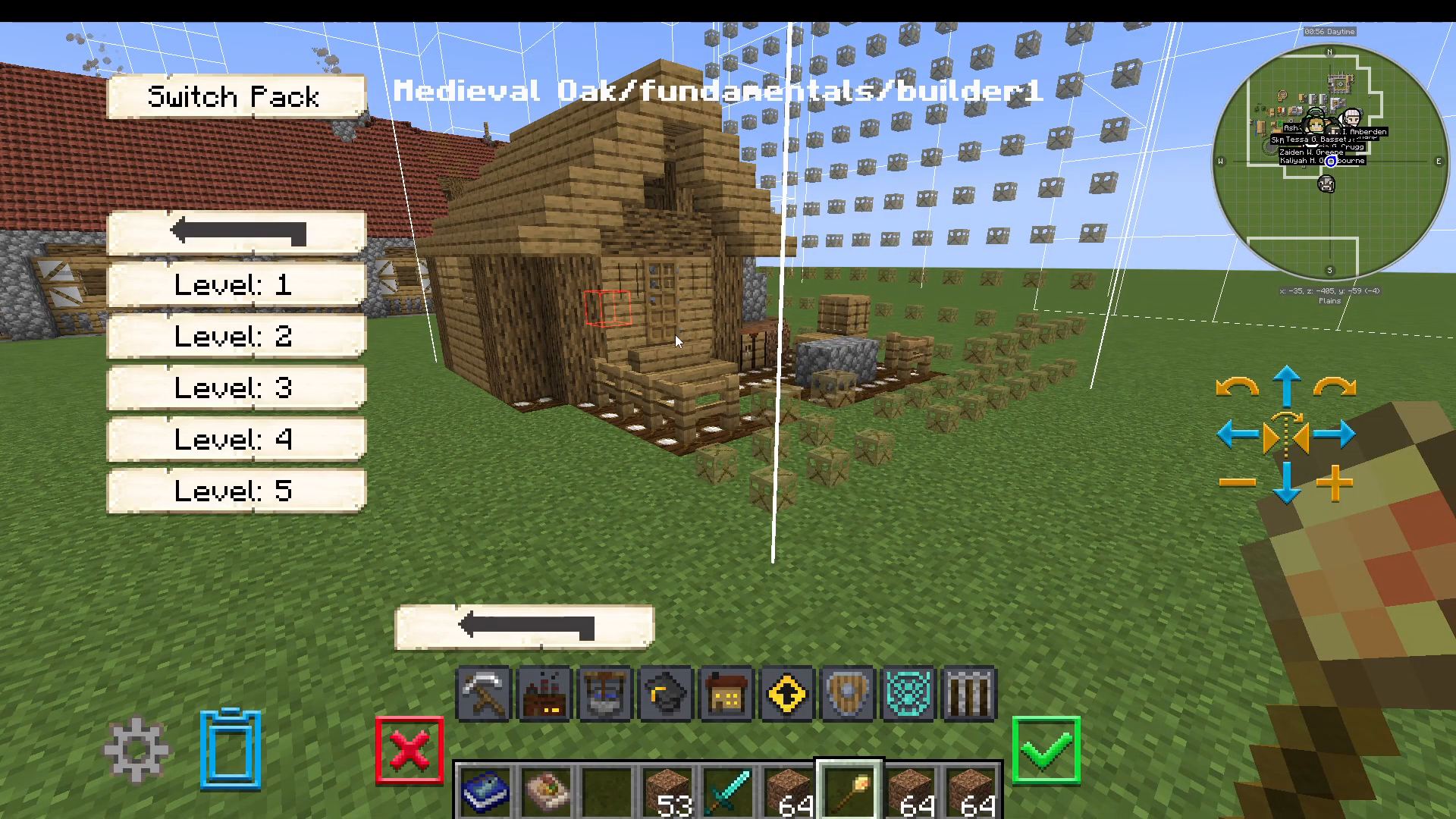
To begin, take your build tool and right-click it on the ground. Navigate to Fundamentals and select Builders Heart, Builder, Level 1. Press Escape to see where your Builders Hut will be constructed.
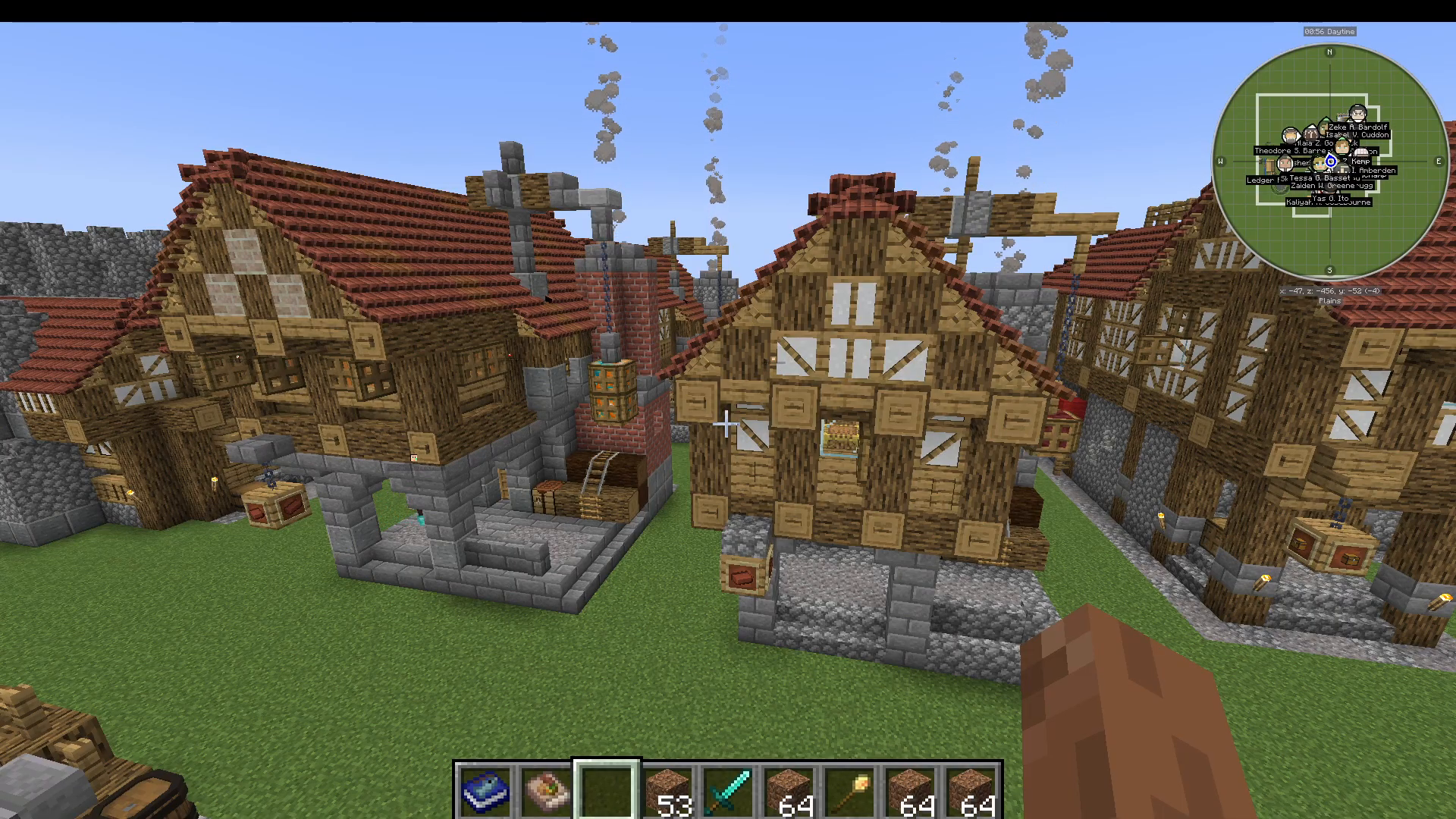
You can adjust the placement by pressing the plus button to raise it up to your desired height. Before finalizing your location, it’s worth checking the future appearance of your structure by viewing levels 2, 3, 4, and 5. This planning approach helps you understand how the building will look when fully maxed out at level 5, which is crucial for designing your city layout effectively.
Previewing Building Levels
At Level 1, the Builders Heart is relatively small. At Level 2, it adds a frame around the structure. Level 3 begins to look more complex, Level 4 is considerably larger, and Level 5 is massive in scale. Understanding this progression helps you allocate space appropriately in your colony.
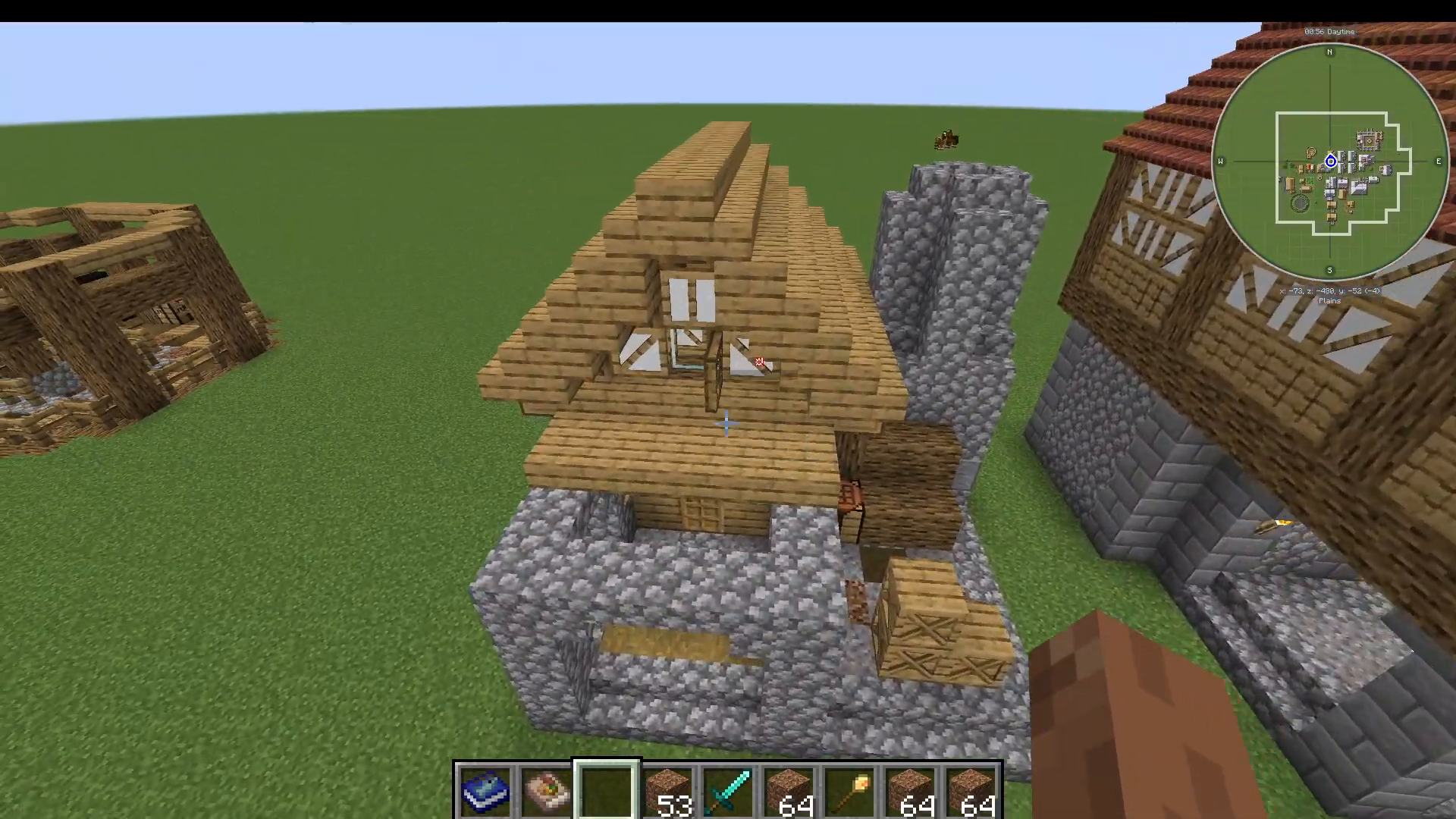
A helpful recommendation is to build multiple Builders Huts—ideally 5 or more. With 5 Builders Huts, you’ll have 5 builders available, which significantly speeds up construction since building is one of the most time-consuming activities in MineColonies.
Managing Your Builders Hut Workstation
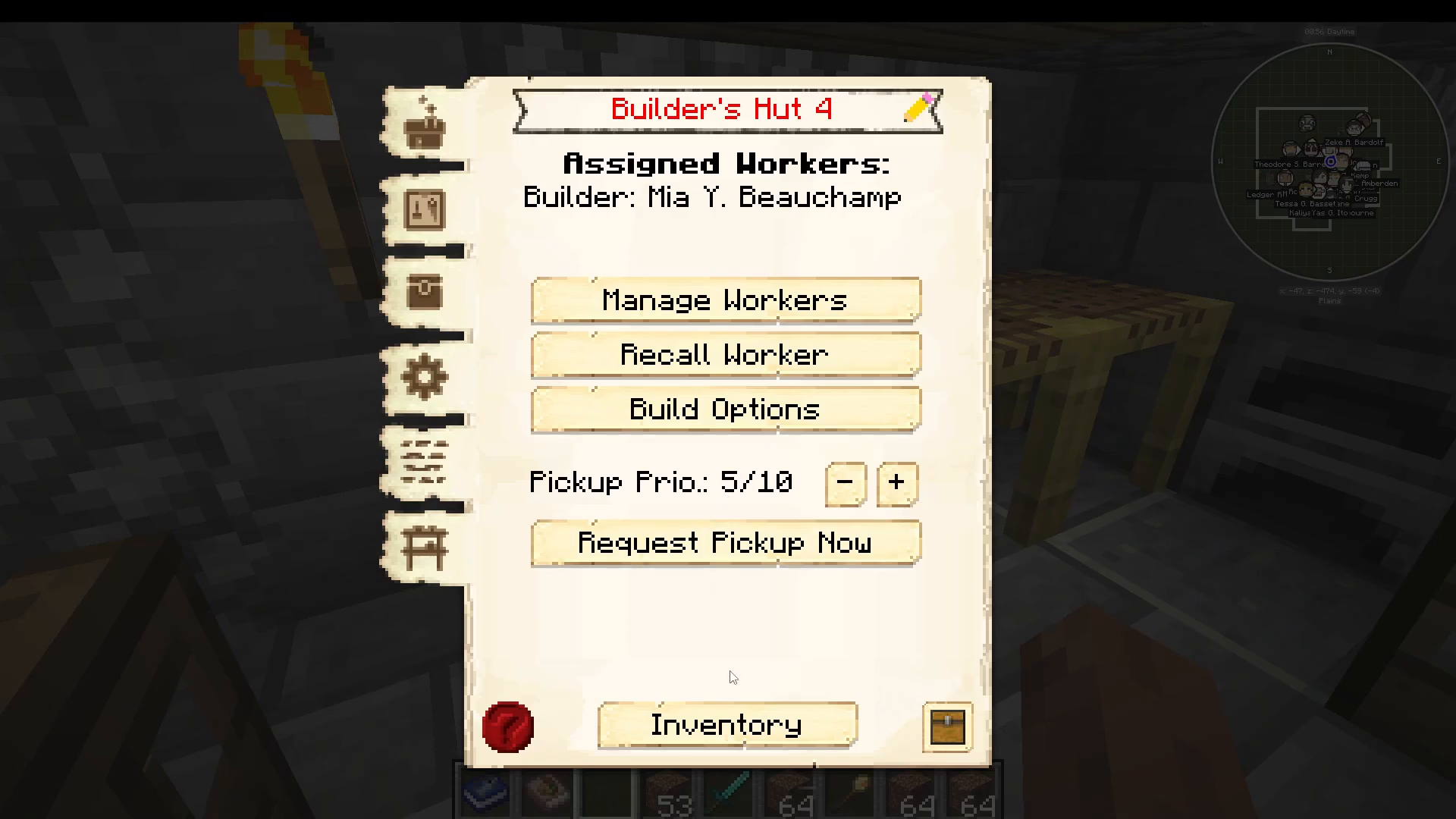
When you access your Builders Hut, you’ll see the Builders Heart Workstation interface. At the top, you’ll find the building’s name (e.g., Builders Heart 2) and information about the assigned worker. Workers are assigned automatically, but you can press “Manage Workers” to manually hire or fire employees.
Hiring Mode and Worker Selection
You have three hiring mode options: Automatic, Manual, or Default Building Mode. The Default is set to Automatic. When managing workers, you can toggle “Show employed people” to Yes or No. Selecting No will display only unemployed citizens available for hire.
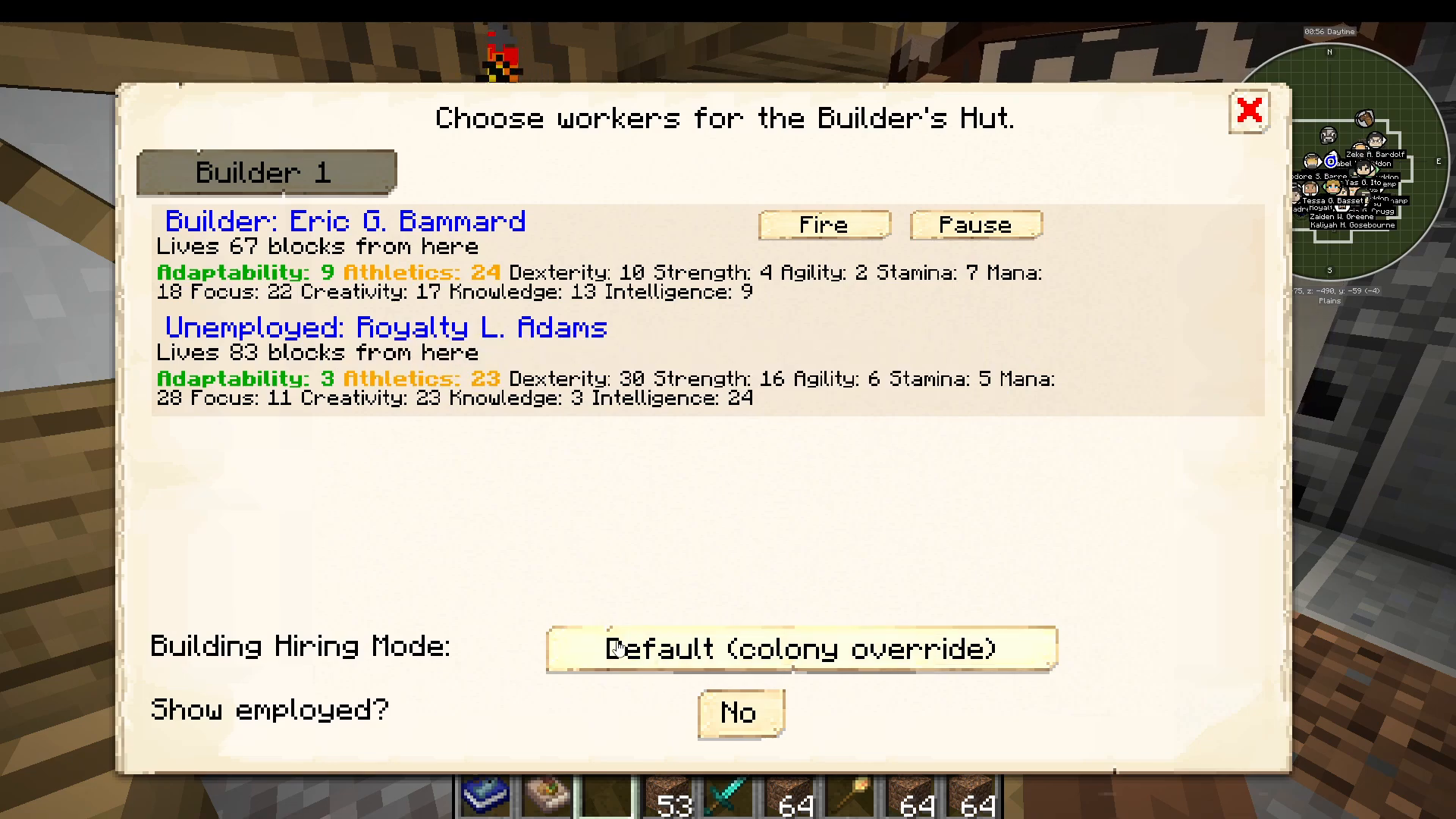
When hiring builders, consider their skills. The two most important skills for builders are Athleticism and Adaptability. Adaptability increases block placement speed during construction, while Athleticism increases block-breaking speed, which is particularly useful when upgrading buildings.
Building Your First Structure with a Builder
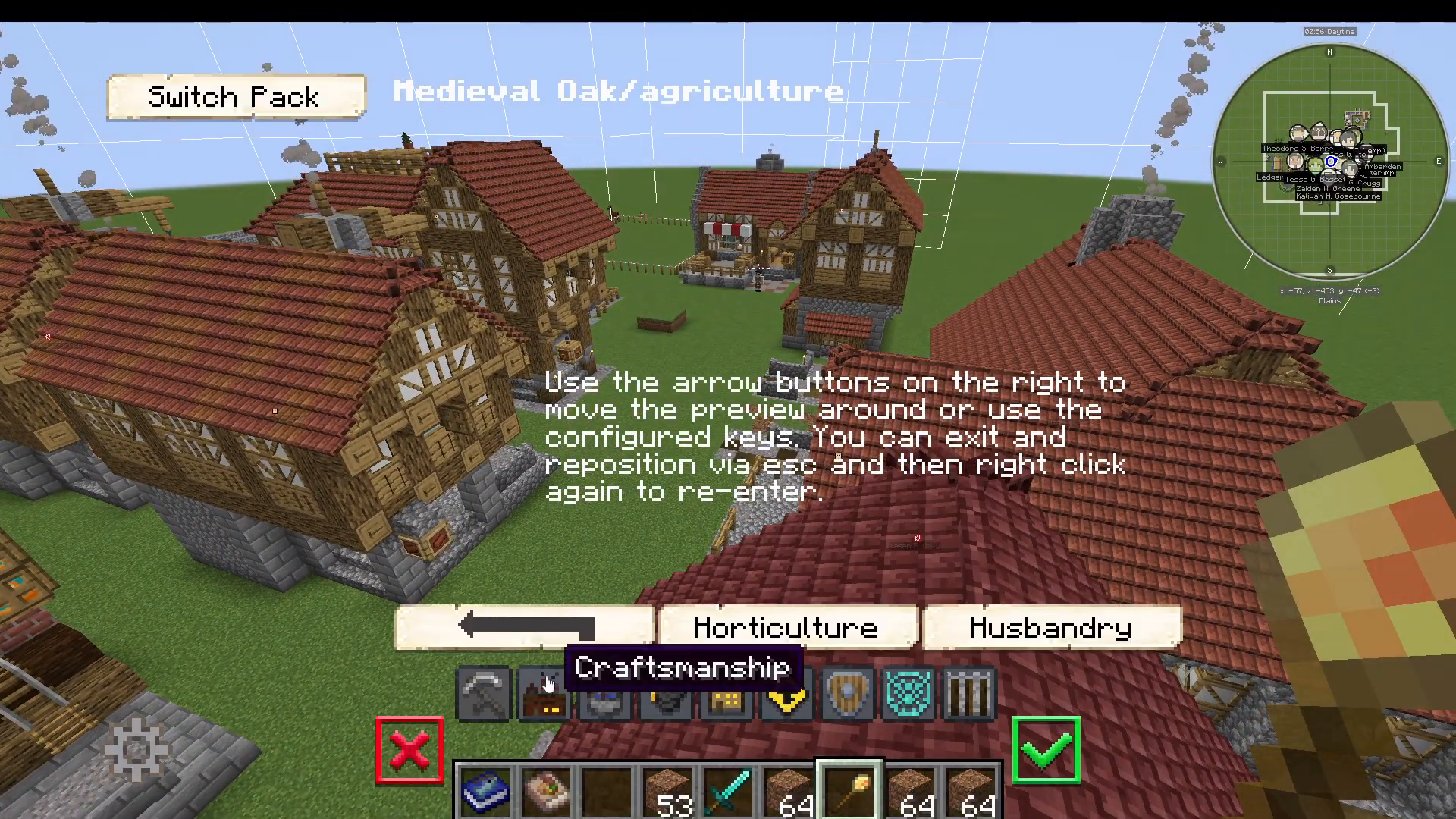
To assign a new building to your builder, navigate to the appropriate category (e.g., Agriculture, Husband, Dre, Swine Herds Heart) using your build tool and select the structure you want to build. Place it on the ground near your existing buildings.
Using the Building Preview Feature
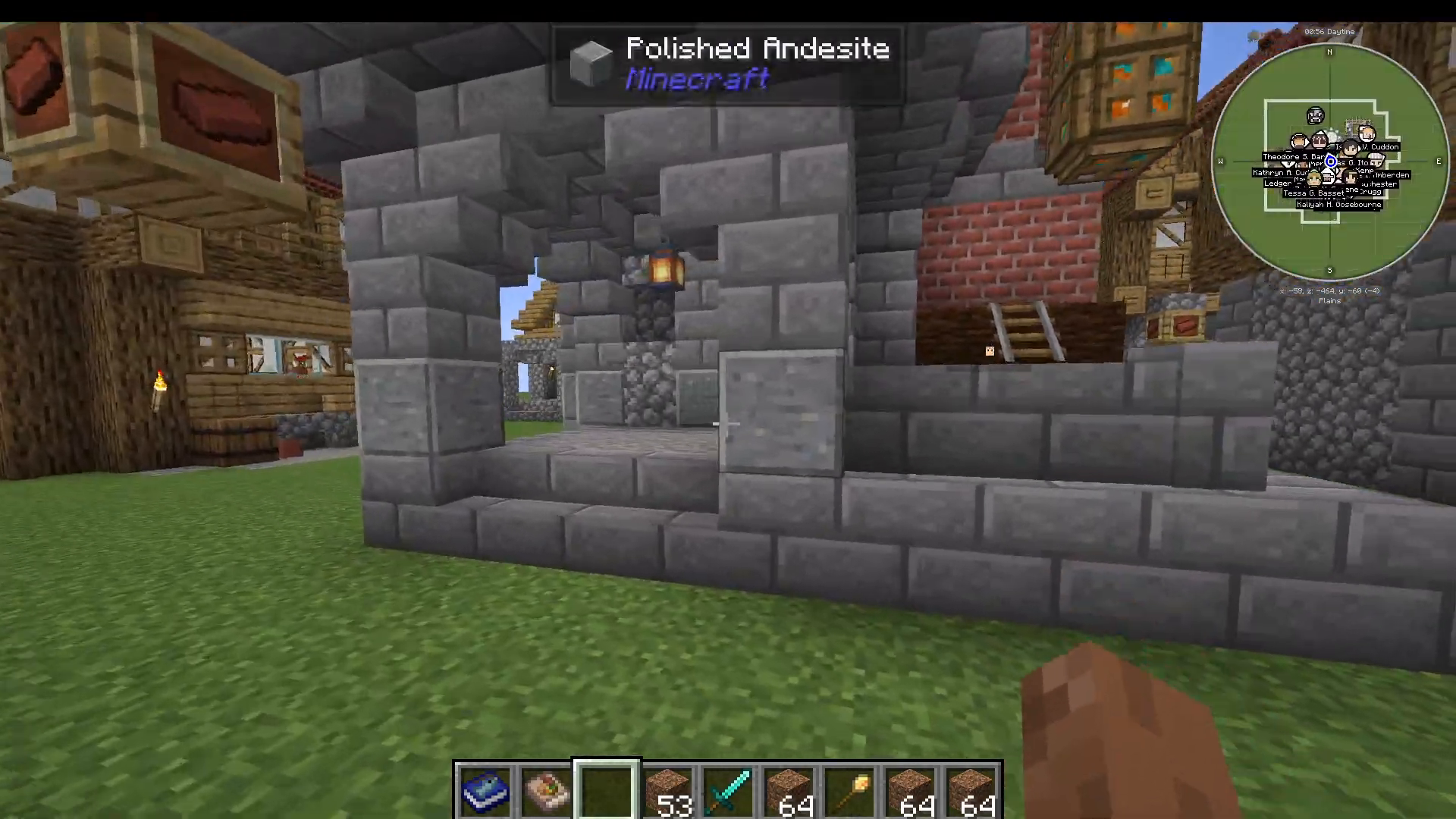
MineColonies includes a helpful feature that displays nearby buildings at Level 5 while you’re placing new structures. This is enabled by default in settings and allows you to see how your new building will look relative to other fully-upgraded structures in your colony. For example, when placing a Swine Herds Hut next to a Chicken Hut, you can visualize how both buildings will appear when maxed out.
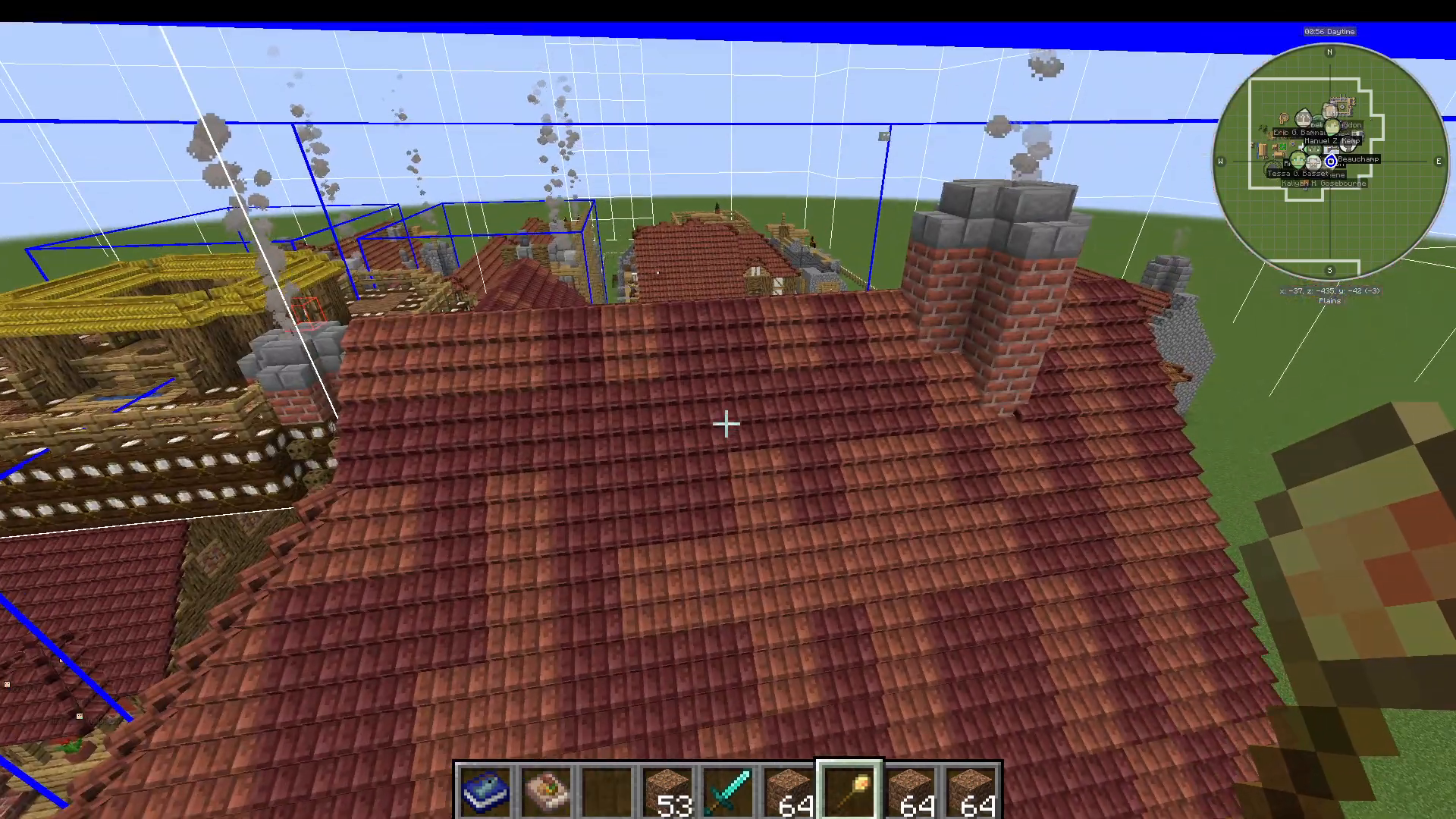
Once you’ve positioned your building, right-click your builder again and press the tick icon to sign the building to that builder. A free builder will automatically be assigned to the project.
Initiating the Build Request
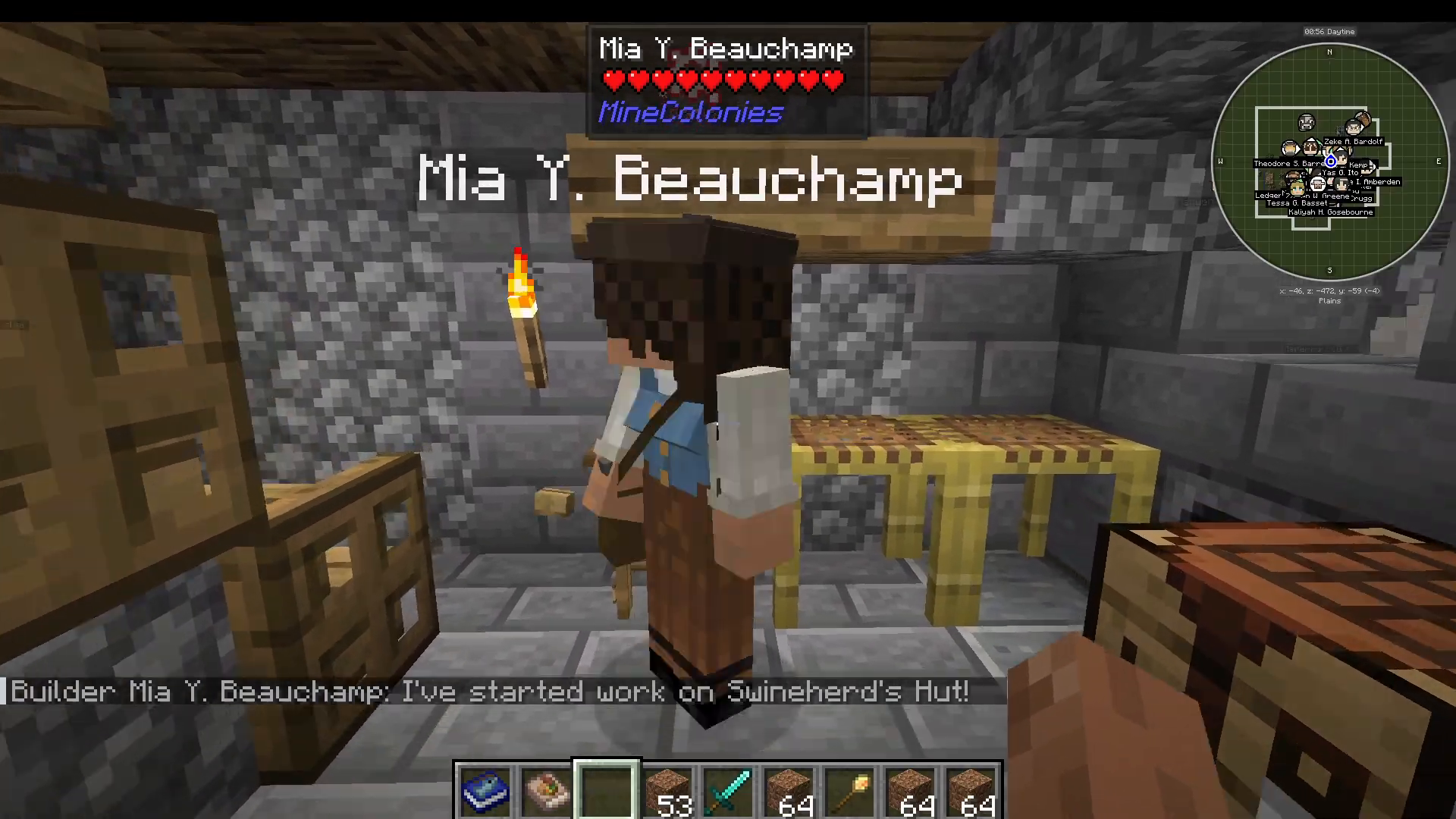
To start construction, click on the building icon and select “Build Options,” then press “Build Building.” This sends a build request to the system. Shortly after, you’ll see a chat message indicating that a builder has started work on the structure.
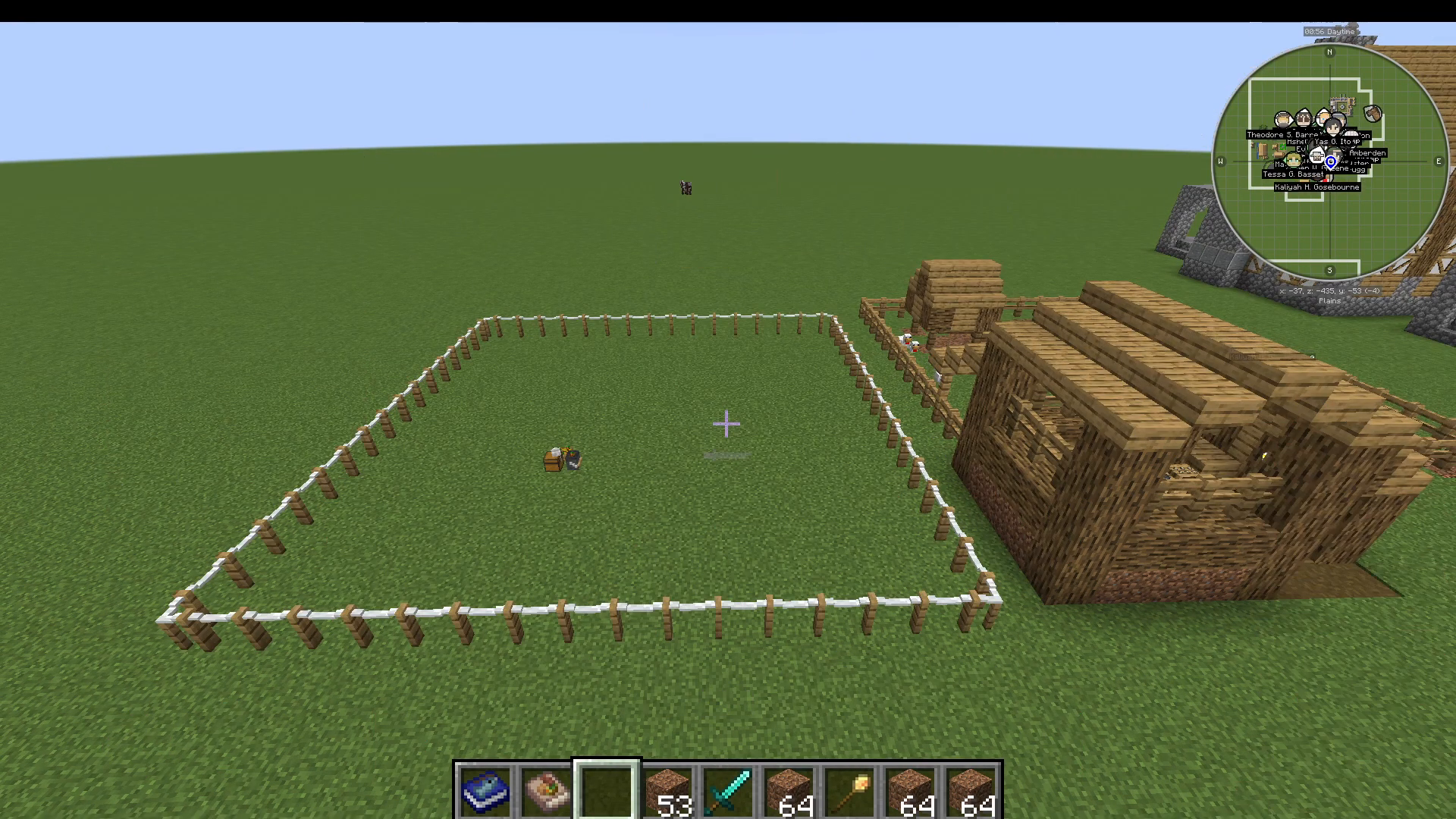
Supplying Resources to Your Builders
Open the Builders Hut interface and navigate to “Build Options” for the building being constructed. Click on “Required Resources” (the third option down) to see all materials needed for the build.
Gather all required resources and press the arrow key to transfer them into the Builders Hut inventory. The interface will display: “Supplied 100%, Use 0%, Step 0 out of 6,” indicating that all ingredients are ready but the builder hasn’t used any yet.
Advanced Storage in Level 5 Builders Huts
Higher-level Builders Huts (particularly Level 5) have expanded storage capabilities. Beyond the main workstation inventory, Level 5 buildings include an additional rack on the upper floor where you can place building materials. This dual-storage system allows you to supply double the resources at once, as builders can access materials from both the main inventory and the upper rack.
Worker Management and Troubleshooting
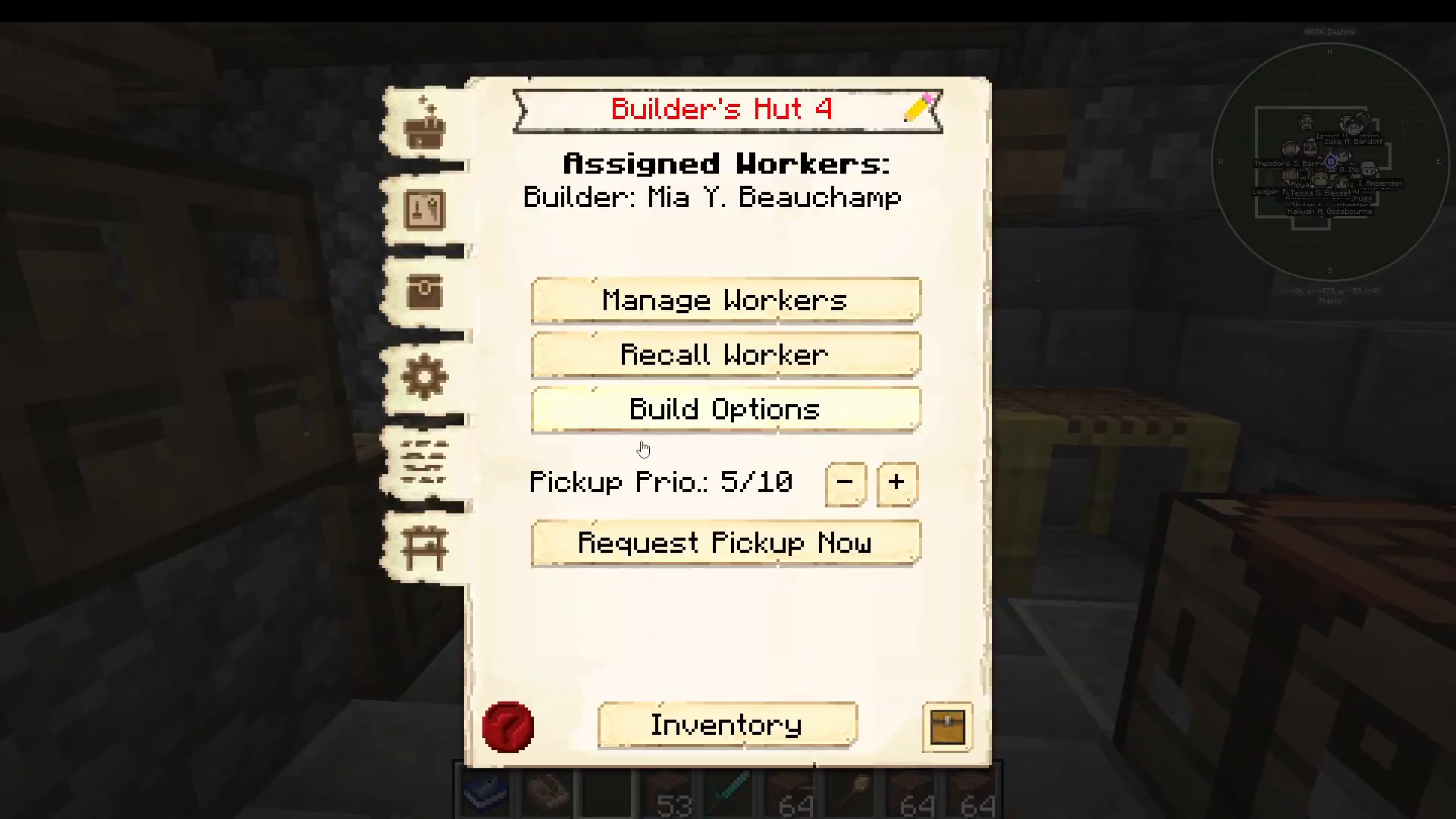
Inside the Builders Hut interface, you can manage multiple aspects of your workers. The “Manage Workers” option allows you to recall workers if they get stuck. Simply press “Recall Worker” and they’ll teleport back to the hut. This is especially useful during building upgrades when pathfinding issues may occur.
Handling Worker Requests
Occasionally, builders will request specific resources with a cog icon appearing above their head. They’ll ask for items like course dirt to continue working. Navigate to “Open Requests” to view and fulfill these requests. In many cases, the AI will self-correct and realize materials are stored in the Builders Hut, removing the request automatically.
Minimum Stock Settings
You can set minimum stock levels for common building materials like mud or cobblestone. When you specify minimum quantities, a courier will automatically bring these materials to the Builders Hut, ensuring your builders always have access to frequently-used blocks.
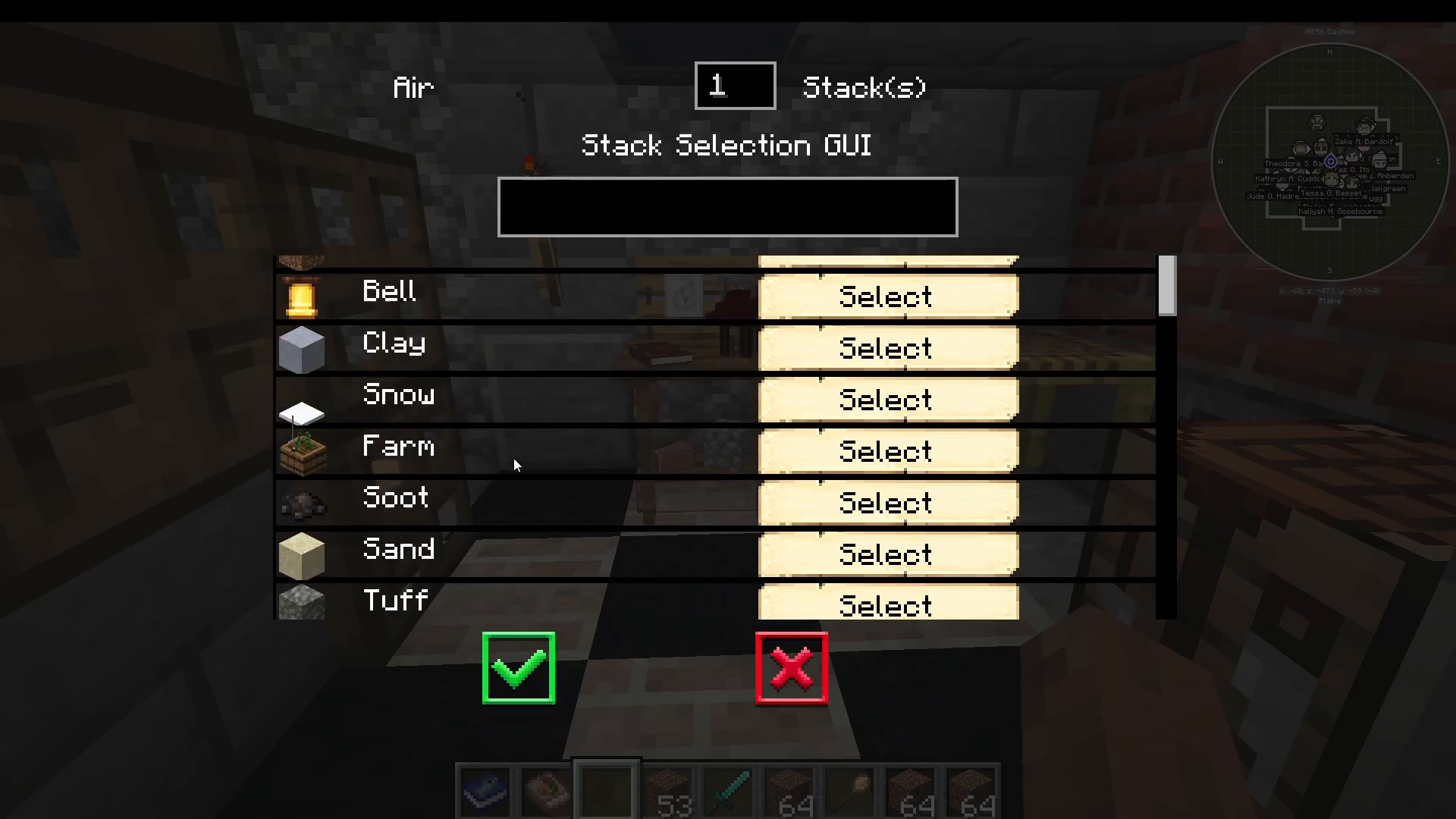
Work Orders and Building Tracking
The “Work Orders” section shows what your builders are currently working on. Here, you can view all active construction projects and cancel orders if needed. This is helpful for prioritizing which buildings get built first or adjusting your colony development strategy.
Settings and Task Assignment
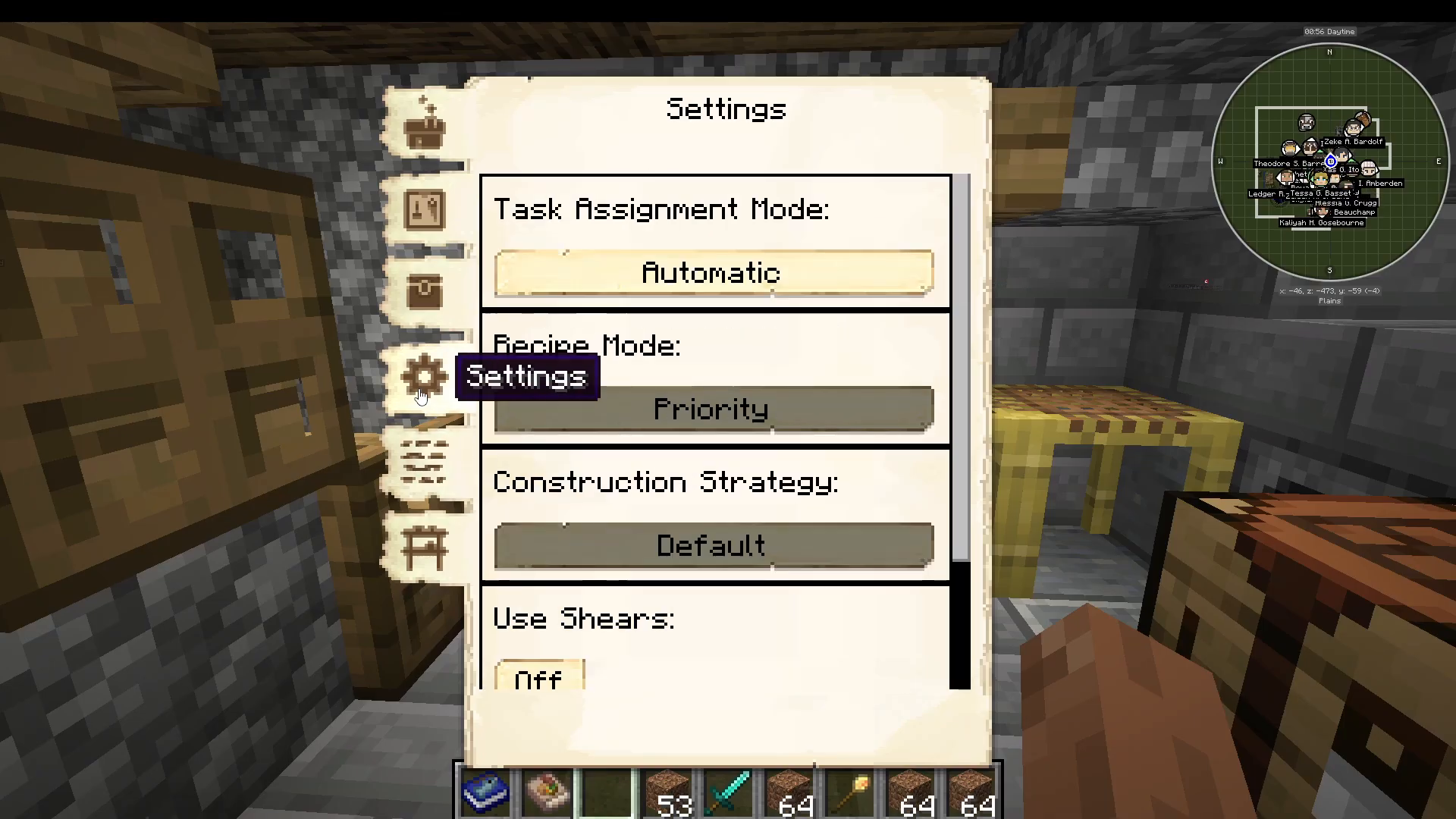
In the Settings menu, you can configure task assignment mode to be automatic or manual. You also have the option to enable “Use Shares,” which requires you to place shovels in the builder’s personal inventory for block-breaking tasks during upgrades.
Builder Level Restrictions
One critical rule: builders can only construct and upgrade buildings up to their own level. A Level 4 builder can only build structures up to Level 4, and a Level 2 builder can only build Level 1 and 2 structures. To upgrade a building to Level 5, you need a Level 5 builder available.
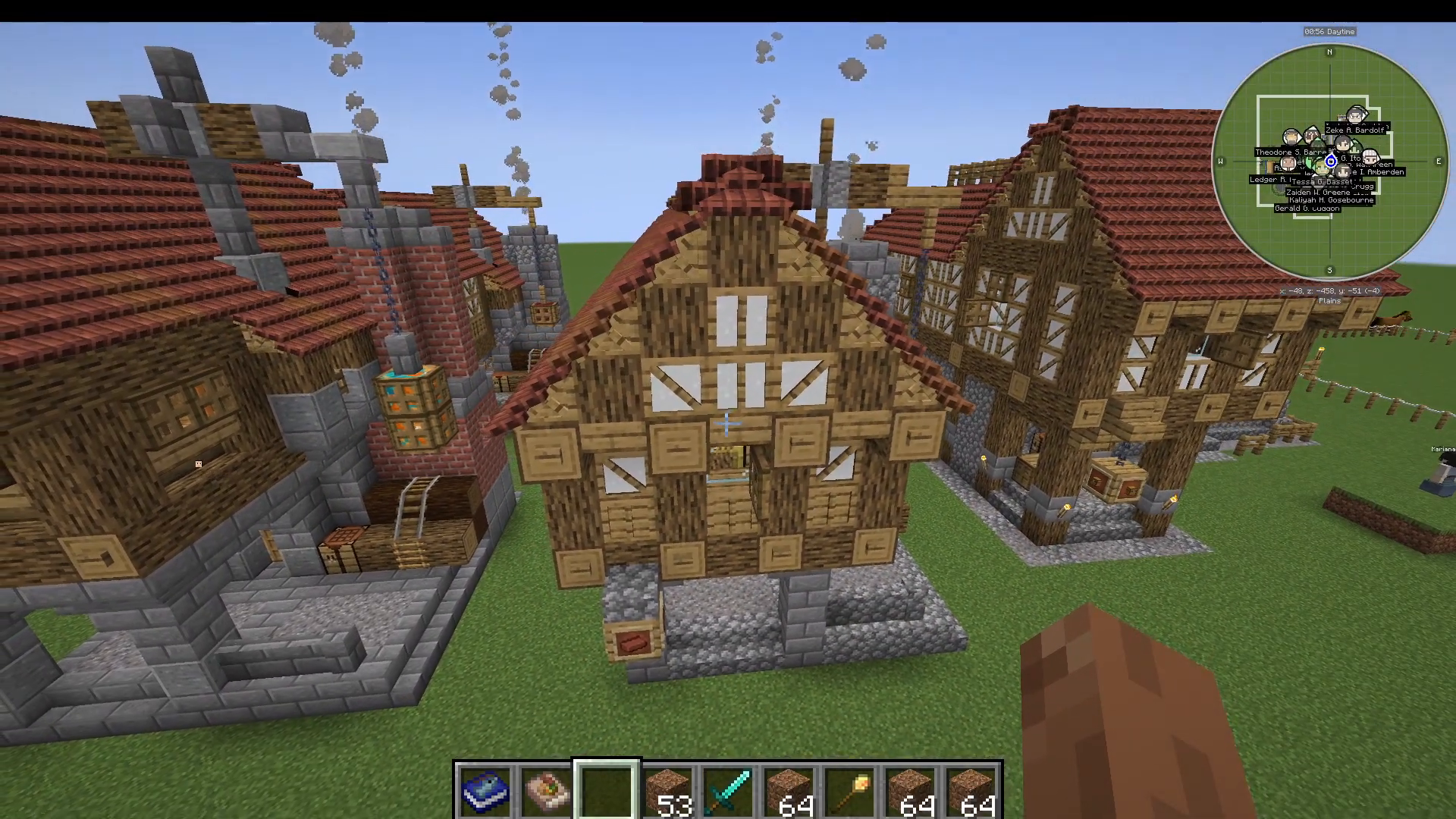
This means you should prioritize upgrading at least one of your Builders Huts to Level 5 early on if you plan to construct max-level buildings throughout your colony.
Upgrading Buildings with Builders
To upgrade an existing building, open the building’s interface (e.g., a bakery) and click “Build Options,” then select “Upgrade.” This sends out a new build request. A Level 2 bakery would require at least a Level 3 builder to upgrade it to Level 3.
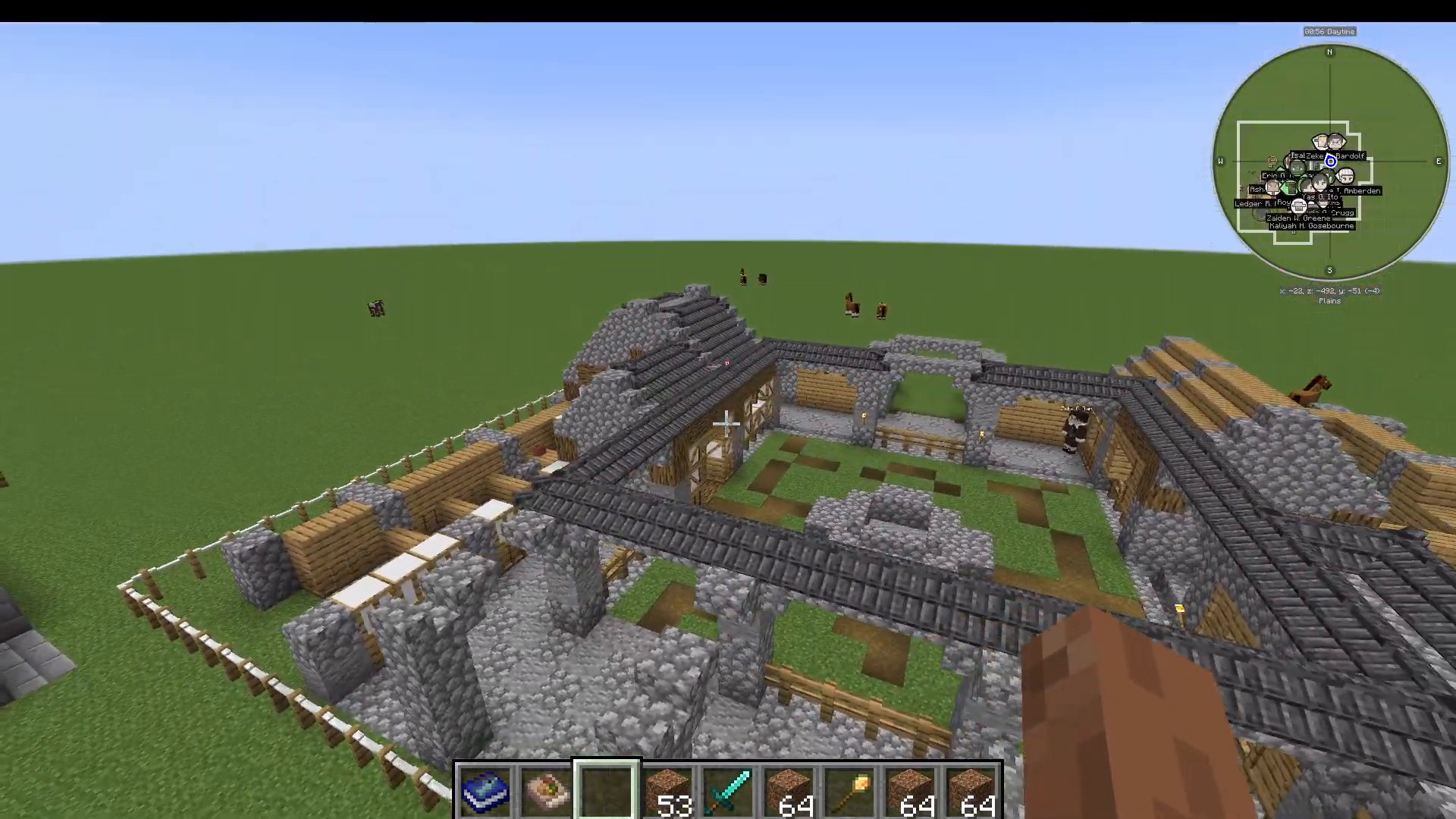
Handling Stuck Builders During Upgrades
Sometimes builders get stuck during upgrades because they’ve built a wall in one location but forgotten to delete the old wall, trapping themselves. If this happens, use the “Recall Worker” function to teleport them back to the Builders Hut and reset their task.
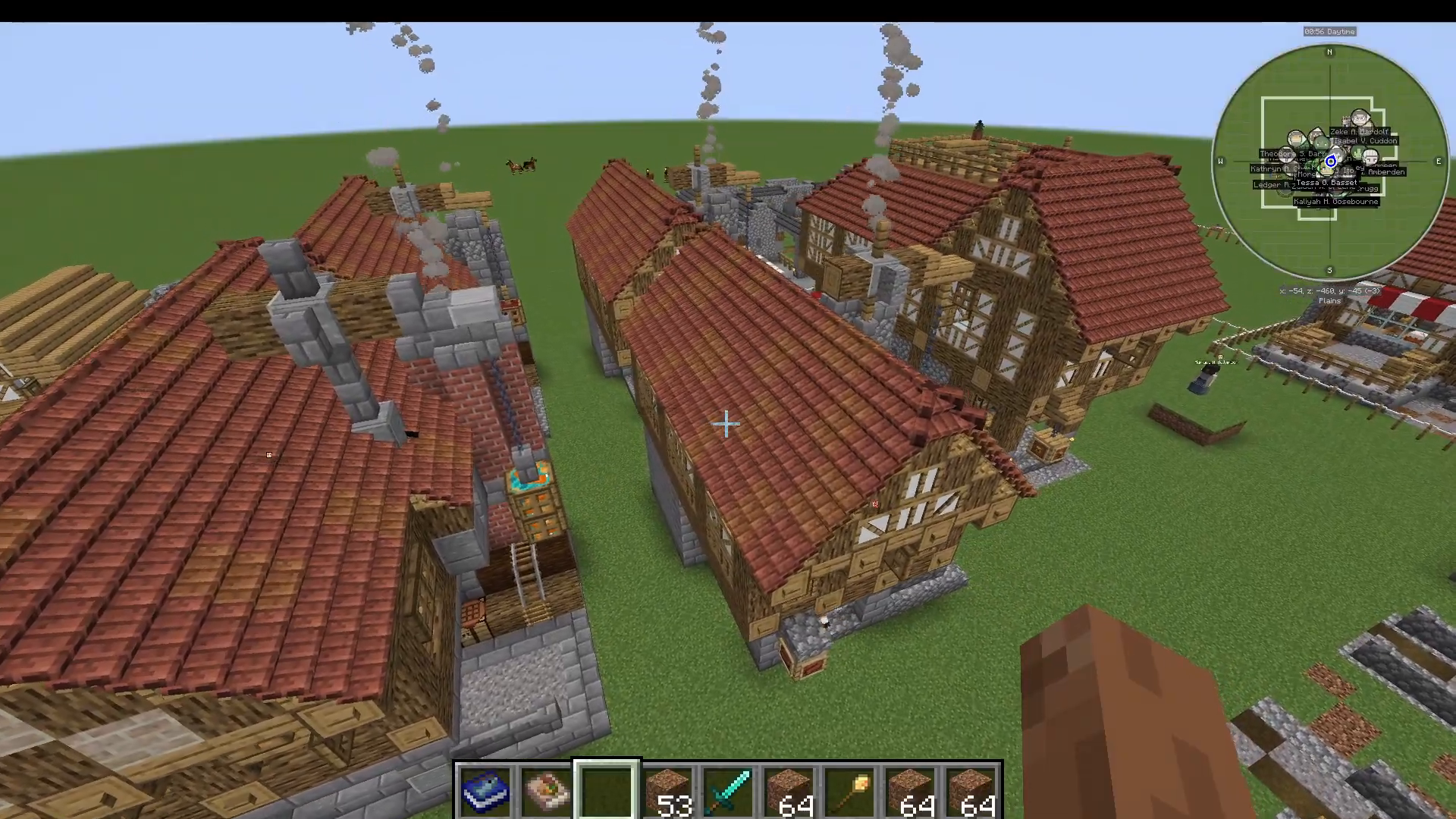
Tool Progression by Building Level
As you upgrade your Builders Hut, your builders gain access to better tools based on the building’s level, not the worker’s individual level. Levels 1-2 builders use stone or iron tools, Levels 3-4 use iron and diamond tools, and Level 5 builders can use enchanted tools. This tool progression improves work speed and efficiency.
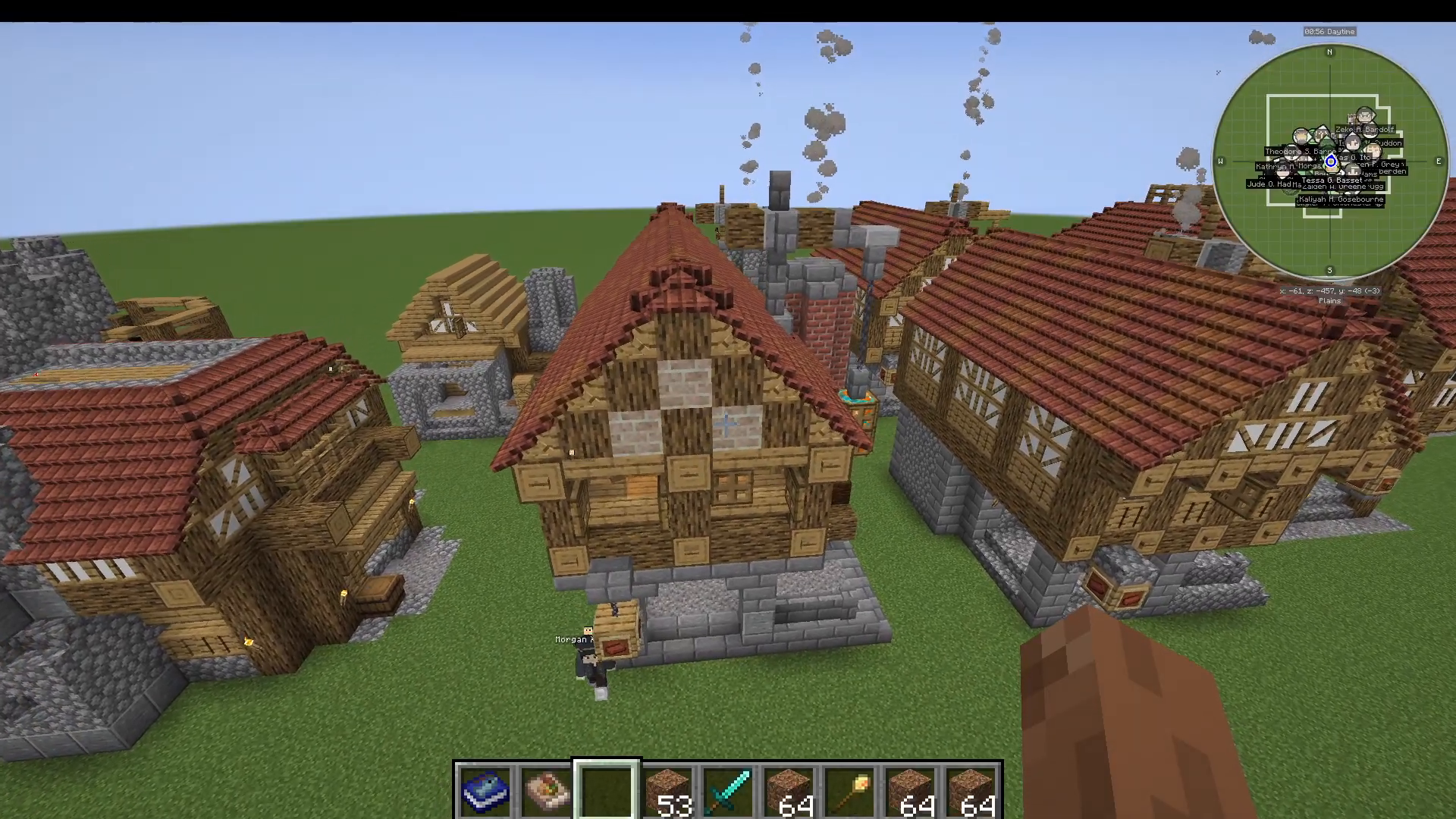
Summary
The Builders Hut is fundamental to MineColonies progression. Start by placing your first hut, prioritize building multiple huts for faster construction, manage your workers strategically based on their skills, supply resources consistently, and watch your builder level restrictions as you plan upgrades. With proper management, your builders will efficiently construct and upgrade all the structures your colony needs to thrive.
— Want to Support? —
If you would like to help us continue making these guides – please consider joining our patreon here – https://www.patreon.com/c/JaviHeals
Alternatively – we host a group of MC Servers you can join here – https://discord.gg/zD7Gjt6MHF