
Traveler’s Compass Mod Spotlight & Tutorial
Traveler’s Compass Mod: Complete Spotlight & Tutorial for Java Minecraft
The Traveler’s Compass is one of the most powerful navigation tools available for Java Minecraft. Whether you’re hunting down a specific mob, tracking a dropped item, locating a villager who sells what you need, or even finding a particular liquid, this mod has you covered. In this tutorial, you’ll learn exactly how to craft it, how to navigate its UI, and how to get the most out of every search option it offers.
How to Craft the Traveler’s Compass
The Traveler’s Compass is crafted using Iron, a Compass, and a Lodestone. Keep in mind that if you’re playing in a modpack, the recipe may have been changed by the pack’s developers, so always double-check with JEI or your in-game recipe viewer.
Opening the Traveler’s Compass UI
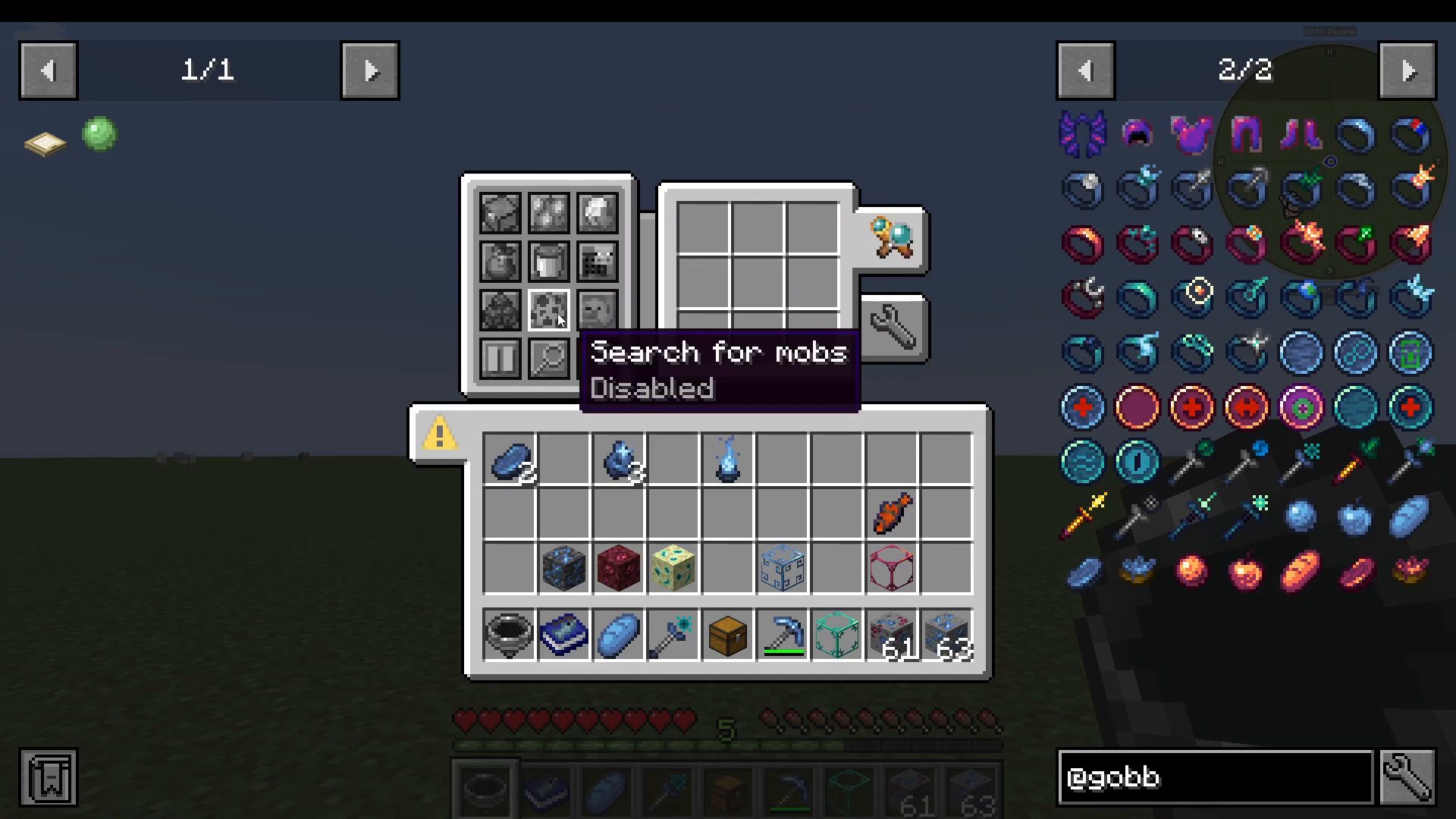
Once you have the Traveler’s Compass in your hotbar, simply right-click to open its interface. You’ll be greeted with a 3×3 grid in the center of the screen where you place your search targets, along with a panel of options on the left side.
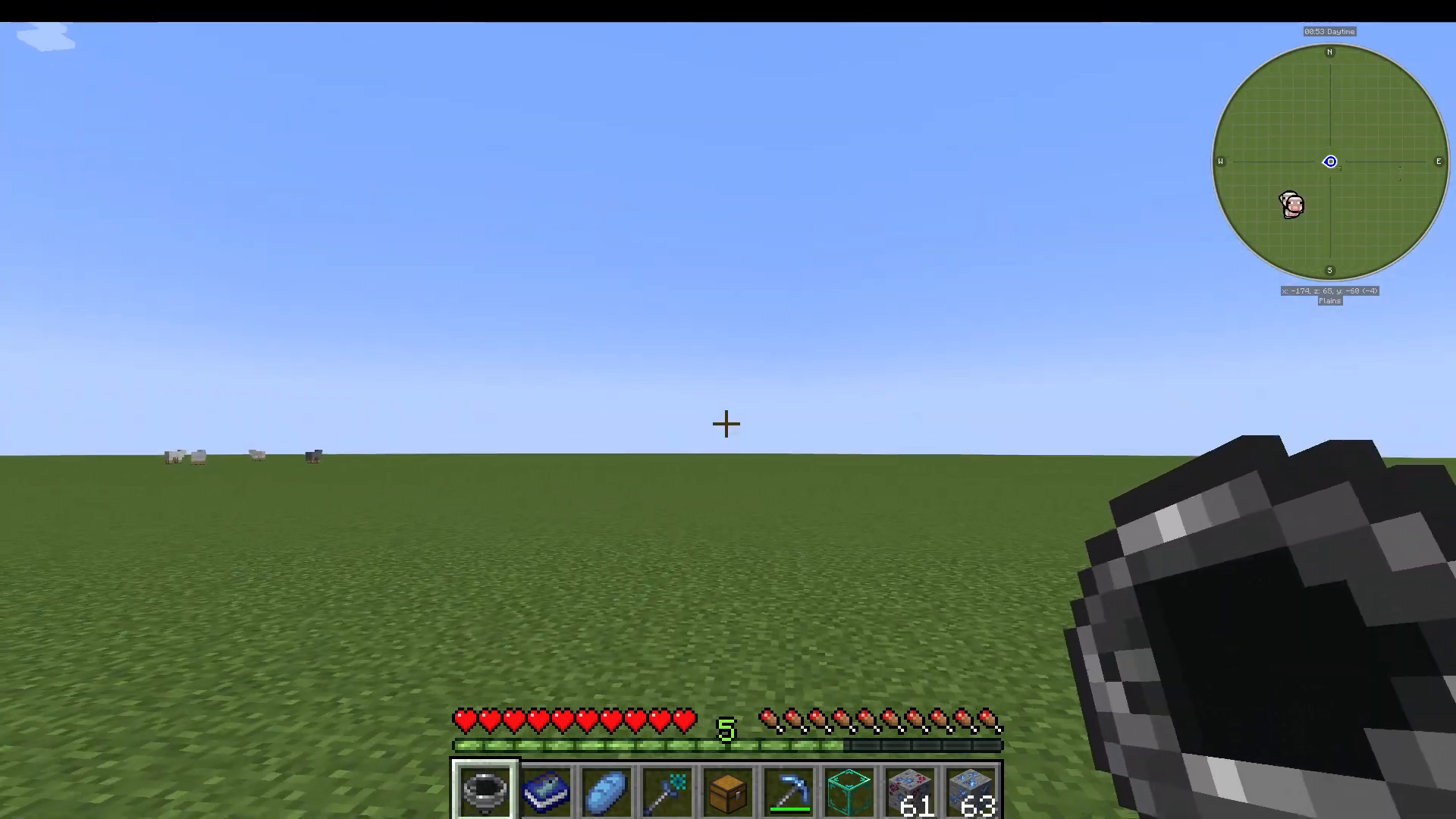
The UI has two tabs: the Searching tab and the Settings tab. The Searching tab is where you define what you’re looking for, while the Settings tab lets you fine-tune how the compass behaves. If you’ve used mods like Nature’s Compass or Structure’s Compass before, this will feel familiar — but the Traveler’s Compass goes much further by supporting items, mobs, liquids, and more.
Search Options Explained
Search for Containers
Enable Search for Containers to locate chests, minecarts with chests, or other containers in the world. This is especially handy when you’re trying to track down loot in a dungeon.
Search for Villagers and Their Goods
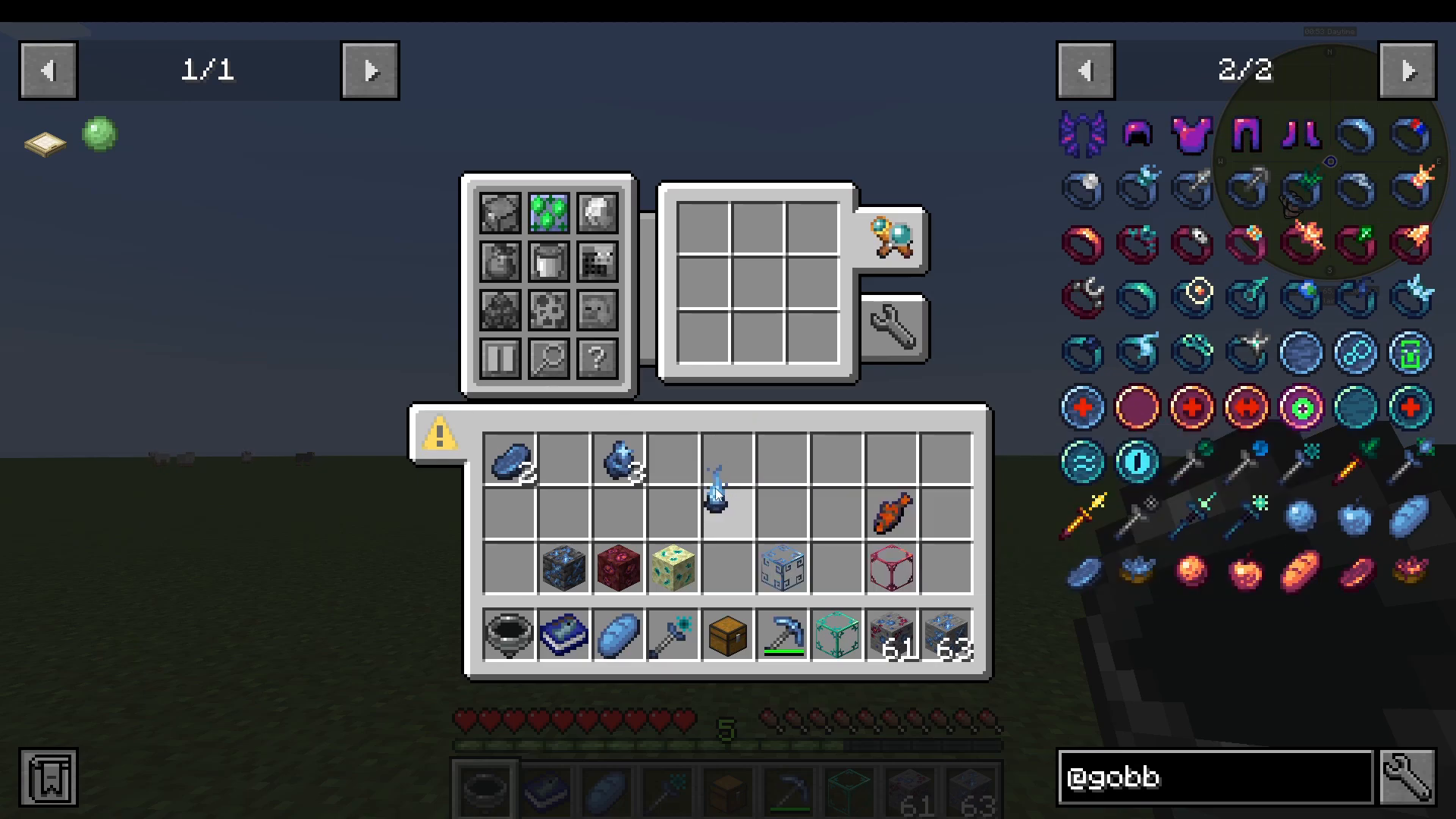
Enable Search for Villagers to locate nearby villagers. You can take this a step further by also enabling Search by Villager Goods, which lets you find villagers based on what they buy or sell. For example, if you want to find a villager selling a specific modded item — like Gobber Foo from another mod — simply drag that item into the 3×3 grid and the compass will point you toward a villager trading it.
Search for Dropped Items (Drop Positions)
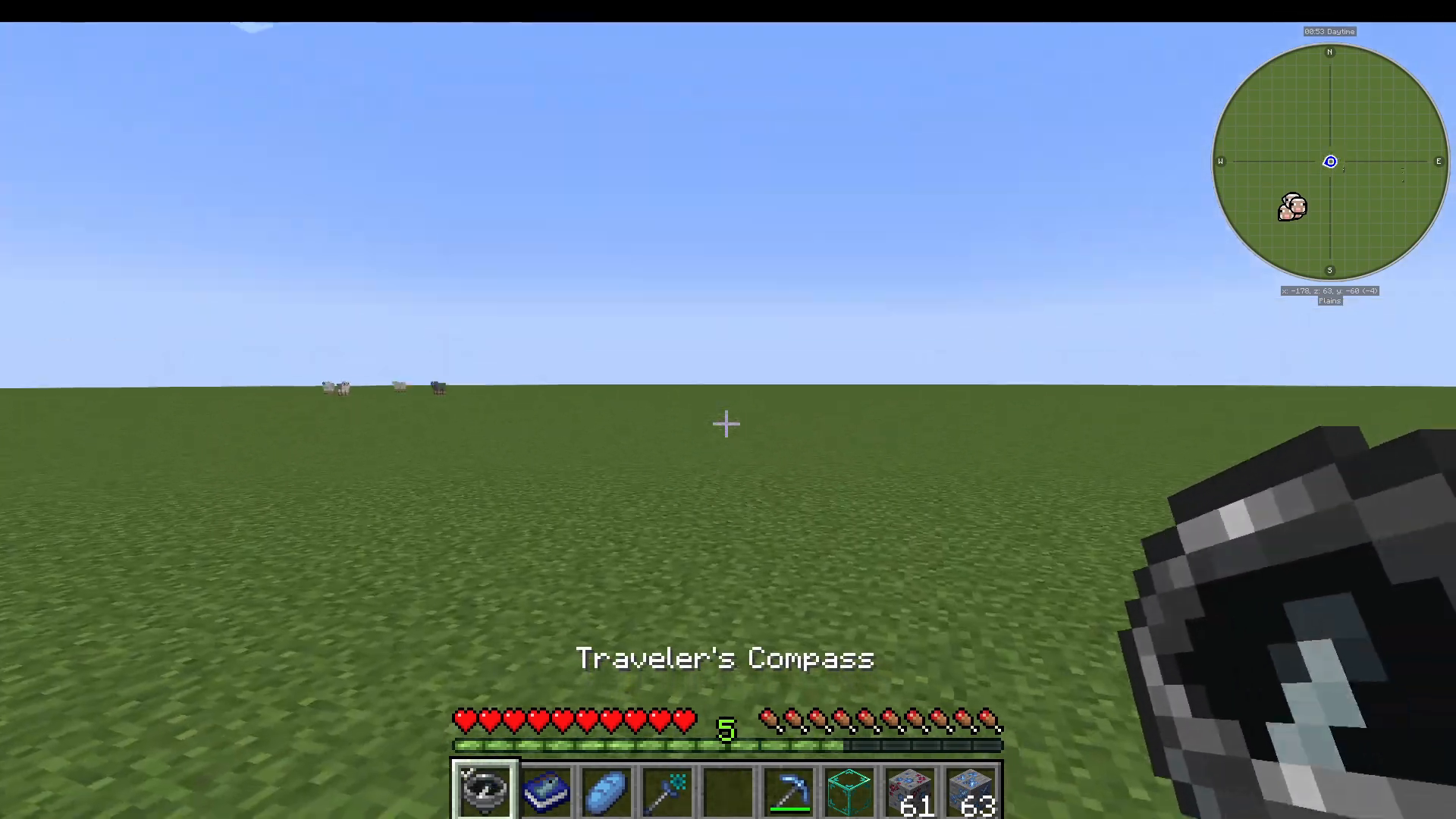
Enable Search for Drop Positions to track items that have been dropped on the ground. You can combine this with other search modes simultaneously — for instance, searching for both villagers selling an item and dropped versions of that same item at the same time. Once active, the compass needle will point directly toward the nearest matching dropped item as you turn around.
Search for Entity Inventories
The Search for Entities with Inventory option lets you search by the contents of a mob’s or minecart’s inventory. This means you can find a specific minecart that contains a certain ore, or locate a mob carrying a particular item. You can search by minecart inventory contents, mob inventories, or even player inventories.
Search for Liquids
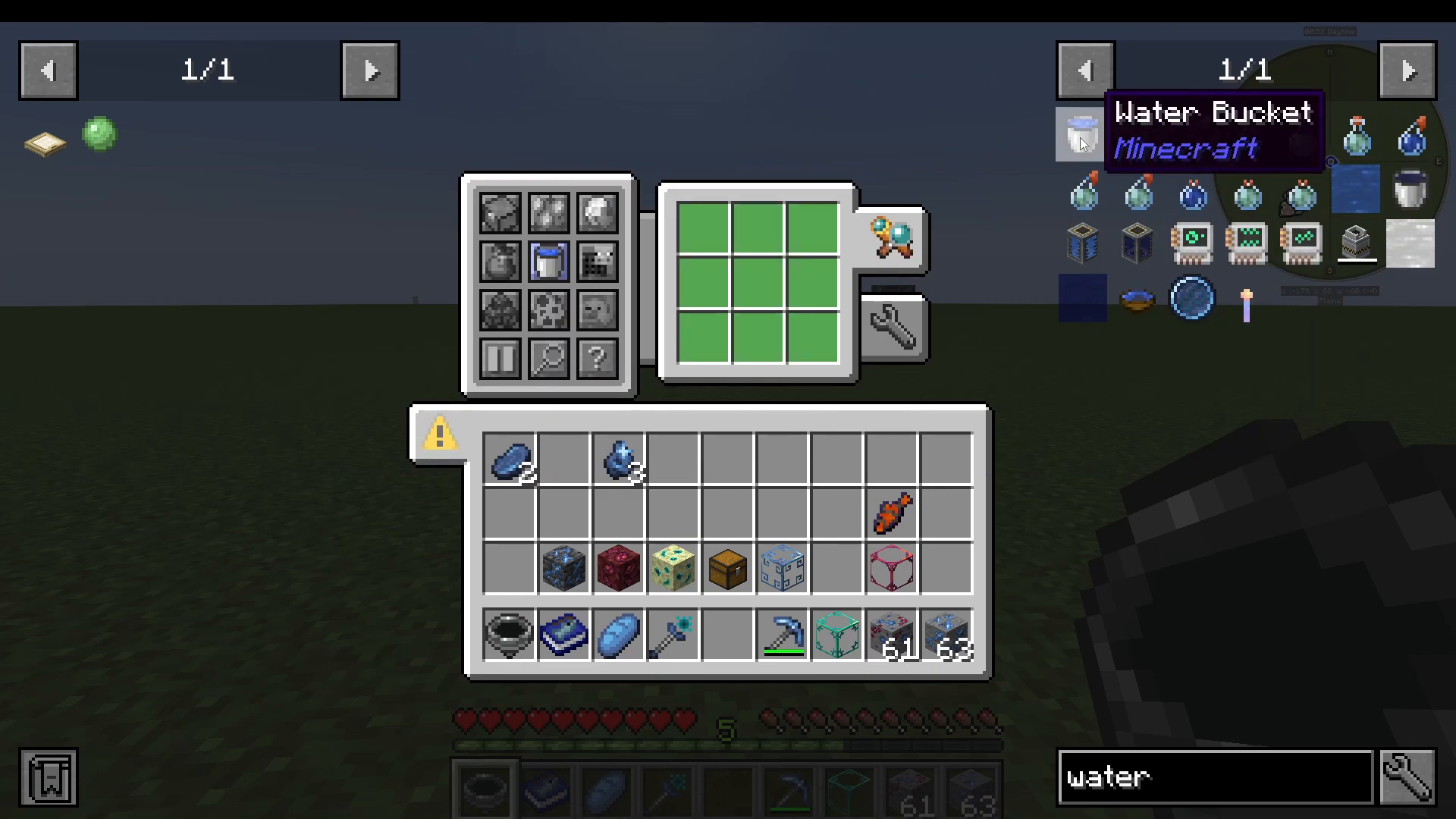
Enable Search for Liquids to locate specific fluids in the world. You cannot drag the raw liquid itself into the grid — instead, drag the corresponding bucket item from JEI (even if you don’t have that bucket in your inventory). For example, drag a Water Bucket from JEI into the grid to search for water sources. Note that if a mod doesn’t register a bucket form for its liquid in JEI, this method won’t work — that’s a limitation of the mod adding the liquid, not the Traveler’s Compass itself.
Search for Spawners
Enable Search for Spawners to locate mob spawners in the world. This pairs well with the mob-based search options below.
Search for Entities by Their Drops
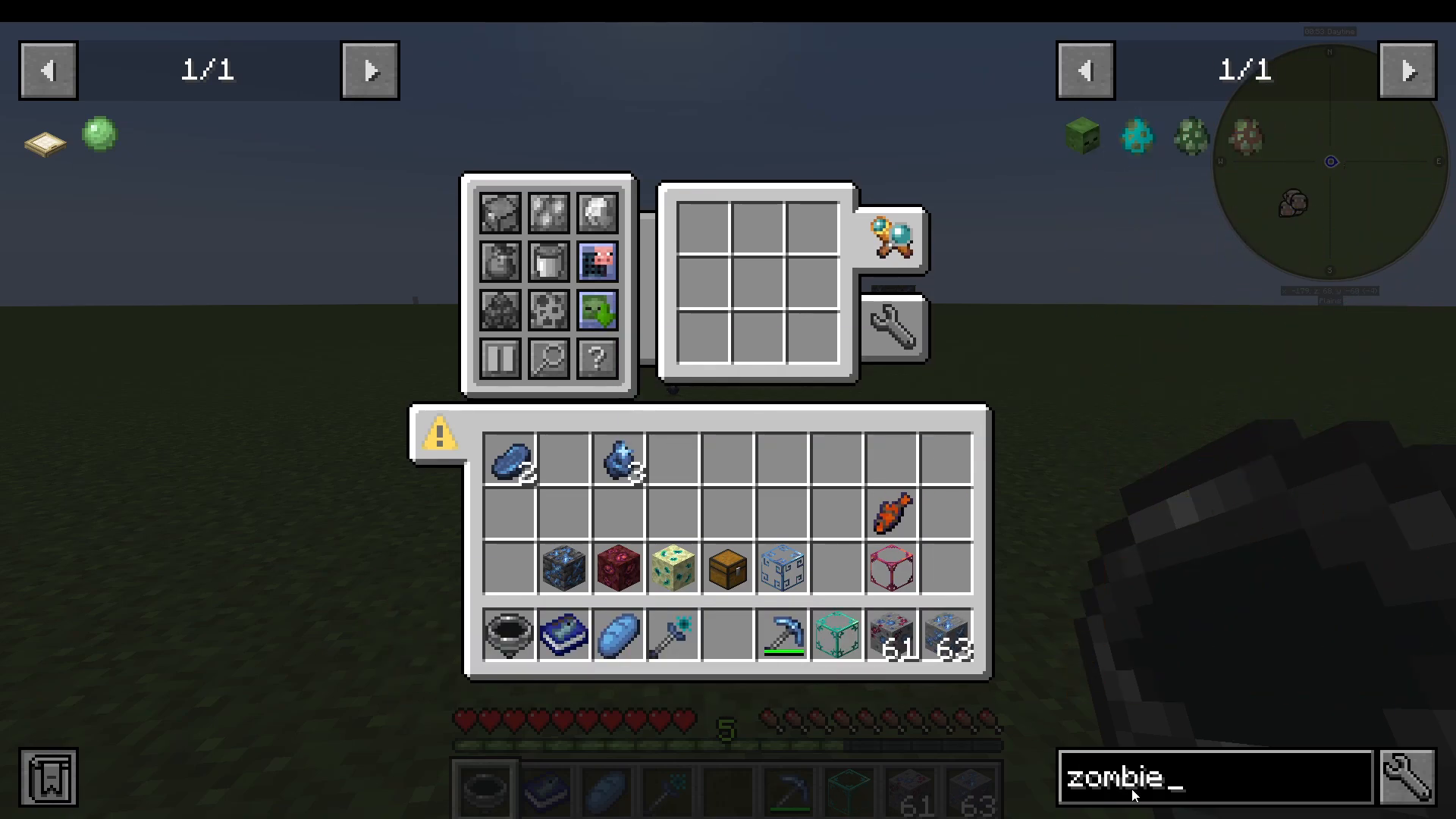
Enable Search for Entities Based on Their Drops and drag a drop item (for example, Rotten Flesh) into the grid. The compass will then locate entities that drop that item — in this case, Zombies. This is a great way to find mobs indirectly when you don’t have a spawn egg available.
Search for Mobs Directly
To search for a specific mob directly, drag its spawn egg into the 3×3 grid. If you don’t have the spawn egg in your survival inventory, you can drag it directly from JEI. For example, drag an Iron Golem spawn egg into the grid and the compass will hunt down the nearest Iron Golem — no cheats required.
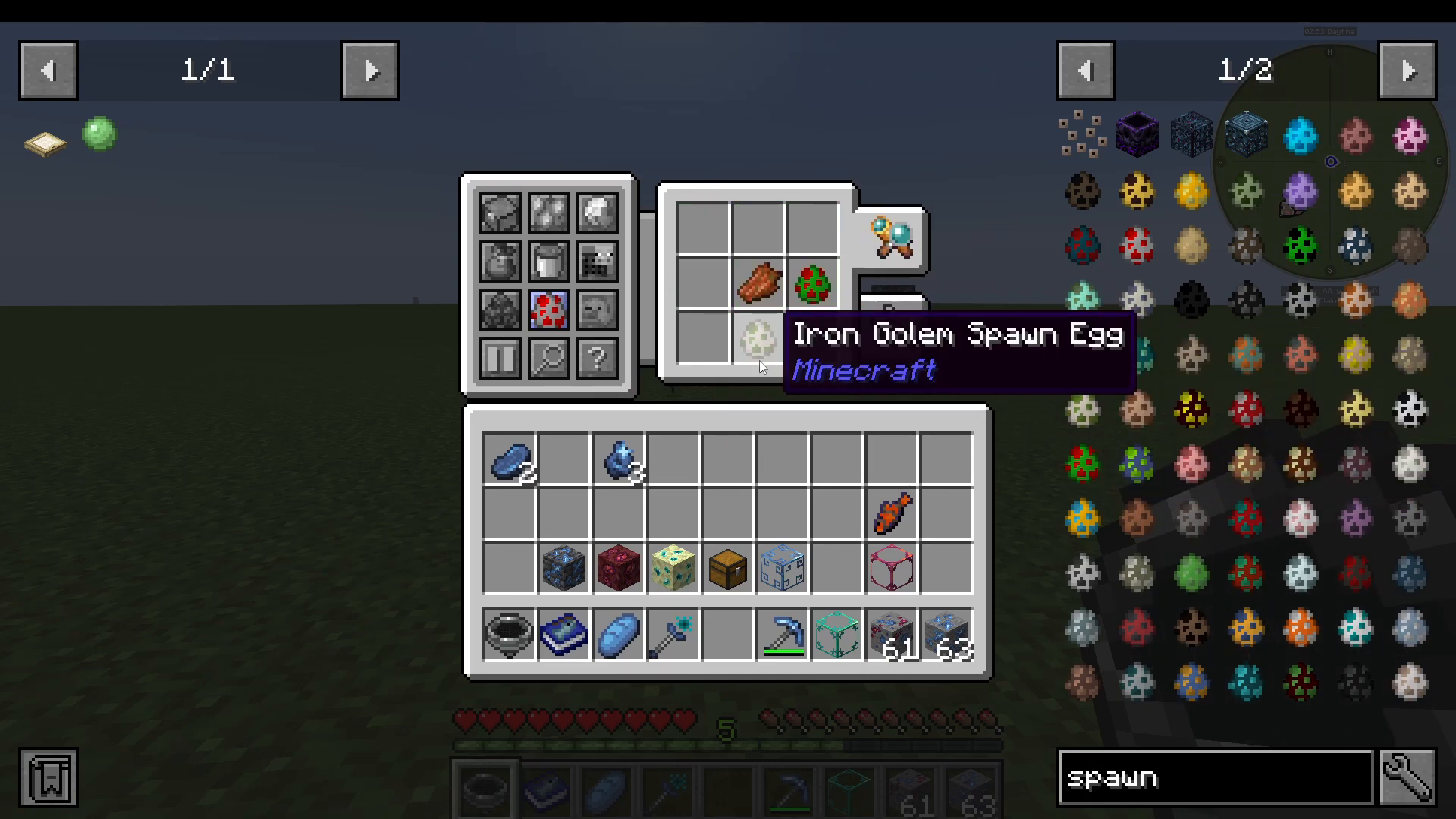
Wide Search
The Wide Search button triggers a one-time scan of a larger area around you, based on your selected search mode and configured radius. Use this when you need to sweep a broader region quickly.
Setting Favourite (Priority) Targets
You can mark any item in the grid as a favourite target by Shift + Left-Clicking it. Favourited items are highlighted and treated as priority search targets. Shift + Left-Click again to remove the favourite status.
By default, the compass always points to the closest matching target. However, if you enable Priority Search in the Settings tab, the compass will prioritise favourited targets even if another target is physically closer.
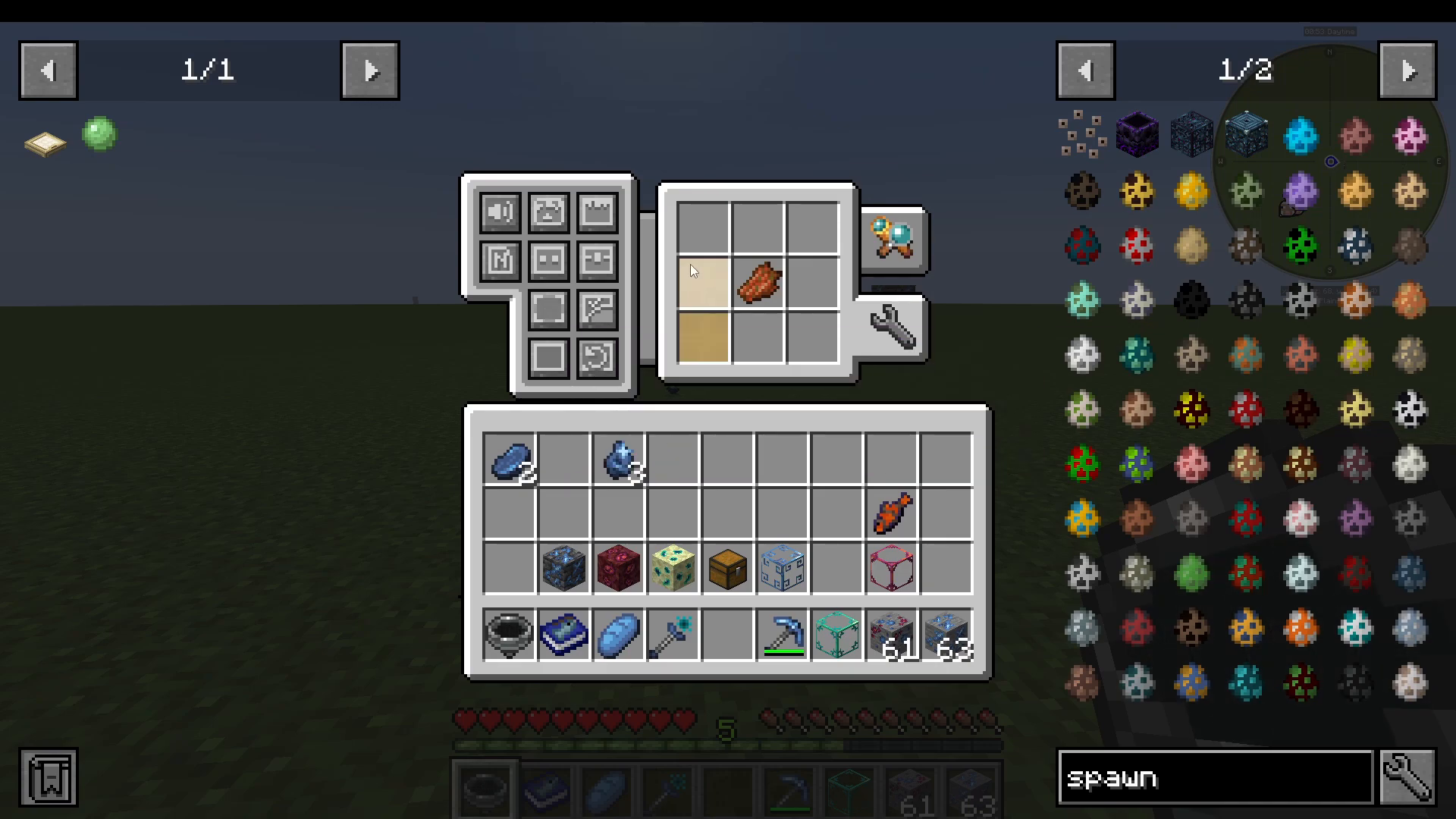
Settings Tab
Audio and Visual Settings
In the Settings tab, you can toggle the search ping on or off — this is an audio cue that plays while the compass is actively searching. You can also toggle the search direction indicator, which displays a small icon showing whether your target is above or below your current position.
Search Radius Settings
The Settings tab gives you individual control over several search radius values:
Wide Search Radius — controls how far the wide scan reaches
Block Search Radius — controls the radius for block/container searches
Entity Search Radius — controls how far the compass scans for mobs and entities
Container Search Radius — controls the range for container detection
Adjust these to suit your situation — tighten the radius if you’re searching a small dungeon, or increase it if you’re scanning an open world.
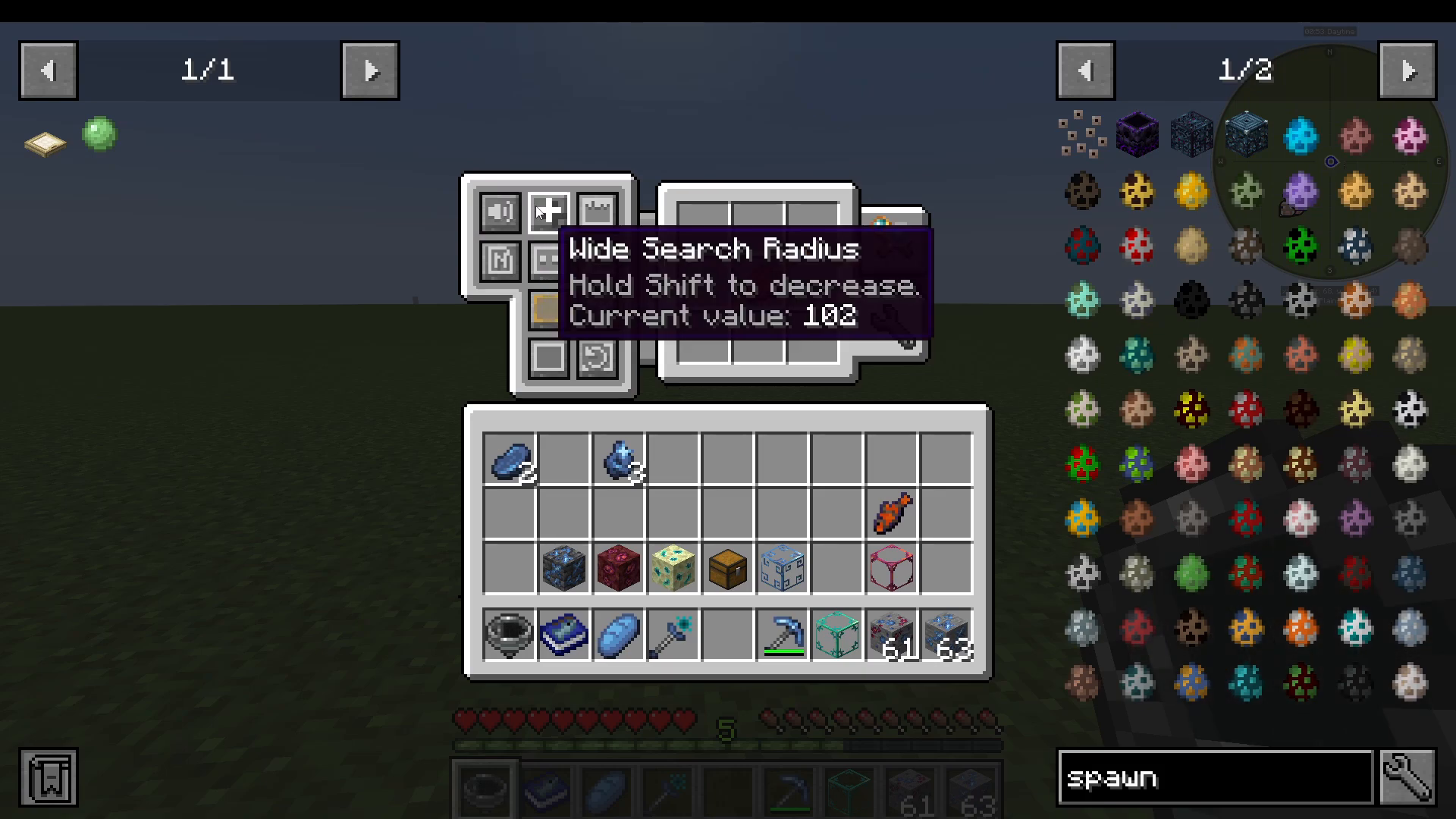
Lazy Search
There is also a Lazy Search option in the settings, though its exact behavior is not fully documented in-game. Experiment with it to see if it suits your workflow.
HUD Settings
The compass displays a small HUD element on your screen (by default in the top-left corner) showing the current search state. In the HUD Settings section, you can reposition this element and adjust how it looks to fit your screen layout.
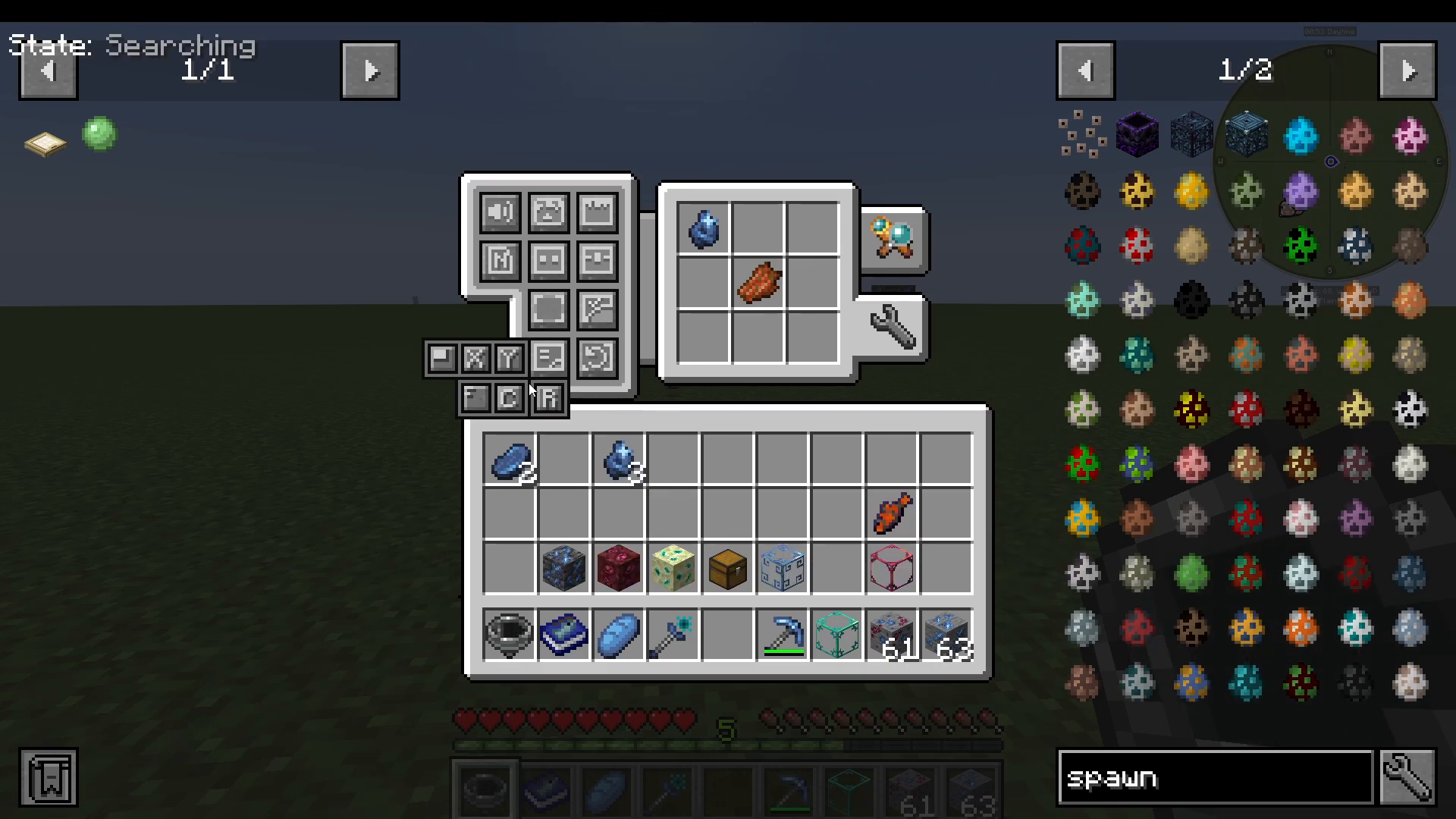
Restore Default Settings
If you ever want to reset everything back to how it was out of the box, simply hit the Restore Default Settings button at the bottom of the Settings tab.
Summary
The Traveler’s Compass is an incredibly versatile mod that solves one of Minecraft’s biggest frustrations — finding exactly what you need in a massive world. From tracking dropped items and hunting specific mobs, to locating villagers with the right trades or sniffing out buried liquids, it handles it all through a clean and intuitive interface. Craft one early, learn your search modes, and you’ll never wander aimlessly again.
“`