





The Ultimate Guide to Modular Routers
The Ultimate Guide to Modular Routers in Minecraft
The Modular Routers mod is one of the most flexible automation mods available for Minecraft. At its core, it adds a single block — the Modular Router — but what makes it truly powerful is the extensive library of modules and upgrades you can slot into it. Whether you want to pull items from a chest, fling them across the world, or wirelessly transfer energy between dimensions, this mod can do it all. In this guide, we’ll walk through every module and upgrade so you understand exactly what each one does and how to combine them for powerful automation setups.
Getting Started: How the Modular Router Works
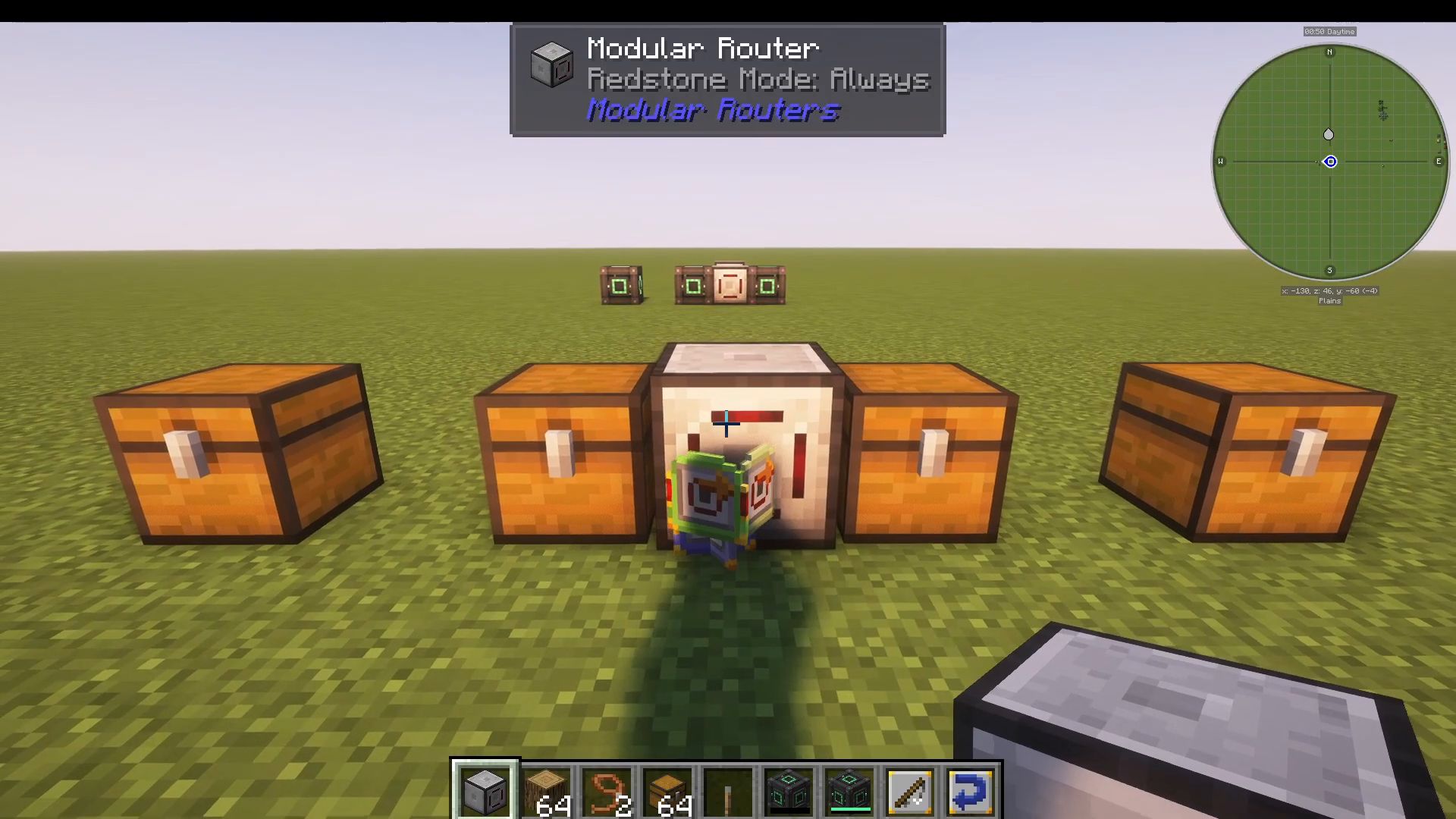
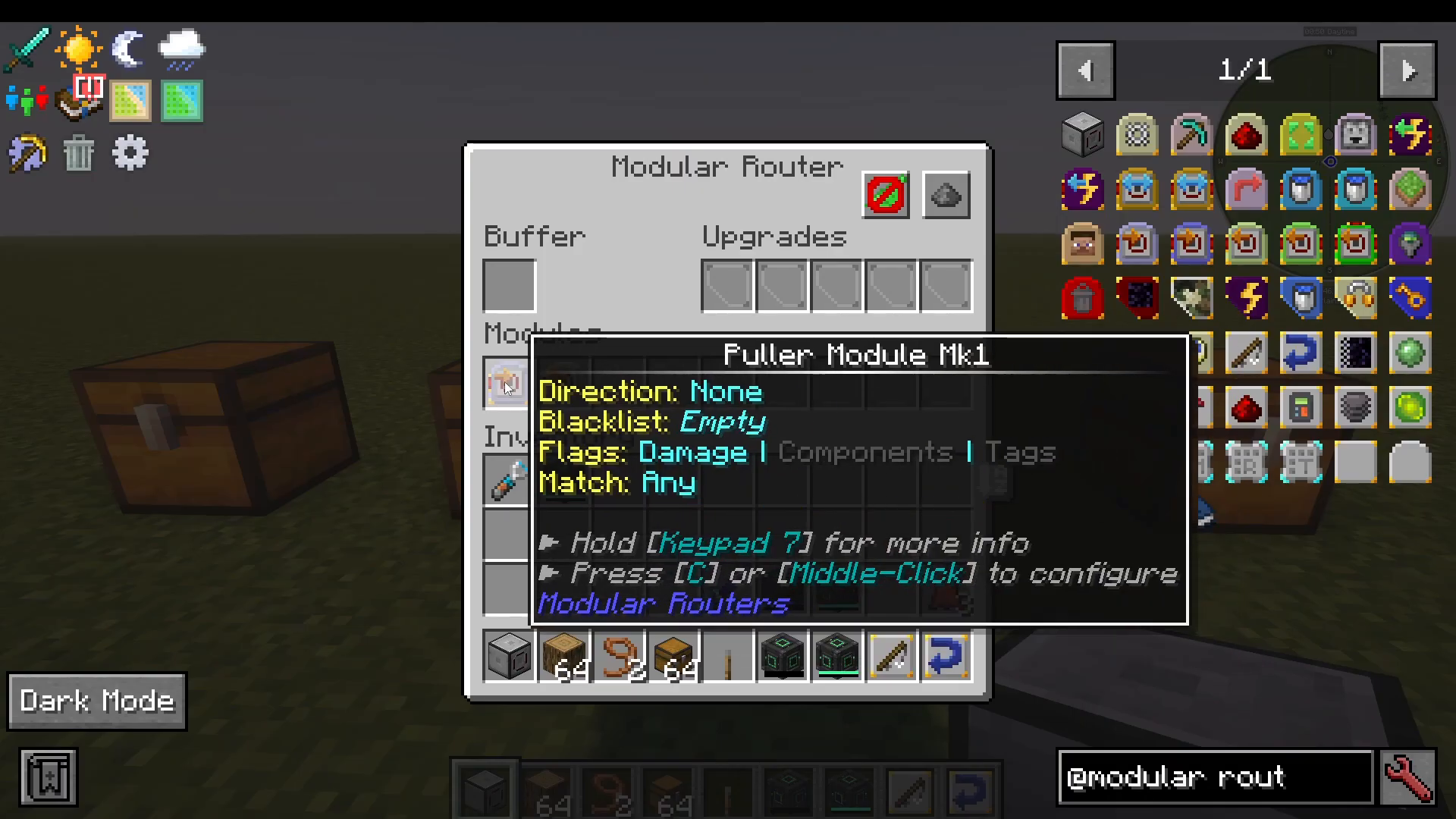
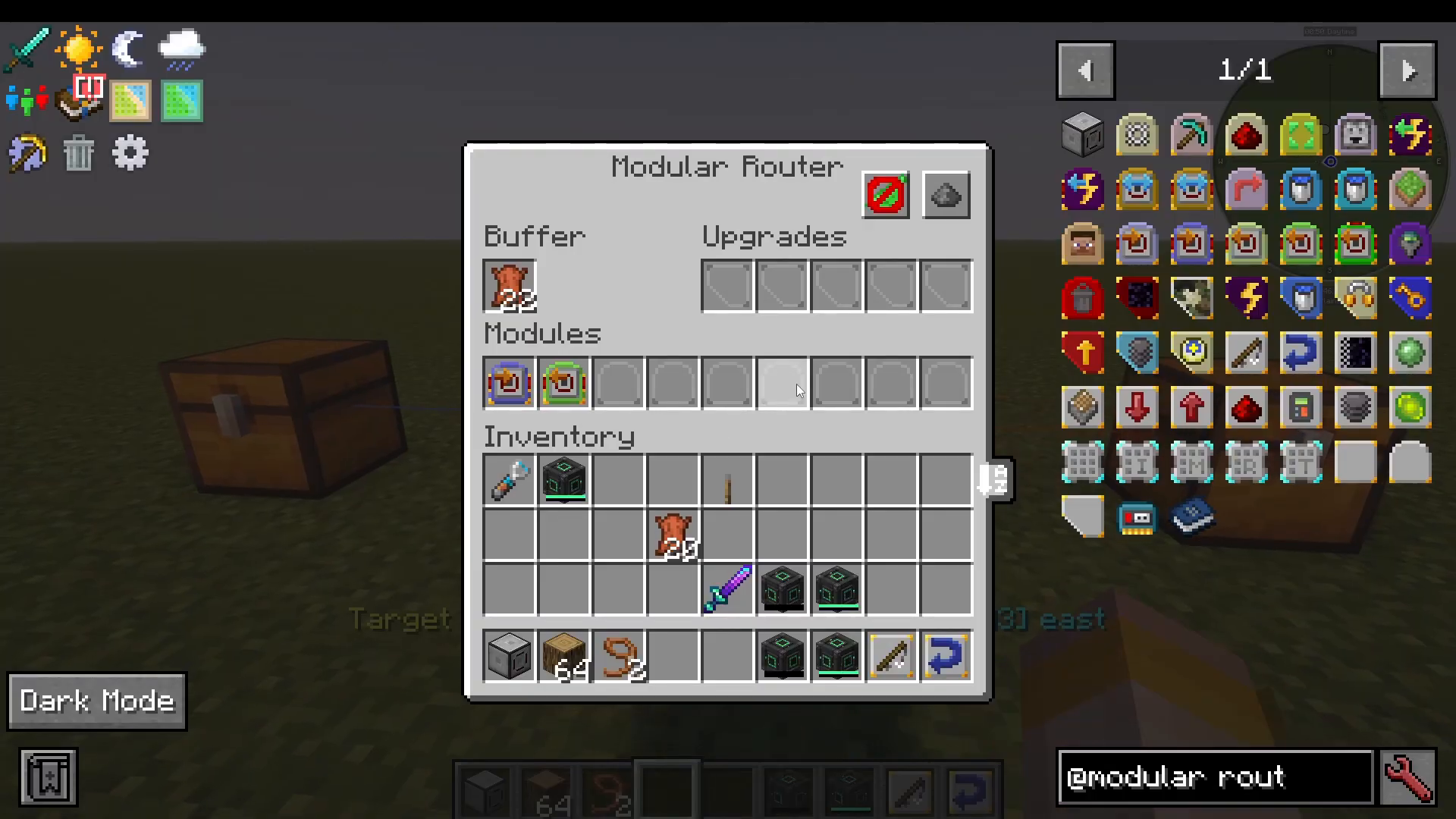
The Modular Router itself does nothing out of the box. Its power comes entirely from the modules you insert into it. The router has three key areas in its interface: a modules slot area, a central buffer (where items are held in transit), and an upgrades slot area. Items flow into the buffer via one module (such as a Puller) and leave the buffer via another (such as a Sender).
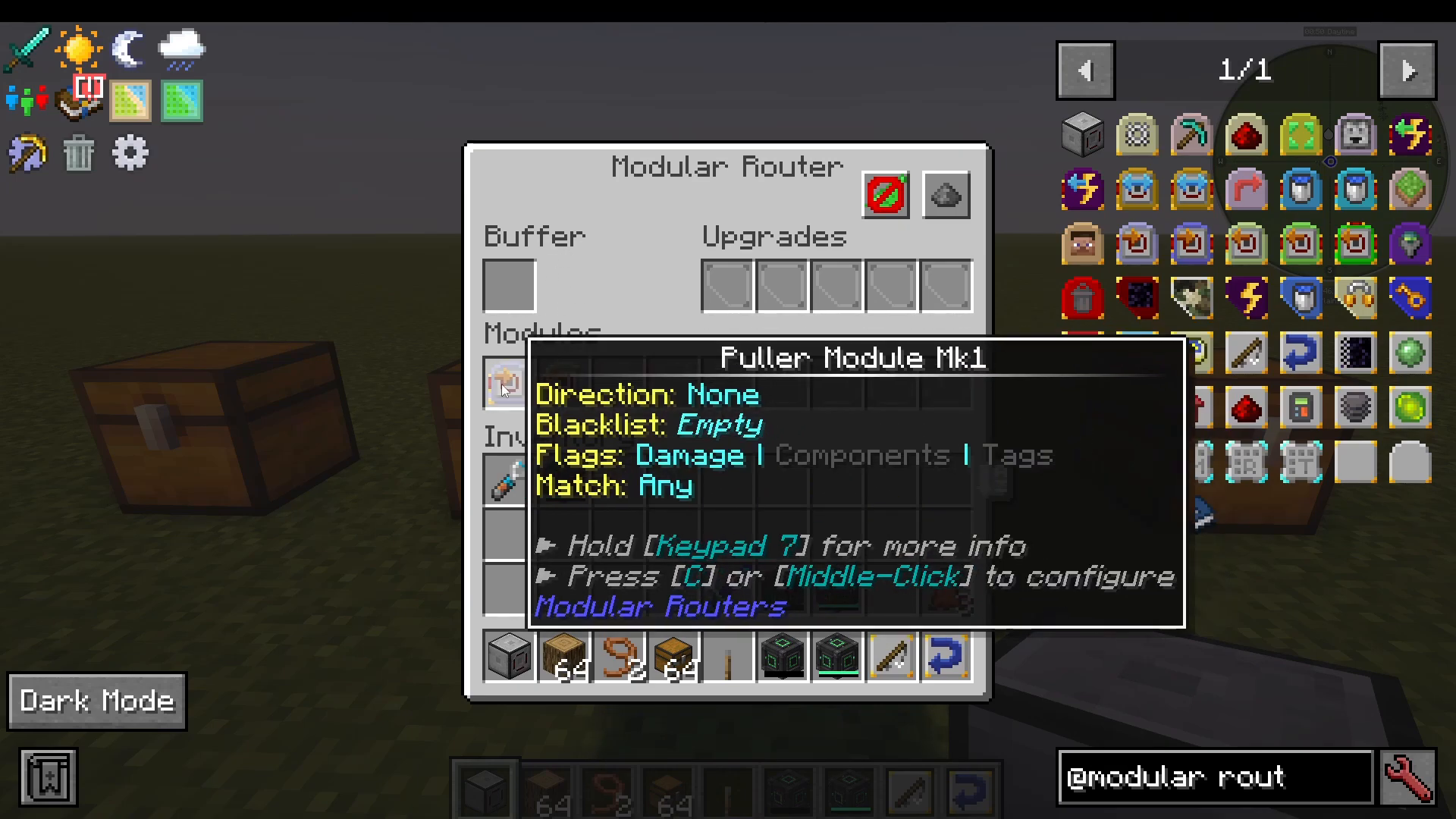
To configure any module once it is placed inside the router, press middle-click (or the C key, as shown in the UI) on the module slot. This opens the module’s individual configuration screen where you can set direction, filters, and other options.
A Simple Example: Moving Items from One Chest to Another
To demonstrate the basics, place a Modular Router between two chests — one on the left and one on the right. Insert a Puller Module Mark 1 and a Sender Module Mark 1 into the router. Middle-click the Puller module to configure it, and set the direction to Left. This tells the router to pull items from the chest on its left side into its buffer. Then configure the Sender module and set the direction to Right. The router will now continuously move items from the left chest into the right chest.
All Modular Router Modules Explained
Modules are the heart of the Modular Routers mod. Each one performs a specific action. You can slot multiple modules into a single router simultaneously, which is where the real power and creativity of the mod comes in.
Puller Module (Mark 1, 2)
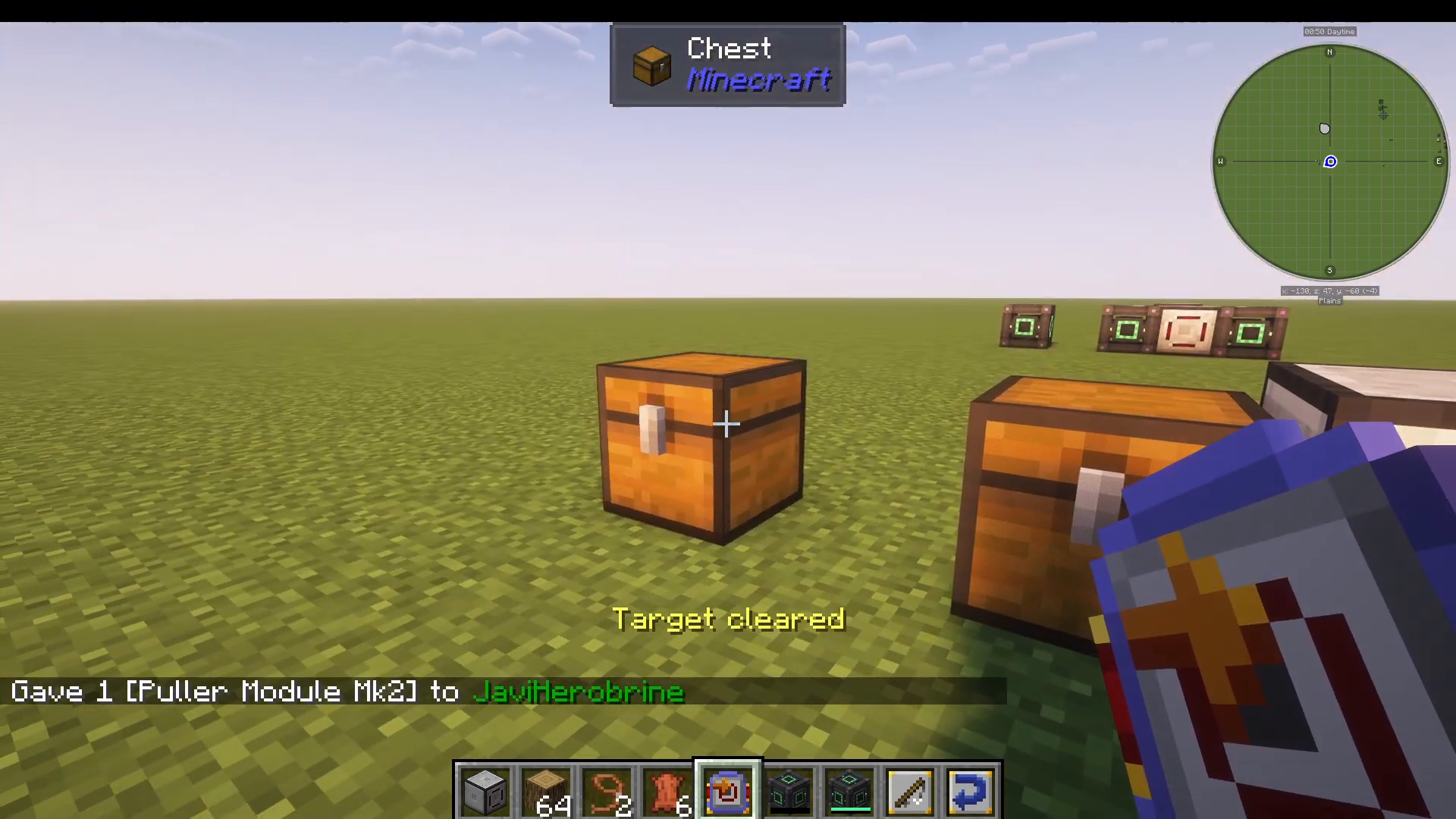
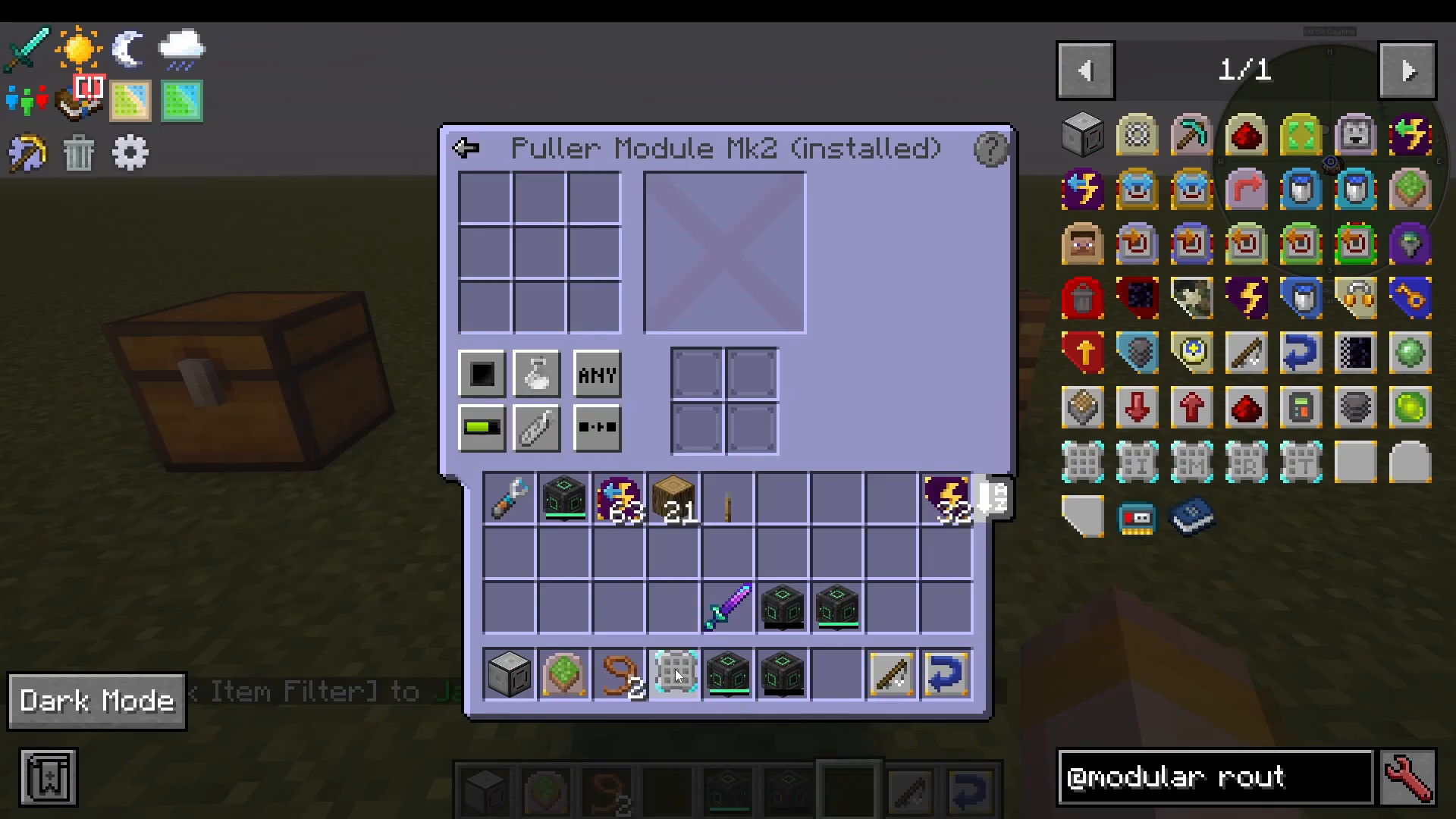
The Puller module extracts items from an adjacent inventory in the module’s configured direction and places them into the router’s buffer. The Mark 1 version can only pull from a directly adjacent block. The Mark 2 version can pull from any inventory at a distance — simply sneak + right-click the target inventory to link it. Sneak + right-click any non-inventory block to clear the target.
Sender Module (Mark 1, 2, 3)
The Sender module pushes items from the router’s buffer to a target inventory. Mark 1 can only send to an adjacent inventory. Mark 2 can send to any inventory nearby by linking it with sneak + right-click. Mark 3 is the most powerful — it can send items to any inventory in any dimension, making cross-dimensional item transfer possible.
Activator Module
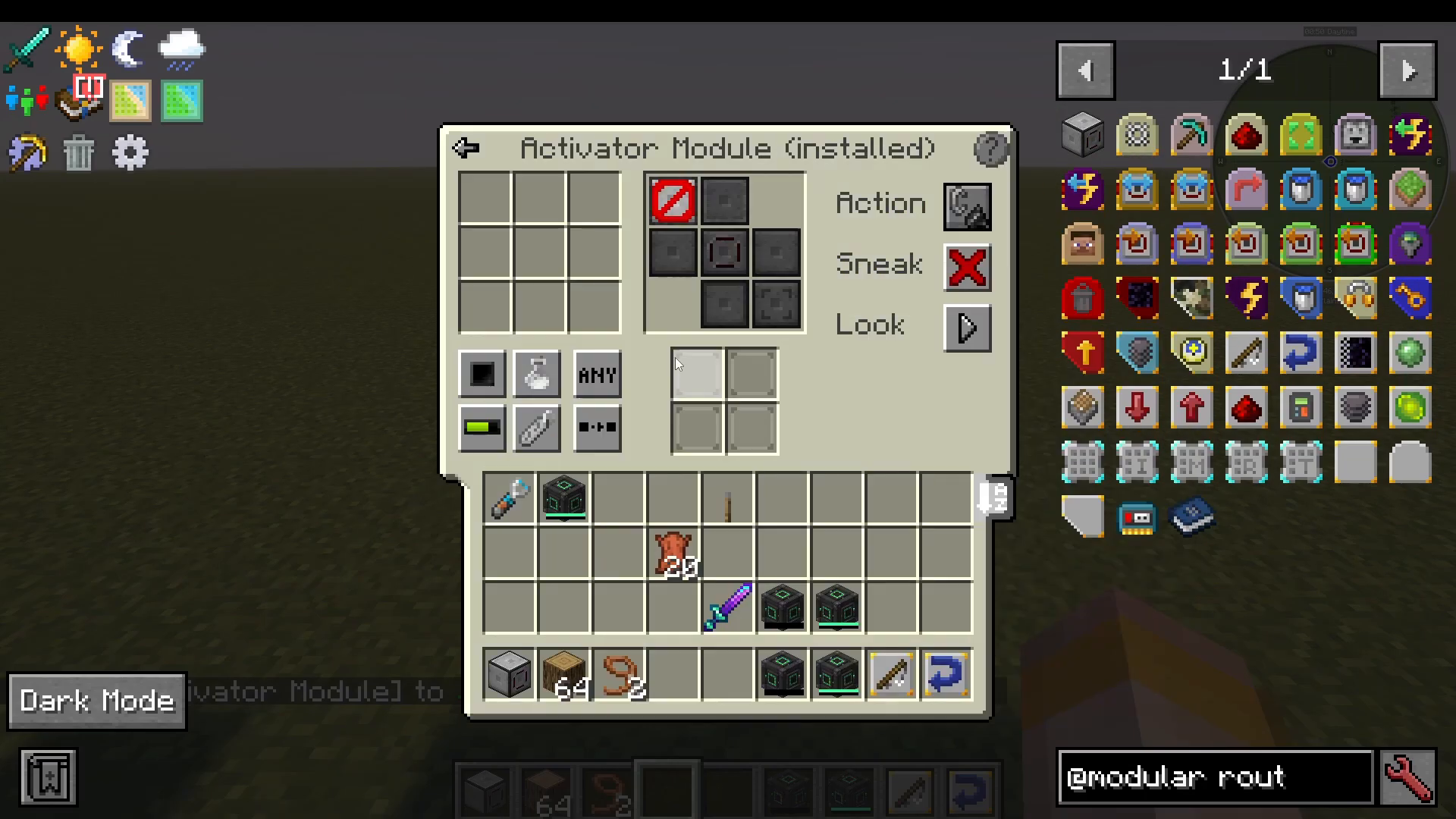
The Activator module simulates a player right-clicking a block adjacent to the router. When configuring it, you can choose whether the simulated click should act as a sneaking right-click, which direction to target (above, below, left, right, etc.), and the type of action: right-click a block, right-click an entity, or attack a nearby entity. For example, you can use this module to automatically toggle a lever on the right-hand side of the router on each tick.
Breaker Module
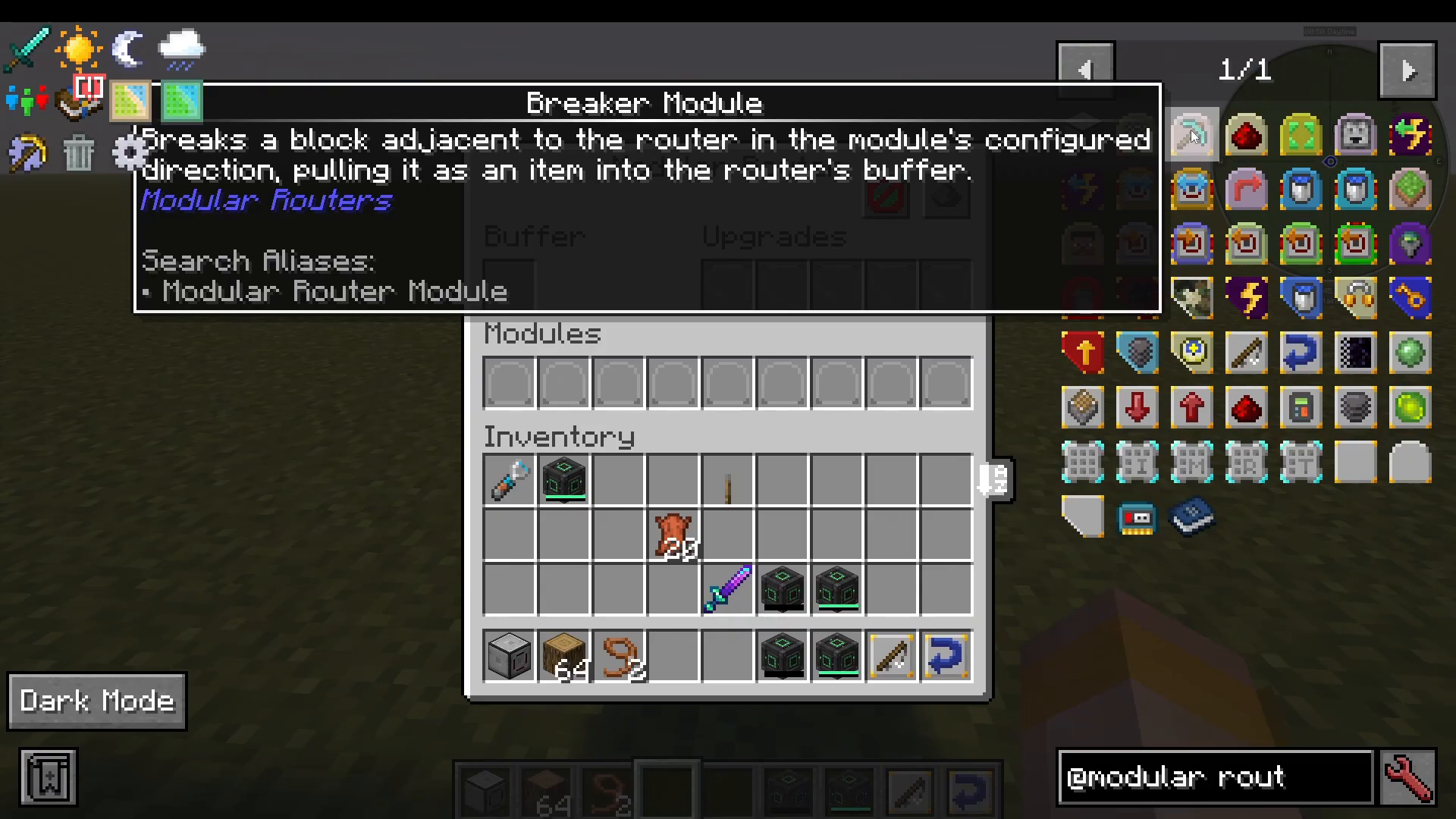
The Breaker module breaks a block adjacent to the router in its configured direction. You can use item filters to match specific block drops, and it will continuously break whatever block is placed in that position. This pairs well with the Place module for automated block-breaking loops.
Detector Module
The Detector module emits a redstone signal from the router when a specific item passes through the router’s buffer. Configure the filter inside the module (for example, set it to detect a lever), and whenever that item moves through the buffer, the router emits a redstone pulse in the module’s configured direction. This allows you to trigger redstone contraptions based on item flow.
Distributor Module
The Distributor module sends items from the router’s buffer to multiple inventories at once. You link target inventories by sneak + right-clicking them. The distribution mode can be set to Round Robin (cycling through inventories in order), Random, Nearest First, or Furthest First. This is ideal for splitting items across multiple storage locations or machines.
Dropper Module
The Dropper module simply drops items from the buffer as item entities in the configured direction. If set to drop on the right-hand side, any item placed in the buffer will be physically thrown out to the right of the router. It’s straightforward but useful for feeding item streams into hoppers or other collection systems.
Energy Output Module & Energy Distributor Module
There are two ways to transfer energy with Modular Routers. The basic Energy Output Module pushes FE/RF energy from the router’s internal energy buffer (or from an energy-containing item in the item buffer) to an adjacent block in the configured direction. The upgraded Energy Distributor Module works wirelessly, similar to how the Sender Mark 2 works for items. Sneak + right-click a target energy storage block to link it, then configure the module to transfer energy either into or out of the router. To give the router an energy buffer, you must also install Energy Upgrades in the upgrades slots.
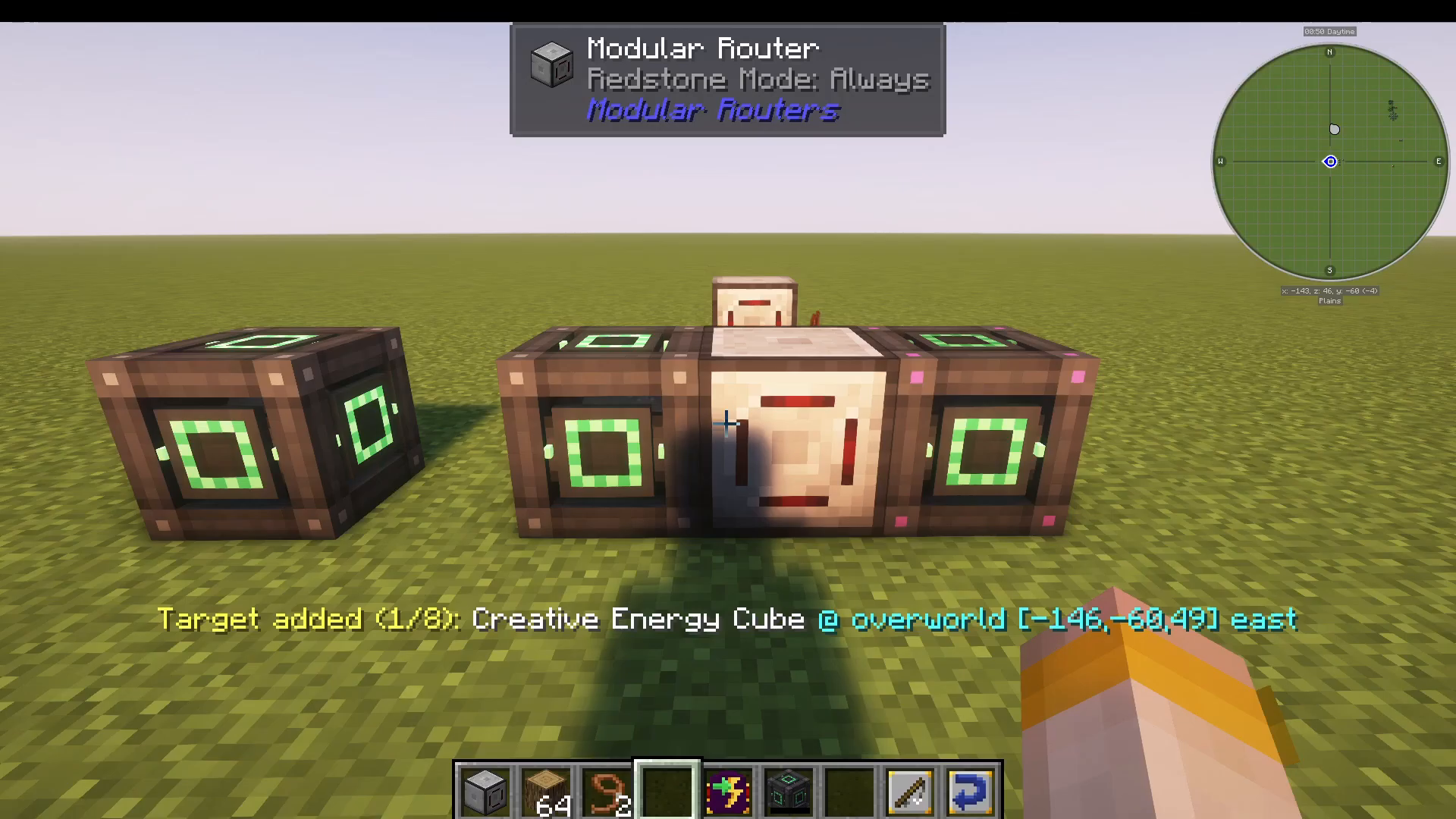
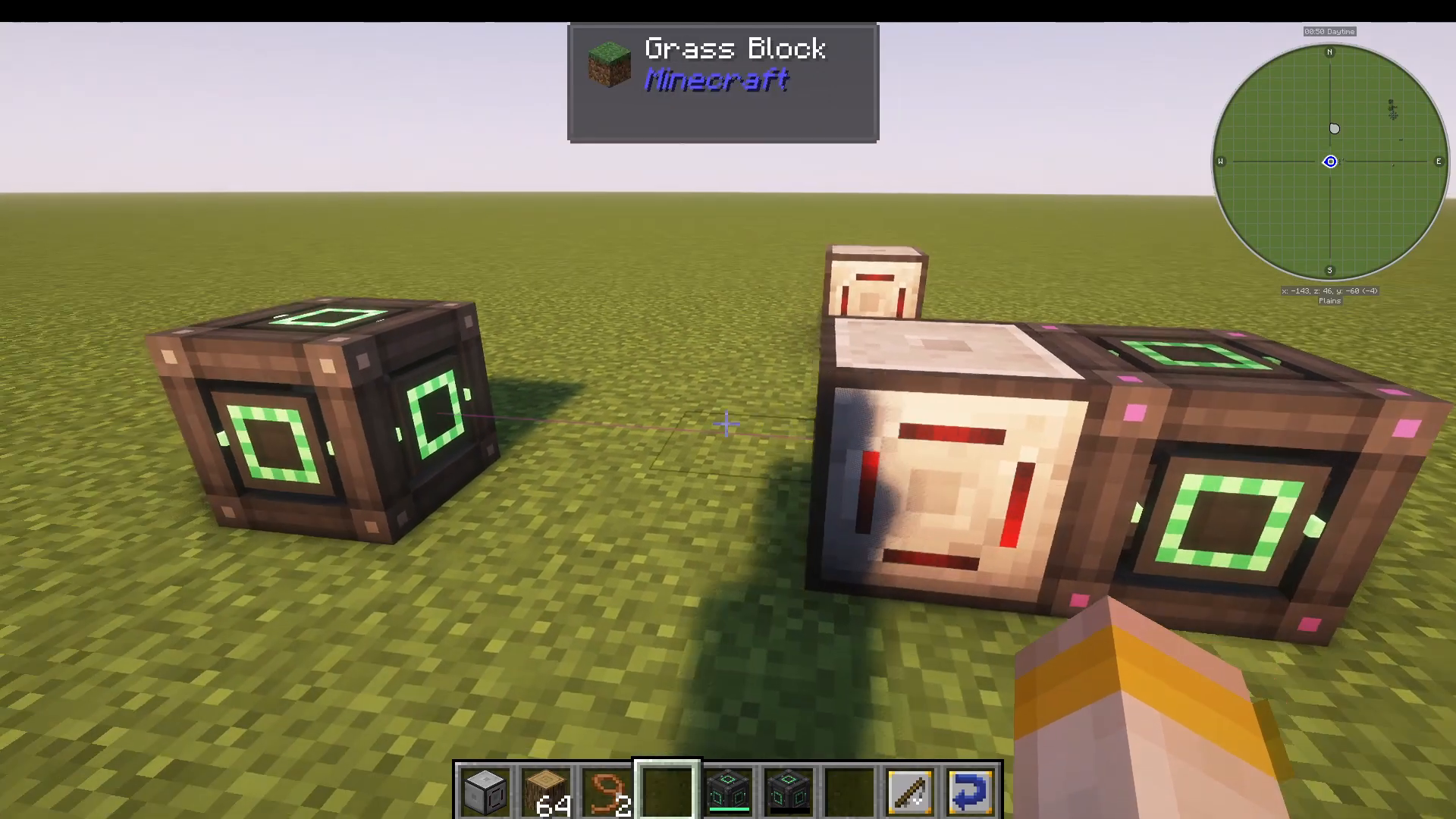
A practical setup: use one Energy Distributor Module (configured to pull energy into the router) linked to a full energy cube, combined with an Energy Output Module (configured to push energy to the right) feeding an empty energy storage block. This lets you wirelessly move energy from a source to a destination with no direct cable connection.
Extruder Module
The Extruder module places or removes blocks in a line along the module’s configured direction. It reads blocks from the router’s buffer and extends them outward, making it useful for automated building or block-placement contraptions.
Fling Module
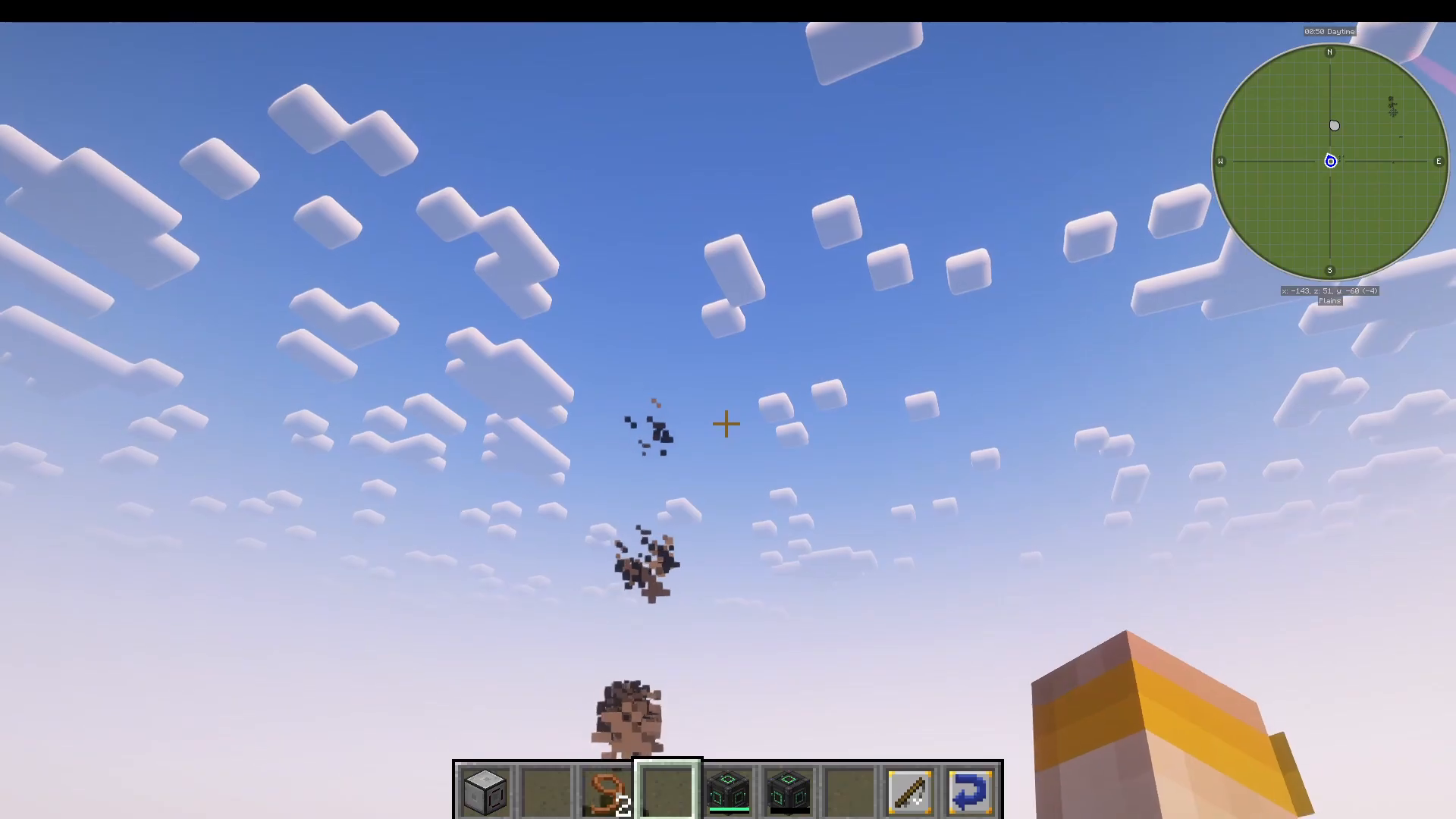
The Fling module launches items from the router’s buffer across potentially long distances. You can configure the direction, angle, axis, and speed/force (for example, setting the speed to 10 will fling items extremely high into the air). This module is useful for item transport across open spaces without pipes or hoppers.
Fluid Modules (Mark 1, Mark 2)
Just as there are item and energy transfer modules, there are also Fluid Mark 1 and Fluid Mark 2 modules for transferring fluids between tanks. Mark 1 works on adjacent tanks; Mark 2 works wirelessly at a distance, mirroring the item Sender Mark 2 behaviour.
Place Module
The Place module takes an item from the router’s buffer and places it as a block in the configured direction. For example, pair a Puller module (pulling oak logs from a chest) with a Place module (set to the right side) and the router will continuously place oak logs to its right. Add a Breaker module on the opposite side and you have the foundation of an automated farming or processing loop.
Player Module
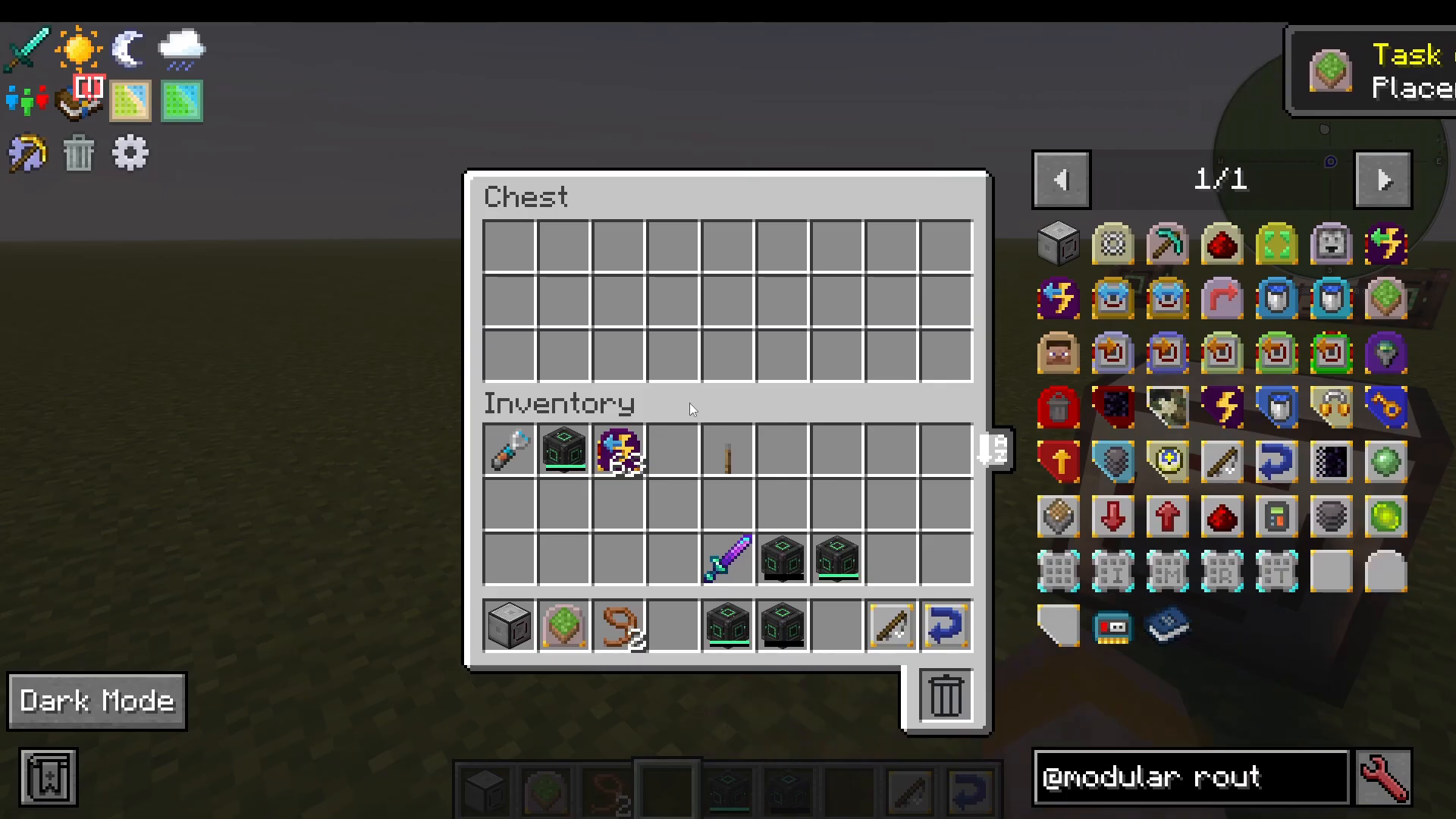
The Player module transfers items between a player’s main inventory or armour inventory and the router’s buffer. This is useful for automated player-gear management or remote inventory restocking setups.
Puller & Pusher Vacuum Module
The Vacuum module acts like a vacuum hopper — it absorbs nearby item entities floating in the world and pulls them directly into the router’s buffer. This is ideal for mob farms or anywhere items are dropped on the ground and need to be collected automatically.
Void Module
The Void module deletes any items in the router’s buffer that match its filter. For example, configure the filter to whitelist oak logs, and any oak log that enters the buffer will be permanently deleted. Items that do not match the filter pass through untouched. This is extremely useful in mob farms for voiding unwanted drops while keeping valuable ones — simply combine the Void module (filtering junk items) with a Sender module (filtering items you want to keep) in the same router.
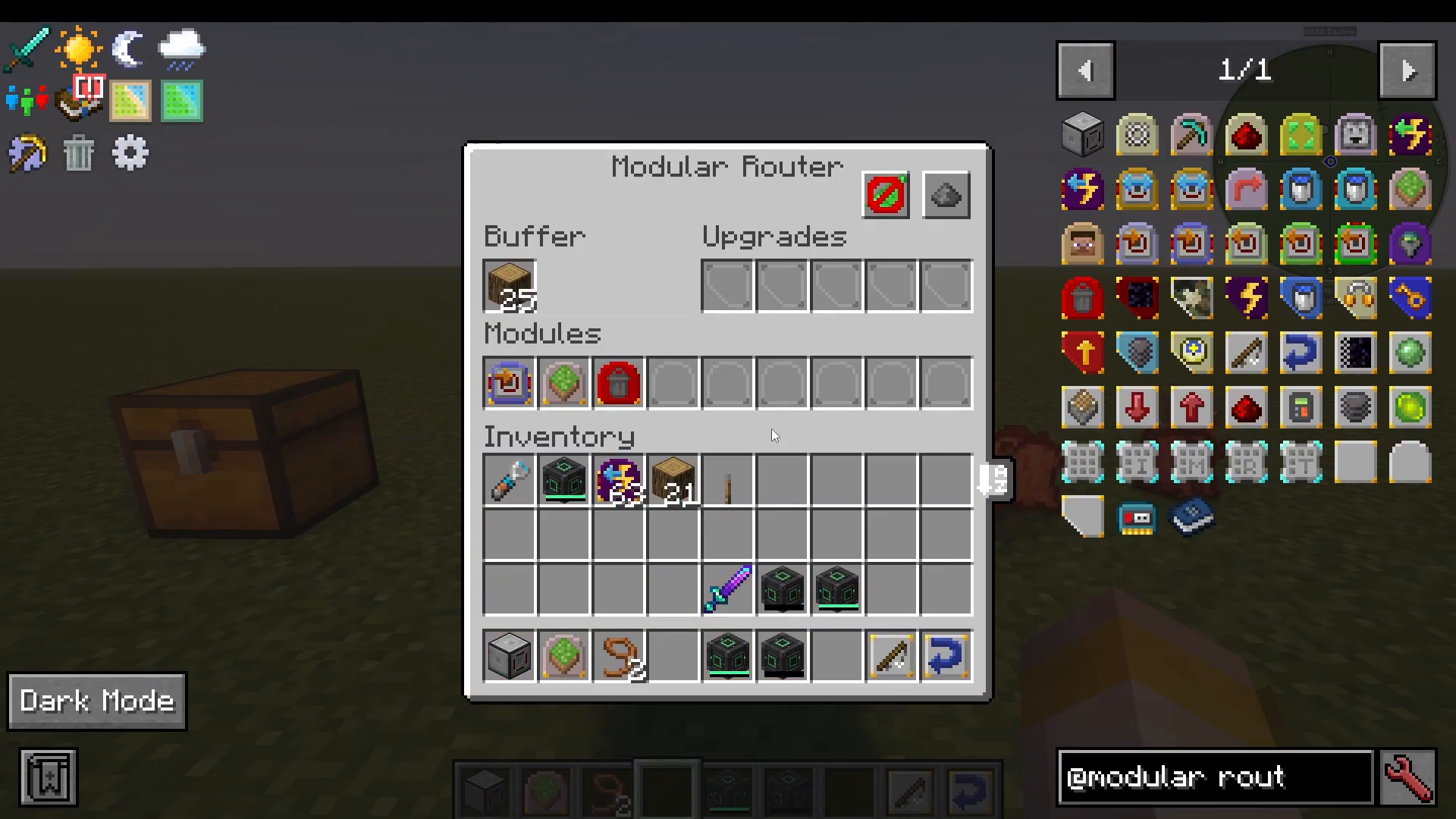
Understanding Item Filters
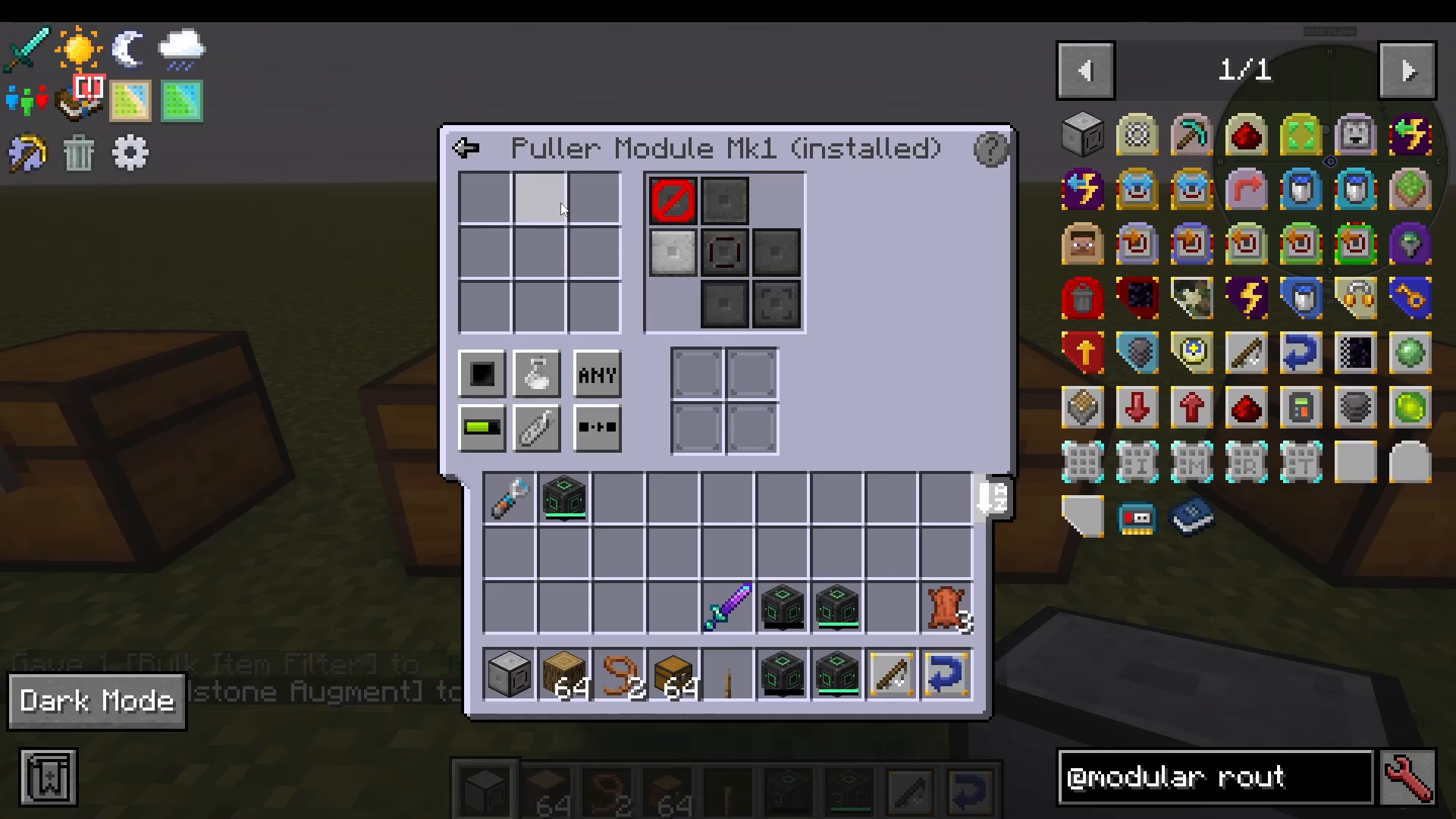
Every module supports item filtering, which controls exactly which items the module acts on. Here is a breakdown of all filter options available inside a module’s configuration screen:
Blacklist vs. Whitelist
A blacklist means any items you add to the filter slots will be ignored by the module — everything else is processed normally. A whitelist means only the items you add to the filter will be processed; all others are ignored.
Ignore Item Components / Match Item Components
When Match Item Components (previously called NBT matching) is enabled, the module takes item metadata such as enchantments into account. For example, if you add a chestplate with Protection IV to the filter, the module will only act on chestplates that have exactly that enchantment.
Match Any / Match All
Match Any means the module will process an item if it matches at least one item in the filter. Match All requires that every item in the filter be present before the module will act.
If Execute / If Not Execute (Conditional Module Chaining)
These options control how modules interact with each other within the same router. Don’t execute subsequent modules if this module did something tells the router to stop processing further modules on that tick once this one has acted. Don’t execute subsequent modules if this module did NOT do anything does the opposite — it stops the chain if this module was idle. These conditions allow you to build conditional logic chains within a single router.
Tag Matching
Tag matching uses Minecraft’s item tag system (such as forge:ores). For example, adding the ore tag means the module will match all ore types — iron ore, copper ore, and so on — without needing to list each individually.
Match Item Damage
This option matches items by their damage value — useful for filtering tools or weapons at a specific durability level.
All Modular Router Upgrades Explained
Upgrades are placed in the dedicated upgrades slots of the router (not inside individual modules). Most upgrades are stackable, meaning you can insert multiple copies to increase their effect. Note that augments (square-shaped items) go inside the module configuration screen, while upgrades (the slightly different shape) go in the router’s main upgrade slots.
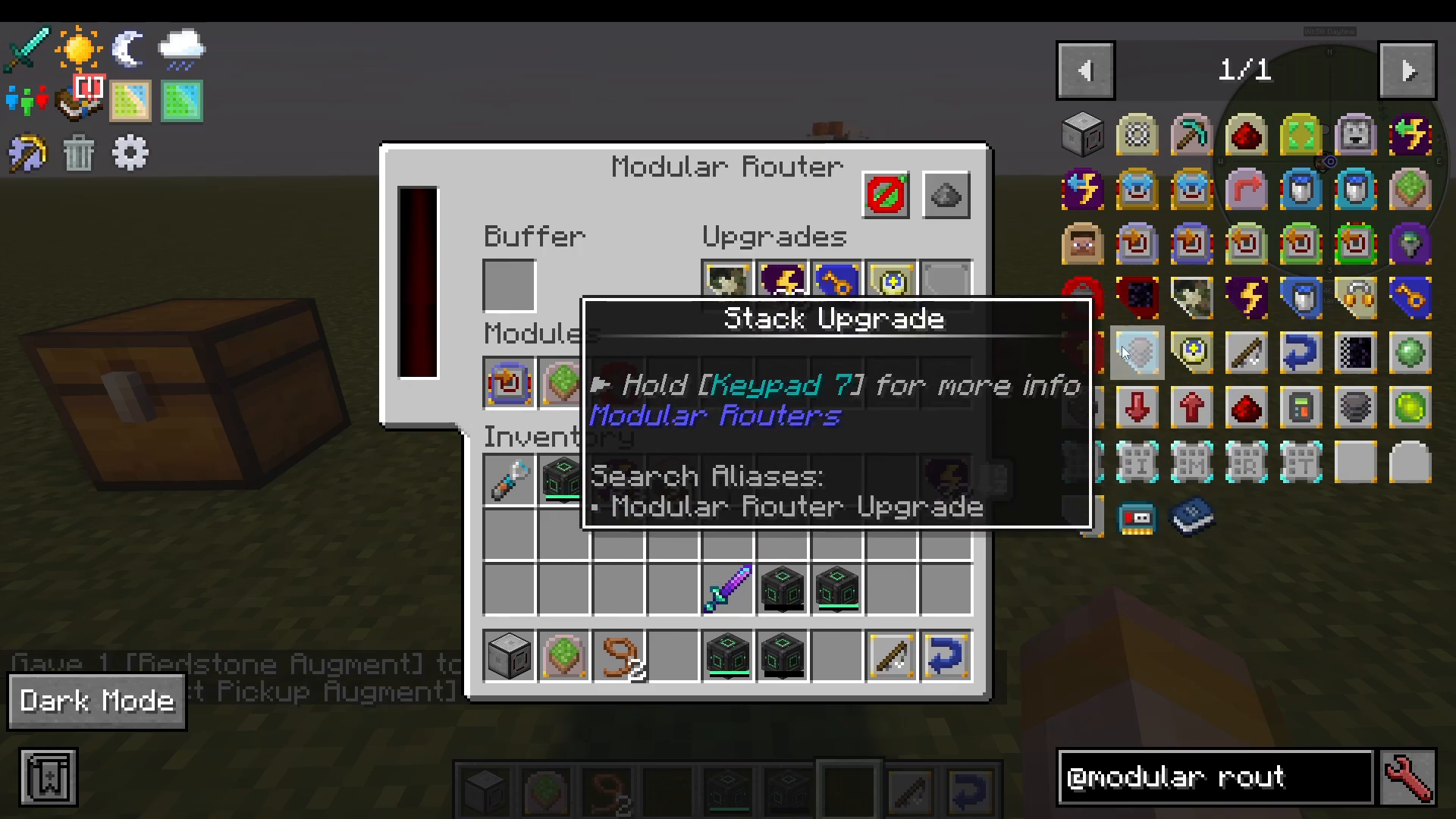
Blast Upgrade
Makes the router immune to explosion damage and boss-level destruction (such as Wither block destruction). Recommended for any router placed in a dangerous environment.
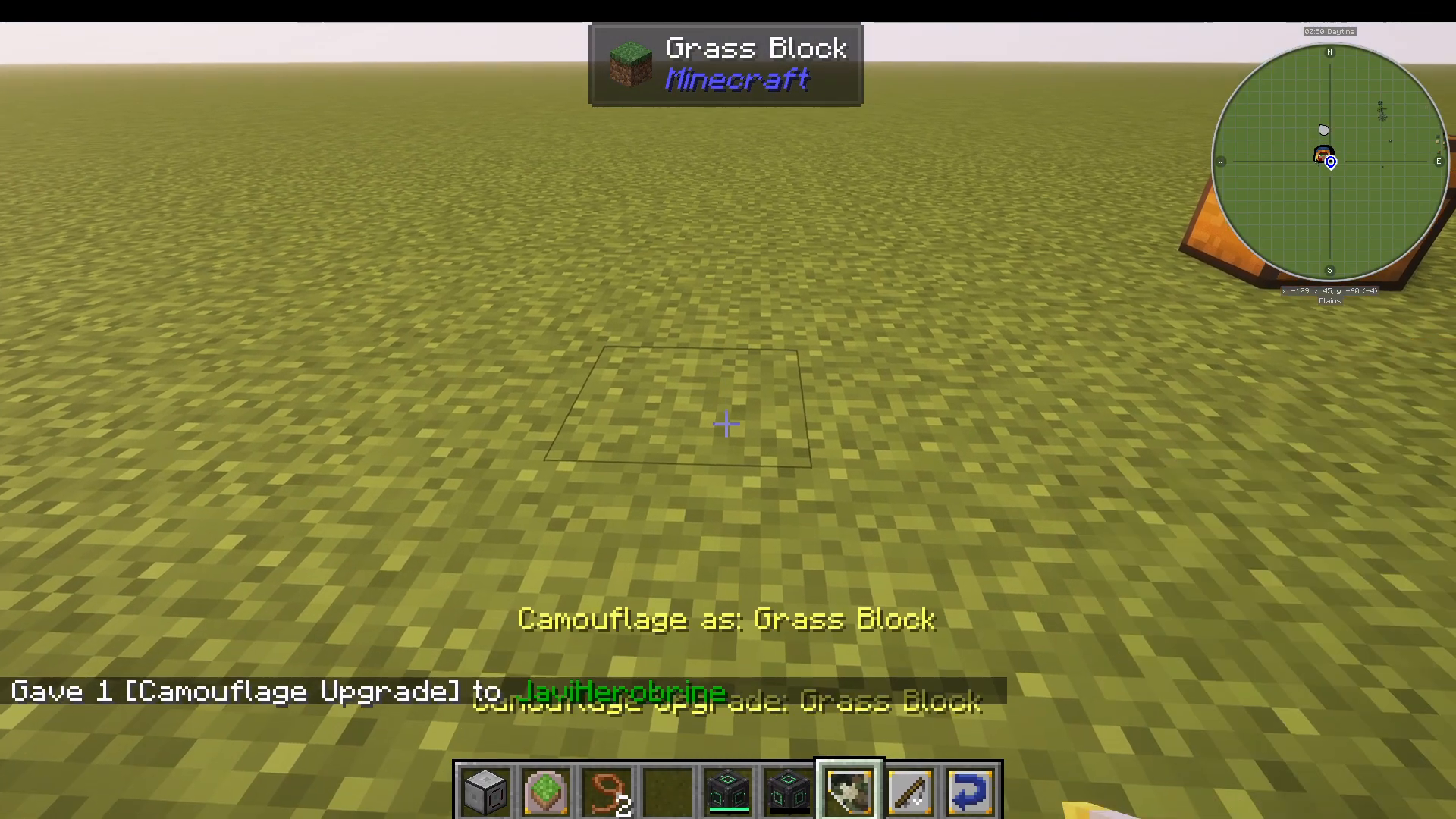
Camouflage Upgrade
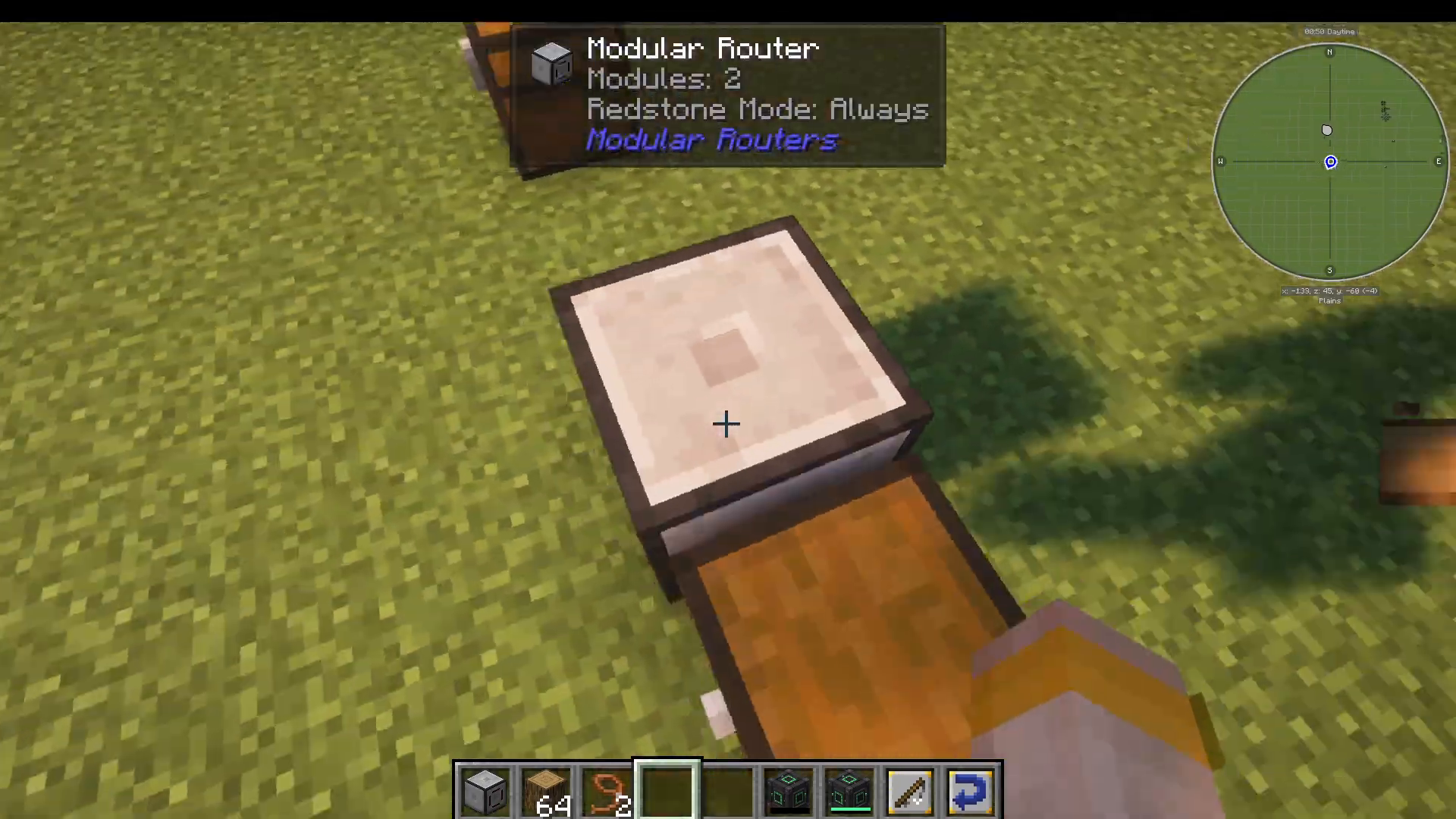
Disguises the router as any block. Sneak + right-click the block you want to copy (for example, grass), then place the Camouflage Upgrade into the router’s upgrade slot. The router will visually appear as that block.
Energy Upgrade
Adds an internal energy buffer to the router, which is required for the Energy Output and Energy Distributor modules to function. Multiple Energy Upgrades can be stacked to increase the buffer size.
Fluid Transfer Upgrade
Increases the maximum amount of fluid the router can transfer per operation tick.
Muffler Upgrade
Reduces the sounds produced by the router during operation. Useful for routers placed near your base or living area.
Security Upgrade
Locks the router so only the owner can access and configure it. Sneak + right-click the Security Upgrade to bind it to yourself, then install it. To grant access to other players, sneak + right-click on them with the upgrade before installing it. Sneak + right-click on a player again to revoke their access.
Speed Upgrade
Increases how frequently the router processes its modules (i.e., reduces the tick interval between operations). Stack multiple Speed Upgrades for faster throughput.
Stack Upgrade
Instead of moving one item at a time, the Stack Upgrade allows the router to move a larger quantity of items per operation tick.
Sync Upgrade
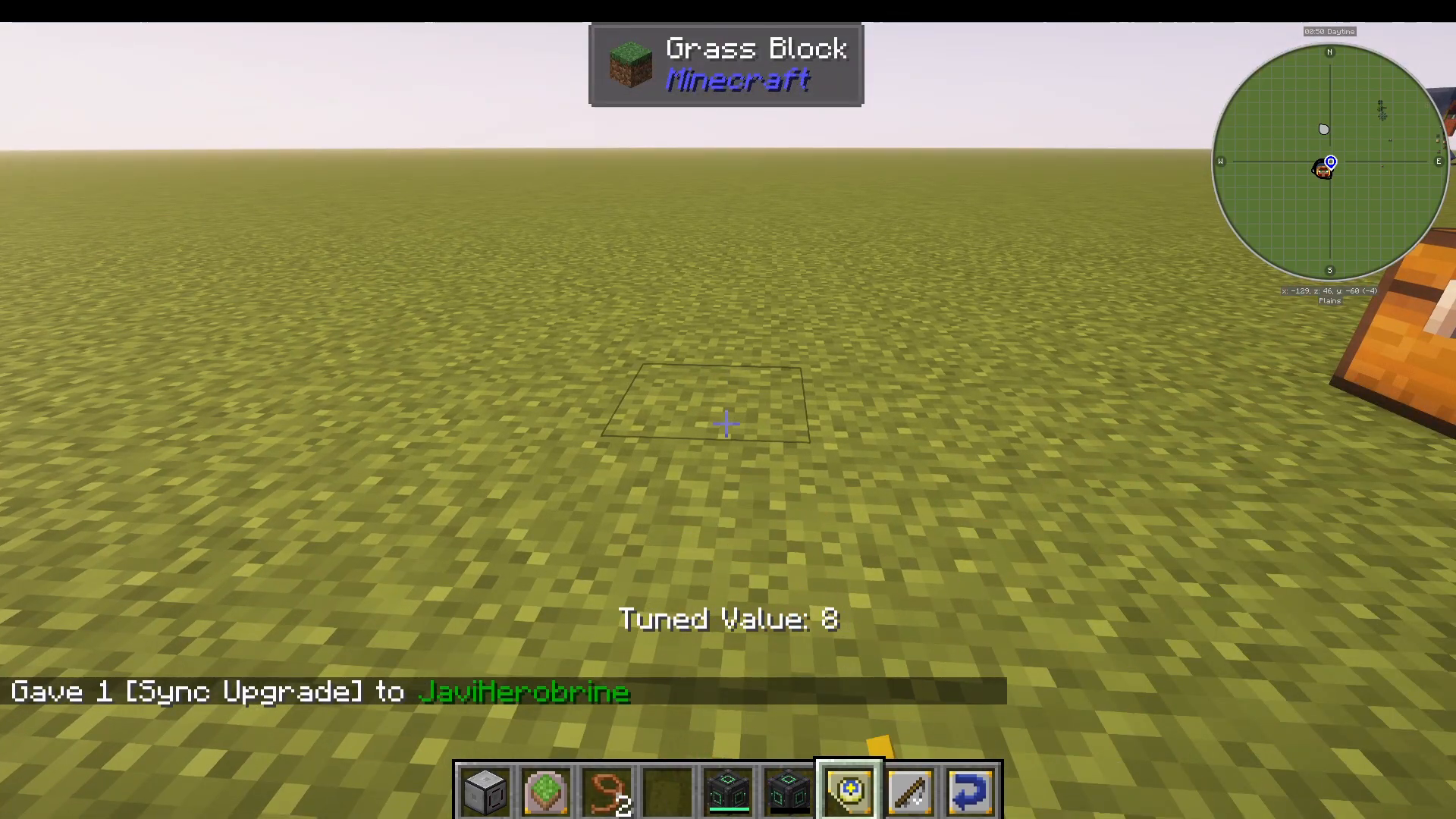
Allows you to synchronise two or more routers so they process their modules at the exact same tick interval. Right-click the Sync Upgrade (without sneaking) to assign it a numeric value (for example, 8). Install the same value into multiple routers and they will operate in perfect sync. This is useful when you need coordinated timing between separate routers — for example, a puller and a sender in different locations that must act simultaneously.
Fast Pickup Upgrade
Works with the Vacuum module. Normally, dropped items in Minecraft have a brief pickup delay. This upgrade bypasses that delay, allowing the Vacuum module to collect freshly dropped items almost instantly.
Filter Round Robin Augment
Changes default filter matching behaviour so that the module cycles through filter items one at a time per execution tick, rather than matching all items at once.
Mimic Augment
Used with the Extruder module. Causes fake blocks placed by the extruder to also mimic the source block’s light emission and redstone emission properties.
Pickup Delay Augment
Adds a delay to item pickup, useful for fine-tuning the timing of Vacuum module collection.
Pushing Augment
Increases the force with which the Extruder module pushes entities away when extruding blocks, allowing it to push entities a much greater distance.
Range Down / Range Up Augments
Adjusts the operational range of range-capable modules — Range Up extends reach while Range Down reduces it for more precise targeting.
Redstone Augment
Allows an individual module to define its own specific redstone activation behaviour, independent of the router’s global redstone mode setting.
Regulator Augment
Gives precise control over how many items are maintained in a target inventory. Rather than moving everything, the module will only transfer items until the inventory reaches the configured threshold.
Stack Augment
Allows the module to process or transfer a whole stack of items per tick, rather than a single item.
XP Vacuum Augment
Modifies the Vacuum module to also collect nearby experience orbs in addition to (or instead of) item entities.
The Bulk Item Filter
The Bulk Item Filter is a special high-capacity filter item that can be placed inside any module’s filter slot just like a regular item. When you sneak + right-click the Bulk Item Filter to open it, you are presented with a vastly expanded grid of filter slots — far more than the standard nine slots available inside a module. This is the solution when your filter list exceeds the default capacity. Simply fill the Bulk Item Filter with all the items you need, then insert it into your module’s filter area. The module will now filter based on all items contained in the Bulk Item Filter.
Router Settings: Eco Mode and Redstone Control
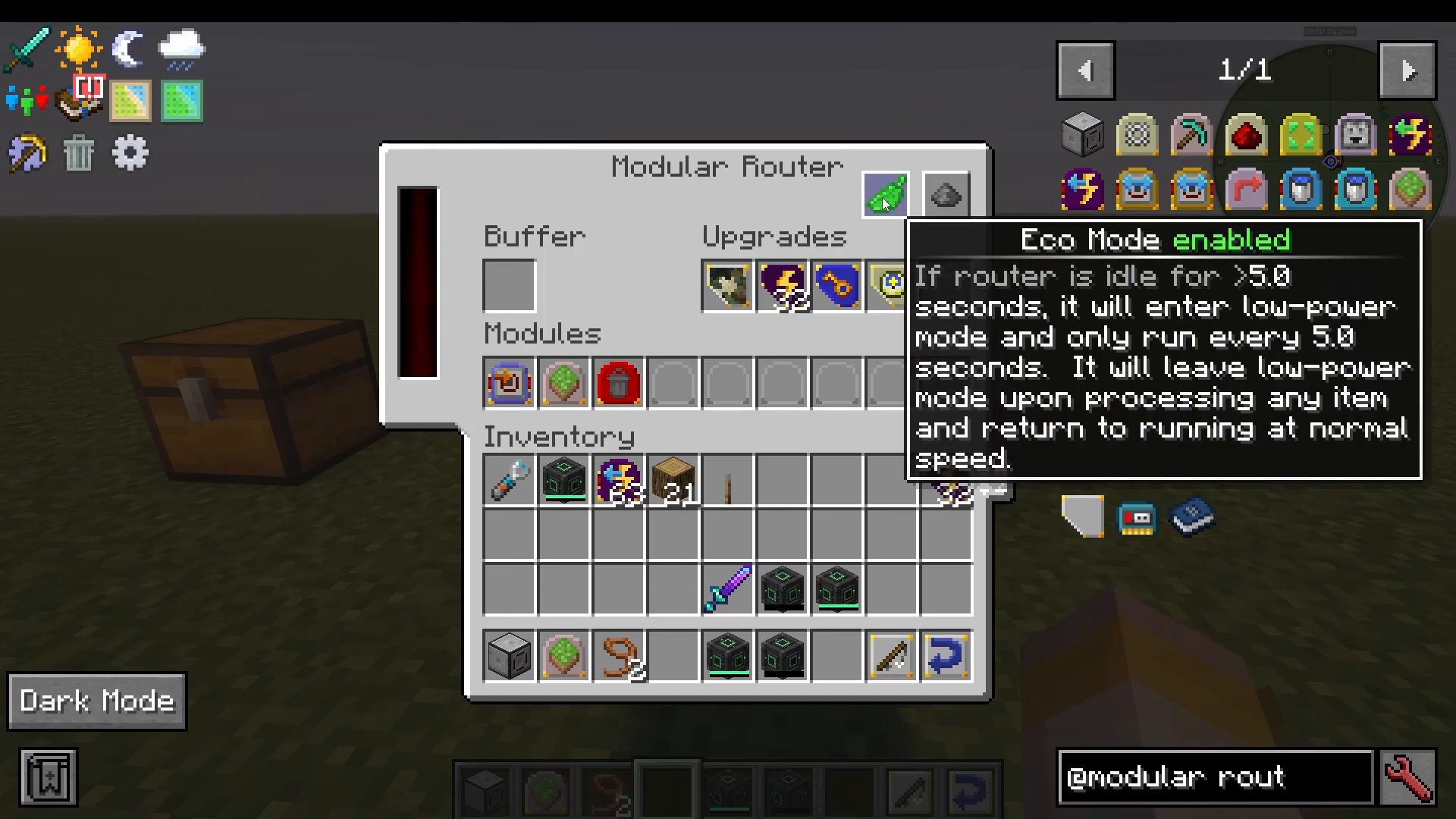
Eco Mode
Eco Mode is a power-saving setting found directly on the router’s main interface. When enabled, if the router has been idle for more than five seconds it enters a low-power state and only checks for work to do once every five seconds, rather than every tick. This significantly reduces server load for routers that are not constantly active. Re-enable it to return to full-speed operation.
Redstone Mode
The router’s redstone mode determines when it runs. The available modes are: Always (ignores redstone entirely), Low (only runs when no redstone signal is present), High (only runs when a redstone signal is active), and Never (completely disabled). This allows you to use standard redstone circuits to control when your router operates.
The Real Power: Combining Modules Together
While each module is useful on its own, the true strength of the Modular Routers mod emerges when you combine multiple modules in a single router. Here are a few examples of what becomes possible:
Automated sorting and voiding: Use a Puller module to pull all items from a chest, a Sender module (with a whitelist filter for valuables) to send useful items to storage, and a Void module to delete junk items — all in one router.
Automated block farming: Combine a Puller module (pulling logs from a chest), a Place module (placing them to the right), and a Breaker module (breaking them back down) for a continuous block-processing loop.
Conditional item routing with the Detector: Use a Detector module to emit a redstone signal when a specific item passes through the buffer, triggering external machines or contraptions only when needed.
Cross-dimensional item transfer: Use a Sender Mark 3 module to automatically send items from a base in one dimension to a storage system in another.
Summary
The Modular Routers mod is one of the most versatile and scalable automation mods in Minecraft. Starting from a single block, you can build item pipelines, energy networks, fluid systems, automated farms, and redstone-logic contraptions — all by mixing and matching modules and upgrades. The key takeaway is this: learn what each module does individually, then start experimenting with combining them. The more creative you get with your combinations, the more powerful your setups become. Whether you are a beginner just getting started with automation or an experienced player looking for a flexible alternative to traditional pipe mods, Modular Routers is absolutely worth mastering.
“`