







Mekanism – QIO Drive Complete Tutorial
Mekanism QIO Drive Complete Tutorial
The QIO Drive system in Mekanism is one of the most user-friendly storage solutions available in modded Minecraft. Similar to Applied Energistics but significantly simpler to set up and use, QIO Drives offer an amazing way to store and manage your items once you’ve progressed to Pallonium in Mekanism. This tutorial will walk you through everything you need to know to get your QIO system up and running.
Getting Started with QIO Drives
Once you have Pallonium in Mekanism, you can create one of the most useful storage systems available: QIO Drives. The main bottleneck to getting started is typically gathering enough Pallonium, but once you’ve completed your fission reactor, you’re ready to begin.
Creating a QIO Drive Array
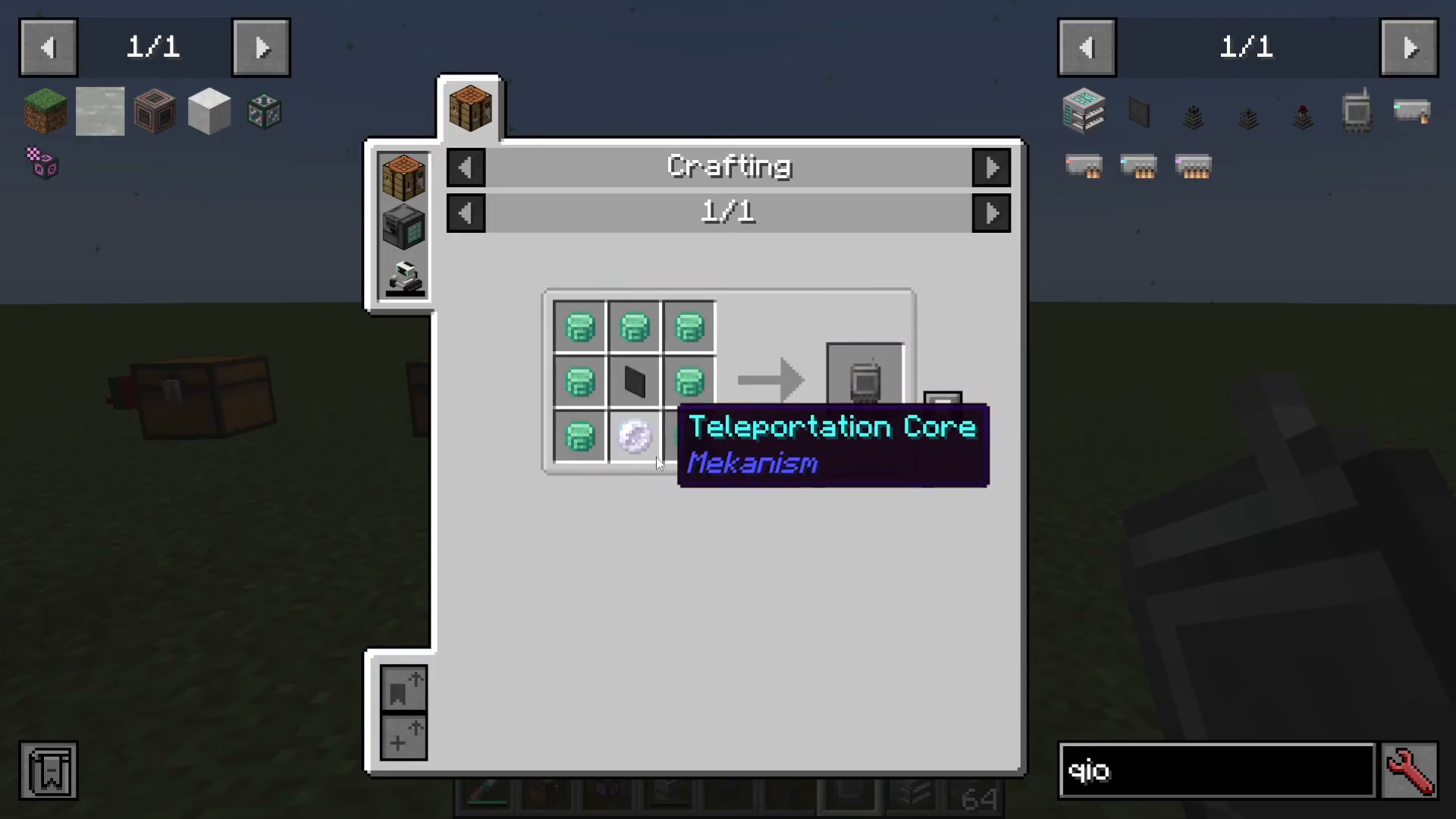
The foundation of the QIO system is the QIO Drive Array. To craft one in vanilla Mekanism, you’ll need:
Pallonium
A Teleportation Core
One of the best features of the QIO Drive Array is that it requires no power to operate. Simply place it down and you’re ready to configure it.
Configuring Your QIO Drive Array
Once placed, access the QIO Drive Array’s interface to set it up:
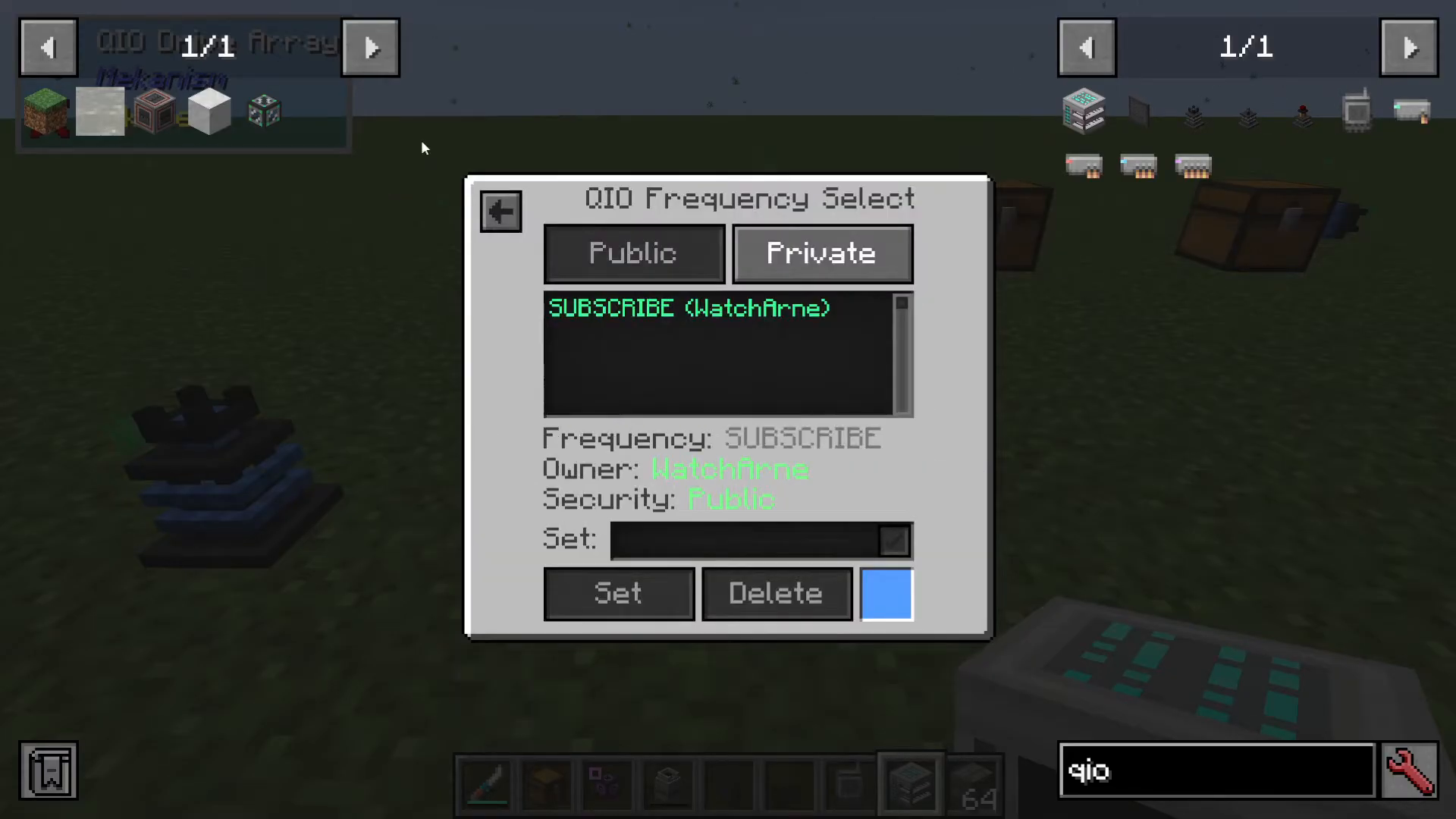
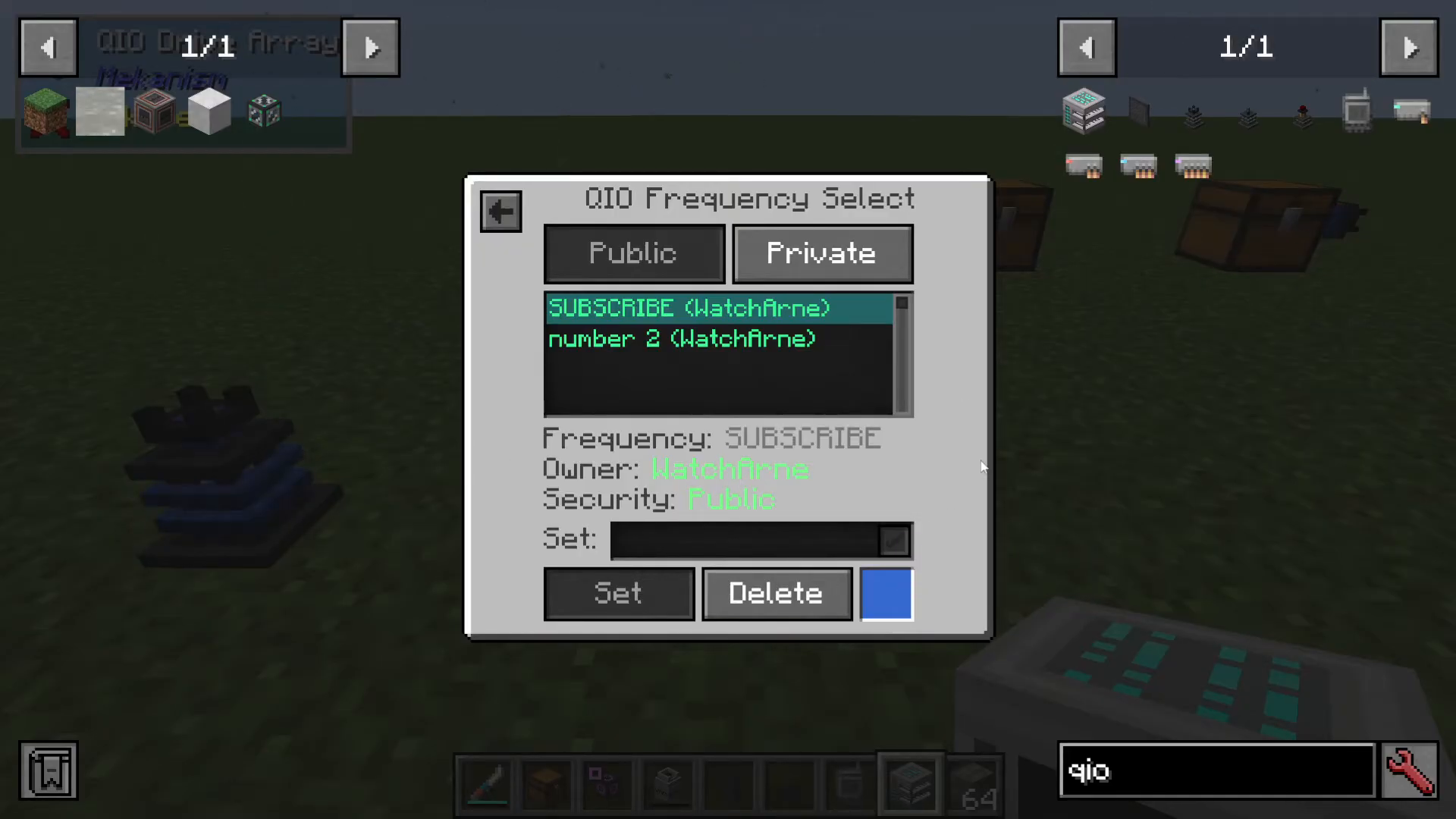
Set a Frequency: Choose a unique frequency number (for example, frequency 2) to identify this array
Subscribe or Tick: Decide whether you want the array to operate on a specific frequency or subscribe mode
Change Color: Customize the color of your QIO system for easy visual identification. All connected components on the same frequency will display matching colors
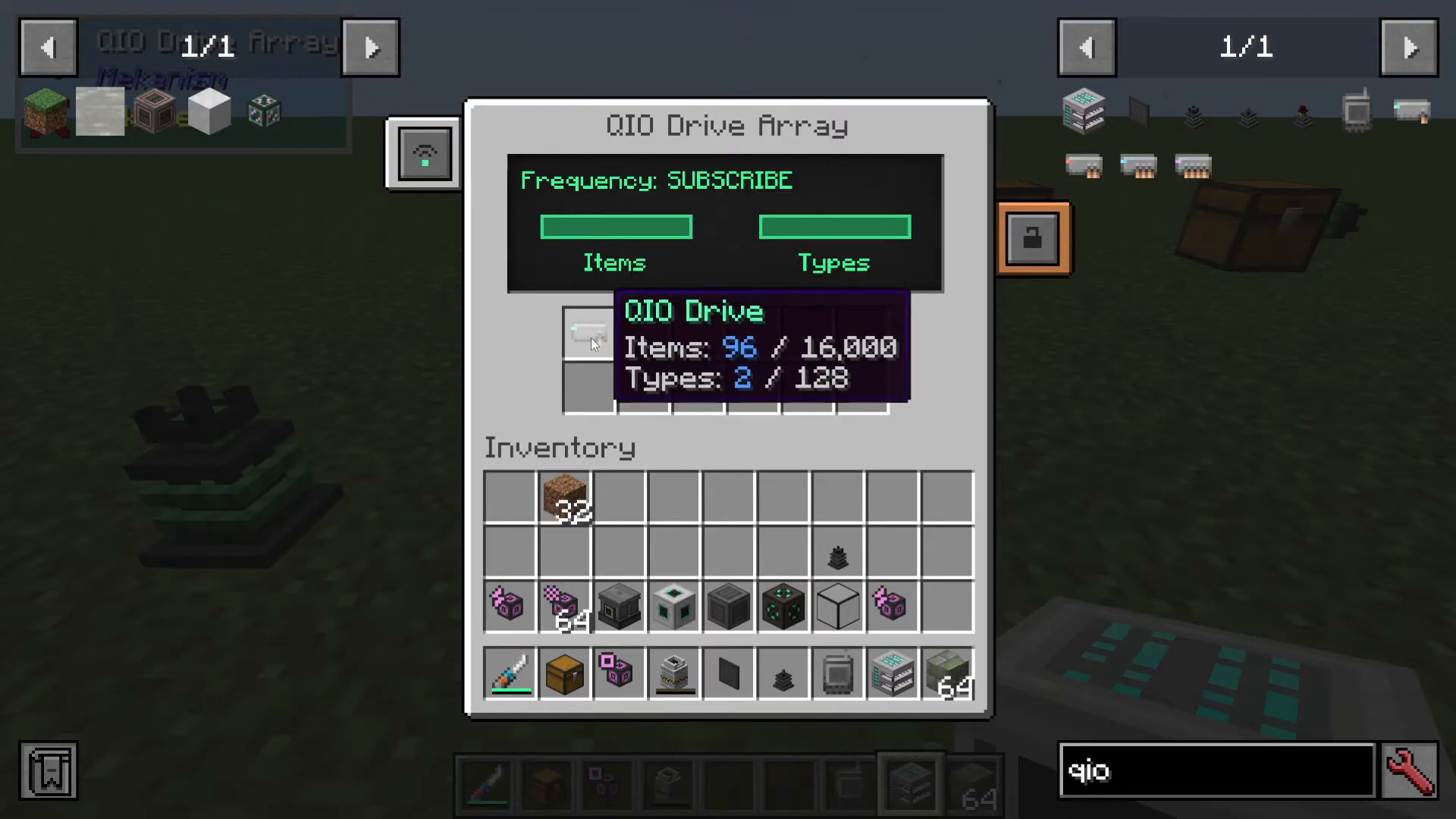
When first set up, you’ll see “Item stored: 0 out of 0” and “Item types: 0 out of 128” — this is normal. You’ll need to add drives to begin storing items.
QIO Drive Tiers and Capacity
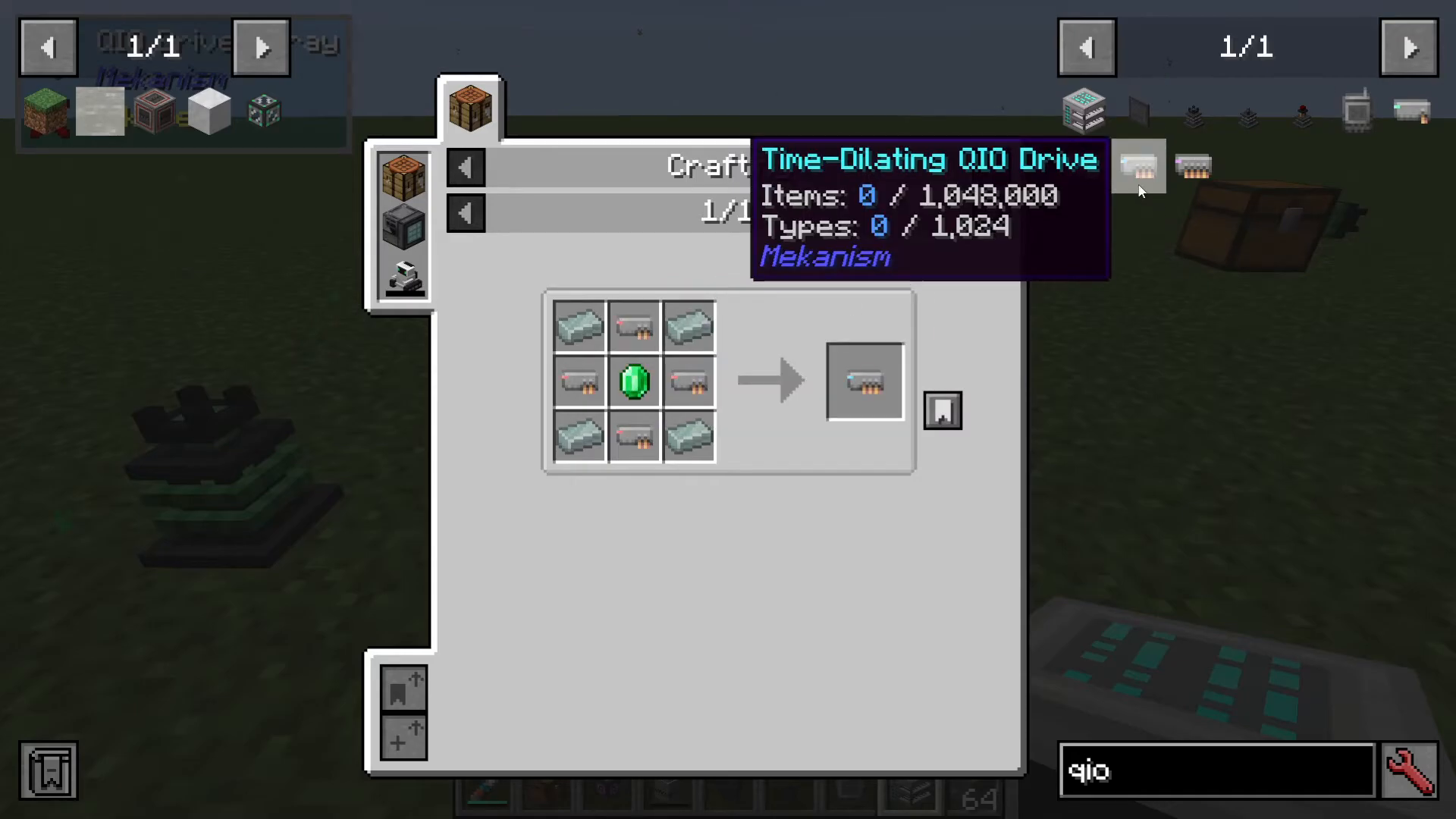
Mekanism offers four tiers of QIO Drives, each with increasing storage capacity:
Basic QIO Drive
The entry-level option with 16,000 items and 128 types storage capacity. This is the simplest to craft and a great starting point for learning the system.
Hyper-Dense QIO Drive
An upgraded version requiring four Basic QIO Drives to craft, offering greater storage capacity.
Elite QIO Drive
A further upgrade in the progression tier.
Ultimate QIO Drive
The highest tier, requiring Anti-Matter to craft. This is the most expensive option but provides maximum storage capacity.
Accessing Your Items with a QIO Dashboard
To access items stored in your QIO Drive Array, you’ll need to create a QIO Dashboard. Like the Drive Array, it’s straightforward to craft and requires Pallonium among other materials.
Setting Up the Dashboard
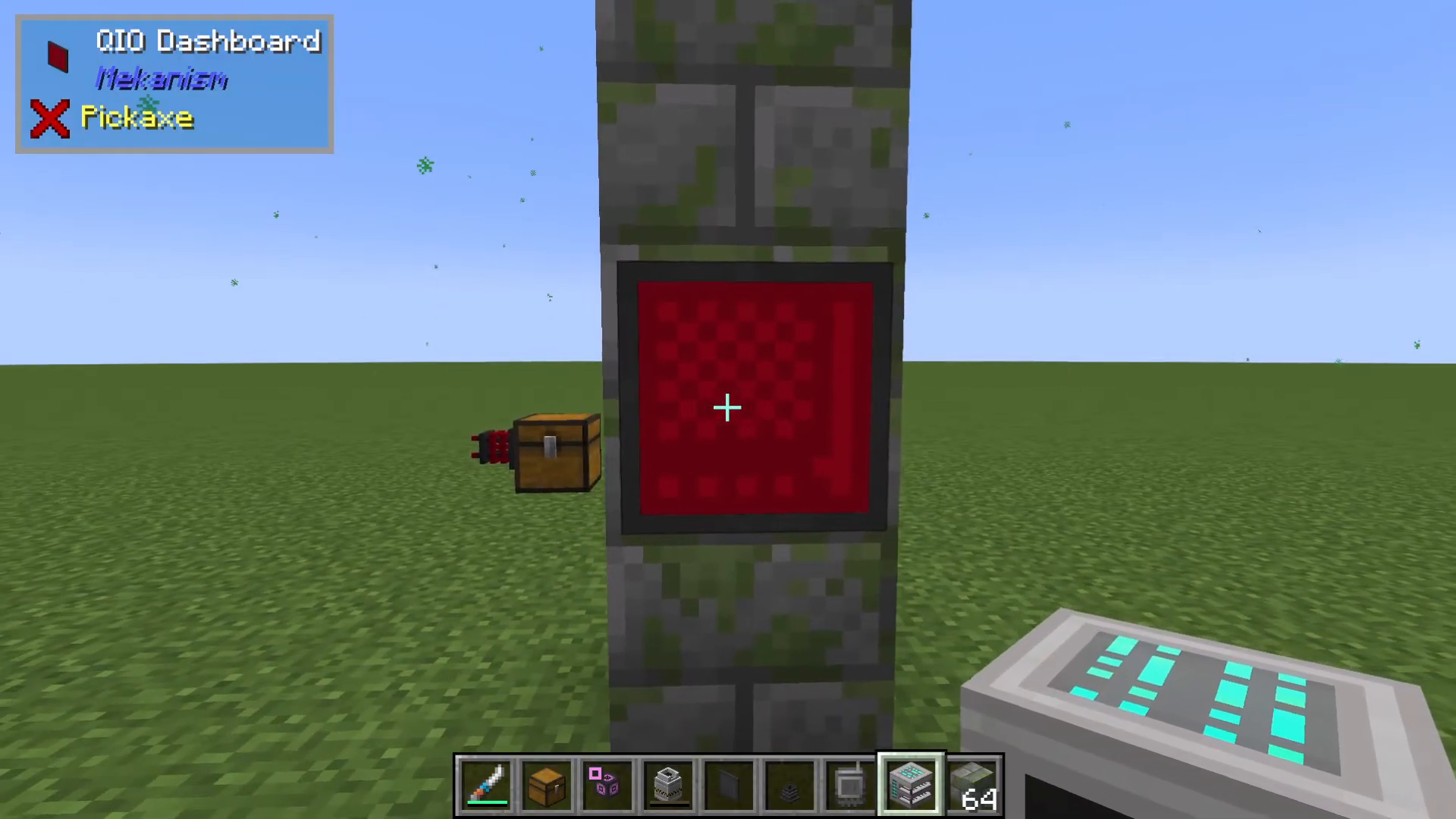
Place the QIO Dashboard and access its interface:
Set the Frequency: Match the frequency number of your QIO Drive Array (for example, frequency 2)
Color Matching: The dashboard will change color to match your array’s frequency setting
Dashboard Features
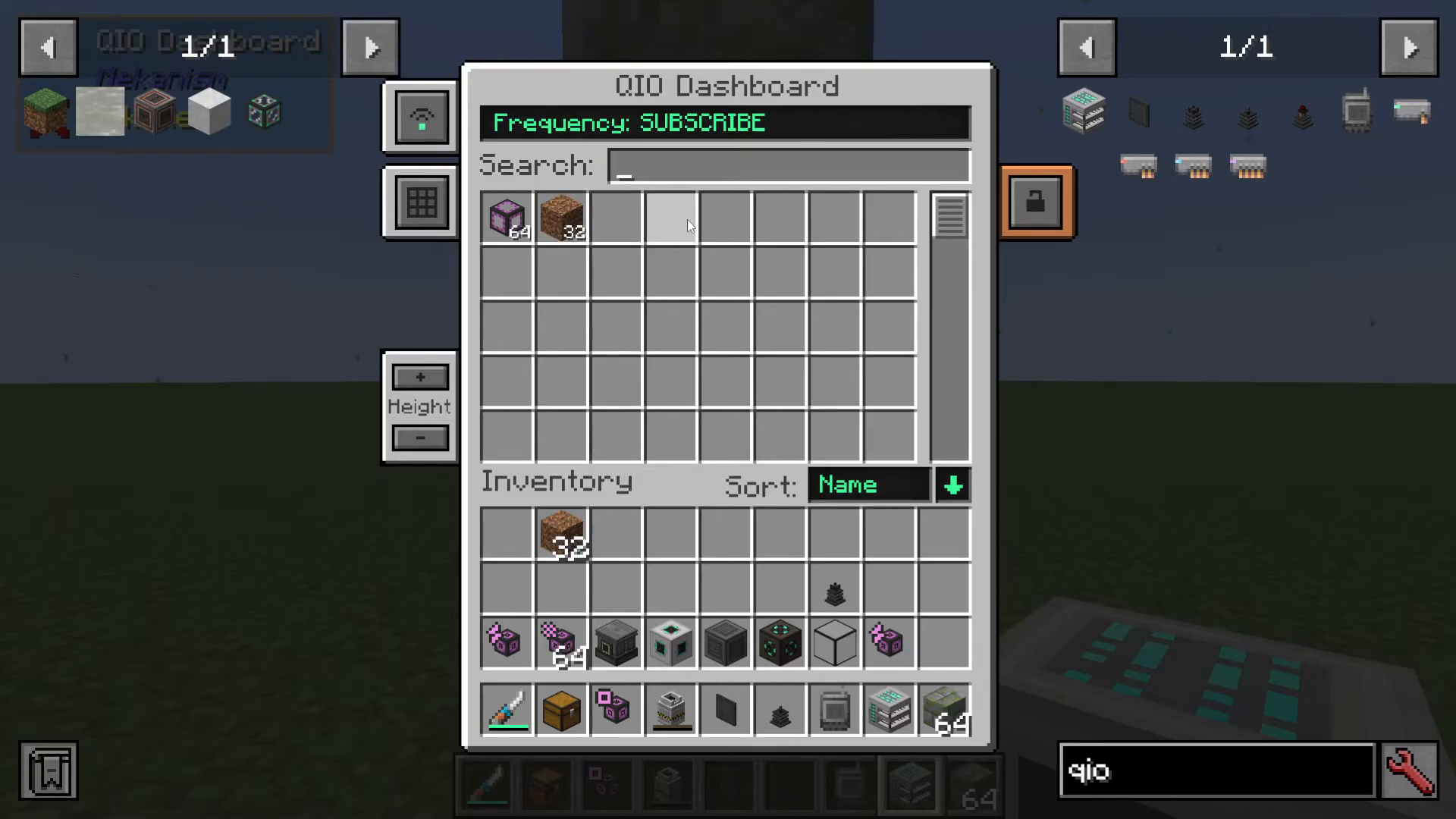
The QIO Dashboard provides several useful functions:
View All Items: See everything stored in your array
Adjust Grid Height: Customize how many items display per row
Scroll Through Items: If you have more items than can fit on screen
Sort Options: Sort by Name, Item Count, or Mod in ascending or descending order
Crafting Grids: Access different amounts of crafting grids directly from the dashboard
Item Management: Click to take items from storage, or Shift+Click to place items directly into your player inventory
Search Function: Quickly find specific items in your storage
Remember: None of these operations require any power, which is one of the biggest advantages of the QIO system over alternatives like Applied Energistics.
Automated Import and Export with Filters
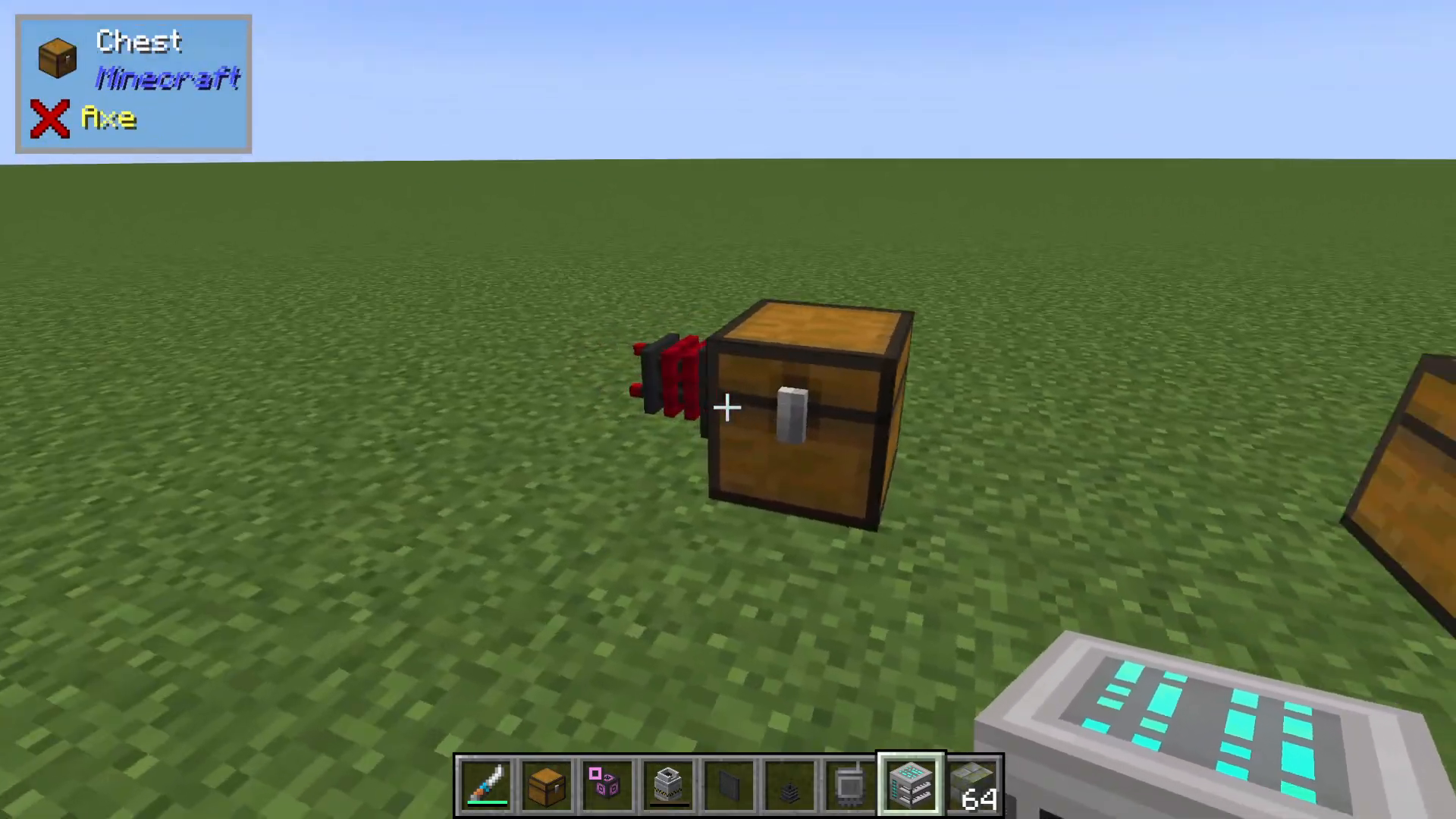
While manual item management through the dashboard works well, you can also automate item movement using importers and exporters.
QIO Importers
Importers pull items from adjacent inventories (like chests) into your QIO Drive Array. Simply set the matching frequency and configure your import settings.
Setting Up Filters
You can import with or without filters:
No Filter: Import all items from the connected inventory
Mod Filter: Import items from a specific mod only
Tag Filter: Use Minecraft tags (for example, forge:ores) to import entire categories of items. You can research additional tags via Google for in-depth filtering options
Item-Specific Filter: Import only certain items, such as “Ultimate Induction Conductors”
Once a filter is set, only matching items will be imported. For example, if you filter to import only Ultimate Induction Conductors, a Rotary Condenser placed in the inventory won’t be imported.
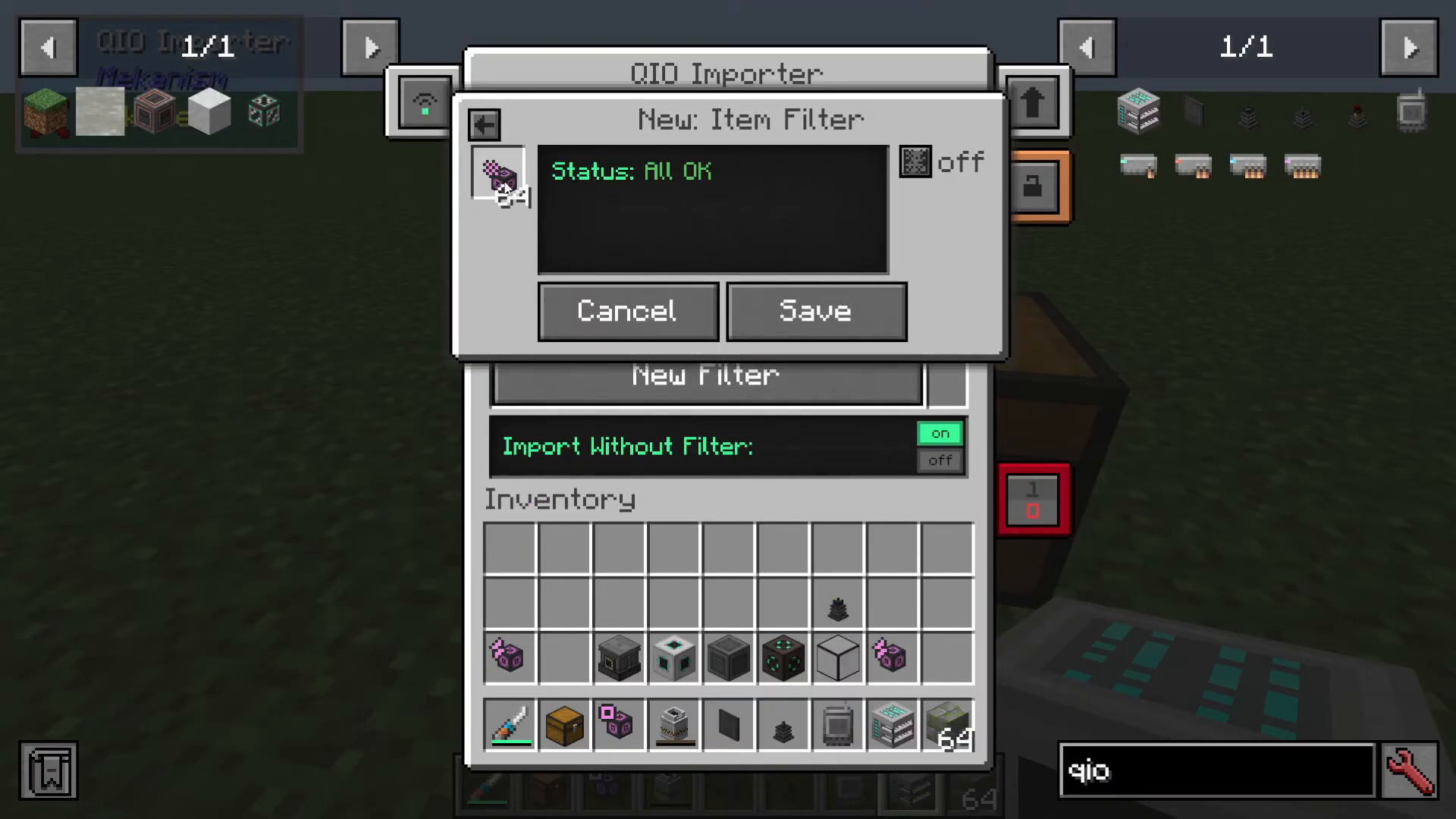
QIO Exporters
Exporters work in the opposite direction, pushing items from your QIO Drive Array into adjacent inventories. Set the frequency and filter to automatically export specific items.
For example, you can set an exporter to filter for Rooted Dirt. When Rooted Dirt is in your QIO storage, it will automatically be exported into the connected chest.
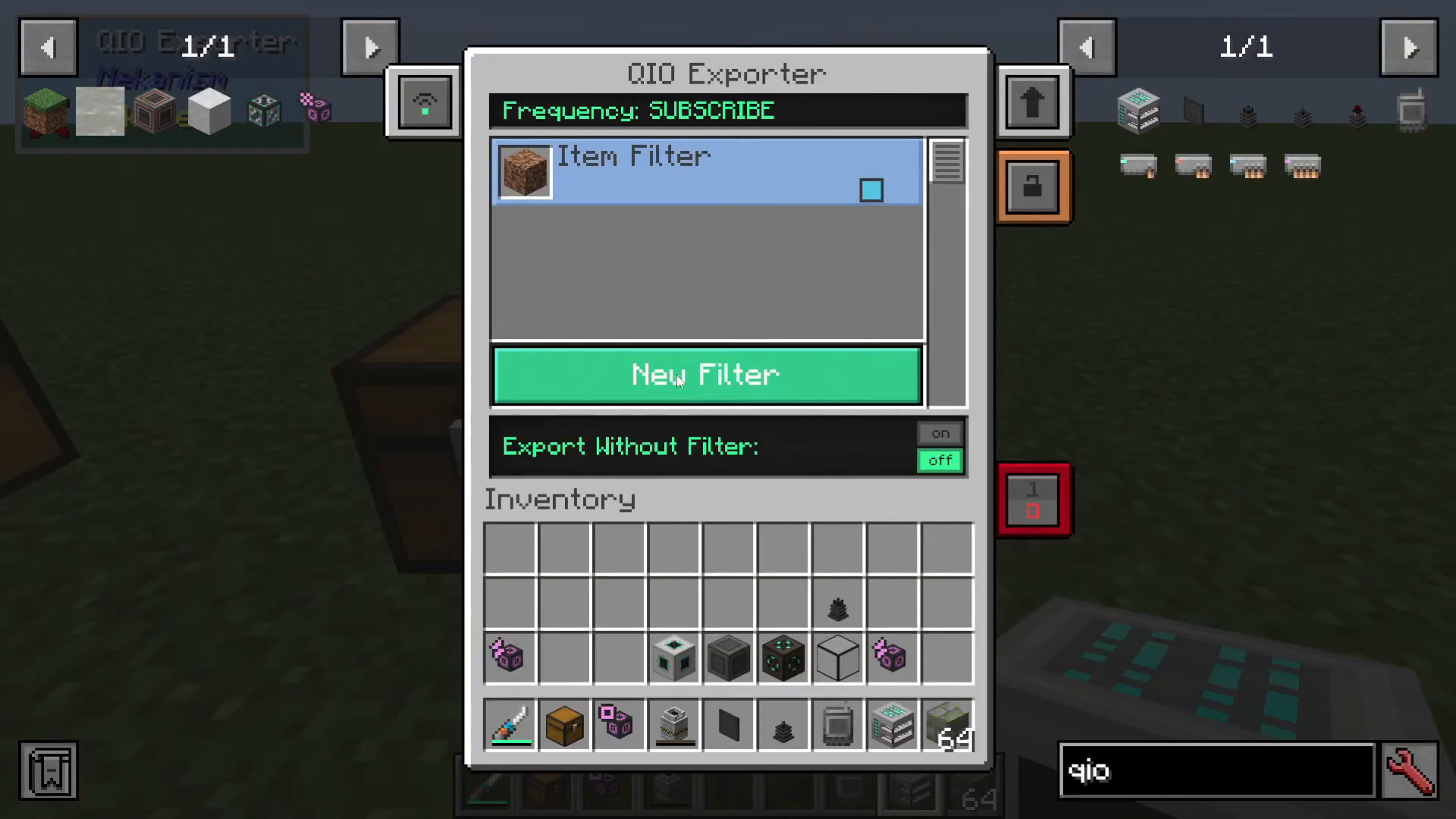
Portable QIO Dashboard for Remote Access
For ultimate convenience, craft a Portable QIO Dashboard. This handheld device lets you access your entire QIO system from anywhere.
Using the Portable Dashboard
Simply right-click the Portable QIO Dashboard to open it. You’ll see an empty interface initially, but once you set the frequency to match your QIO Drive Array, you’ll have full access to all your stored items remotely.
The Portable QIO Dashboard functions identically to a standard dashboard—view items, manage inventory, access crafting grids, and search—all from your pocket.
Why QIO Drives Are Superior for Simple Setups
The QIO system in Mekanism is genuinely simple to set up and use. Compared to Applied Logistics, it requires less power, fewer components, and significantly less complexity while providing excellent functionality. Whether you’re building a basic base storage system or managing resources for a large operation, QIO Drives are an amazing choice that more players should know about.
— Want to Support? —
If you would like to help us continue making these guides – please consider joining our patreon here – https://www.patreon.com/c/JaviHeals
Alternatively – we host a group of MC Servers you can join here – https://discord.gg/zD7Gjt6MHF