

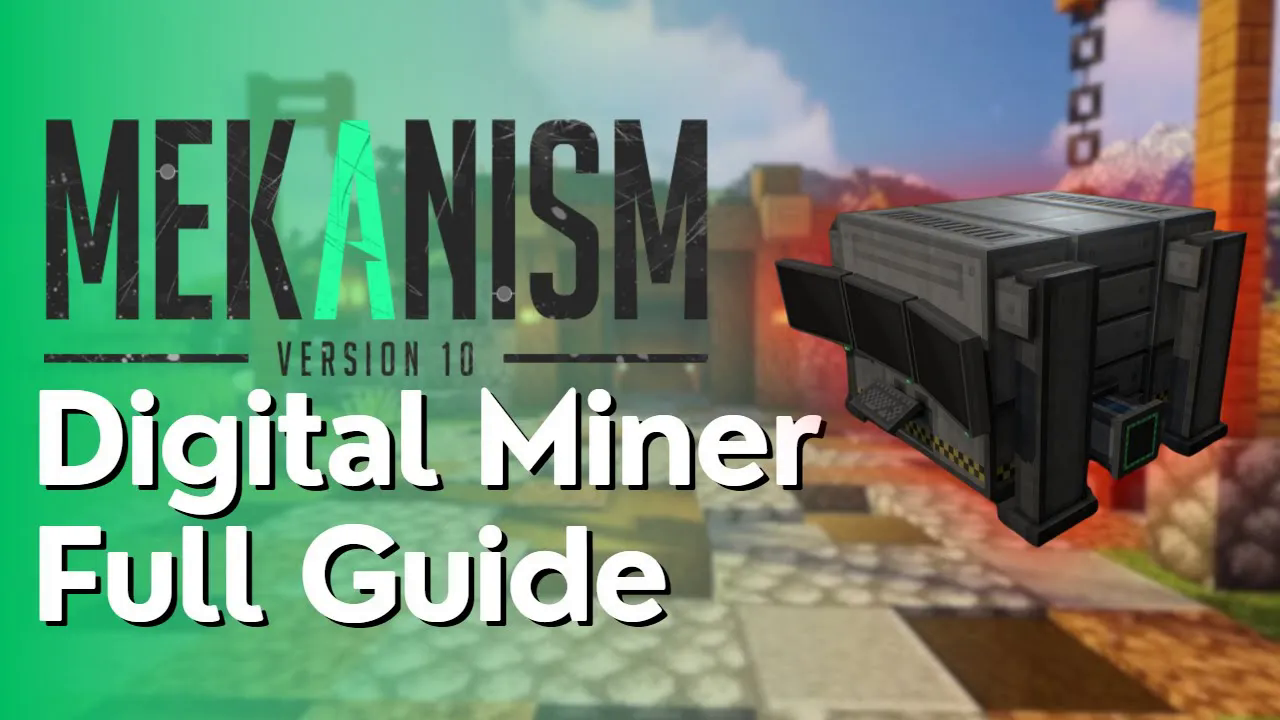
Mekanism – Digital Miner Full Tutorial
Mekanism Digital Miner Full Tutorial
The Digital Miner is a fantastic piece of equipment from Mekanism that allows you to mine ores and blocks from the earth without having to venture underground yourself. This comprehensive guide will walk you through everything you need to know about crafting, configuring, and operating the Digital Miner to maximize your mining efficiency.
What is the Digital Miner?
The Digital Miner is a specialized mining machine from the Mekanism mod that automates ore collection within a configurable radius. It’s a powerful tool for players who have progressed to the mid-to-late stages of Mekanism progression.
Crafting the Digital Miner
To craft the Digital Miner, you’ll need the following materials:
Robit
Logistical Sorters
Iron
Basic Control Circuit
Piston
Refined Obsidian (for the Robit component)
Teleportation Cores
Atomic Alloys
If you’re already at a mid-level progression in Mekanism, gathering these materials shouldn’t be overly complex.
Powering the Digital Miner
Before your Digital Miner can operate, you need to provide it with power. Look for the green power input port on the machine. You can connect power sources like an Energy Cell to this port. You can also provide power from the side of the machine if preferred.
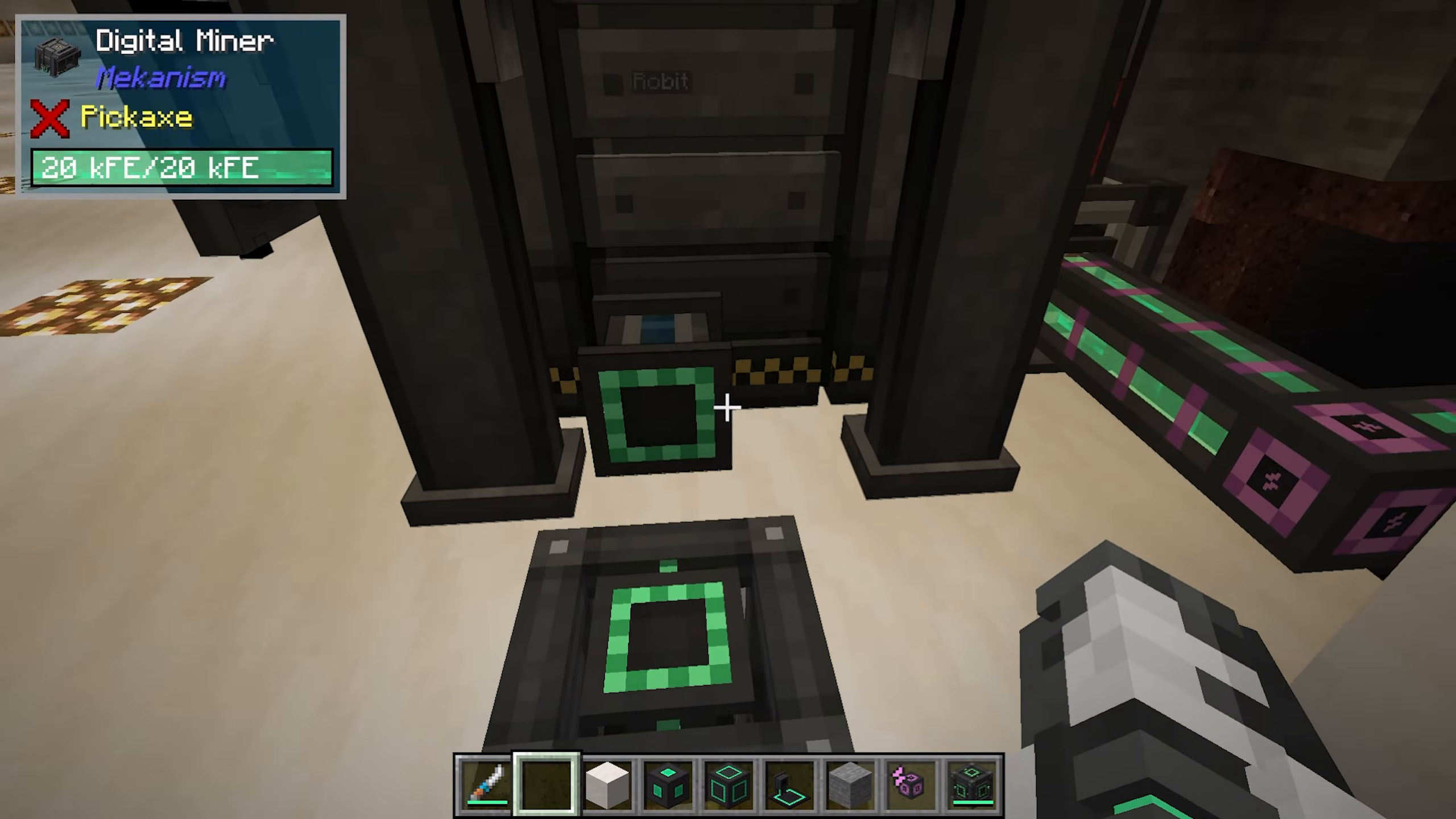
Once powered, right-click on the Digital Miner to open its interface and proceed with configuration.
Basic Configuration Options
Enable/Disable the Miner
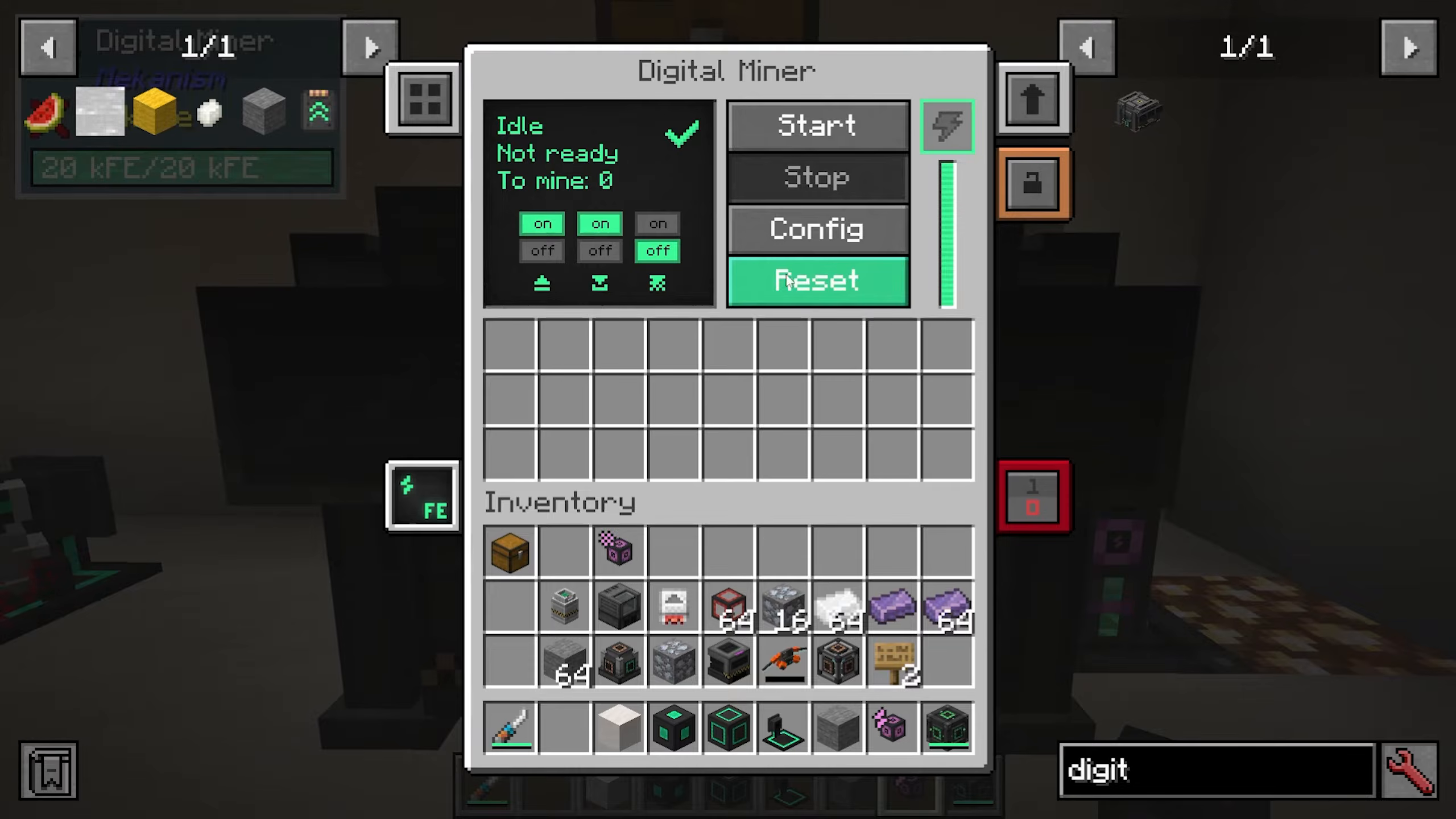
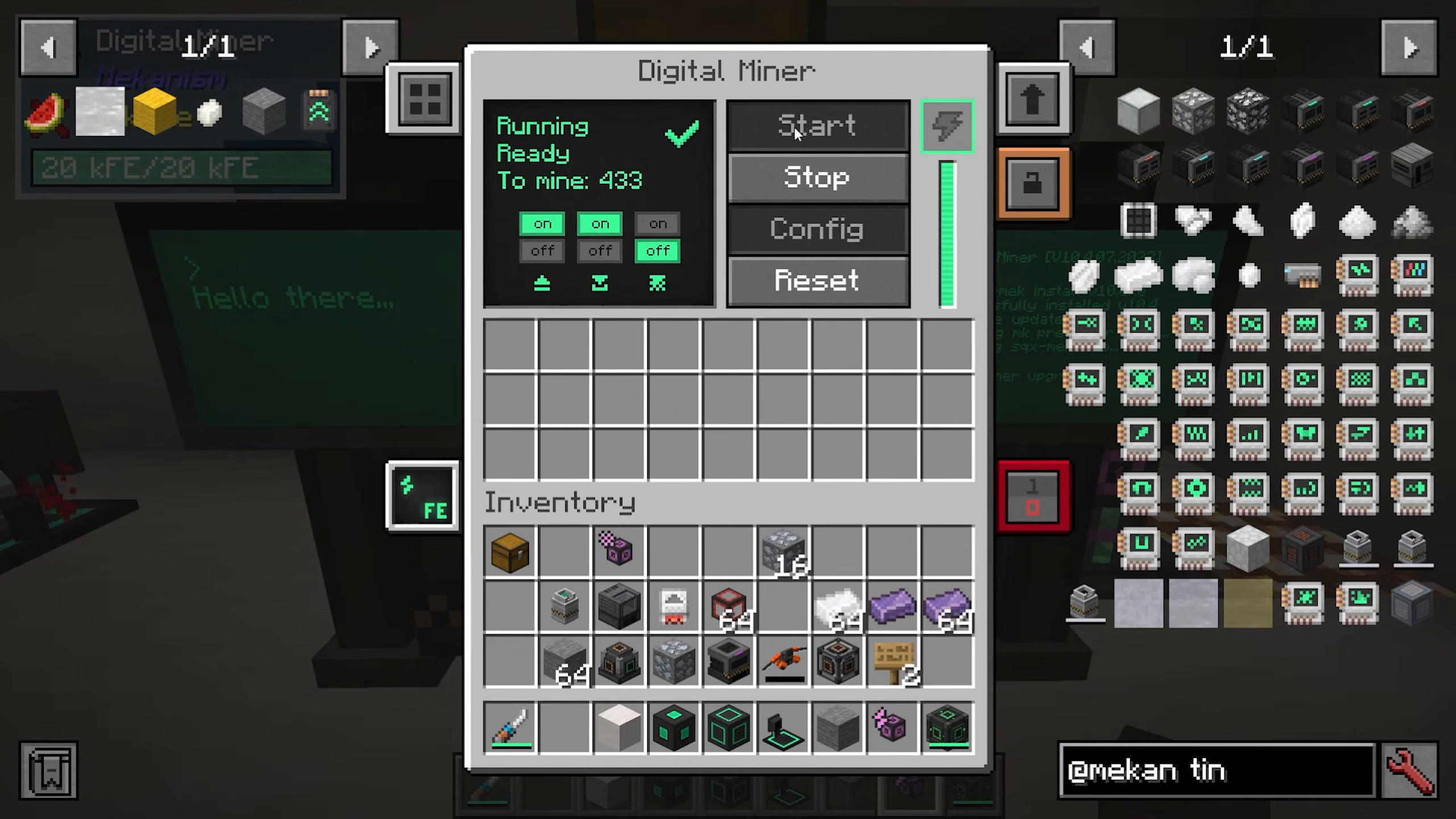
When you first open the interface, you’ll see the miner is in “Idle” status, meaning it’s not ready to mine. Press the start button to begin mining operations, or press reset to clear current settings.
Auto-Eject Items
The “auto-eject” option determines whether mined items are automatically ejected from the Digital Miner’s inventory. You can toggle this on or off depending on your setup.
Auto-Pull Replacement Blocks
The Digital Miner has the ability to replace mined blocks with other blocks (such as cobblestone) to avoid leaving holes in the terrain. If you enable this option, the miner will automatically pull replacement blocks from a container placed above it. The orange hole in the middle beneath the chest is where replacement blocks are pulled from.
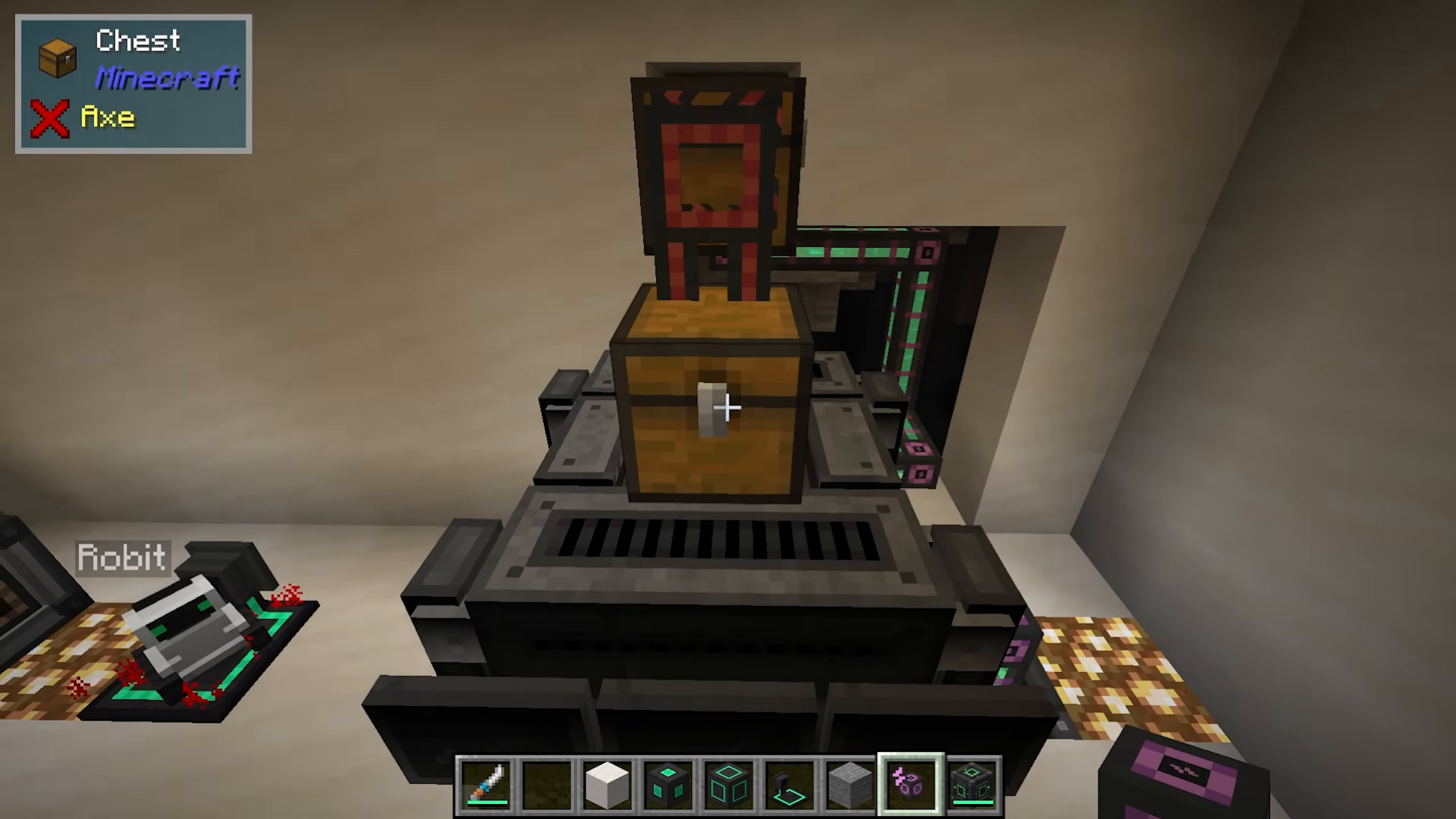
Enable Block Replacement
If you want to fill in mined areas rather than leaving empty spaces, toggle the replacement option to “yes.” You can then select what block type to use as a replacement.
Silk Touch Option
The Silk Touch setting allows you to choose whether the miner uses silk touch enchantment when mining blocks.
Upgrades
The Digital Miner supports several upgrades to enhance its functionality:
Stone Generator Upgrade: Automatically generates stone or cobblestone as needed for block replacement
Anchor Upgrade: Keeps the machine’s chunk loaded, allowing it to continue mining even when you’re not nearby
Speed Upgrade: Increases mining speed
Energy Upgrade: Improves energy efficiency
Security and Visuals
You can configure security settings to determine whether the miner is accessible to trusted players, public, or private. The visuals option displays a blue glass-like overlay beneath the ground showing the mining area. Most players keep this toggled off for performance reasons.
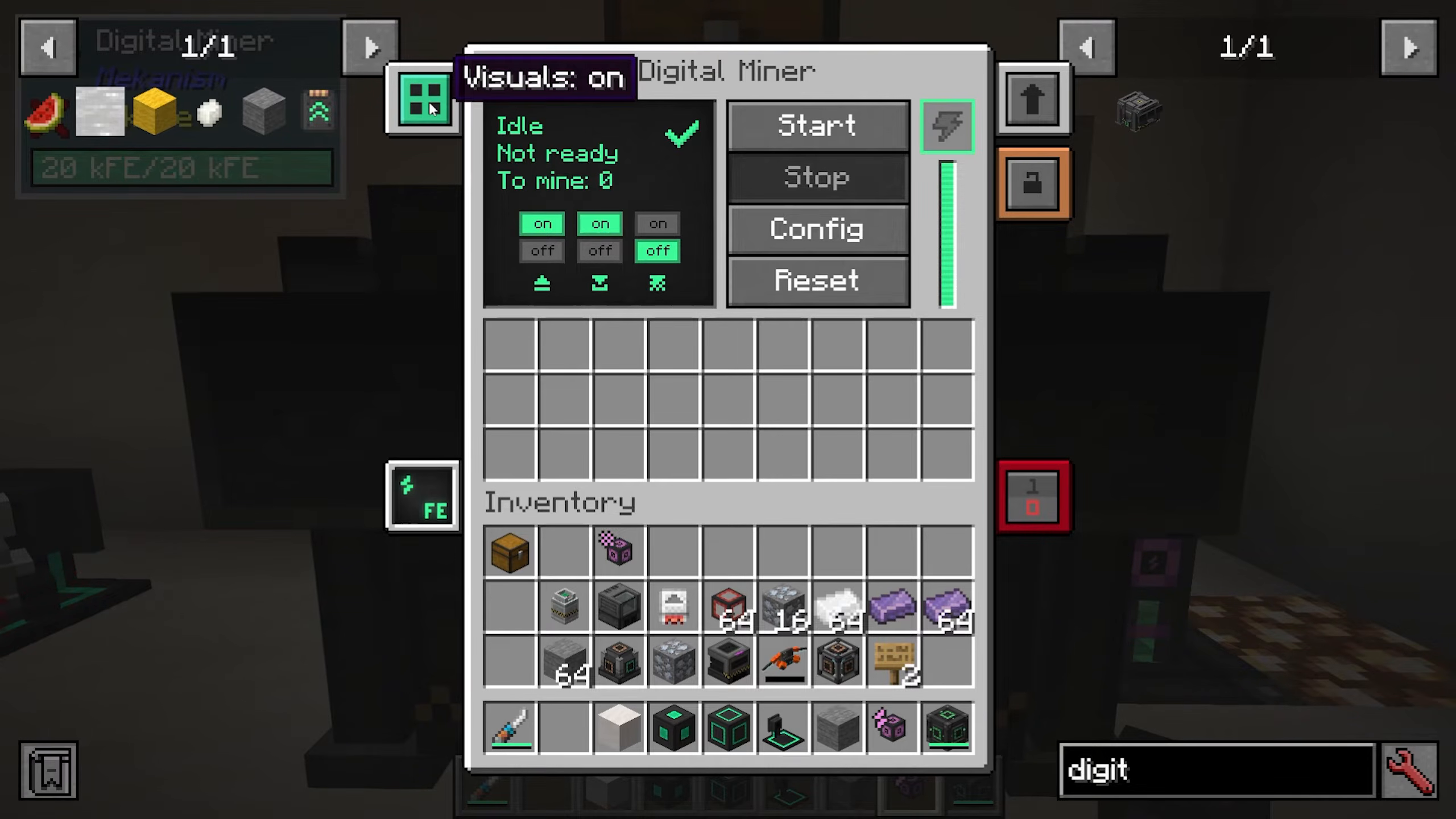
Configuring Filters
The most crucial part of setting up your Digital Miner is configuring what it should mine. This is done through the filter system, which is intuitive and highly flexible.
Creating a New Filter
To add a filter, click “New Filter” in the configuration menu.
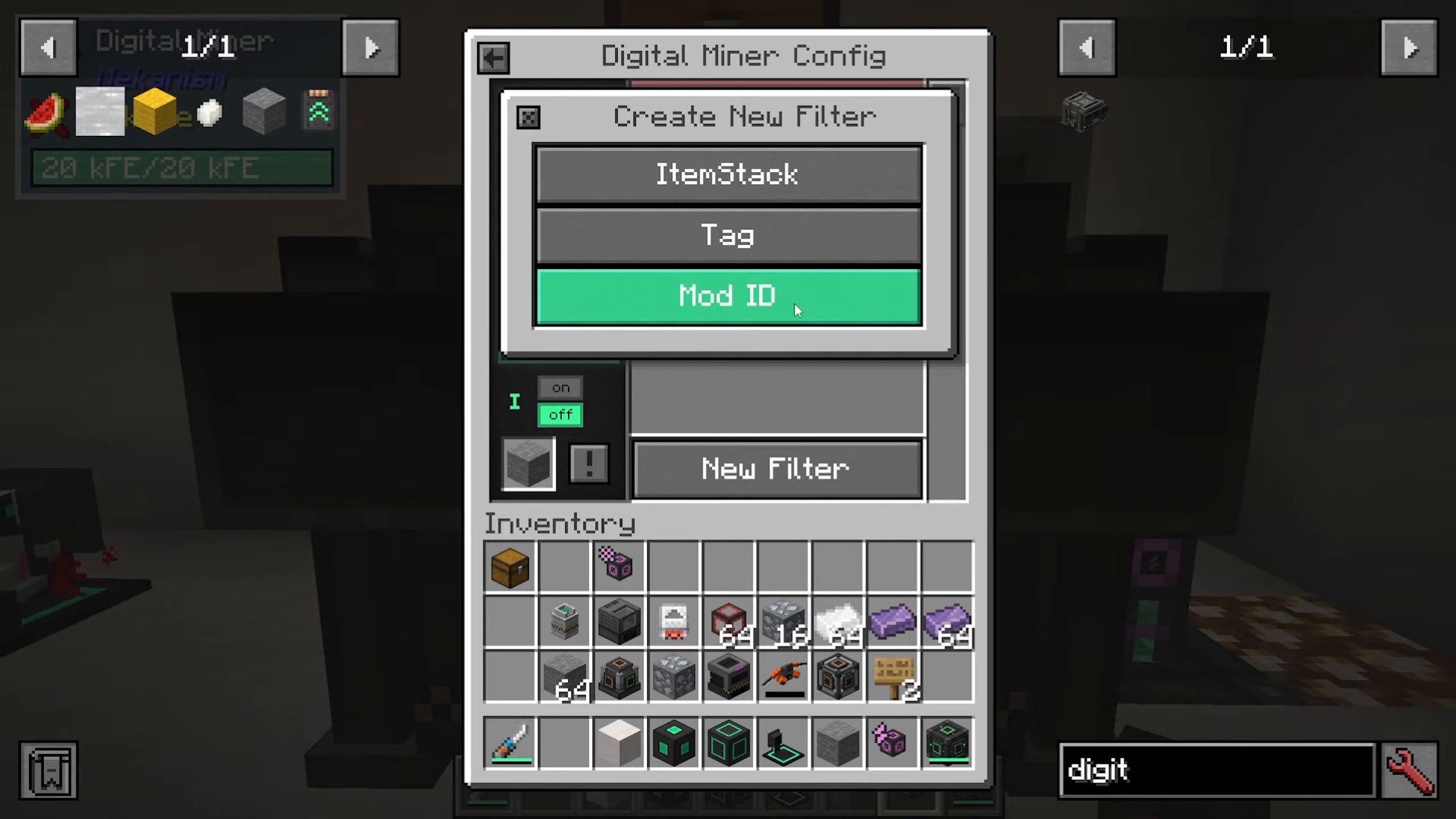
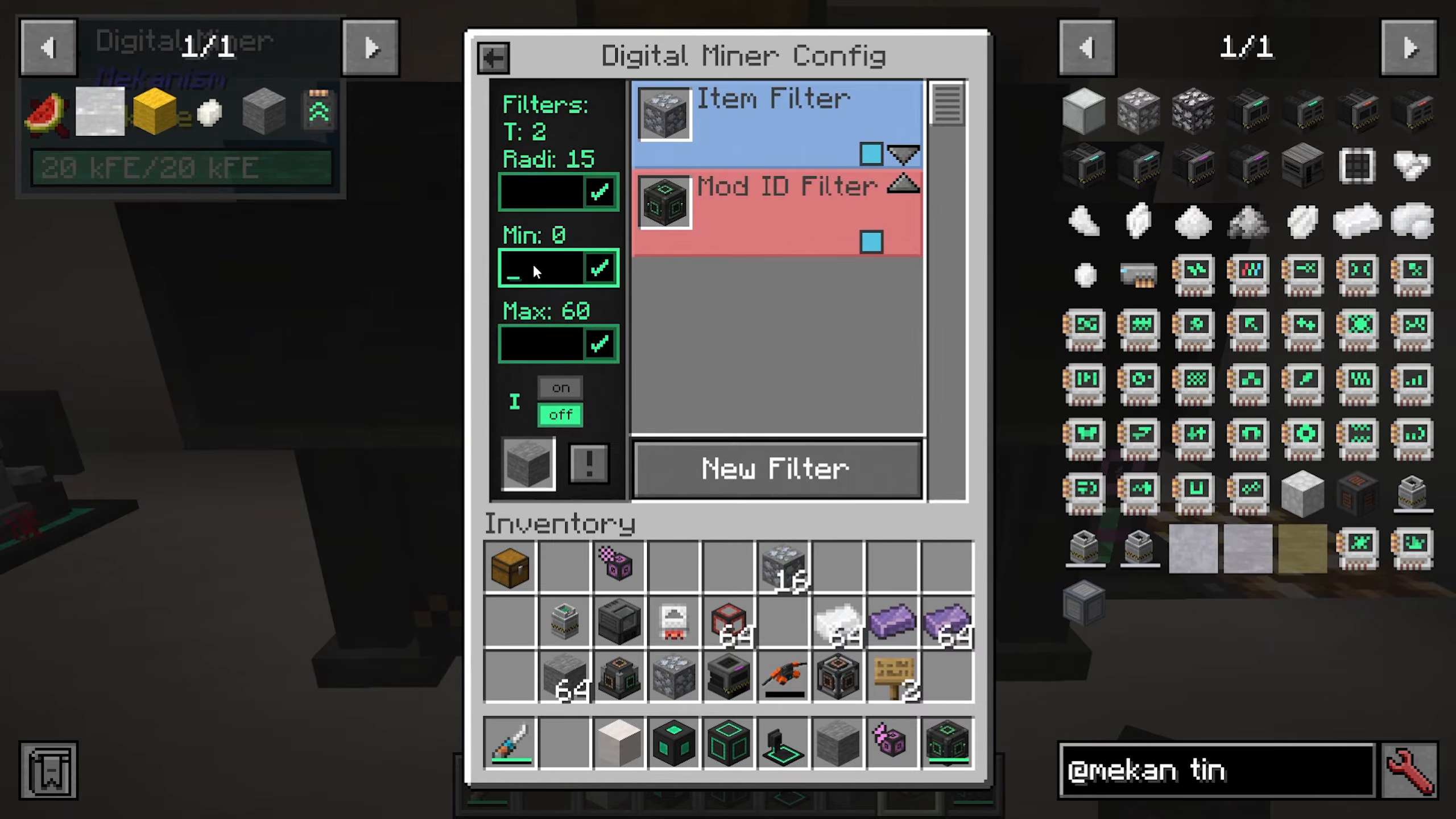
Mod ID Filters
You can create a filter based on a mod ID. For example, if you enter “Mekanism,” the Digital Miner will mine all ores and mineable blocks from the Mekanism mod. The interface will cycle through all available items as you select this option.
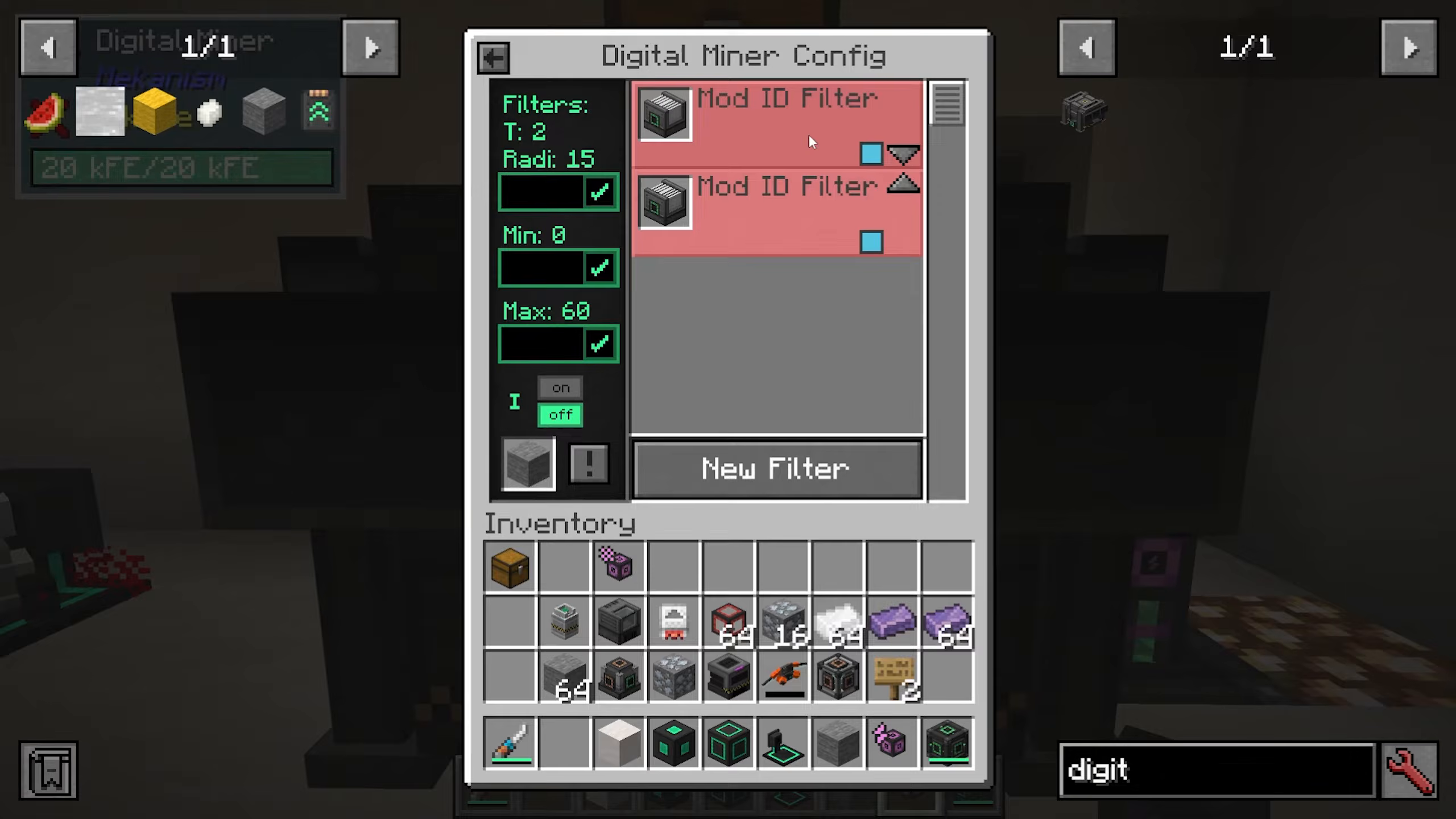
Item Stack Filters
For more specific control, you can add an item stack filter to target individual ores. For instance, you could specify that you only want to mine Osmium ore. Simply select “Add Item Stack” and choose the specific ore or block you wish to mine.
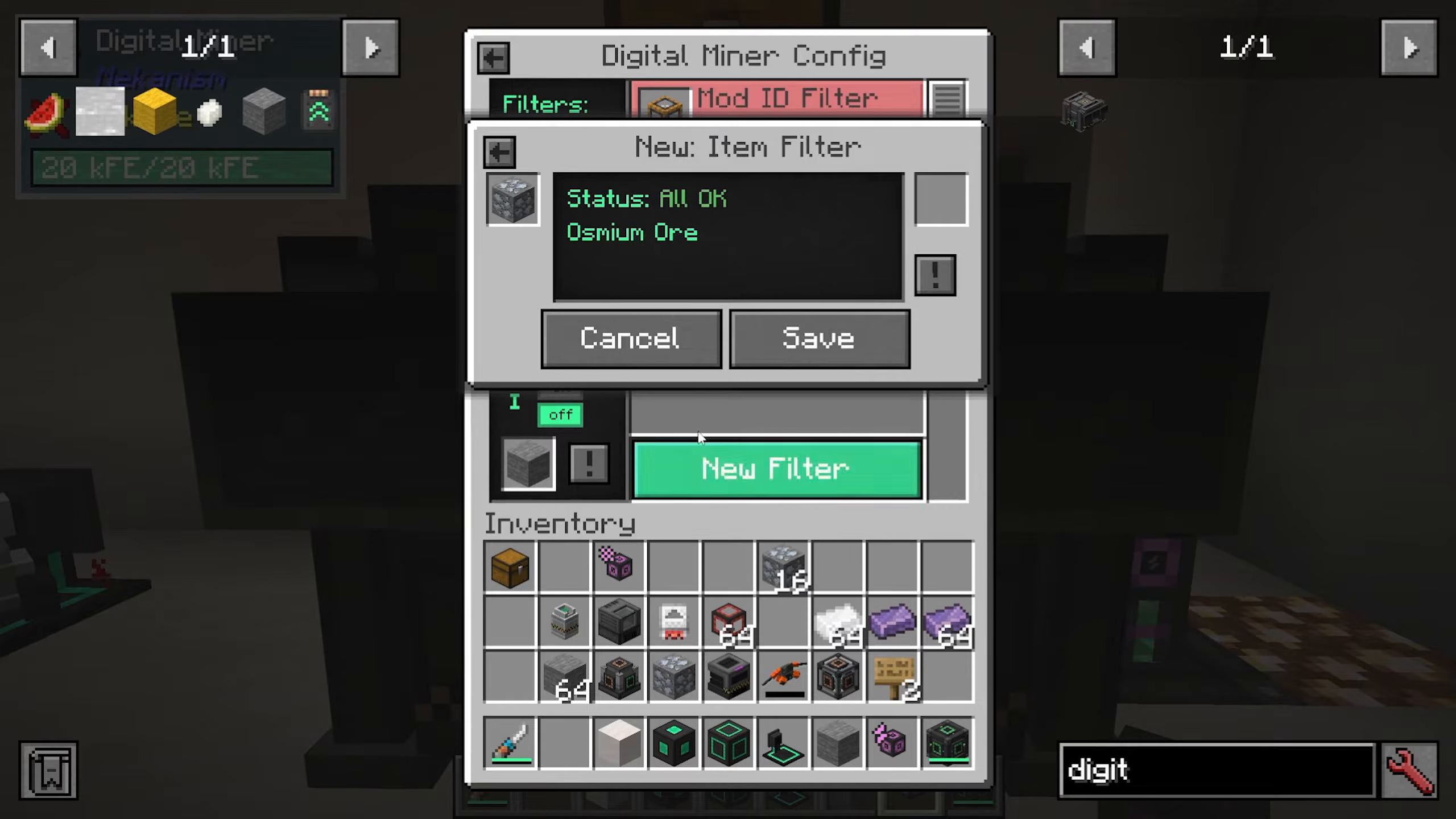
Filter Priority
Filters have a priority system where higher-positioned filters take precedence. Arrange your filters with the most important ones at the top.
Block Replacement Within Filters
When editing a specific filter, you can toggle block replacement for that filter individually. For example, you can set the Digital Miner to mine Osmium ore and replace it with stone. The replacement block will be pulled from the container above the machine.
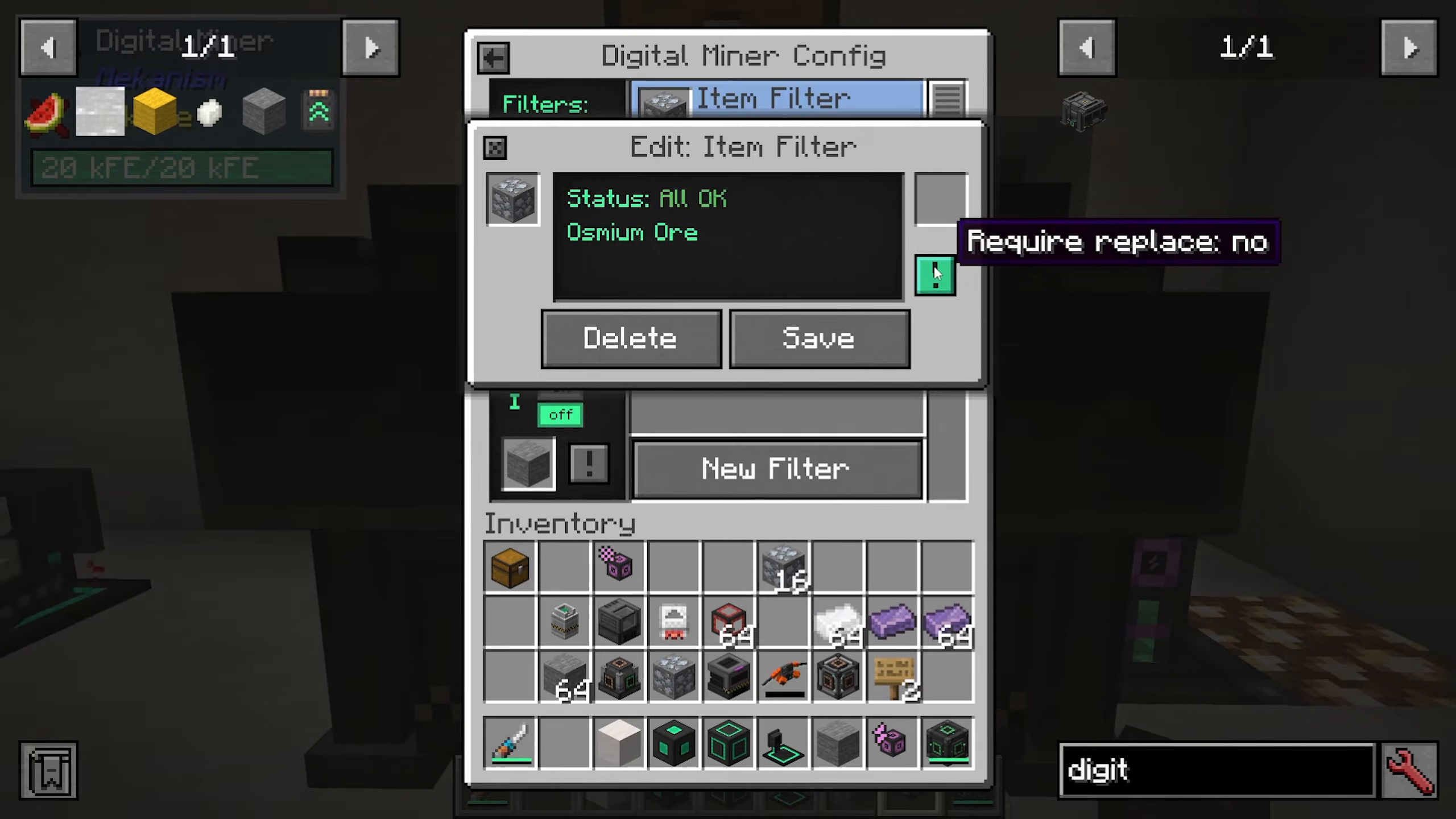
Enable “auto-pull” within the filter to automatically draw replacement blocks from the chest without manual intervention.
Advanced Filter Options: Inverse Mode
The “Inverse Mode” option reverses filter logic, causing the Digital Miner to mine everything except the items specified in your filters. This is useful when you want to clear an area of all ores except certain types.
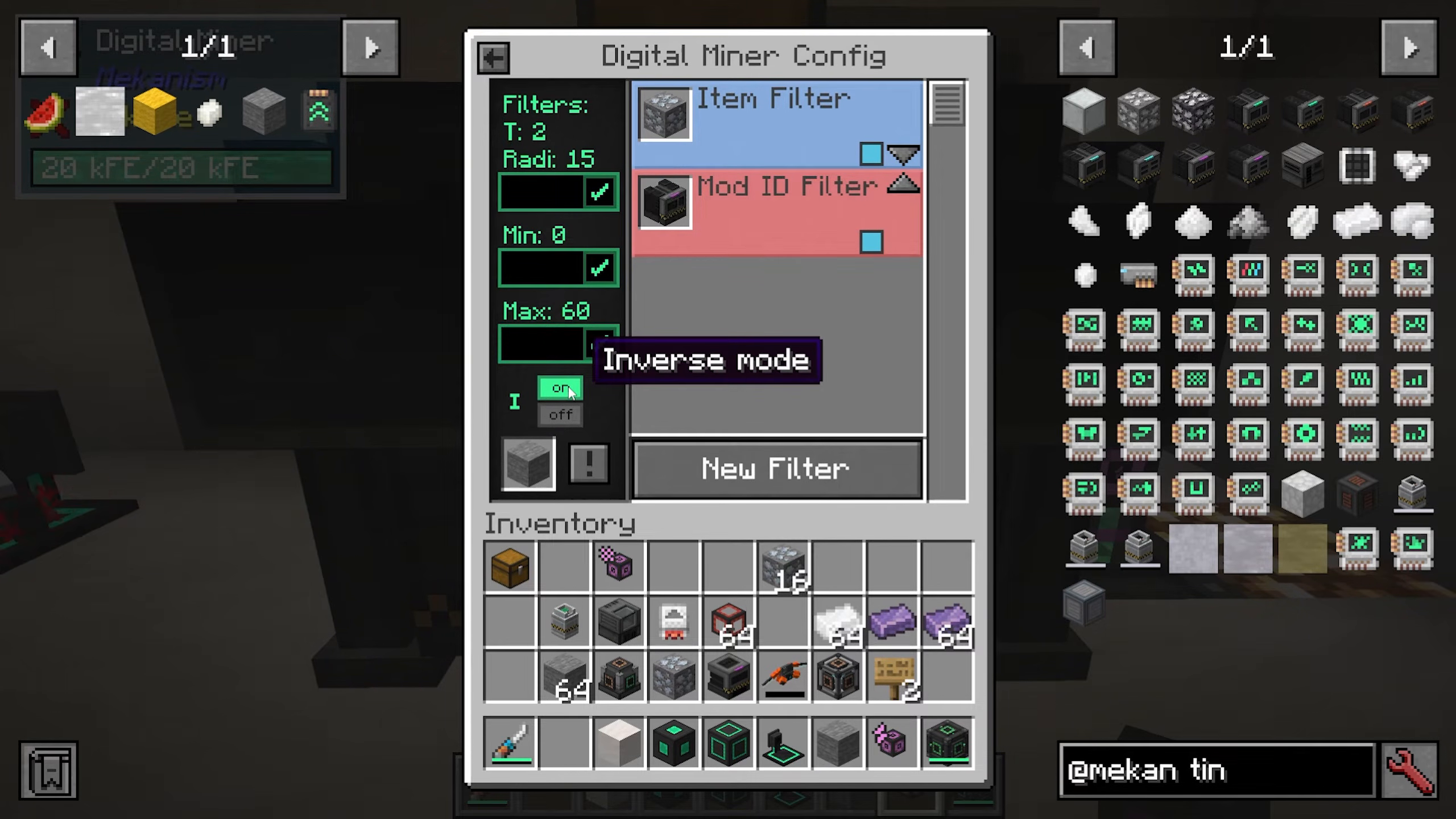
When using Inverse Mode, you must specify replacement blocks separately, as you cannot add replacements to the filter itself. Select the replacement block type in the dedicated Inverse Mode section.
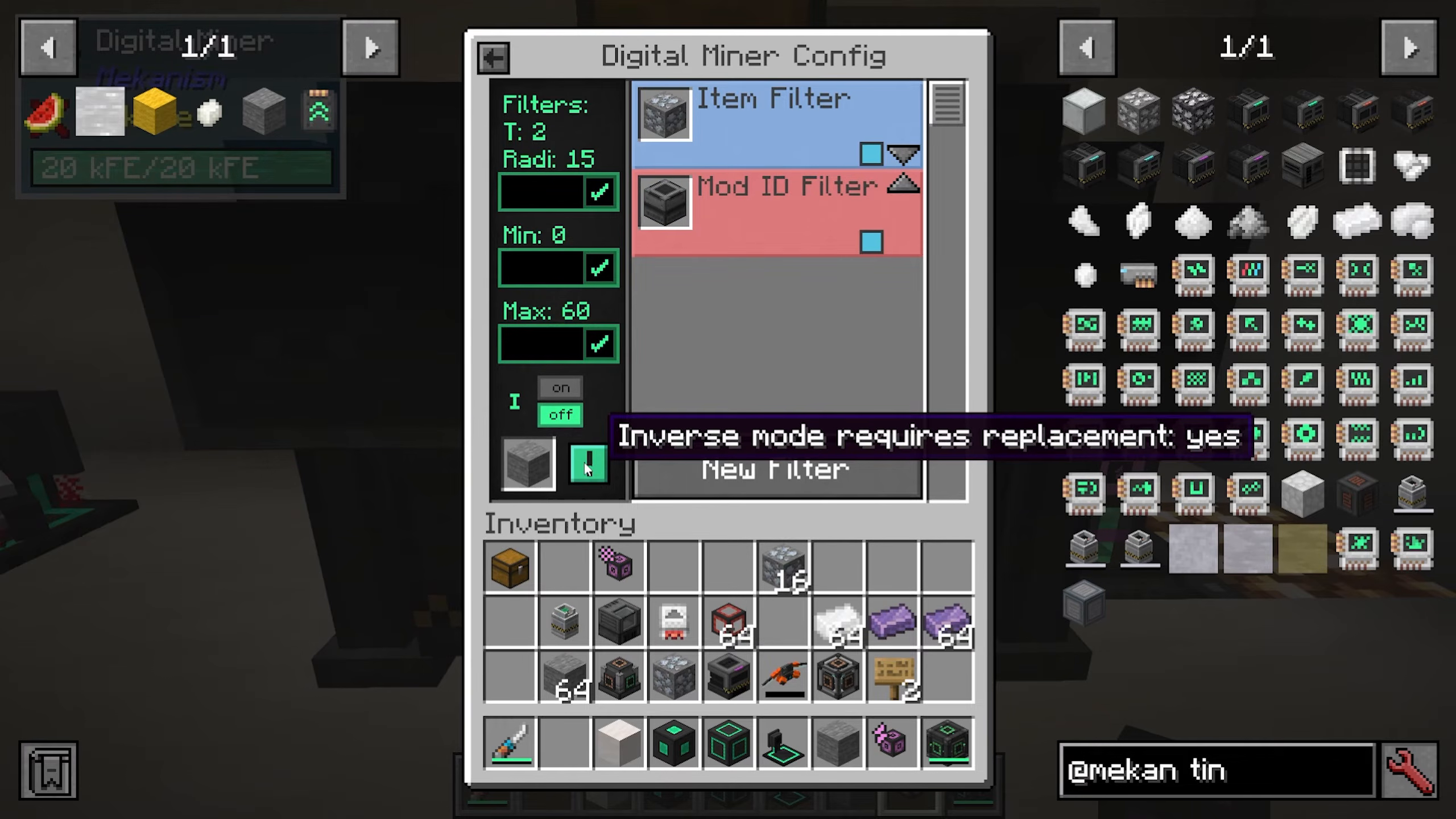
Mining Radius and Y-Level Range
Configure where the Digital Miner will search for ores by setting:
Radius: The horizontal distance from the miner (10, 15 blocks, etc.)
Minimum Y-Level: The lowest depth to mine (typically 0)
Maximum Y-Level: The highest depth to mine (commonly set to 60 or higher)
Starting Mining Operations
Once your filters and settings are configured, press the “Start” button to begin mining. The Digital Miner will automatically extract ores from the ground within your specified radius and Y-level range.
Item Output and Management
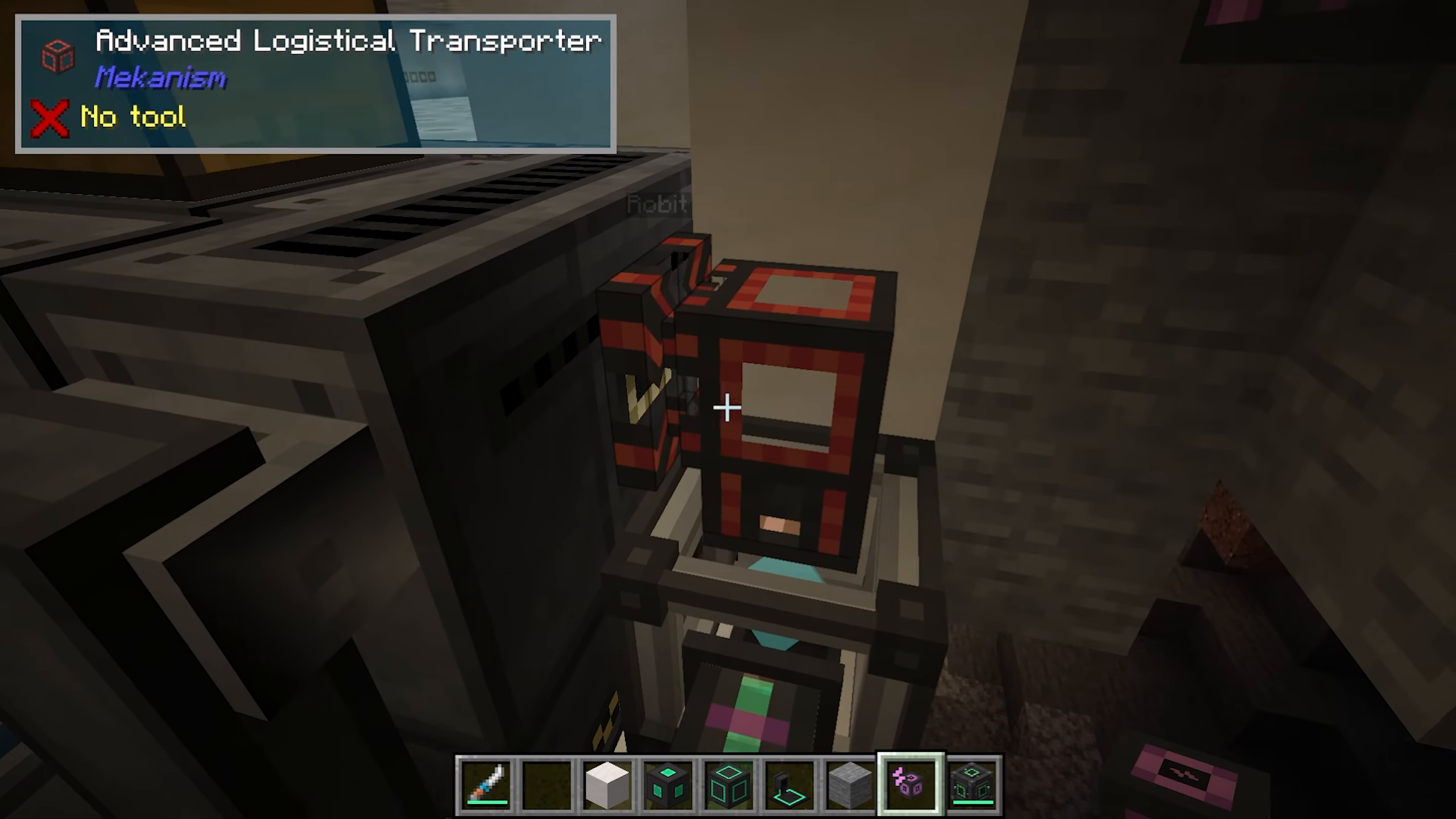
Mined items are collected in the Digital Miner’s internal inventory. There is an orange hole on the back of the machine where items are ejected for collection. Connect a chest, hopper, or other container to this output port to gather your mined materials.
Important Note: Be cautious with your filter settings. Make sure you’re not mining blocks from machines or other structures in the area, as this can cause unintended damage or loss of important components.
Summary
The Digital Miner is a powerful automation tool that streamlines ore collection across Mekanism and other mods. By properly configuring your filters, setting appropriate mining radius and depth ranges, and managing block replacement, you can create an efficient mining operation that runs while you focus on other tasks. Start with simple mod ID filters and advance to item-specific filtering as your needs become more refined.
Want to Support?
If you would like to help us continue making these guides – please consider joining our patreon here – https://www.patreon.com/c/JaviHeals
Alternatively – we host a group of MC Servers you can join here – https://discord.gg/zD7Gjt6MHF