





Crop Farming Guide – Industrial Foregoing 1.21.1
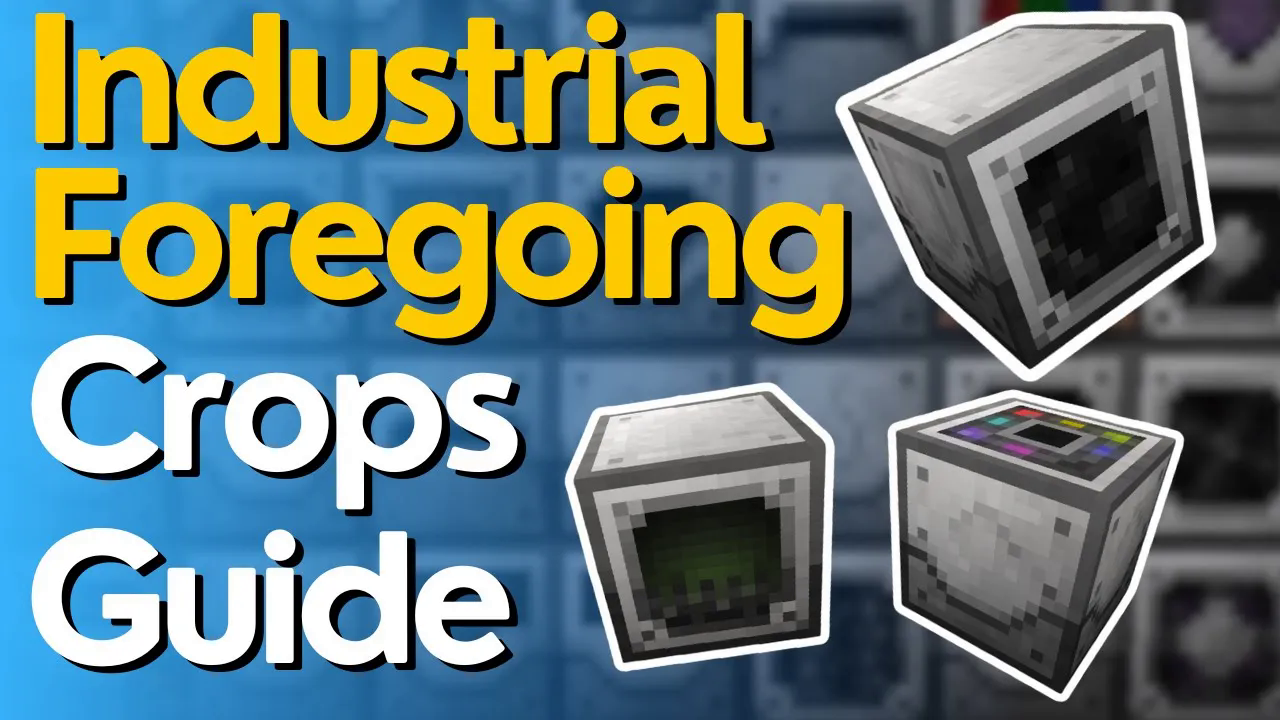
Crop Farming Guide – Industrial Foregoing 1.21.1
Learn how to set up automatic crop farms in Industrial Foregoing for Minecraft 1.21.1. This comprehensive guide covers all the essential machines, their functions, and step-by-step instructions to build a fully automated farming system. While this tutorial is made for version 1.21.1, the mechanics remain consistent across different versions of Industrial Foregoing.
Essential Machines for Crop Farming
To create an automatic crop farm in Industrial Foregoing, you’ll need four primary machines:
Plant Sower – Plants seeds in the designated area
Plant Fertilizer – Applies fertilizer to growing crops
Plant Gatherer – Harvests mature crops
Sludge Refiner – Converts sludge byproducts into useful materials
While the fertilizer and sludge refiner are optional, the plant sower and plant gatherer are essential for a functioning farm. You’ll also need plastic already set up before beginning—refer to the Industrial Foregoing playlist for the plastic production tutorial.
Understanding Machine Interfaces
All Industrial Foregoing machines share similar interface layouts. Here’s how to read and use them:
Power and Energy
Power inputs are located on the left side of each machine and can be fed from any side. Connect your preferred power source (such as Mekanism generators) to begin operating the machines.
Input and Output Slots
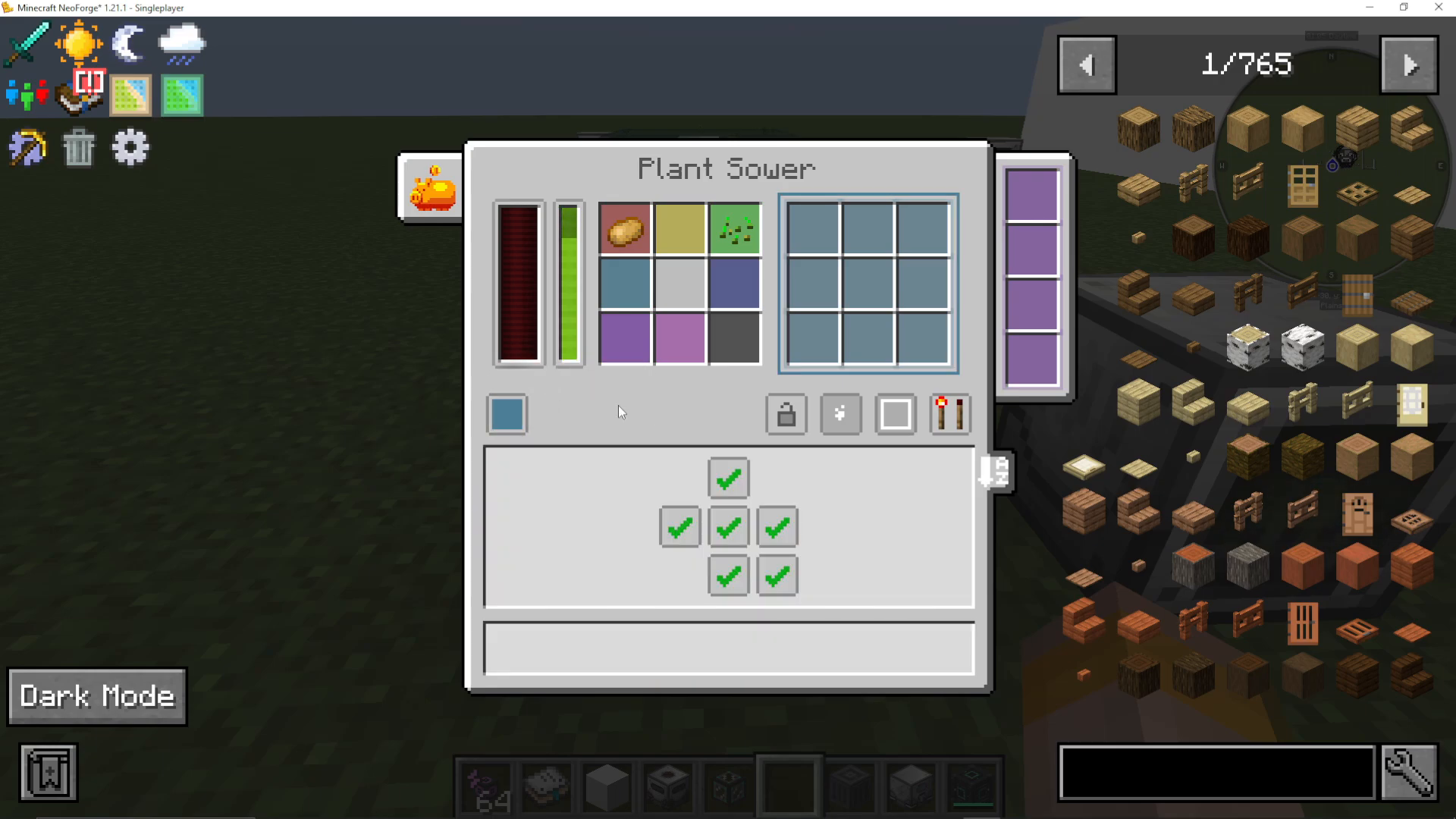
Each machine has designated input slots where you place materials and output slots where finished products appear. The plant sower, for example, has a recipe side with colored corners (yellow, green, red, etc.) that allow you to specify which crop goes in which direction.
Upgrade Slot
The purple upgrade slot is universal across all machines. This is where you place range upgrades and processing speed upgrades to enhance machine performance.
Redstone Mode Settings
Configure whether the machine should run only with a redstone signal, without redstone, or in other modes depending on your automation setup.
Working Area Display
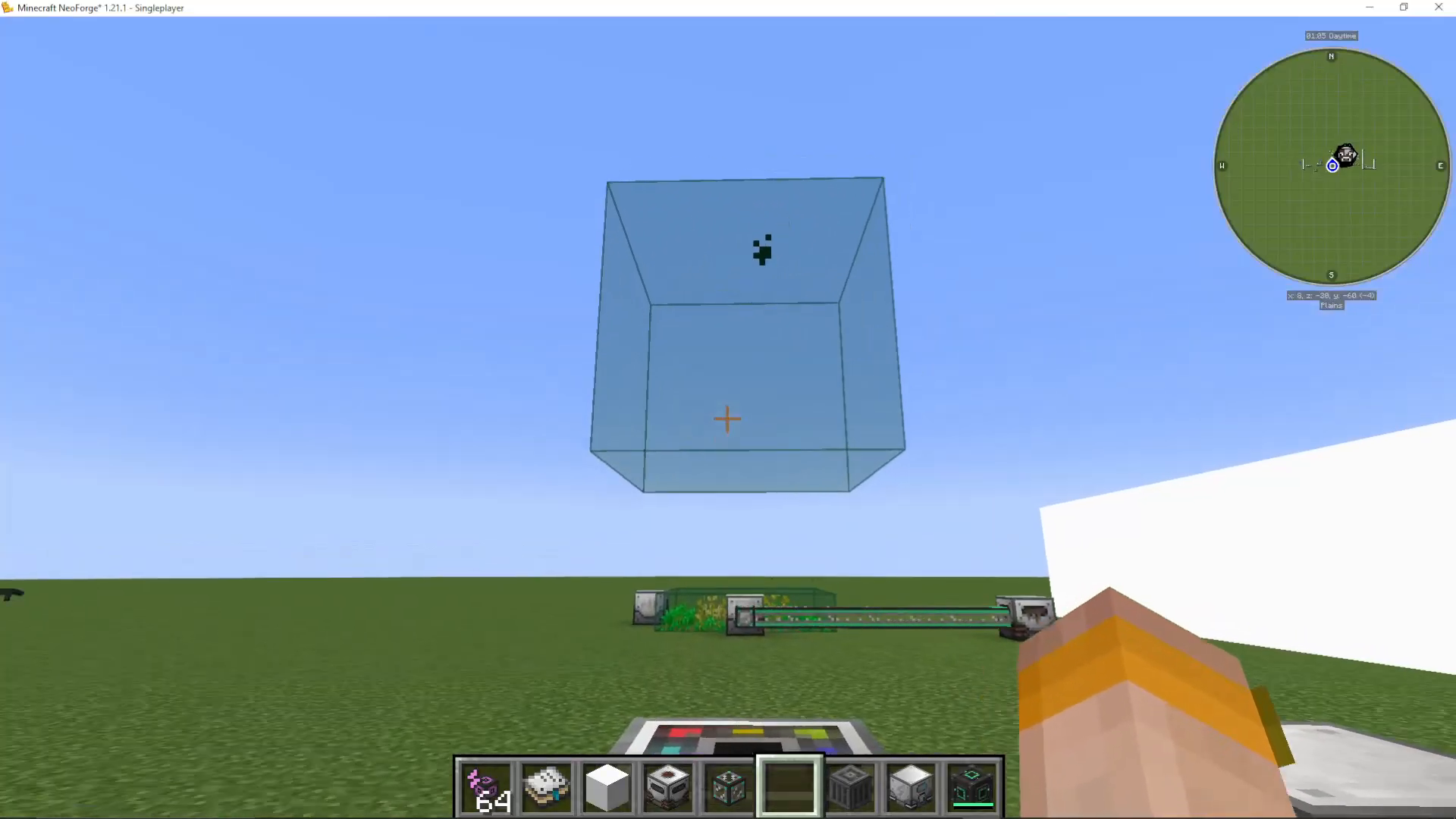
Click the “show working area” button to visualize the machine’s operating range. By default, machines affect a small area, but you can expand this significantly with range upgrades.
Particle Effects and Input Locking
Enable or disable particle effects to see the working area in action. You can also lock individual input slots to prevent unwanted items from entering. This is especially useful when running multiple crop types simultaneously—locked slots ensure each crop type maintains its designated input without mixing.
Color-Coded Push/Pull Settings
The color-coded button on the right side controls whether items are pushed out or pulled in. A push setting exports resources automatically, while a pull setting allows external systems to extract items. You can also disable export completely or enable it for everything.
Building Your First Automatic Farm
Step 1: Place the Plant Sower
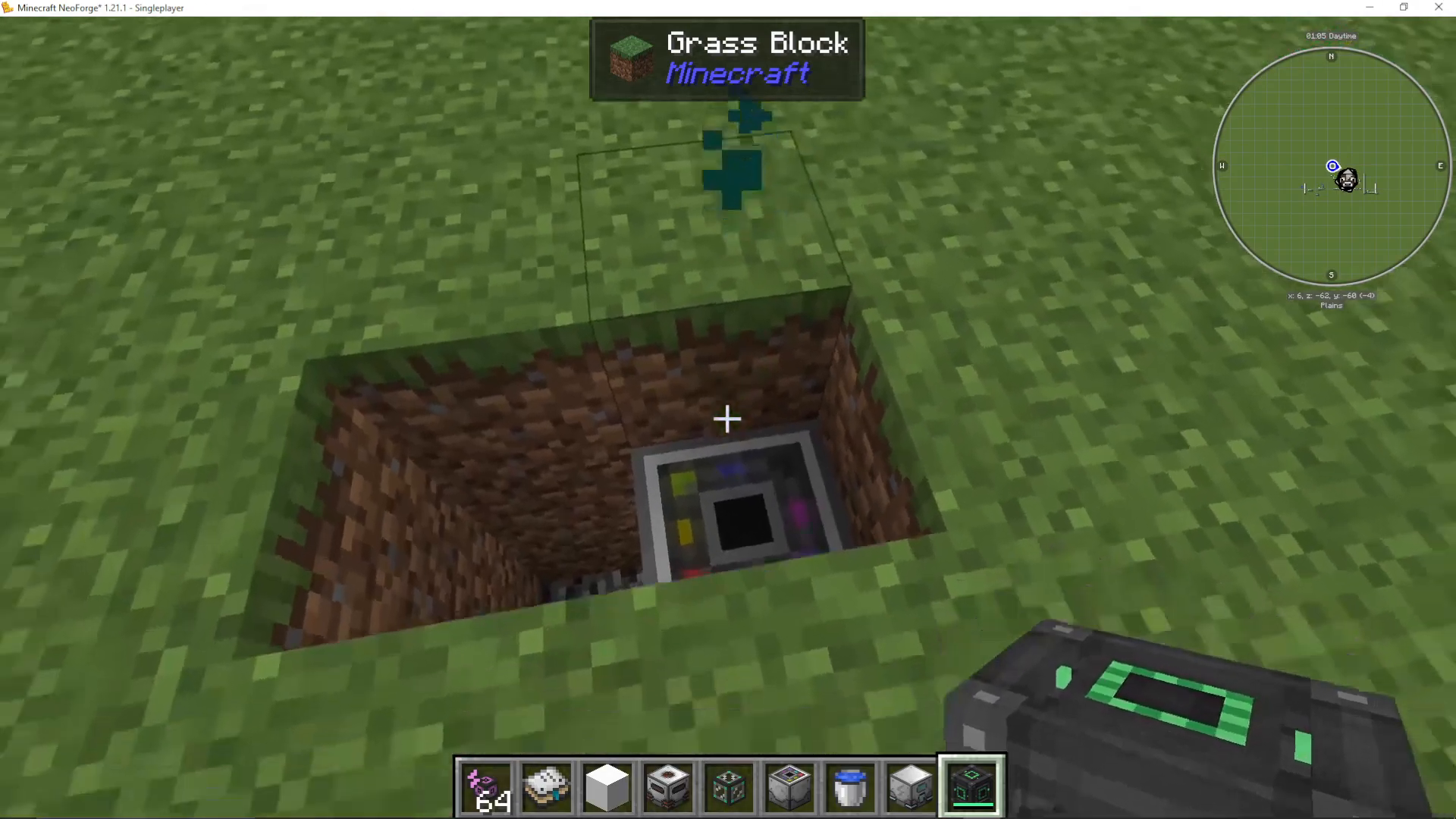
Dig a hole one block deep and place your plant sower beneath the soil level. This positioning is essential for proper operation.
Step 2: Connect Power
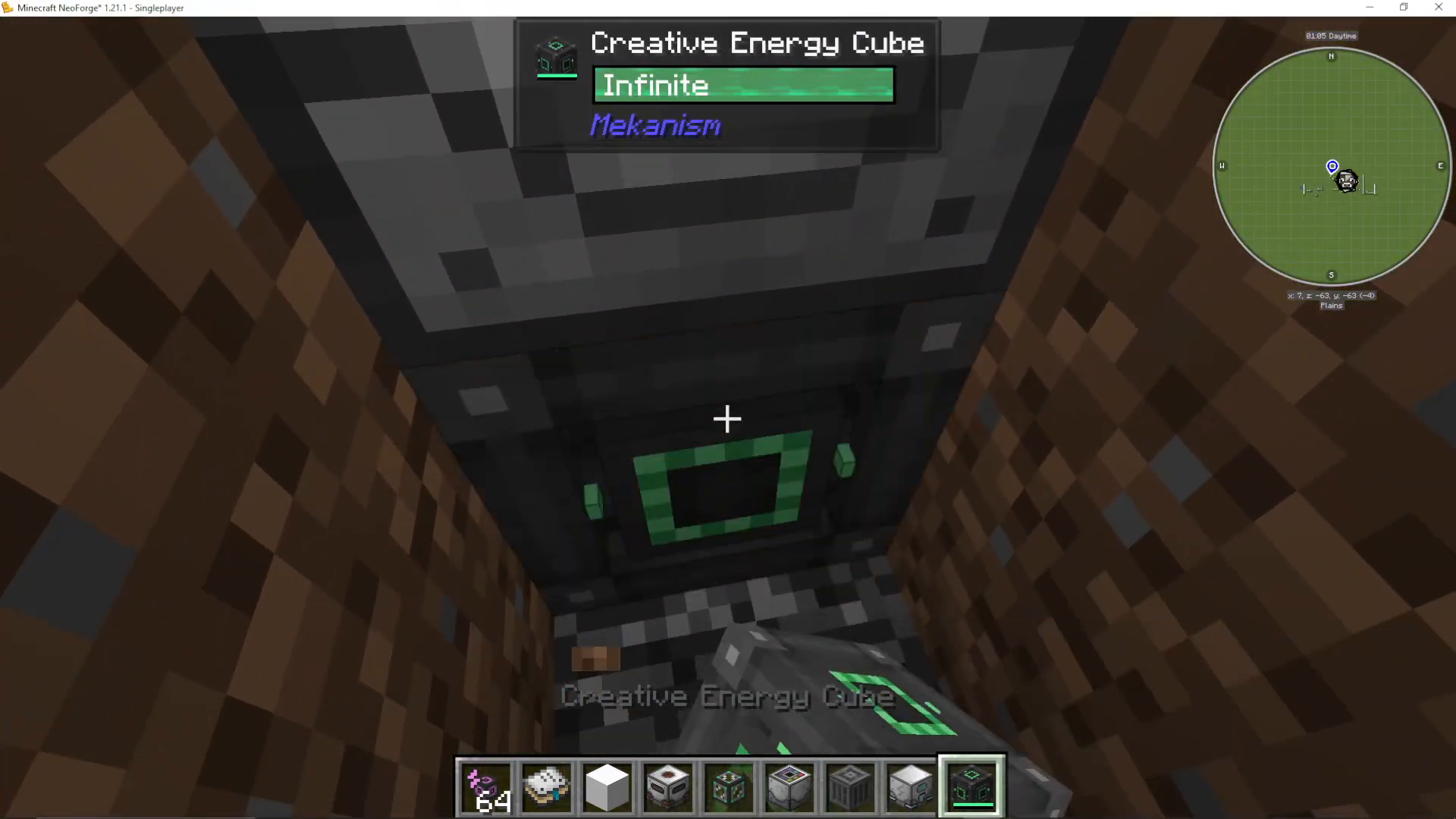
Place your power source (such as a Mekanism generator) directly beneath or adjacent to the plant sower. The machine will automatically connect to compatible power sources.
Step 3: Add Water Source
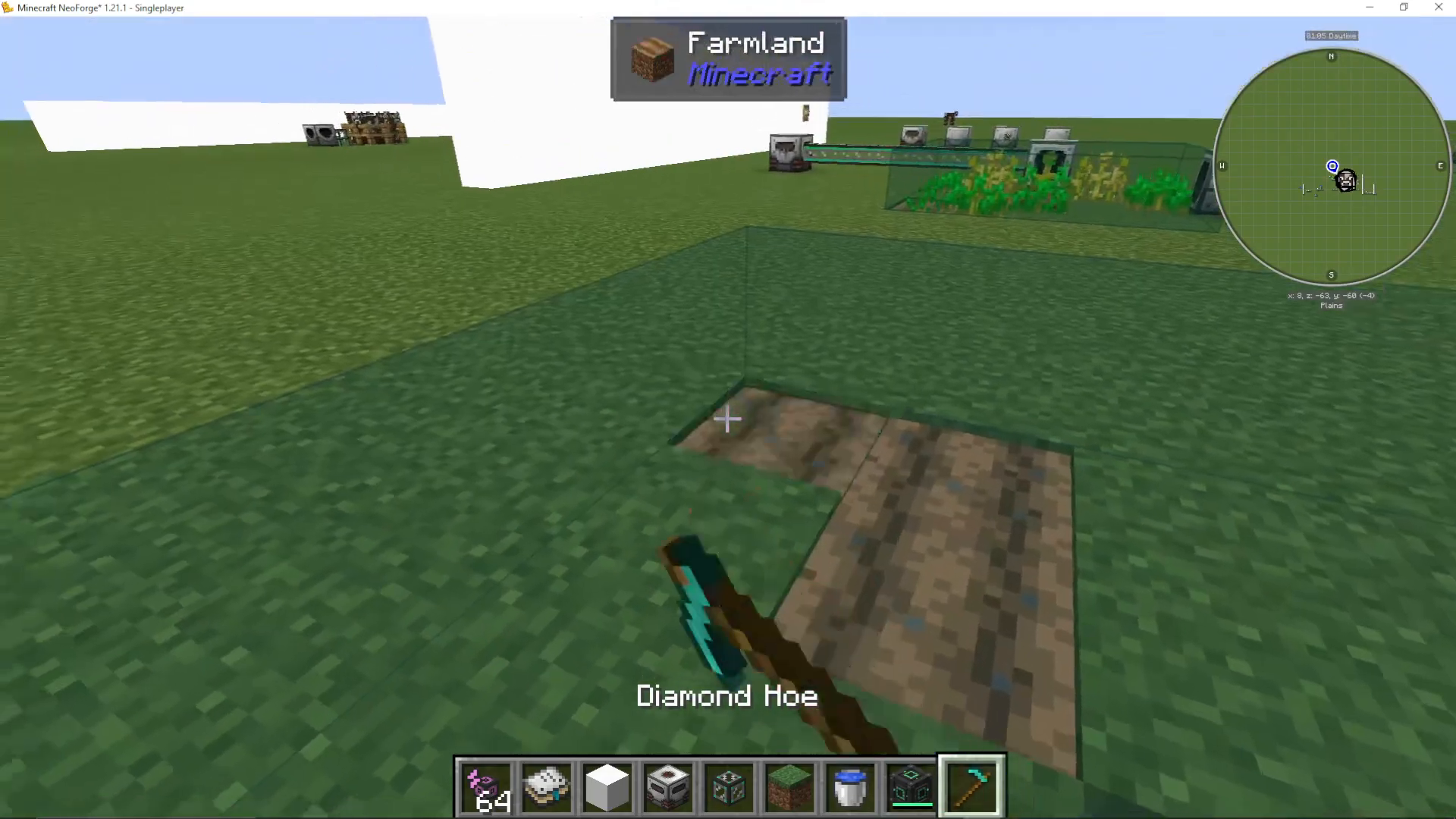
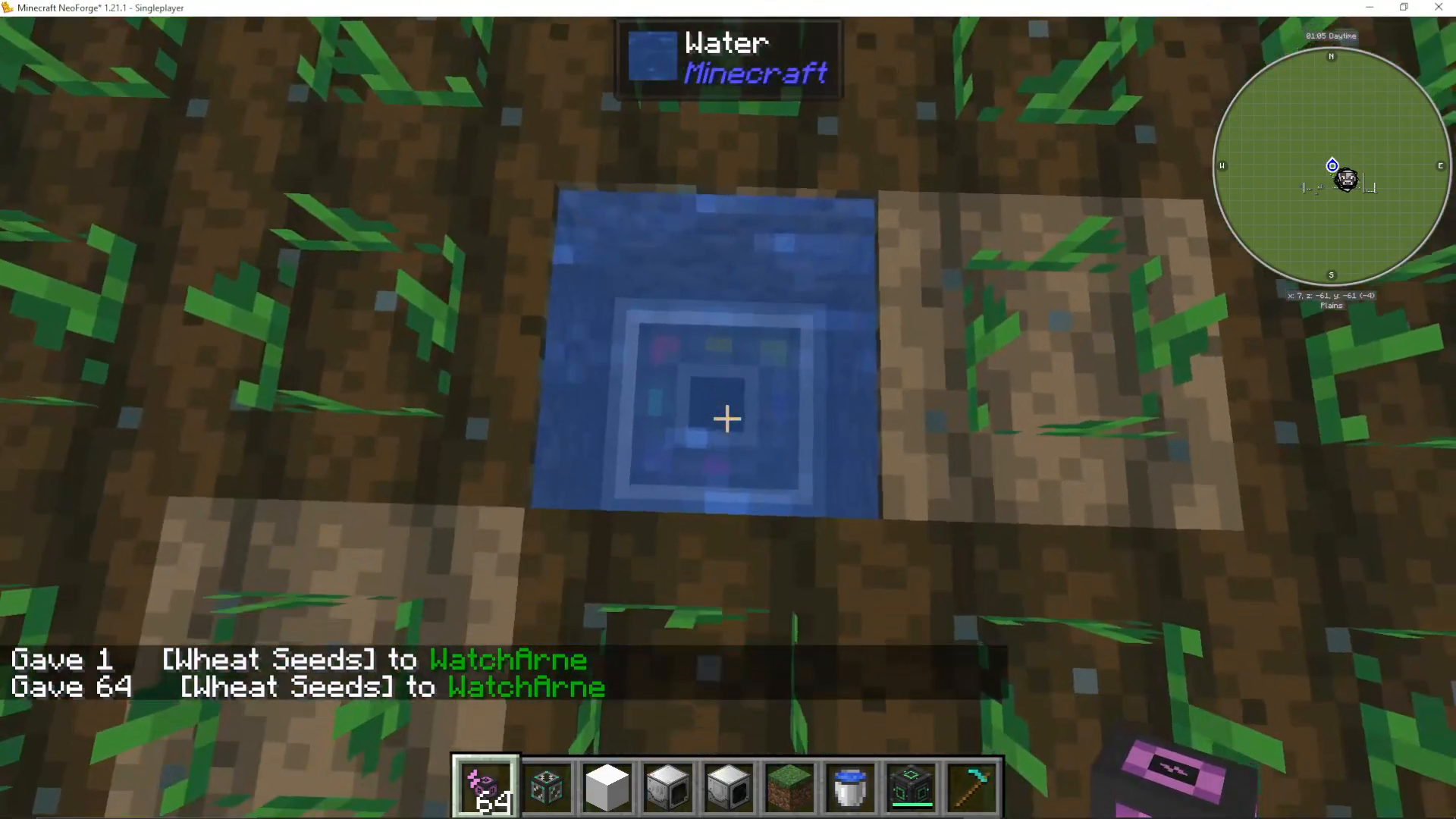
Manually hoe the ground and provide water to the farming area. You can place a water bucket above the plant sower if you’re using range upgrades that will cover the water source.
Step 4: Install Range Upgrades
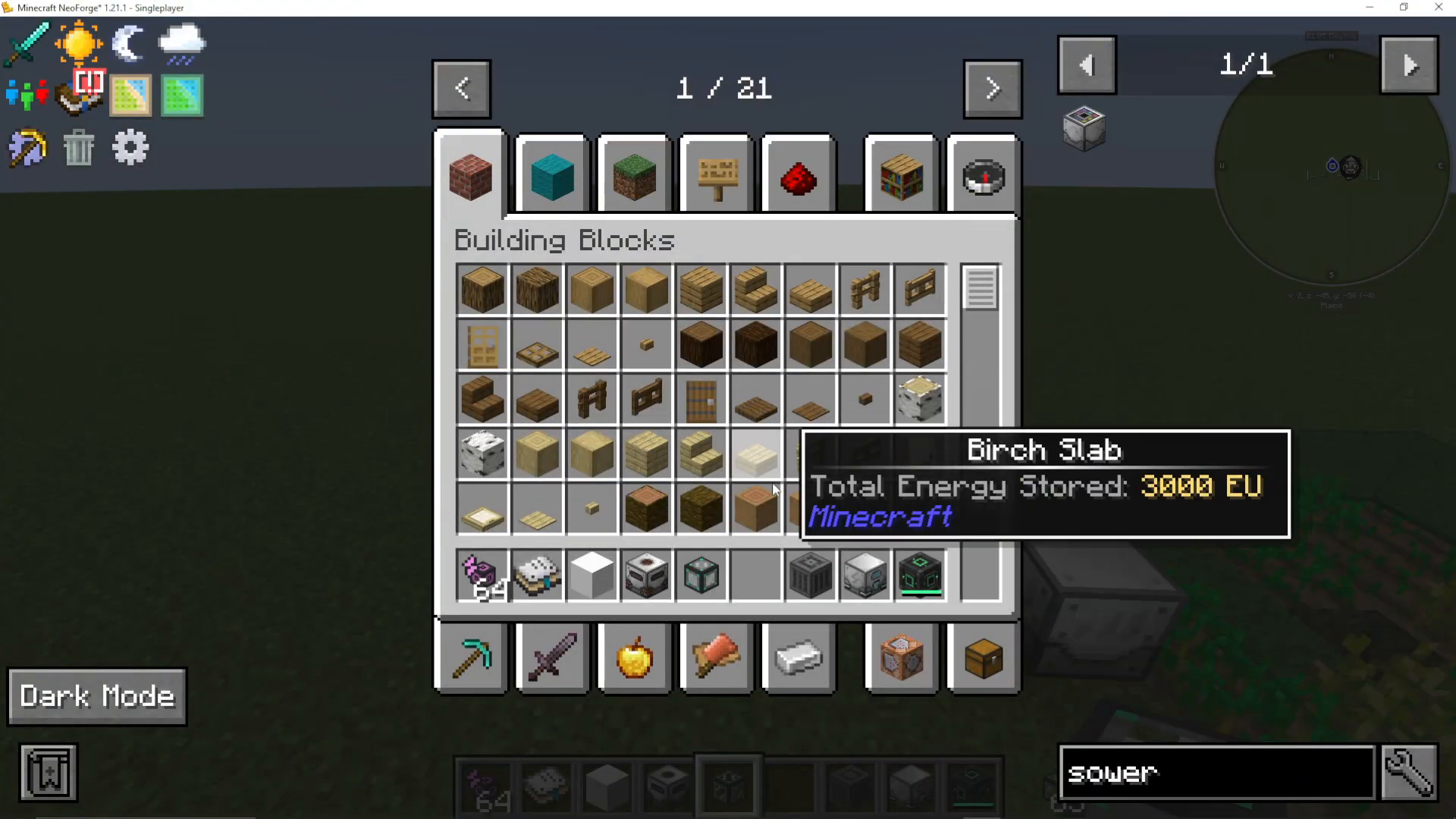
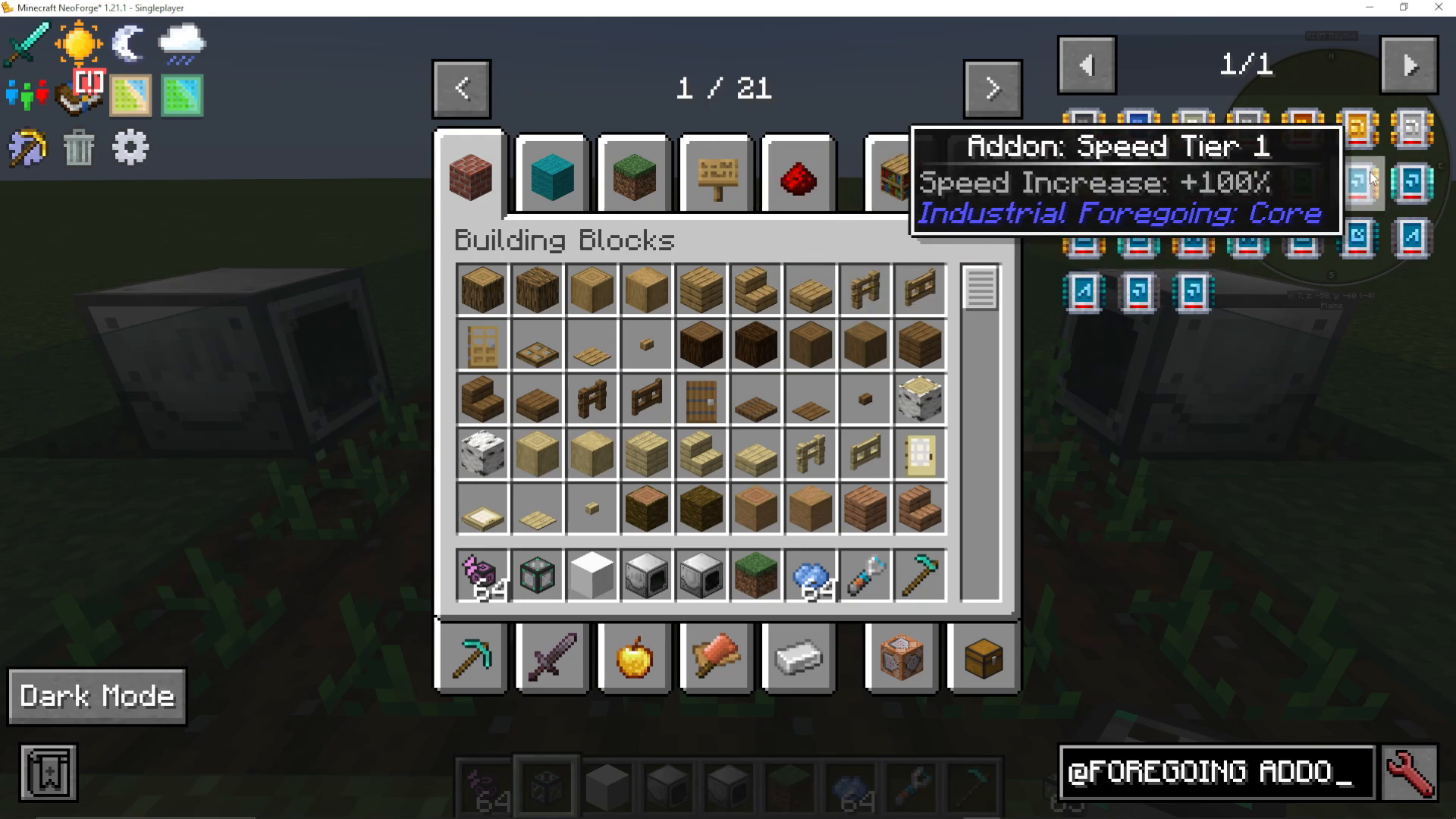
Craft and install an add-on range tier two upgrade (or higher) in the upgrade slot. This expands the plant sower’s working area from a single block to a 5×5 area. Access the JEI bar and search “if” to quickly find Industrial Foregoing items.
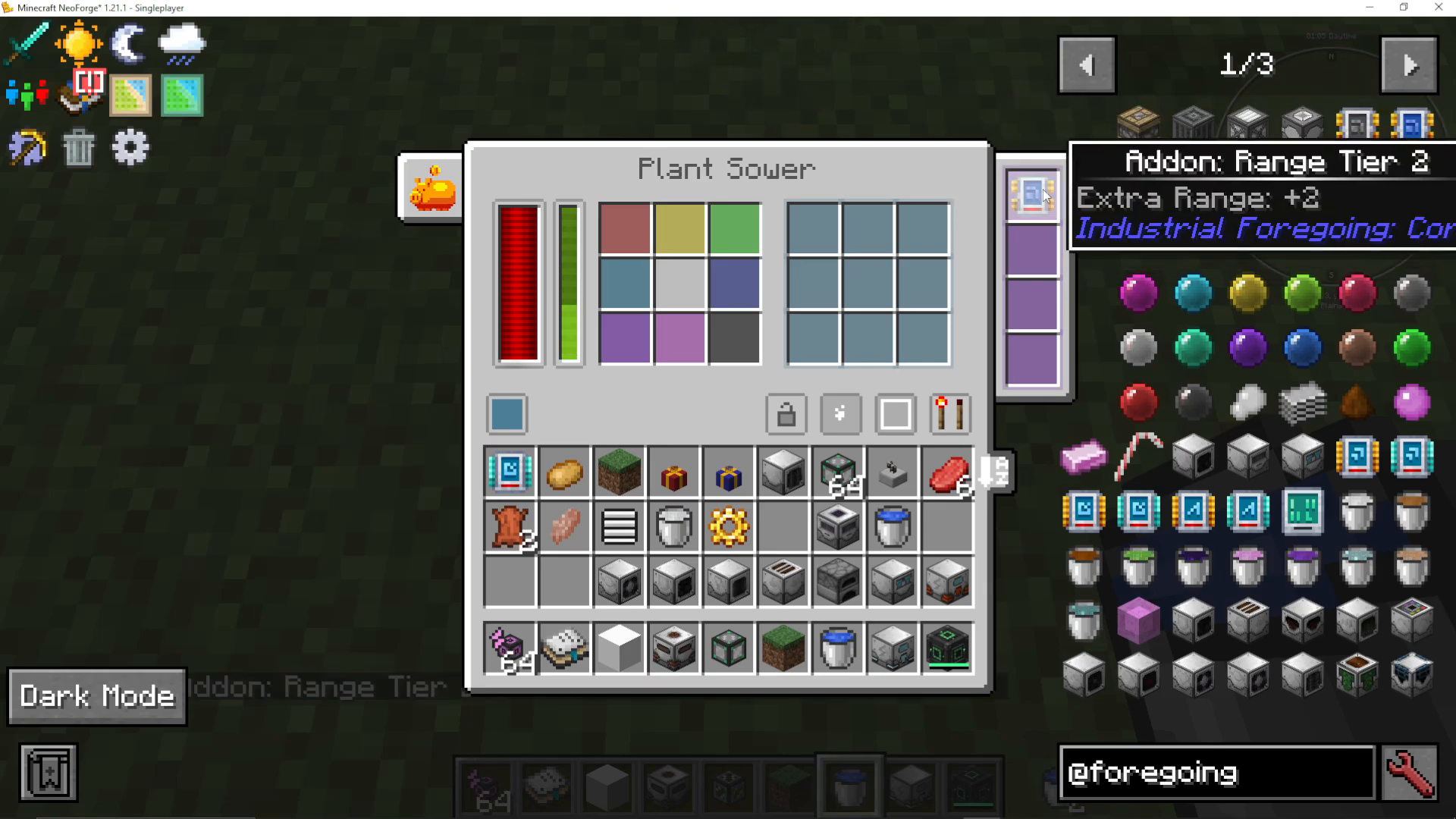
After installing the upgrade, click “show working area” to confirm the expanded range, then hoe all the ground within this area.
Step 5: Install the Plant Fertilizer
Place the plant fertilizer facing inward toward your crops. The direction matters—the machine will face the direction you’re facing when you place it. Install the same range upgrade here and position the power source.
📸 [ASSISTANT: TAKE SCREENSHOT AT SCREENSHOT AT TIMESTAMP 05:02]
Step 6: Install the Plant Gatherer
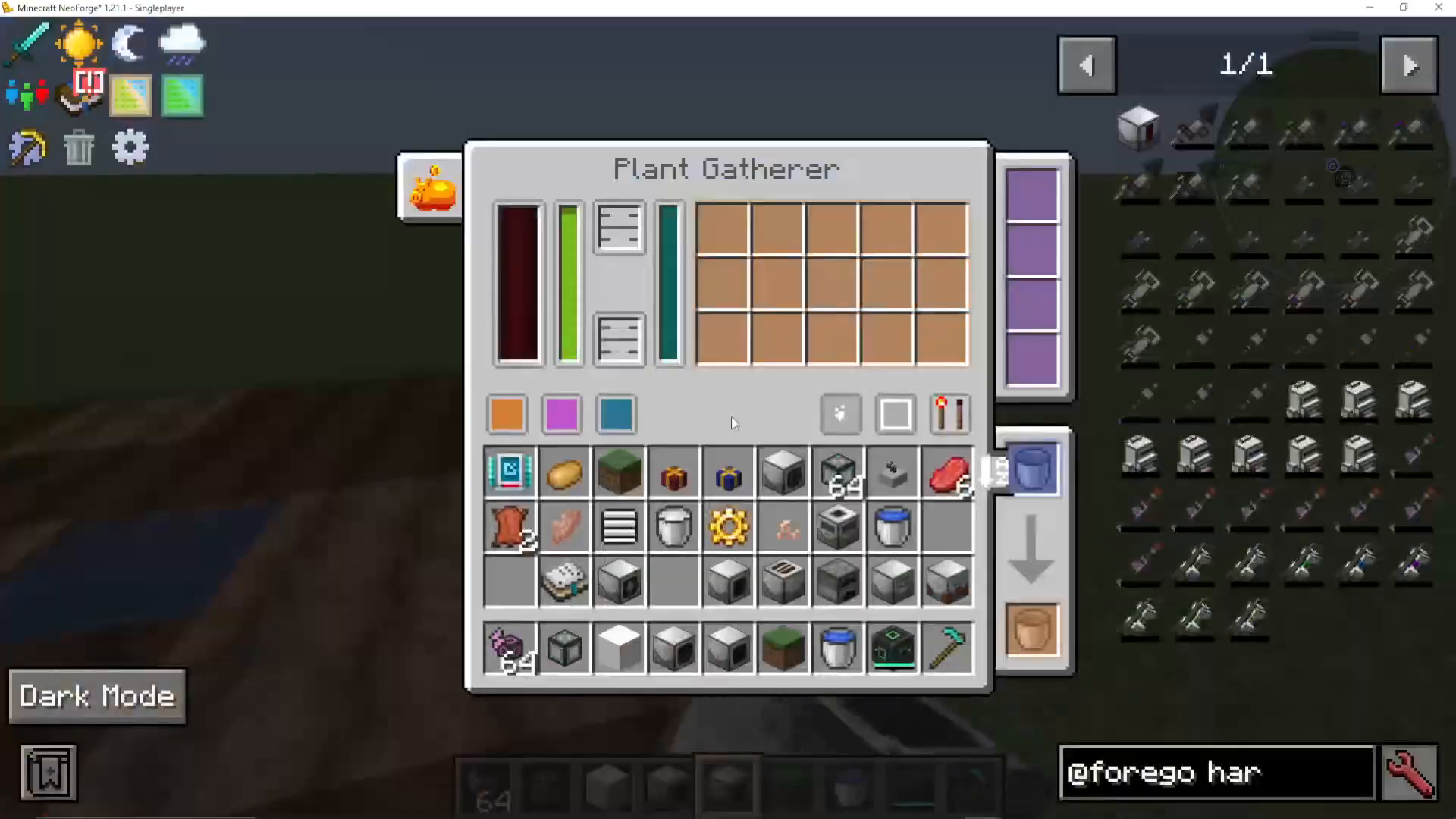
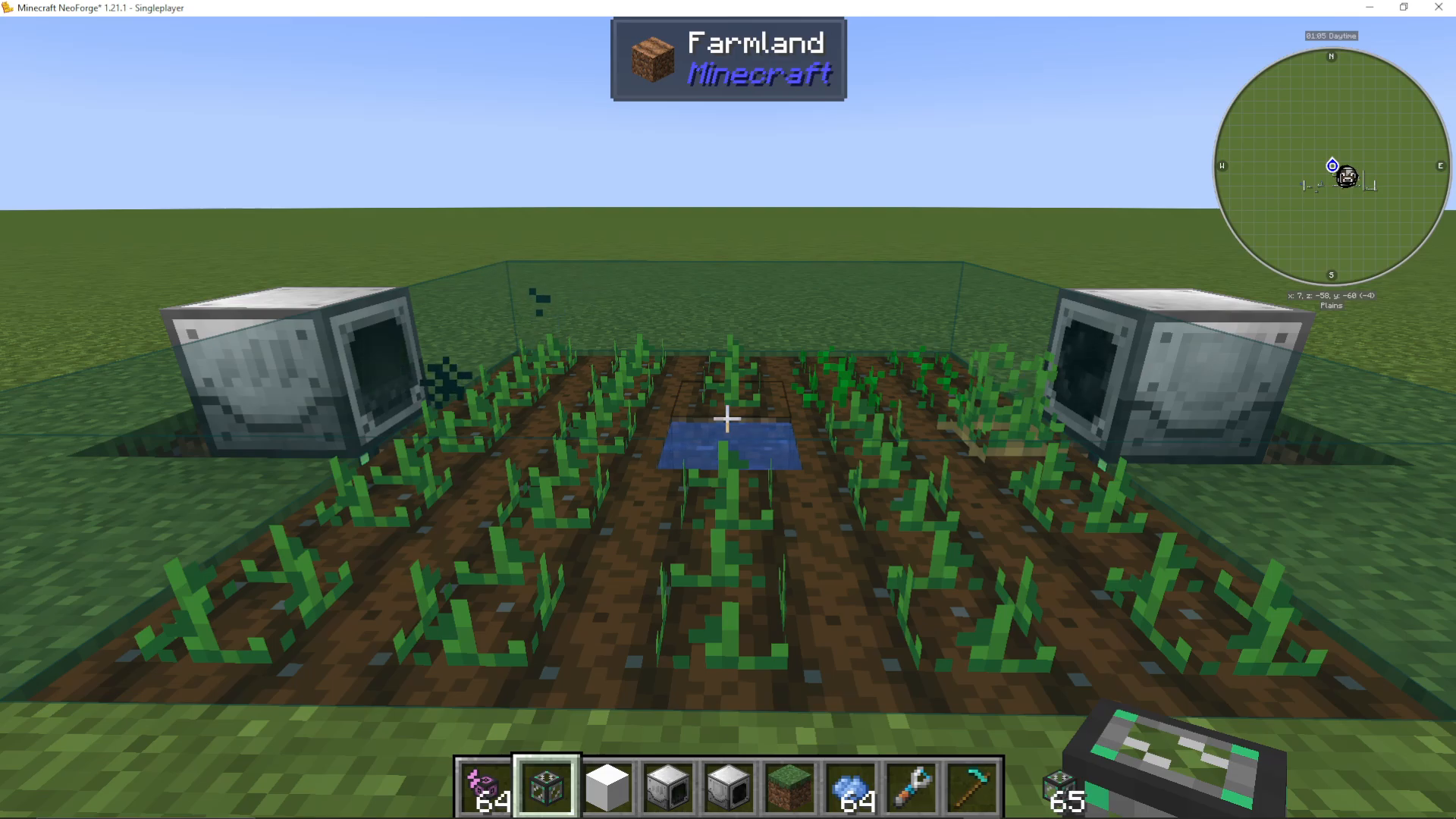
Place the plant gatherer in your farming area, also with appropriate range upgrades and power. Ensure all three machines (sower, fertilizer, and gatherer) cover the same working area.
Configuring Crop Types
Setting Specific Crops
Open the plant sower’s interface. The colored corners represent different directions—place your desired seeds in each color slot to specify which crop plants in which direction. For example, place potatoes in the red slot and wheat seeds in the green slot.
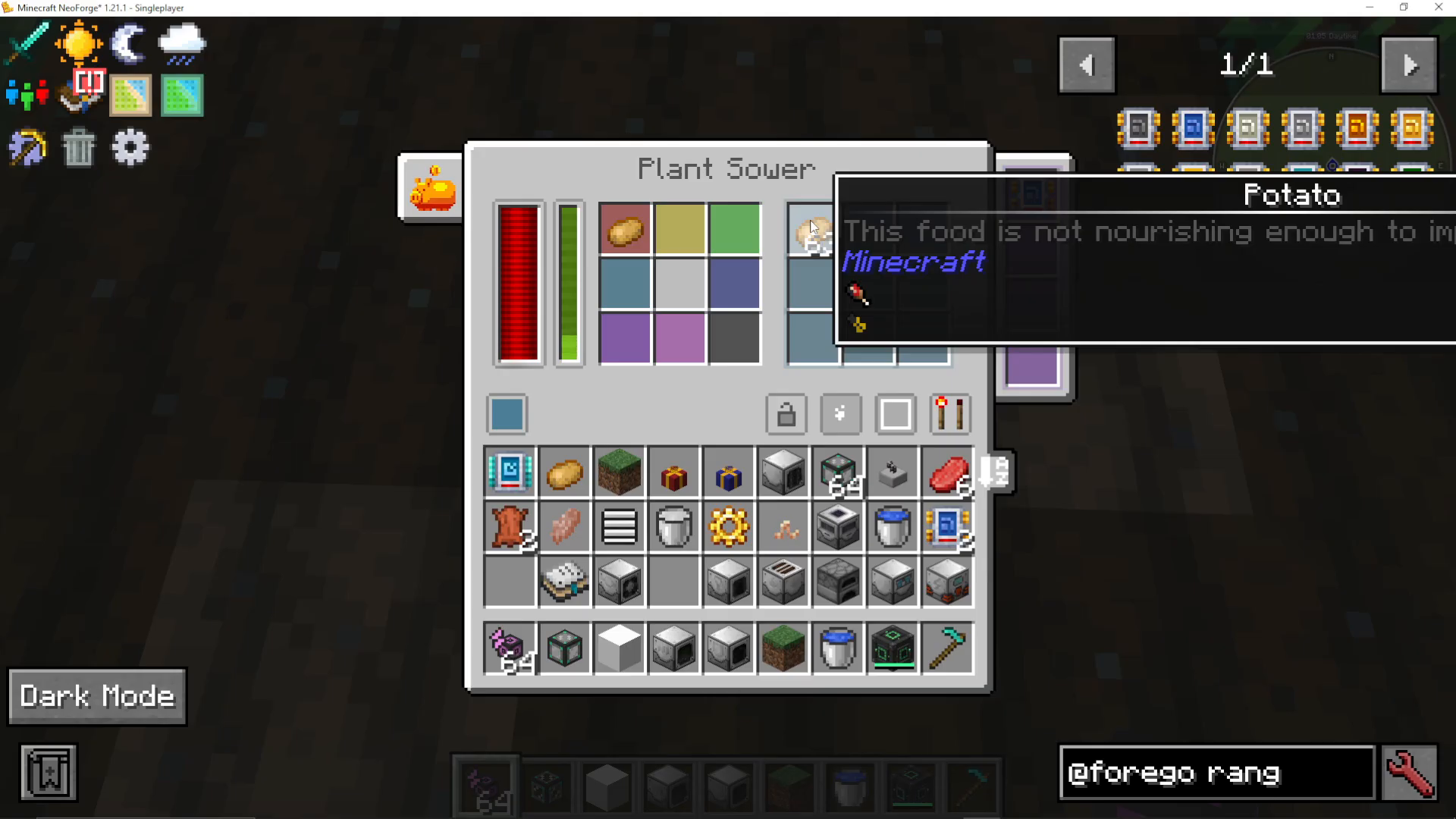
If you leave slots empty, the machine will plant whatever item it finds. By specifying each slot, you maintain precise control over your farm layout and prevent unintended mixing of crops.
Using the Plant Fertilizer
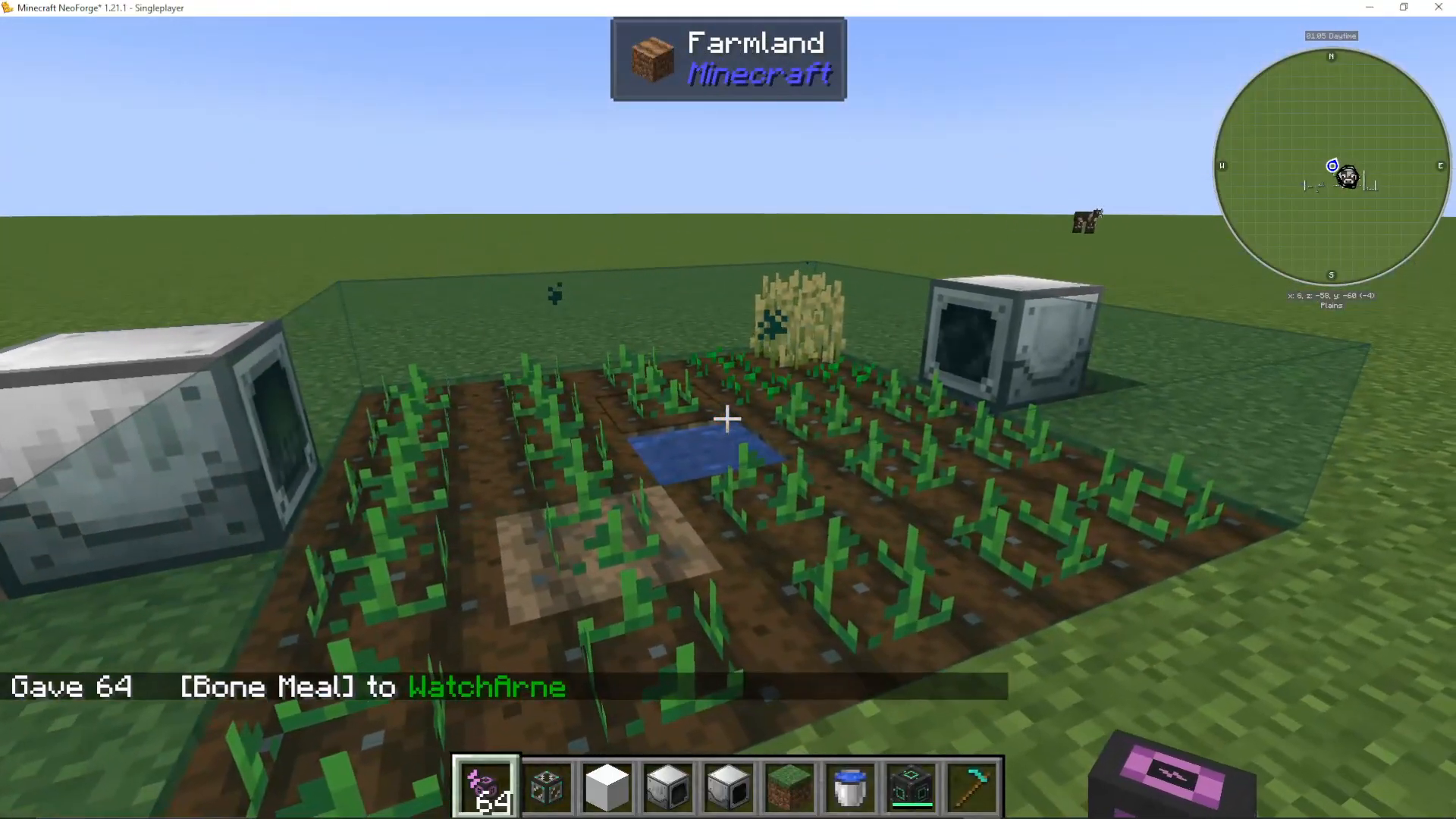
The plant fertilizer machine accepts two types of materials:
Bone Meal – Available from standard Minecraft recipes
Fertilizer – A specialized item from Industrial Foregoing
Making Custom Fertilizer
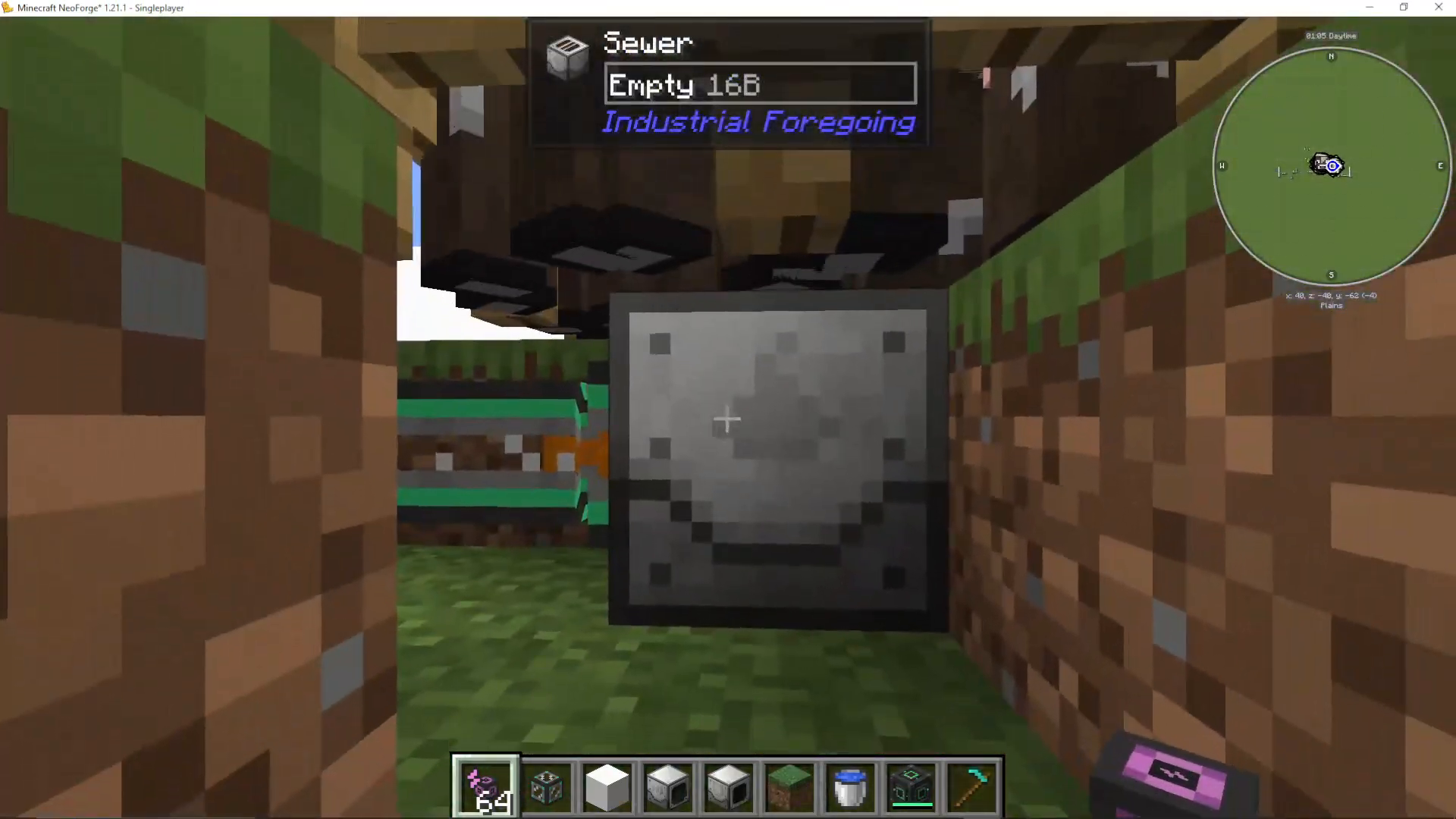
To create fertilizer from animal byproducts, set up a simple system: place a sewer beneath animals (like cows), pump the sewage into a sewage composter, and it will automatically produce fertilizer. This is a passive way to generate unlimited fertilizer for your crops.
Harvesting and Item Transport
How the Plant Gatherer Works
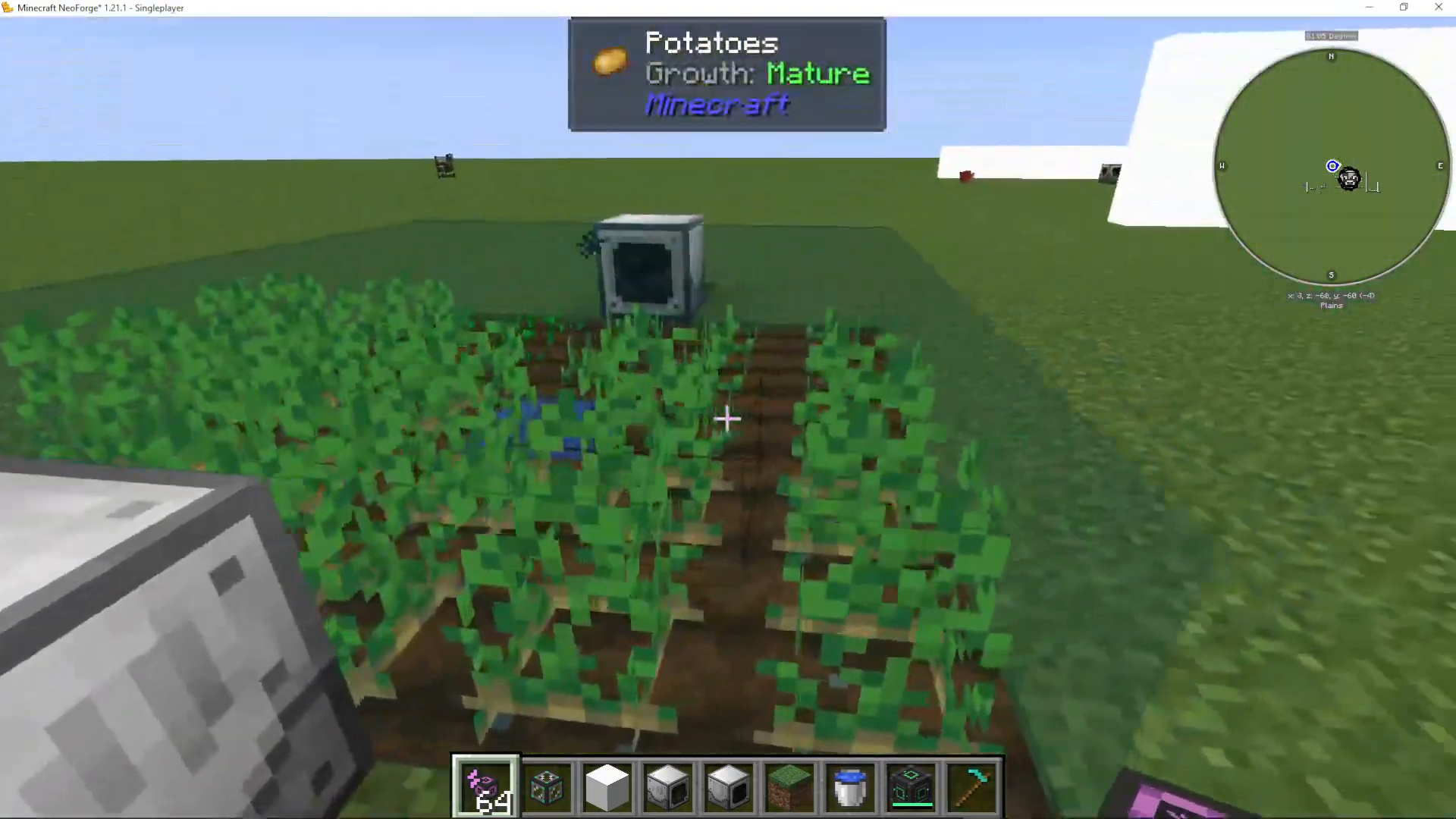
The plant gatherer harvests mature crops and automatically collects seeds. A green progress bar fills as the machine works—once complete, it gathers the entire harvest. Watch for gathered seeds and crops to appear in the output slots.
Setting Up Item Transportation
Connect item pipes (such as logistical pipes from Mekanism or similar mods) to transport harvested items. Configure filters to direct different items appropriately:
Route seeds and potatoes back into the plant sower input
Direct harvested crops (wheat, etc.) to storage or processing
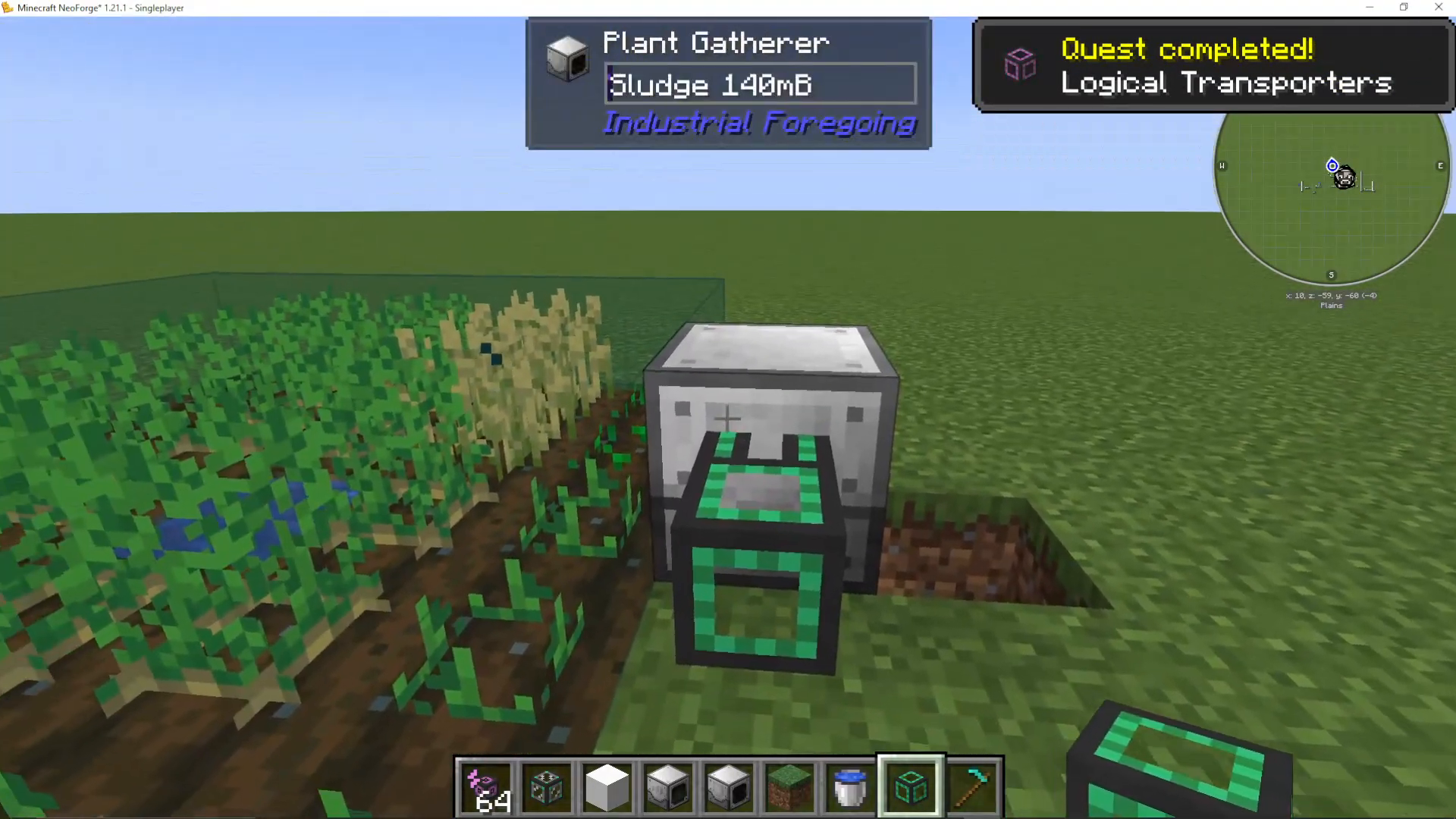
This modular system keeps your farm self-sufficient—the plant sower plants, the gatherer harvests, and the fertilizer speeds up growth. Items cycle automatically through your storage and back to where they’re needed.
Understanding Sludge Processing
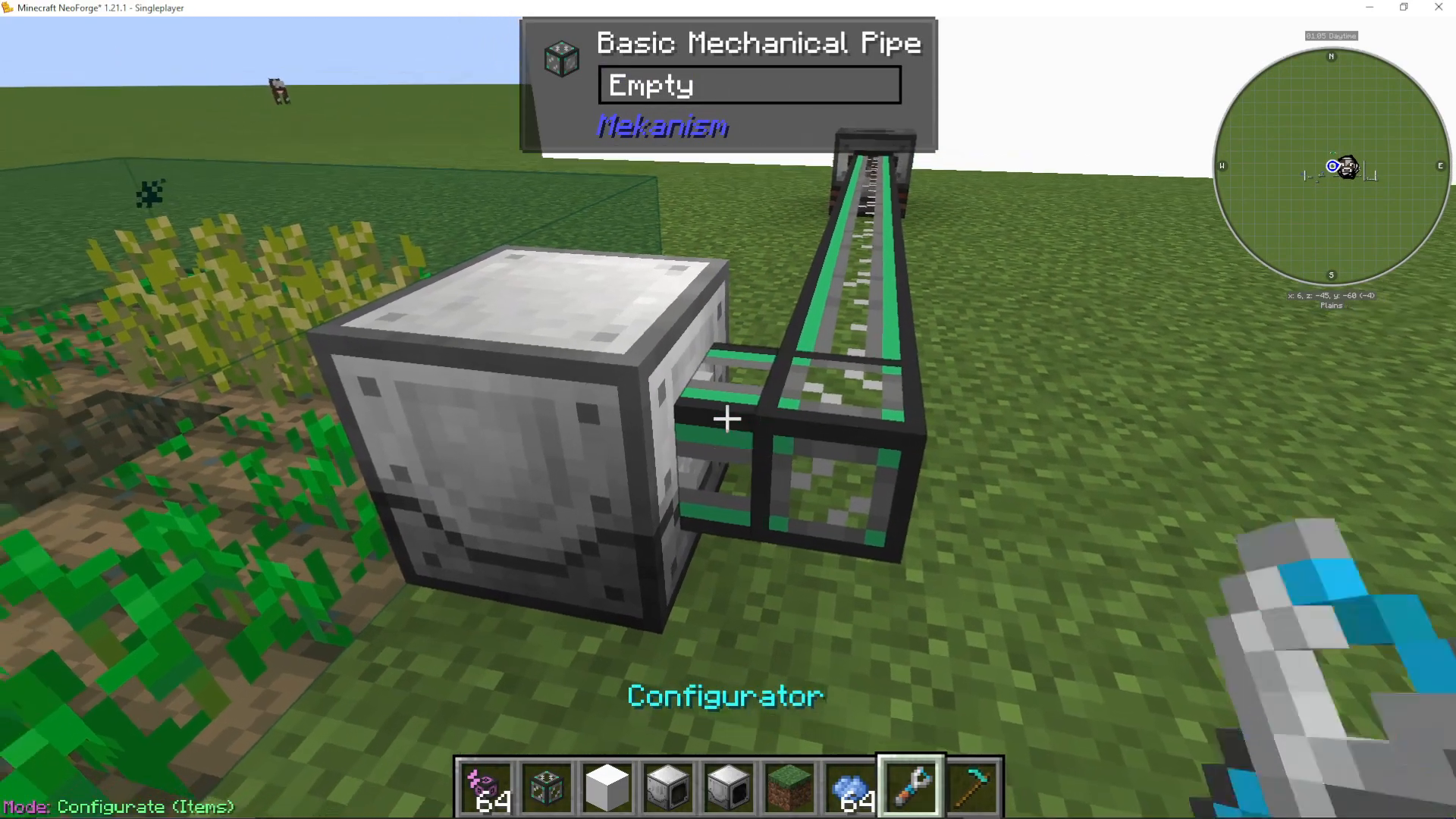
During harvesting, your plant gatherer will produce sludge as a byproduct. Pump this sludge out using mechanical pipes and either store it or process it further.
Sludge Refiner Function
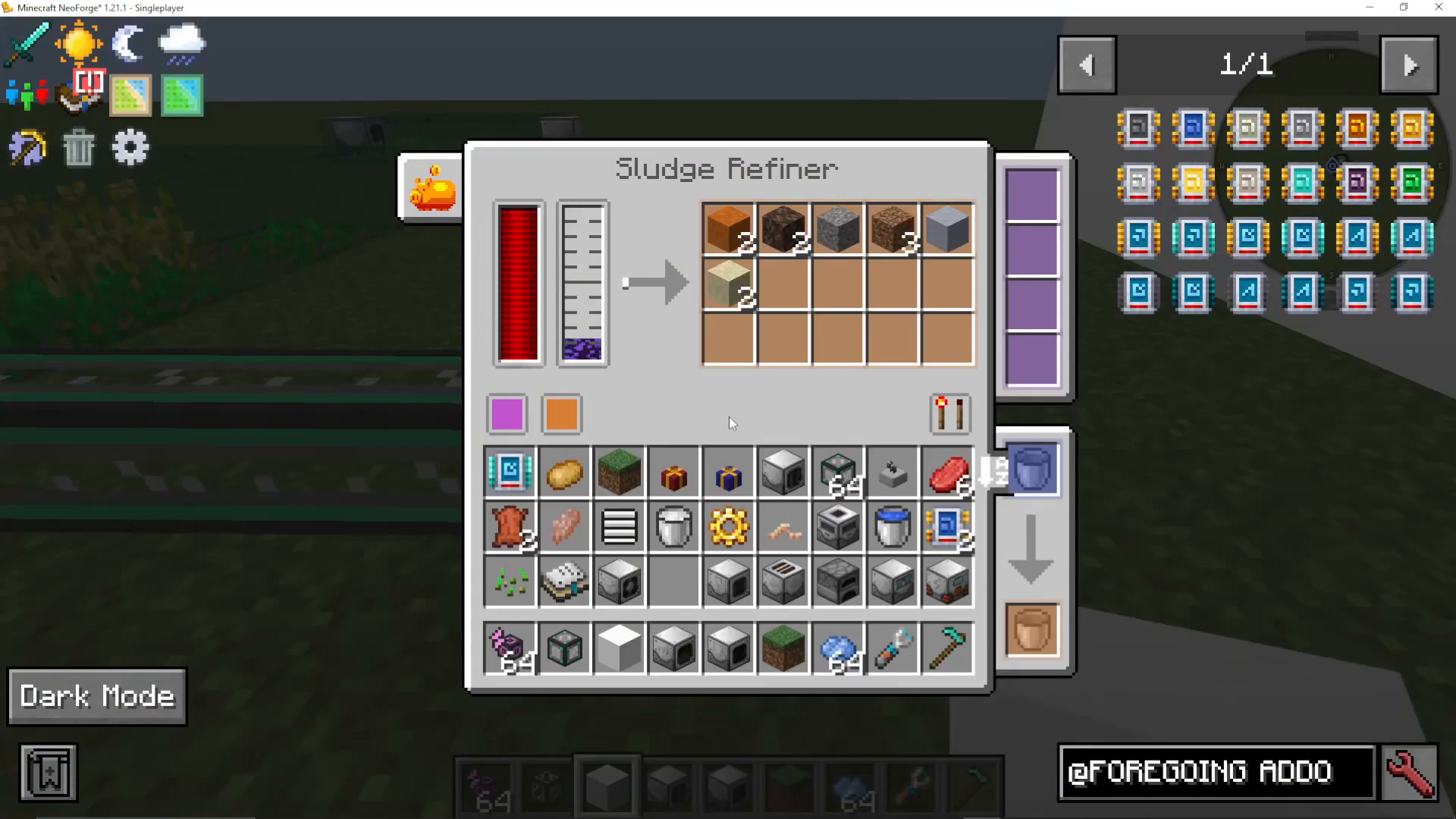
The sludge refiner automatically converts all sludge into random materials: clay, dirt, gravel, salt, sand, red sand, or stone. While you can’t choose the output, this is an excellent passive way to automate basic material production as a side effect of crop farming.
Advanced Features
Tree Farming
The same machines work for automated tree farming. Simply place saplings in your plant sower, and the plant gatherer will harvest wood and saplings just as it does with crops. This creates a fully automatic wood farm with minimal setup.
Performance Upgrades
Beyond range upgrades, Industrial Foregoing offers processing speed upgrades and other performance enhancements in the foregoing upgrades add-on menu. Installing speed increases in your fertilizer and gatherer will significantly accelerate crop growth and harvesting.
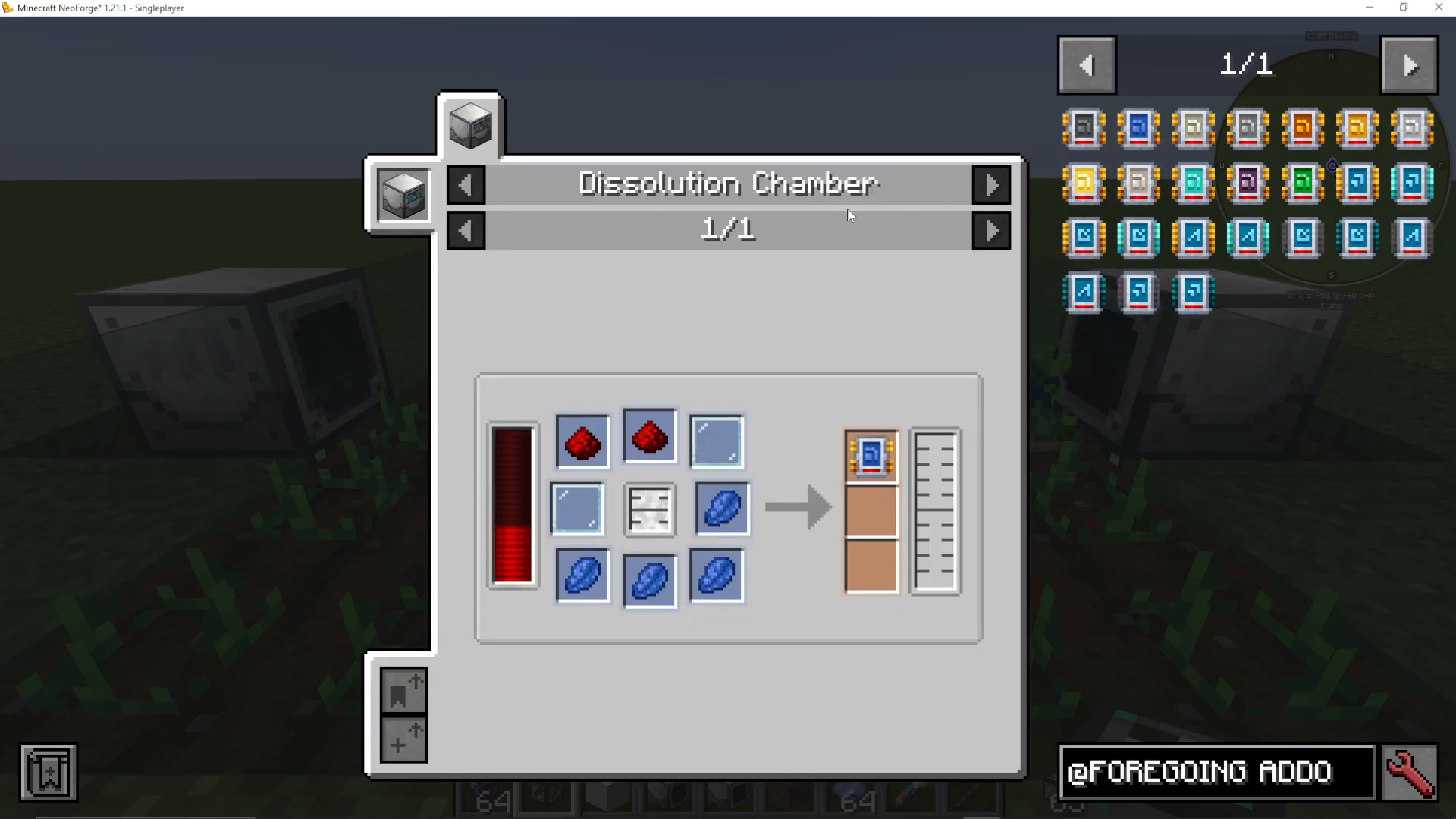
All these upgrades are crafted in the dissolution chamber. Refer to the complete Industrial Foregoing guide or dissolution chamber tutorial for crafting details.
Summary
You now have a complete understanding of automatic crop farming in Industrial Foregoing 1.21.1. To recap: install the plant sower one block underground with power and water, add range upgrades to expand the working area, specify your crops using the colored input slots, and support growth with the plant fertilizer using bone meal or custom fertilizer. Finally, harvest automatically with the plant gatherer and route items back into your system for a self-sustaining farm.
This system scales beautifully—add more machines, expand ranges with higher-tier upgrades, and process sludge byproducts into valuable materials. The modular design means you can adapt it for any crop type or even switch to tree farming.
Want to Support?
If you would like to help us continue making these guides – please consider joining our patreon here – https://www.patreon.com/c/JaviHeals
Alternatively – we host a group of MC Servers you can join here – https://discord.gg/zD7Gjt6MHF