








Just Enough Items JEI Complete Tutorial
Just Enough Items (JEI) Complete Tutorial for Beginners
Just Enough Items (JEI) is one of the most essential Minecraft mods you can install. It displays item recipes and usage directly in your inventory screen, and it works seamlessly with both vanilla Minecraft and any mods you have installed. But JEI does far more than just show crafting recipes — it includes powerful search tools, a cheat mode, and a bookmarking system. This guide walks you through every feature so you can get the most out of JEI right away.
Browsing Items and Pages
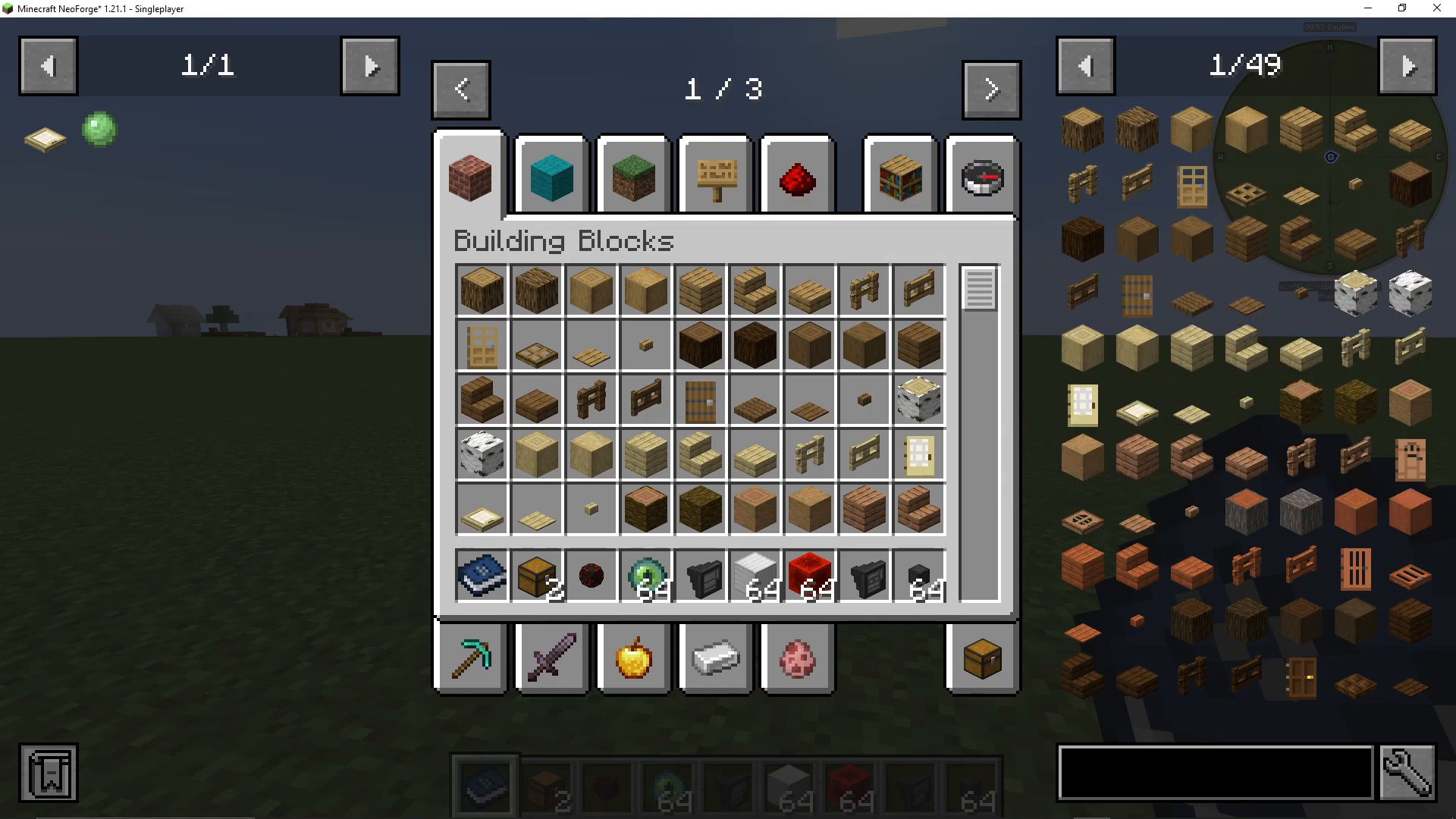
When you open your inventory, JEI displays a panel on the right-hand side of your screen showing all items available in the game — including those added by any installed mods. You can scroll through the pages using your mouse scroll wheel to browse everything that’s available.
Looking Up Recipes and Uses
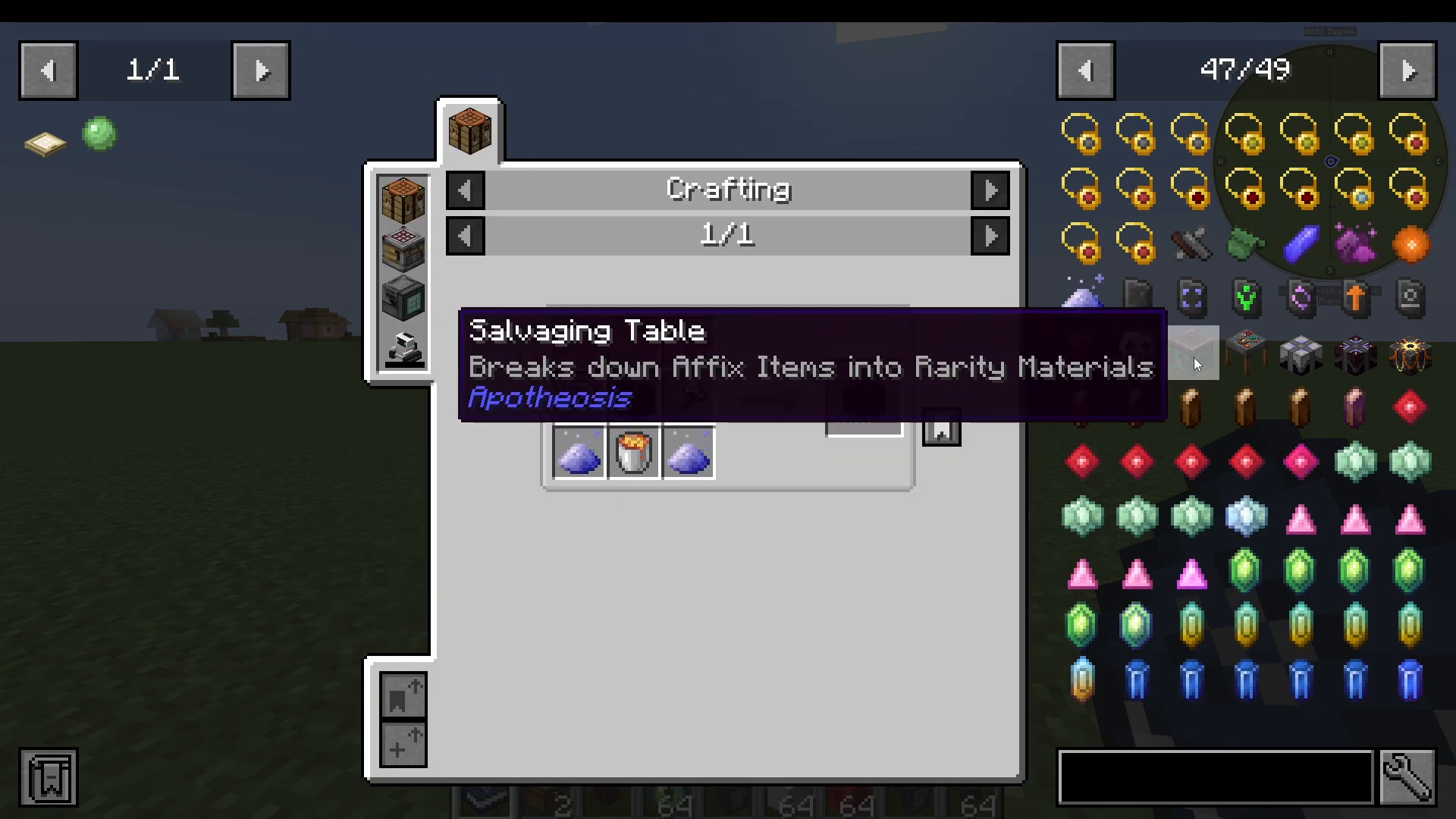
To see how to craft any item, simply hover your mouse over it in the JEI panel and press R on your keyboard. For example, hovering over the Salvaging Table from the mod Apotheosis and pressing R will immediately display its crafting recipe.
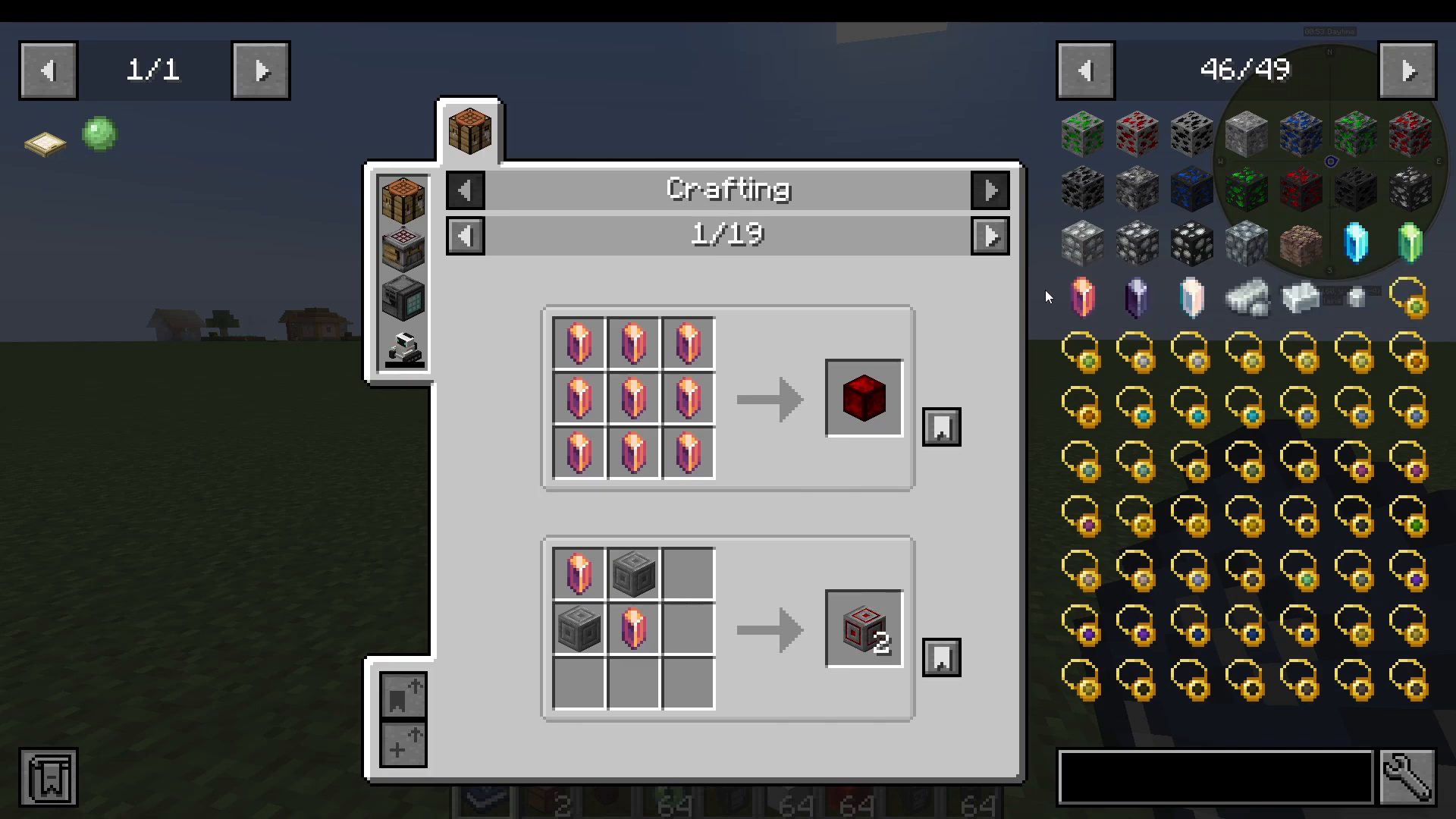
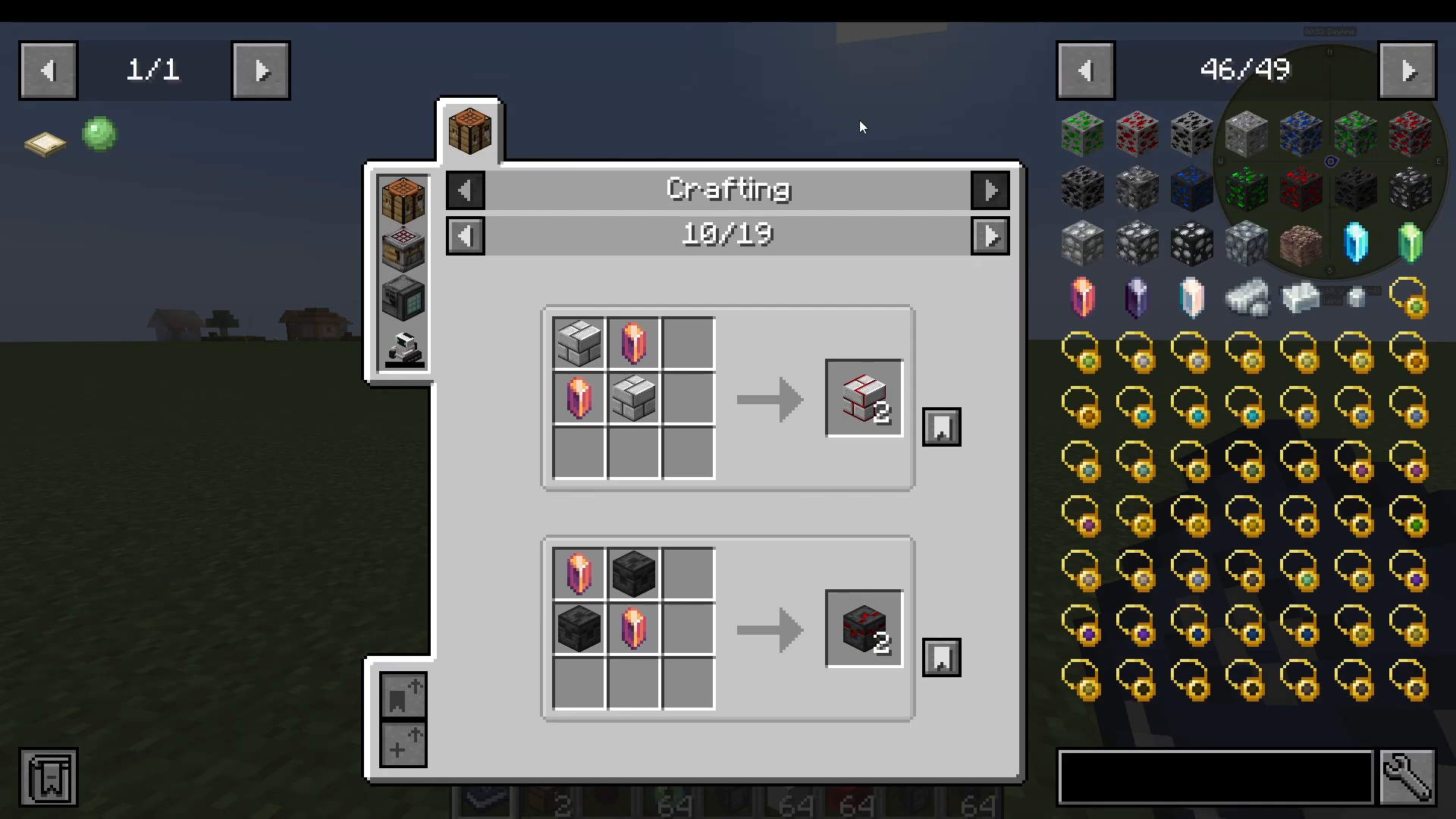
If you want to see all the things you can make with a particular item, hover over it and press U instead. Think of it this way: R for Recipe (how to make it), U for Uses (what you can make with it). You can also achieve the same results by left-clicking an item to see its recipe, or right-clicking to see its uses, without needing the keyboard shortcuts.
Toggling the JEI Overlay
If you want to hide the entire JEI item panel temporarily — for example, to get a cleaner view of your inventory — press Control + O on your keyboard. Press the same combination again to bring the overlay back.
Enabling Cheat Mode
JEI includes a built-in cheat mode that lets you spawn items directly into your inventory. To toggle it on or off, hold Control and left-click the wrench (spanner) icon in the JEI interface. When cheat mode is off, the wrench icon appears grey and clicking items will only show their recipes. When cheat mode is on, you can click and drag any item from the JEI panel directly into your inventory to give it to yourself. You can also drag items from your inventory into the JEI panel area to delete them.
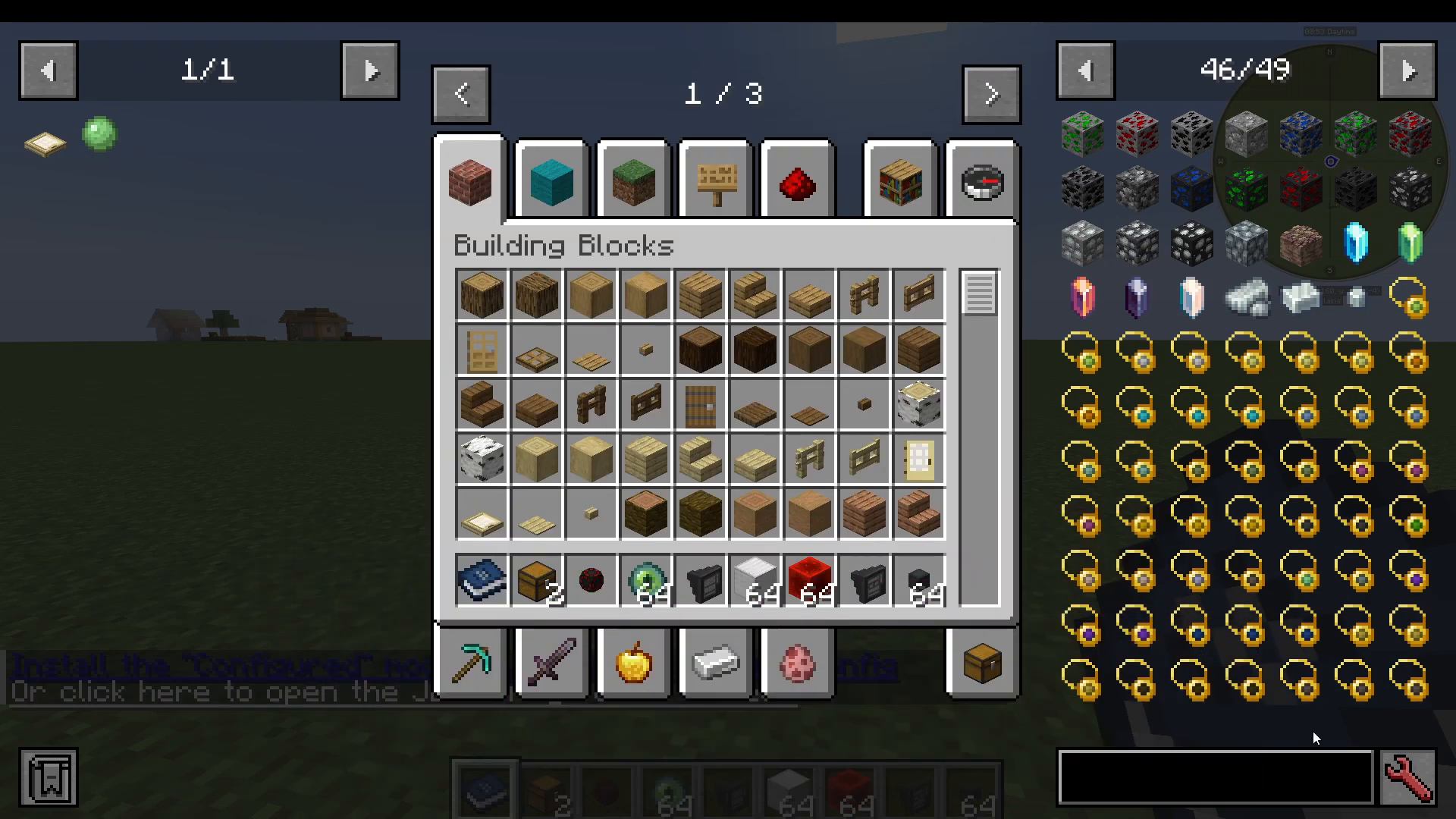
Using the Search Bar
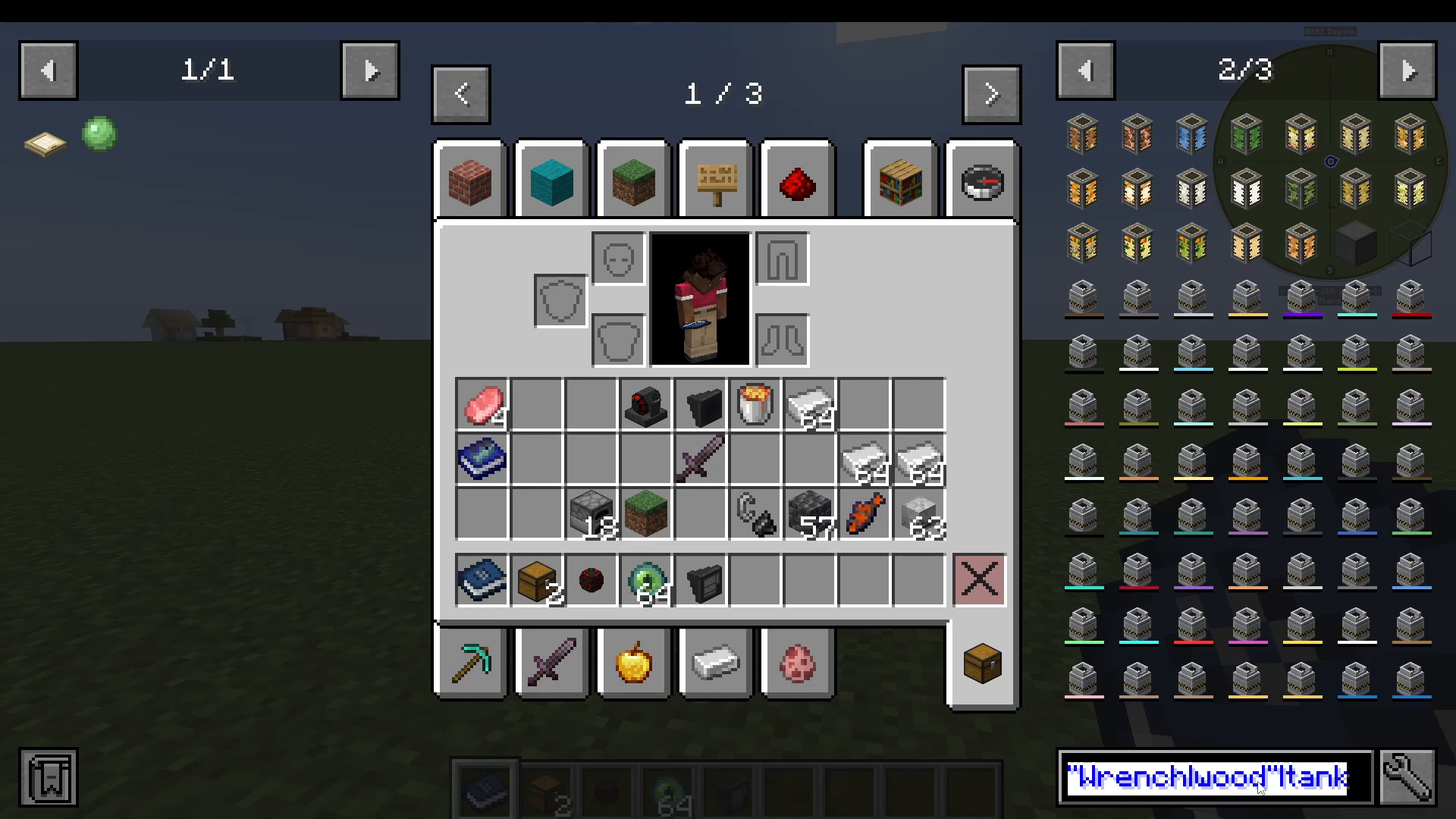
The search bar at the bottom of the JEI panel lets you filter items by name. You can click directly on the search bar and start typing, or press Control + F from anywhere in the inventory screen to jump straight to it. For example, typing Tank will display every item with “Tank” in its name.
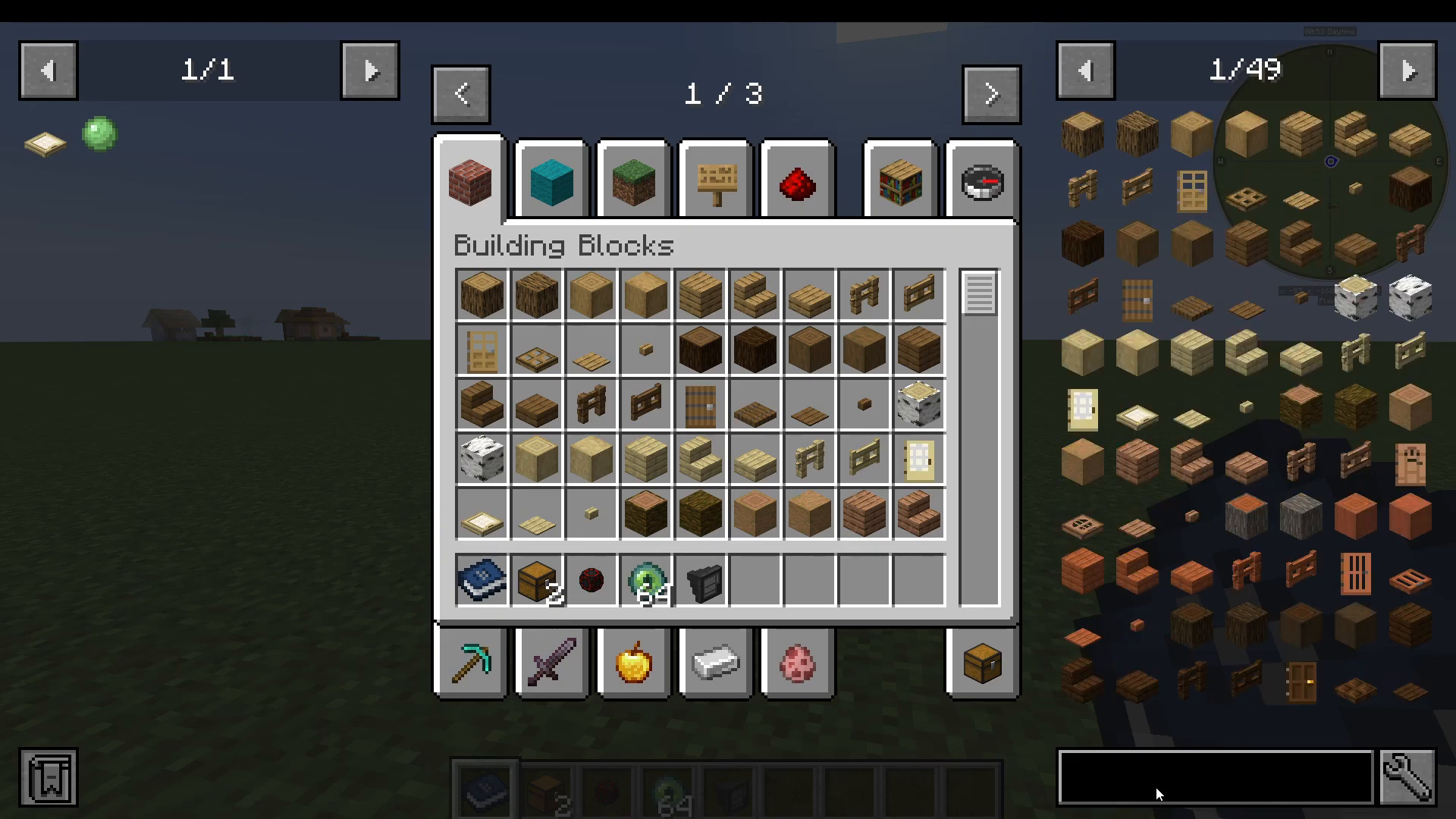
To clear the search bar, either right-click inside it to instantly clear it, or press Backspace to delete your input one letter at a time.
Searching by Mod Name
You can filter items by a specific mod by using the @ symbol followed by the mod name. For example, typing @Mekanism will show only items from the Mekanism mod. You can combine this with a regular name search — for instance, typing @Mekanism Tank will show only tanks from Mekanism. You don’t need to type the full mod name; a partial match like @Mek is enough. The mod filter and the name filter can be entered in either order.
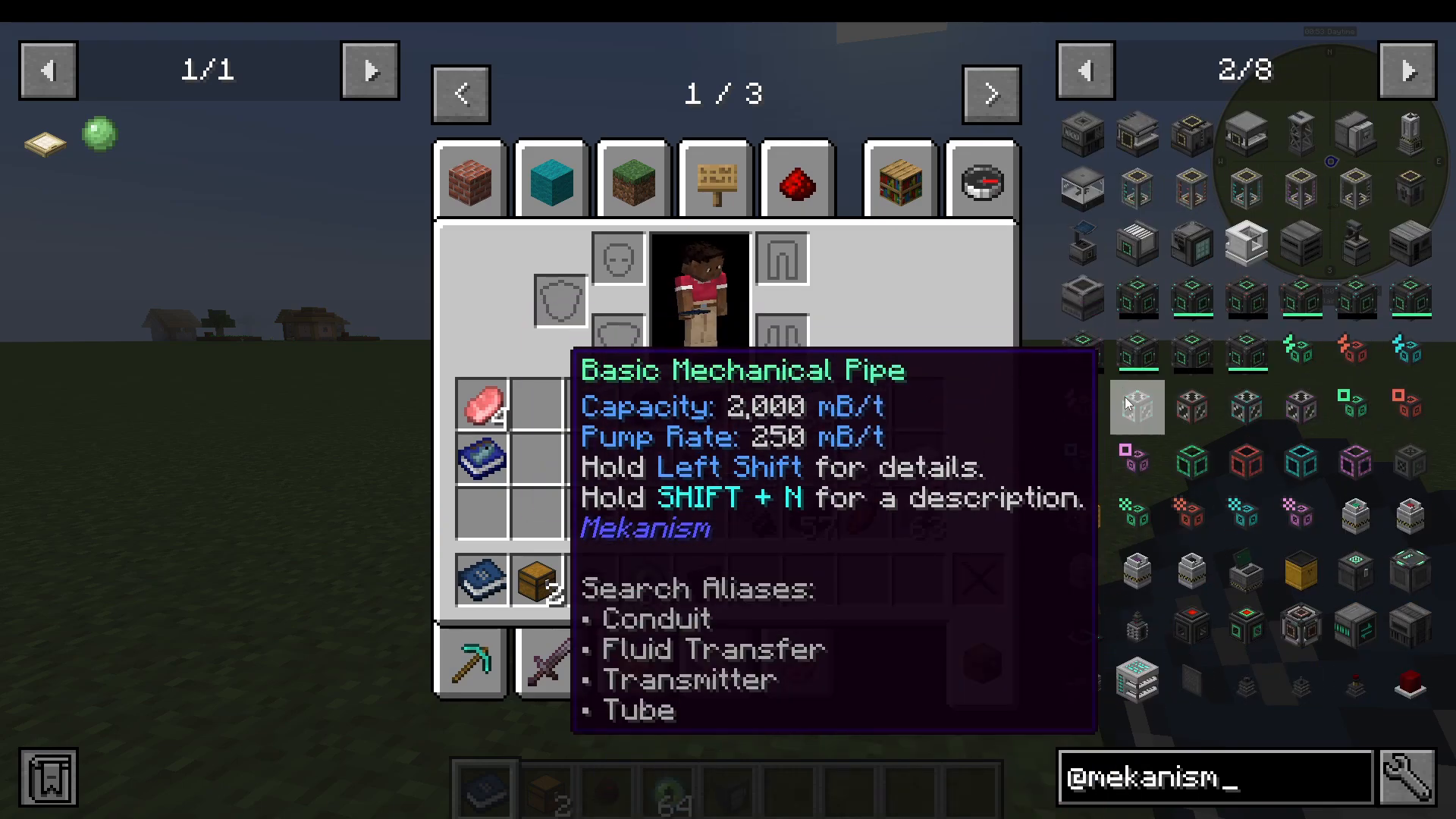
Searching for Exact Phrases
If your search term contains a space, wrap it in quotation marks to search for it as an exact phrase. For example, typing “b l” will find items whose names contain that exact letter sequence with a space in between — such as “Cob Loaf” — rather than returning every item that contains the letters B or L separately.
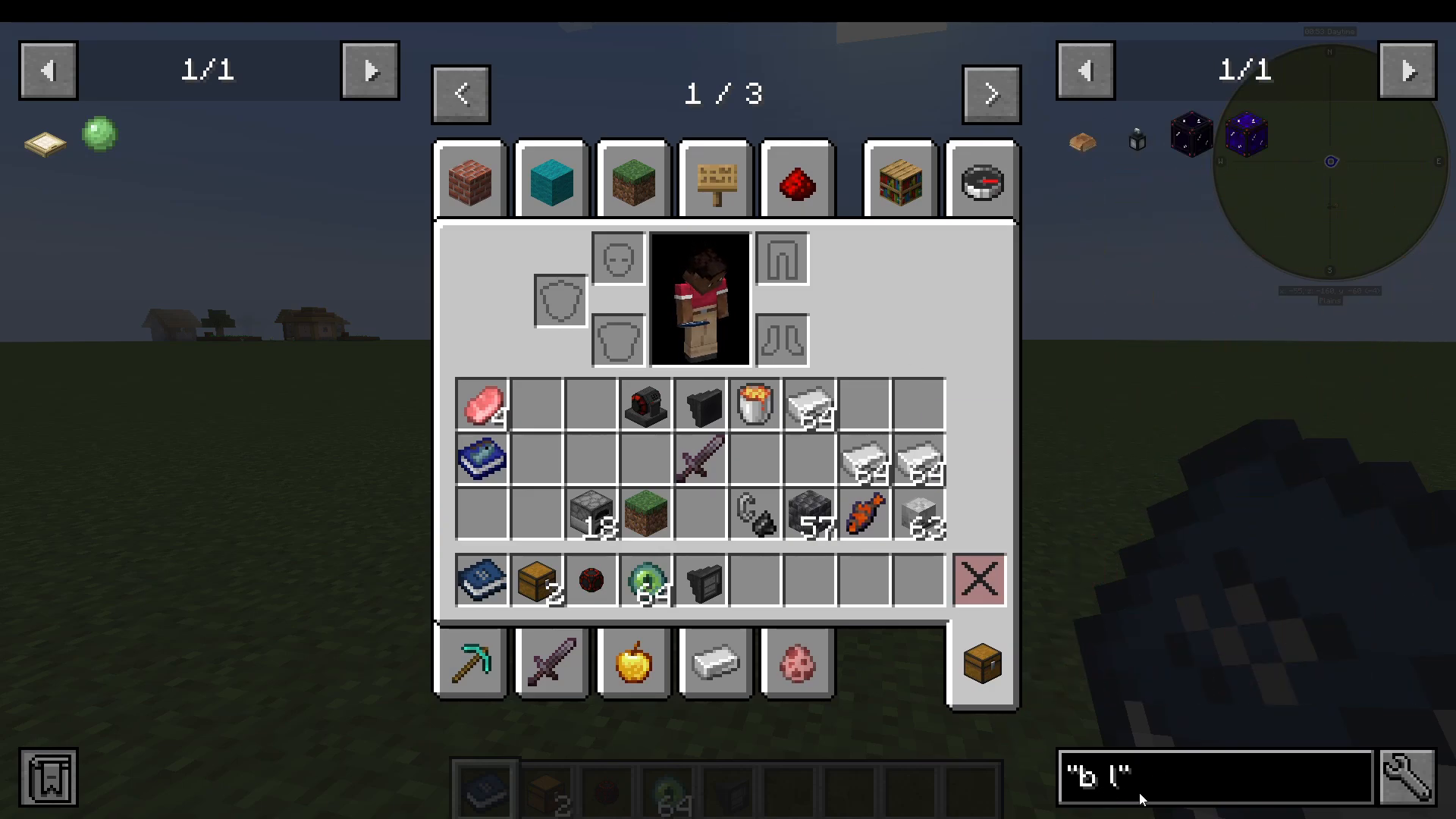
Searching by Ore Dictionary Tag
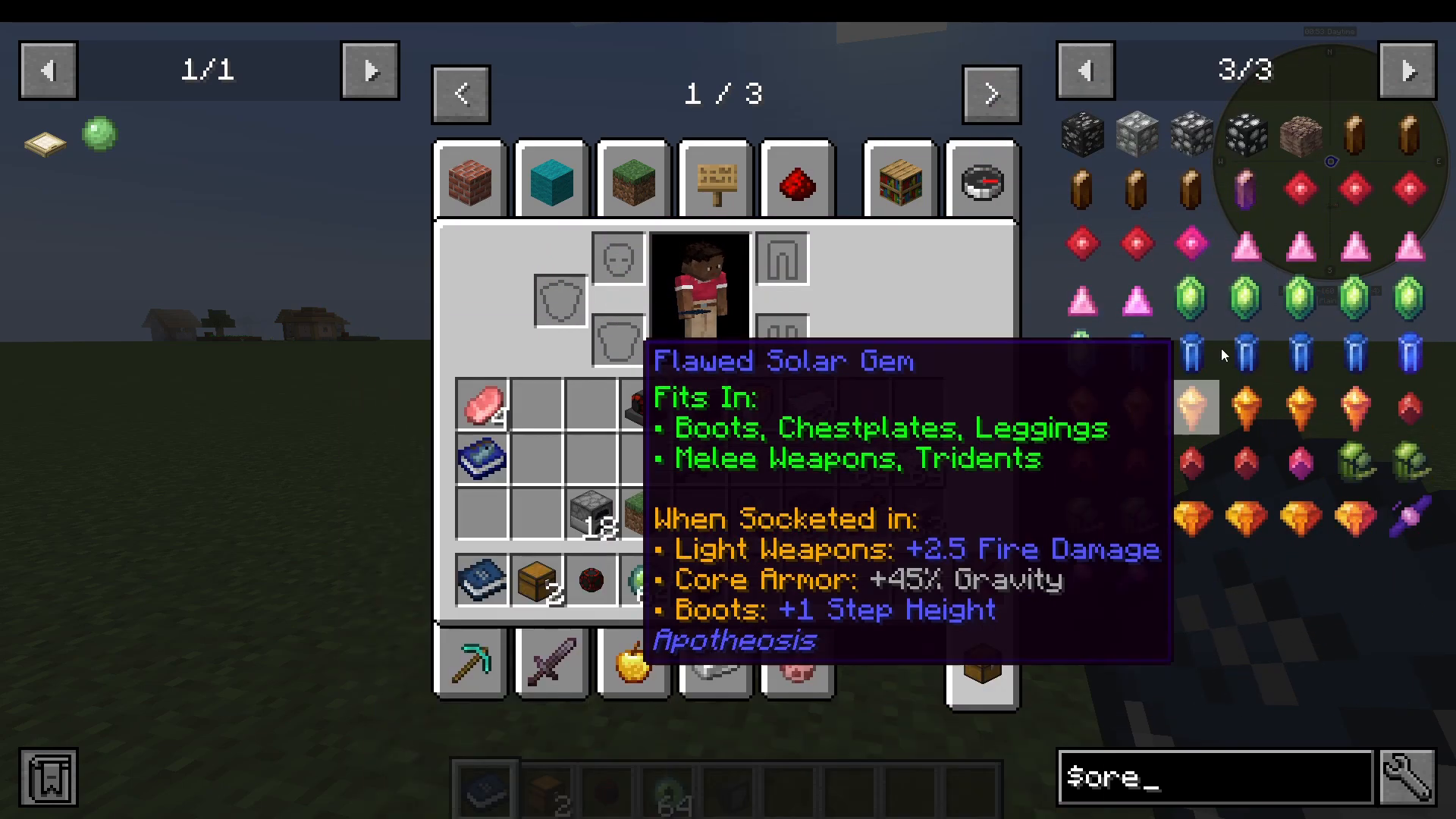
For more advanced filtering, you can search by Ore Dictionary tag using the $ symbol. For example, typing $ore will display all items tagged under “ore” in the Ore Dictionary. Typing $iron will show everything with iron in its Ore Dictionary entry, including items from multiple mods that share the same tag.
Combining Multiple Search Terms
JEI lets you run multiple searches at once by separating terms with a pipe character ( | ) — found by pressing Shift + ** (the backslash key, located next to Z and Shift on most keyboards). For example, you could search for “wrench” | wood | tank** to simultaneously display wrenches, wooden items, and tanks all in one view. You can add as many search terms as you need.
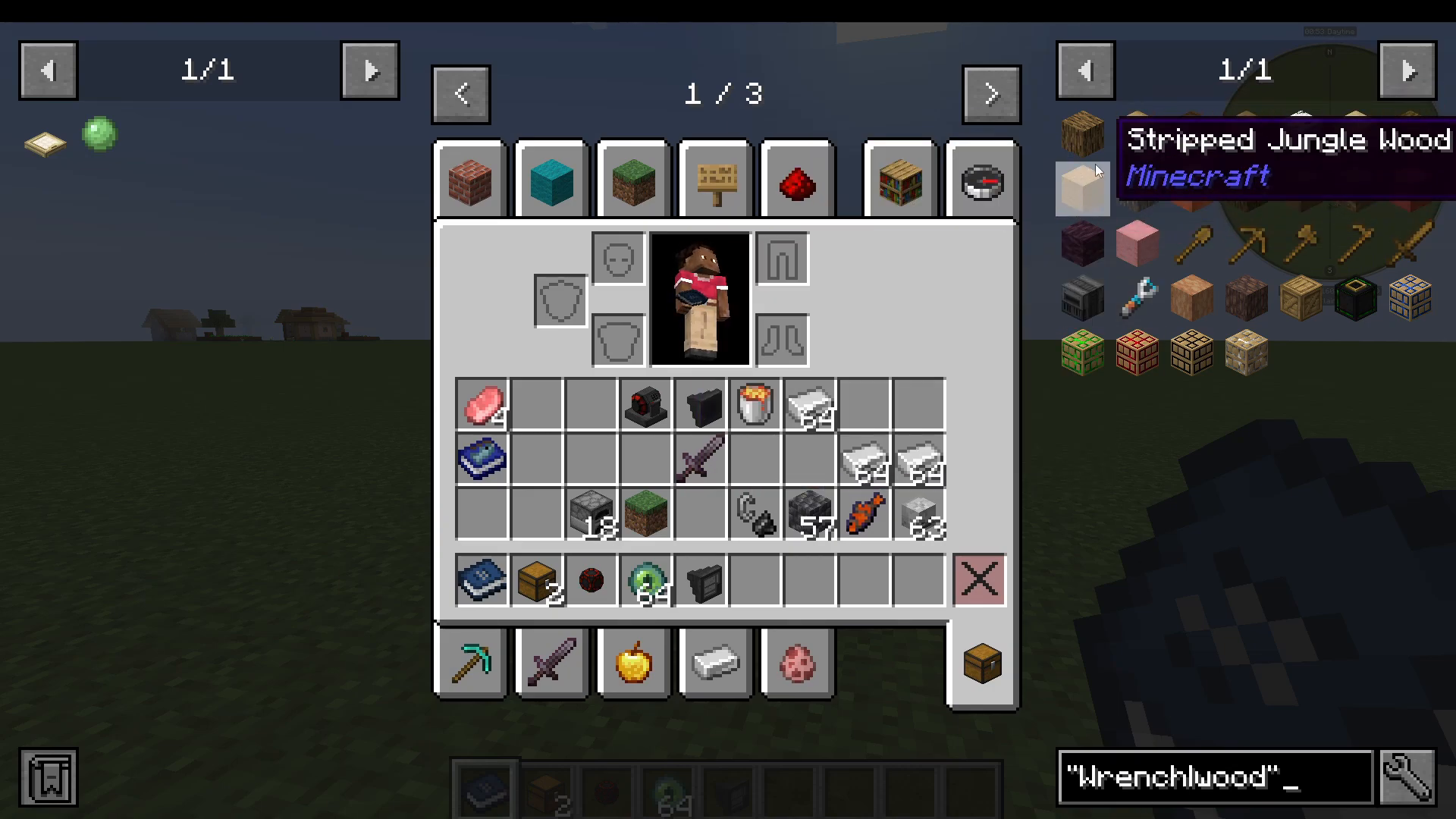
Once you’ve built a complex search string you want to reuse, you can copy it with Ctrl + C and paste it back into the search bar later with Ctrl + V to save yourself time.
Bookmarking Items
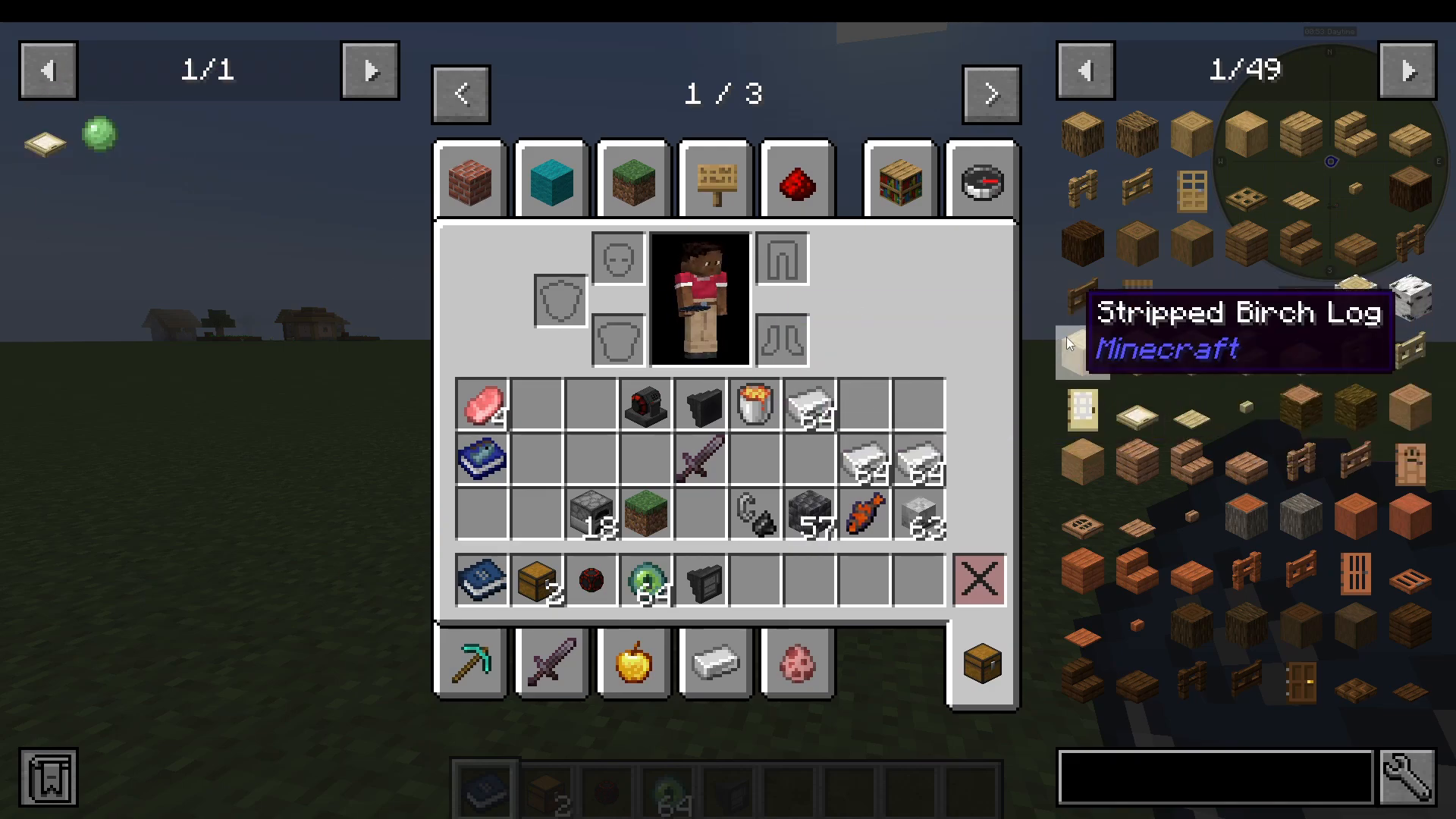
JEI includes a bookmarking feature that lets you pin items to the left-hand side of your screen for quick reference. To bookmark an item, hover over it and press A. The item will appear in your bookmarks panel on the left. Press A again while hovering over a bookmarked item to remove it. You can also show or hide the entire bookmarks panel by clicking the bookmark button in the bottom-left corner of the JEI interface. This is a great way to keep track of recipes you’re actively working toward.
Summary
Just Enough Items is far more powerful than a simple recipe viewer. Here’s a quick recap of everything JEI can do:
Press R to view an item’s crafting recipe, U to view its uses.
Press Control + O to toggle the item overlay on or off.
Control + left-click the wrench icon to enable or disable cheat mode.
Press Control + F to focus the search bar instantly.
Use @ModName to filter by mod, $tag to filter by Ore Dictionary tag, and ” “ for exact phrase searches.
Use the pipe character ( | ) to combine multiple search terms.
Press A to bookmark items for quick access.
With these tools at your disposal, navigating even the most heavily modded Minecraft instance becomes straightforward. JEI is truly indispensable for any modpack player.
“`