

The Ultimate Guide to Sophisticated Storage
The Ultimate Guide to Sophisticated Storage
If you’ve ever used the Sophisticated Backpacks mod, Sophisticated Storage will feel immediately familiar — it brings that same powerful upgrade system to your chests and barrels. Whether you’re building a simple base storage room or a fully automated sorting network, this guide walks you through everything you need to know, from crafting your first upgraded chest all the way to using every available upgrade type.
Upgrading Your Chests
The simplest entry point into Sophisticated Storage is upgrading a standard Minecraft chest. Using just some sticks and a redstone torch, you can craft a basic Sophisticated Storage chest upgrade. Right-click your existing chest with the upgrade item to apply it — note that if you’re using a double chest, you’ll need two upgrade items, one for each half.
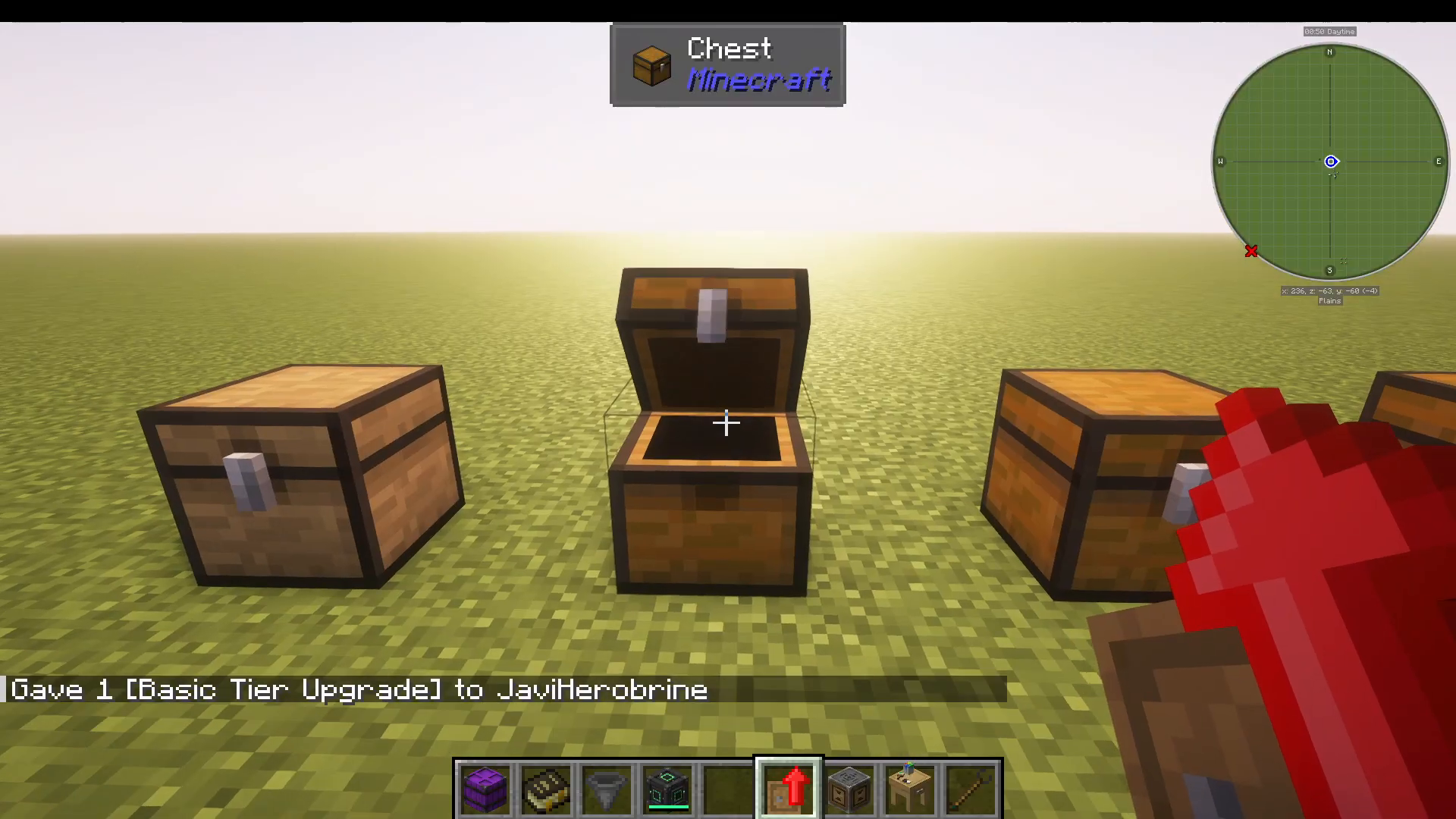
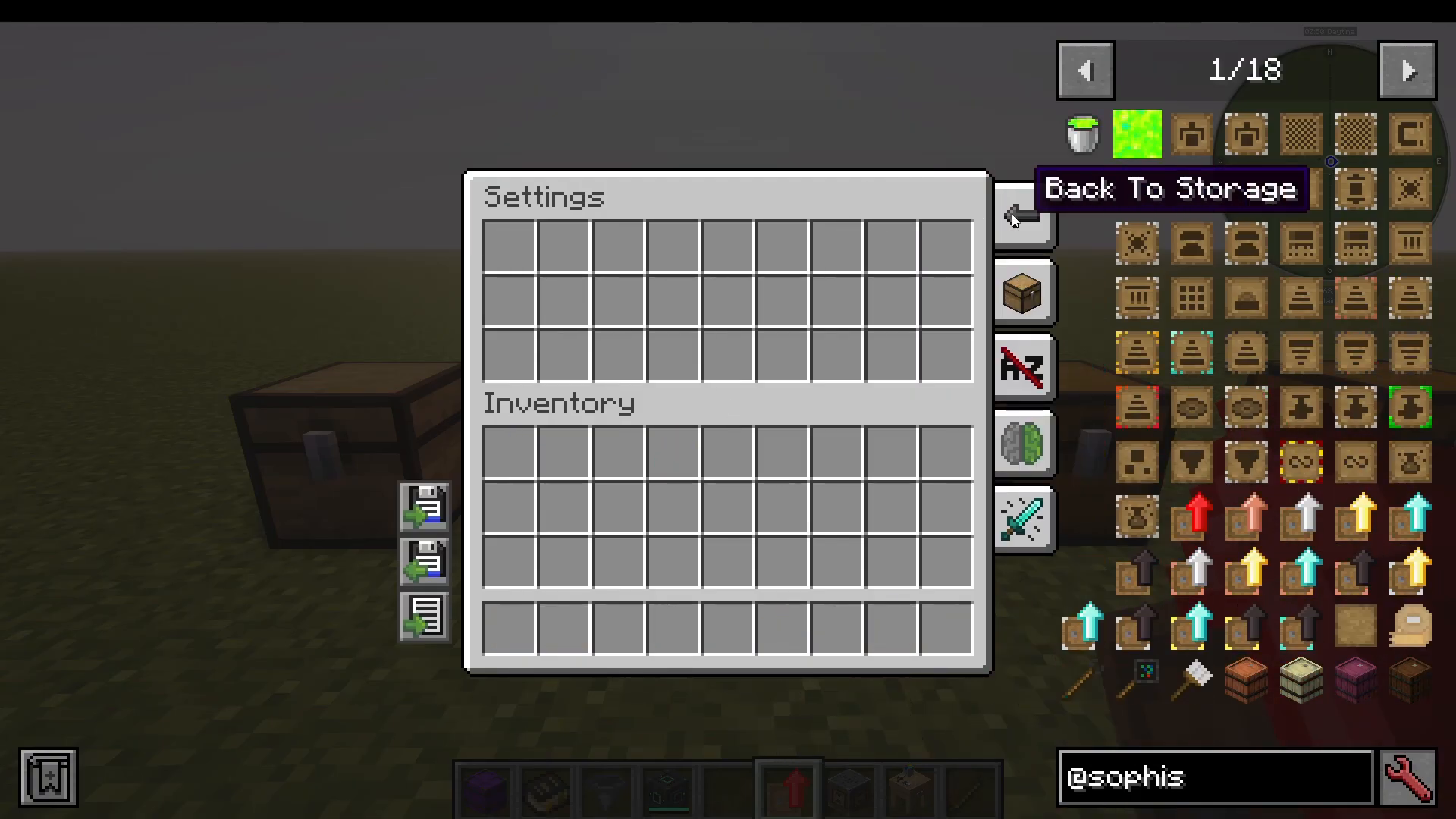
Once upgraded, right-clicking the chest opens a new interface that includes an upgrade slot and a settings panel. From here you can save your current chest configuration to a slot (for example, slot one), then load that same configuration onto other chests. You can also export settings to a named file, which is especially useful when migrating between different modpacks.
Item Display Settings
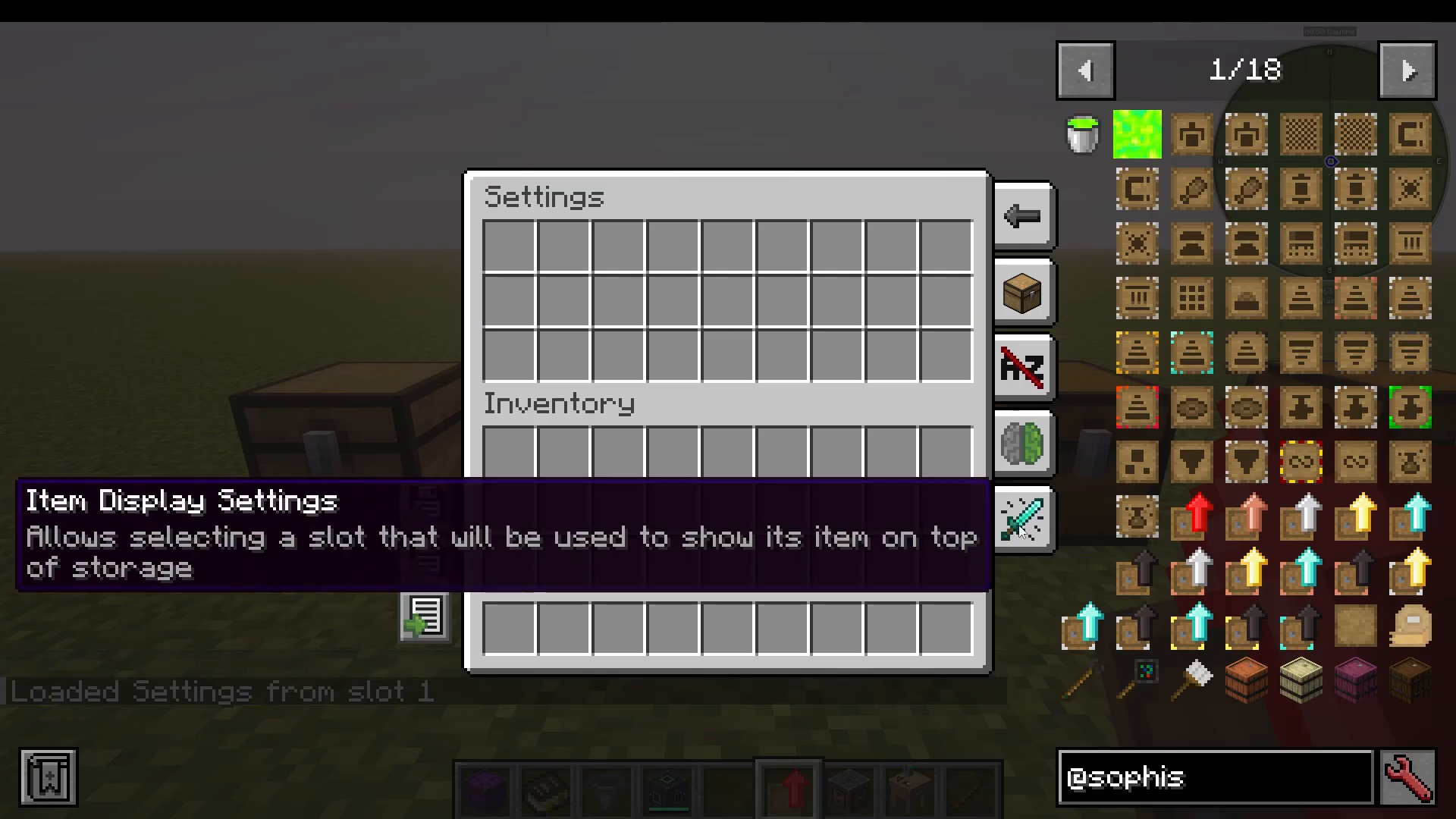
Inside the chest settings you’ll find Item Display Settings, where you can toggle item rotation and enable colour display for the items stored inside.
Slot Memory
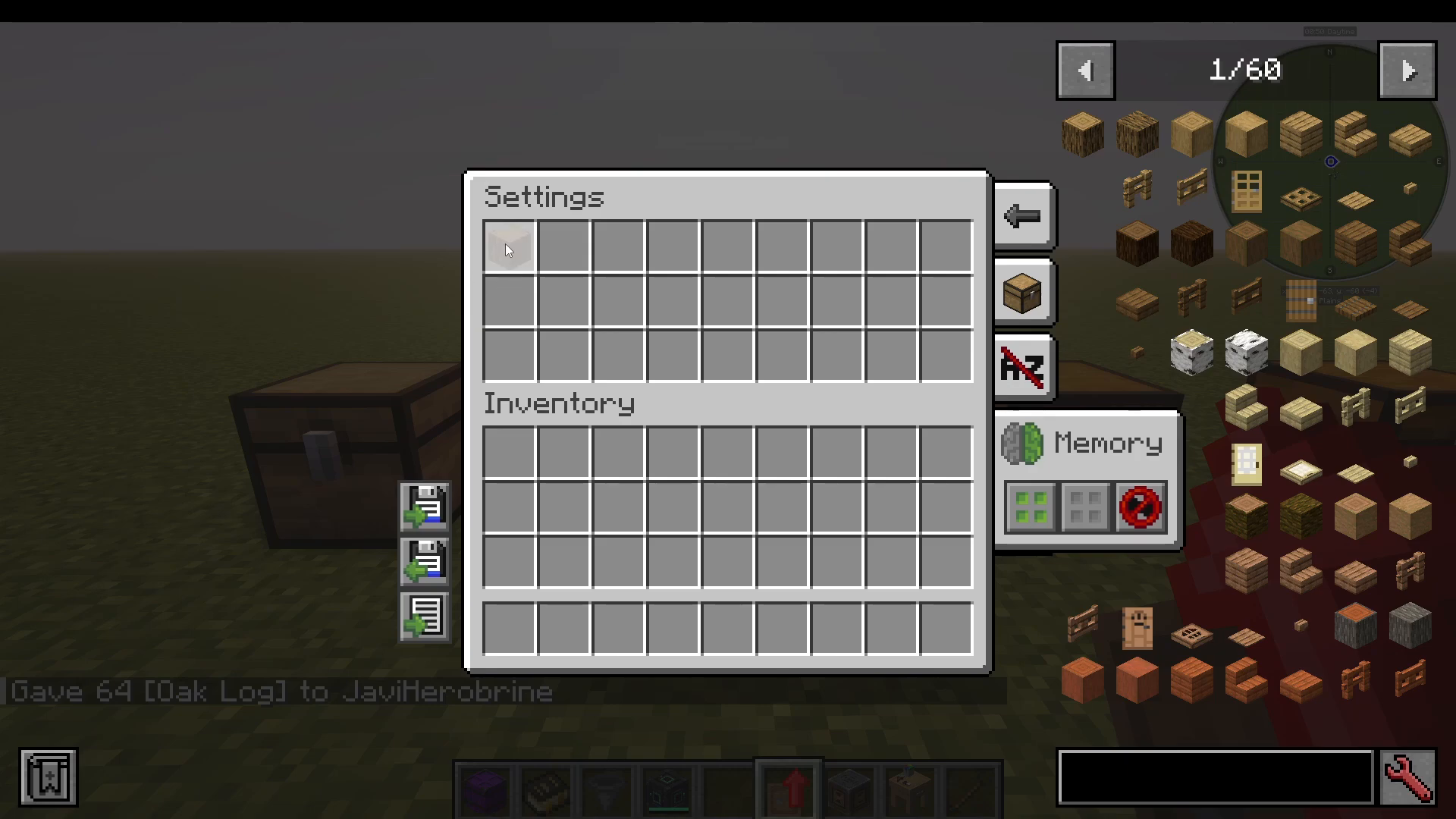
The Slot Memory feature lets you assign specific items to specific slots. Enable it, then drag an item — for example, oak logs — from Just Enough Items (JEI) directly into a slot. That slot will then exclusively accept oak logs. You can select all slots at once, unselect all slots, and optionally enable Ignore NBT Data for more flexible matching.
Sorting Settings
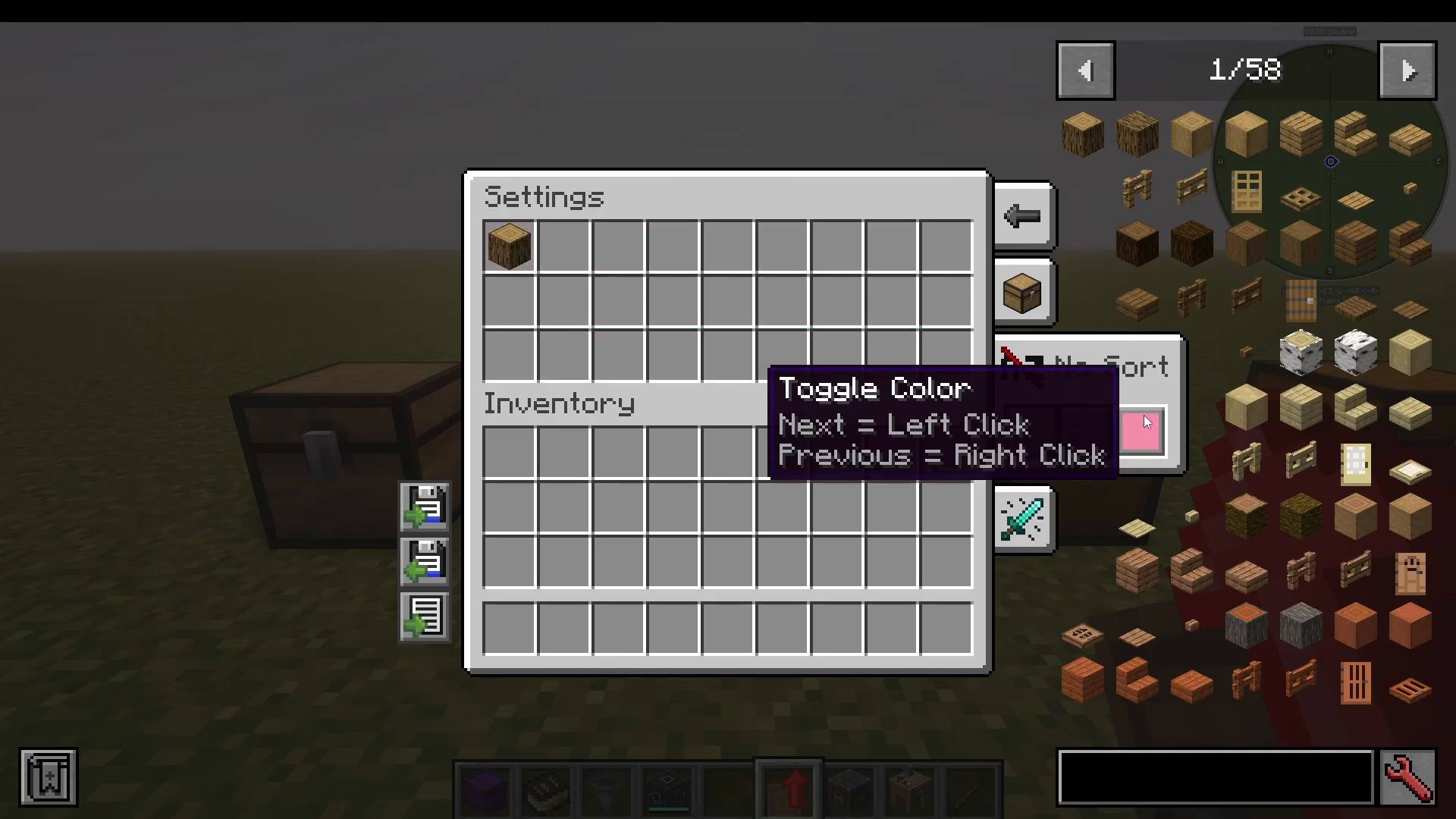
Under Sorting, you can designate specific slots to be ignored by the auto-sort function. Left-click a slot to exclude it from sorting, or right-click to disable it entirely. You can also assign a colour to those excluded slots for easy visual identification.
Storage Settings and Search
The Storage Settings panel lets you configure shift-click behaviour: when you shift-click an item from your inventory into storage, it will first try to place the stack in the main inventory area, then into any open tab. You can also enable a search function to find items quickly — this becomes especially powerful when you’re working with a storage controller managing dozens of chests.
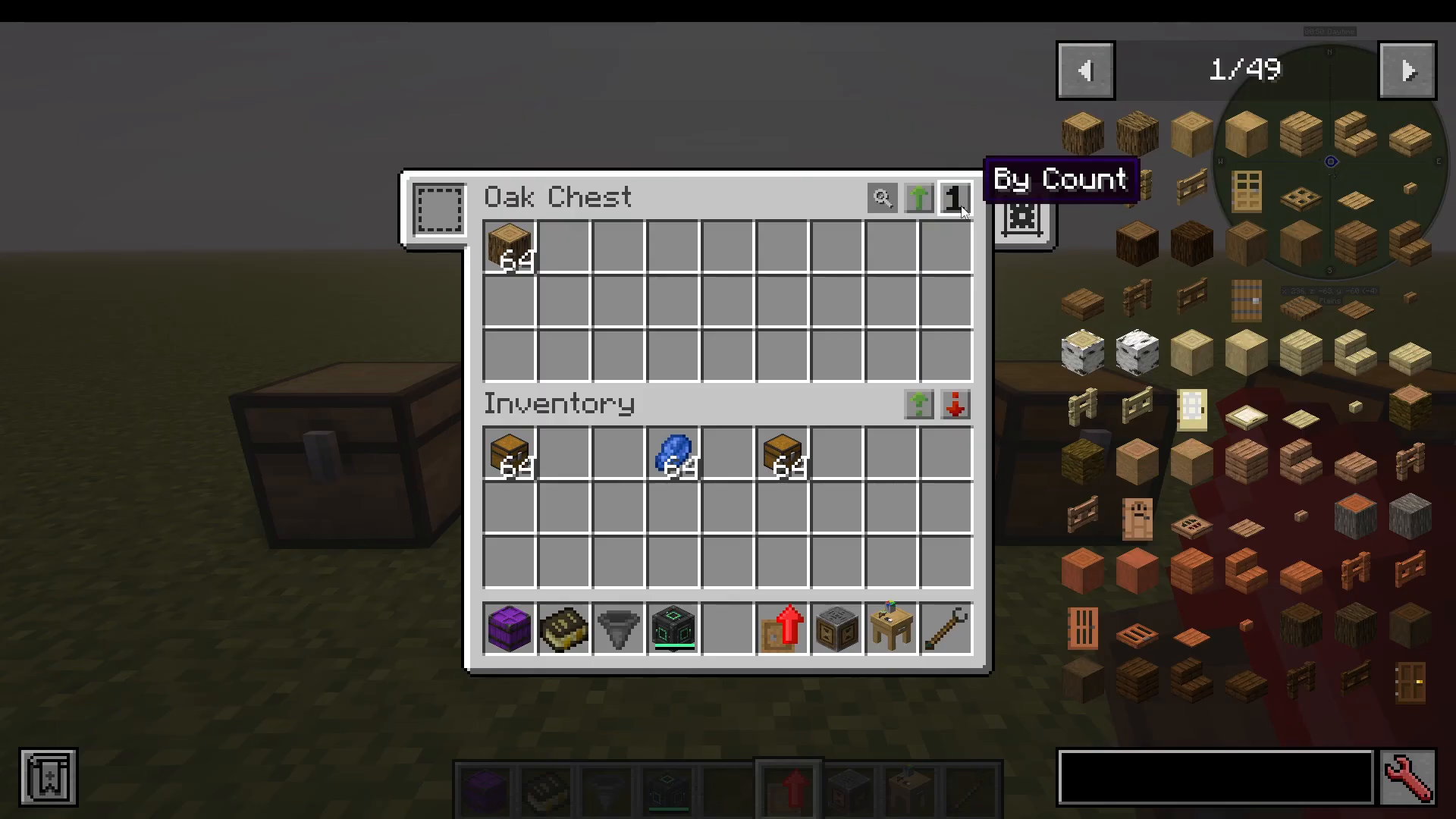
The interface also lets you sort items by name, by mod, or by count. For example, sorting by count will display items with the fewest quantity first. You can use Transfer Matching to Storage to push only items that already exist in the chest from your inventory into it, or Transfer Matching to Inventory to pull matching items back out.
Chest Tiers and Upgrade Paths
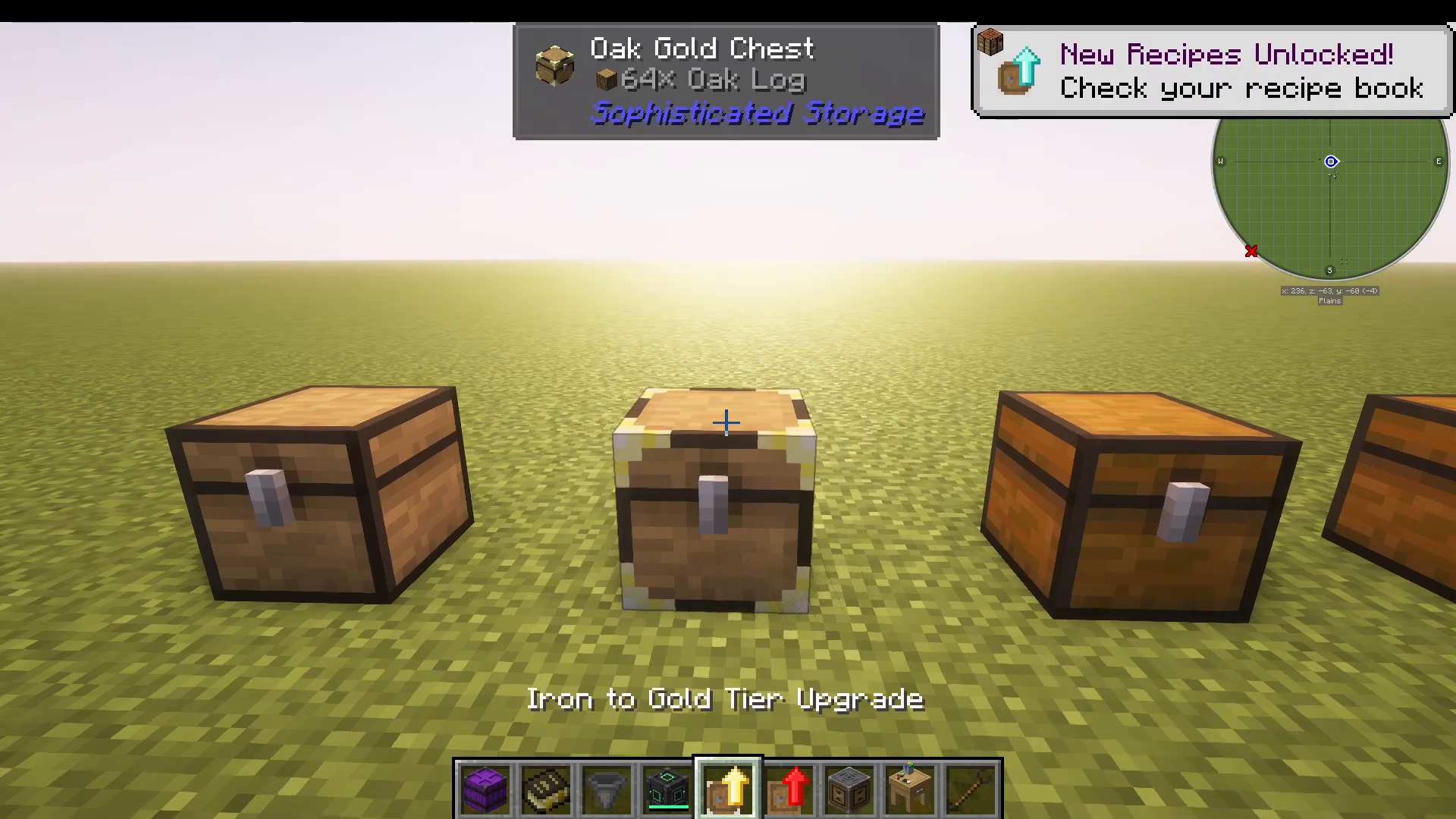
Sophisticated Storage chests come in multiple tiers, each offering more inventory space and additional upgrade slots. Here is the full upgrade path:
Basic — Starting tier, crafted with sticks and a redstone torch
Copper — Adds a copper accent; significantly larger inventory (Basic → Copper upgrade)
Iron — Two upgrade slots (Basic → Iron, or Copper → Iron)
Gold — Three upgrade slots (Iron → Gold, or Copper → Gold)
Diamond — Four upgrade slots (Gold → Diamond)
Netherite — Five upgrade slots and a very large inventory (Diamond → Netherite)
Each tier is a physical upgrade applied to the existing chest — you do not need to break and replace it. Simply craft the appropriate tier upgrade item and apply it directly.
The Storage Controller
When you want to manage multiple chests as a single unified network, you need the Storage Controller. Place it near your chests and it will automatically connect to all Sophisticated Storage inventories within a 15-block radius that are physically touching it or linked to it.
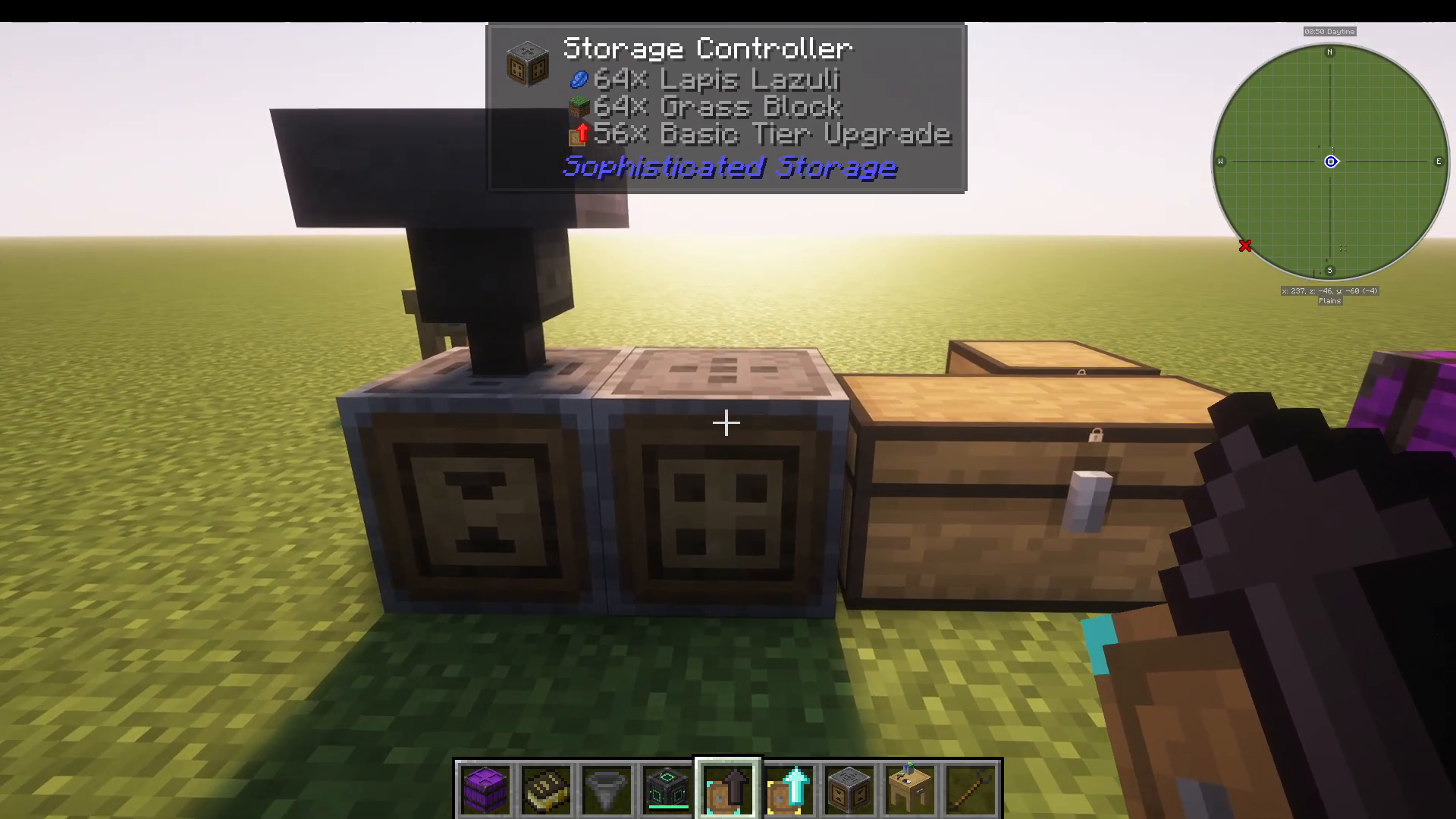
To demonstrate: place a Storage Controller alongside three oak chests. The controller will detect and connect those chests automatically without any extra configuration needed. However, if a chest is not connecting as expected, you can always link them manually using the Storage Tool (covered below).
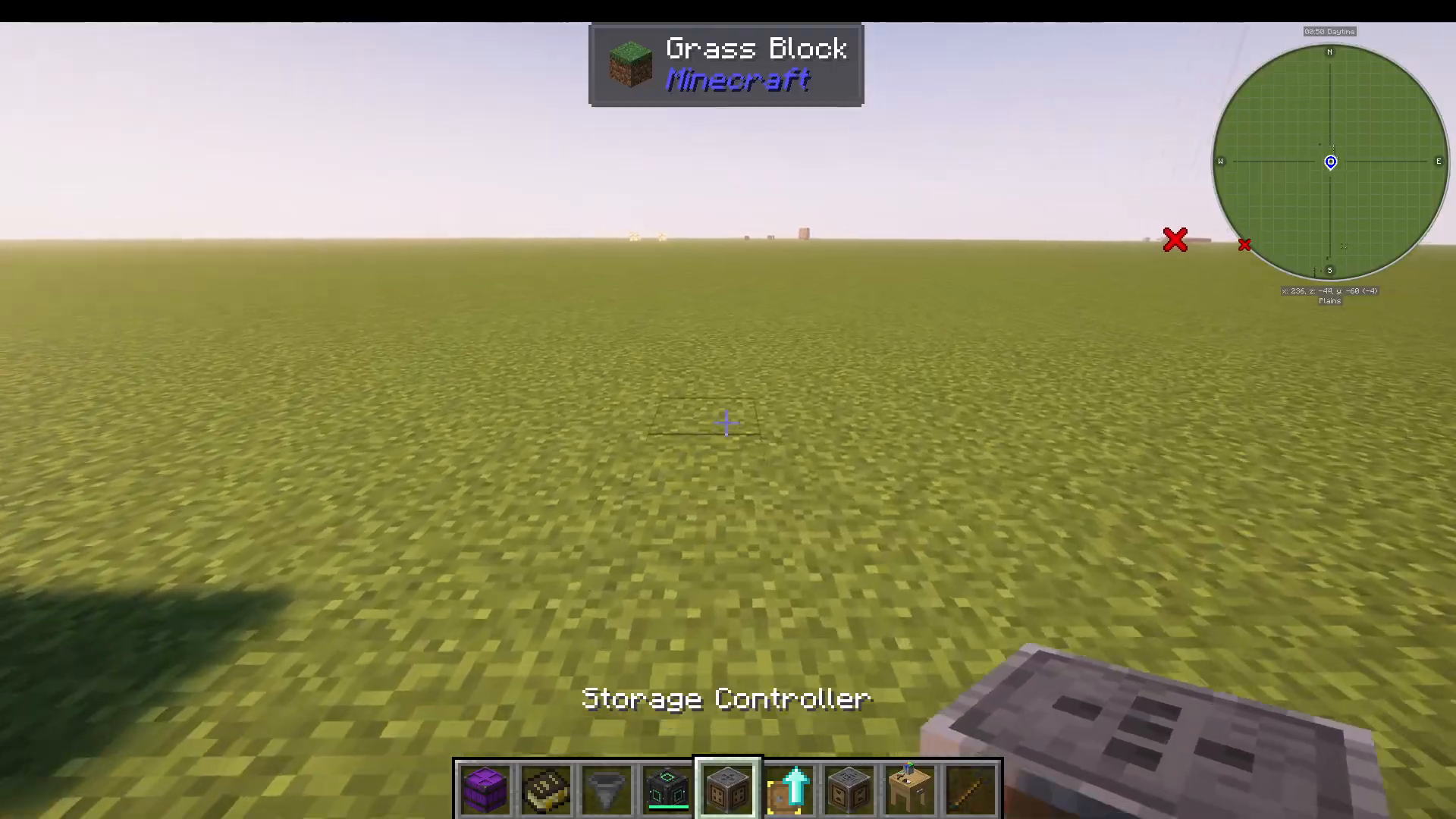
The Storage Tool
The Storage Tool is your primary management item. Hold it and sneak (Shift) + scroll your mouse wheel to cycle through its different operating modes. The key modes include:
Locking / Unlocking — Locks a chest so it only accepts specific items
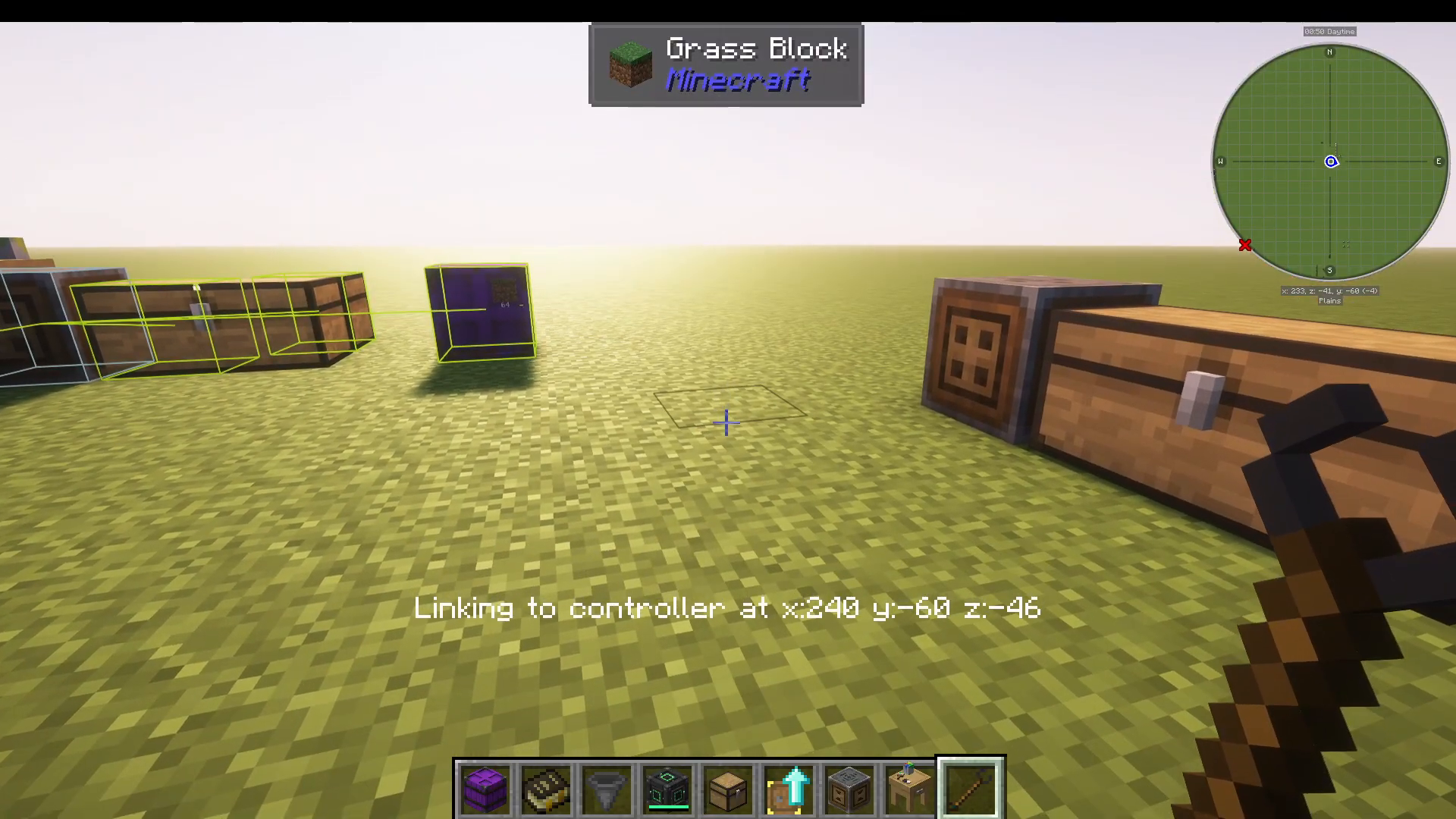
Linking to Controller — Manually links a chest to the controller
Showing / Hiding Fill Levels — Toggles fill level display (barrels only)
Showing / Hiding Upgrades — Toggles the visibility of installed upgrades
Showing / Hiding Tiers — Allows higher-tier blocks to visually appear as base-tier blocks
Showing / Hiding Locks — Shows or hides the padlock icons and item count displays
Locking Chests
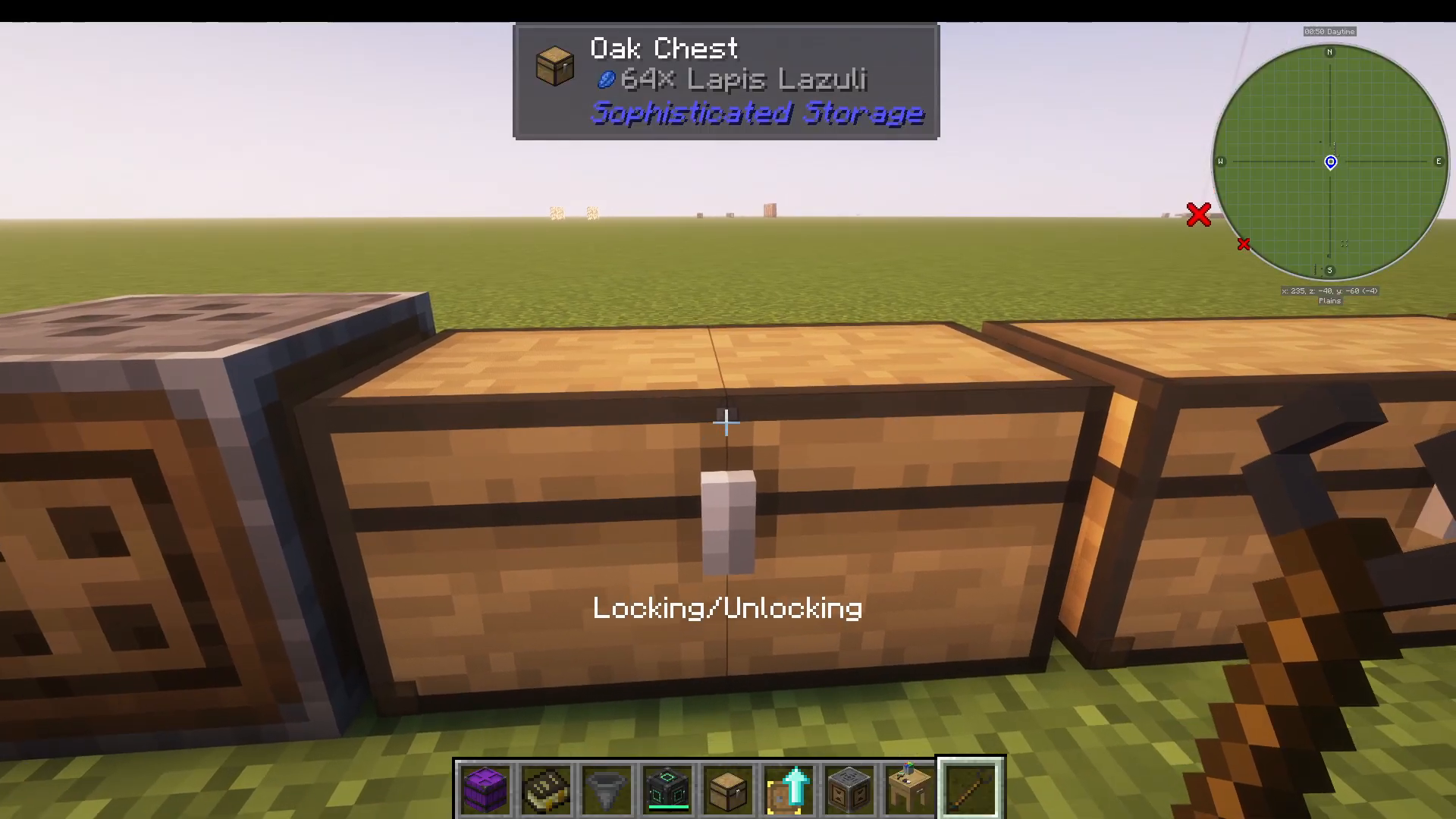
To lock a chest, first place the item you want to reserve for it inside the chest (for example, 64 lapis lazuli). Then switch your Storage Tool to Locking mode using Shift + scroll, and right-click the chest. A small padlock icon will appear on the chest, indicating it will now only accept lapis lazuli through the network. Any other items piped into the network will skip that chest and find another available slot.
Inputting Items into the Network: Storage I/O
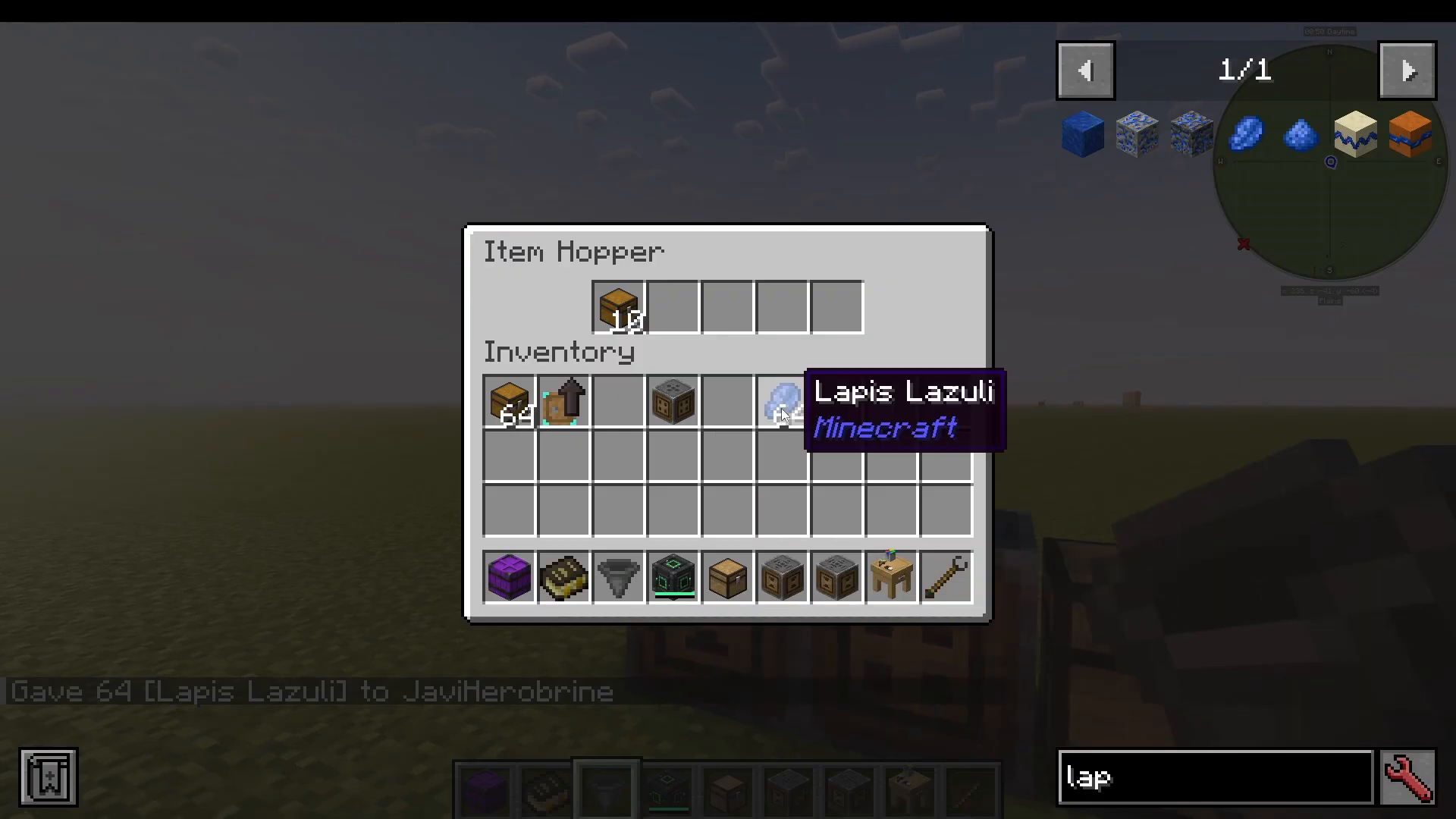
You cannot directly hand-insert items into the storage controller’s network through the controller block itself. Instead, use a Storage I/O block (I/O standing for Input/Output). Place it adjacent to the network and connect a hopper, Mekanism pipes, or any compatible piping system to feed items in.
If you want one-directional control, you can use a dedicated Storage Input block (accepts items only) or a Storage Output block (dispenses items only) instead of the combined I/O block.
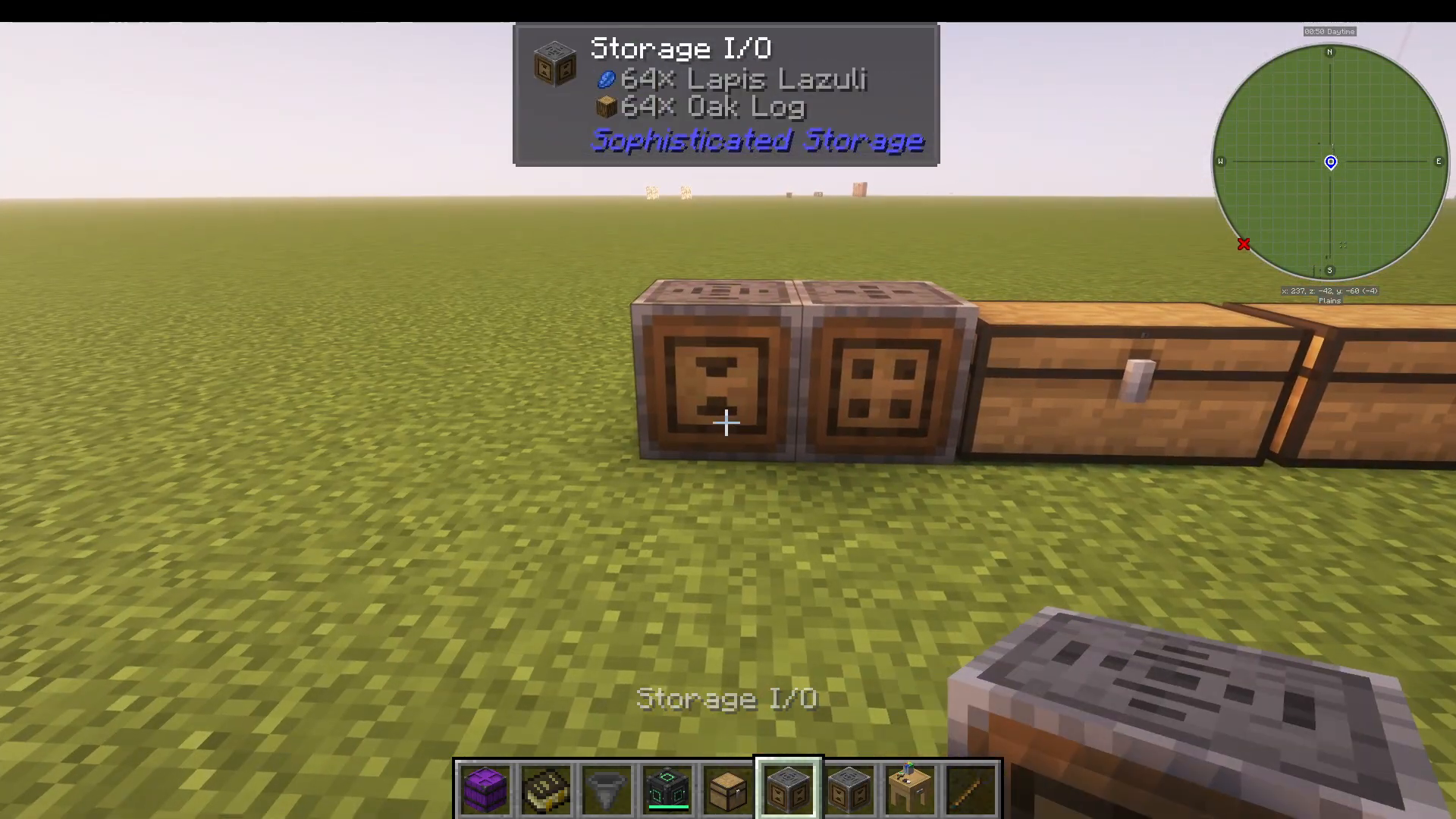
Once items are flowing in via hopper through the Storage I/O, the network will automatically route them to the appropriate locked chest. For example, lapis lazuli will flow directly into the chest locked for lapis, while oak logs will route to the chest locked for logs. Items that do not match any locked chest will fill the next available unlocked storage.
The Storage Link: Connecting Remote Chests
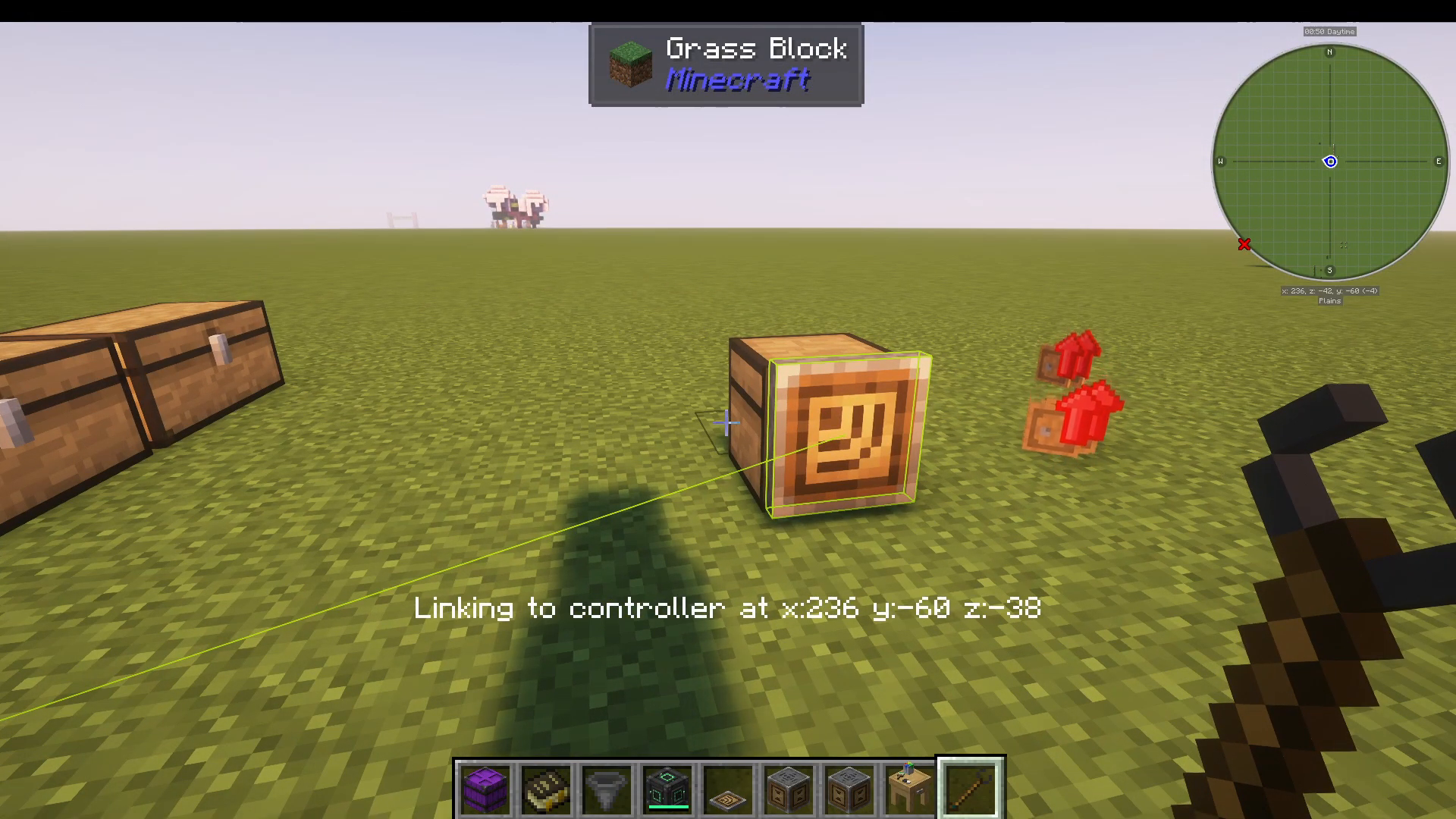
If you have a chest that is not physically touching the storage controller (or any chest in the connected chain), you can use a Storage Link to bring it into the network. Shift-click the Storage Link item onto the remote chest, then switch your Storage Tool to Linking to Controller mode. Right-click the controller first, then right-click the Storage Link on the remote chest — the two are now linked.
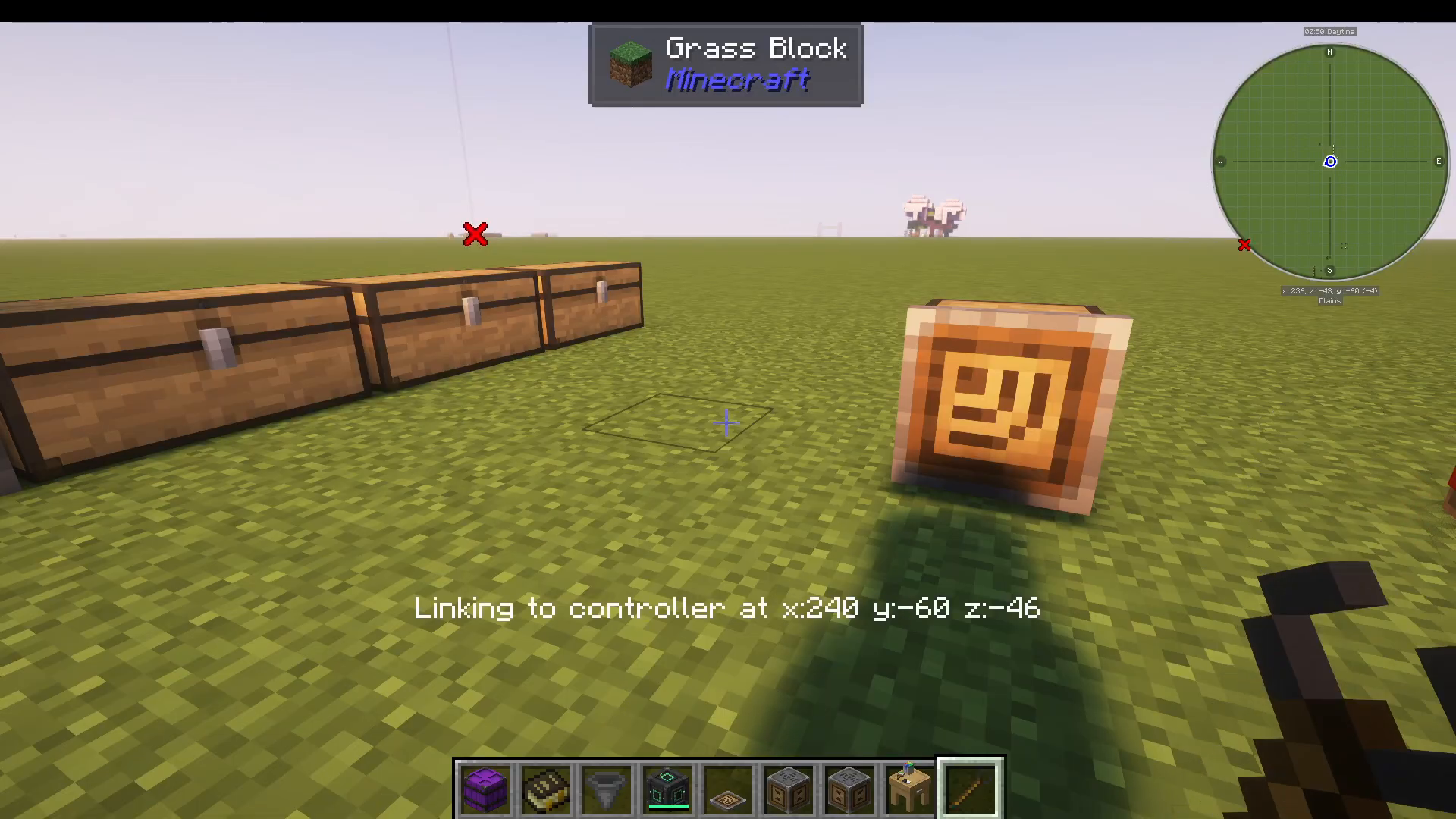
Important limitation: the Storage Link still requires the remote chest to be within a 15-block radius of the storage controller. You cannot extend the network beyond 15 blocks using links alone. For cross-dimension or long-distance storage transfer, consider using a Tesseract mod alongside Sophisticated Storage.
Barrels
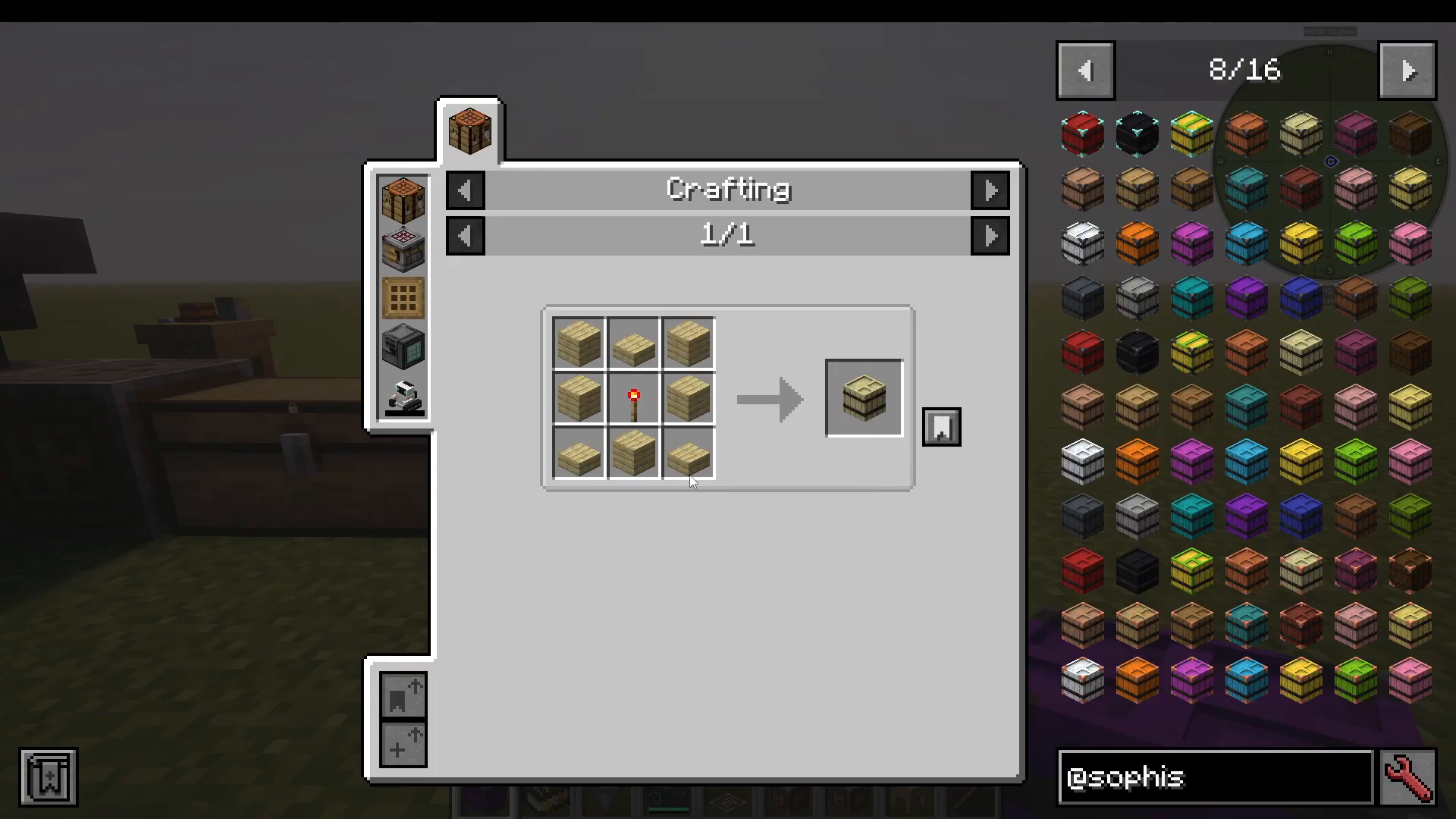
Sophisticated Storage also includes barrels in the same tier system — basic, copper, iron, and beyond. You can craft standard barrels or Limited Barrels, which offer a configurable number of slots with a base stock size multiplier. For example, a Limited Birch Barrel (3 slots) gives you one large slot and two smaller slots, while a 4-slot version allows four different item types in a single barrel.
Customising Barrels with the Decoration Table
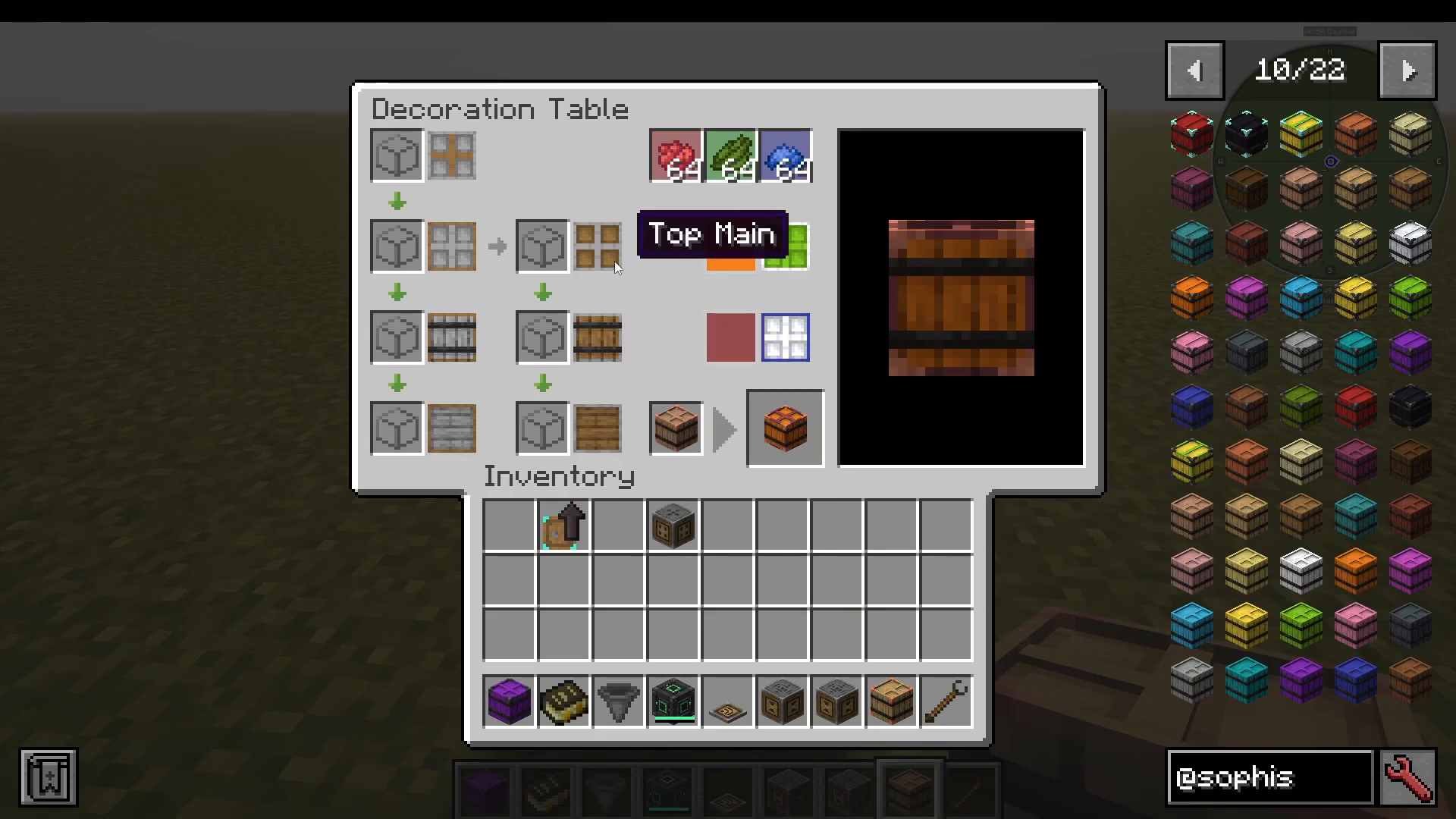
Place a barrel into the Decoration Table to customise its appearance. Hover your mouse over each side of the barrel preview to see and edit individual faces. Add red, green, and blue dye to the table, then change the Main Tint and Accent Tint to any colour combination you like. Once you’re happy (or deliberately hideous), remove the barrel and your custom look is applied permanently.
All Upgrades Explained
Upgrades are placed into the upgrade slots of any Sophisticated Storage chest or barrel. Each upgrade adds a specific function to that individual storage block. Here is every upgrade covered in full:
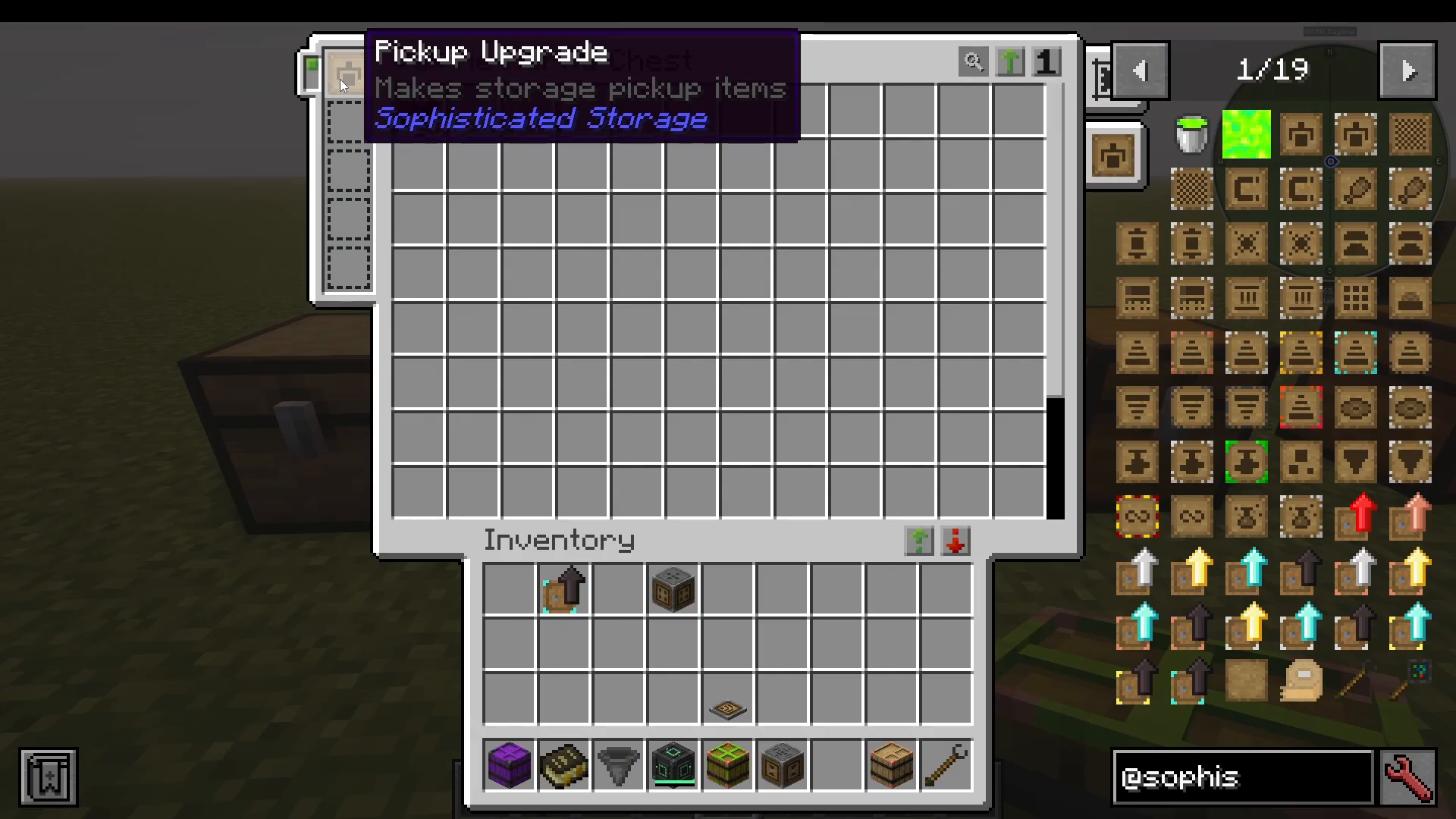
Pickup Upgrade
Causes the storage block to automatically pick up items that physically touch it, provided they match the upgrade’s filter. The filter has three modes:
Match Storage Contents — Only picks up items already inside the chest
Allow — Only picks up items explicitly listed; if the list is blank, everything is blocked
Block — Blocks listed items; everything else is collected
The Advanced Pickup Upgrade extends this with mod-based matching (e.g., only pick up Sophisticated Storage mod items), ignore durability, or match durability for collecting damaged gear.
Filter Upgrade
Filters which items can be piped into or out of the storage block through automation.
Magnet Upgrade
Similar to the Pickup Upgrade but teleports nearby items directly into the storage block rather than requiring physical contact. The Advanced Magnet Upgrade provides a larger range and supports bigger filter lists.
Feeding Upgrade
Automatically feeds the player food items stored in the chest. The Advanced Feeding Upgrade offers more configuration options.
Compacting Upgrade
Automatically compacts items into their compressed variants using 2×2 or 3×3 crafting recipes — for example, compressing cobblestone into compressed cobblestone blocks. The Advanced Compacting Upgrade supports more complex recipes.
Void Upgrade
Voids (permanently deletes) any items that match its filter when the chest is full. Useful for automatically discarding unwanted bulk items like cobblestone or gravel.
Smelting Upgrade
Adds an auto-smelting option directly within the chest’s interface, allowing raw items to be automatically smelted as they are stored. Related variants include the Smoking Upgrade (for food) and the Blasting Upgrade (for ores).
Crafting Upgrade
Adds a full crafting grid tab directly inside the chest’s interface, letting you craft from stored materials without opening a separate crafting table.
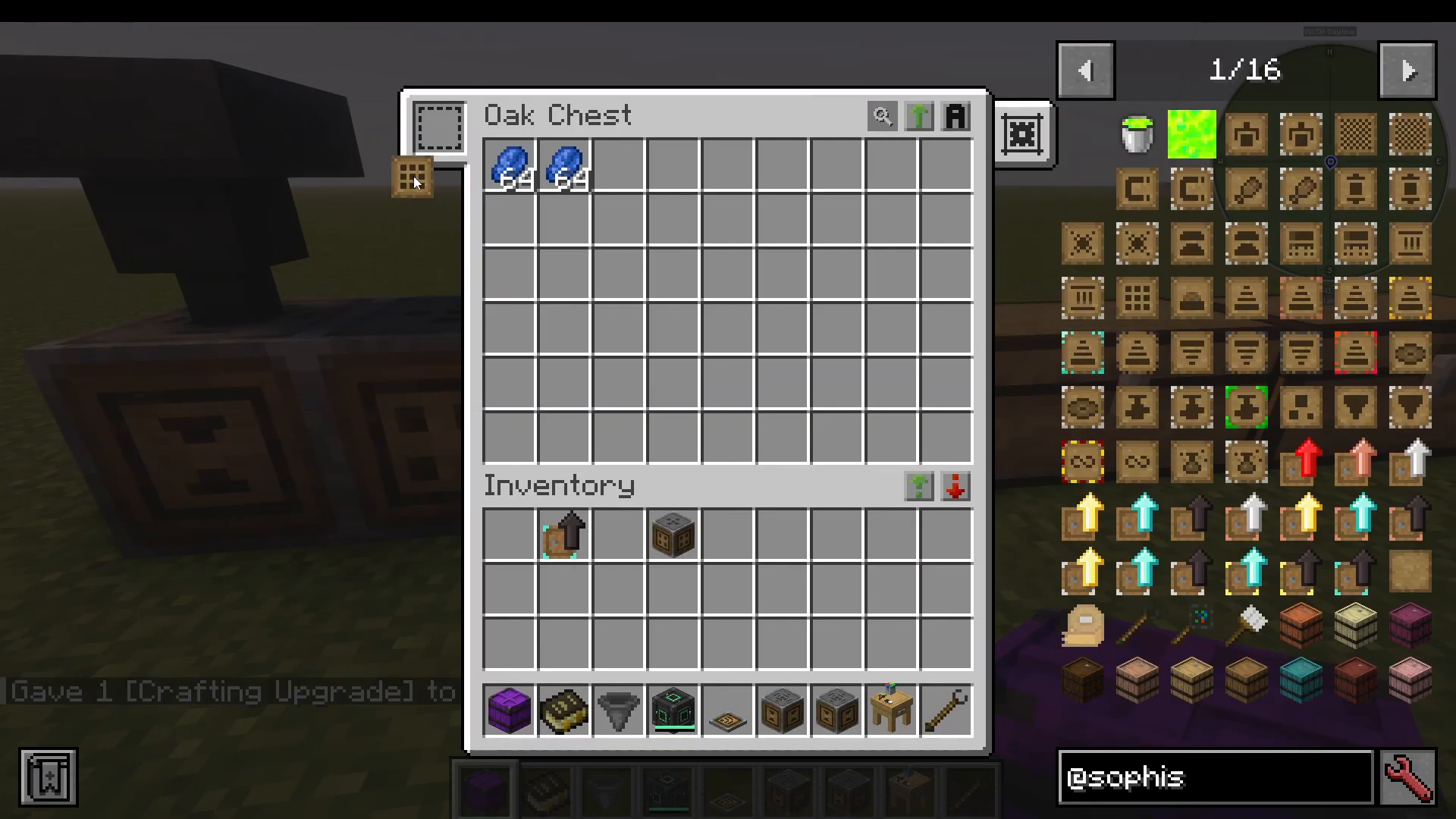
Stone Cutter Upgrade
Adds a stonecutter tab inside the chest’s interface, allowing stone-cutting operations directly from your storage.
Stack Upgrade
Multiplies the number of stacks that can fit in each slot by three. This stacks multiplicatively up to the Omega tier, which allows a maximum of 2,147,483,647 items per slot — the 32-bit integer limit.
Jukebox Upgrade
Adds music playback functionality to the storage block. A fun cosmetic addition for base building.
Pump Upgrade
Pumps fluids between the chest’s built-in tank and adjacent blocks. Configure it to input or output fluids, interact with fluid-containing items in your hand, or interact with the world around it.
Infinity Upgrade
An admin-only creative upgrade that provides effectively unlimited storage capacity. Not available to survival players by default.
Survival Infinity Upgrade
Functions identically to the Infinity Upgrade but can be given a crafting recipe by the modpack developer, making it obtainable in survival mode if the pack supports it.
Experience Pump Upgrade
Pumps experience points between the chest’s XP tank and adjacent blocks, similar to how the Pump Upgrade handles fluids.
Compression Upgrade
Automatically performs 2×2 or 3×3 compression recipes (such as cobblestone into cobblestone blocks) on items as they enter the storage.
Hopper Upgrade
Gives the chest hopper-like behaviour: it will pull items from the block directly above it and push items into the block directly below it.
Alchemy Upgrade
Automatically applies potions, food buffs, or milk buckets stored in the chest to the player — a uniquely useful quality-of-life upgrade for combat or exploration builds.
Summary and Final Thoughts
Sophisticated Storage is a powerful yet approachable storage mod that scales from a simple chest upgrade all the way to a fully automated, multi-tier sorted network. Here’s a quick recap of what you’ve learned:
Upgrade chests through six tiers: Basic → Copper → Iron → Gold → Diamond → Netherite
Use the Storage Controller to unify all nearby chests into one searchable network
Lock chests to reserve them for specific items and use Storage I/O blocks for automation
Extend the network up to 15 blocks with Storage Links
Customise barrels with the Decoration Table
Add over a dozen upgrade types to individual storage blocks for powerful automation
If you need an interface block to pipe items into your network the way Applied Energistics 2 or Refined Storage does, Sophisticated Storage doesn’t currently offer that natively — check out Tom’s Simple Storage as an alternative. For transferring storage across dimensions simply and efficiently, the Tesseract mod is a great companion to Sophisticated Storage.
“`