
How To Use The Advanced Miner In IC2
How To Use The Advanced Miner In Industrial Craft 2 (IC2)
The Advanced Miner is a powerful automated mining tool in Industrial Craft 2 that can scan and extract ores from your local area. This guide will walk you through every step of setting up and configuring your Advanced Miner for optimal performance.
Understanding the Advanced Miner Interface
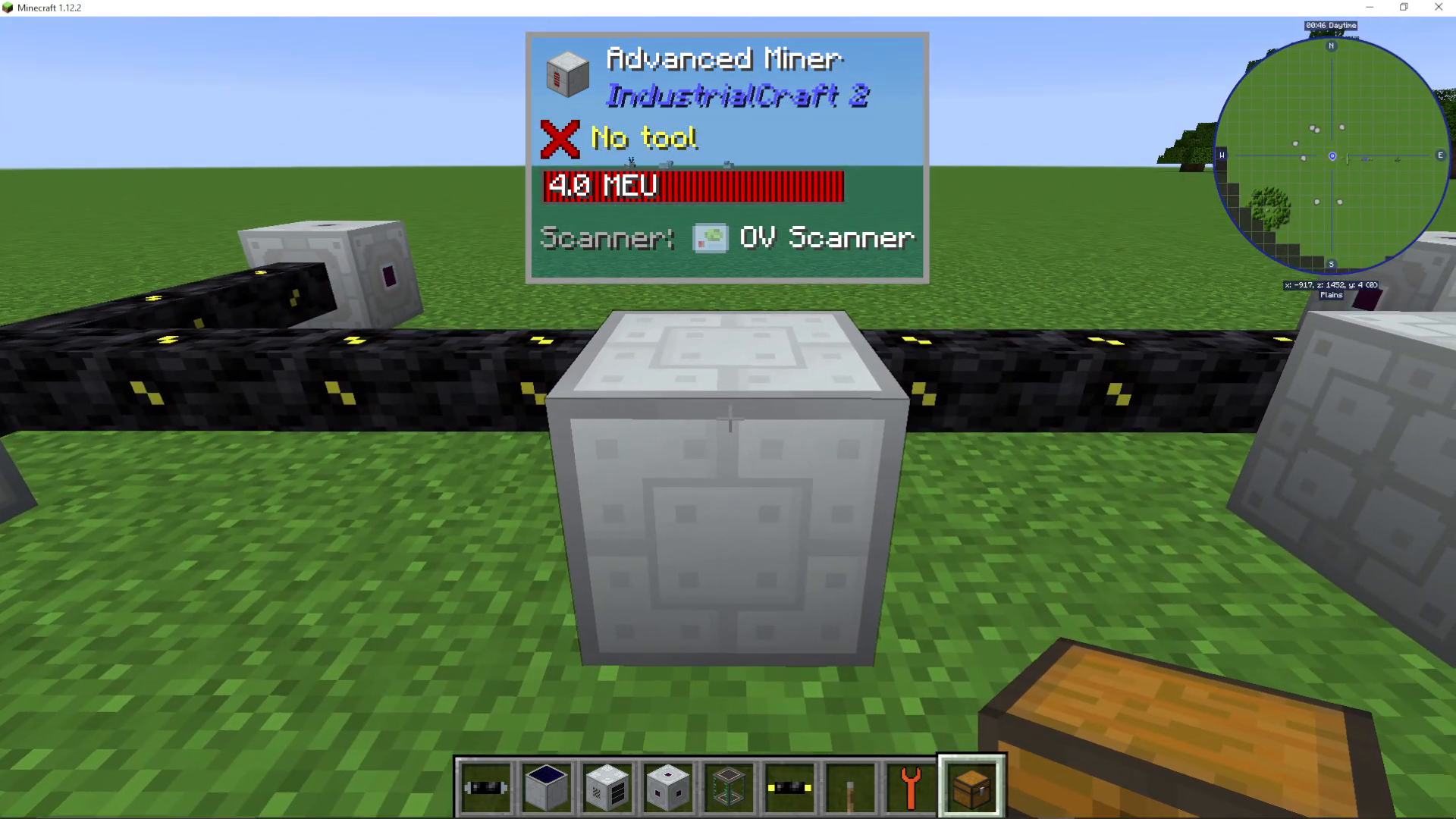
When you right-click on the Advanced Miner, you’ll open its configuration interface. The first option you’ll see allows you to switch between two filtering modes: Blacklist and Whitelist. These modes control which ores the Advanced Miner will mine up.
Blacklist vs Whitelist Mode
The Blacklist mode excludes specific ores from being mined, while the Whitelist mode mines only the ores you’ve specified. Choose whichever mode best suits your mining strategy.
Installing a Scanner
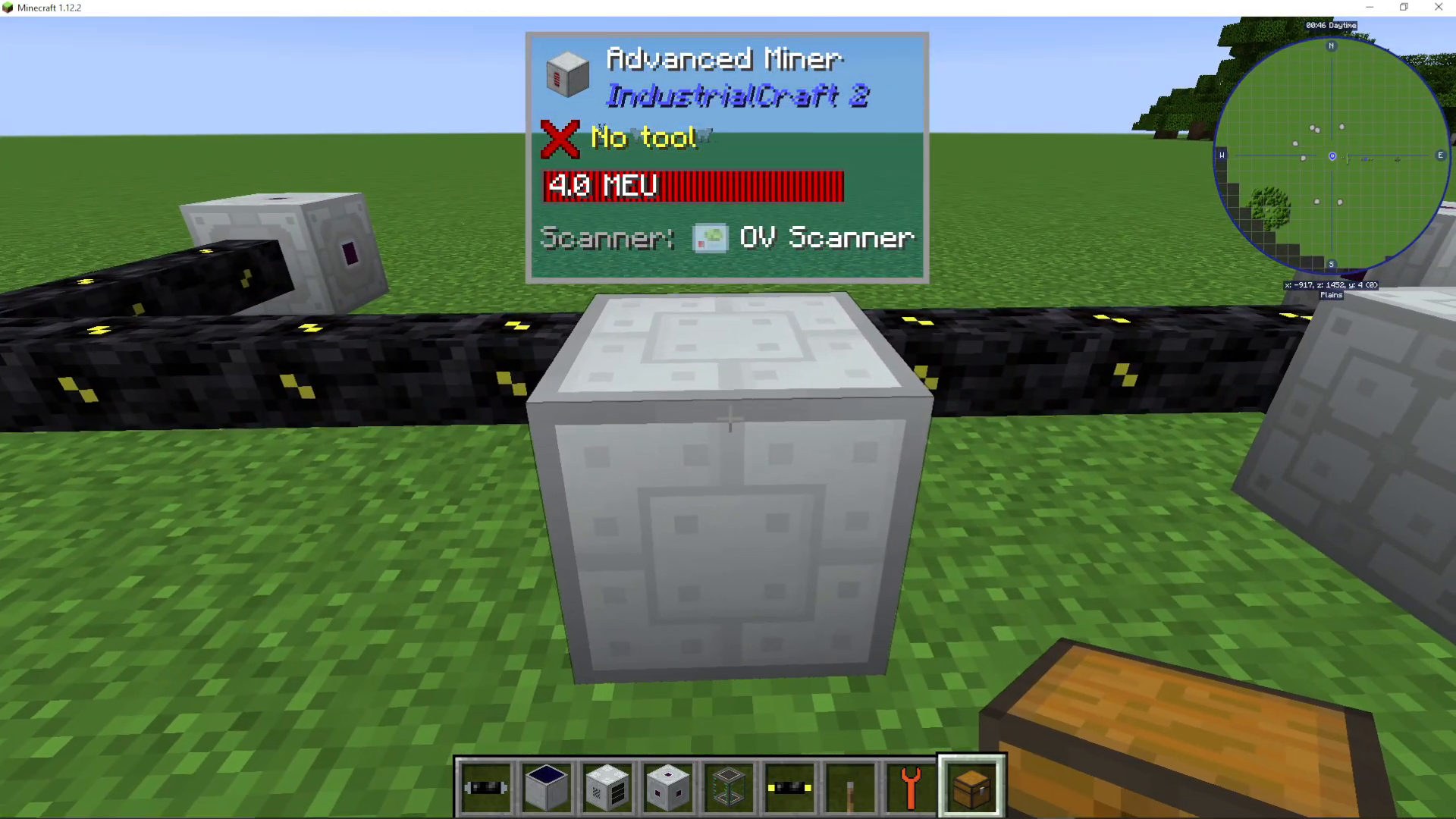
To function properly, your Advanced Miner requires a Scanner. The Scanner allows the miner to detect ores in the surrounding area. There are two types of scanners available:
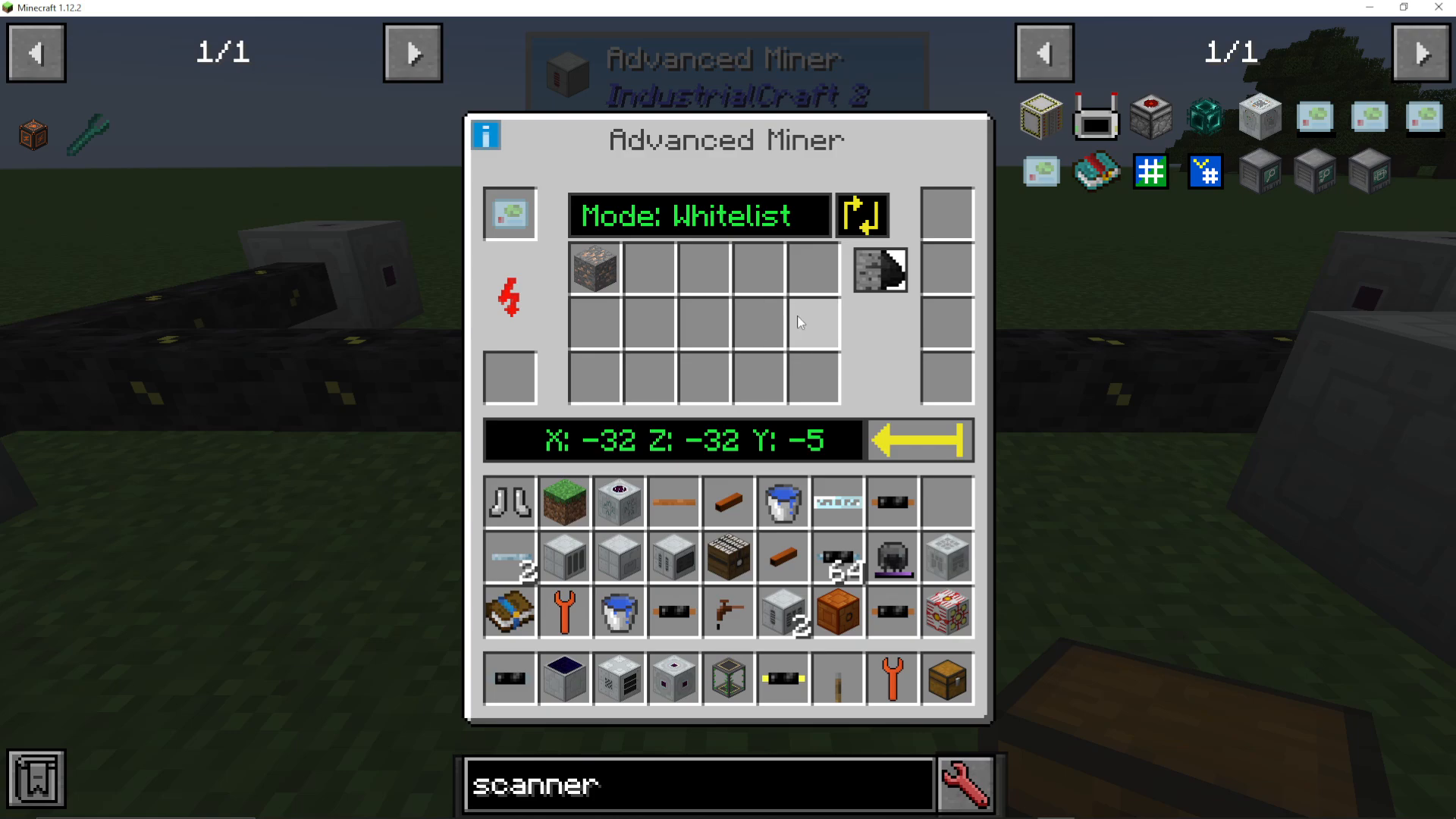
Scanner Types and Range Differences
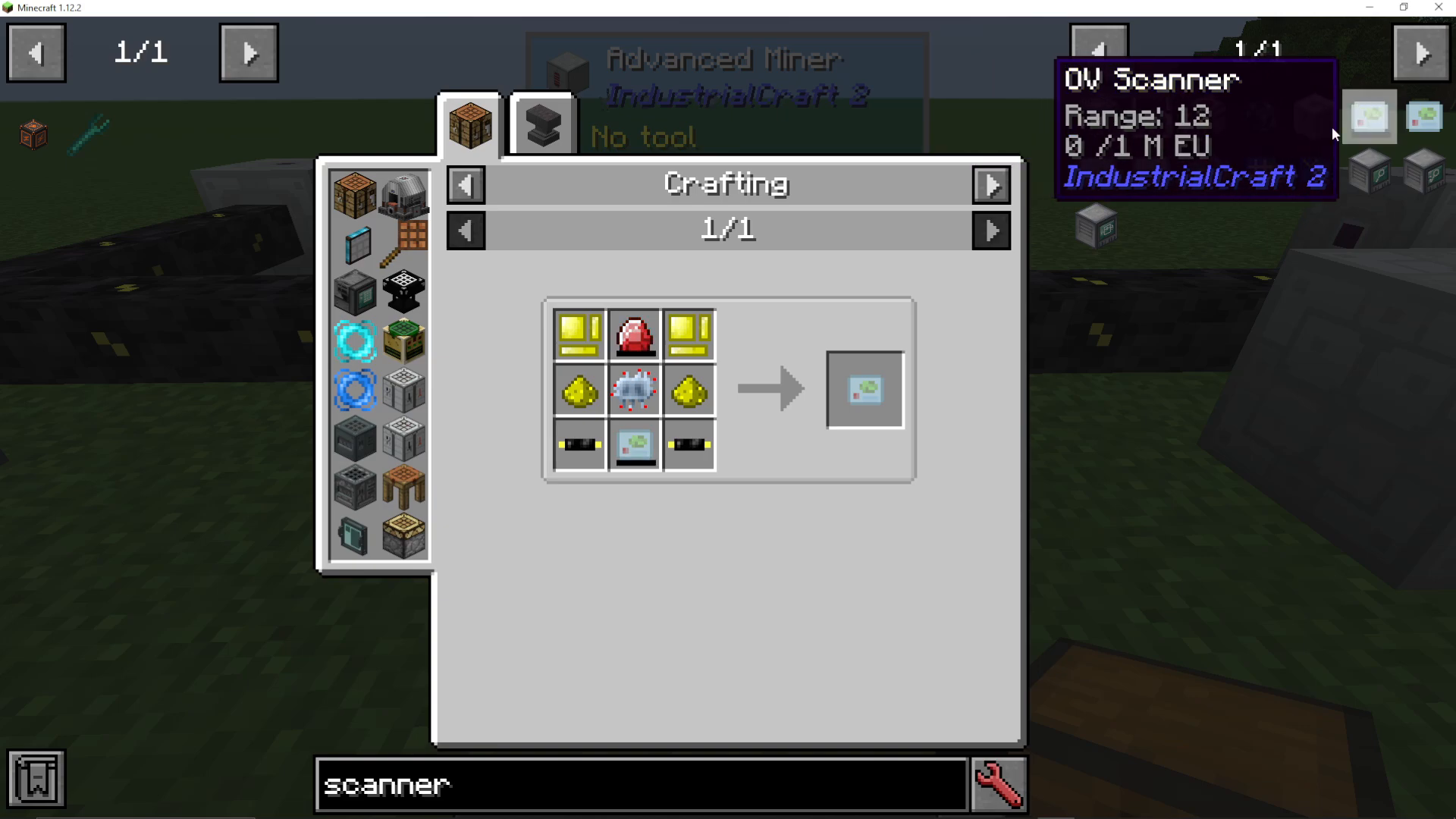
The two scanner options are:
OV Scanner — The upgraded version with a scanning range of 12 blocks
Standard Scanner — The basic version with a scanning range of 6 blocks
The OV Scanner provides double the range, making it the ideal choice if you want to maximize your ore detection area. You’ll need to craft the standard scanner first and then upgrade it to the OV Scanner version. Place your chosen scanner into the top left slot of the Advanced Miner interface.
Adding Ores to Mine
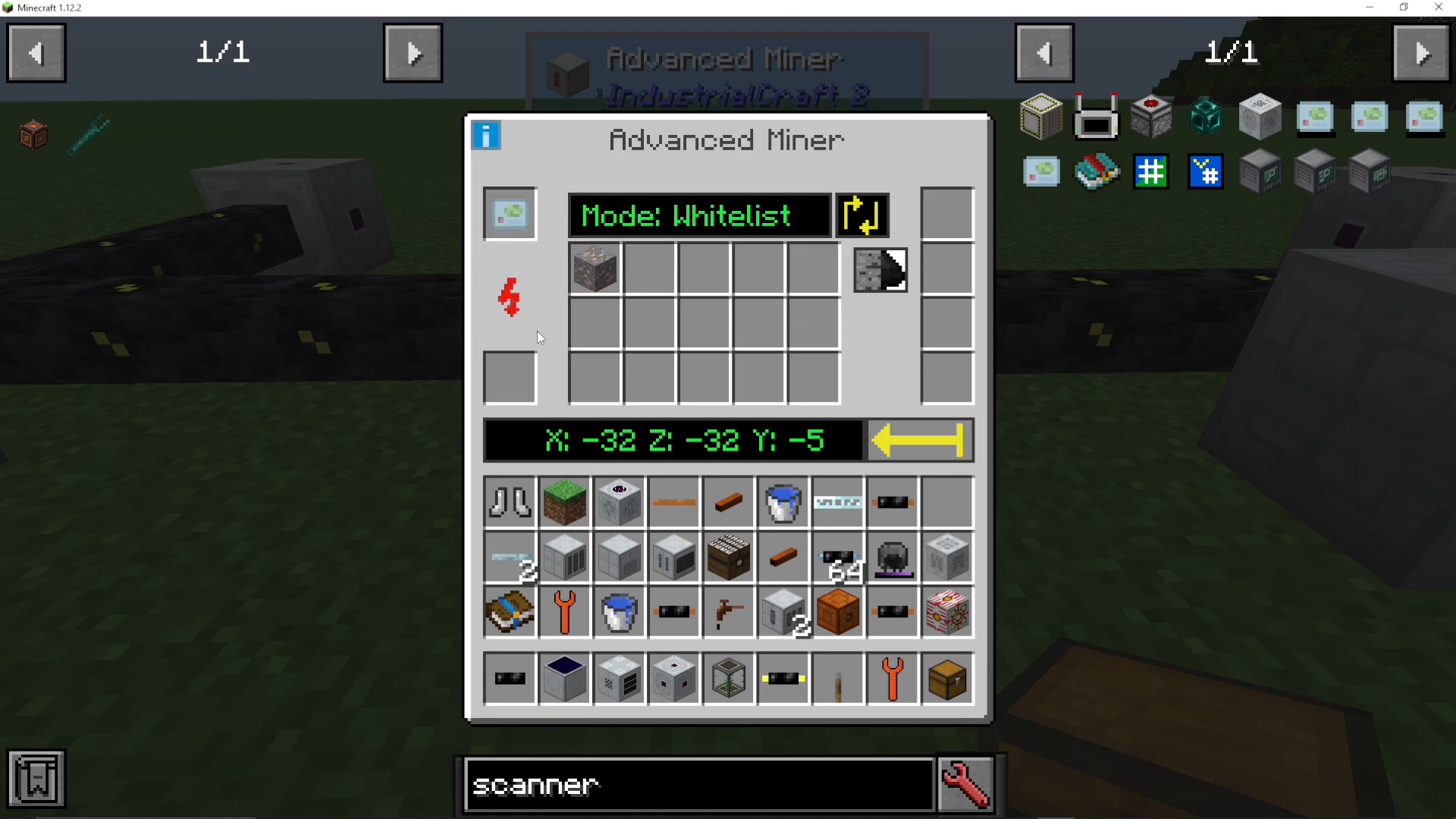
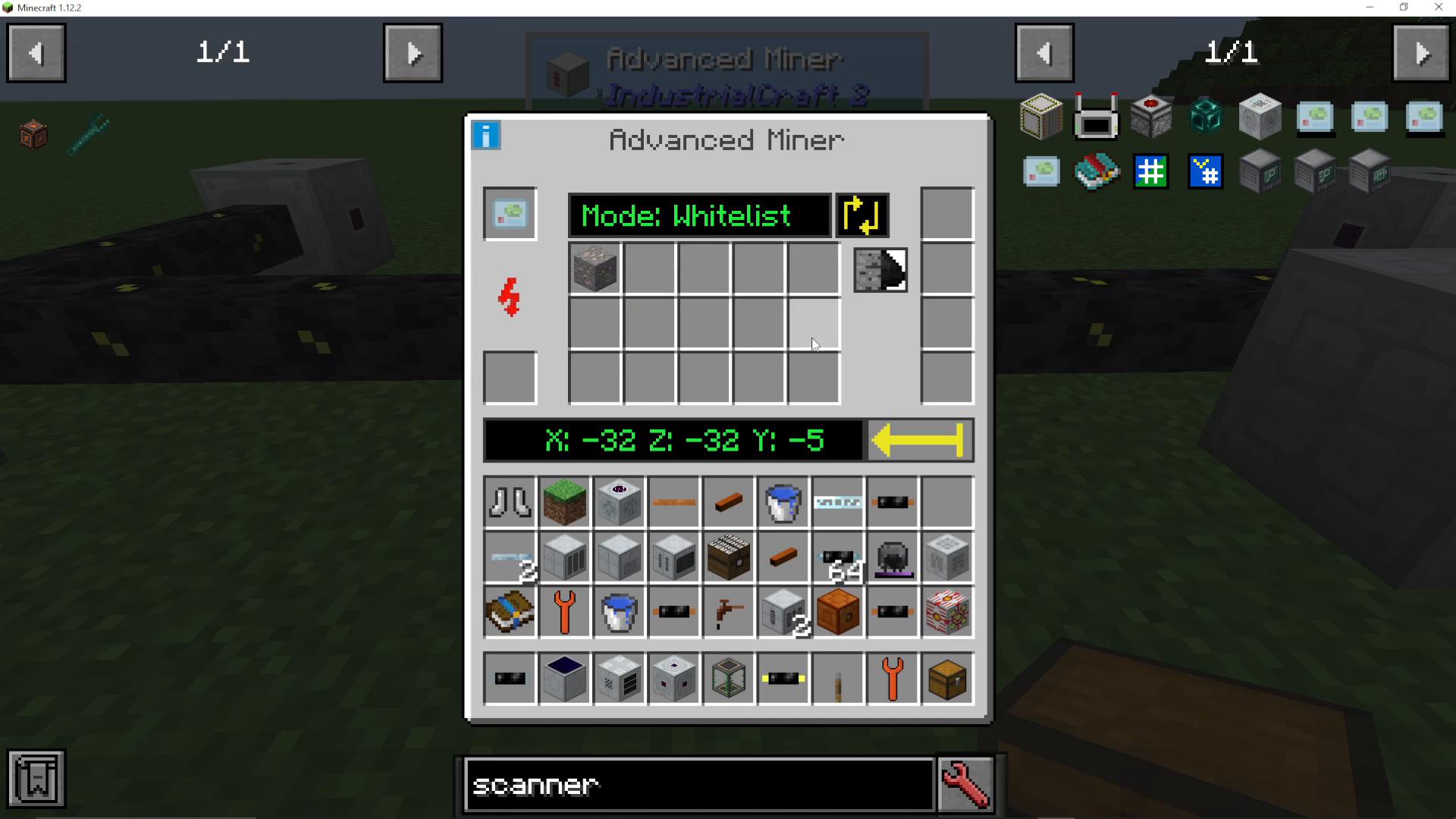
The large central area in the Advanced Miner interface is where you place the ore types you want to Whitelist or Blacklist. Simply insert samples of the ores you wish to target, and the miner will use these as reference for what to extract.
Attaching Storage
You must attach a storage container—such as a chest or other inventory block—to the Advanced Miner. This storage receives all the mined ores once they’re extracted from the ground.
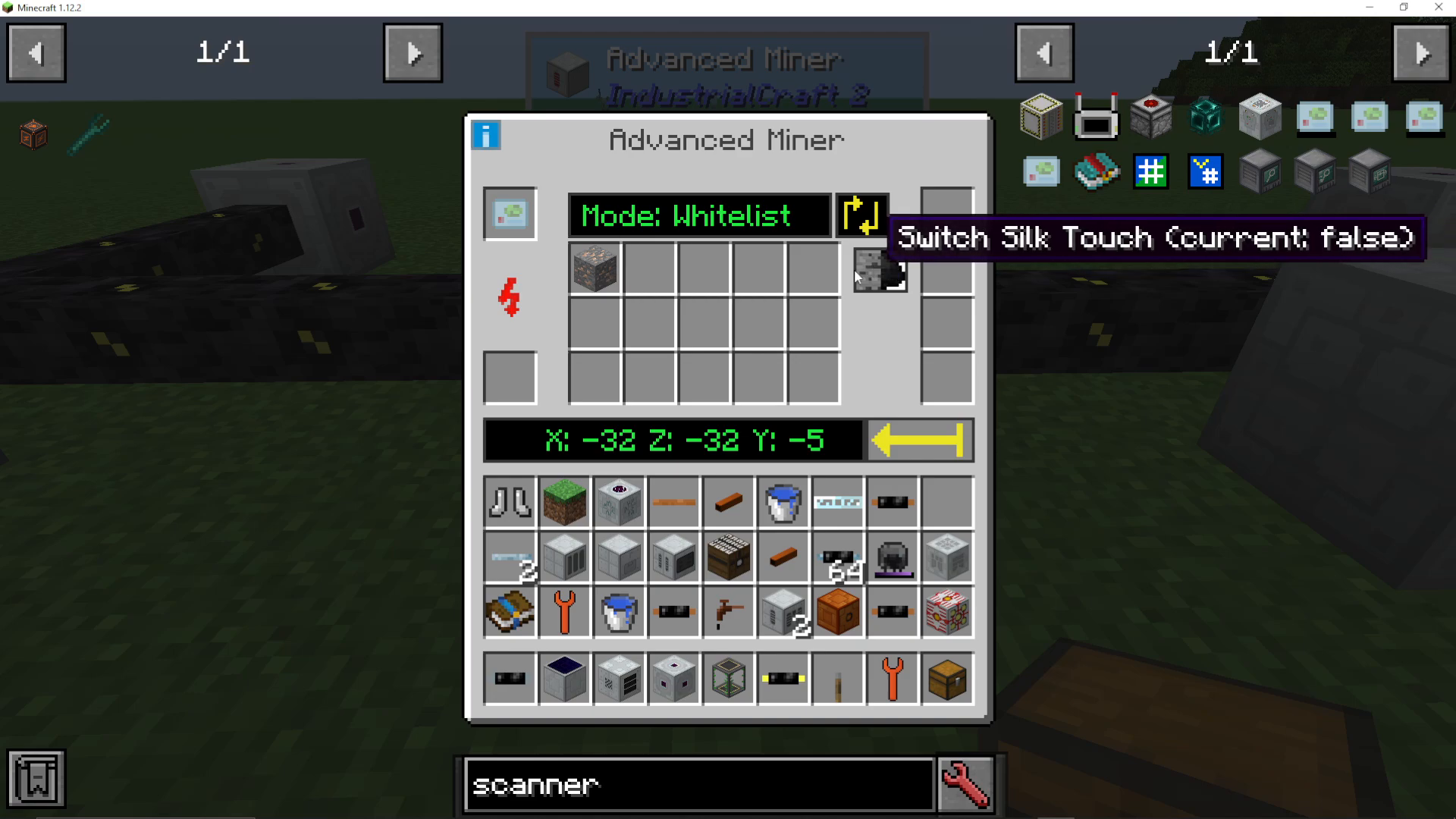
Silk Touch Configuration
The Advanced Miner includes a button to toggle Silk Touch on or off. This setting is easily toggled between True (enabled) and False (disabled). When enabled, Silk Touch preserves the original block form of mined ores.
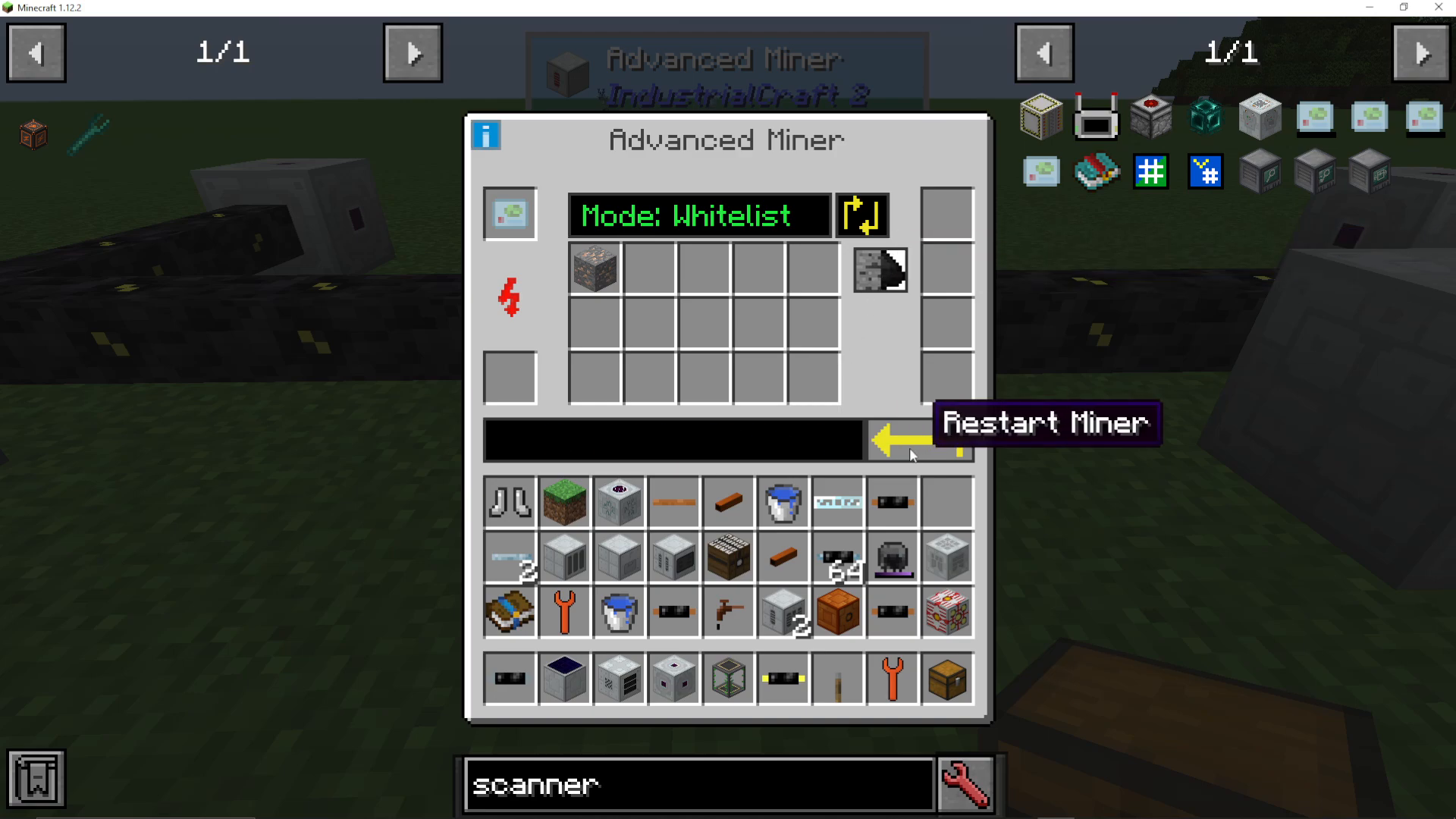
Using the Restart Button
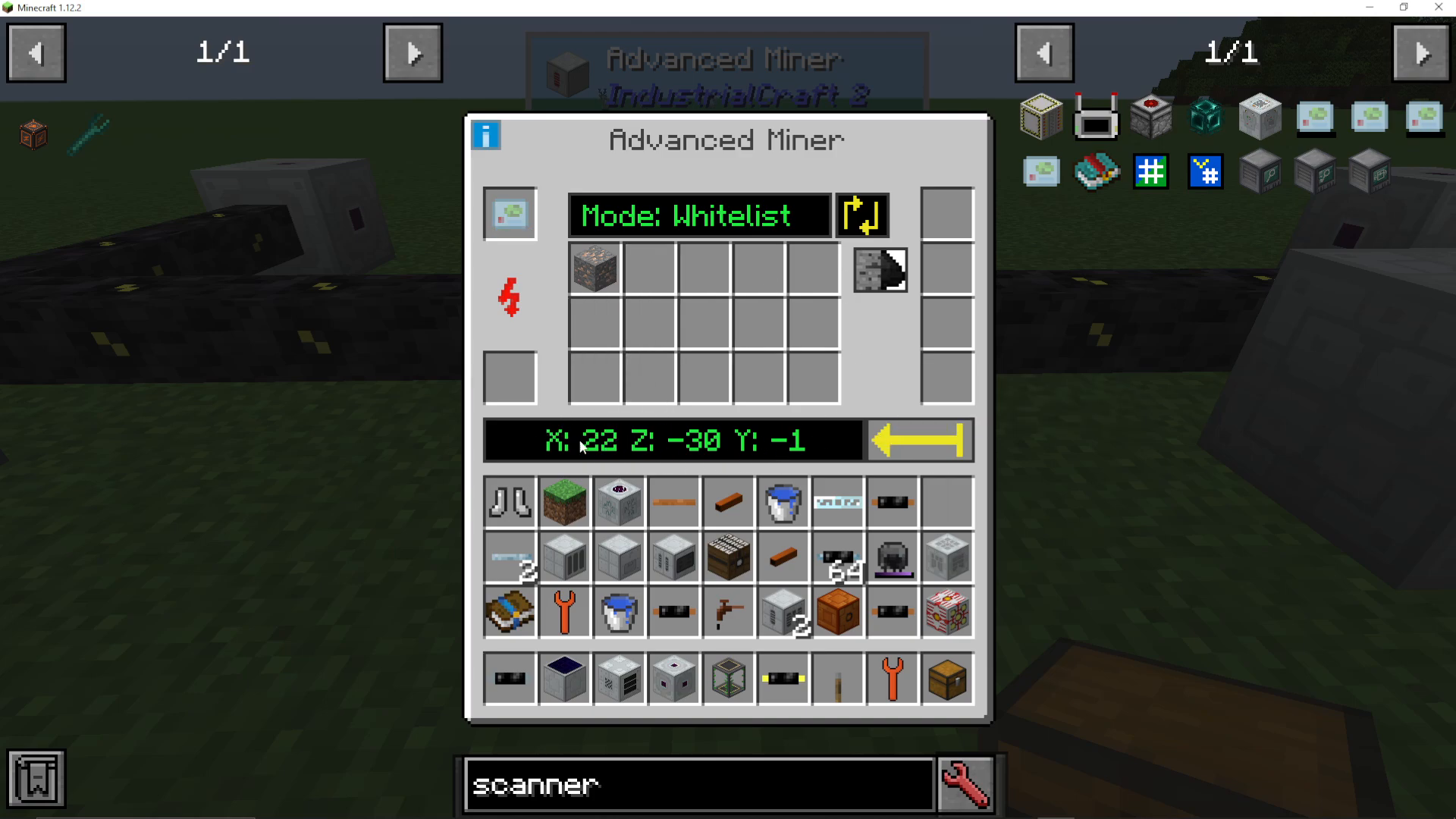
The large yellow restart button initiates the mining operation and resets the scanner. Once pressed, the miner will begin scanning the local coordinates and mining any matching ores. The interface also displays the current coordinates being scanned or mined.
Installing Upgrades
The right-hand slots of the Advanced Miner are designed for equipment upgrades. There are three main upgrade types:
Available Upgrade Types
Overclocker Upgrades — Speed up both scanning and mining operations
Transformer Upgrades — Allow the miner to accept higher-tier energy input
Redstone Signal Input Upgrades — Enable redstone-triggered control of the miner
Starting Your Mining Operation
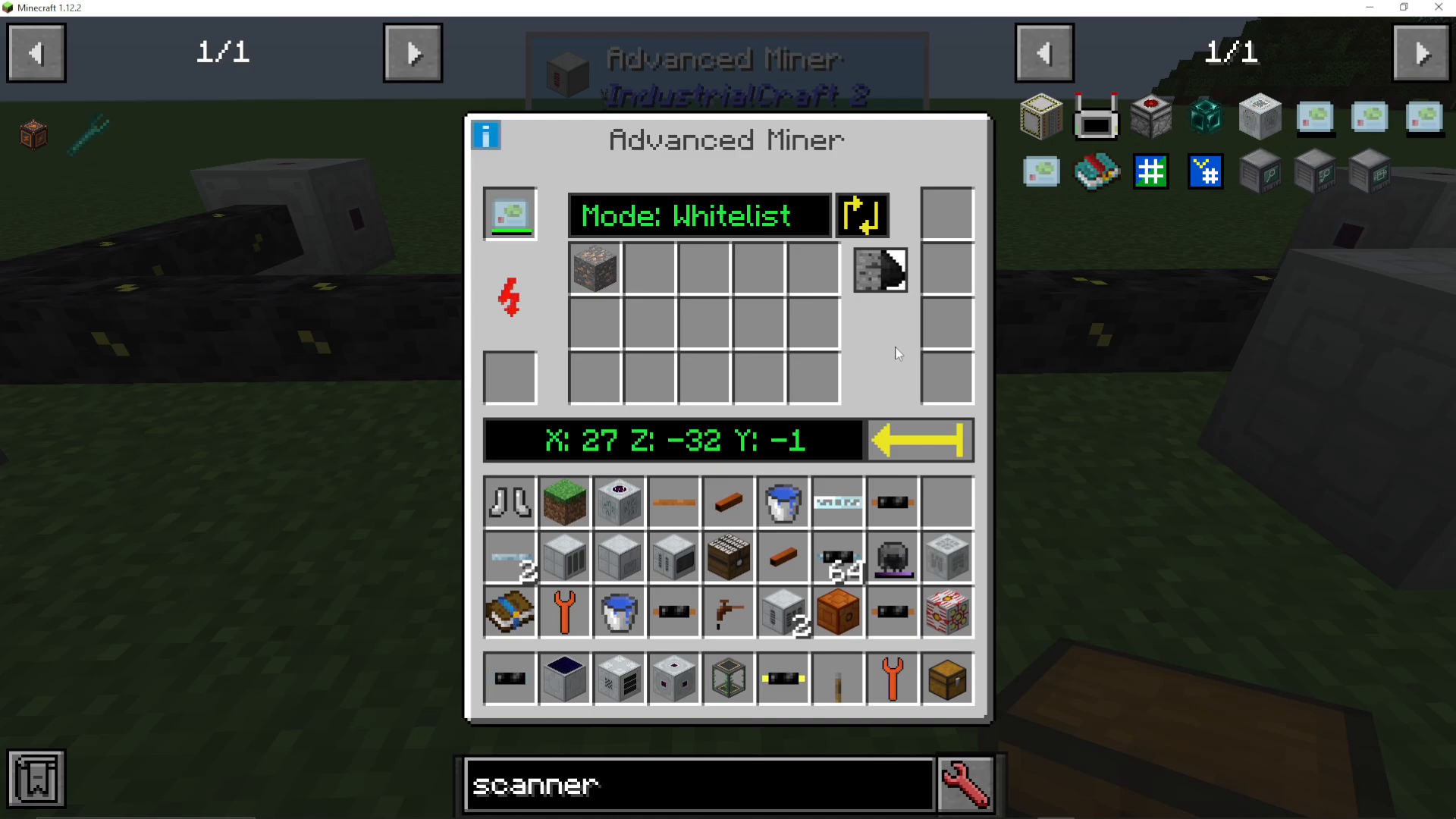
Once you’ve configured all the settings, installed your scanner, added your target ores, attached storage, and installed any desired upgrades, press the yellow restart button to begin mining. The miner will scan the local area using your installed scanner and automatically extract and eject matching ores into your attached storage container.
Status Indicator
Watch for the green status indicator on the Advanced Miner. A green light means the miner is actively working and extracting ores. The miner will continue operating, digging up matching ores and depositing them into the connected inventory (such as a chest) for as long as it has power.
Summary
The Advanced Miner in Industrial Craft 2 is a versatile automated mining solution. By following these steps—installing a scanner, adding target ores, attaching storage, configuring Silk Touch, and optionally installing upgrades—you’ll have a fully functional mining operation that continuously extracts valuable resources from your world.
Want to Support?
If you would like to help us continue making these guides – please consider joining our patreon here – https://www.patreon.com/c/JaviHeals
Alternatively – we host a group of MC Servers you can join here – https://discord.gg/zD7Gjt6MHF