





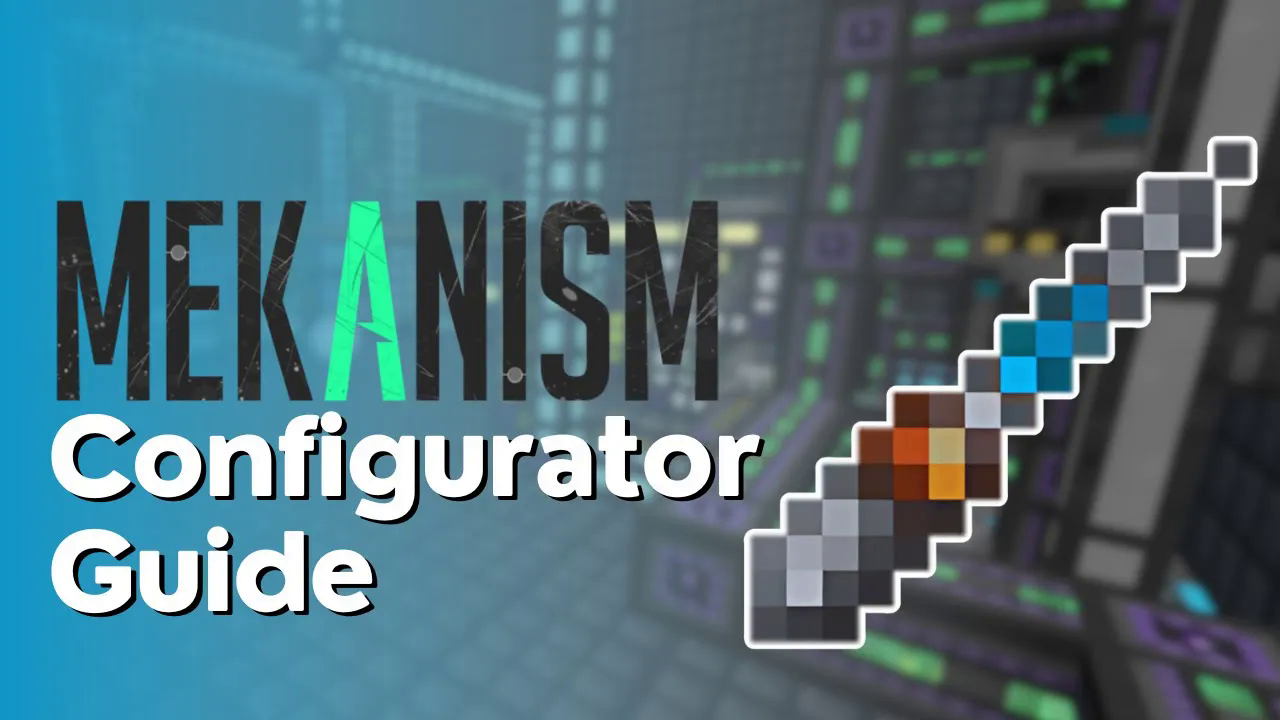
Mekanism Configurator Full Guide – MC 1.12 – 1.20
Mekanism Configurator Full Guide – MC 1.12 – 1.20
The Mekanism Configurator is one of the most versatile tools in the Mekanism mod. Whether you’re setting up complex machine networks, rotating blocks, or troubleshooting multiblock structures, this guide will walk you through every feature and function. By the end, you’ll be able to master configuration modes, charging, and all the practical applications this tool offers.
Crafting the Mekanism Configurator
To create a Mekanism Configurator, you’ll need the following materials:
Lapis Lazuli
Infused Alloy
Energy Tablet
Stick
Keep in mind that if you’re playing on a custom modpack, this recipe may have been altered by the pack creator.
Understanding Configurator Modes
The Configurator has multiple modes that allow you to interact with machines in different ways. To switch between modes, hold the Configurator in your hand, press Shift to crouch, and scroll through with your mouse wheel.
The available modes include:
Empty
Configurate
Heat
Energy
Slurries
Pigments
Infused Types
Gases
Fluids
Items
Wrench
Rotate
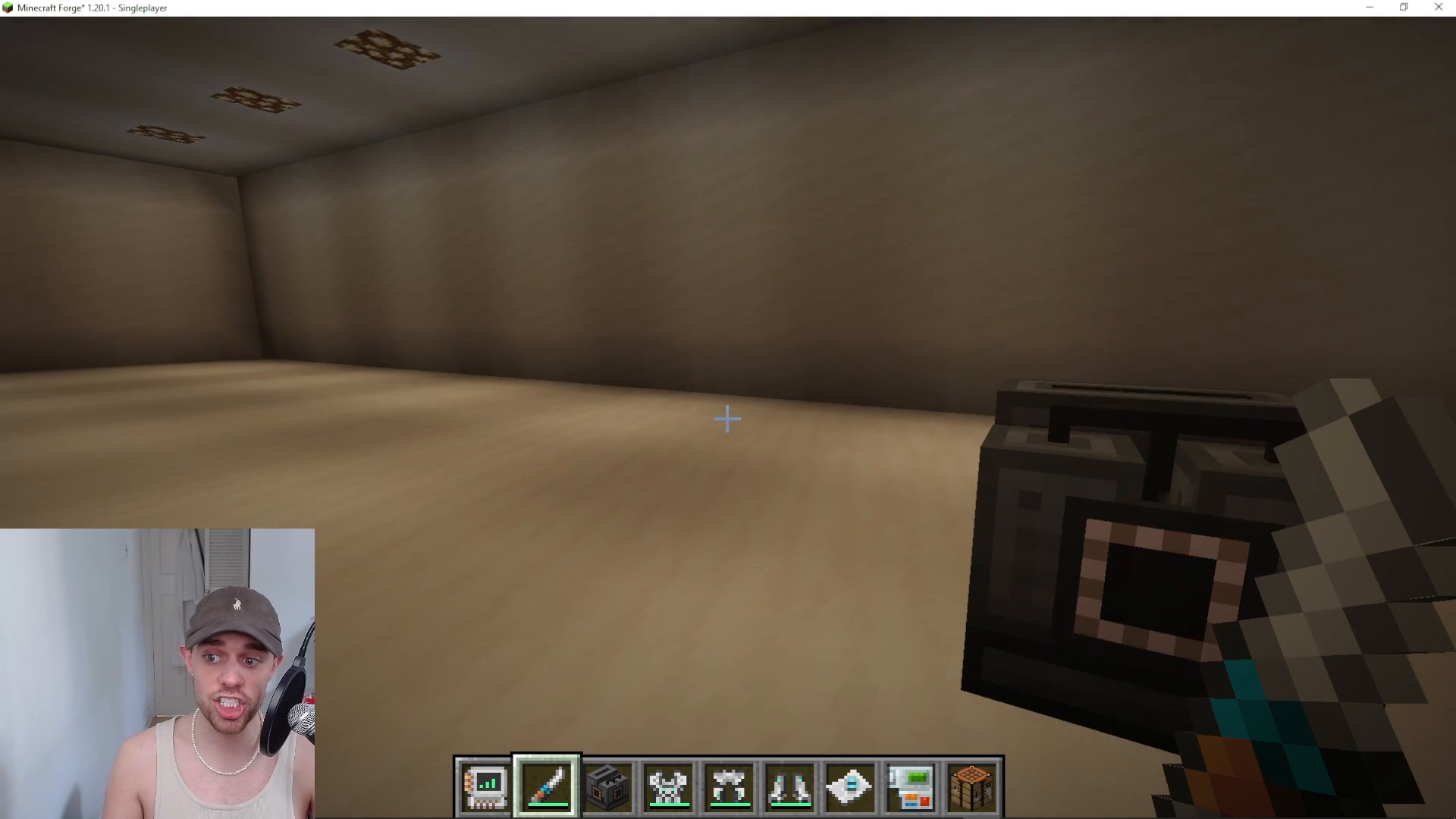
Configurate Mode: Setting Up Machine I/O
How Configurate Mode Works
Configurate mode is used to manage the input and output behavior of your machines. When you hover over different sides of a machine, you’ll see color indicators that represent different configuration states: grey, cyan, dark blue, and others.
To change the behavior of a specific side, hold Shift and right-click on that machine’s face. Each click cycles through the available options for that side.
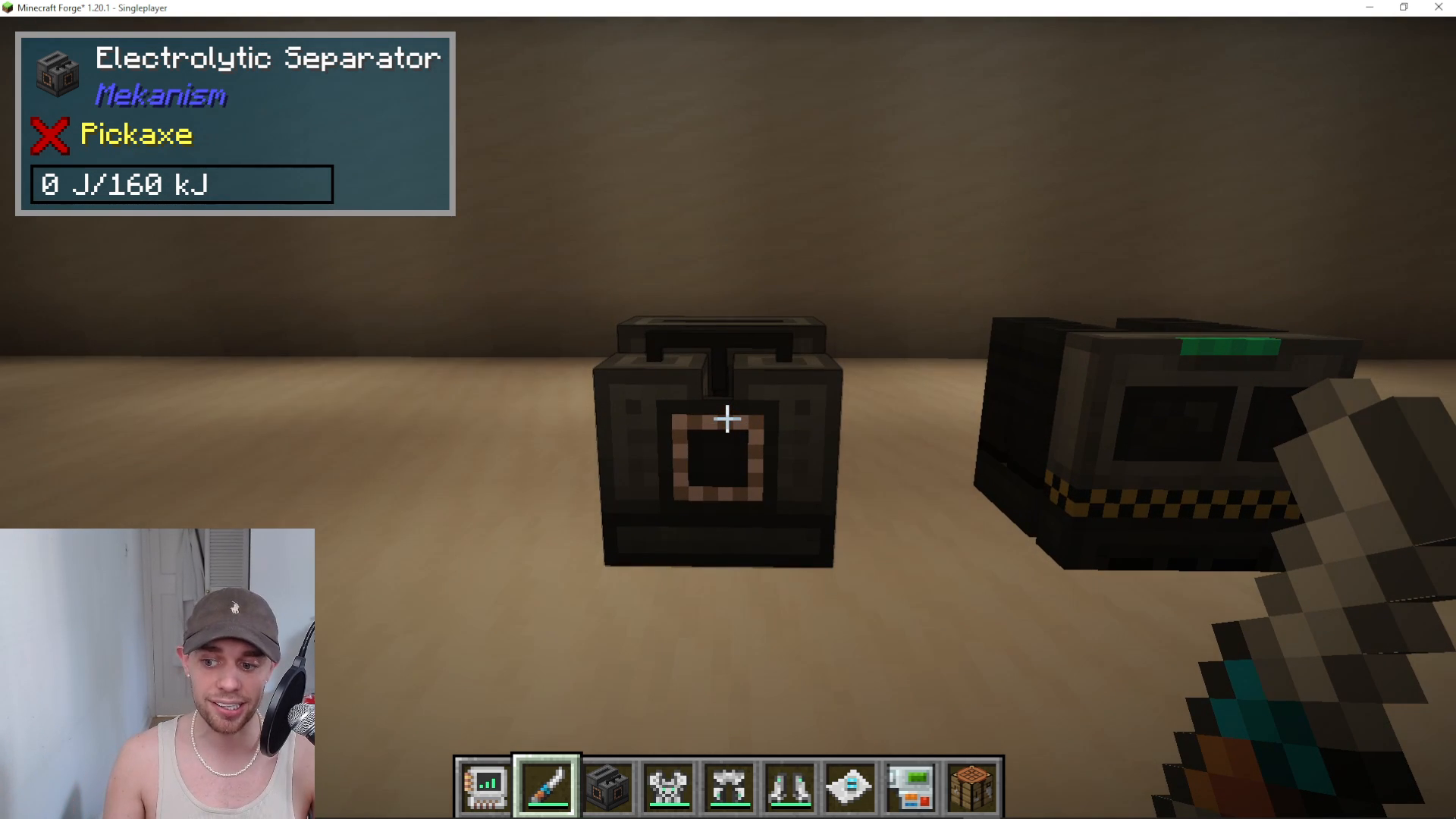
Understanding Color Codes
Each color represents a different I/O configuration:
Grey: The side will do nothing (disabled)
Cyan/Light Blue: The side outputs resources
Dark Blue: Alternative output configuration
Configuring Gases as an Example
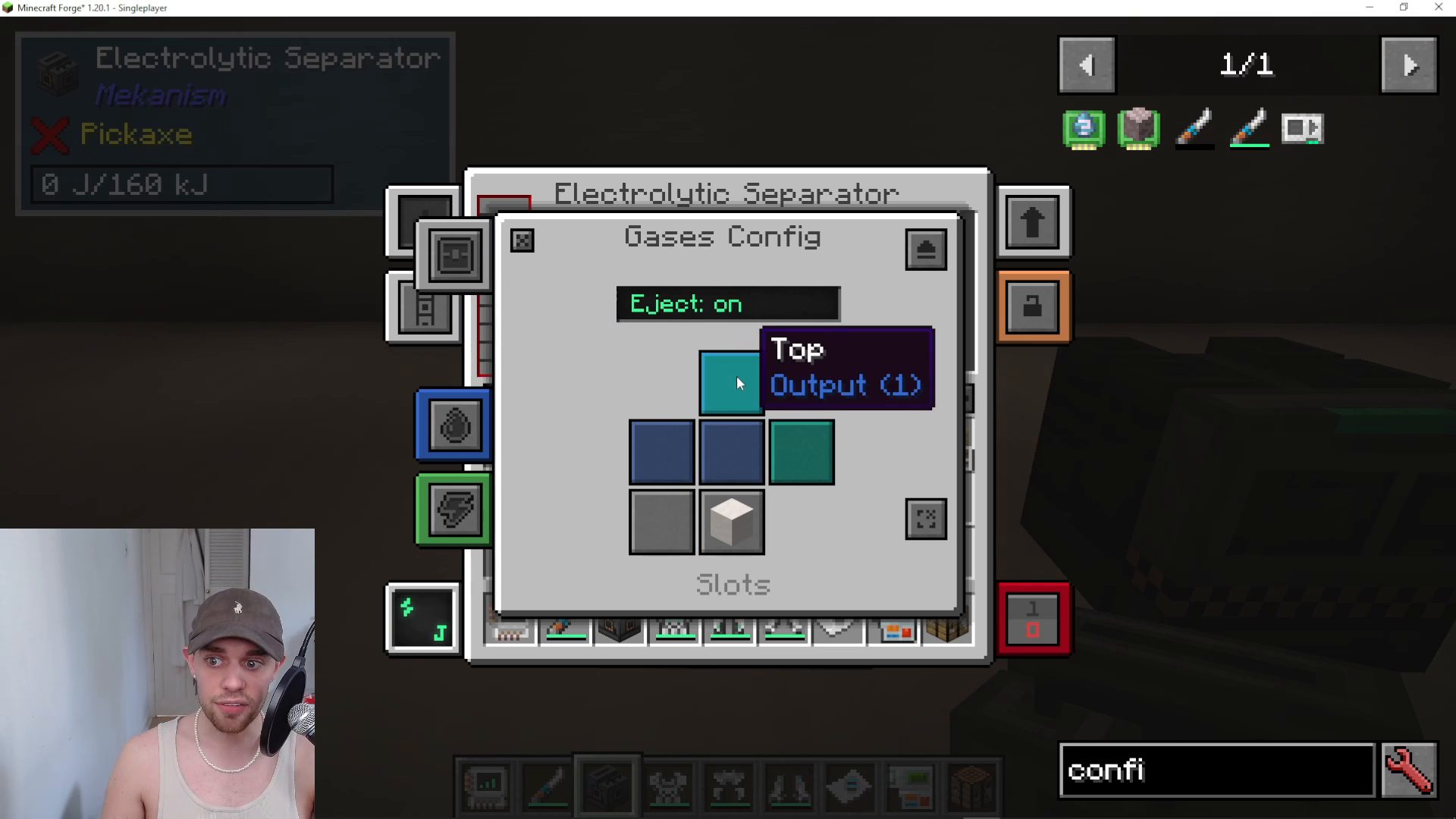
Let’s walk through configuring gases on a machine like the Electrolytic Separator. When you switch to Gas Configurate mode and right-click on a side, it cycles through the configuration options. For instance:
If you set the top to “Output One” and hover over it in gas configurator mode, it will display as dark blue. If you then Shift+right-click to change it to “Output Two,” the color will update accordingly. You can verify these changes by opening the machine’s configuration menu directly.
Applying Configurate Mode to Cables and Connections
The Configurator works not only on machines but also on Mekanism cables. You can use it to configure redstone signals and manage input/output connections on cables. Additionally, the Configurator can pull and push items in and out of cables, making it essential for complex pipe networks.
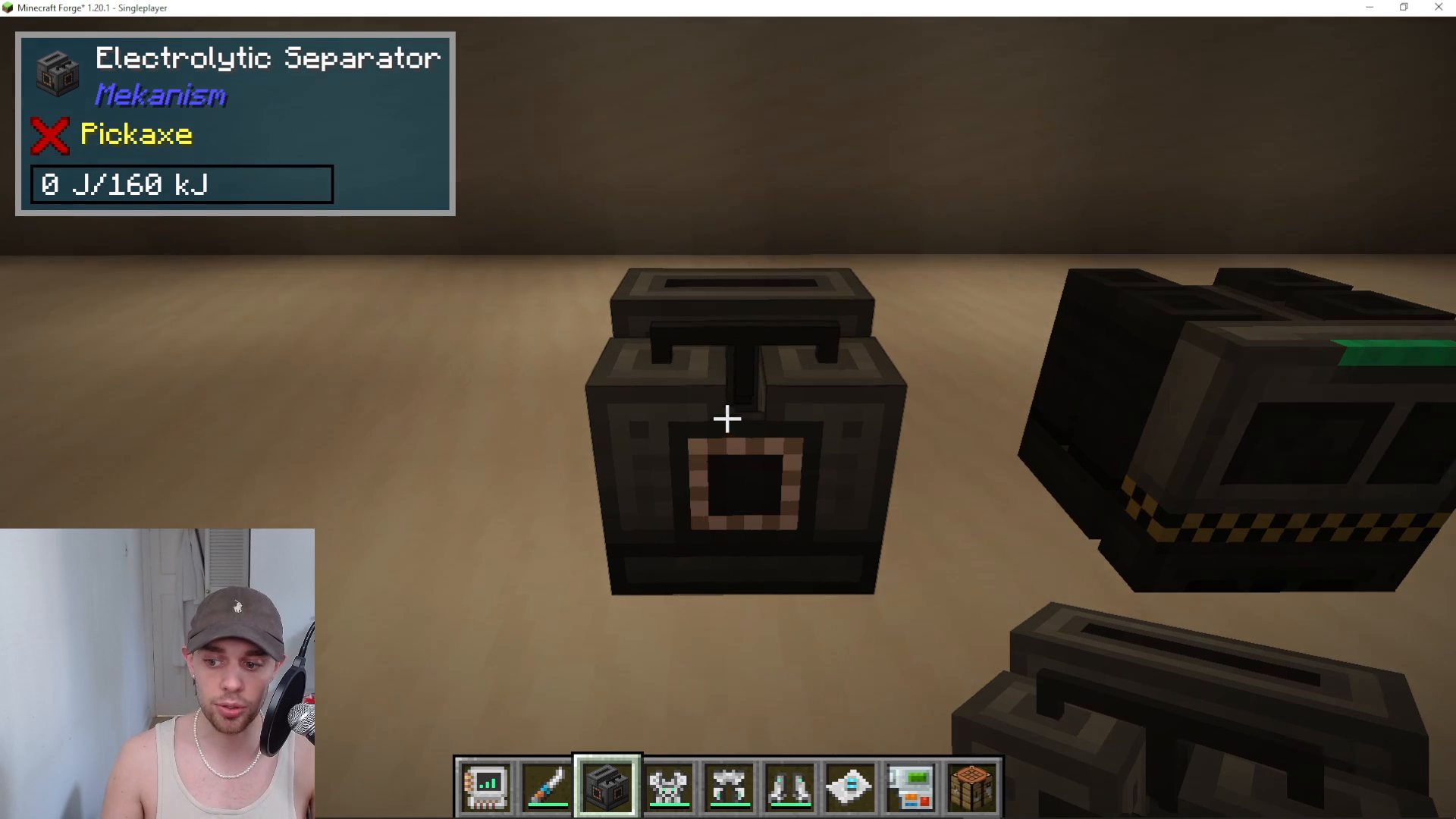
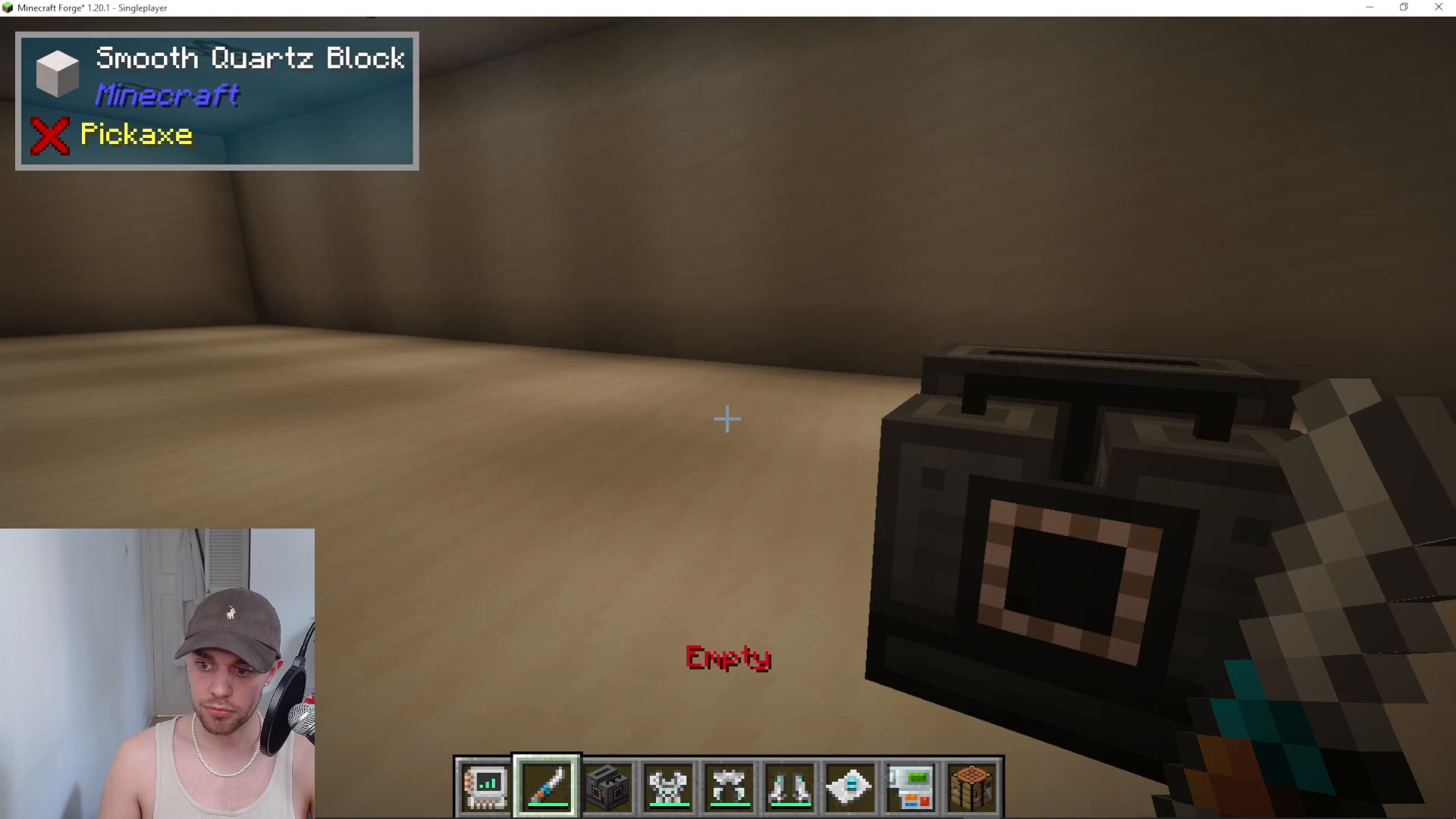
Empty Mode: Ejecting Machine Contents
Empty mode allows you to quickly eject items from a machine. To use it, switch to Empty mode and Shift+right-click on a machine. The Configurator will attempt to eject any items currently stored inside.
Important limitation: This mode only works for items. Gases and fluids cannot be ejected using the Empty mode.
Rotate Mode: Changing Machine Orientation
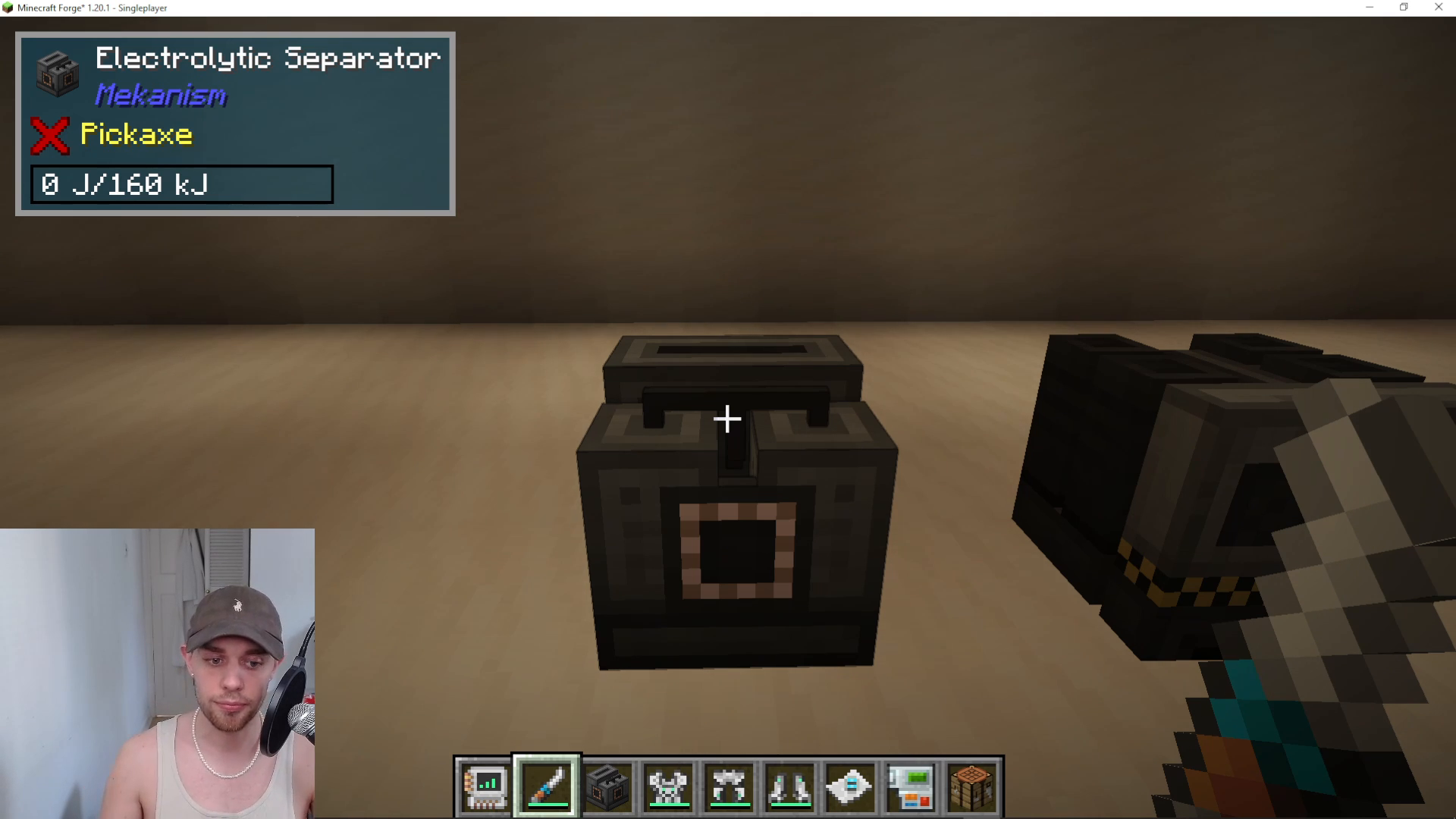
Rotate mode lets you change the direction a machine faces without breaking and replacing it.
Right-click: Makes the front of the machine face toward you
Shift+Right-click: Makes the back of the machine face toward you
This feature is incredibly useful when reorganizing your factory layout without losing any configured settings or stored energy/items.
Wrench Mode: Multi-Mod Compatibility
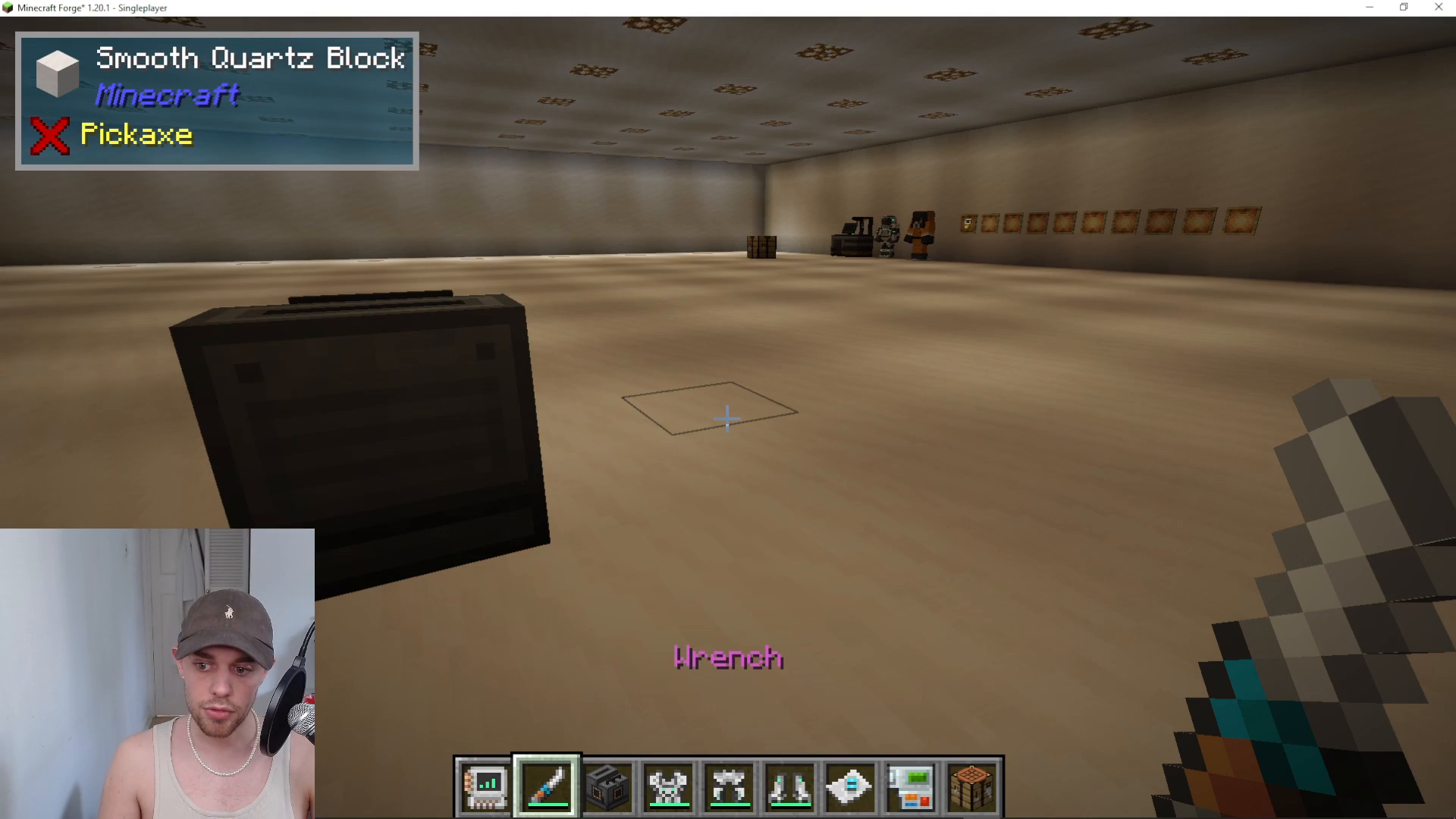
The Configurator can function as an Omni Wrench, meaning it’s compatible not only with Mekanism machines but also with machines from other mods. This universal compatibility makes it a must-have tool.
To use wrench mode:
Right-click: Standard wrench interaction
Shift+Right-click: Picks up and removes an item from its placed location
Charging Your Mekanism Configurator
The Configurator requires energy to function. To charge it, place it into any energy-accepting device like an Energy Cube from Mekanism.
Here’s the charging process:
Ensure your Configurator is empty (no items are being held in its slots)
Open an Energy Cube or similar power storage device
Place the Configurator in the left or right input slot
The Configurator will begin charging automatically
This charging method works with many different mods that feature battery inputs, making the Configurator highly versatile across modpack ecosystems.
Troubleshooting Multiblocks with the Configurator
One of the most valuable features of the Mekanism Configurator is its ability to help troubleshoot multiblock structures that aren’t forming correctly. When you right-click the Configurator on a multiblock that has failed to form, it will attempt to provide an error message explaining what’s wrong.
For example, if you’re missing a piece of glass from your Fission Reactor, the Configurator will tell you exactly what the problem is. While this doesn’t work 100% of the time, it successfully diagnoses issues in most cases and is invaluable for debugging complex multiblock builds.
Summary
The Mekanism Configurator is a powerful and multi-functional tool that every Mekanism user should master. From configuring machine I/O with gases, fluids, and items, to rotating machines and charging the device itself, this tool streamlines factory management and troubleshooting. Whether you’re a beginner setting up your first machines or an experienced player optimizing complex systems, the Configurator will become one of your most-used items.
— Want to Support? —
If you would like to help us continue making these guides – please consider joining our patreon here – https://www.patreon.com/c/JaviHeals
Alternatively – we host a group of MC Servers you can join here – https://discord.gg/zD7Gjt6MHF