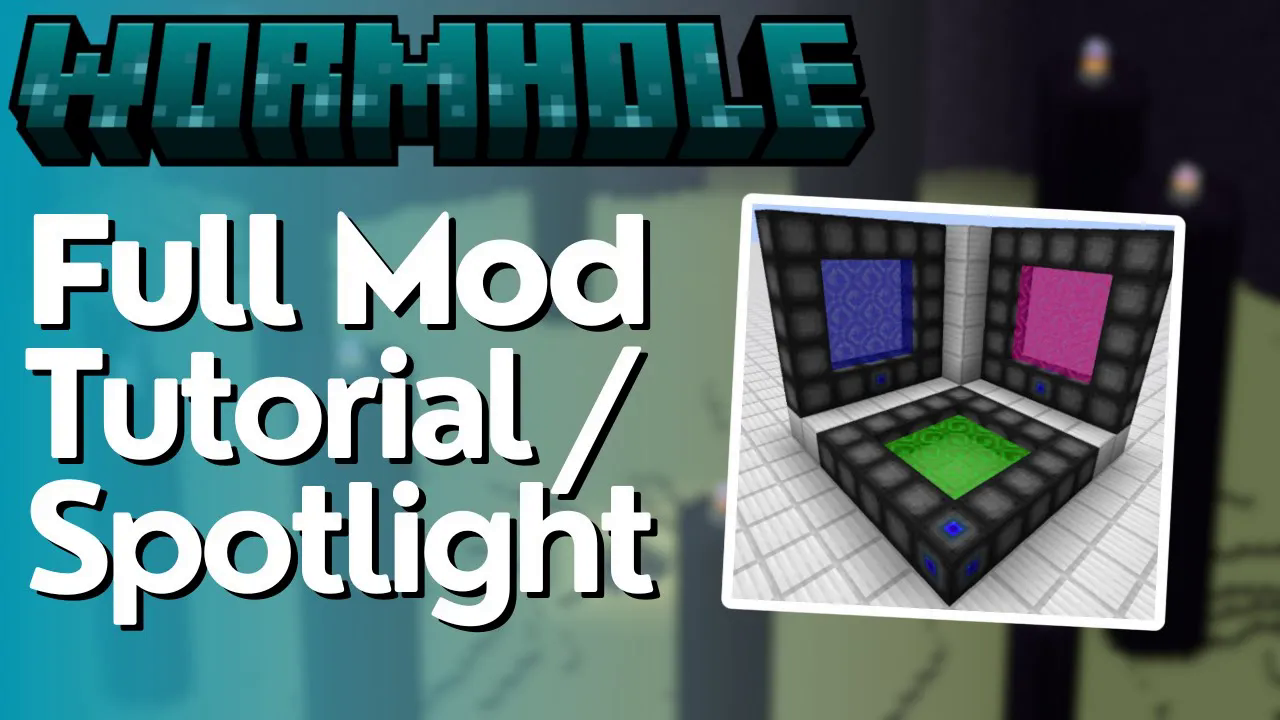
Wormhole Portals Mod Tutorial
Wormhole Portals Mod for Minecraft: Complete Setup & Tutorial Guide
The Wormhole Portals mod is one of the best portal mods available for Minecraft. It is simple to use, visually impressive, and fully functional across every dimension in the game. Whether you want a small personal portal or a large multi-destination network, this mod has you covered — and it’s built almost entirely from vanilla Minecraft ingredients. This guide walks you through everything you need to know: building your portal, powering it, and linking it to multiple destinations.
What You Need to Build a Wormhole Portal
Every portal in the Wormhole Portals mod requires two core components: a portal stabilizer and a portal frame. Both are crafted using basic vanilla Minecraft ingredients, so you won’t need rare or complex materials to get started.
The Portal Frame
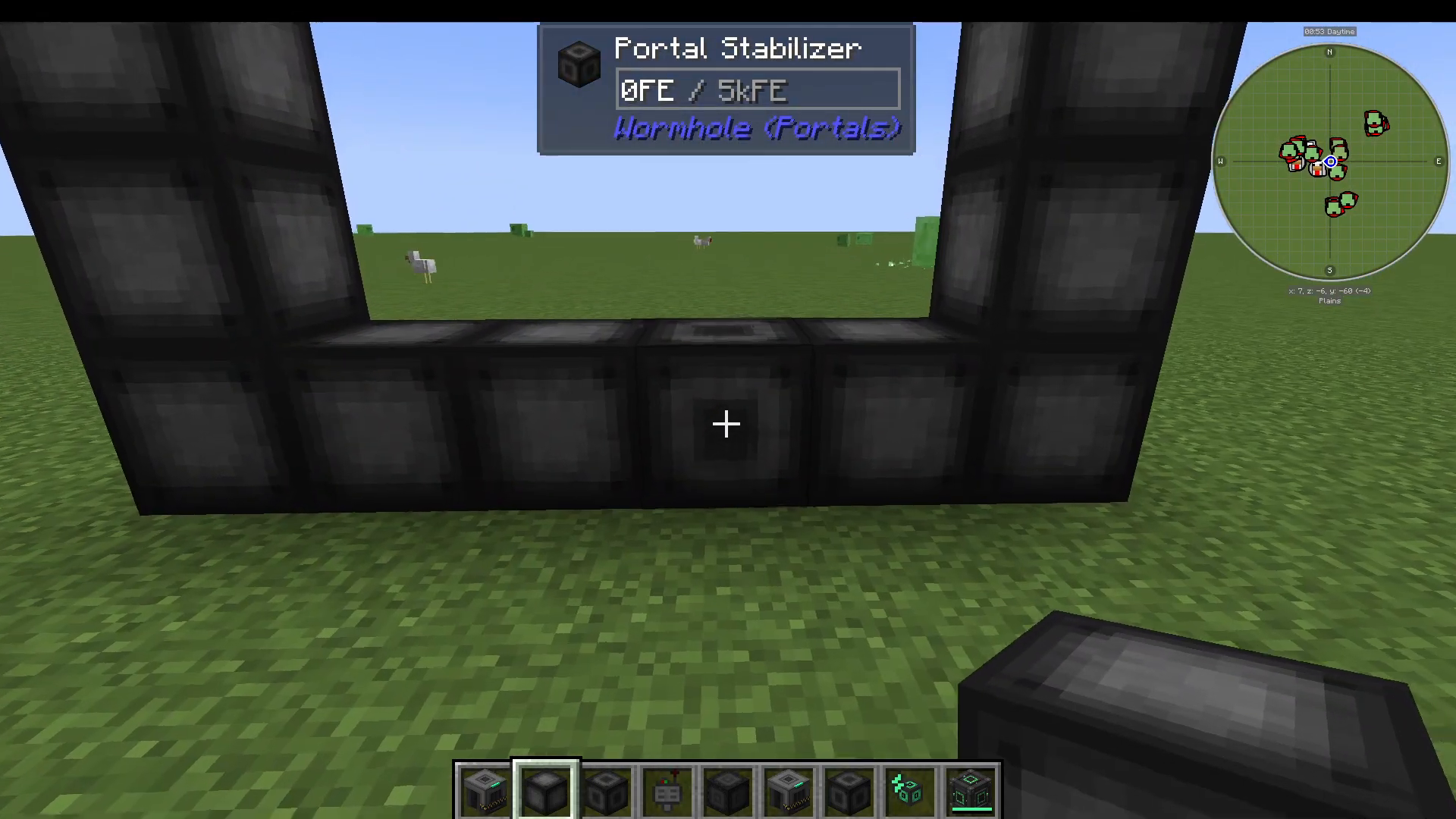
The portal frame defines the size and shape of your portal. One of the great features of this mod is that the frame can be as large or as small as you like — the size is entirely up to you. Experiment with different dimensions to suit your build style and available space.
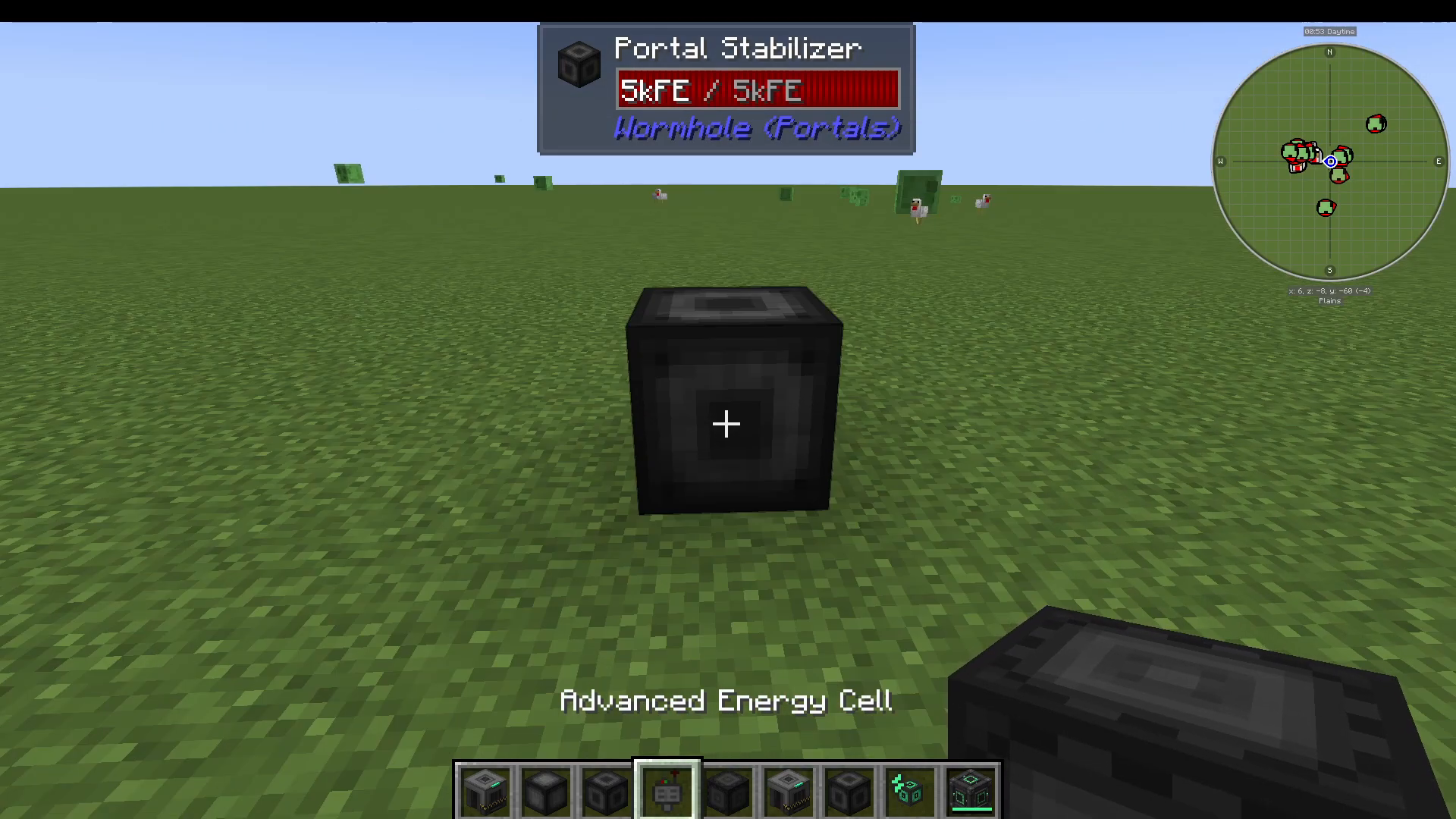
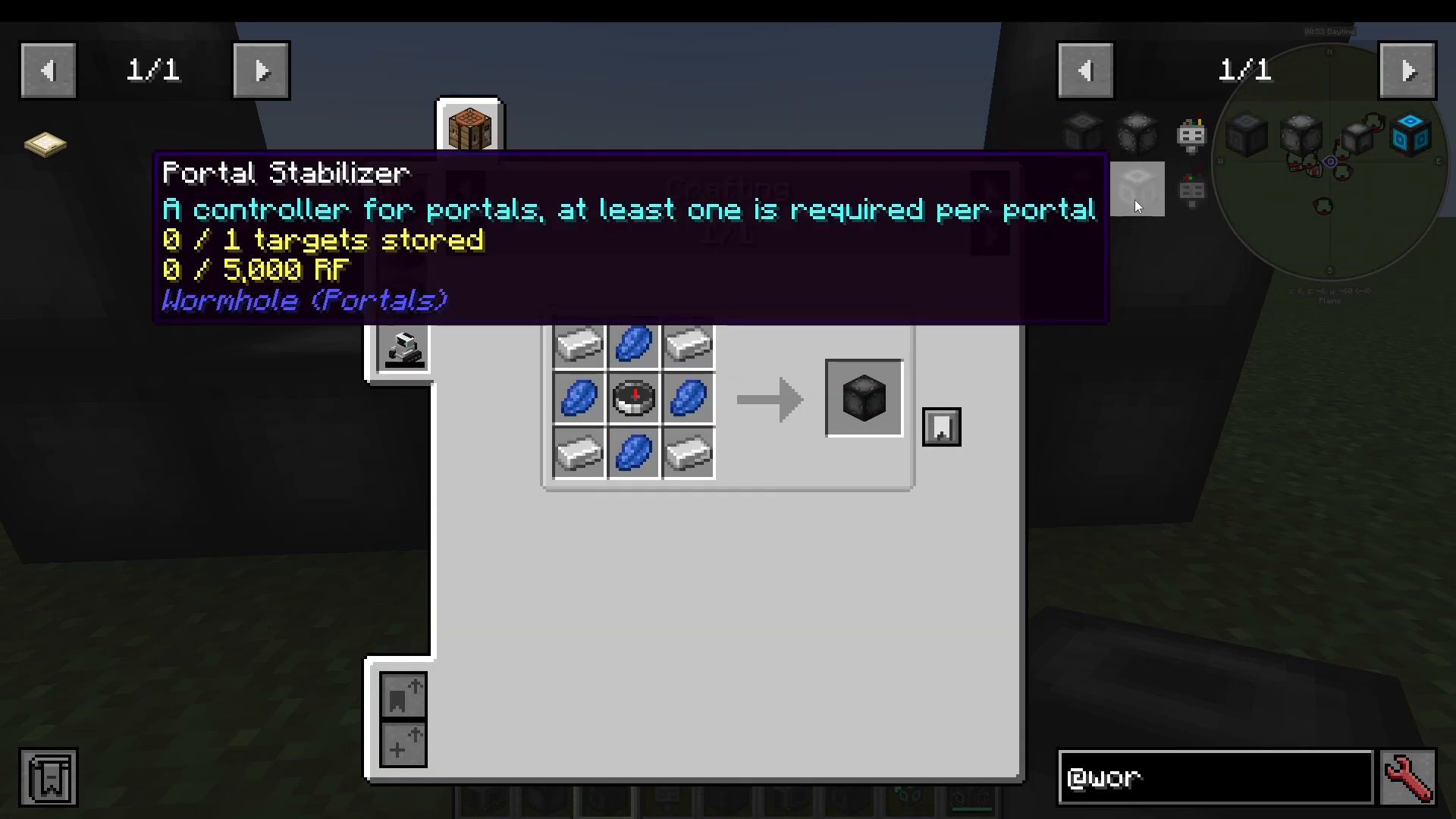
The Portal Stabilizer
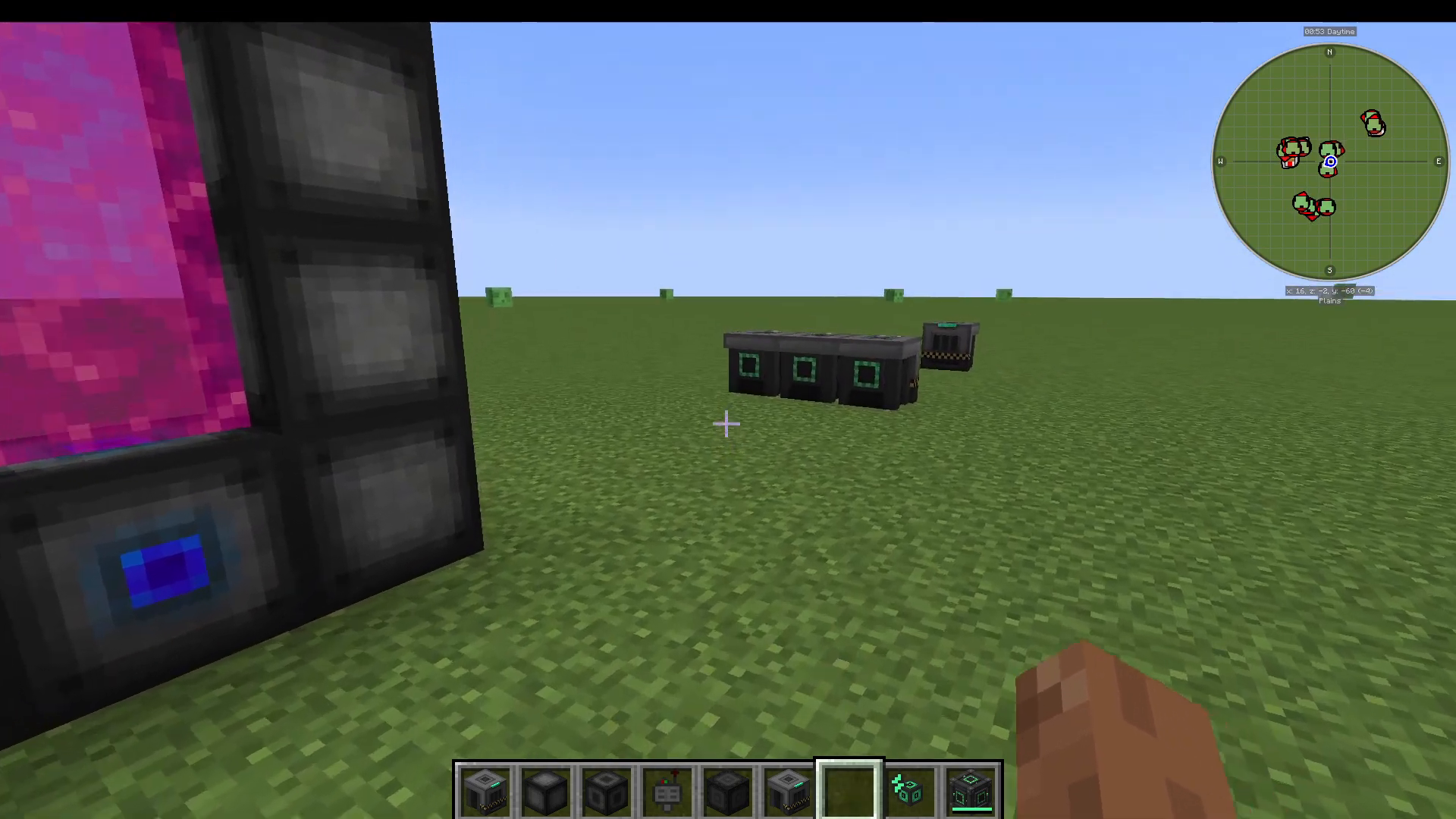
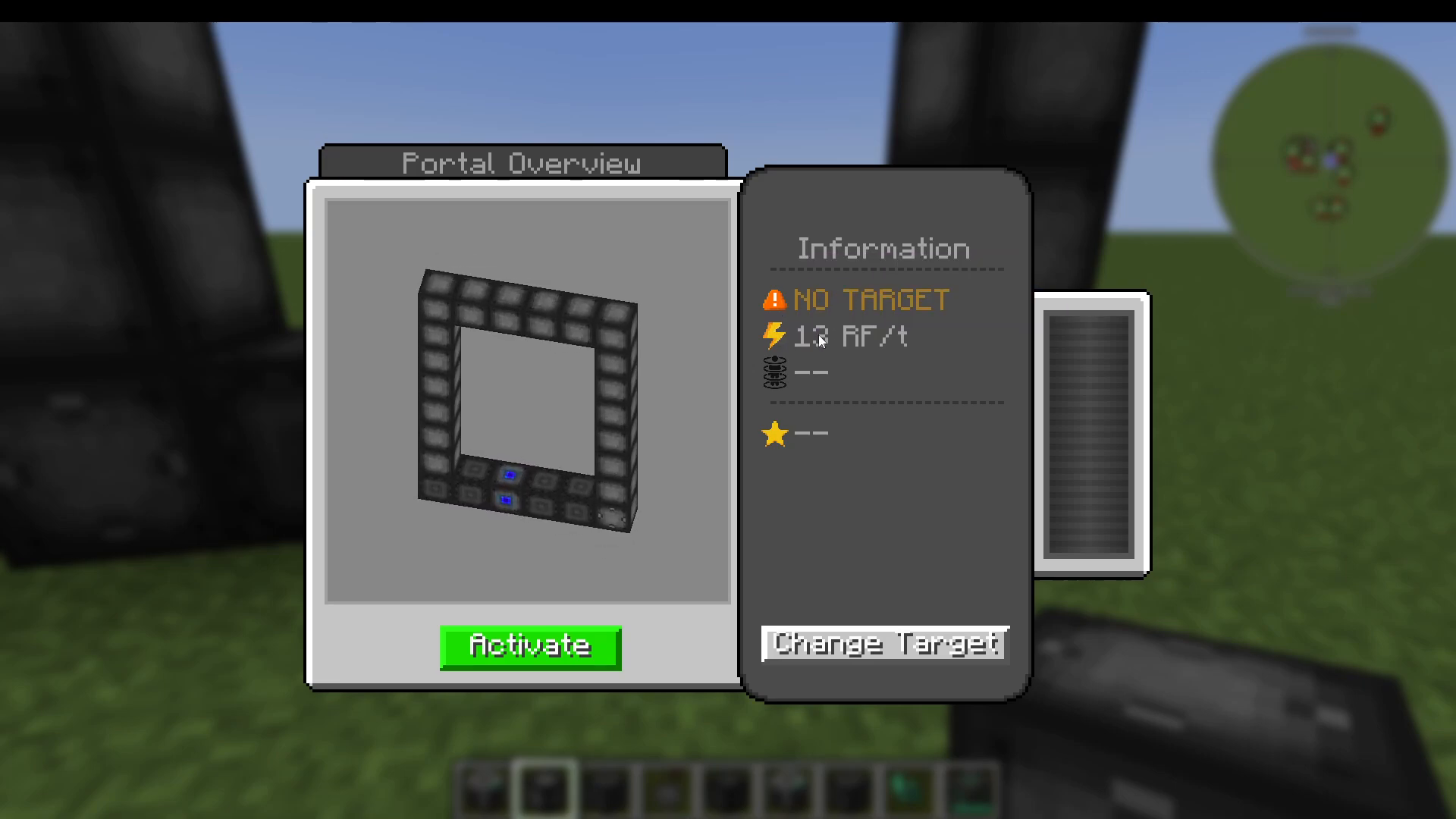
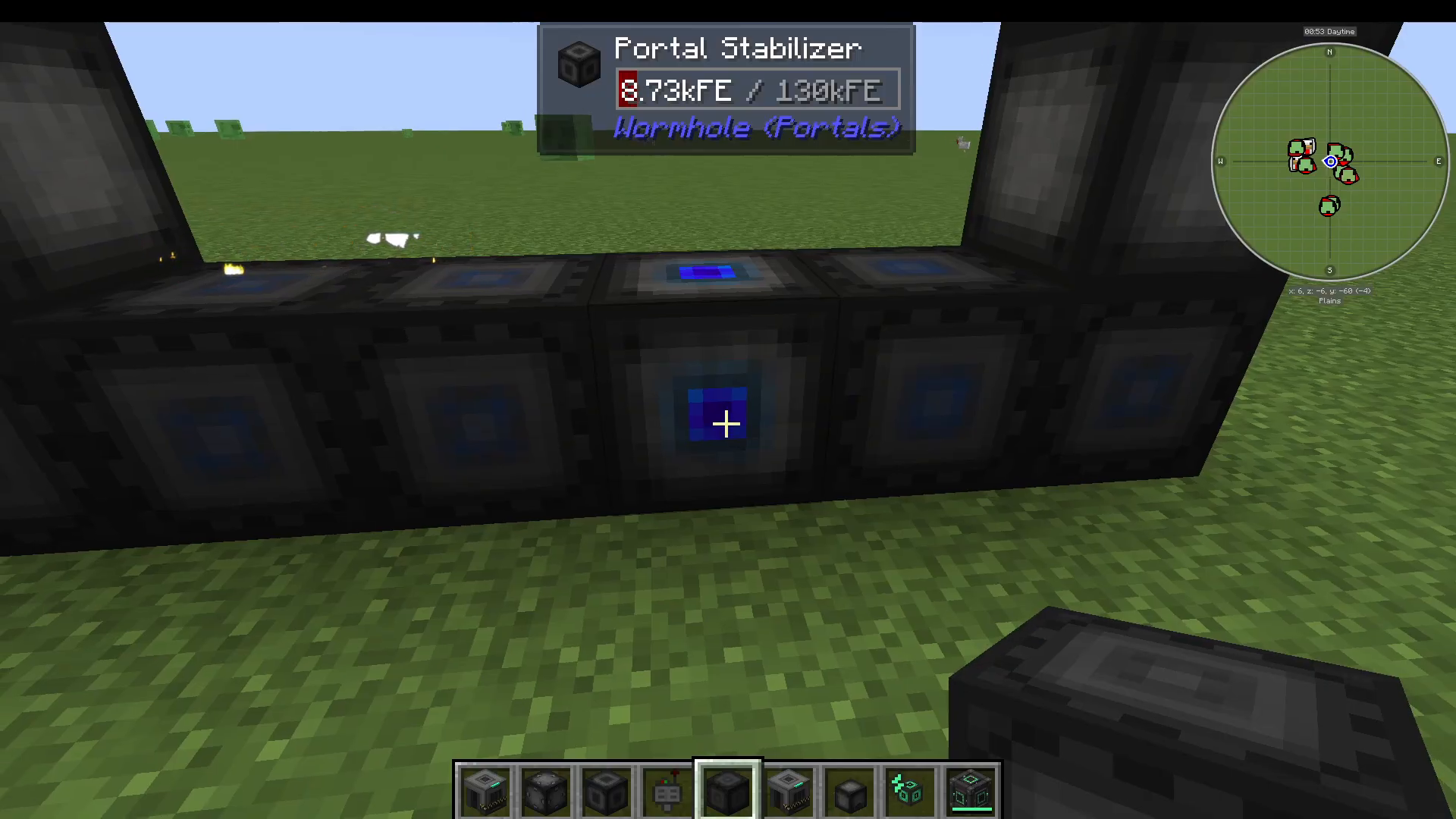
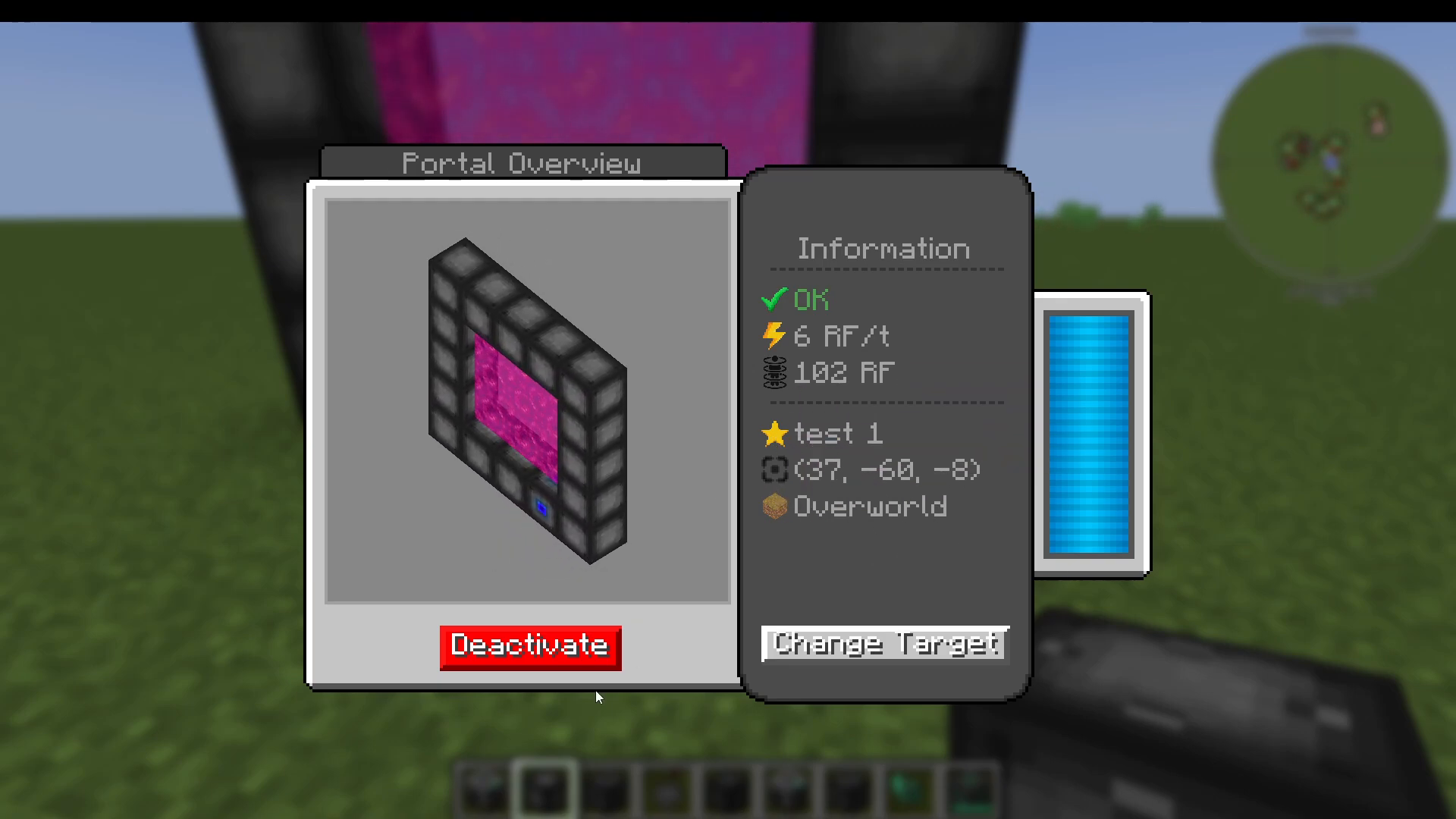
The portal stabilizer is the heart of your portal. Place it within your portal frame and right-click it to activate and stabilize the portal. Once activated, right-clicking the stabilizer opens an overview panel showing the portal’s current energy level, target destinations, idle energy cost, and teleport energy cost. By default, a basic stabilizer holds 5,000 RF and supports one target destination.
Expanding Energy Capacity
Longer teleportation distances consume more energy, so you may need to increase your portal’s energy capacity. You can do this by replacing standard frame blocks with energy cell blocks. There are two types:
Basic Energy Cell: Adds 10,000 RF to the portal’s maximum capacity.
Advanced Energy Cell: Adds 25,000 RF to the portal’s maximum capacity.
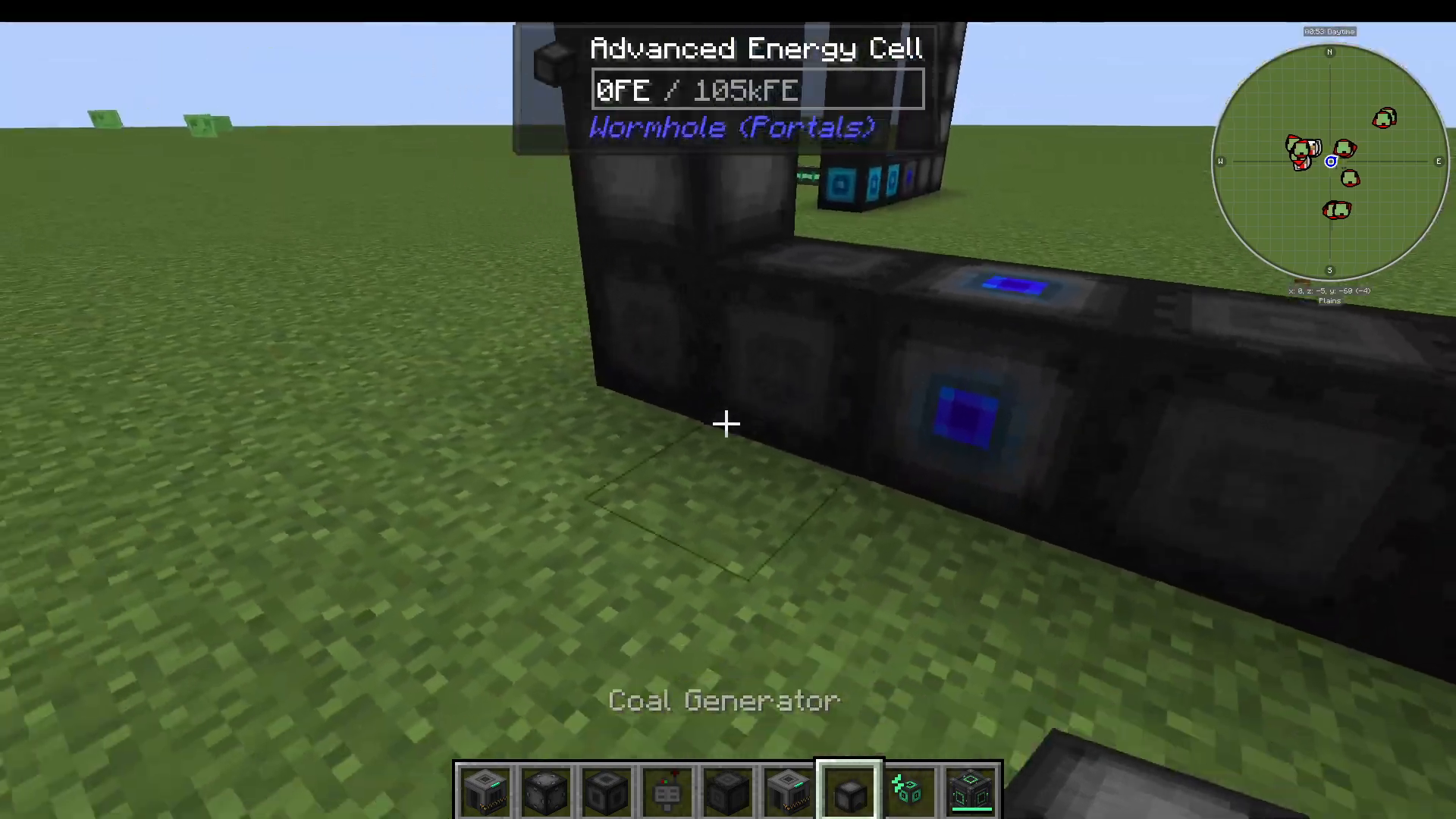
To upgrade your portal’s energy storage, simply swap out frame blocks for energy cells and right-click the stabilizer again to see the updated capacity. For example, replacing two frame blocks with advanced energy cells brings the total capacity to 55,000 RF. Adding more cells can push this to 105,000 RF or beyond.
Expanding Target (Destination) Capacity
By default, the portal stabilizer can store only one destination. To add more destinations, replace frame blocks with target cell blocks. There are two types:
Basic Target Cell: Stores 4 targets, bringing the total to 5 destinations when combined with the stabilizer’s default slot.
Advanced Target Cell: Stores even more destinations at once.
After inserting a target cell into the frame, right-click the stabilizer to confirm the updated target count. The interface will display how many target slots are now available.
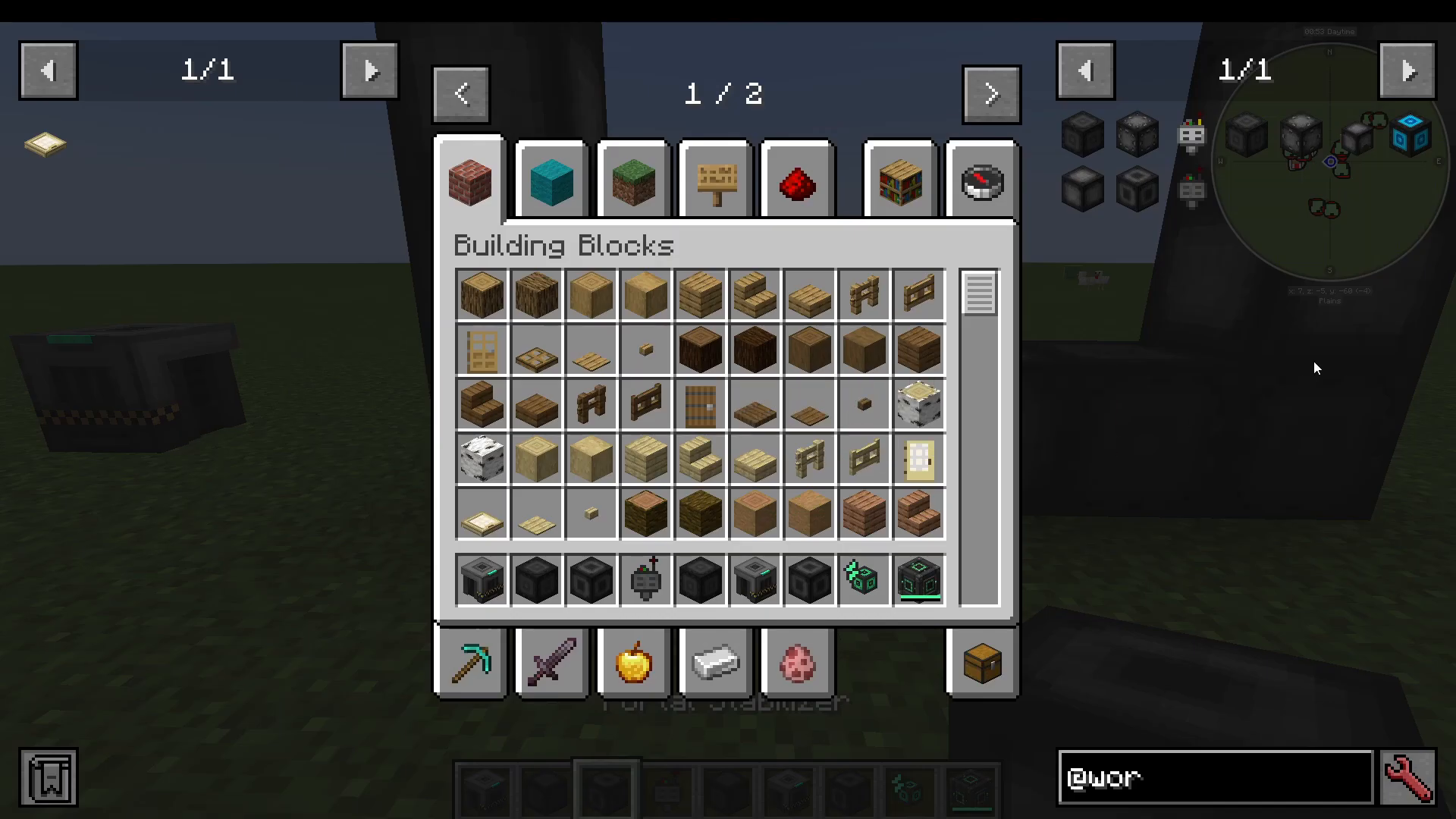
Understanding Energy Costs
Your portal consumes energy in two ways:
Idle Energy Cost: The portal uses a small amount of RF simply to remain active. A typical portal costs around 13 RF per tick at idle, though this can vary (some configurations show as low as 6 RF per tick).
Teleport Energy Cost: Each time a player teleports through the portal, additional RF is consumed. A short-range portal, for example, may cost around 102 RF per teleport.
How to Power Your Wormhole Portal
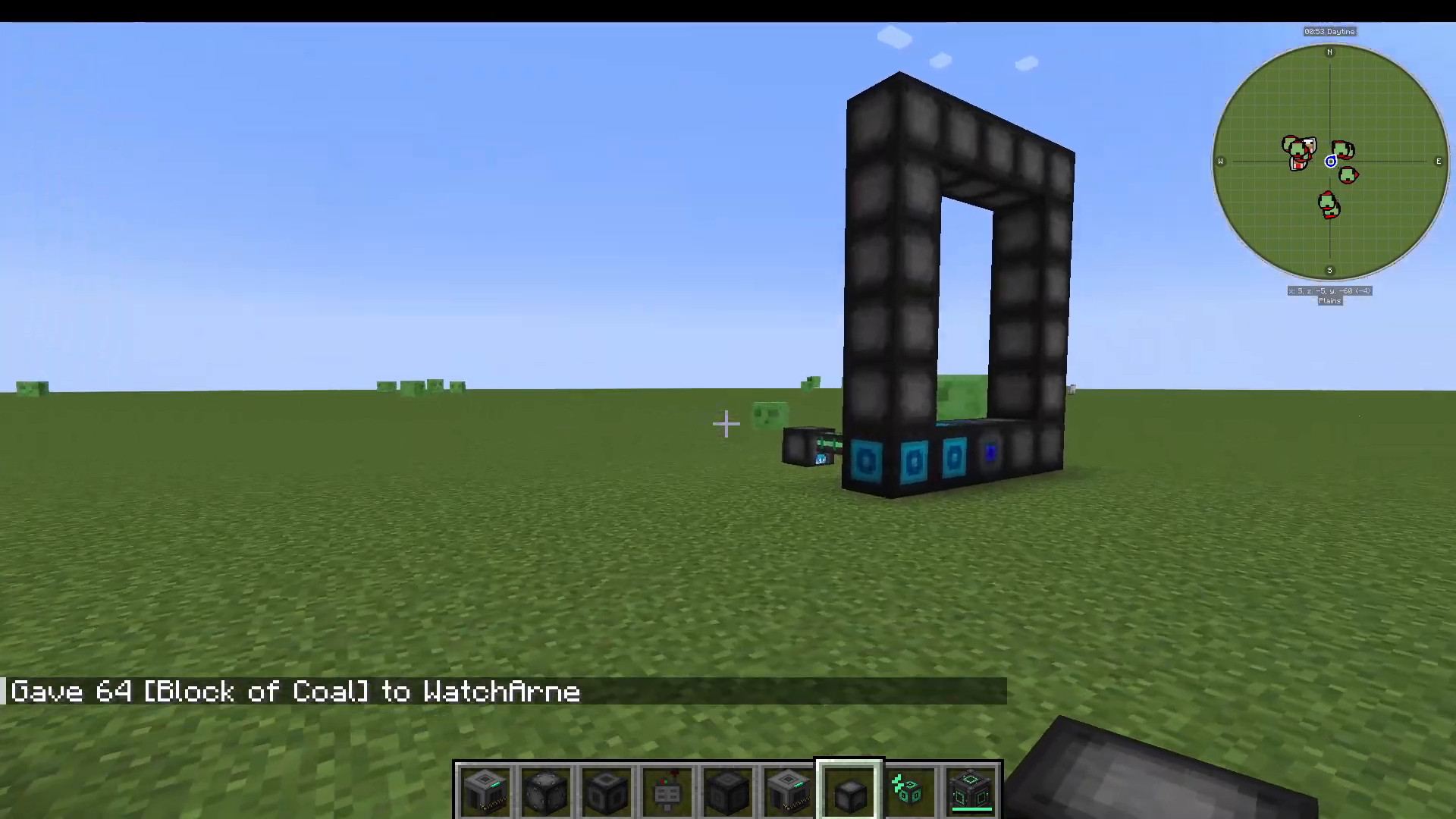
The Wormhole Portals mod accepts energy from any compatible power source. If you are playing with only this mod installed, you can use the included Coal Generator. Place it next to your portal, fill it with coal, and it will begin feeding energy into the portal. However, the coal generator is limited — it only produces 10 RF per tick, which is quite slow.
For a much more efficient setup, use a dedicated power mod such as Mekanism or another energy generation mod included in your mod pack. These will supply energy far faster and more reliably than the built-in coal generator. The coal generator exists mainly to ensure there is always at least one way to generate power within the mod itself.
Setting Up Portal Destinations (Targets)
Using the Target Definition Device
To define where your portal will send you, you need a Target Definition Device. There is also an Advanced Target Definition Device available, which can store and define multiple targets at once. Hold the device in your hand and either right-click or shift-right-click to open its interface. Enter a name for your current location in the Target Name field and press Add. The location will be saved to the device. You can walk to a different location, open the device again, name that spot, and press Add to store a second target. Targets can be removed from the device at any time by pressing Remove.
Linking Targets to a Portal Stabilizer
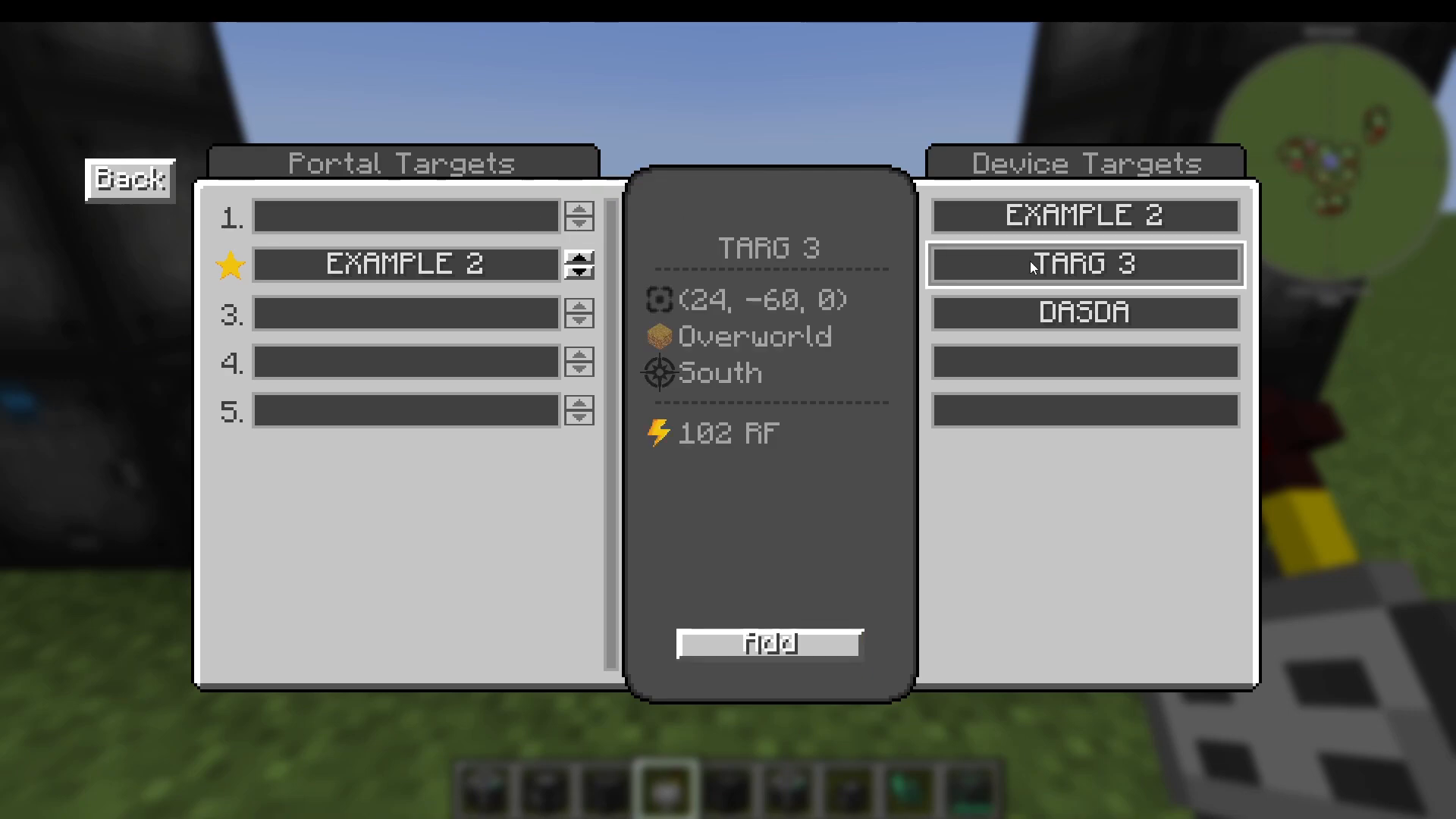
Once you have saved your destinations to the Target Definition Device, walk up to your portal stabilizer holding the device and right-click the stabilizer. The interface will show the targets stored on the device. Select the destination you want to add and press Add to link it to the portal. You can add multiple destinations and reorder them using the Move Down button. You can also remove individual targets from the stabilizer through this same interface.
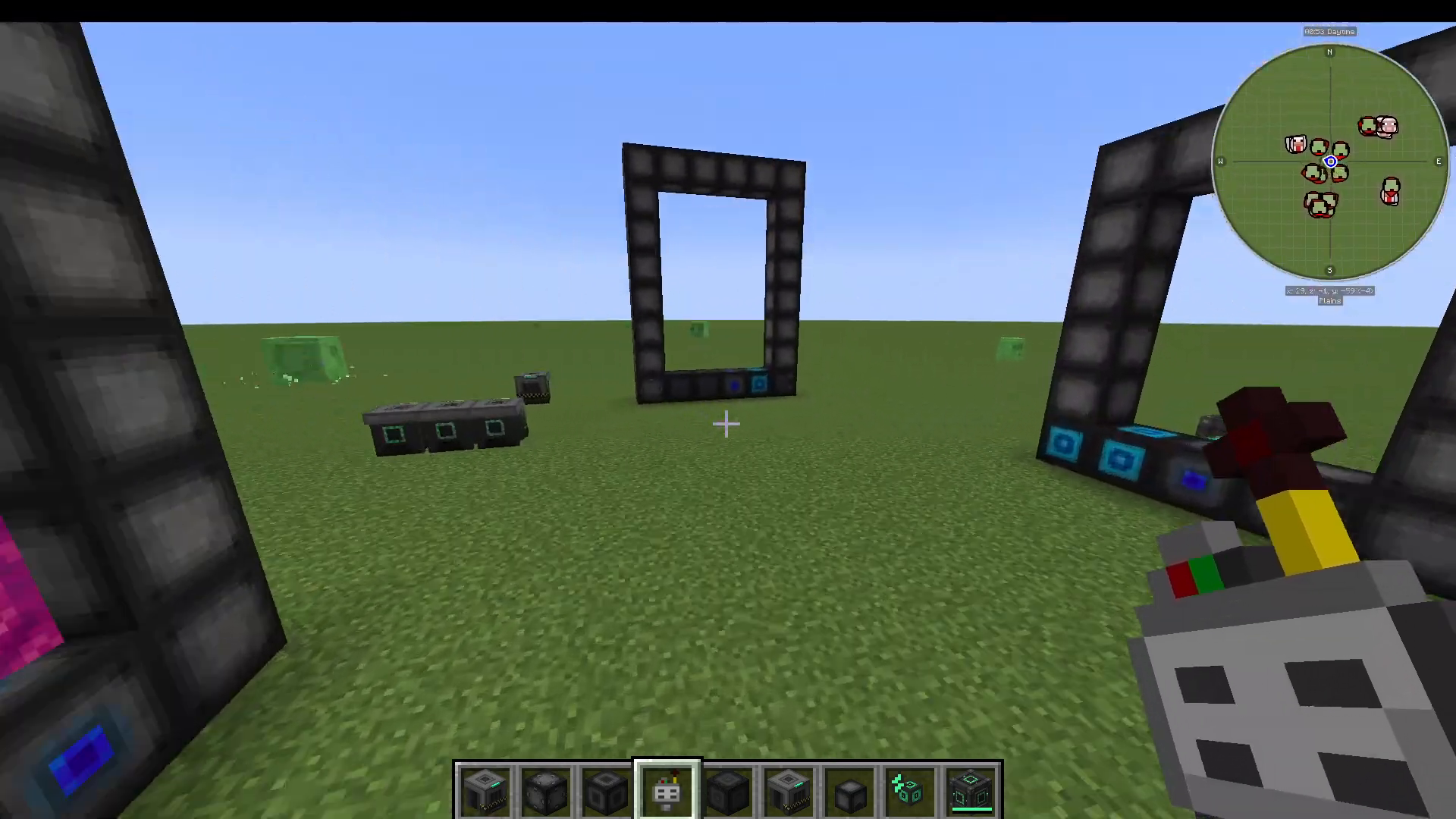
Colour-Coding Your Portals
The Wormhole Portals mod lets you assign a colour to each destination, making it easy to identify where a portal will take you at a glance. Inside the stabilizer interface, click the colour selector button to cycle through available colours (for example, yellow or green). This is especially useful when managing a network of multiple portals. Once you have set your colours, press Back and then Activate to apply the changes.
Changing the Active Target and Teleporting
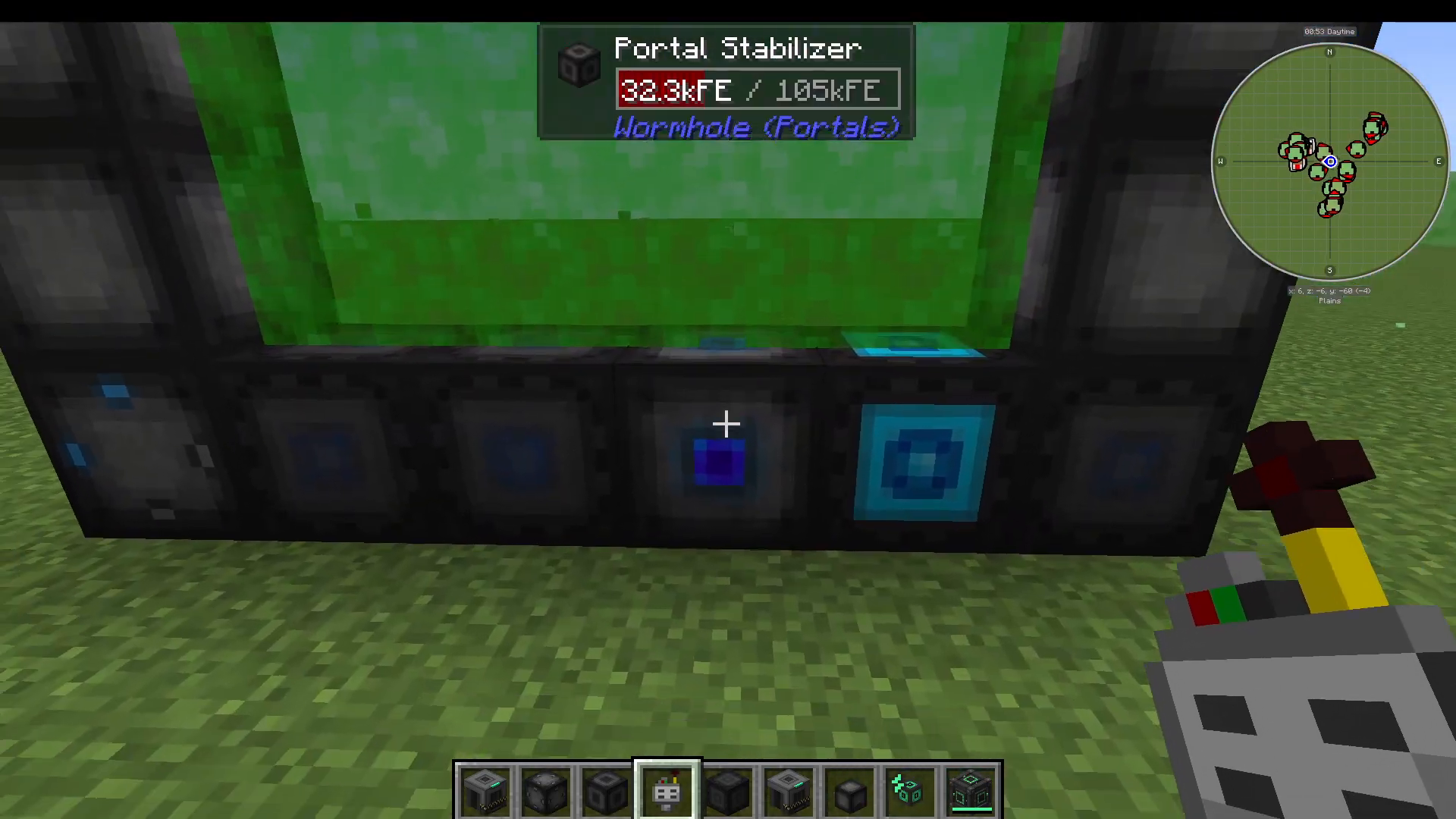
To change which destination your portal is currently linked to, right-click the stabilizer, press Change Target, and select the destination you want from the list. The portal will update its colour to reflect the selected target. To teleport, simply walk through the portal. It’s that straightforward.
Activating and Deactivating Your Portal
From within the stabilizer interface, you can press Deactivate to completely shut down the portal, stopping all energy consumption. Press Activate to bring it back online. This is useful for conserving energy when a portal is not in regular use.
Summary
The Wormhole Portals mod is a clean, well-designed teleportation mod for Minecraft that works across all dimensions. Here is a quick recap of the key steps:
Build a portal frame of any size using vanilla materials.
Place a portal stabilizer in the frame and right-click to activate it.
Replace frame blocks with energy cells to increase RF capacity.
Replace frame blocks with target cells to support more destinations.
Power the portal using a coal generator (basic) or a mod like Mekanism (recommended).
Use a Target Definition Device to save locations and link them to your stabilizer.
Colour-code your destinations for easy navigation.
Walk through the portal to teleport.
With just a few basic ingredients and a power source, you can build a fully functional inter-dimensional portal network in Minecraft. Give it a try and start connecting your world!
“`