







How To Use Power Monitors In EnderIO
How To Use Power Monitors In EnderIO
Power monitors in EnderIO are essential tools for managing and monitoring your mod’s power grid. Whether you’re running a complex energy network or a simple power system, understanding how to use both the standard power monitor and the graphical power monitor will help you optimize your setup and prevent power shortages. This guide walks you through everything you need to know.
Overview of Power Monitors
EnderIO offers two different types of power monitors you can craft and use:
The standard Power Monitor
The Graphical Power Monitor
Both monitors function similarly and attach themselves to your power grid when placed. In this guide, we’re using a creative capacitor bank as our power source for demonstration purposes.
Understanding the Standard Power Monitor Display
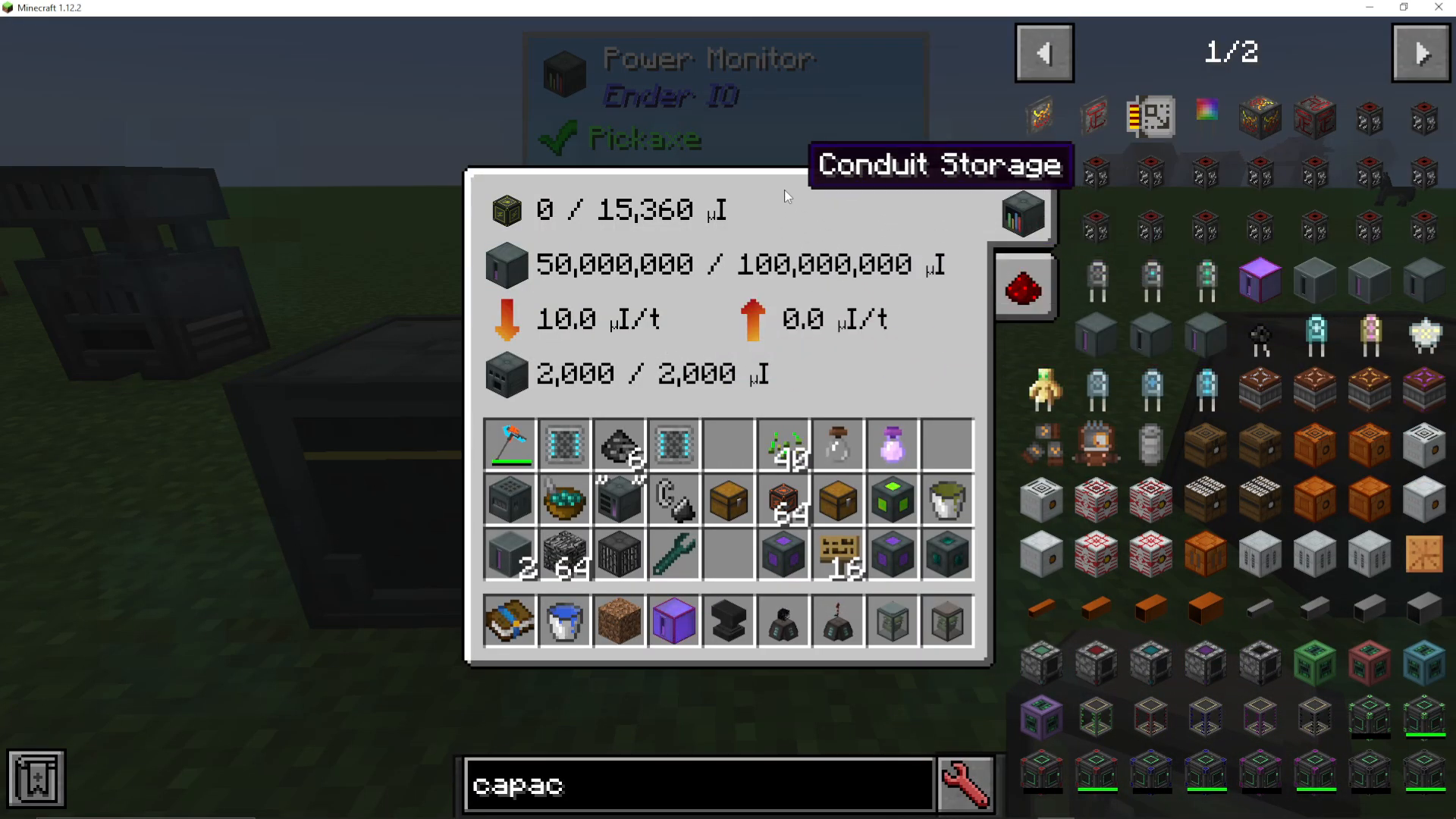
Conduit Storage
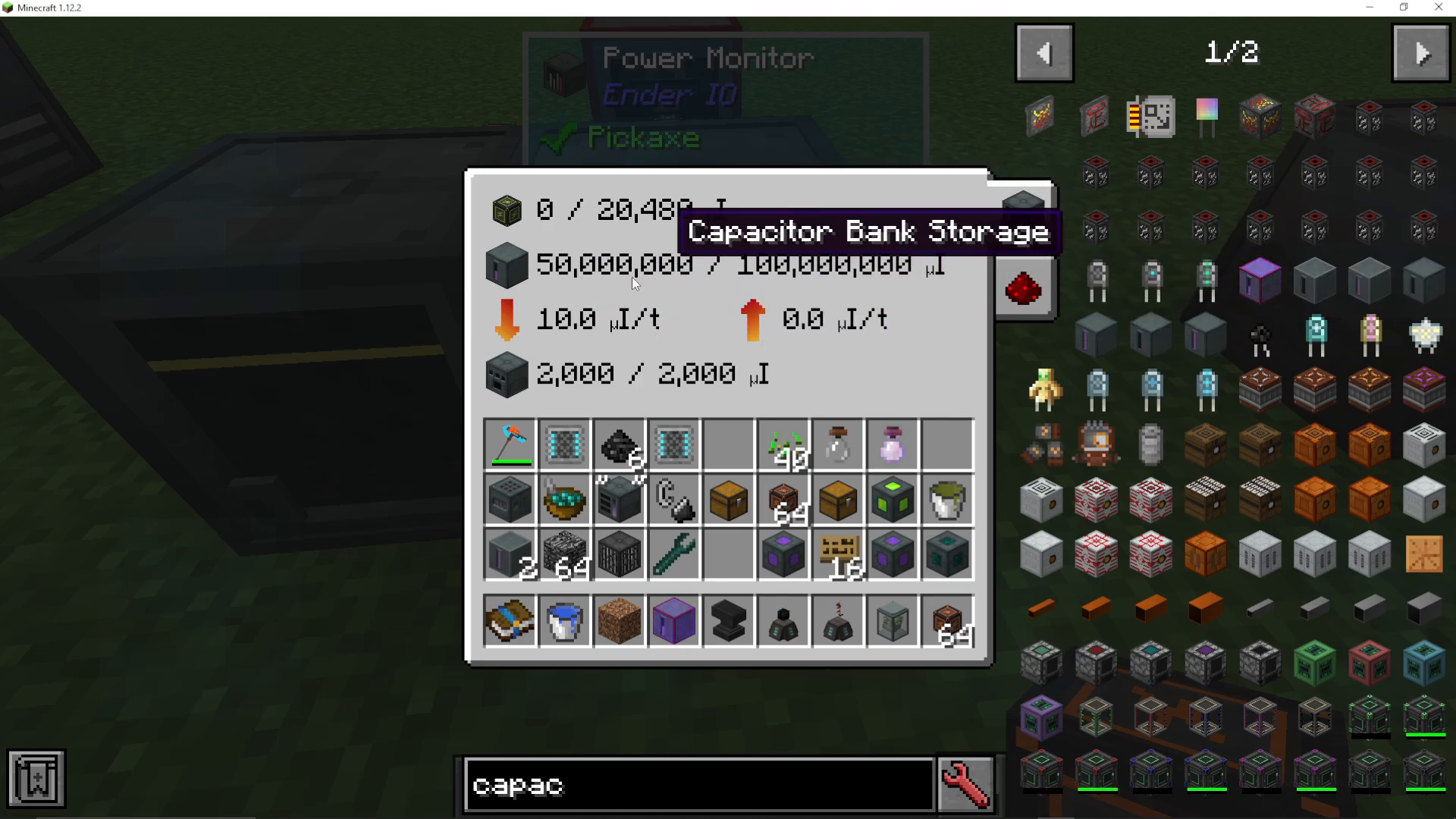
The top line on the power monitor shows Conduit Storage, which displays how much power is currently stored within the conduits themselves in the attached network. In this example, there is no power stored in the connected conduits.
Capacitor Bank Storage
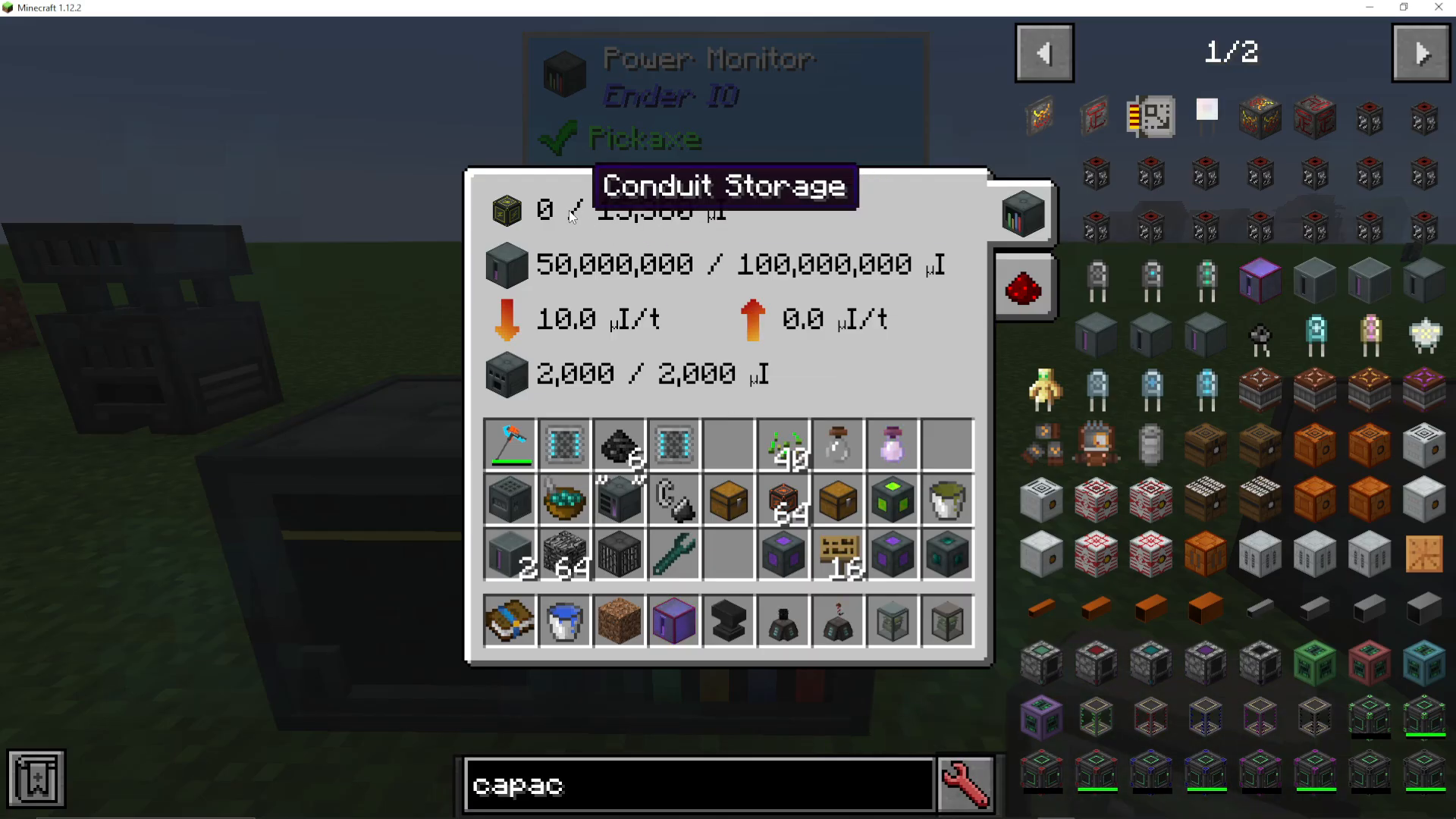
The next reading shows how much power is stored in connected capacitor banks. In our setup, we can see 50 million out of 100 million RF is currently stored. When you add additional capacitor banks to the network, this number increases proportionally. For example, adding a second capacitor bank doubles the value to 100,000 out of 200,000. Removing a capacitor bank halves the stored amount.
Power Flow Averages
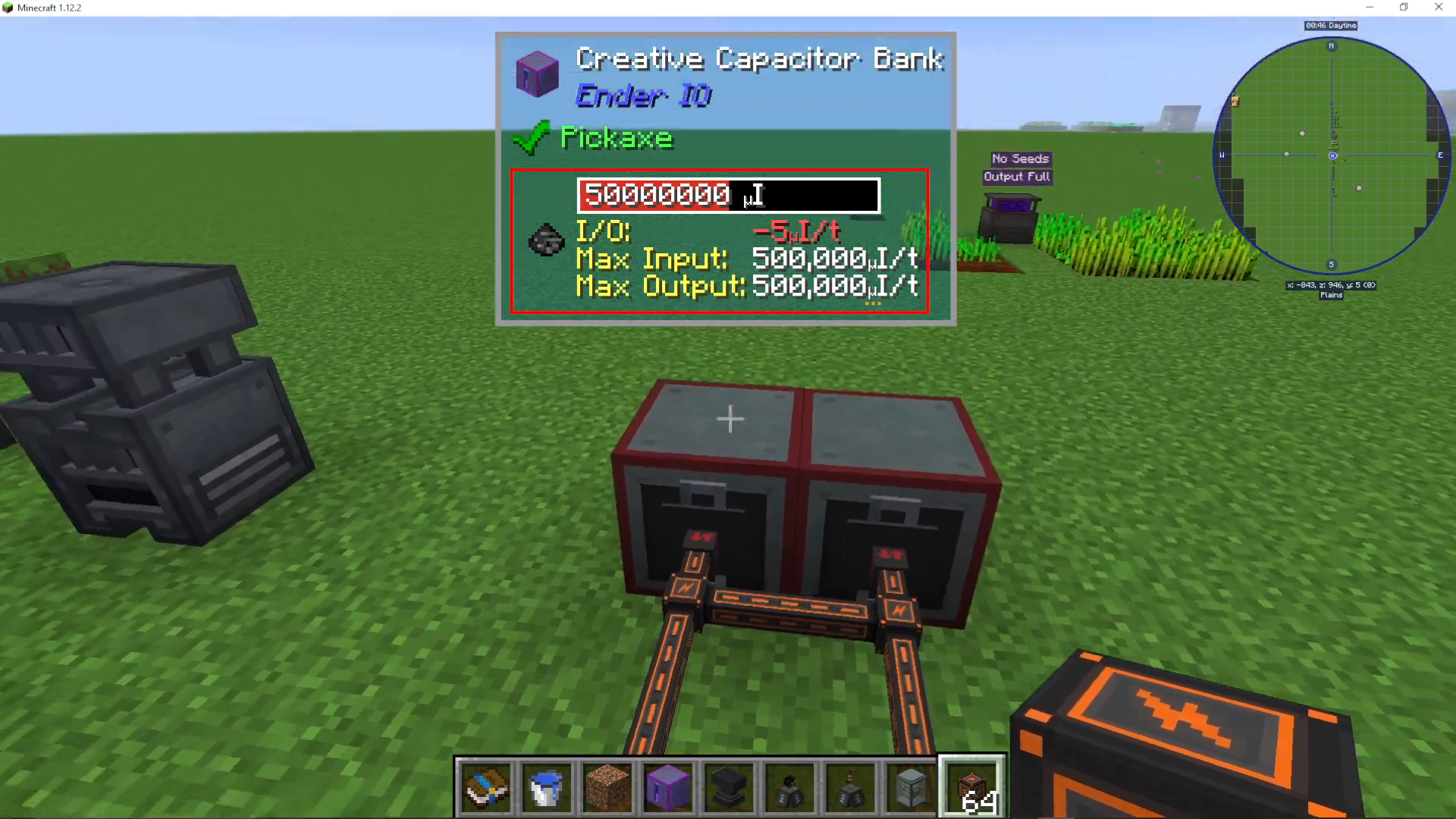
The power monitor tracks the average power flow over the last five seconds, showing both how much power has been output from and input into the network. In a tutorial environment with no active machines, this will typically show zero.
Machine Buffers
The Machine Buffers reading displays power stored in connected machines on the network. This shows as 2000 out of 2000 in our example, representing the energy buffer capacity of devices connected to the power grid.
Redstone Signaling with Power Monitors
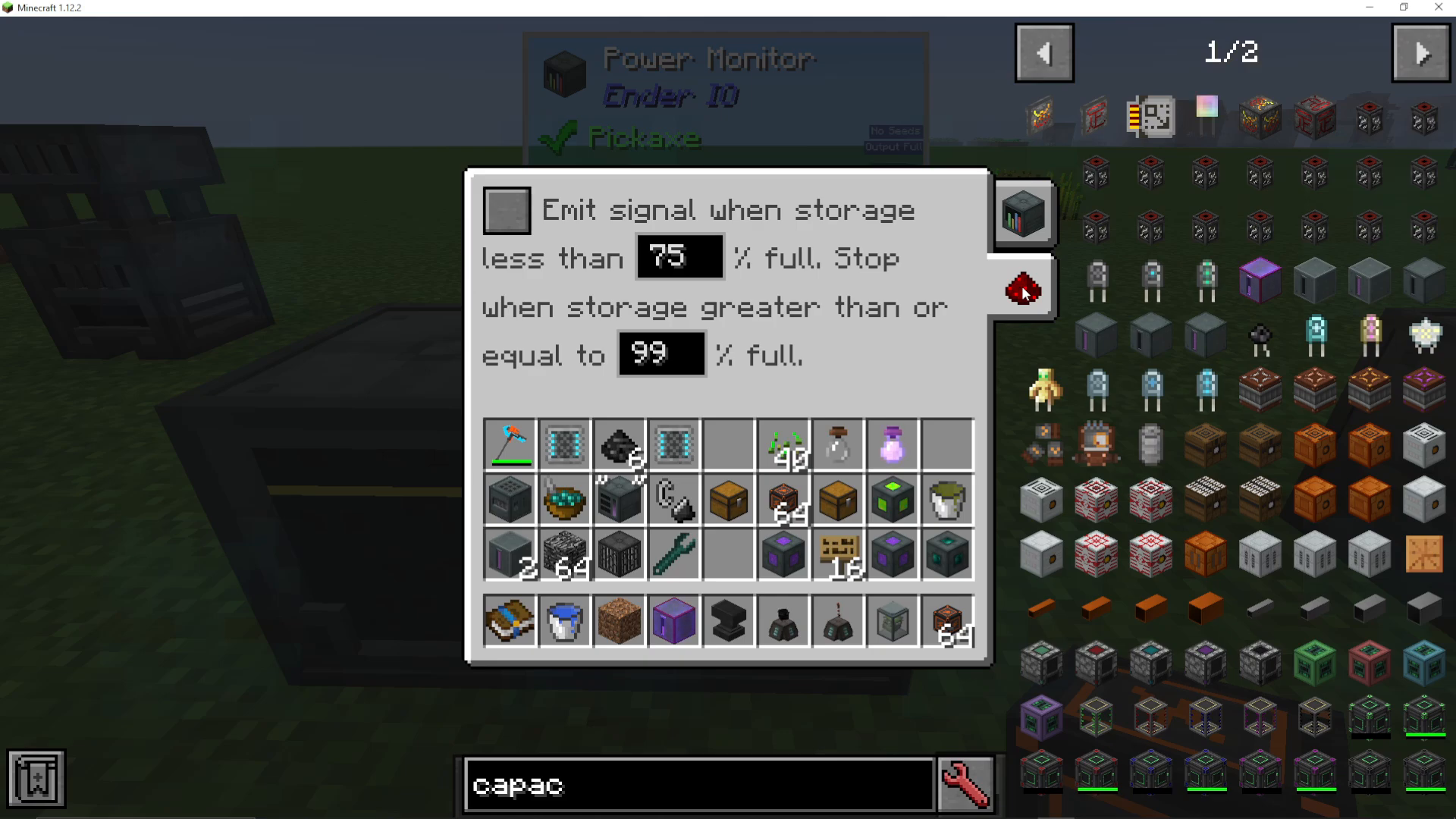
One of the most powerful features of power monitors is the ability to emit redstone signals based on power storage levels. Click the tab marked with a redstone icon to access these settings.
Signal Configuration
You can configure the power monitor to:
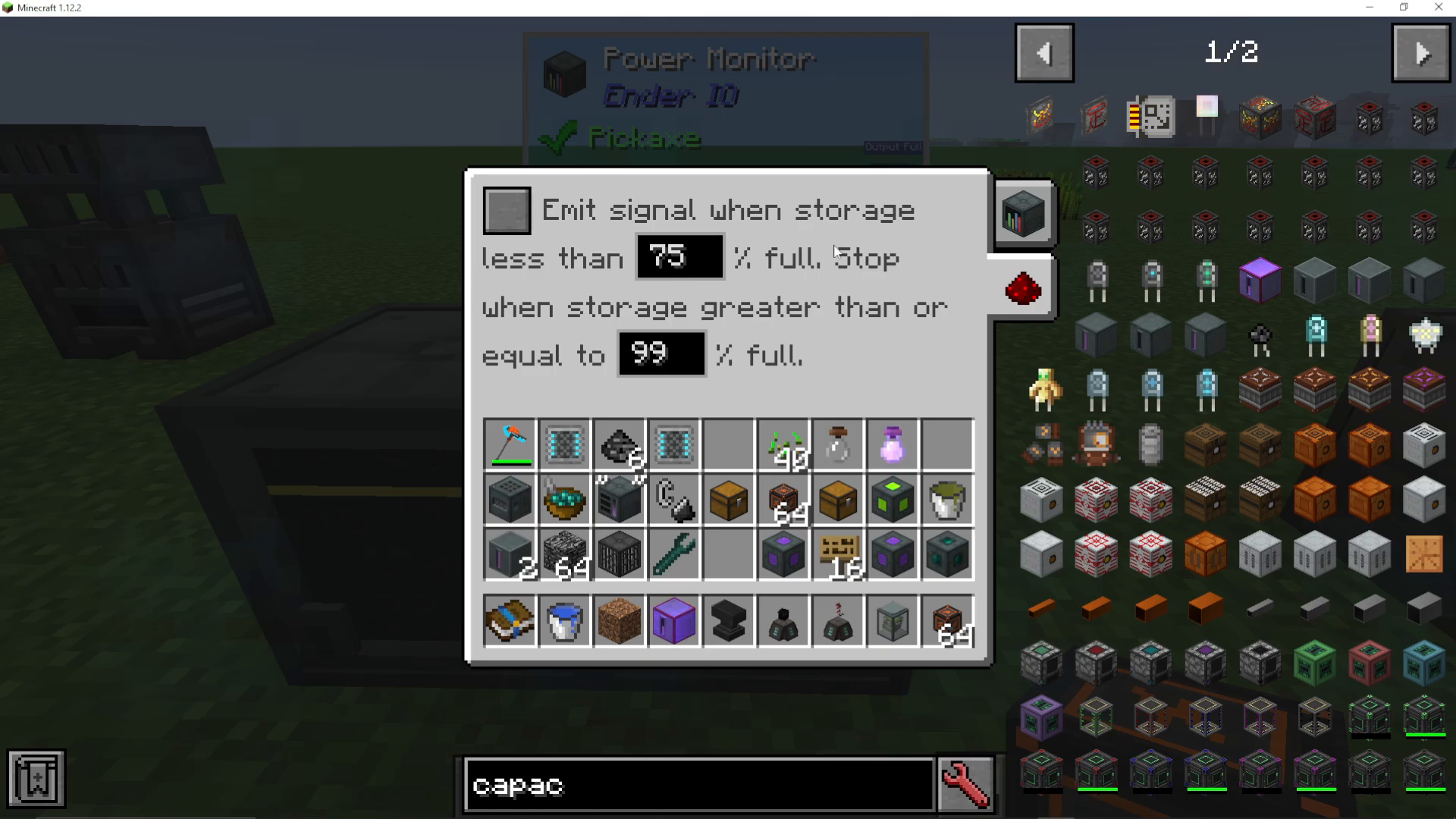
Emit a signal when storage is less than 75% full – Useful for triggering power generation systems
Stop when storage is greater than or equal to 99% full – Prevents overcharging the network
Practical Applications
By connecting redstone cables and redstone capacitors from your power monitor to your machines, you can automate your power management. For example, if you have a farm generating power, you could configure the monitor to turn it off once your capacitor banks reach 75% capacity. This prevents wasting generated power and allows you to scale your generation based on actual demand.
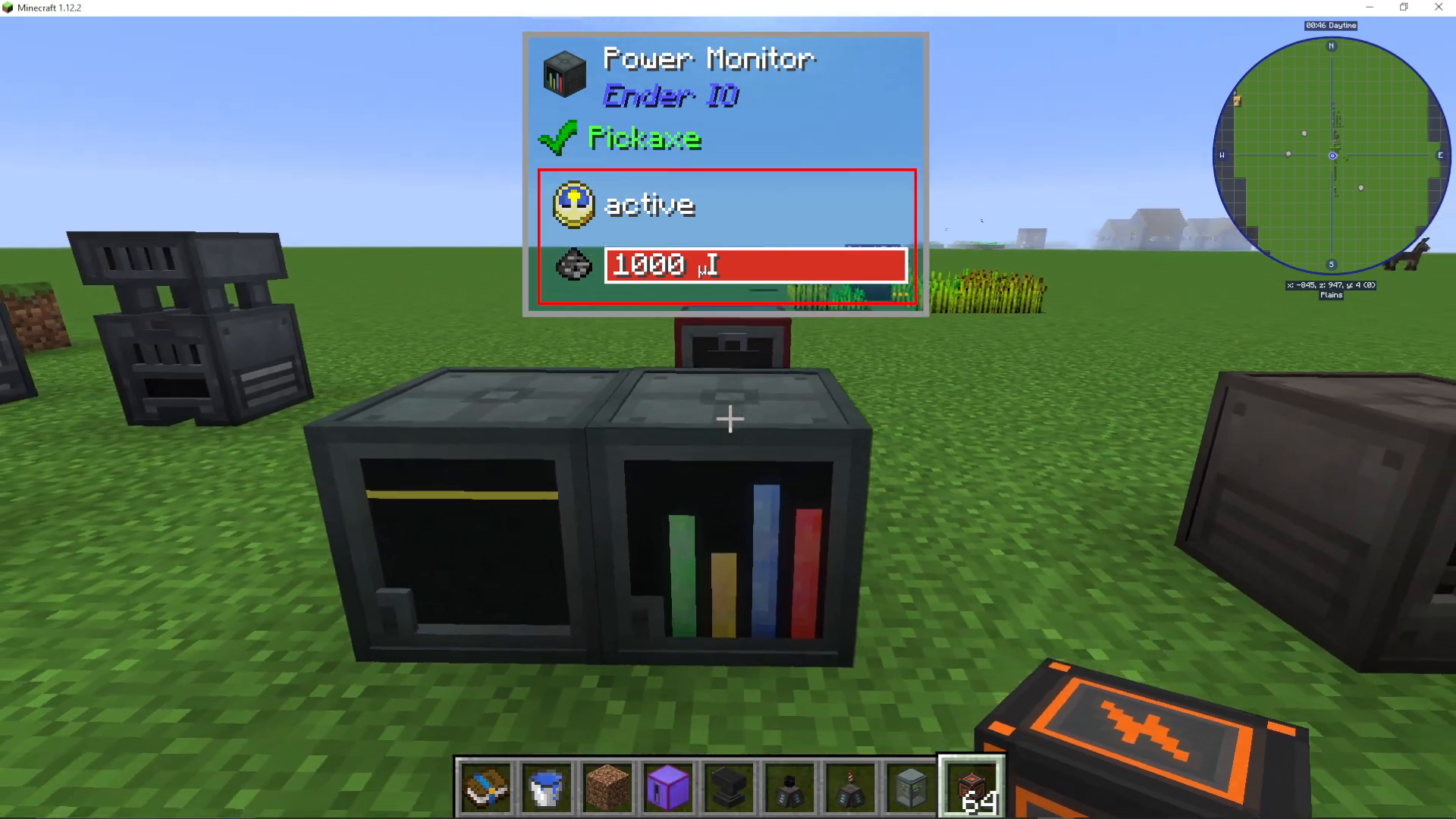
The Graphical Power Monitor
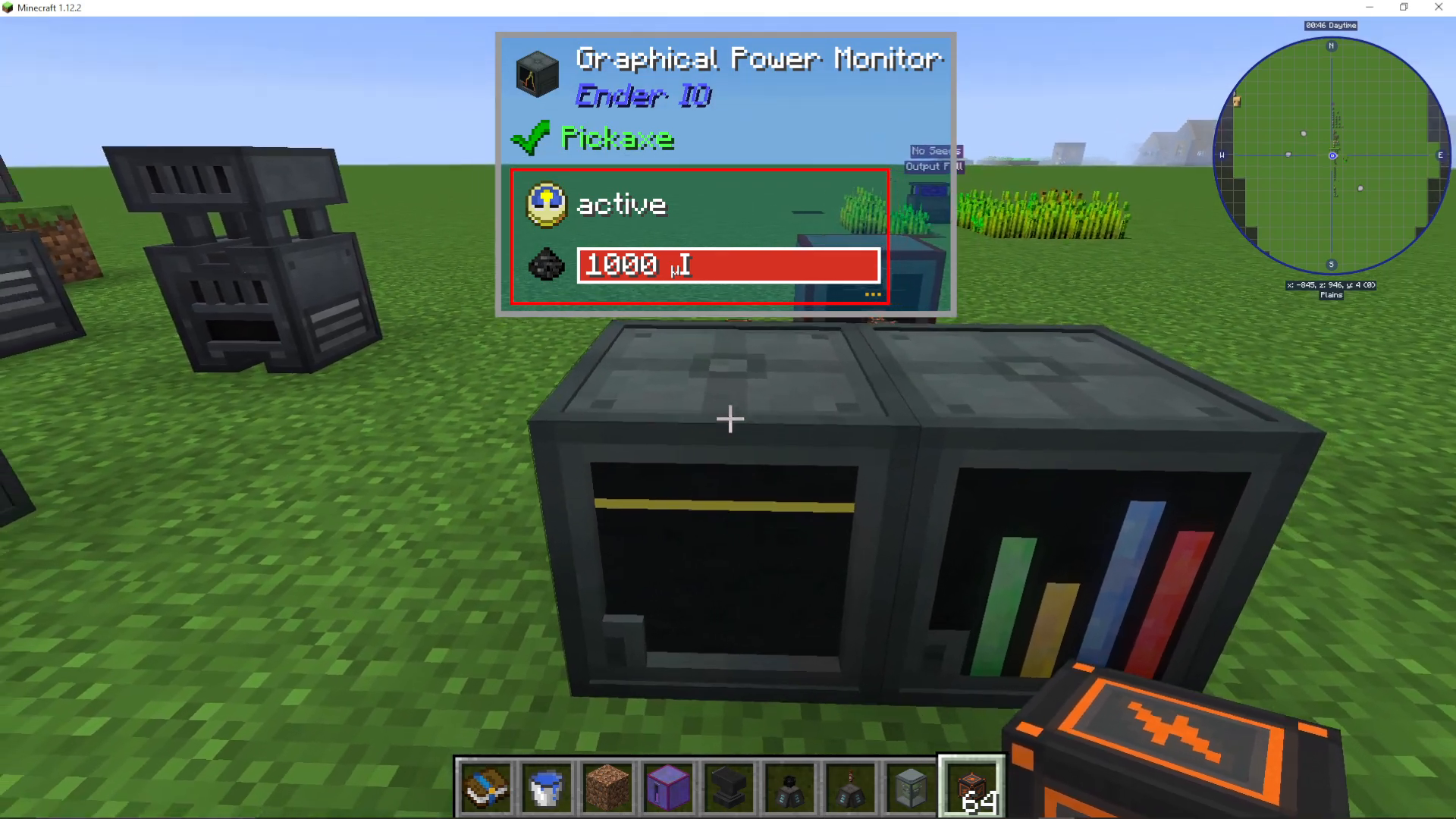
The graphical power monitor displays the same core information as the standard power monitor but presents it in a more visual format. Instead of raw numbers, it shows your power flow history as a graph over selectable time periods.
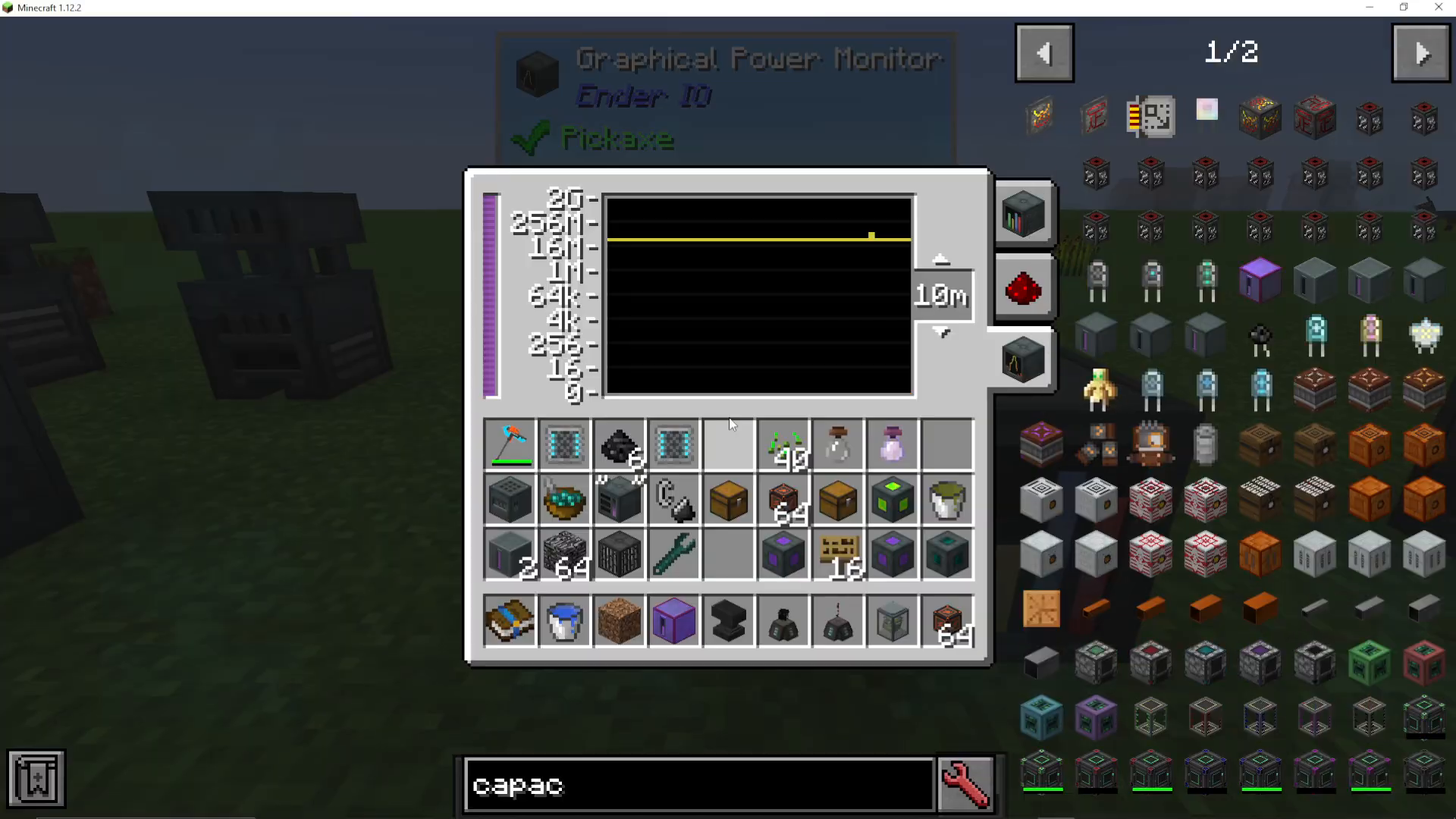
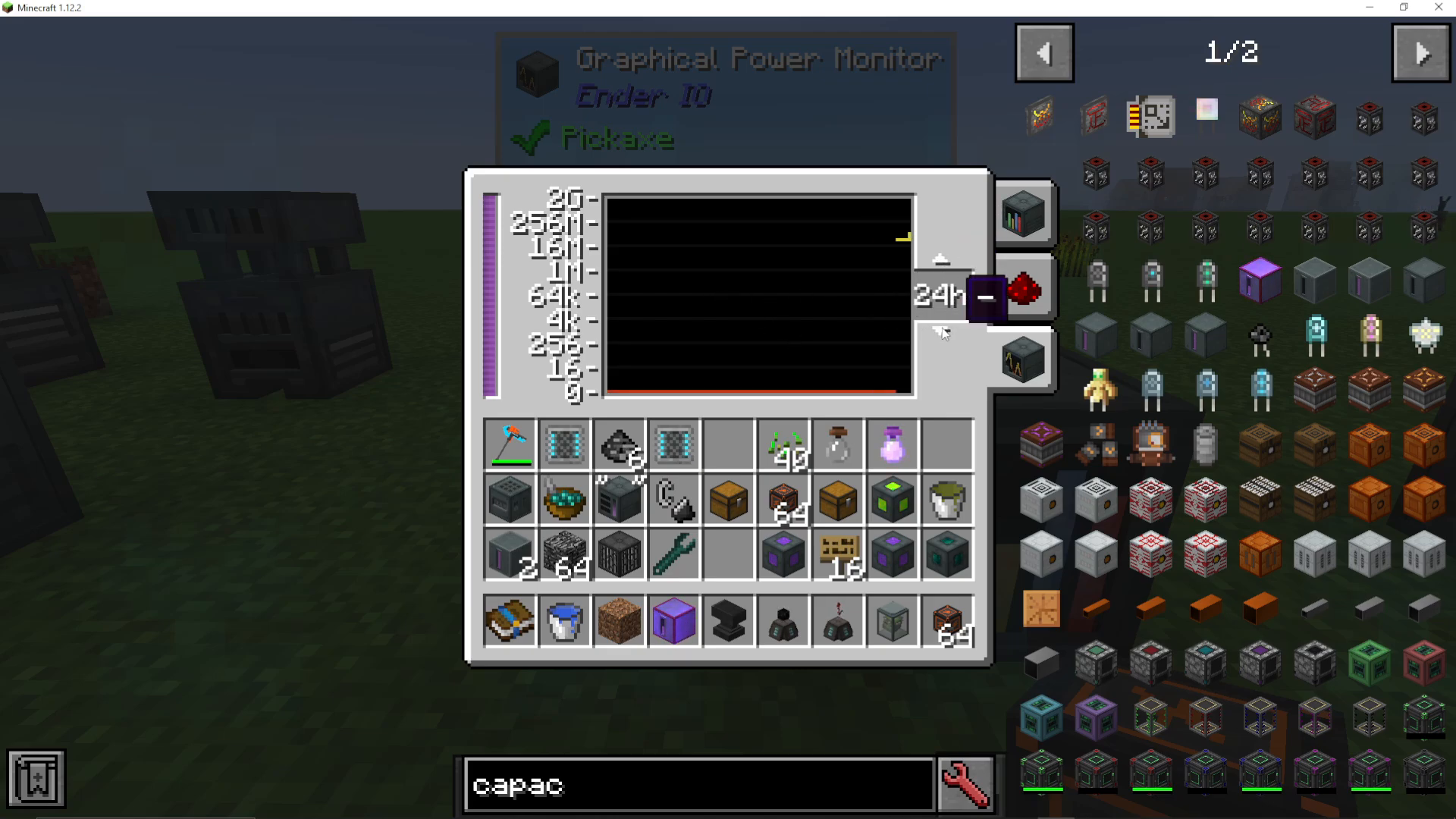
Time Scale Options
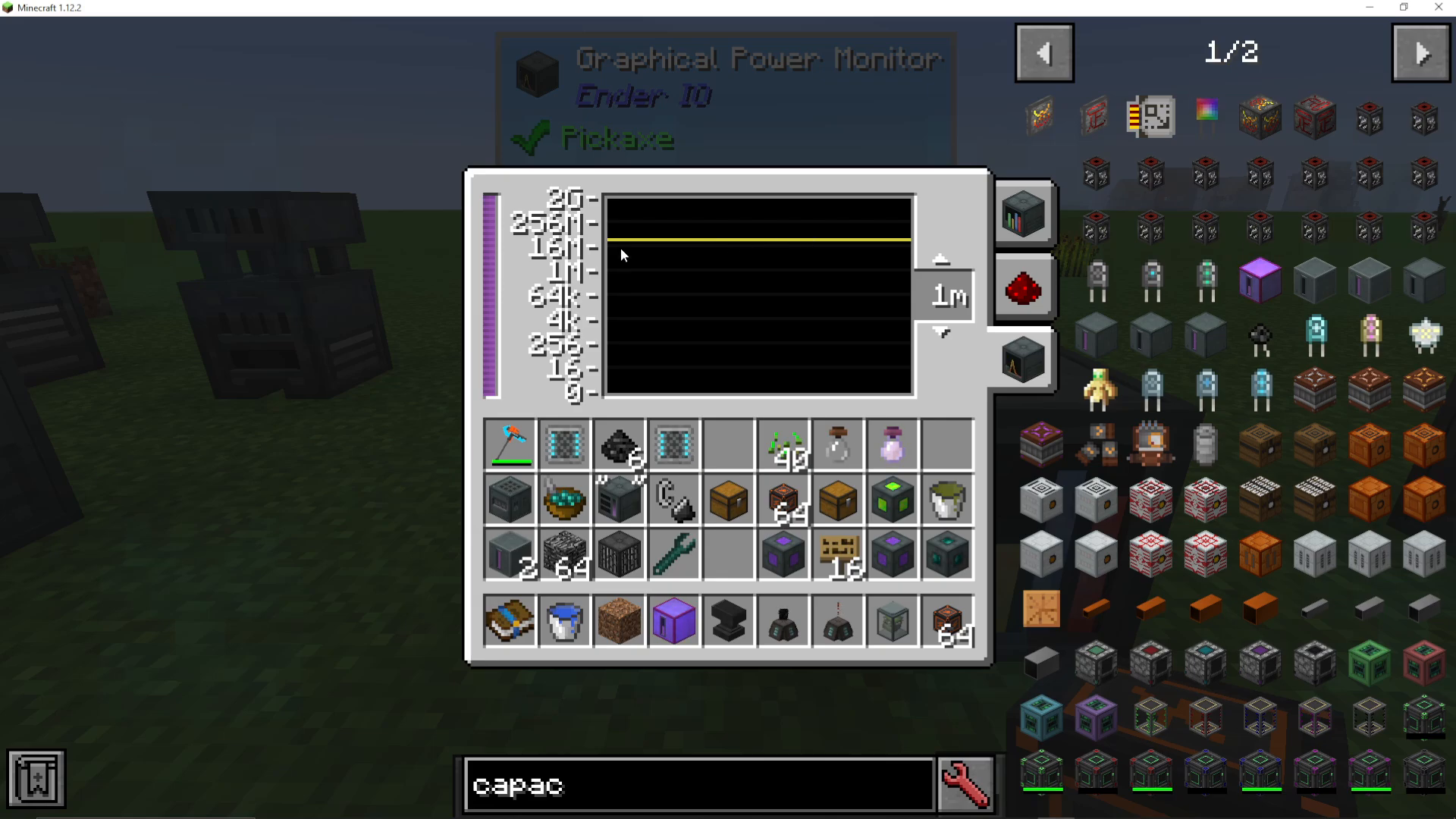
You can view your power data across different time intervals:
Last minute
Last 10 minutes
Last hour
Last 10 hours
Last 24 hours
Graph Interpretation
The graph displays power input and output over your selected time period. This visual representation makes it easy to spot patterns in your power consumption and generation at a glance. In this tutorial example with no active machines, the graph shows no activity.
Summary
Both the standard power monitor and graphical power monitor are valuable tools for managing your EnderIO power network. The standard monitor provides detailed numerical data about your power storage and flow, while the graphical monitor adds visual representation over time. The redstone signaling capabilities allow for sophisticated automation of your power generation and consumption systems. Whether you choose the standard or graphical version depends on your preference—functionally, they deliver the same information with the graphical version offering a more visually appealing presentation.
For additional EnderIO tutorials, check out our playlist and explore our channel for many other Minecraft mod guides.
— Want to Support? —
If you would like to help us continue making these guides – please consider joining our patreon here – https://www.patreon.com/c/JaviHeals
Alternatively – we host a group of MC Servers you can join here – https://discord.gg/zD7Gjt6MHF